Campus Ivy Integration
Overview
Campus Ivy is a suite of products designed to help schools manage and automate their financial aid processing. The Campus Ivy Student Export utility allows member institutions to export user data to Campus Ivy from Jenzabar SONIS. Additionally, administrators can import awards and disbursements from Campus Ivy to SONIS using the Campus Ivy Awards Import utility and the Campus Ivy Disbursements Import utility. There may be setup in the Campus Ivy software that is not detailed in this guide. Consult with Campus Ivy representatives for more details.
Setup
The following system-wide data must be in place for the Campus Ivy Student Export to function properly. Additional fields, such as Social Security Number, are required in the records of each user being exported. These fields are listed in the Fields Exported section of this page.
Semester History
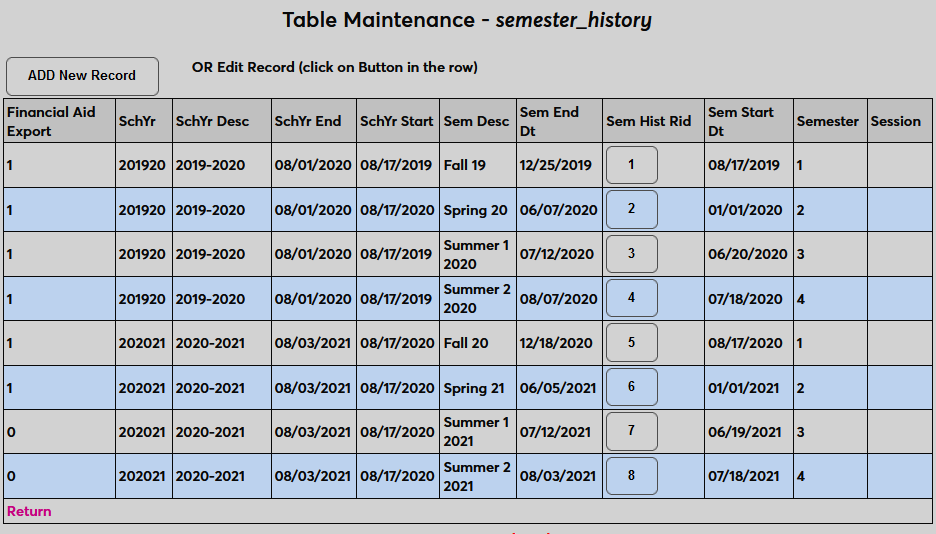
The award and disbursement files exported from Campus Ivy include a Payment Period Start Date. This date is used to identify the SONIS school year and semester by looking for a row in the Semester History table where the payment period date falls between the semester start and end date and the school year matches the School Year Description.
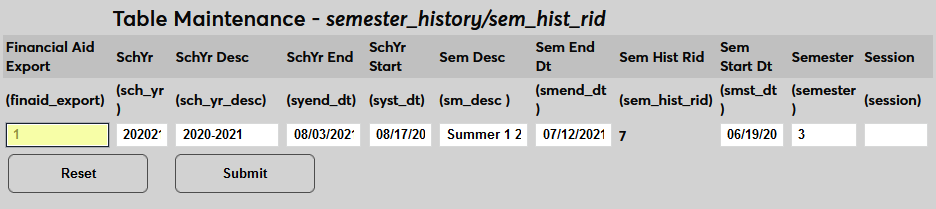
A school year/semester record must exist in for every semester in which aid will be awarded. The School Year Description must match the Award Year Description used by Campus Ivy. The Semester Start Date and Semester End Date must be entered as well. Additionally, each semester to be exported to Campus Ivy must have a 1 in the Financial Aid Export field. Any semester that will not be exported to Campus Ivy should have a 0 in the field.
Import T-codes
Awards transactions that are brought in from Campus Ivy will need to be mapped to existing t-codes. This is accomplished using the Import T-codes utility in the Systems hub. Click Add and select Campus Ivy on the next page.
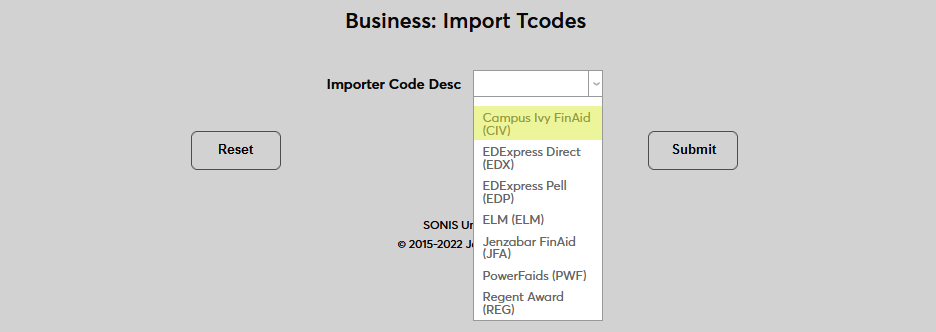
Assign each award type that will be imported from Campus Ivy to a t-code.

File Transfer
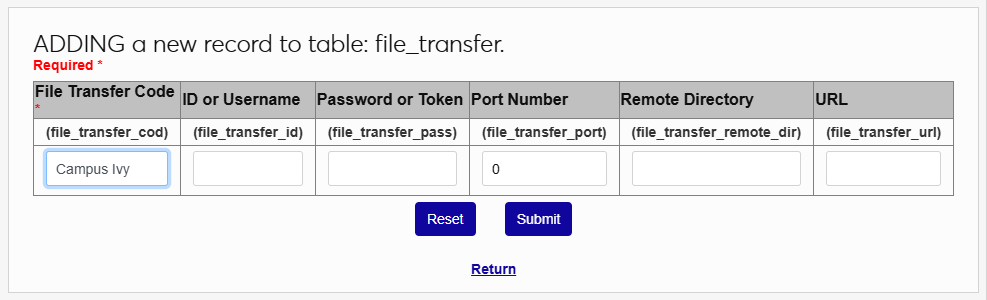
A Campus Ivy entry must be added to the File Transfer table, which can be accessed through the Table Maintenance utility. Select LMS Transfer and click Add New Record to begin.
On the following page, give the entry a descriptive name using the LMS Code field.
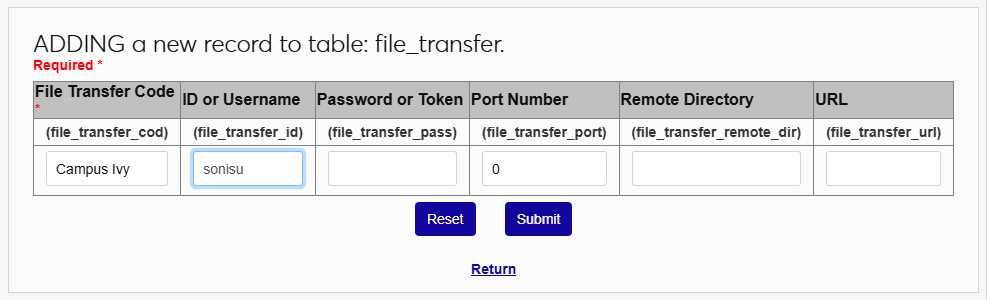
Next, enter the administrative username and password used to access Campus Ivy in the ID or Username and Password or Token fields.
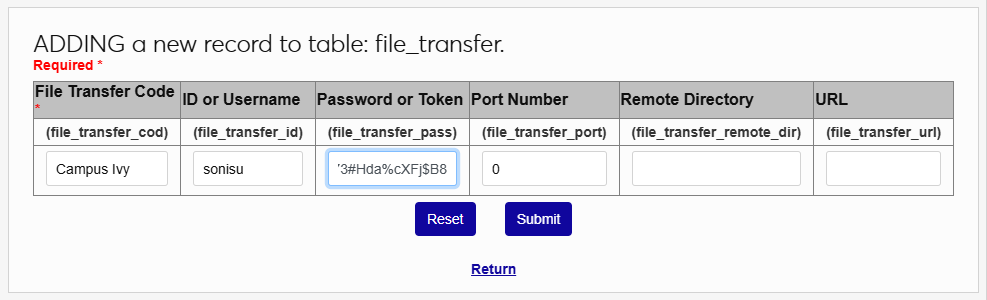
Enter 21 in the Port Number field as this is the port that is used for SFTP transfer.
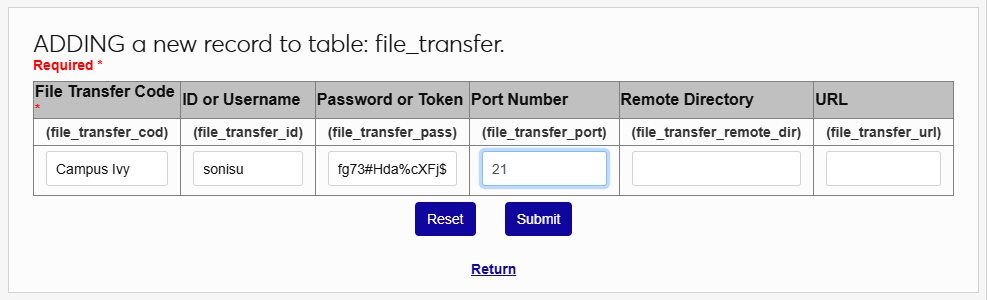
The Remote Directory field is used to designate the folder where the Campus Ivy files are located. This will be PROD for most users, but may be QA for clients running a test account.
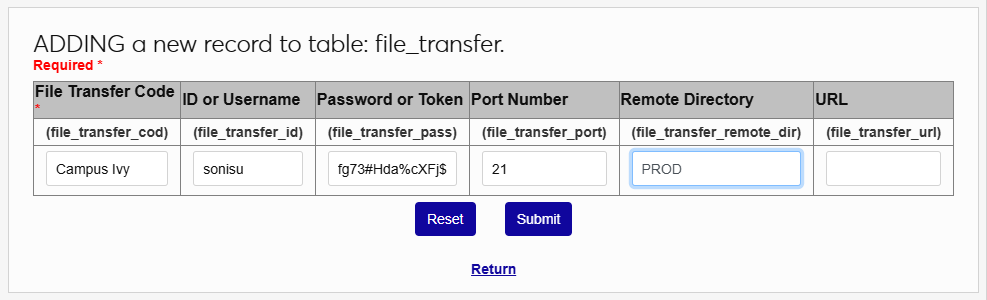
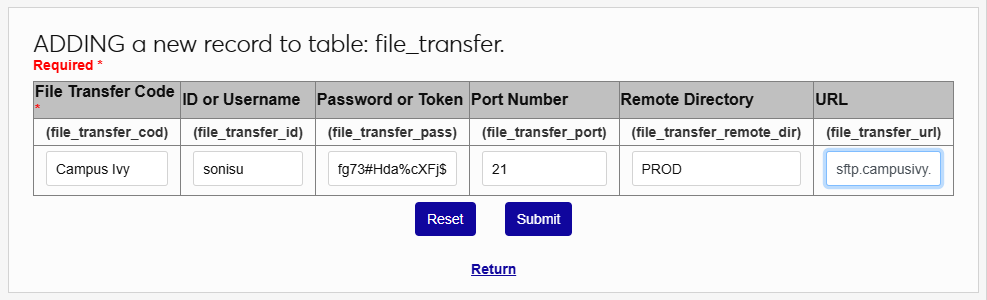
Finally, enter the URL that SONIS will use to communicate with Campus Ivy, sftp.campusivy.com. Click Submit to save the changes.
Program Hours
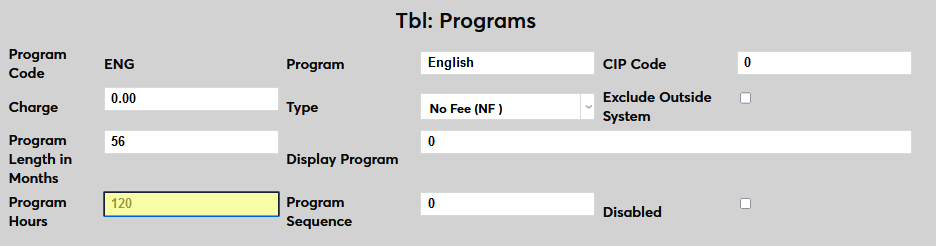
Each program that will be sent to Campus Ivy must have program hours listed to determine eligibility. Ensure that the Program Hours field in the Programs table is set with the correct hours for each program.
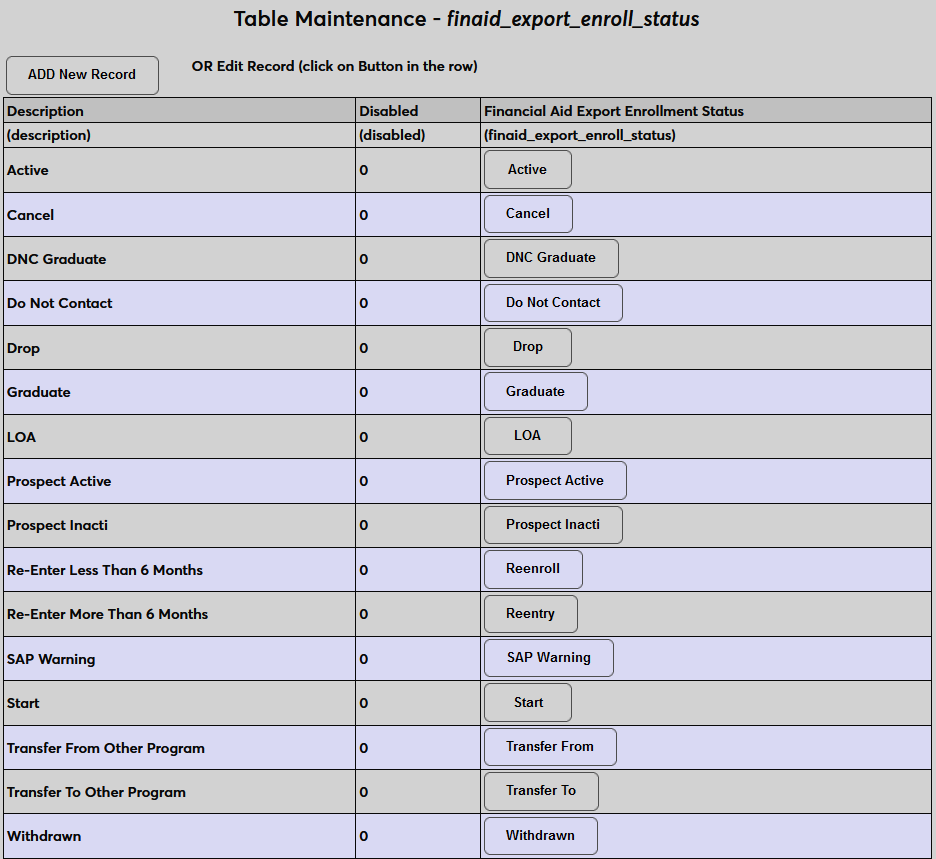
Financial Aid Export Enrollment Status
Campus Ivy also needs to know each student's current status in their program. Campus Ivy allows clients to create their own lists of statuses, which allows for flexibility. Corresponding statuses must be created in SONIS and assigned to students.
To create enrollment statuses, find the Financial Aid Enrollment Status table in Table Maintenance and click Edit. Then click Add New Record to begin.
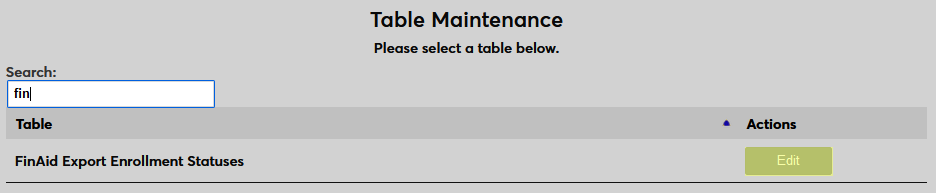

Create a name for the status using the Financial Aid Export Enrollment Status. This is how the status will be identified in the table and is the value that will be exported to Campus Ivy. The field has a 50-character limit.
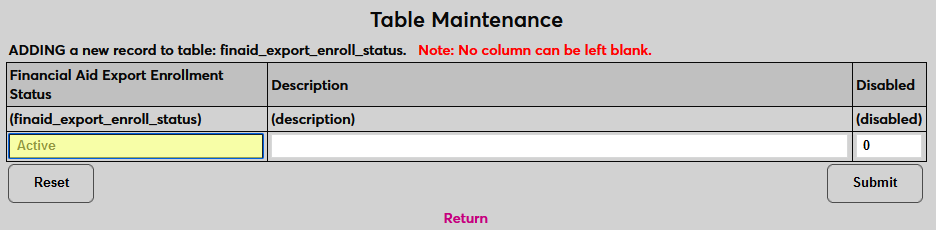
Next, create a Description of the status. This is how the status will be identified in the SONIS system and can contain additional details. The field has a 250-character limit.
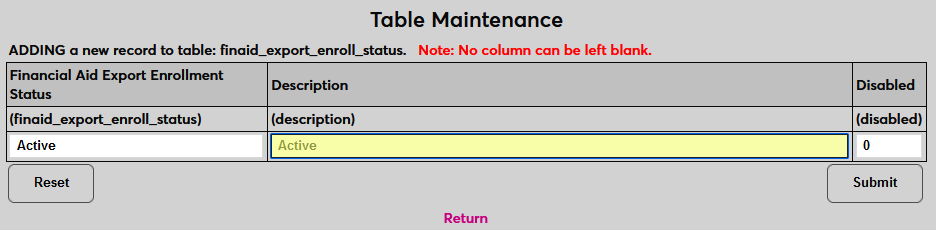
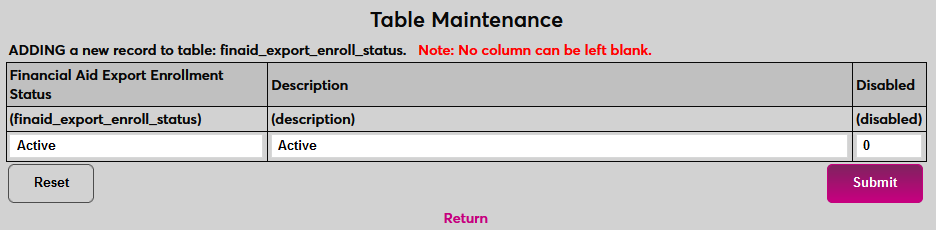
Click Submit to save the new status. Repeat the process until all statuses used in Campus Ivy have been created.
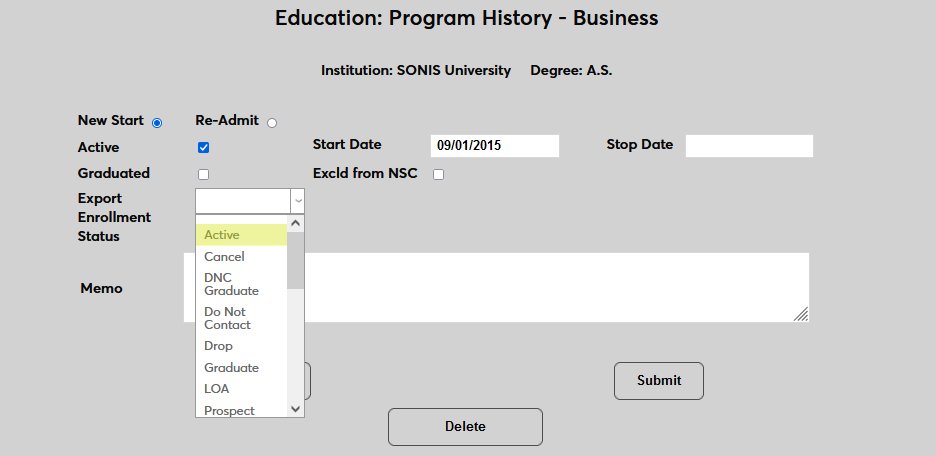
Program statuses are assigned using the Programs Users hub page. Select a status from the Program Enrollment Status dropdown menu. Only students with a status selected on this page will be exported.
Student Export
The Campus Ivy Student Export is used to export user data from SONIS to be uploaded in Campus Ivy. The utility is located under the Financials menu.
Fields Exported
The following data fields are exported to Campus Ivy:
Location | Field | Description |
|---|---|---|
Biographic Record | ||
SSN | The user's Social Security number. Required. | |
Student ID | The user's SONIS ID. Required. | |
First Name | The user's first/given name. Required. | |
Last Name | The user's last/family name. Required. | |
Date of Birth | The user's date of birth. Required. | |
Gender | The user's gender. Campus Ivy only accepts "F" (female) or "M" (male) values. Required. | |
Is Citizen | Is the user a citizen? Check box if yes. Required. | |
Location Name | The user's assigned campus code. Required. | |
Education/Program Record | ||
Program Code | The SONIS program code that designates the user's active program. Required. | |
Program Version | Required for Campus Ivy import, but not a value in SONIS. Will be 1 for all users. | |
Start Date | The start date for the user's active program. Required. | |
Grad Date | The user's anticipated graduation date. Required. | |
Proof of Graduation | The user's high school credential. If there is a high school record marked graduated, value will be "High School Diploma" If not, value will be "Other." | |
SIS Enroll ID | A unique value automatically created in the table whenever a user is assigned to a program. | |
Enrollment Status | Enrollment Status field on Program record. Required. | |
Address | ||
Address | The street address from the user's primary address record. Required. | |
City | The city from the user's primary address record. Required. | |
State | The state from the user's primary address record. Required. | |
Zip Code | The zip code from the user's primary address record. Required. | |
The primary email address from the user's primary address record. Required. | ||
Phone No. | The phone number from the user's primary address record. Required. | |
Opt Out SMS | Text Me Flag field from student's primary address record. "N" if the student wishes to receive texts from the system. "Y" if they opted out of cell communication. Required. | |
Other | ||
Withdrawn Date | Pulls the date from any user with an active leave status of withdrawn. All withdrawn leave of absence types must have a "Withdrawn Update" value of "1" in the Leave of Absence Type table. Date required for all withdrawn students. | |
LDA | The user's last date attended. The value is pulled from attendance records if they exist. If they do not, the semester start date for the latest semester the student is registered is used. | |
Transfer Units | The hours the user has earned through transfer courses, if applicable. | |
Units Earned | The hours the user has earned from home institution courses. | |
Units Scheduled | The course hours the student is registered for in an upcoming period. | |
Units Attempted | The total course hours in the student's Courses record. | |
Academic Year Units | The number of course hours the users has completed in the current academic year. | |
SAP | The user's satisfactory academic progress status. Record is created by running the SAP utility under the Systems menu. Will be one of the following values: • Met – Student meeting SAP • Unmet – Student not meeting SAP • New – Student with no SAP value. Treated the same as Met. |
Exporting
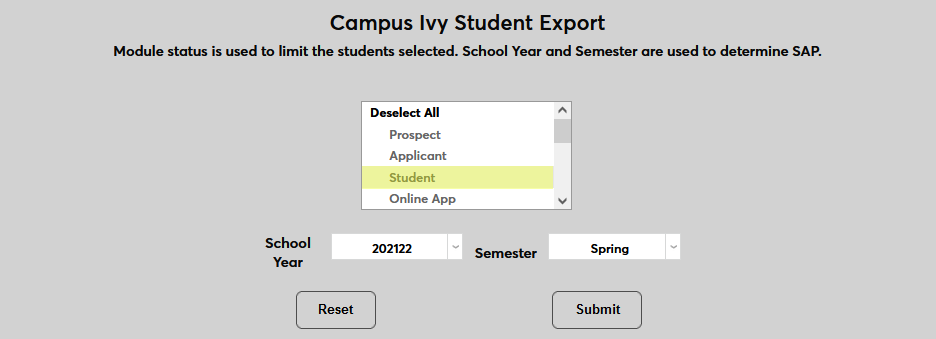
To begin, select a module status or statuses to export. Only users with the selected status(es) will be included in the export file.
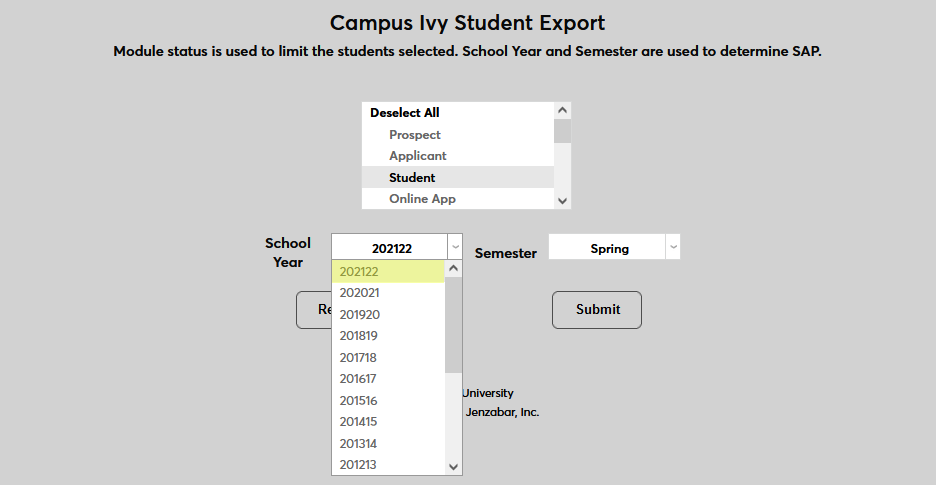
Next, select a School Year and Semester for the export file. These selections will be used to calculate satisfactory academic progress.
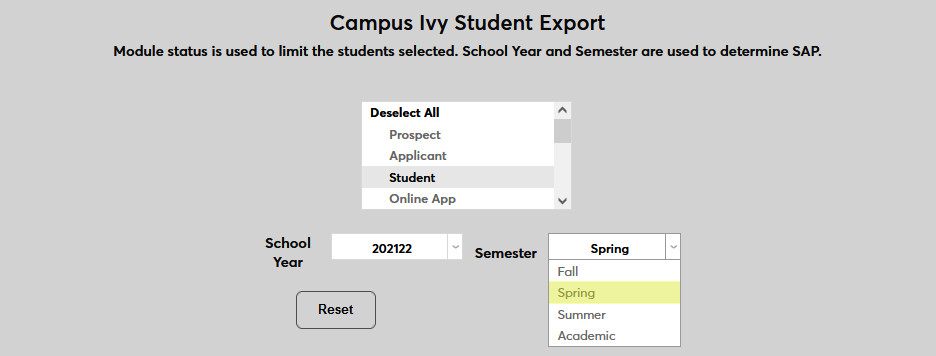
Click Submit to create the export file.
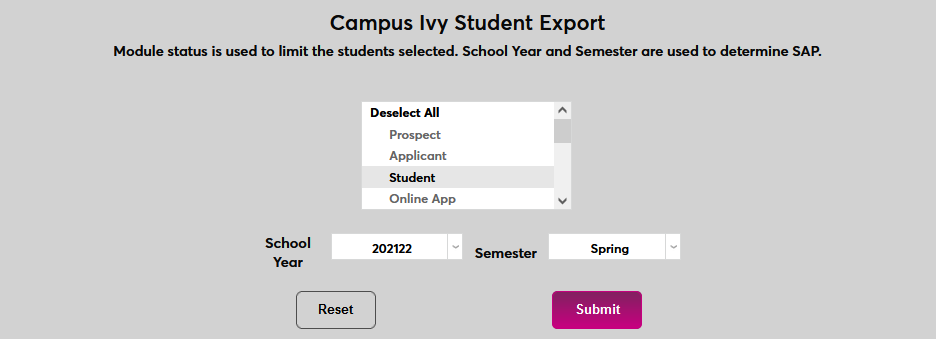
Click View Records to continue.
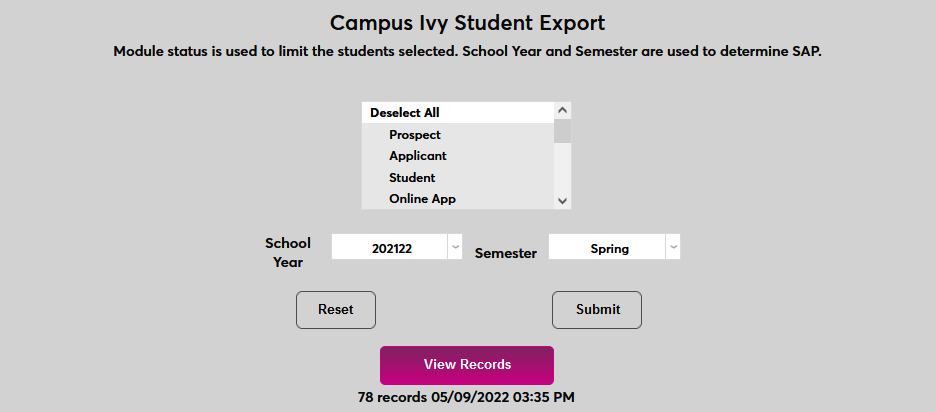
On the following page, use the search tools to change the number of entries per page, search for a specific entry, or sort by one of the columns.
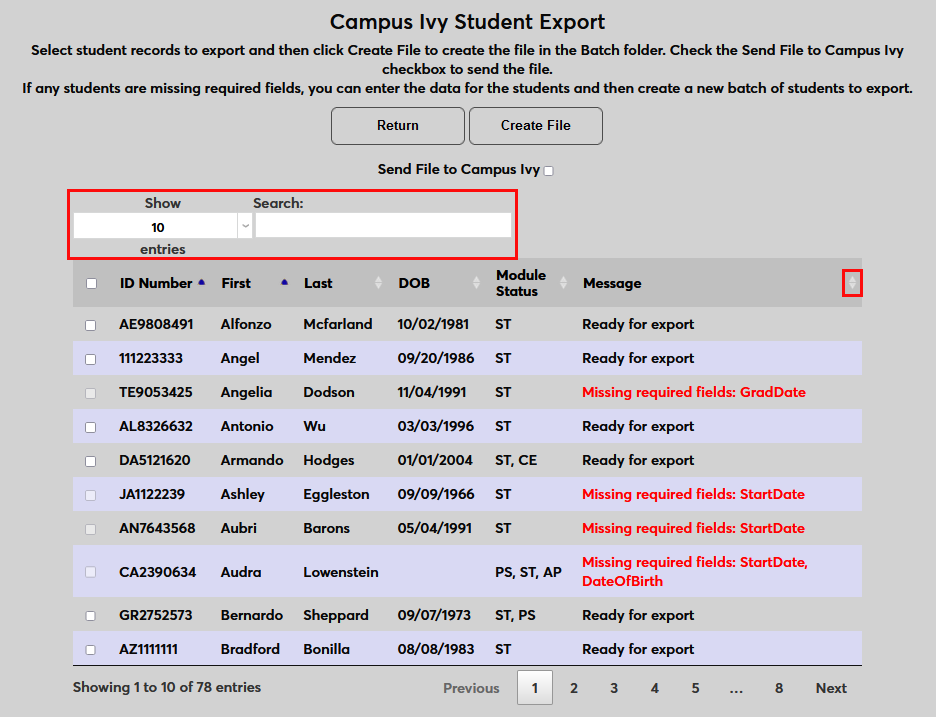
The Message column for each entry will either say Ready for Export or list a piece of missing data that is preventing the user from being exported. Once these errors have been corrected, run the process again and click View Records again to update the list.
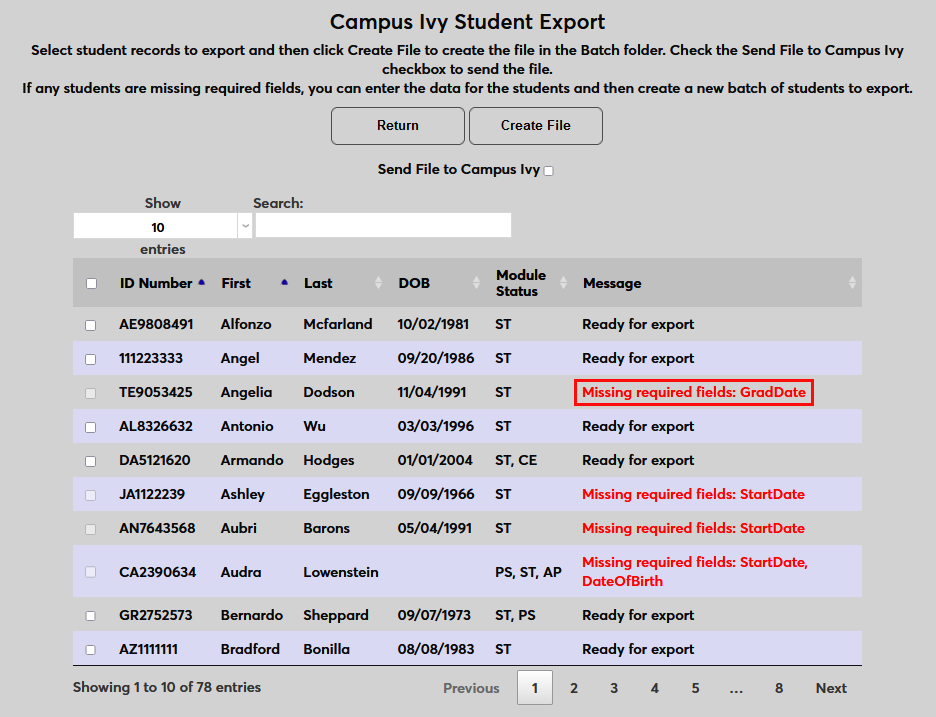
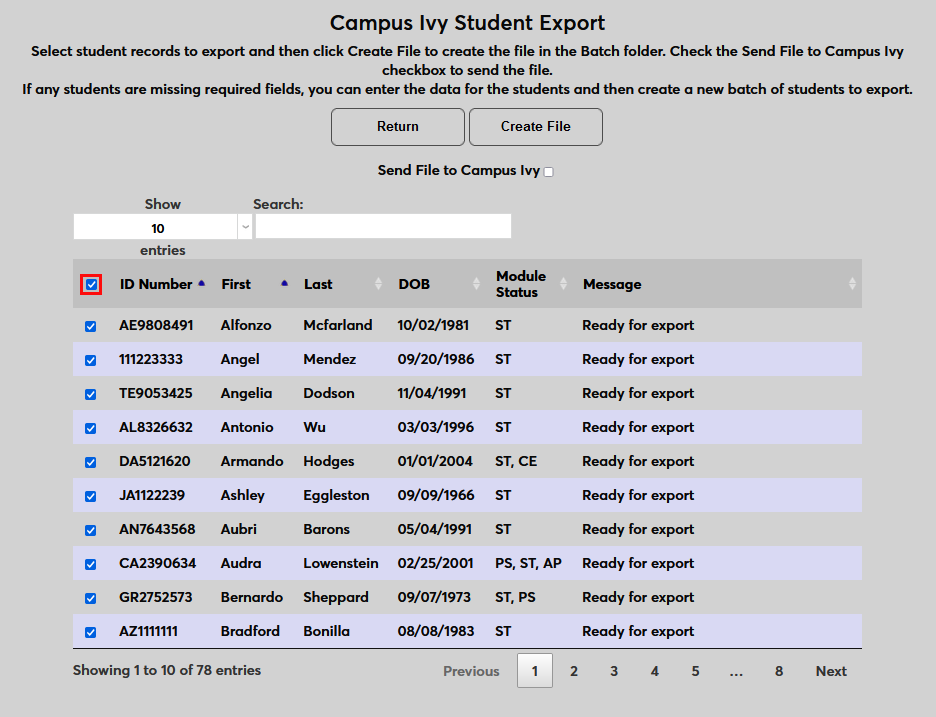
Check the box to the left-hand side of each entry that should be exported or check the box in the label row to check all other entries. Note that entries that still have errors cannot be checked.
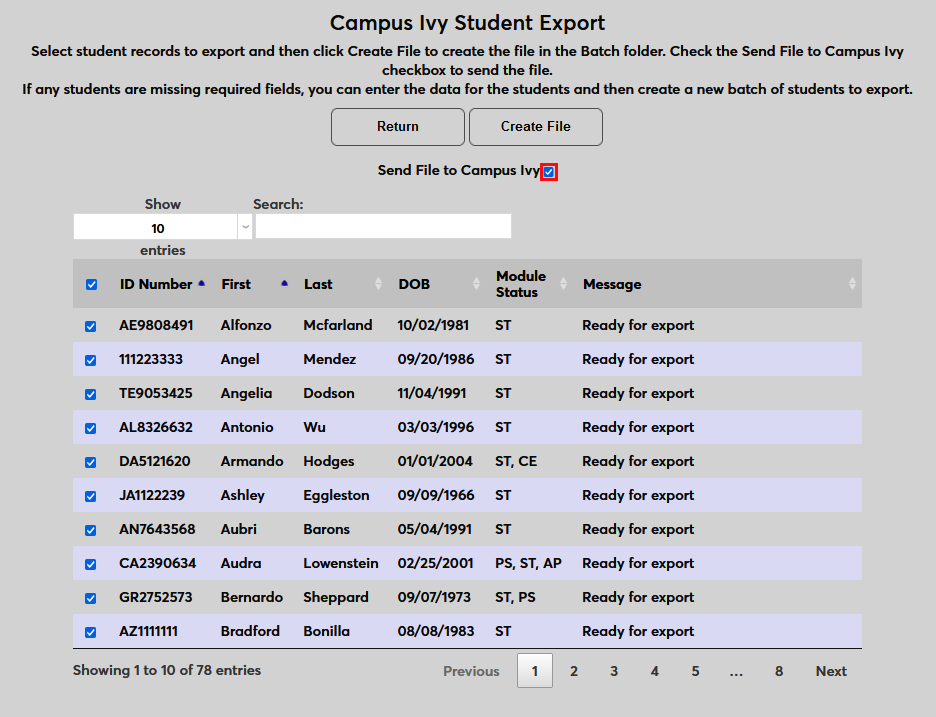
Check the Send File to Campus Ivy box to send the file to Campus Ivy directly using the LMS Transfer settings. Or leave it unchecked to save the file in the Batch folder for manual import to Campus Ivy.
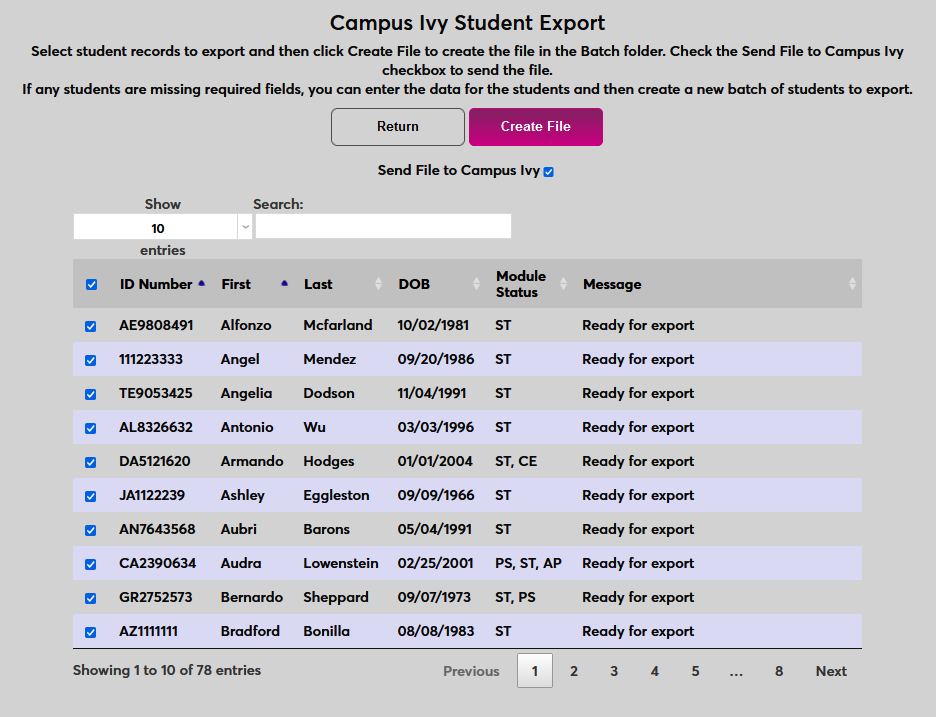
Click Create File to complete the process.
Awards Import
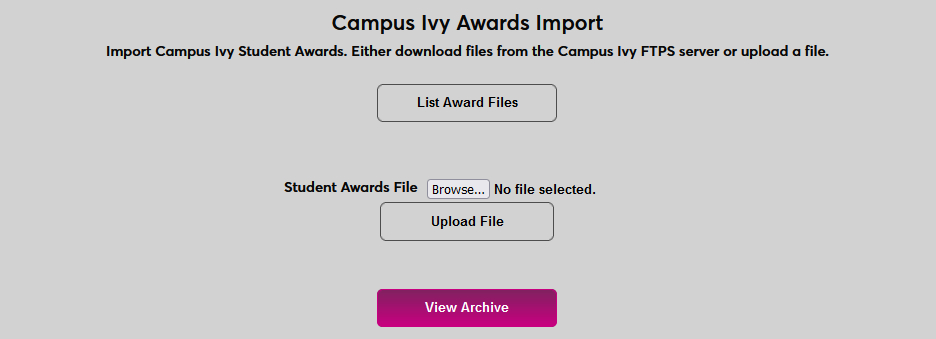
To import awards from Campus Ivy to SONIS, navigate to Campus Ivy Awards Import in the Financials hub. If a connection to Campus Ivy has been established for importing files directly, click List Award Files to begin.
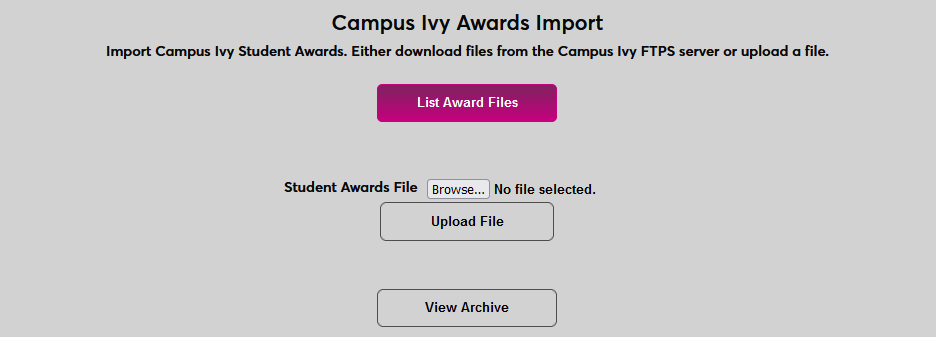
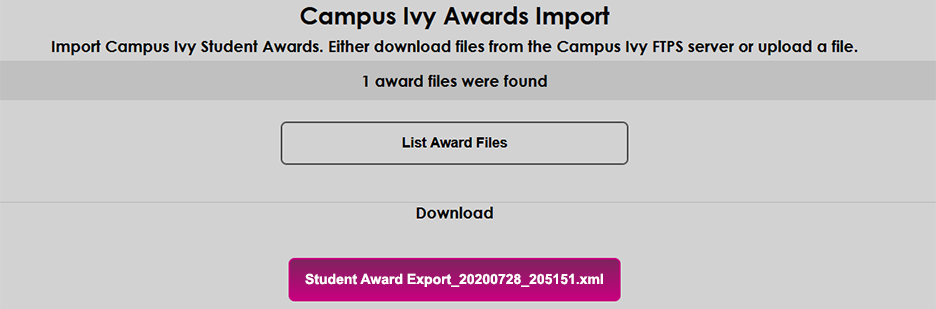
Any files that are available for import from Campus Ivy will be listed below, each with their own button. Click the button with the correct file name to import it. Once a file has been imported, the copy on the Campus Ivy server will be archived and the file should not longer appear in this list.
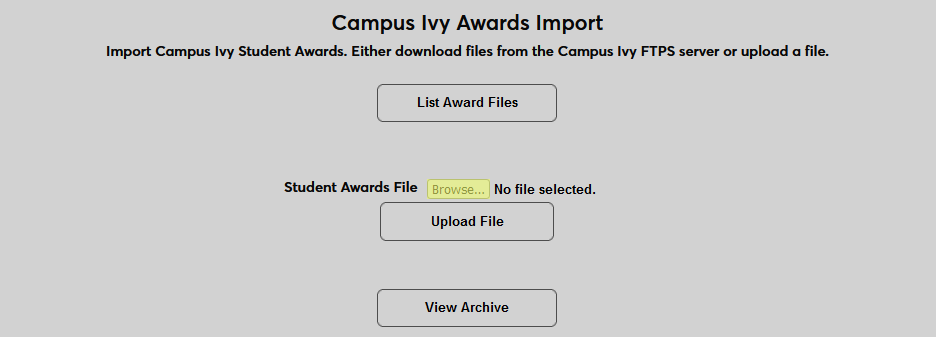
Alternately, to upload a local file, click Browse and select the file. Then click Upload File to upload it to SONIS.
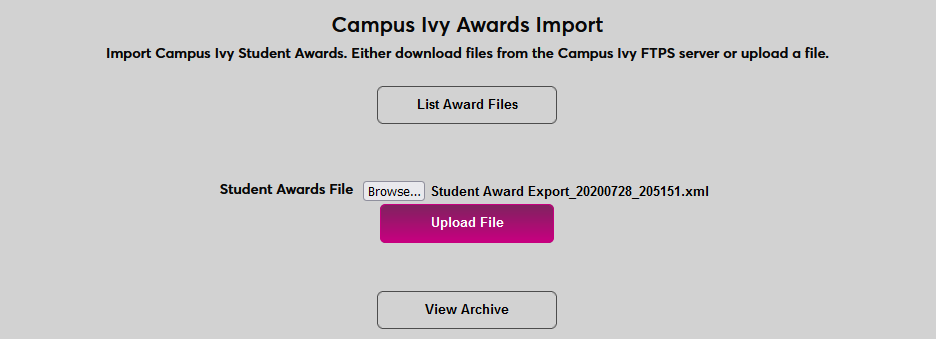
Once a file has been uploaded through either process, it will be listed under the Award Batches section of the page. The table notes how many records in the file are Ready to Post and how many are Invalid.
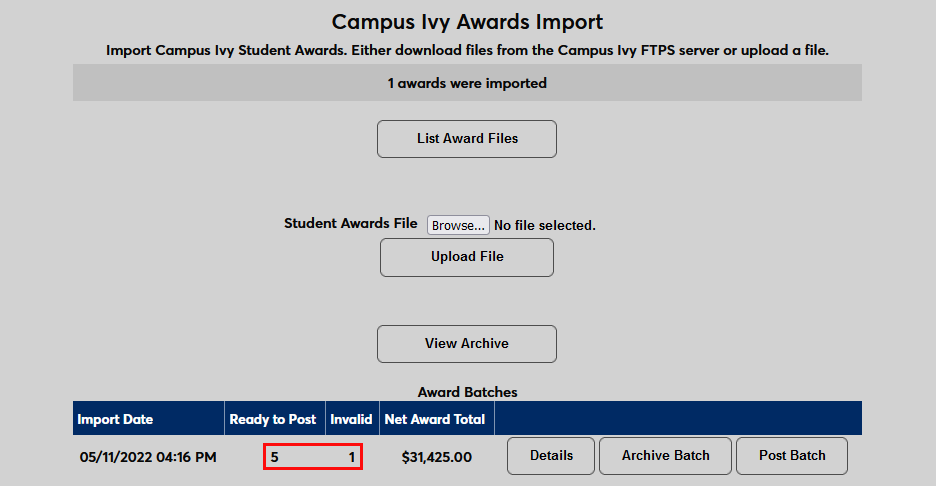
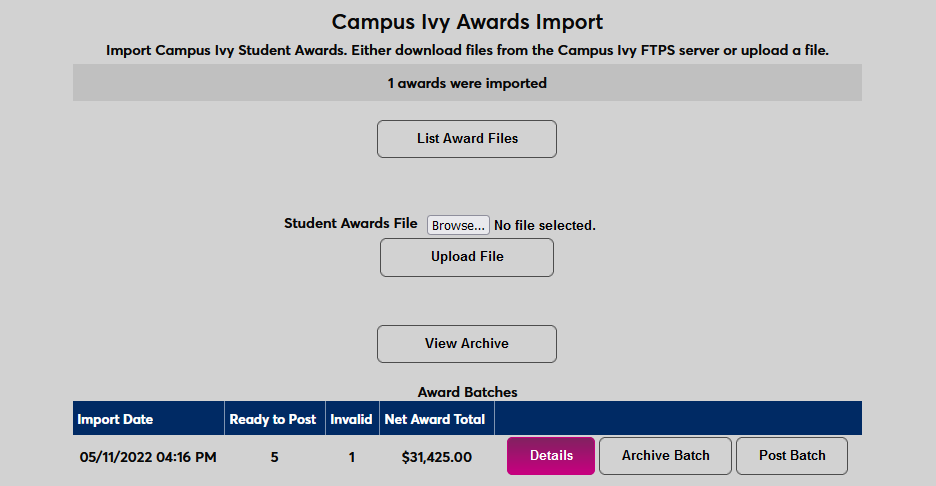
The entire batch can be archived or posted from this page or click Details to view the individual records being imported.
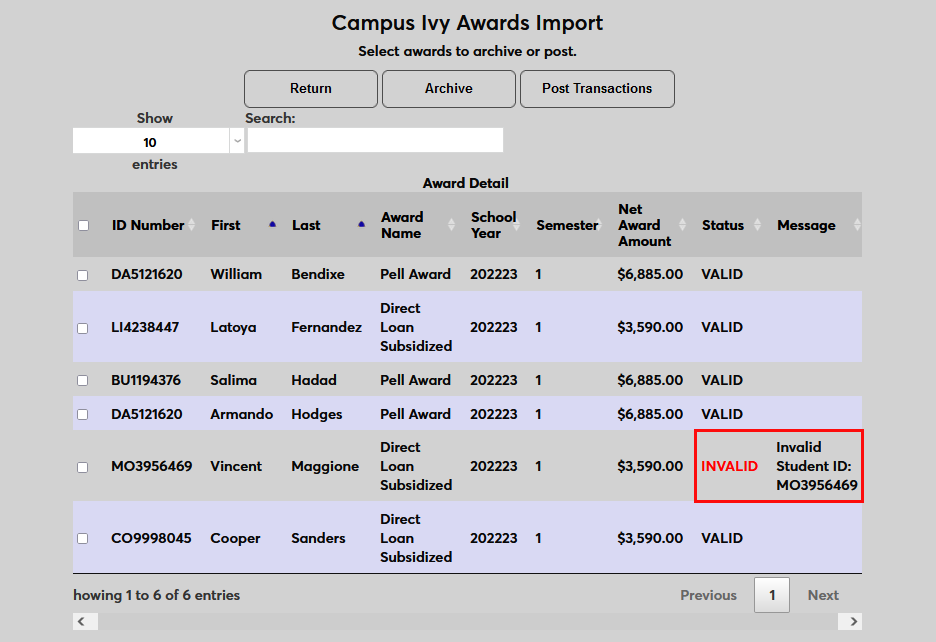
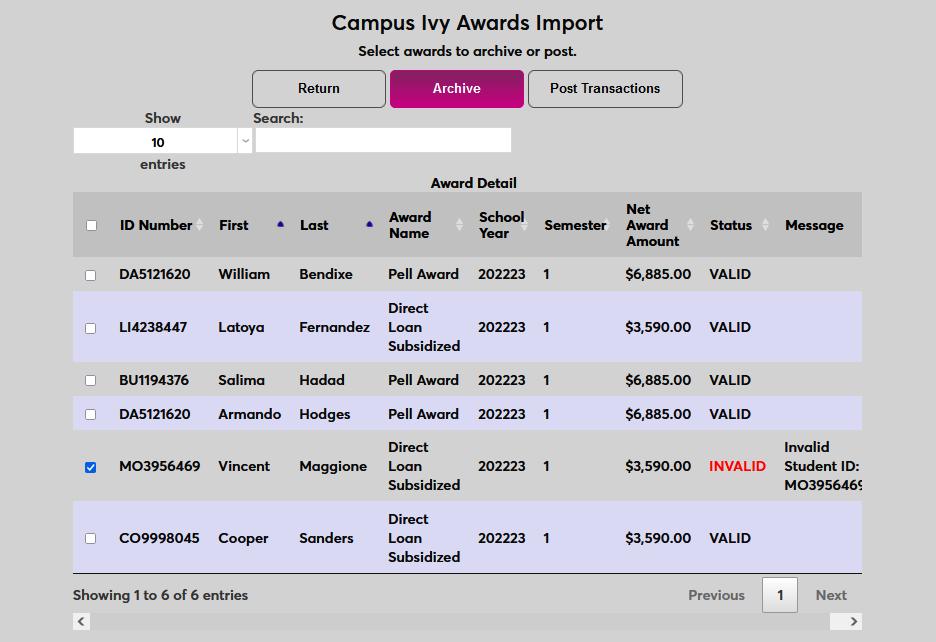
Any records that have errors are listed as Invalid with the errors listed in the Message column.
Search tools are available to change the number of entries per page, search for a specific entry, or sort by one of the columns.
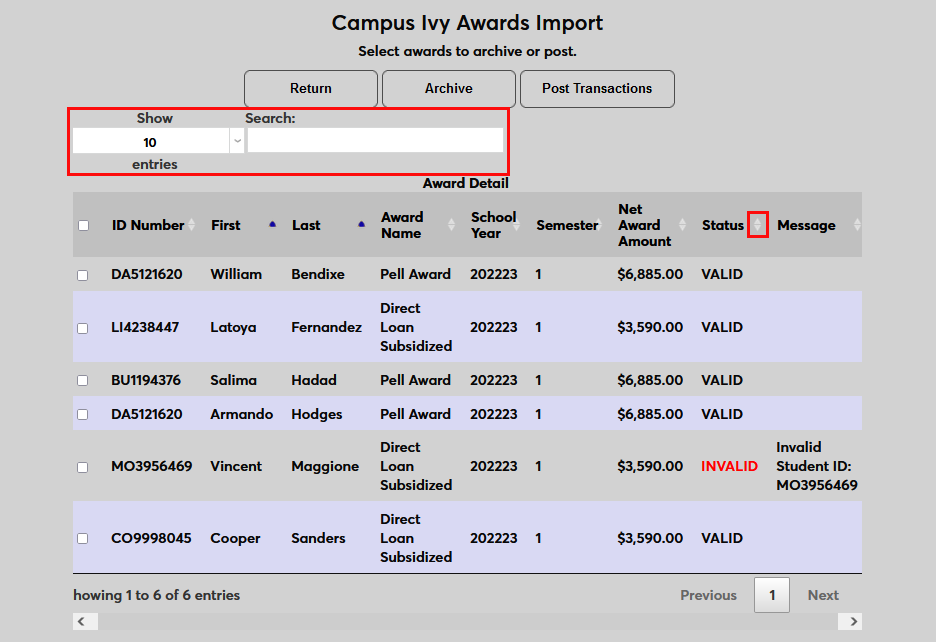
Individual records can be archived from this page by checking the corresponding box and clicking Archive.
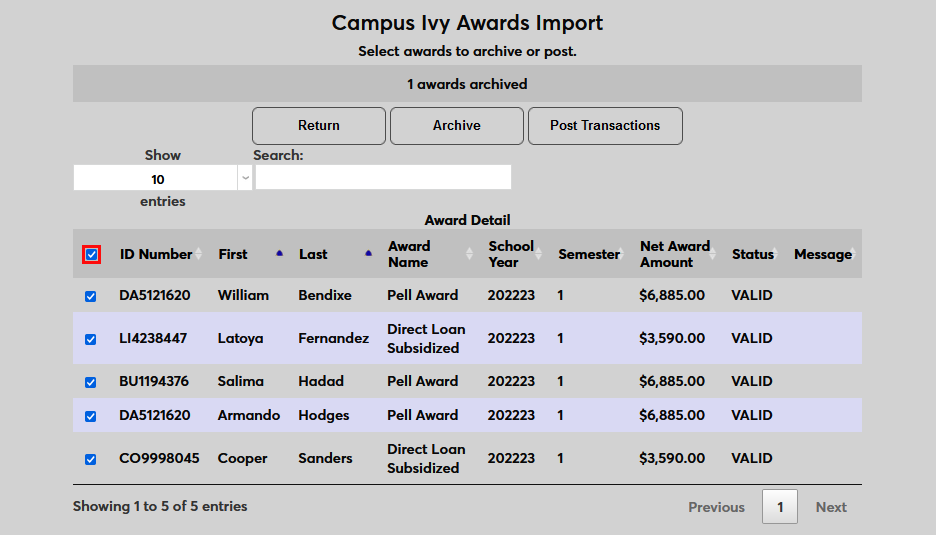
To check all records, click the checkbox in the header row.
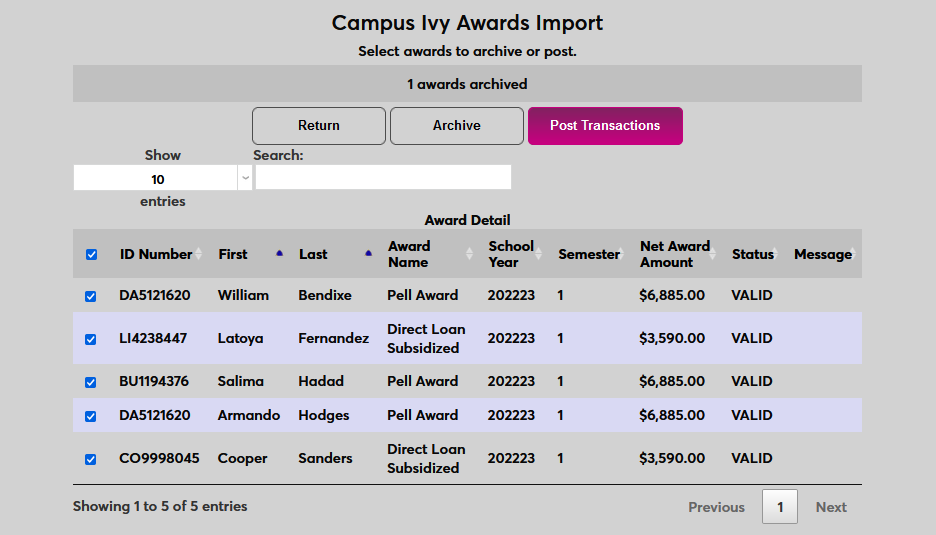
Once the appropriate records are selected, click Post Transactions to import the awards.
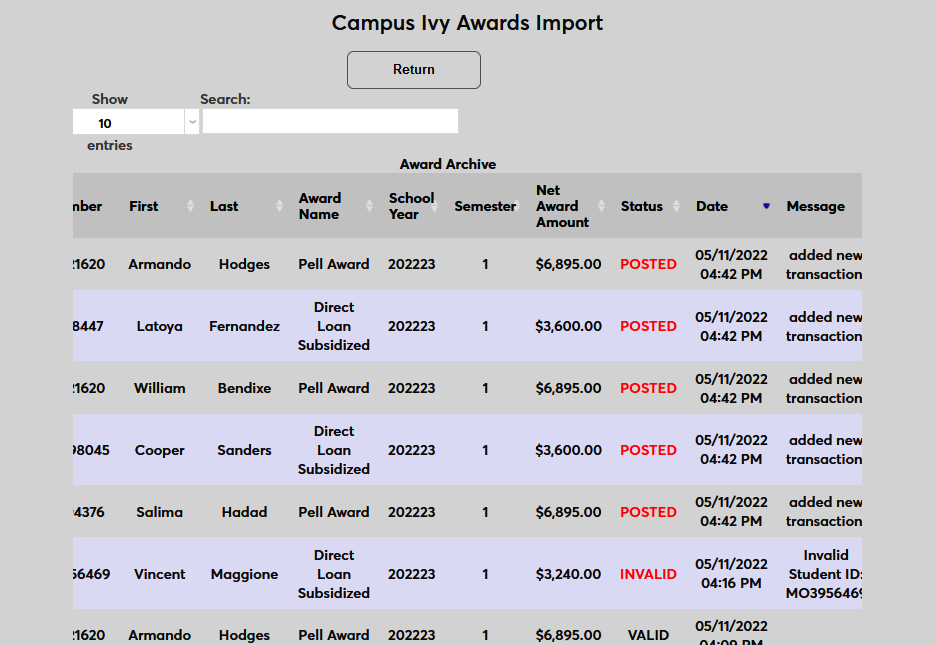
On the landing page, click View Archive to see the results along with any records that have been archived without being posted.
Disbursements Import
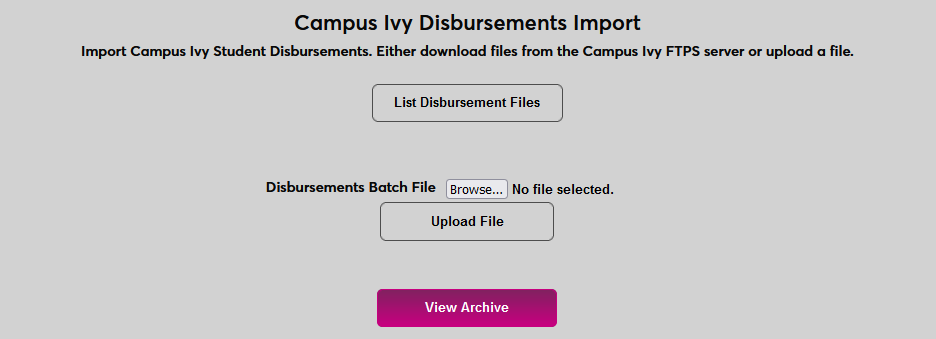
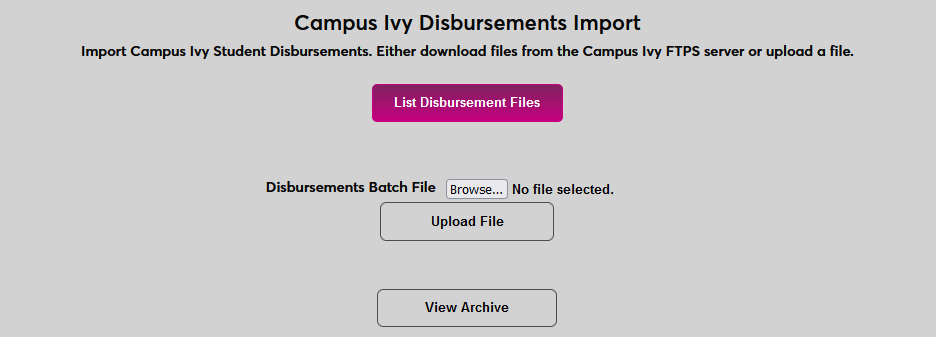
To import awards from Campus Ivy to SONIS, navigate to Campus Ivy Disbursements Import under the Financials menu. If a connection to Campus Ivy has been established for importing files directly, click List Award Files to begin.
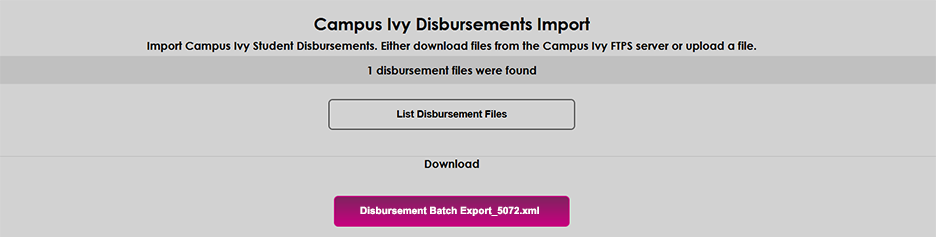
Any files that are available for import from Campus Ivy will be listed below, each with their own button. Click the button with the correct file name to import it. Once a file has been imported, the copy on the Campus Ivy server will be archived and the file should not longer appear in this list.
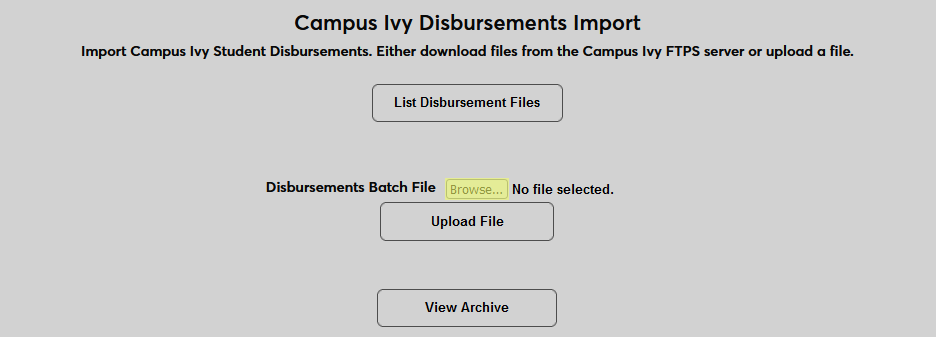
Alternately, to upload a local file, click Browse and select the file. Then click Upload File to upload it to SONIS.
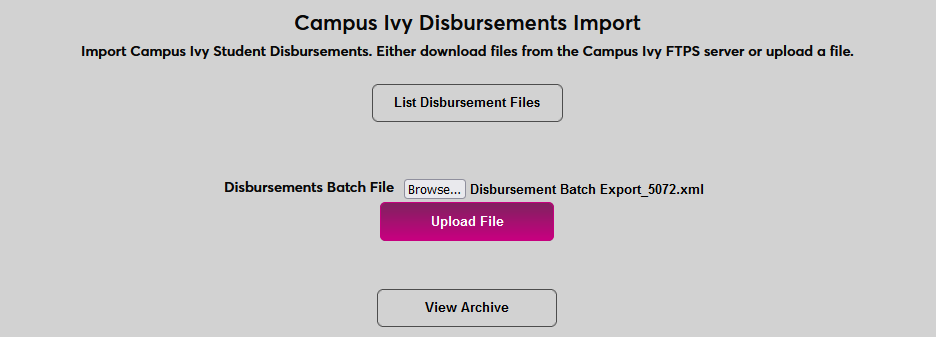
Once a file has been uploaded through either process, it will be listed under the Disbursement Batches section of the page. The table notes how many records in the file are Ready to Post and how many are Invalid.
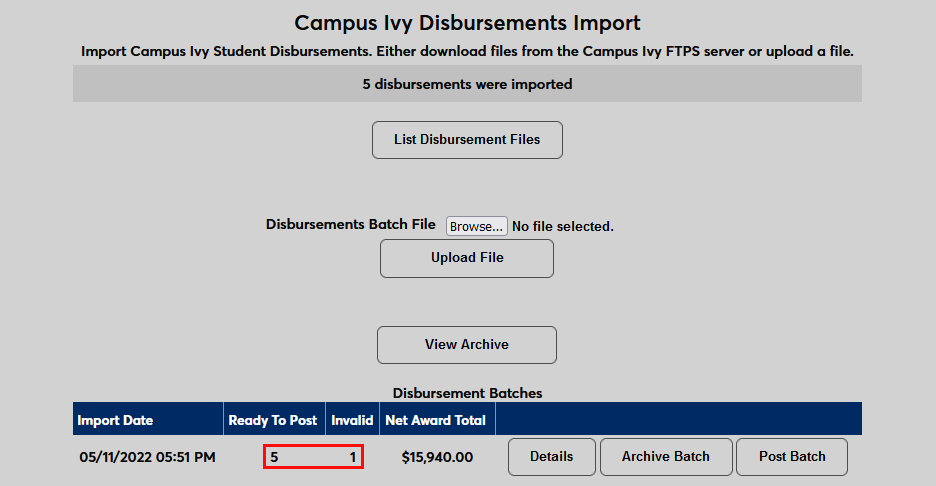
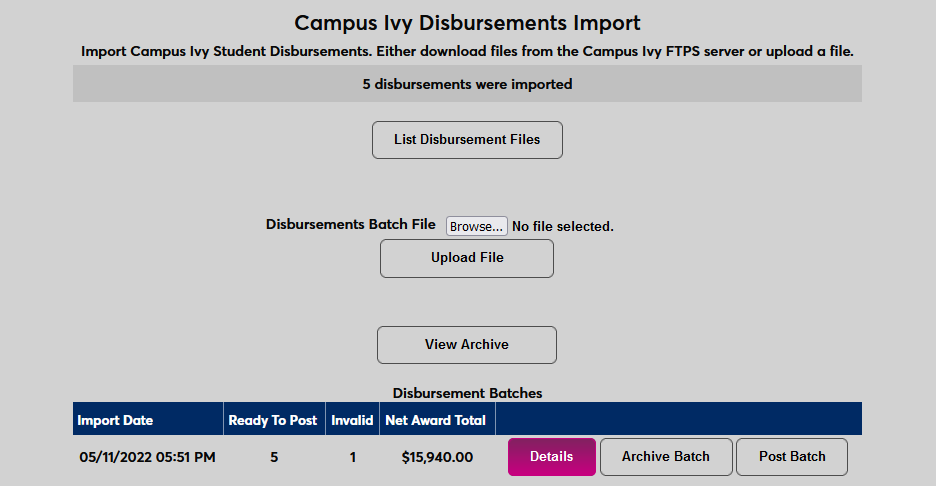
The entire batch can be archived or posted from this page or click Details to view the individual records being imported.
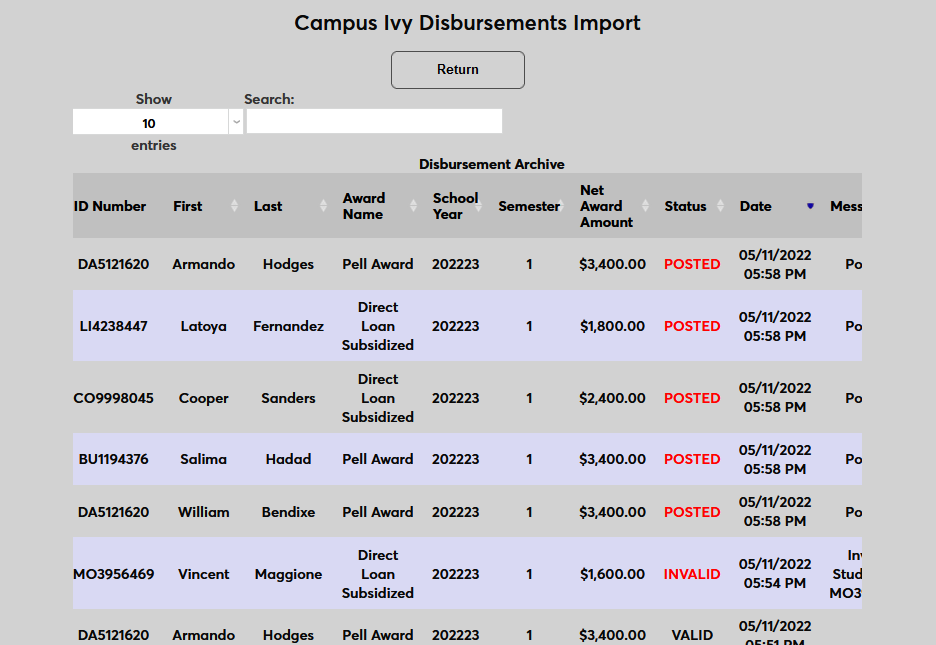
Any records that have errors are listed as Invalid with the errors listed in the Message column. Note that disbursements will be flagged as invalid if there is no matching award or the matching award has already been disbursed.
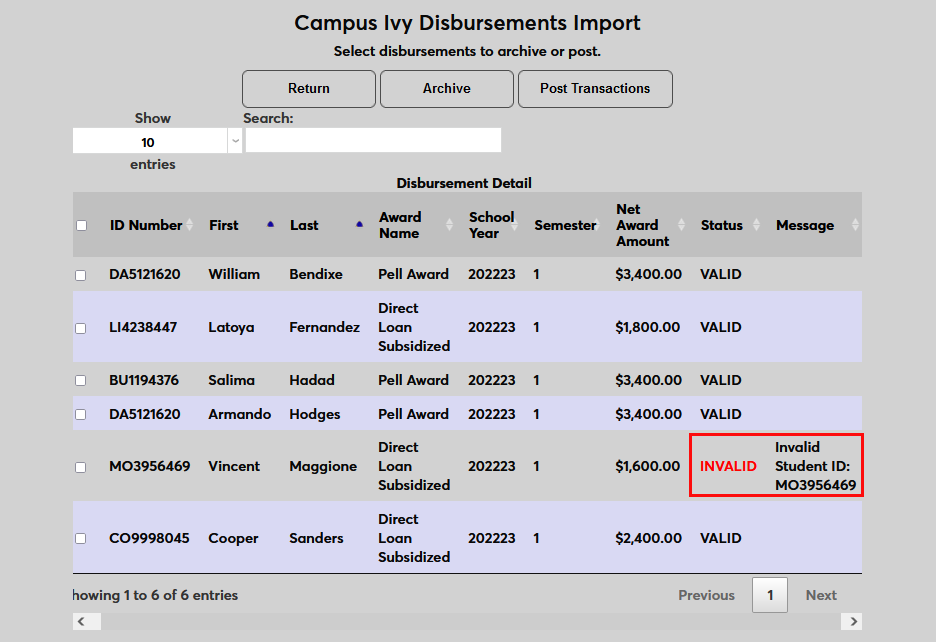
Search tools are available to change the number of entries per page, search for a specific entry, or sort by one of the columns.
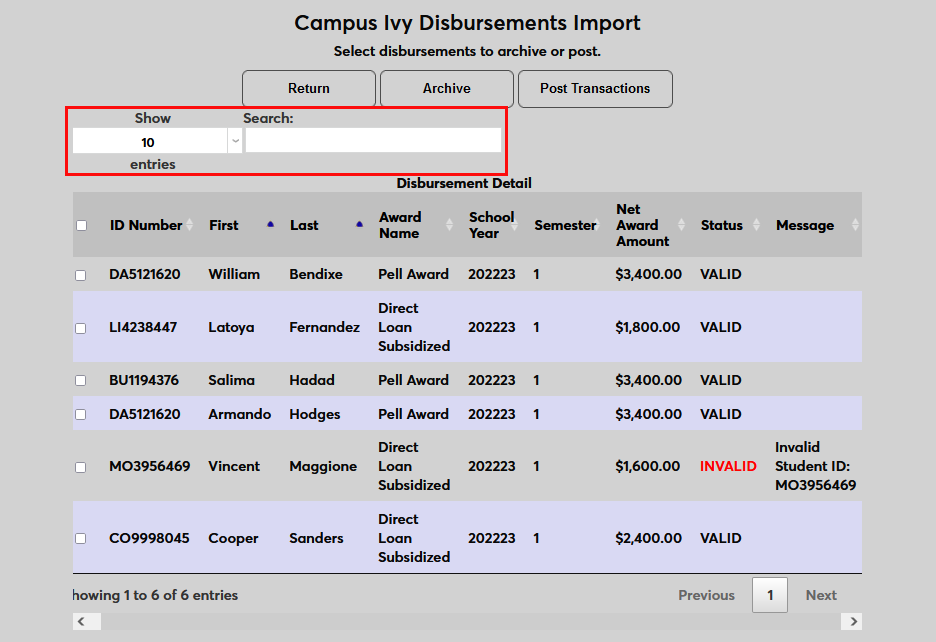
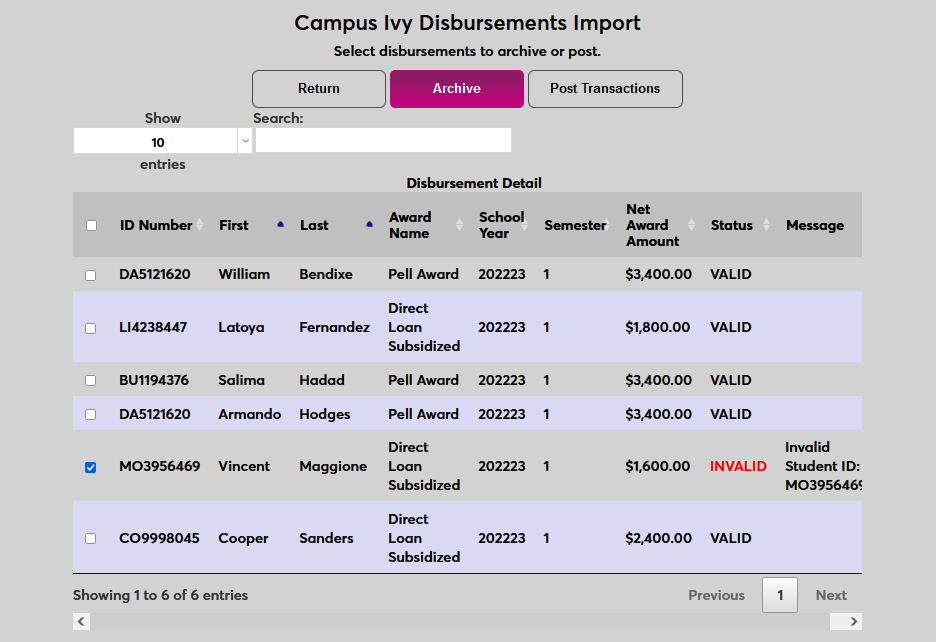
Individual records can be archived from this page by checking the corresponding box and clicking Archive.
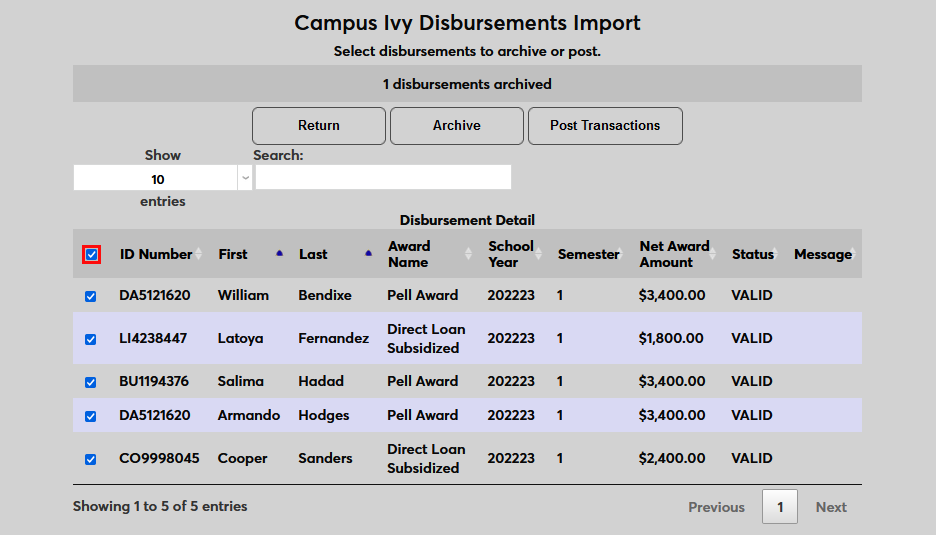
To check all records, click the checkbox in the header row.
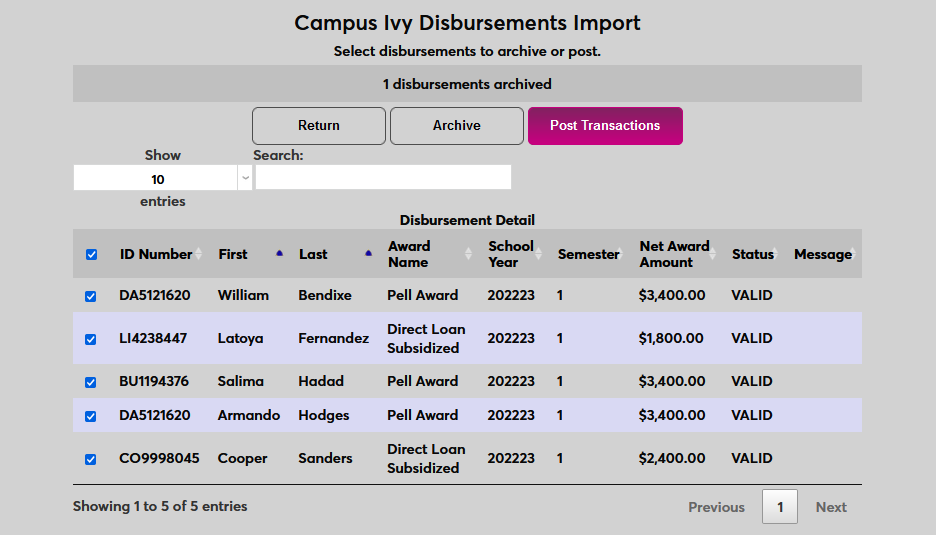
Once the appropriate records are selected, click Post Transactions to import the awards.
On the landing page, click View Archive to see the results along with any records that have been archived without being posted.