Additional Fees
Overview
The Jenzabar SONIS Additional Fees utility allows institutions to charge repeating fees to students that are not part of the school's standard tuition. Fees can be assigned to groups of students based on their level, campus, division, and/or department and can be assigned once per semester or per credit hour. Fees are associated with a transaction code for record keeping.
For more information on other fee types that SONIS offers, visit the Fees overview page.
Filters
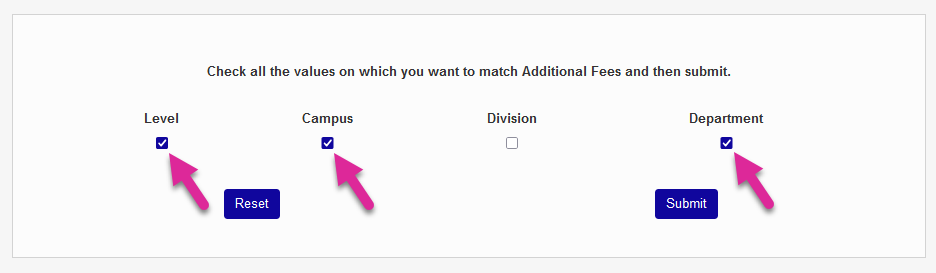
Before creating a fee, navigate to the Additional Fees Filter page to choose which filters will be active for use in narrowing down the recipients of the fee. The four available filters are Level, Campus, Division, and Department. Check the box next to any or all and click Submit to activate the filter(s).
Adding Fees
It's strongly recommended that, before adding fees, administrators check again to ensure that they have the proper filters in place. Any changes to these filters after fees have been created will necessitate deleting and readding the previously created fees in order for them to work properly.
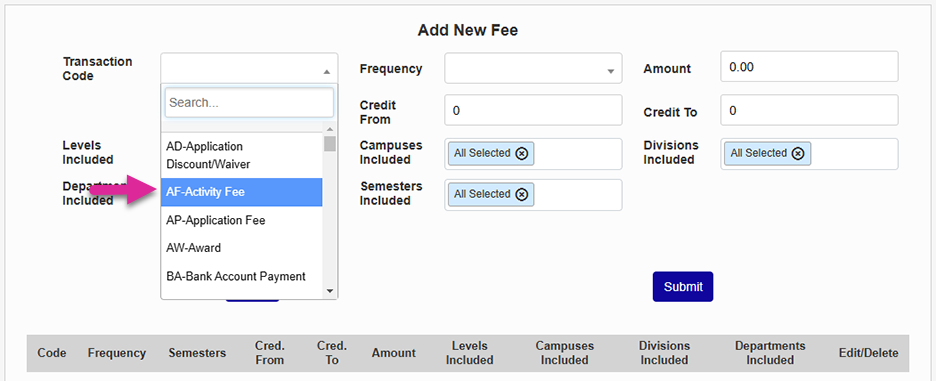
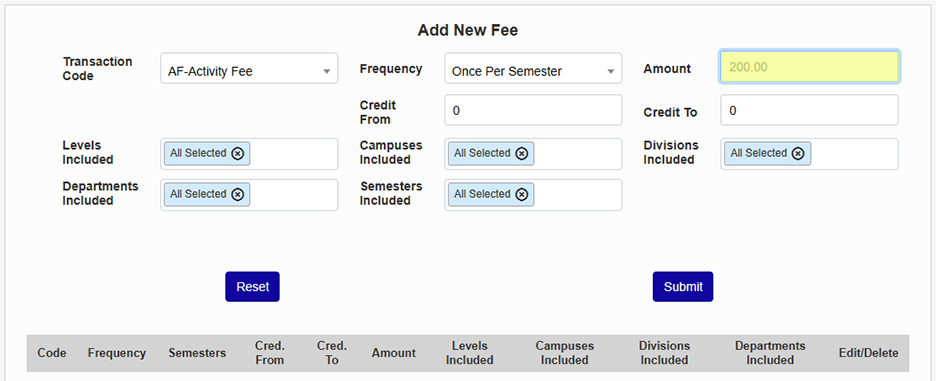
To add a fee, navigate to the Additional Fees utility under the Systems menu and select an appropriate Transaction Code for this specific fee.
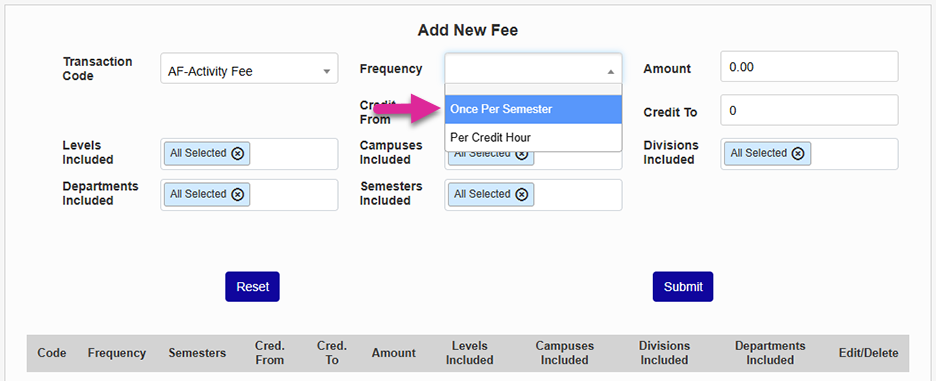
Next, choose the frequency that this fee should occur from the Frequency dropdown. The fee can be charged once per semester or on a per credit hour basis.
Set an Amount for the fee. Keep in mind that, if the Per Credit Hour option is chosen, this amount will compound with each class hour the student takes.
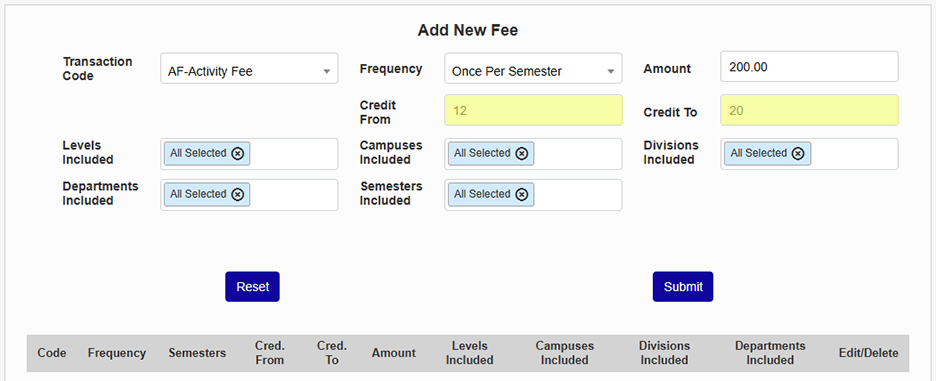
Fill out the Credit From and Credit To fields. If the Once Per Semester option was chosen, only students whose class load falls within the selected range will be charged the fee. This can be used to charge a fee only to full-time students, for example. If the Per Credit Hour option was selected, this field will be ignored.
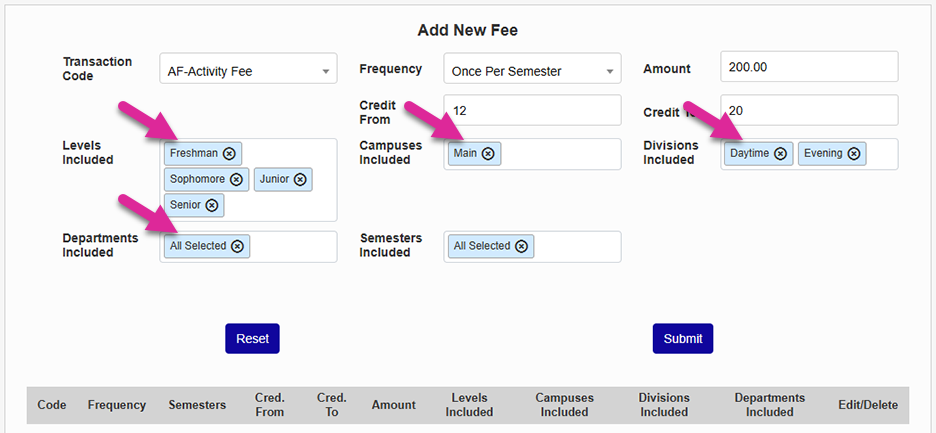
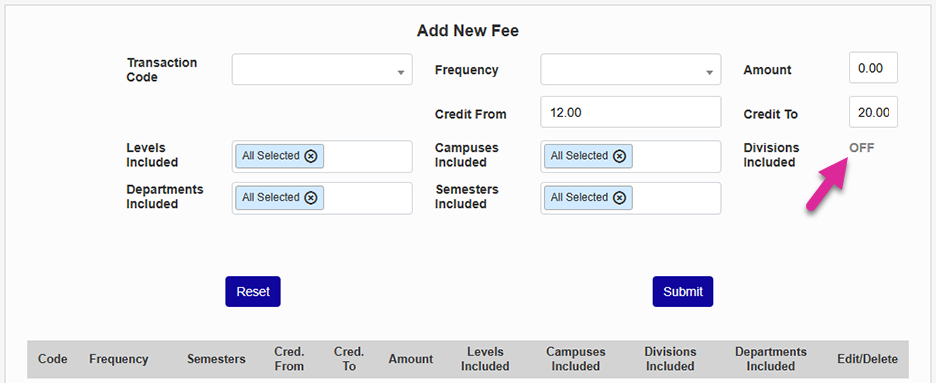
Once the fee has been set, make one or multiple selections from the Levels, Campuses, Divisions, and/or Departments menus. Filters that are turned off will display an OFF in place of the selection menu.
Select a semester or semesters when the fee will be assigned.
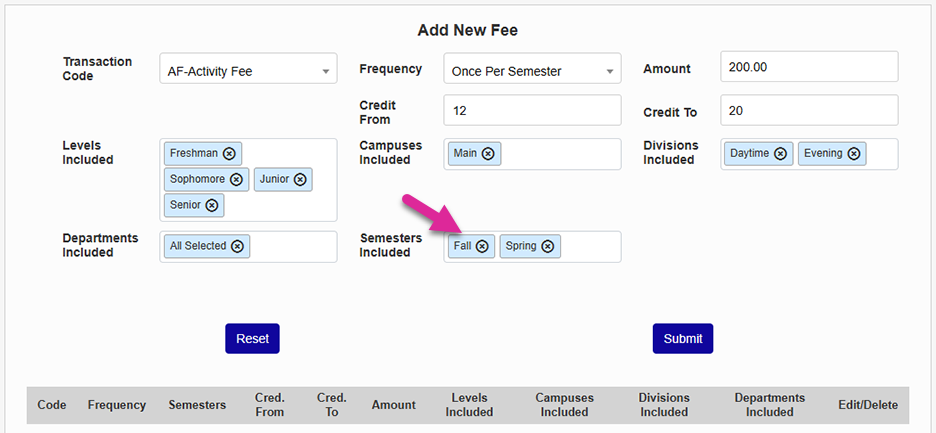
Click Submit to create the fee.
Editing Fees
Once fees have been created, they appear at the top of the page in a table. If multiple options are selected in any or multiple demographic categories, a separate fee is created for each one of them. However, when you choose the Select All option for a filter, the resulting fee displays with an asterisk in that column to indicate that all options are selected.
In the example below, Freshman, Sophomore, Junior, and Senior were all selected, so a fee was created for each level. The Select All option was used for campuses and departments, so an asterisk appears in these columns. The system doesn't display all the fees created in the database in these instances for the sake of brevity. The Divisions column displays Off because this filter was turned off on the Additional Fees Filter page.
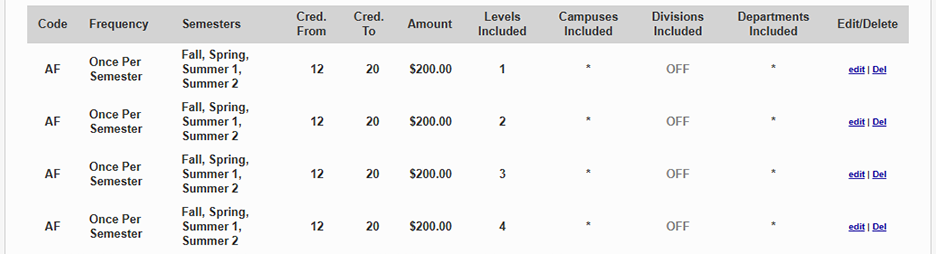
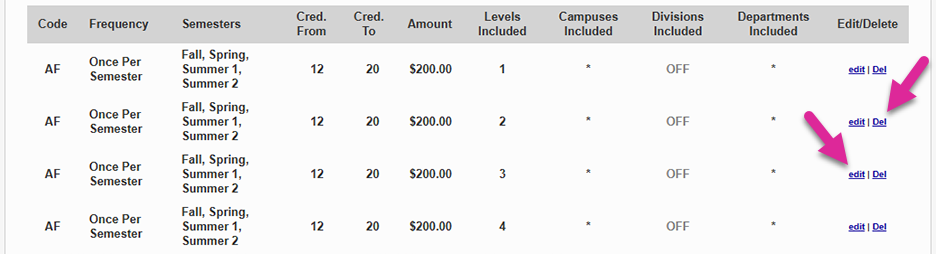
Click Del to delete a fee or edit to edit it.
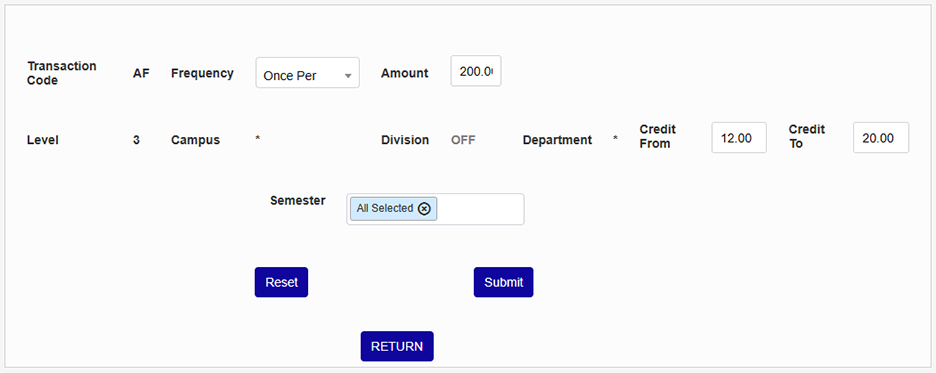
On the edit page, administrators can change the frequency, the amount, the credit from and credit to fields, and the semester. Click Submit to save all changes.
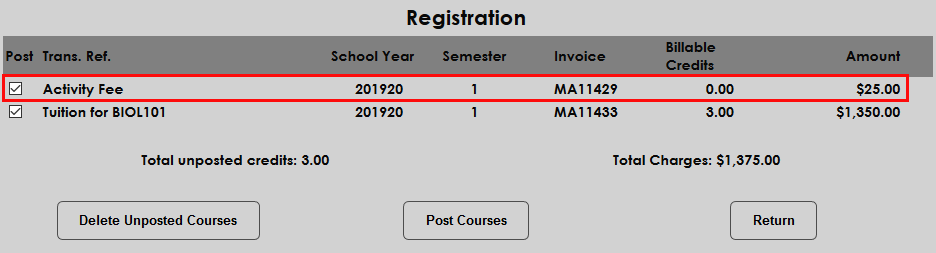
Additional Fees are listed separately from tuition charges when posting billing.