Evaluations
Overview
The Systems hub page Academic: Evaluations is a multi-purpose page. It is used for both communicating the need for an evaluation to be completed to a student or constituent and for communicating the need for an individual identified as a reference to complete a questionnaire and/or submit reference materials. There is no limit to the number of evaluations or reference questionnaires that can be created and maintained. Each is assigned a code, a type, and a template, and then is set to be active or inactive.
After evaluations are created, they are assigned using Evaluation Assignments. To create the questions for an evaluation, the Systems menu page Evaluation Questions is used. To create answers or responses, the Systems hub page Evaluation Responses is used.
After reference questionnaires are created they are associated with an Online Application using the OA Setup page. Reference questionnaire responses and any accompanying uploads are viewable in the applicant's Users hub References page.
Evaluation Types
The Evaluation Type selection controls what an evaluation can be used for and where it appears.
Alumni
The Alumni evaluation type is used to create alumni surveys. These can be useful to obtain information about post-education employment or to facilitate fundraising, among other potential uses.
All evaluations that have a type of Alumni and are marked as Active automatically appear on the Home page of the Alumni portal.


Course
Course evaluations are designed to allow students to give their opinion on the course they have just taken, usually including both the material and the instruction. These evaluations are attached to courses and assigned to students using the Evaluation Assignments utility.
Employer
Employer evaluations are used by employers to assess the work of students and other SONIS users. They can be used for work study programs, on-campus employment, internships, clinical rotations, and other work opportunities that are tied to academic advancement or financial aid.
Only one employer survey can be active at a time. When an employer survey is active, it will appear on the Evaluations page in the Employer portal with one survey listed for each employee who is assigned to this employer through the Employment Users hub page.

Faculty Course Section
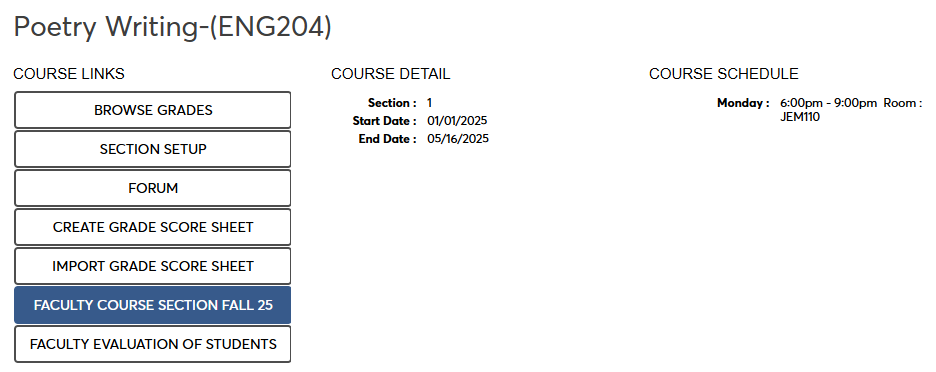
Faculty Course Section evaluations are designed to allow instructors to assess the courses they're teaching, including the course materials, the students, the classroom space, and anything else that would affect their teaching success.
Active Faculty Course Section evaluations automatically assigned to all teaching faculty and accessed through the Courses page for each course section. The evaluation appears as a button with whatever title the evaluation was given on the Evaluations page.
Reference
The Reference evaluation type is used to create questionnaires that can then be sent to the references that applicants provide when applying to the school. See References for more information on this process.
Creating Evaluations and Reference Questionnaires
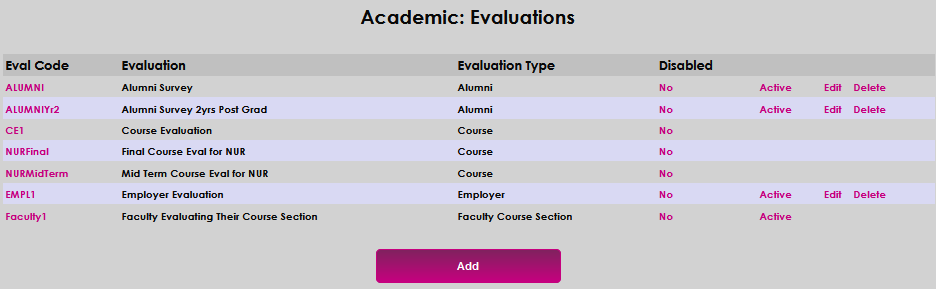
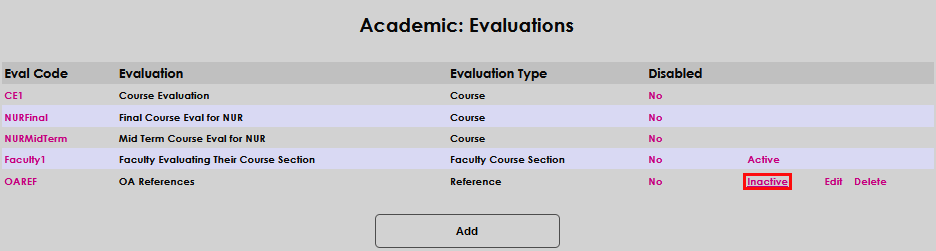
To configure an evaluation or reference request, enter the Academic: Evaluations page from the Systems hub. Click Add to begin.
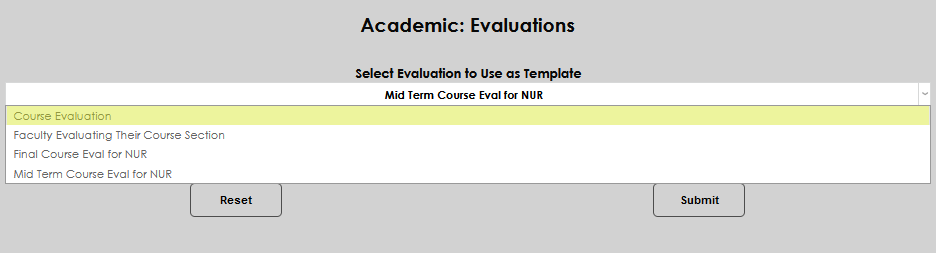
If evaluations or reference requests were previously created, the user must select an existing Evaluation to Use as a Template. While none of the existing evaluations or reference requests might be appropriate for the one being created, it is a timesaving feature that provides a nice framework to begin creating the request or evaluation with.
Enter up to 10 alphanumeric characters in the Eval Code field that represent the name of the evaluation or request. Enter the name in the Evaluation field. This field accepts up to 40 alphanumeric characters.
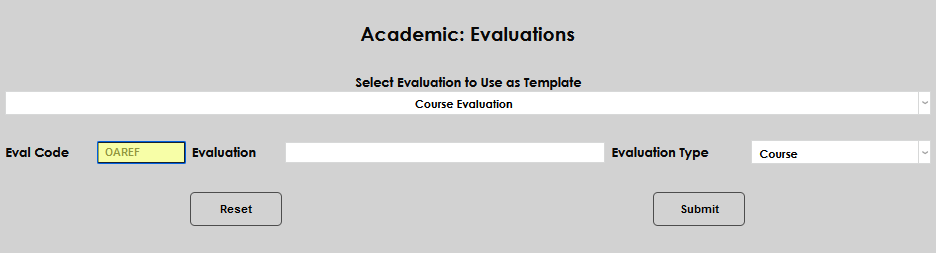
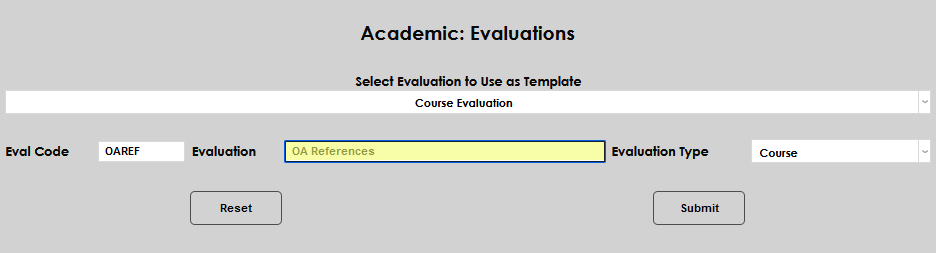
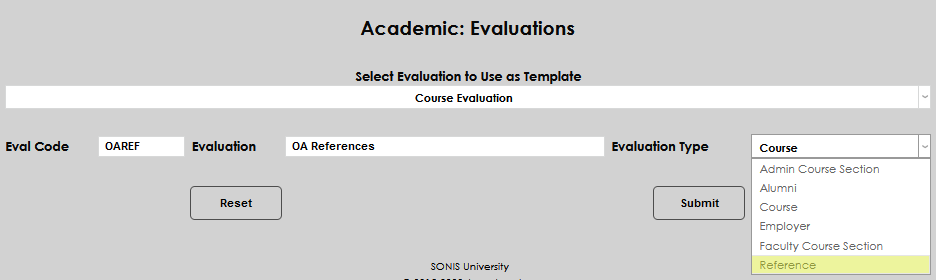
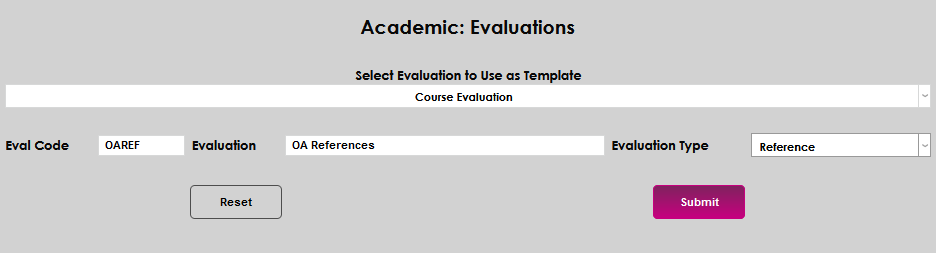
Select the type of questionnaire being created from the Evaluation Type dropdown. Click Submit to save the entries and begin adding questions.
If the item being created is not a course evaluation, click No. If it is an evaluation, click Yes.

Begin by entering Instructions to the individual receiving the reference request or evaluation.
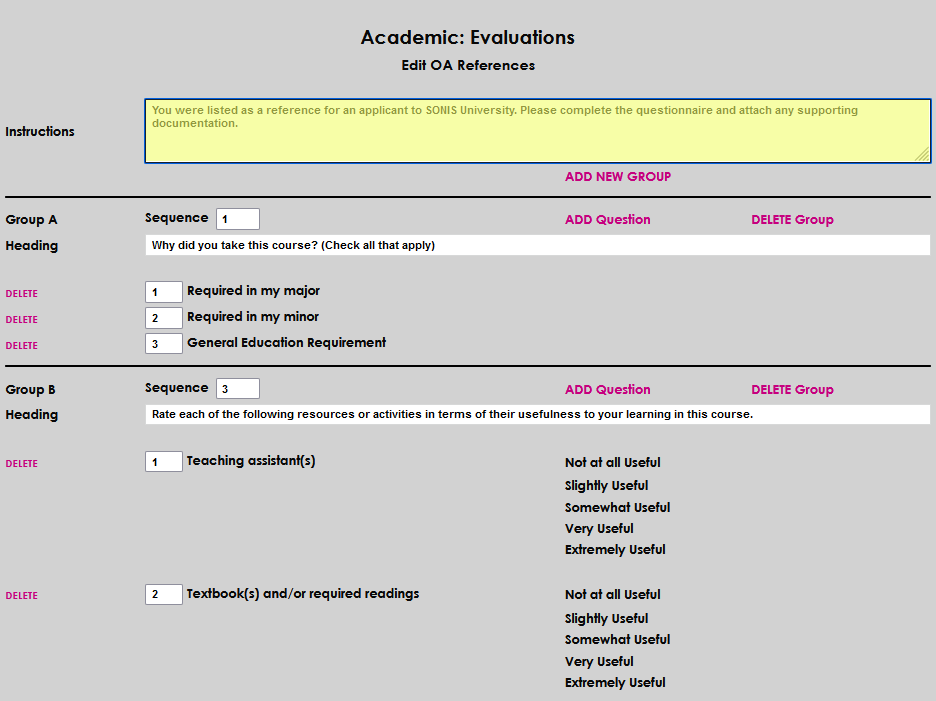
If using a template, utilize the ADD New Group, ADD Question, DELETE Group, and DELETE links to structure the item as desired. Text fields can be edited by simply clicking in the field and change the text as desired.
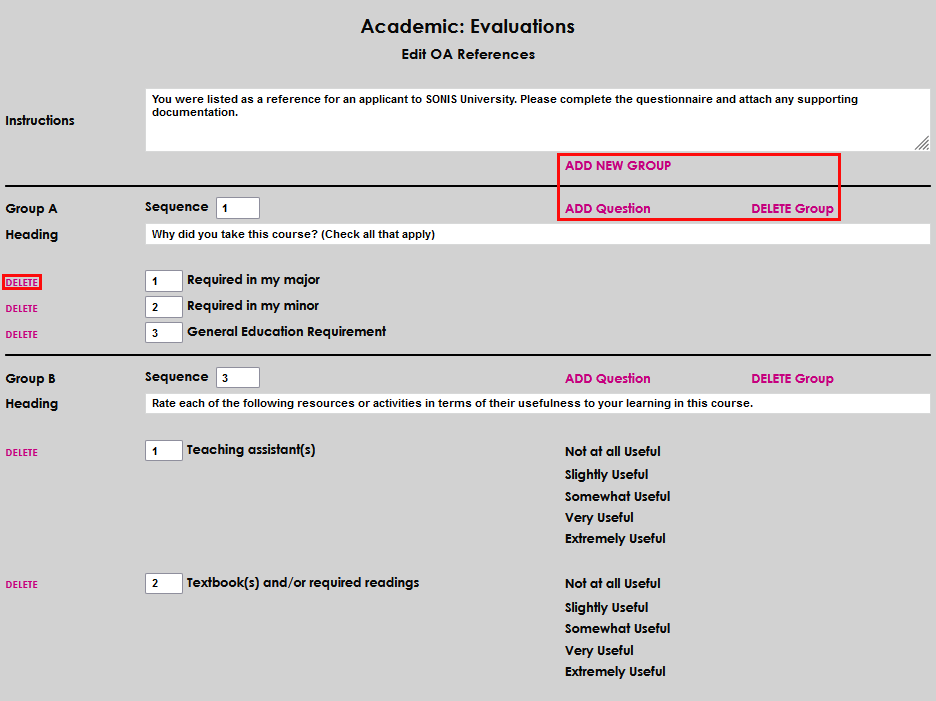
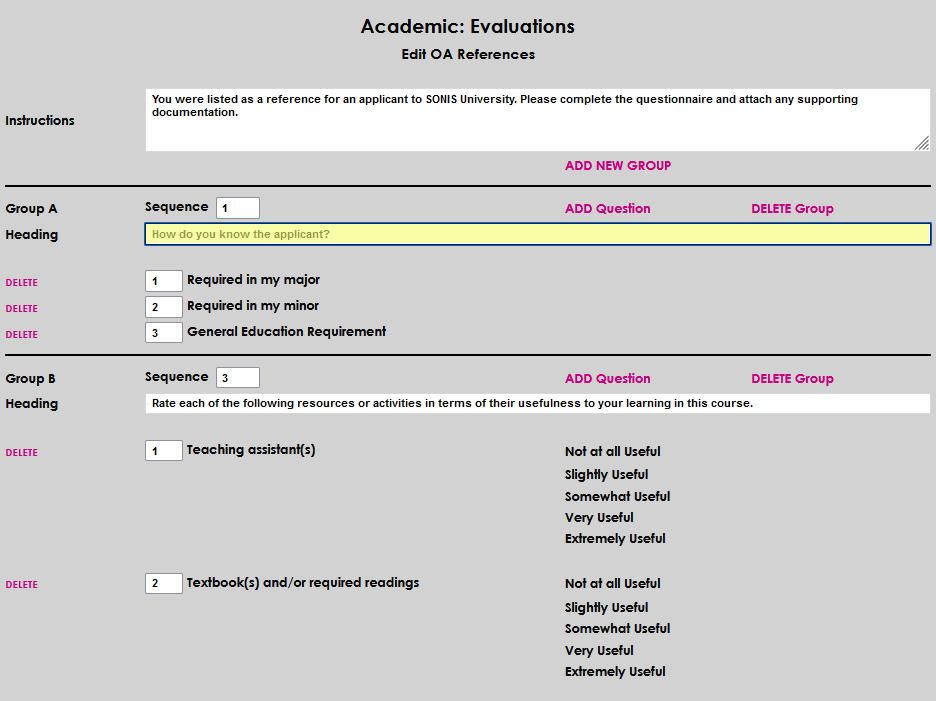
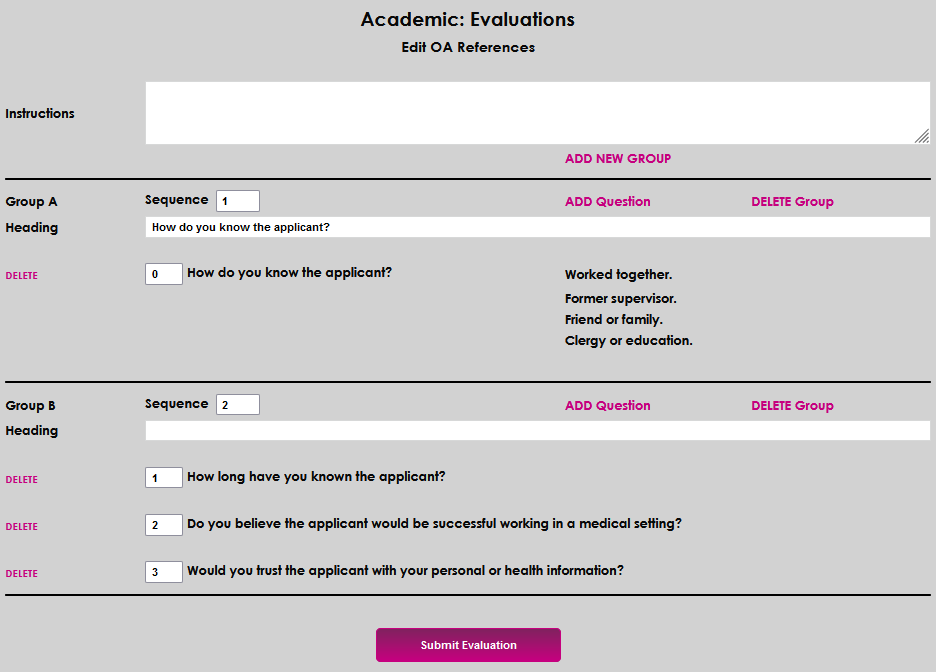
The boxes in front of questions can be used to order the display of the questions. If the desired questions or responses are not available, save the evaluation or questionnaire by clicking Submit Evaluation and go to Academic: Evaluation Questions or Academic: Evaluation Responses to create them. Edit the item by clicking Edit in the row associated with it's name.
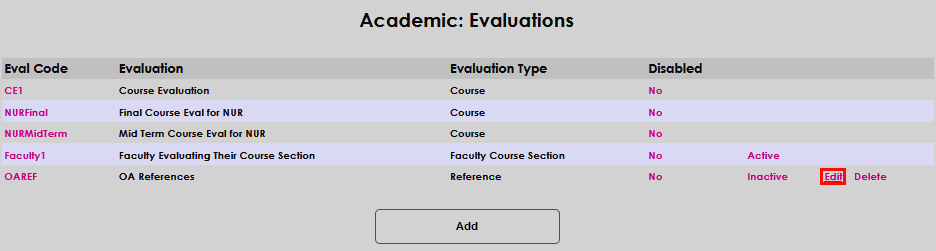
Make the evaluation or reference questionnaire available for use in other SONIS areas by clicking the Inactive link and then the Activate Evaluation button.

Evaluation Counts
At any time when evaluations are in progress or completed, a count can be viewed by using the Systems hub utility Reg: Course Evaluation Counts. To view counts, enter the utility and select a Campus or Division, as appropriate.
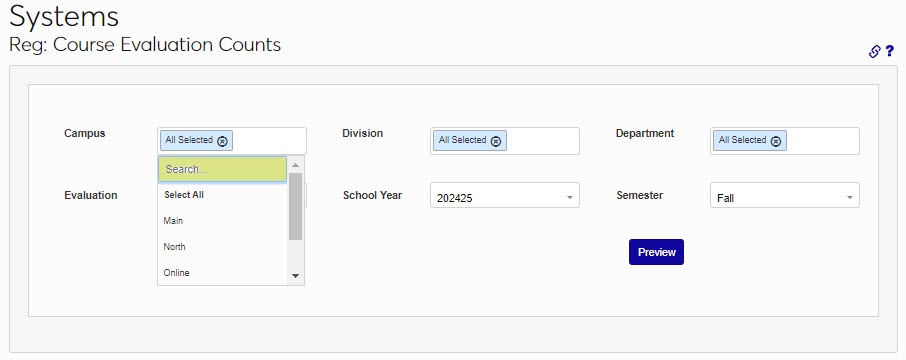
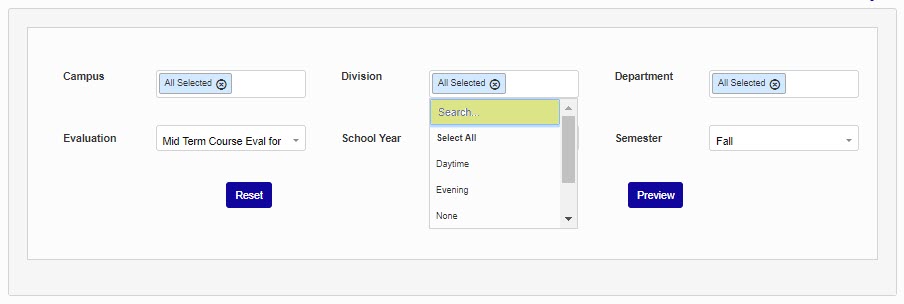
Select a Department, if necessary. Select the evaluation from the Evaluation menu.
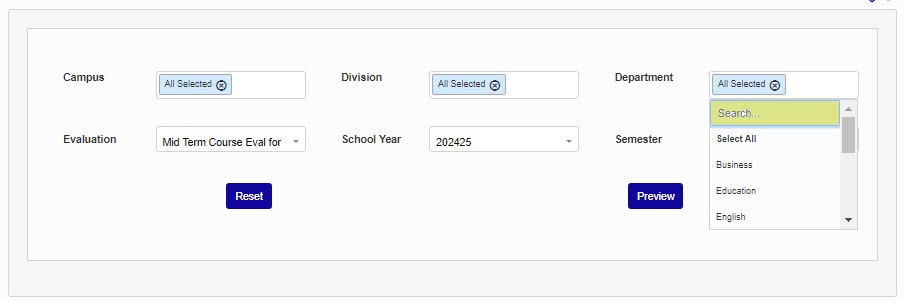
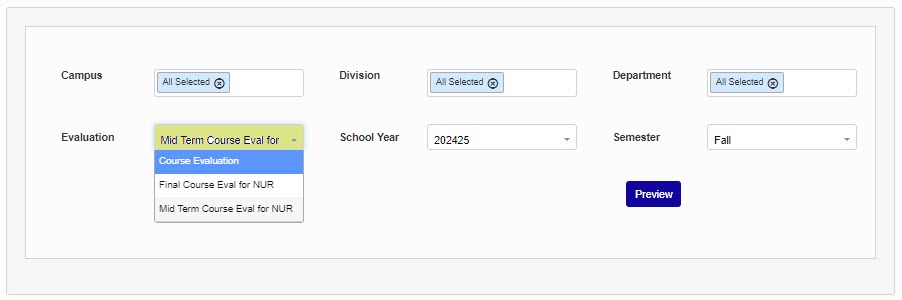
Select the School Year and Semester.
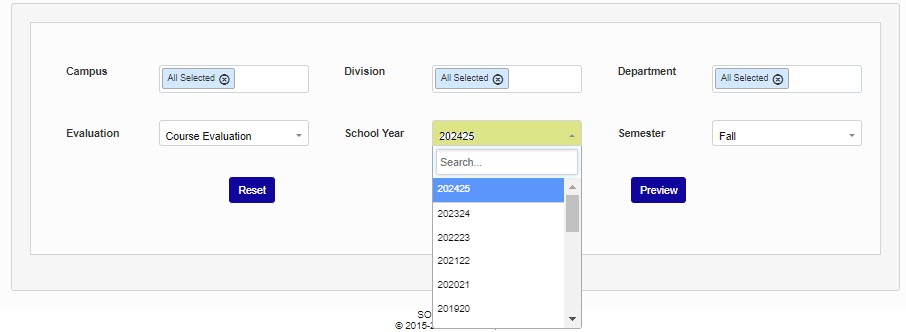
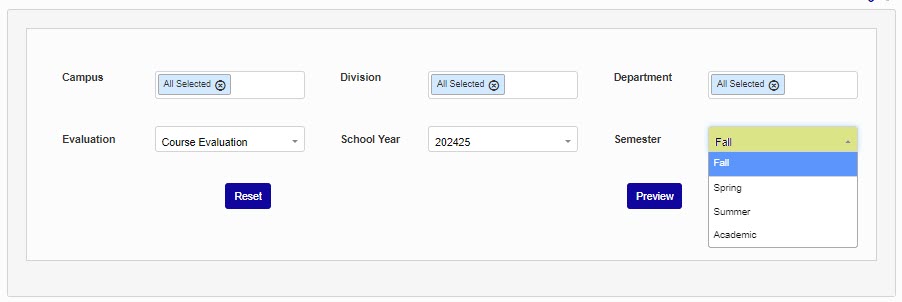
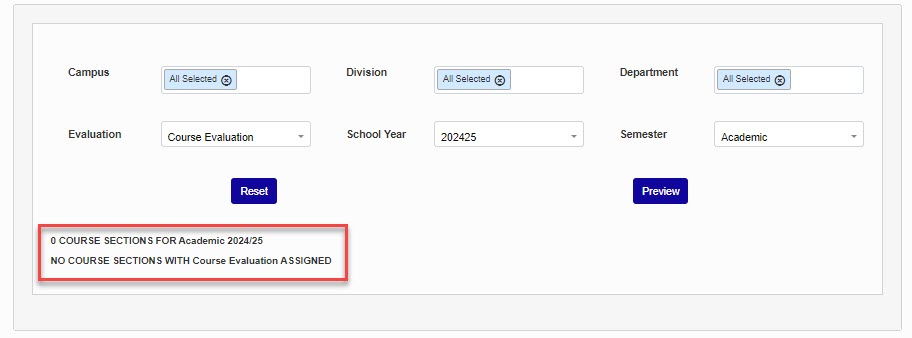
Click Preview to run the utility. If no results are found, an informative message will display in the lower left corner.
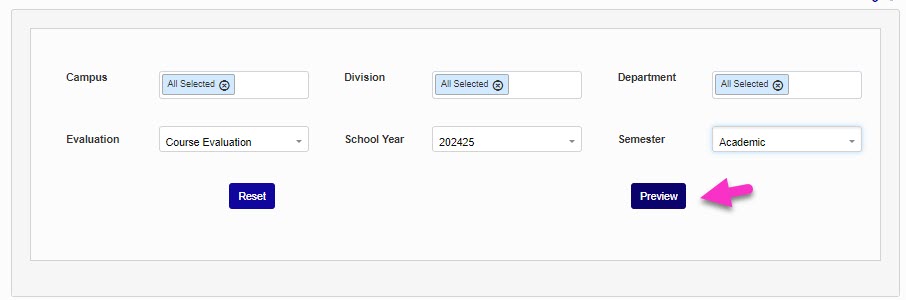
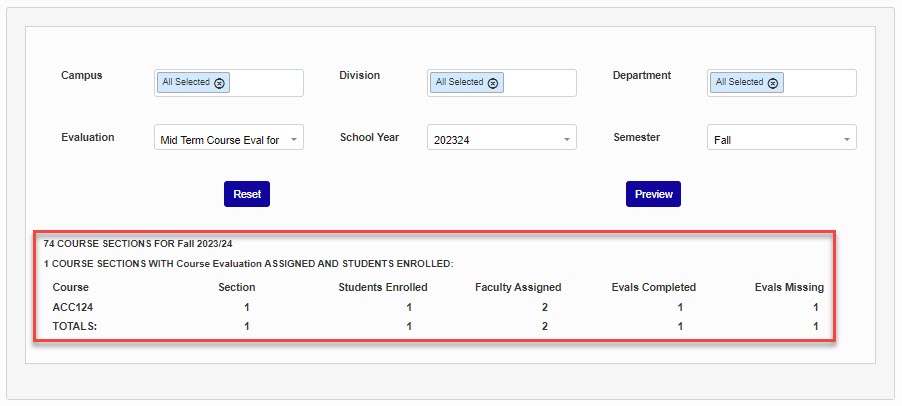
If results are found, summary and detailed information will display on the lower portion of the page.
Viewing Evaluation Results
Requesting that a user complete an evaluation is a standard part of assessing the efficacy of a course, a program, or a group. For faculty to view the results of course evaluations, the following conditions must be true:
In Systems > Academic: Evaluation Assignments, the Faculty View Date must have a date entered. This date can be entered when evaluations are assigned or at a later date.
In Systems > Web Options, Allow Faculty to View Course Evaluations must be checked.
When the Faculty View Date has arrived, faculty will be able to see their evaluations within their portal by going to Course Management > Courses, and then clicking Link to Student Course Evaluation Report.