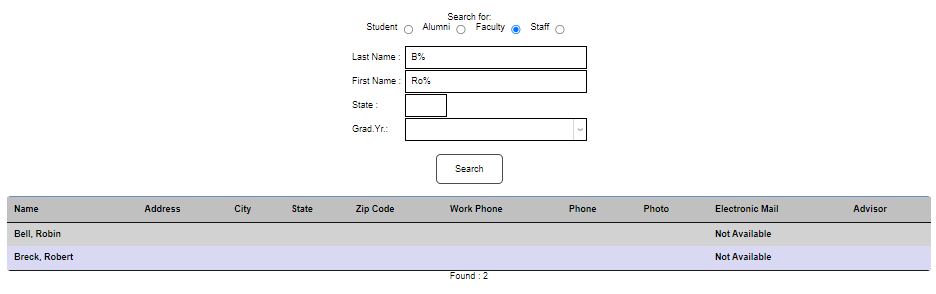
Update Bio
Overview
The Update Bio page allows users to update their demographic information and text preferences, upload a photo, change their PIN, publish and manage their office hours, provide a profile statement, and define which of their data should be published to the portal for other users to search.
View/Update Office Hours
To create or manage published office hours, click the View/Update Office Hours link. For convenience, the days of the week are prepopulated.


Type the hours next to the displayed days or clear the days by deleting them and enter the desired hours information, as appropriate.


Click Submit to save the entered information and publish it.

PIN
If enabled, users can view and manage their PIN on this page. To View the PIN, click the eye icon in the PIN field.
Visit the Password & PIN Utility documentation for more on how PIN codes work in SONIS.
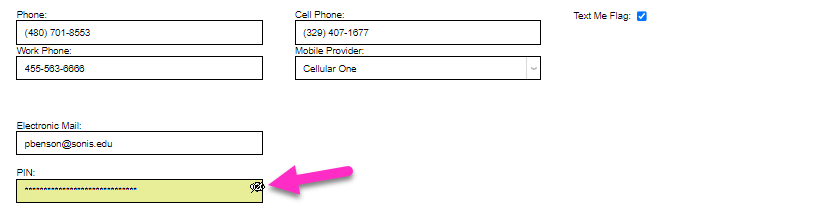

To update the PIN, enter the new PIN in the PIN field and click Submit. PINs that do not meet organizational requirements, as defined in SONIS, will not be saved. The user will receive an error message and a request to update the PIN to meet organizational requirements. The PIN will be masked automatically as it is entered.

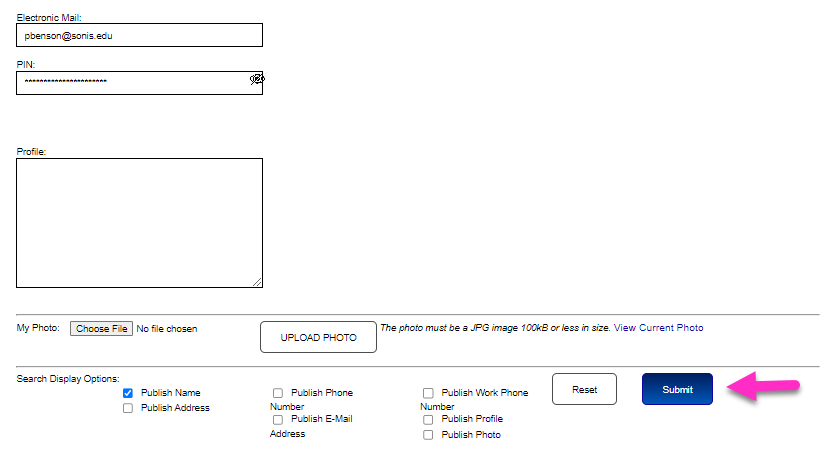
Profile
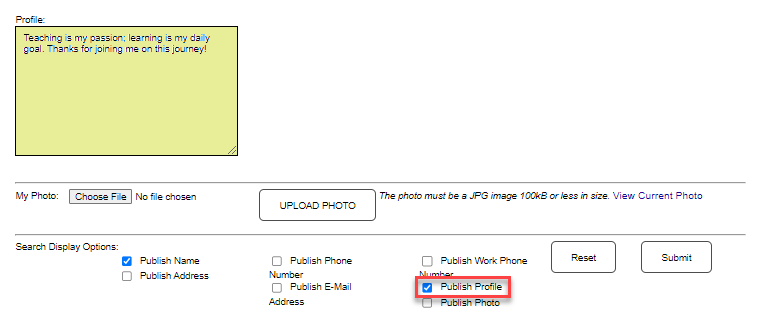
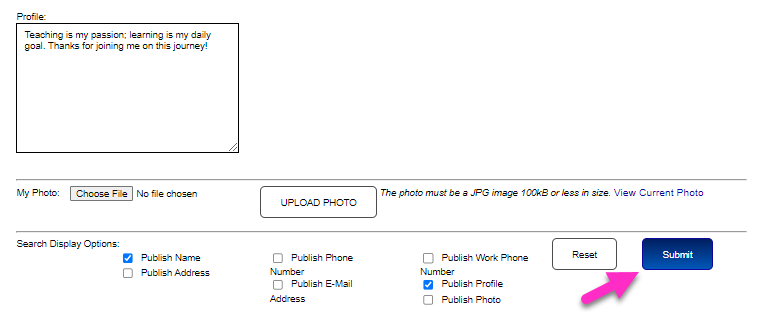
The Profile field allows the user the opportunity to share some details about themselves, much like an abbreviated biography. Enter the desired content in the Profile field and click Publish Profile. Click Submit to save the update. If Publish Profile was clicked, the entered information will display throughout SONIS on the Biographic pages.
Upload Photo
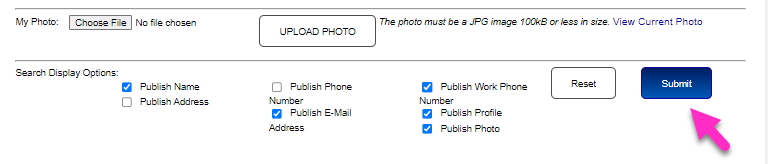
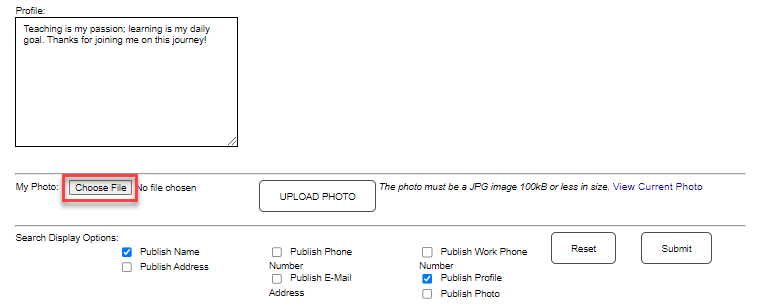
Faculty can update their photo system-wide by entering it in the My Photo section. Click Choose File and follow the file picker prompts. After selecting the file, click Upload Photo. Clicking Upload Photo updates the user's photo in the portal and SONIS database right away.
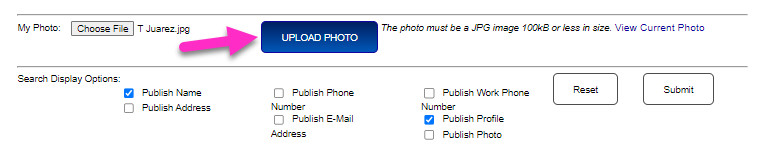
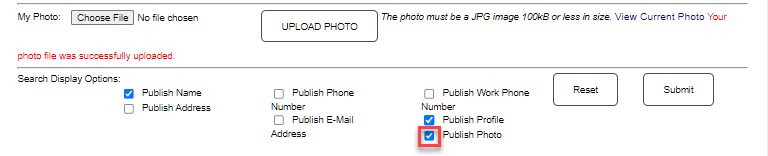
Click the Publish Photo button if the picture should be visible in Search Results and click Submit to save the update.
Search Display Options
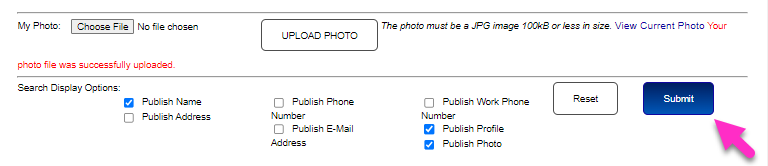
The Search Display Options section provides the user the ability to manage what profile information will be returned in Search results. For each of the options, a check means the item will be returned in searches; an empty box means the item will not be returned in searches. Click Submit after making any change to save the update.