Edvance360 Integration
Overview
Edvance360 is a learning management system for for K-12 schools, colleges and universities, and businesses. They provide secure academic social environment that incorporate both collaborative tools and course interaction tools. The Jenzabar SONIS system can be used to export student and course data to Edvance360 to facilitate online learning. This can be done manually or on a regular schedule using the SONIS Timed Task Scheduler.
Setup
Course Setup
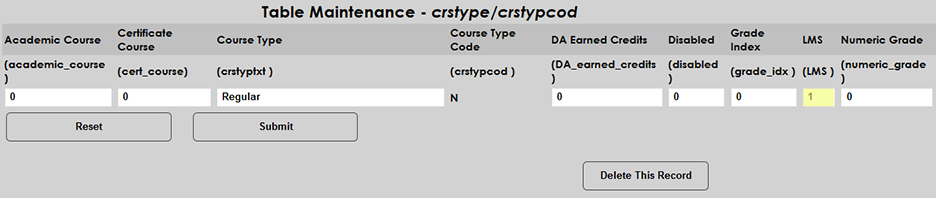
Before setting up the Edvance360 integration, schools should ensure that their courses are properly configured to pass data to LMS systems. Navigate to the Course Type table in Table Maintenance under the Systems menu and ensure that any course types that may use Edvance360 or another LMS have a 1 in the LMS field.
Additionally, each individual course section that will be available through Edvance360 should have the On-Line box checked on the Course Section page. For most schools, a course must have a section type that’s LMS enabled and have the On-Line box checked or it will not be exported to Edvance360.
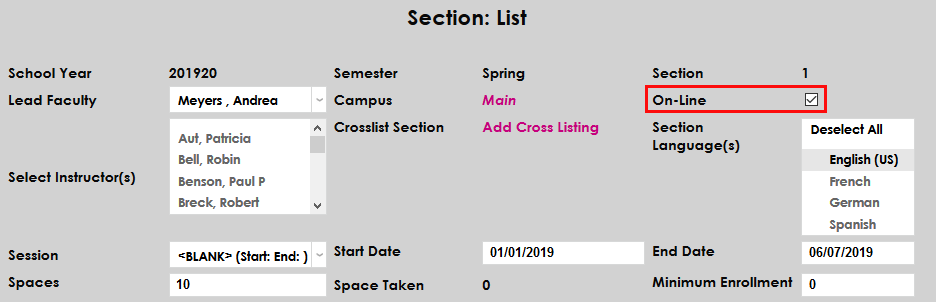
The Course Section edit page also includes optional Edvance360 Start Date and Edvance360 End Date fields. Enter a date into each of these to change the dates that students have access to Edvance360. If the fields are left blank, the course start and end dates are used in the export file instead.


LMS Setup
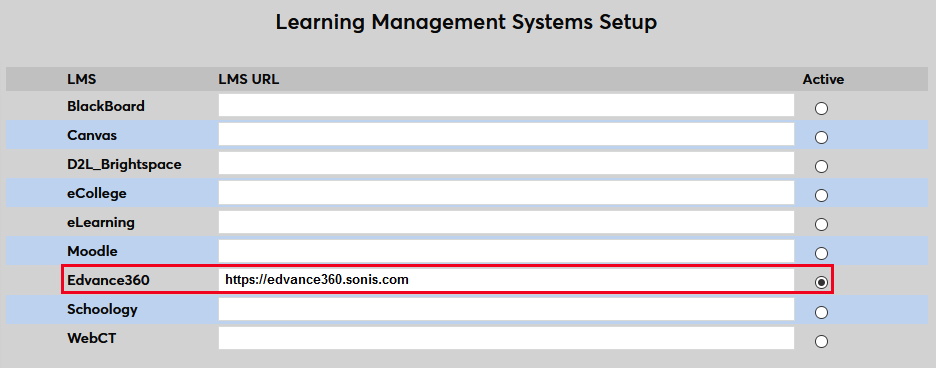
To link Edvance360 to SONIS and activate it, navigate to the Learning Management Systems Setup utility. Enter the institution-specific web location where the Edvance360 software has been uploaded and check the Active button.
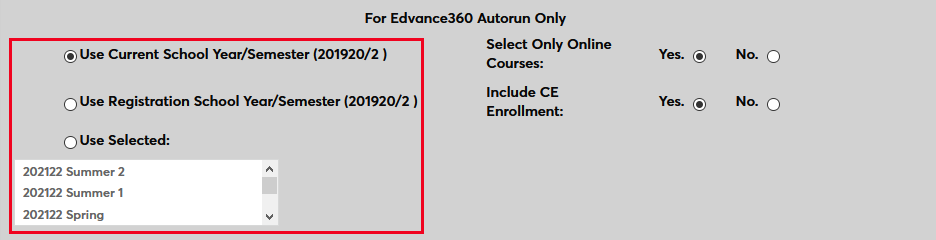
After activating Edvance360, scroll down to the For Edvance360 Autorun Only section of the page. These controls allow schools to manage how their Edvance360 integration will function. First, choose whether to use the Current School Year/Semester or the Registration School Year/Semester if different. Alternately, select a school year/semester that is neither of those. All school years and semesters that have been created in the SONIS system are listed in this menu.
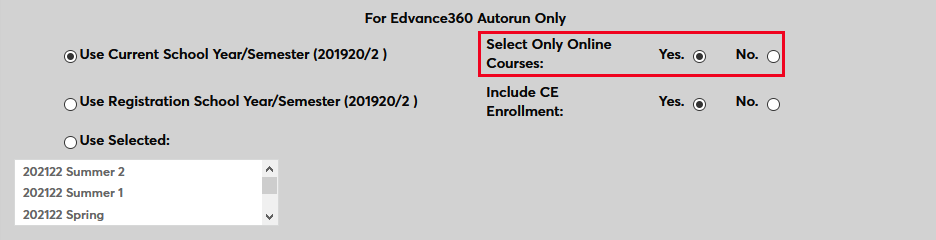
If the Select Online Courses option is set to Yes, only course sections with the Online box checked will be included in the export to Edvance360. If No is selected, all courses with a valid course type will be exported.
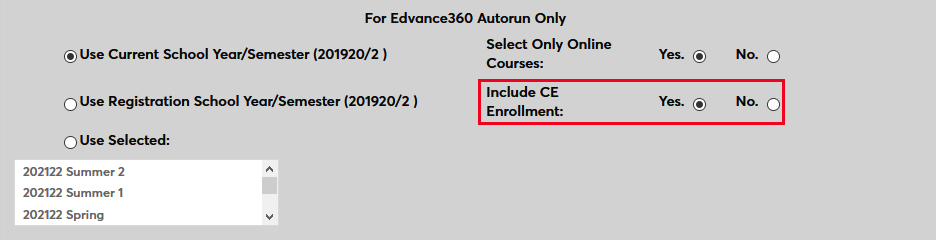
Administrators can choose whether to include Continuing Education courses in Edvance360 or not by selecting Yes or No.
Once this section has been completed, scroll down to the section labeled For Edvance360, WebCT, Moodle, Canvas, and Scholar360 Only. Choose whether each course in Edvance360 will Use Lead Faculty or Use Lead Faculty and Additional Instructors. Additional instructors are added on the Section: List edit page.

Then, scroll down to the For Edvance360 Only section. Choose Yes to only export continuing education courses to or No to support all courses based on the previous settings.

Click Submit at the bottom of the page to save the changes and activate Edvance360.

LMS Holds
The Jenzabar SONIS Holds system can be used to prevent students from using Edvance360 and other Learning Management Systems. To place a hold on a student, navigate to that student's Holds page and click Add to create a new hold. Select LMS Hold from the Hold menu and check the Active box. Enter the start date and select a staff member to authorize the hold. An additional memo or notes for student viewing can be included as well but are optional. Click Submit to create the hold.
When a student has an active LMS Hold in their records, the student’s data will still be sent to Edvance360, but they’ll be marked as inactive in the Edvance360 system.
XML Export
Manual Export
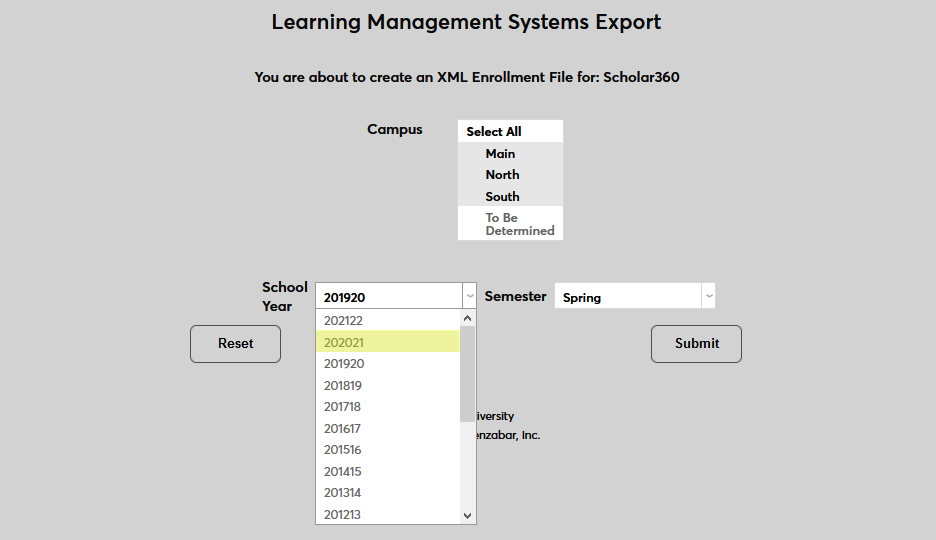
Jenzabar SONIS course and student data can be uploaded to Edvance360 through a fairly simple manual process. First, navigate to the Learning Management Systems Export utility in the Systems hub. Select the the Campus or campuses that should be included in the export.
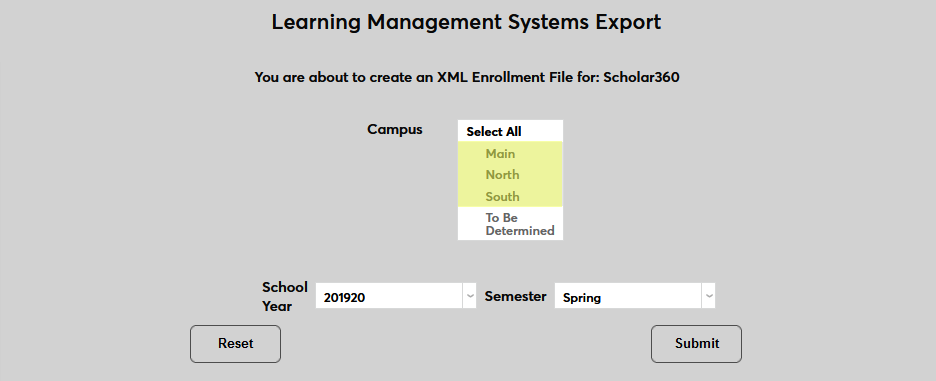
Next, select the appropriate School Year and Semester for the data.
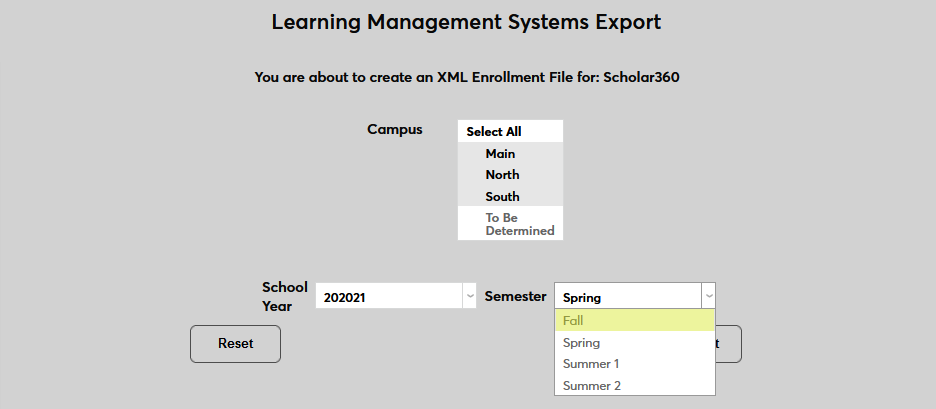
Click Submit to create the XML file.
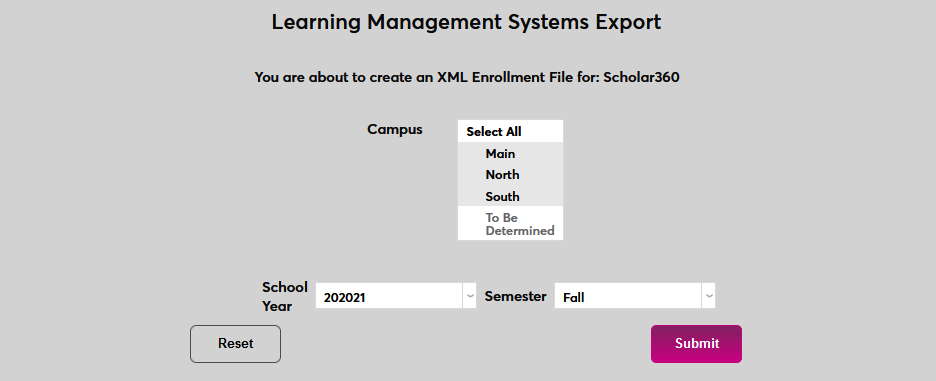
The file will be saved in the batch folder designated under Web Options.
Automatic Export
Jenzabar SONIS can also be configured to create the Edvance360 XML export file automatically. To begin, navigate to the Notification Assignments page in the Systems hub and click the Add button to create a new assignment.
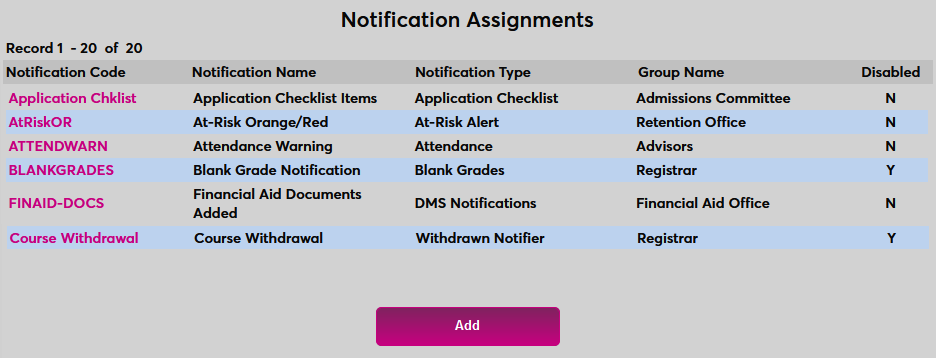
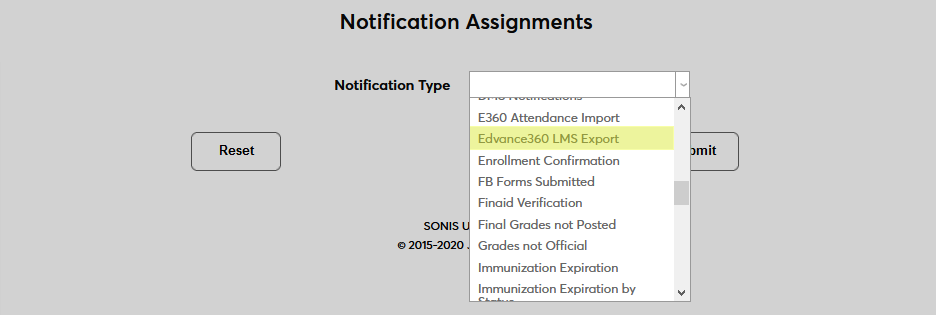
On the following page, select Edvance360 LMS Export from the Notification Type dropdown menu and click the Submit button.

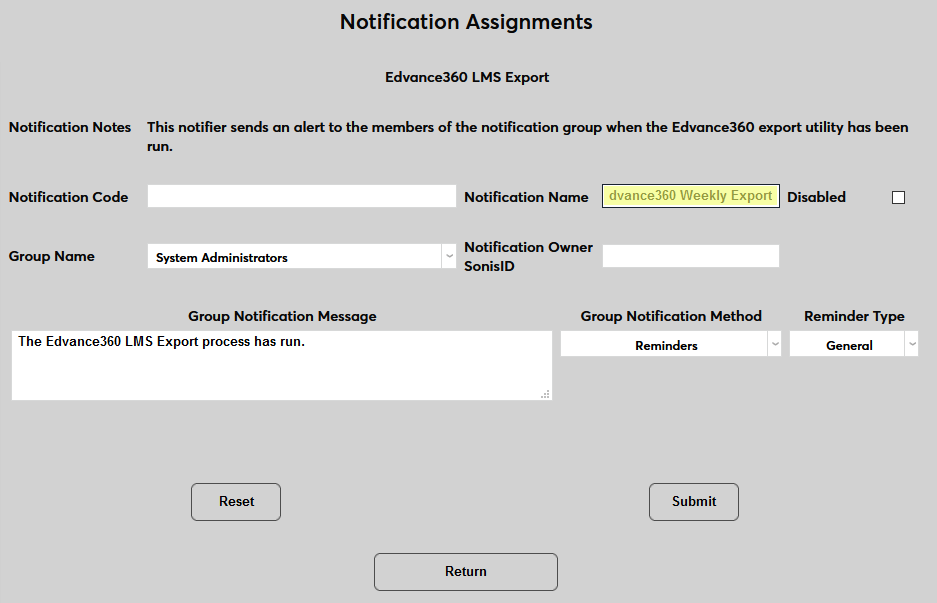
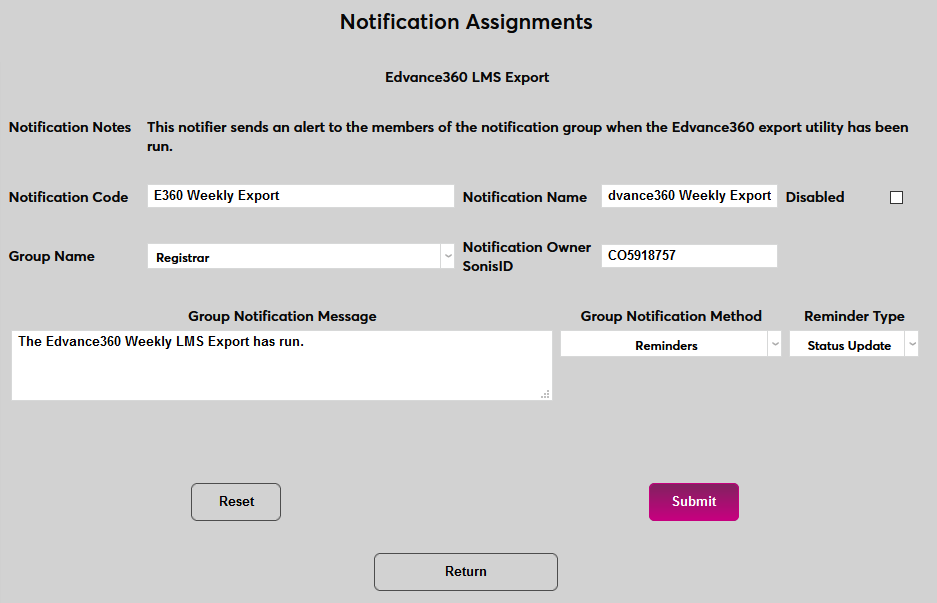
Next, create a Notification Name, a descriptor of the notifier's purpose with a 50 character limit, and a Notification Code, a shorter version of this name with a 20 character limit that the SONIS system will use internally to identify the notifier.
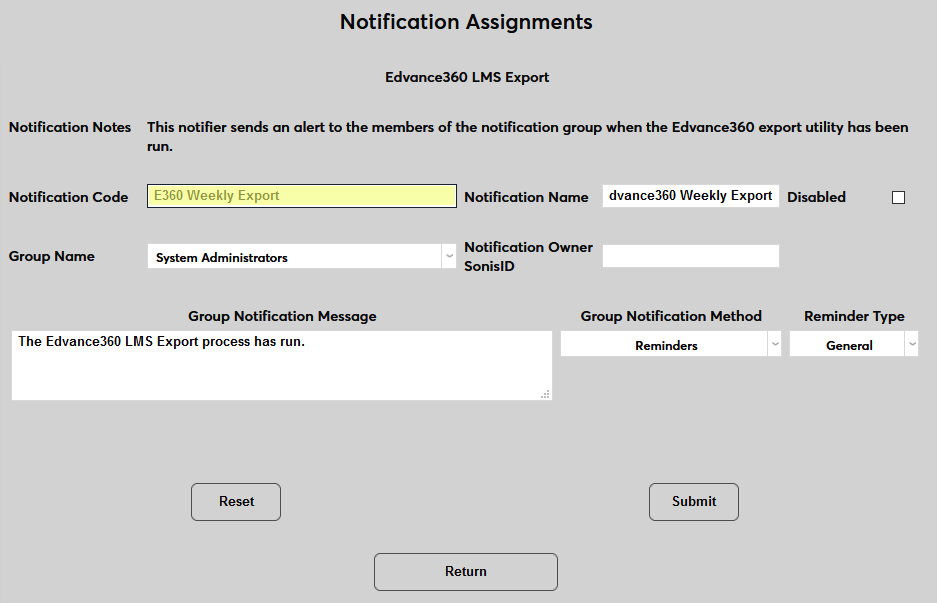
Select a group of staff/faculty to receive the notification from the Group Name dropdown menu. Groups can be added and edited through the Table Maintenance utility.
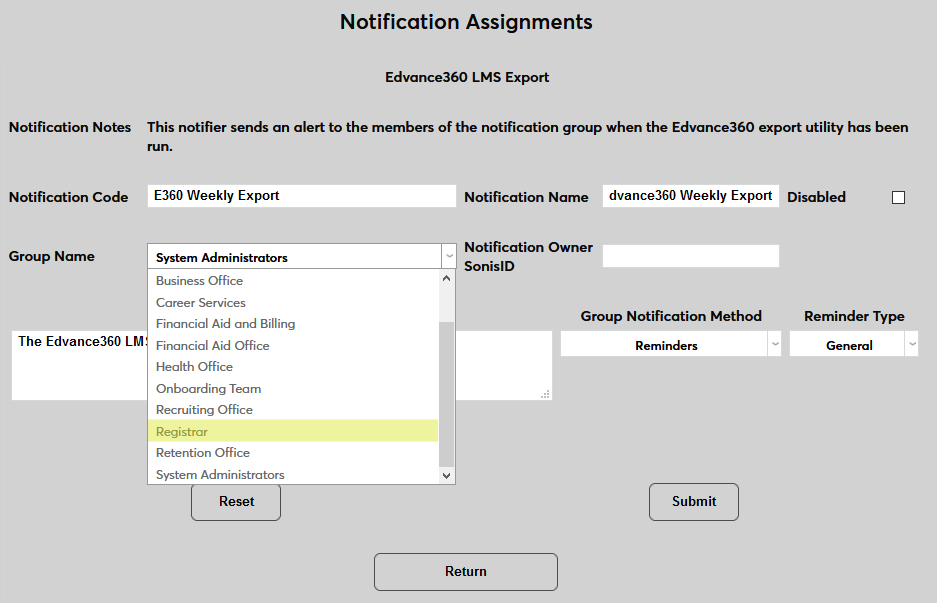
Enter the ID of the staff or faculty member who will be managing this notification in the Notification Owner SONIS ID field.
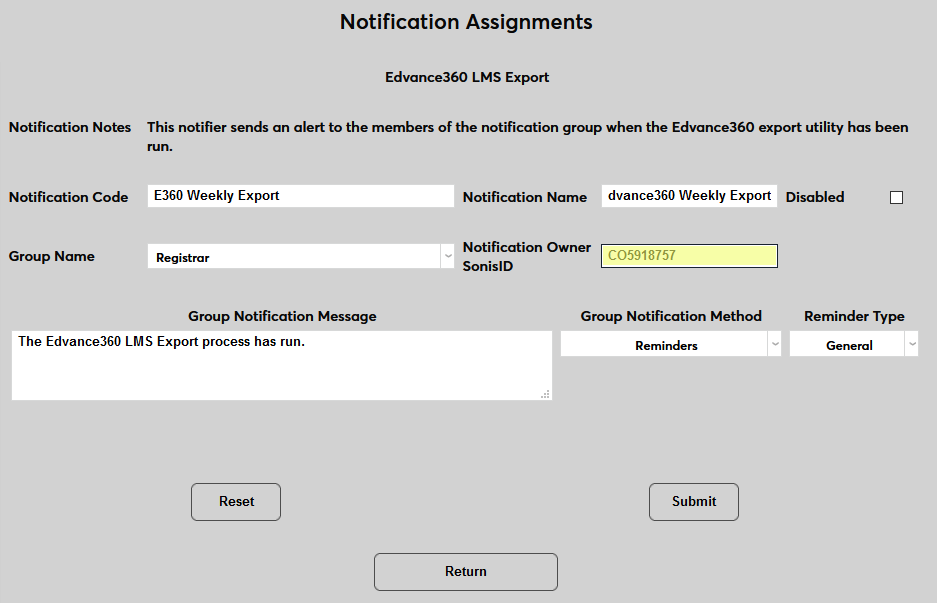
Create a Group Notification Message that will be sent to the group members when the task takes place.
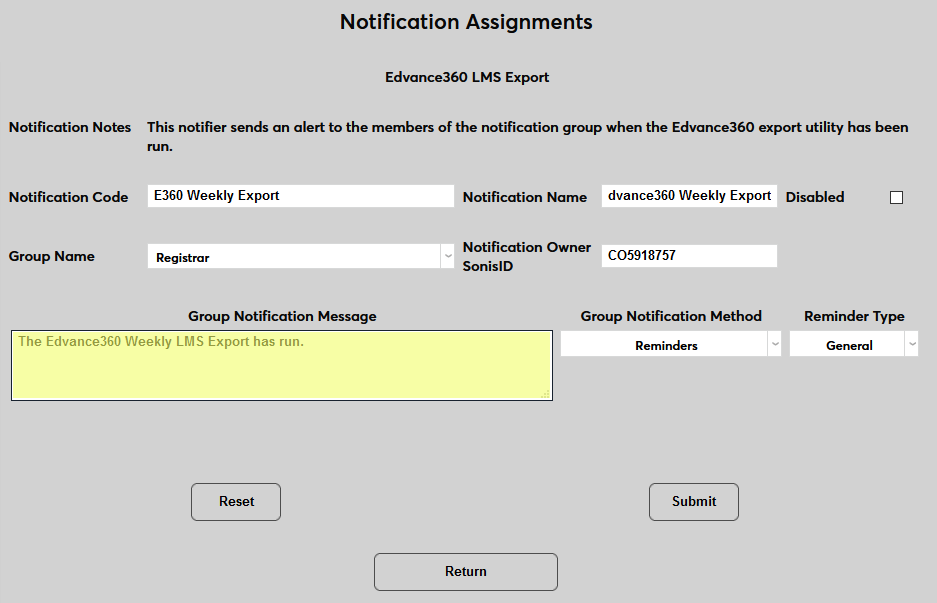
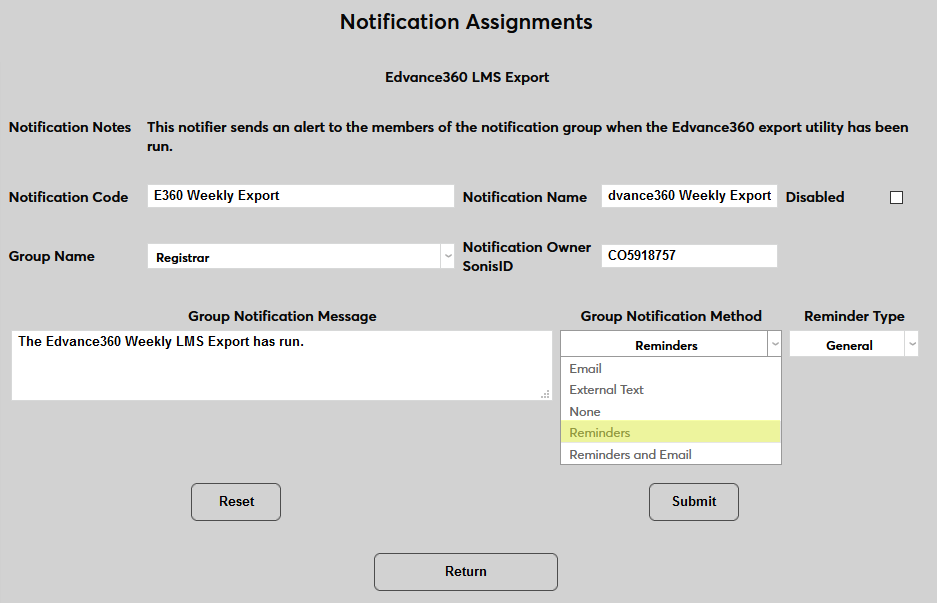
The Group Notification Method dropdown menu designates whether the group and individual users will receive an in-system reminder, an email, or neither when the notification is triggered. The Reminder Type dropdown can change how the in-system reminder displays. This list can be created and edited via the Table Maintenance utility.
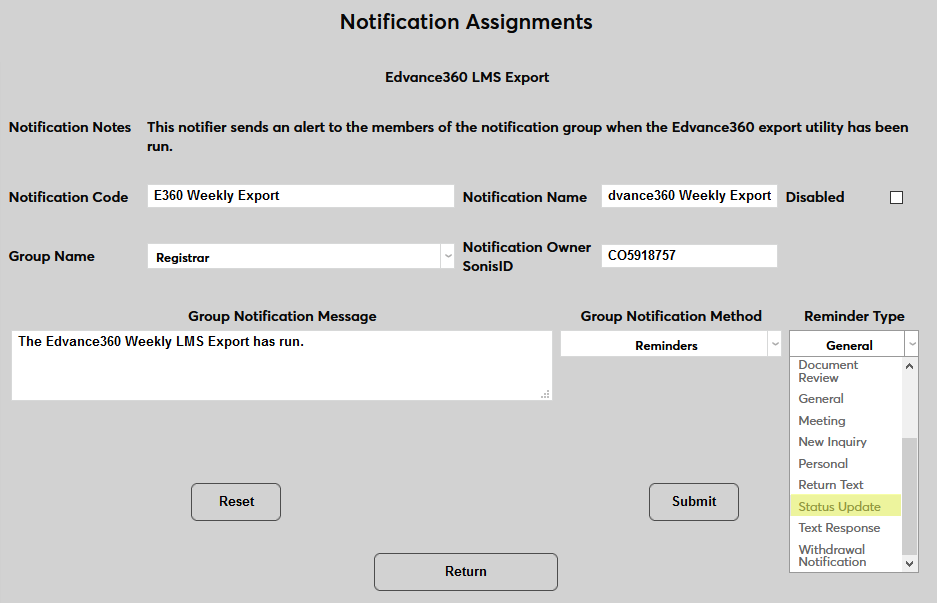
Click Submit to activate the notification assignment.
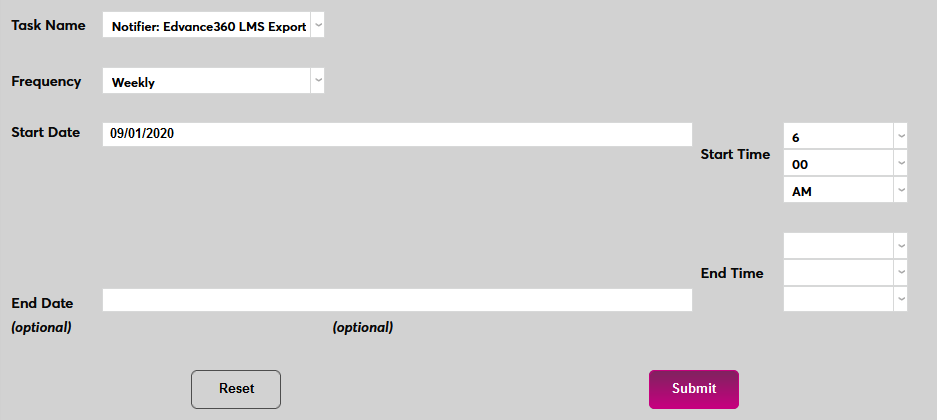
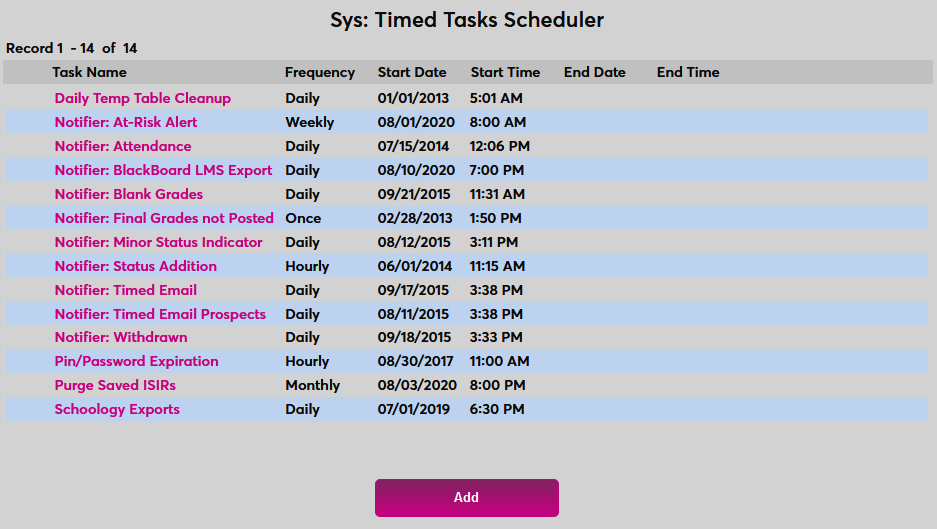
Once the automatic export process has been created, it must be scheduled. Navigate to the Timed Task Scheduler under the Systems hub and click Add to begin.
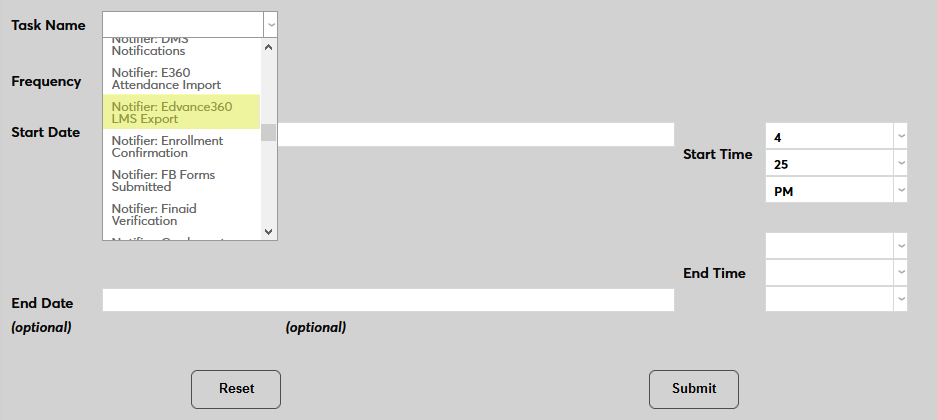
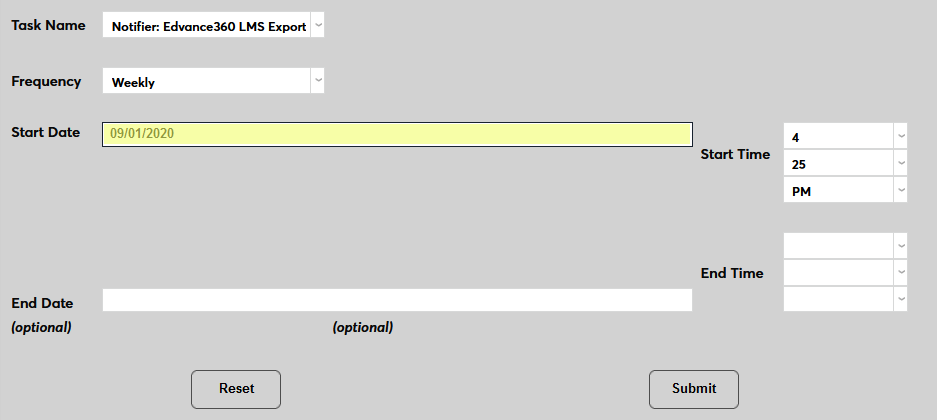
On the following page, select Notifier: Edvance360 LMS Export from the Task Name menu.
Select how often the task should occur with the Frequency dropdown. Schools may wish to run the export more frequently during each semester's drop/add period and edit the task to run only daily once this period has ended.
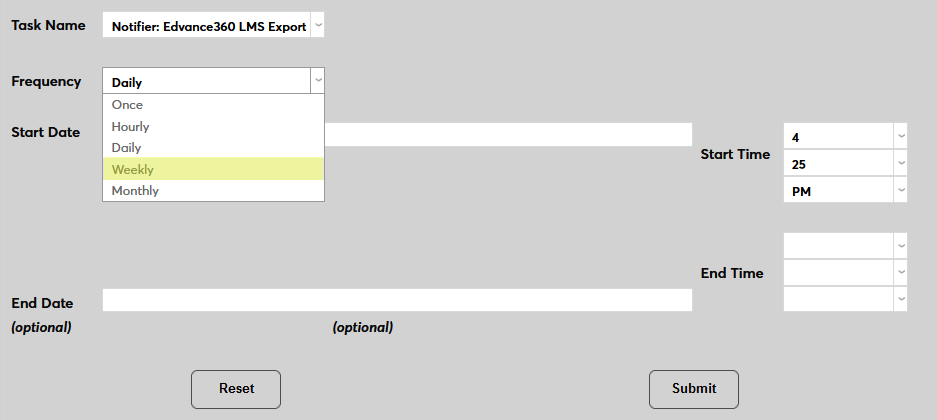
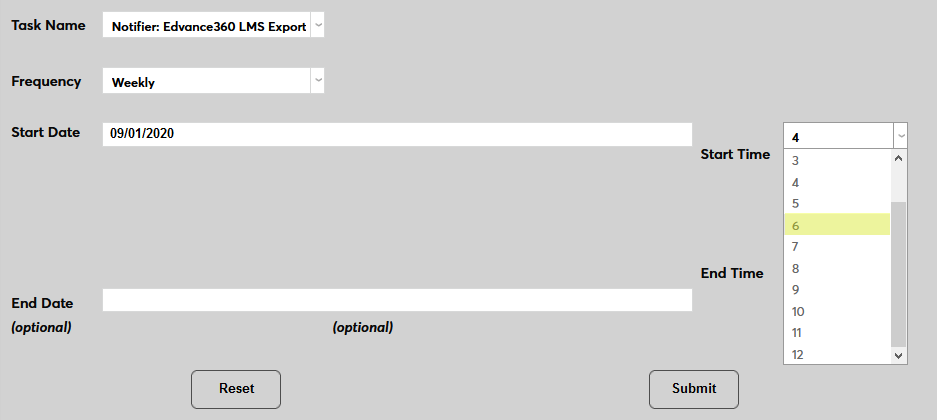
The Start Date and Start Time will automatically be set to the current date and time but can be changed to suit individual preferences. The End Date and End Time are optional.
Click the Submit button to create the scheduled task.