Semesters
Overview
The Semester table is one of the basic setup tables in the Jenzabar SONIS system. It must be set up correctly for the rest of SONIS to function properly. The table is located in the Systems hub when logged in as an administrator. The word "semester," in this case, refers to the academic terms of the school. The Semesters table would also be used to define trimesters, quarters, or any other non-standard terms. As with other SONIS pages, the fields can be relabeled to reflect the terminology used at the SONIS member school. Once the table has been set up initially, semester dates can be updated each school year to stay current.
Adding Semesters
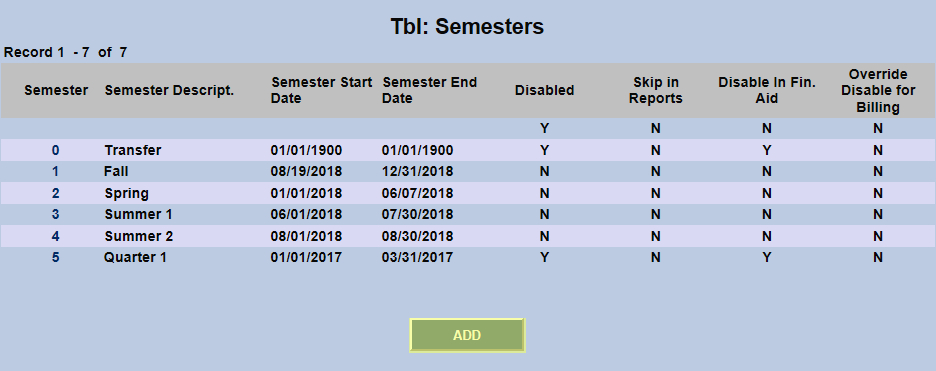
From the primary Semesters page, click Add to create a new semester designation.
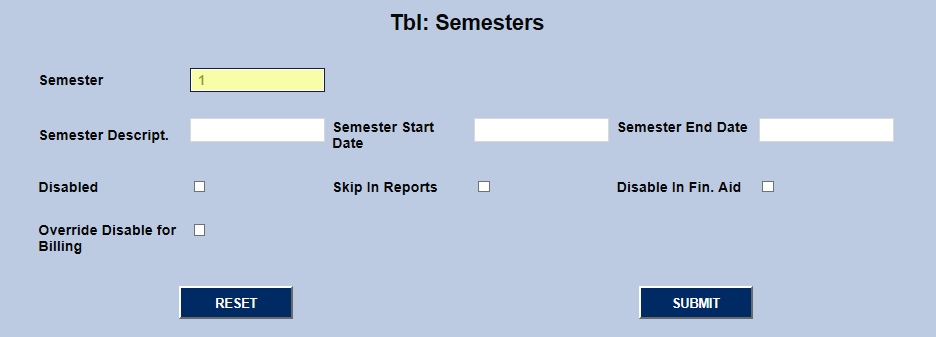
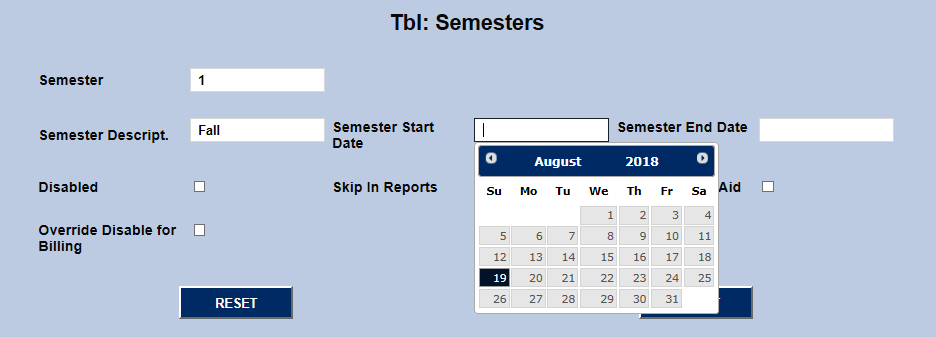
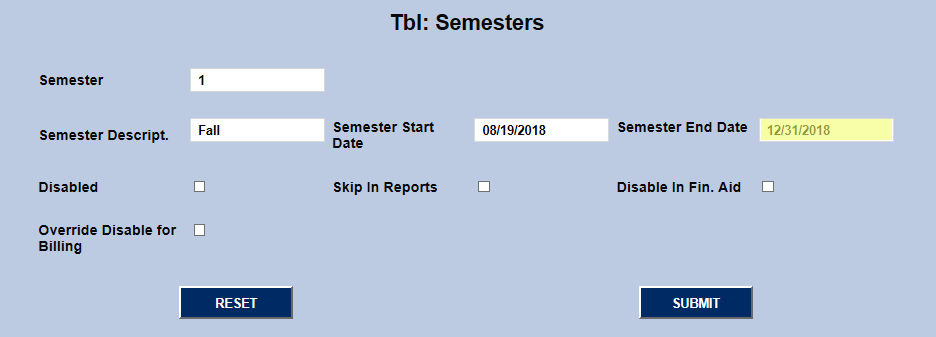
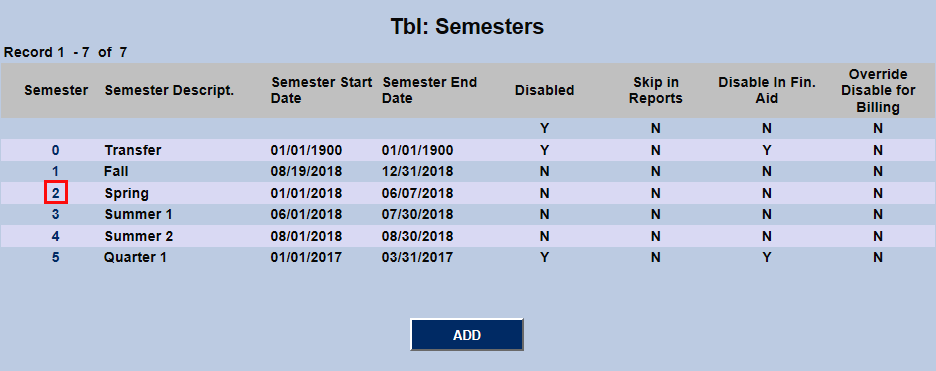
On the following page, begin by entering a number designation for the semester being created in the Semester field and a Semester Description such as "Fall," "Spring," "Summer 1," "Summer 2," etc. This designation will vary depending on when the school's academic calendar begins. If a school's academic year begins in the fall, the Fall semester would be designated as semester 1. If a school's academic year begins at the start of the calendar year, then Spring would be designed as semester 1. If a school's academic calendar begins in the summer, then the first Summer session would be designated as semester 1. The subsequent chronological semester would be labeled 2 and so forth. For example, if the Fall semester beginning in August and kicking off the academic year is labeled 1, then the Spring semester beginning in January would be labeled 2. Each semester must have the proper numerical designation and be labeled in the correct chronological order to ensure that course schedules and other SONIS functions mirror the school's actual academic calendar.
Note: This field sorts alphabetically rather than numerically. This poses no issues for institutions with nine semesters or less. However, for schools with double digit semesters, keep in mind that they will be sorted based on the first character. For example: 1, 10, 11, 12, 2, 20, 21, 3, 4, 5, 6, 7, 8, 9.
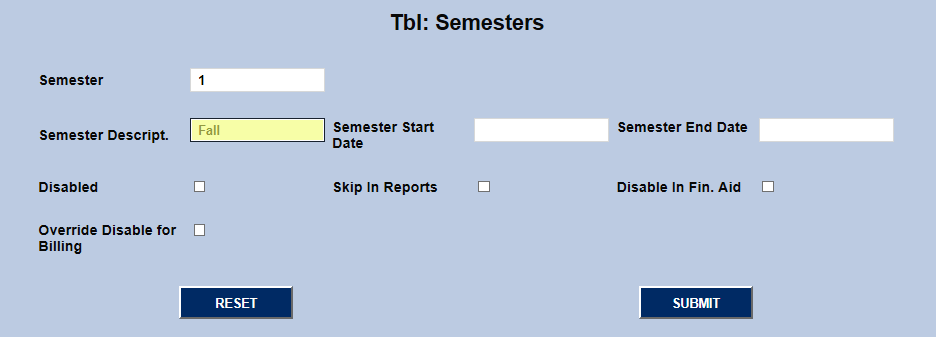
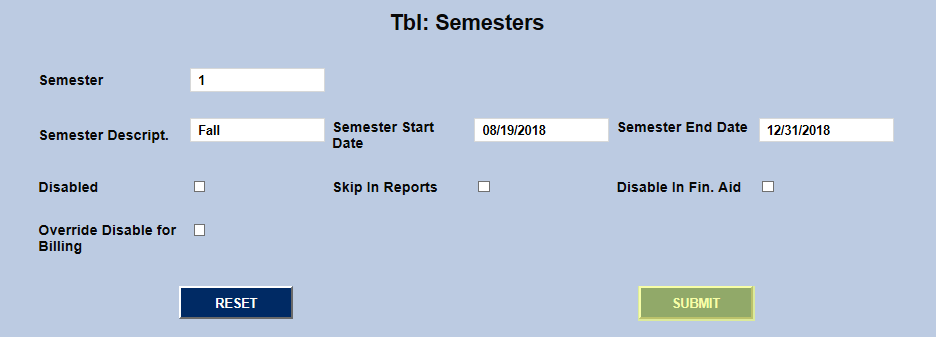
Once the semester has been numbered and named, enter Start and End dates using the dates for the current school year. Click Submit to save the changes.
Editing Semesters
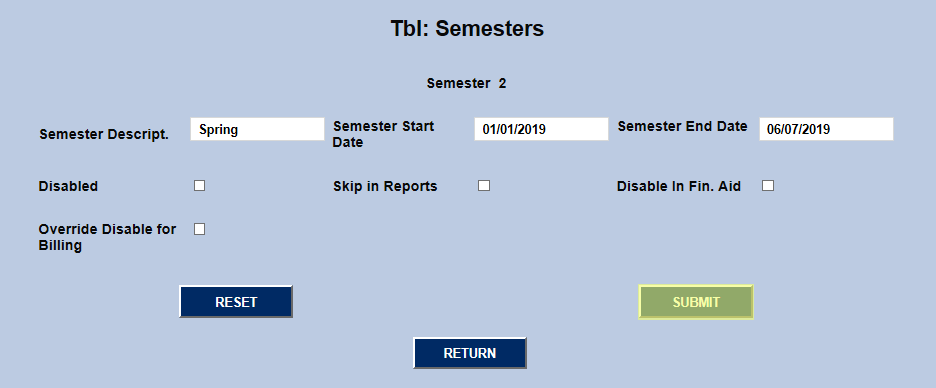
To edit a previously created semester, click the semester number in the far left column.
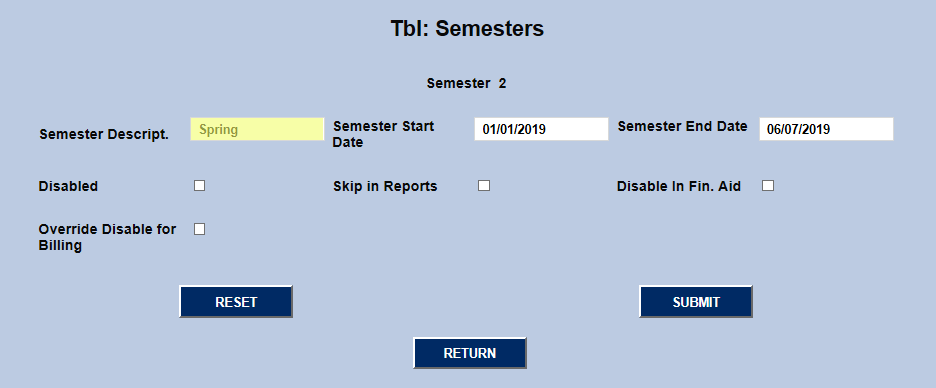
The primary reason to edit semesters for most schools will be to update the Semester Start Date and Semester End Date. These can be changed by simply replacing the values in those fields with new dates that match the current school year.
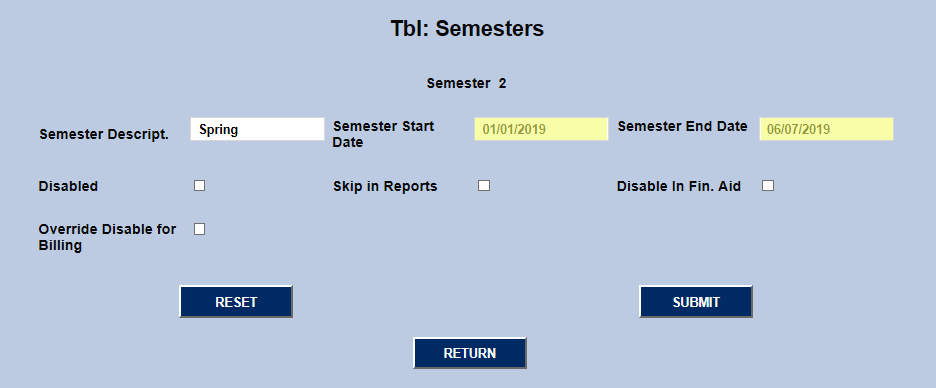
The semester number can not be changed once the semester has been created, but the Semester Description can be edited from this page.
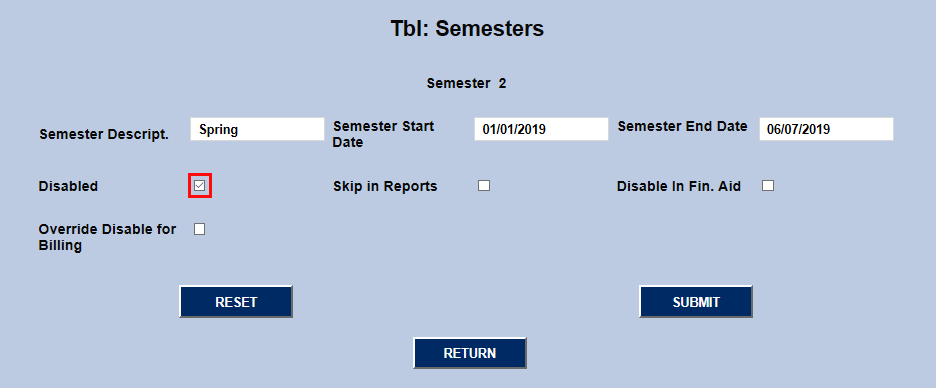
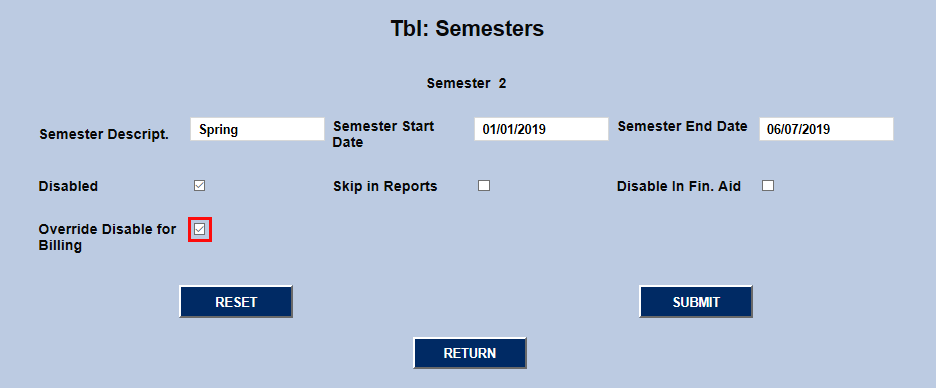
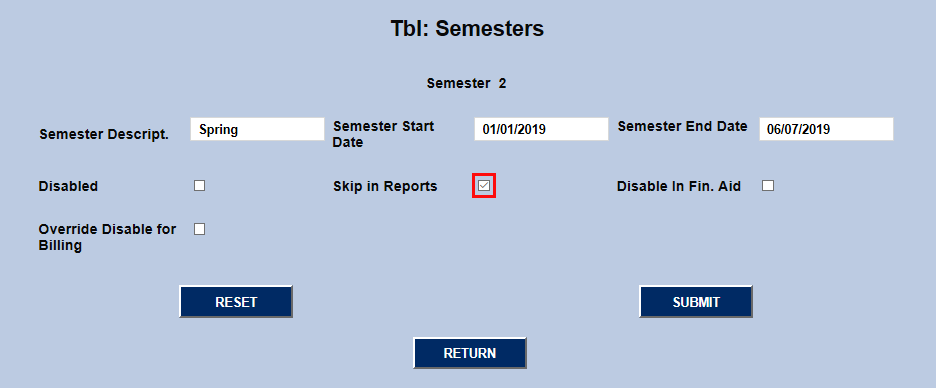
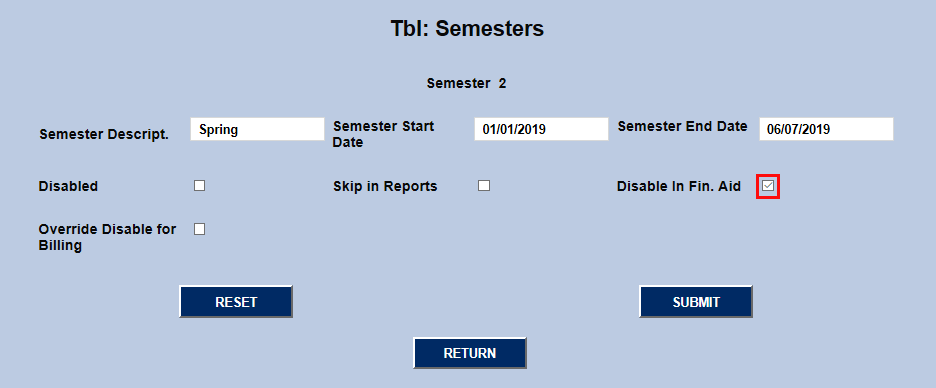
The four checkboxes below the description and date fields can be used to alter how the semester is used in the SONIS system. If the Disabled box is checked, the semester can not be used and will not appear in areas of the site where a semester can be selected. No courses can be designated to take place during the disabled semester. The Override Disable for Billing box allows students to be billed for courses during the semester even if the semester is disabled.
If Skip in Reports is checked, the semester can be assigned as normal, but will not appear in any reports or appear as an option to refine the search. If the Disable in Financial Aid box is checked, the semester will not be active for requesting or accepting financial aid.
Click Submit to save any changes that have been made.