Relationships
Overview
The Relationships page in the Users hub allows users to record any relationship(s) a person has with another person in Jenzabar SONIS, as well as the name of an Emergency Contact. If the related individual doesn't currently exist in SONIS, they can be easily added. A memo field is provided so that additional or non-biographic details can be recorded. The relationship must be defined in the Systems hub page Relation Join.
Adding a Relationship
Navigate to the Relationships page in the Users hub and select Add.

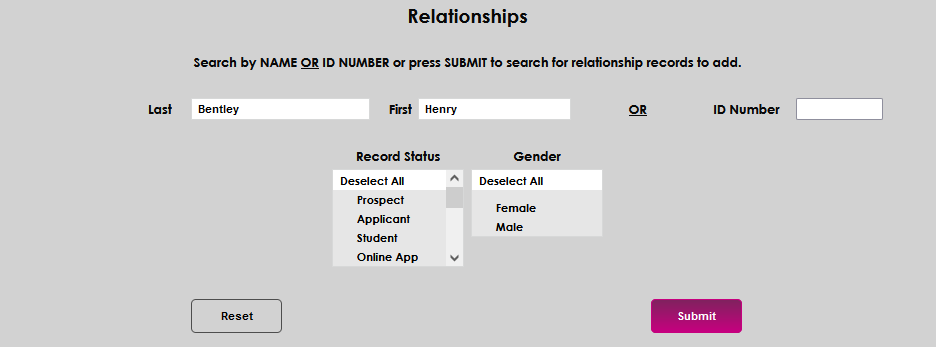
A search by first and last names OR ID Number is provided. If searching by first and last name, enter one or more letters of the name in the Last and First fields. The search will return any name(s) that match the entered criteria, so it is acceptable to use partial criteria. This is particularly helpful in situations where exact spelling is unknown.
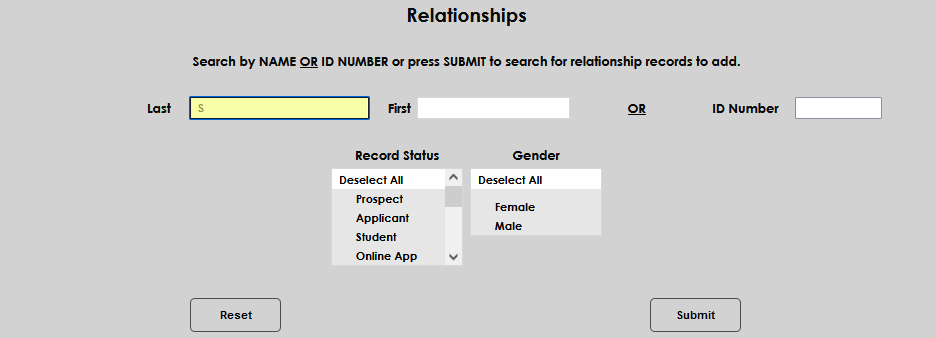
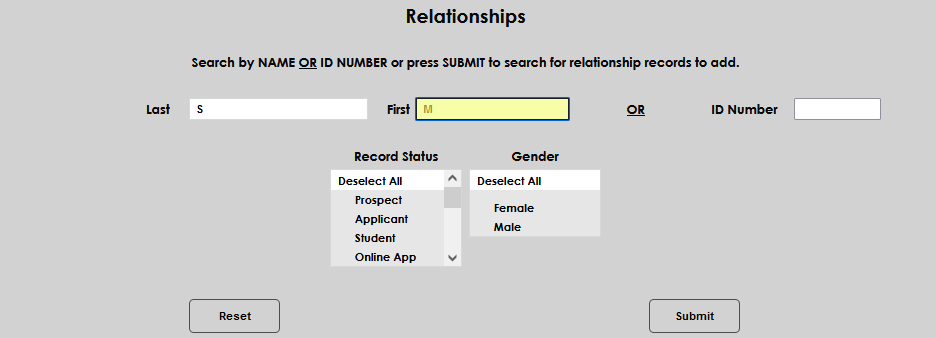
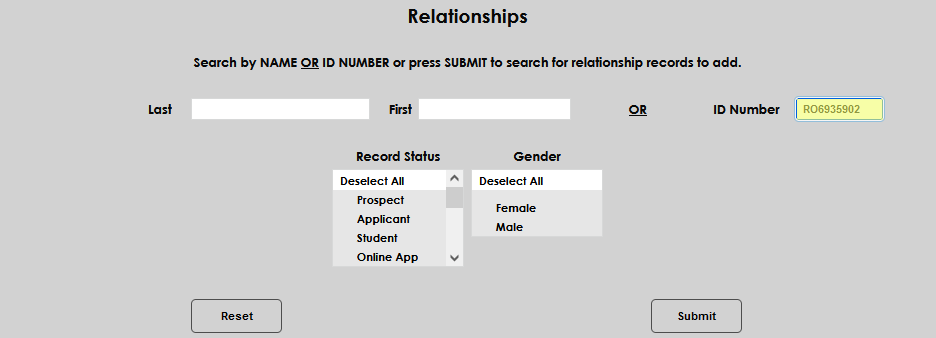
If searching by system ID instead of a name, enter the number in the ID Number field. Unlike the name search, a partial ID cannot be used.
Click Submit to execute the search.
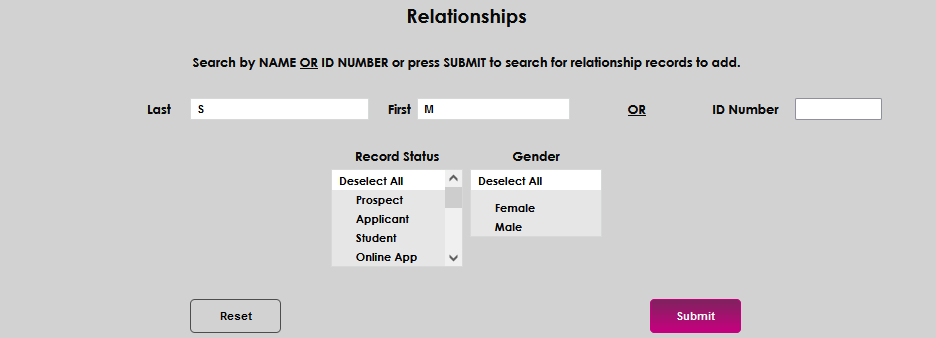
Select the desired person from the search results and click Submit. Instructions on how to proceed if the desired person must be added to SONIS are below.
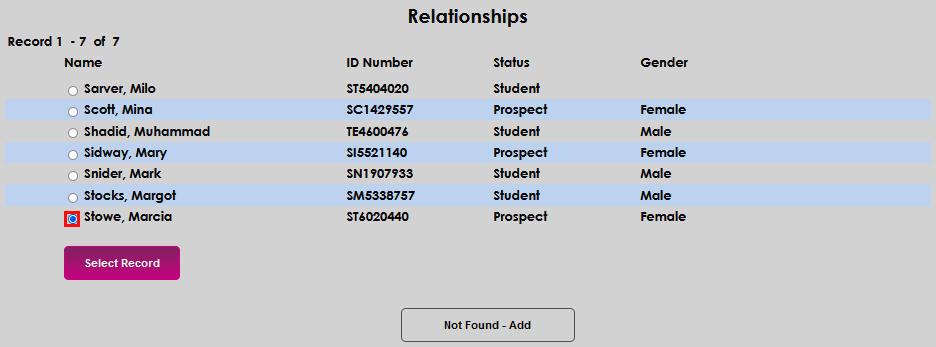
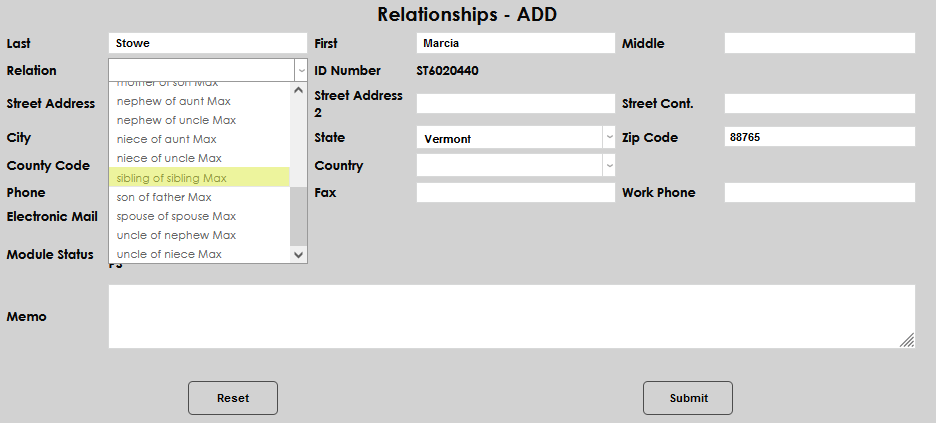
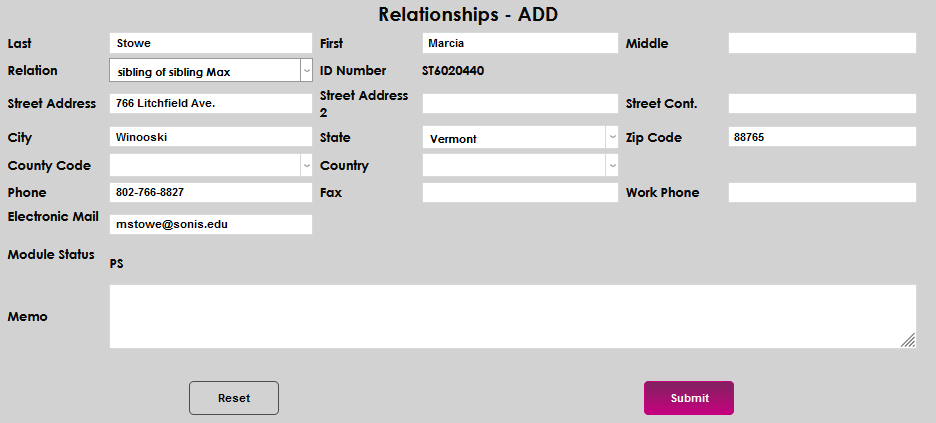
The next page displays the contact information currently in SONIS for the selected person. Select the desired relationship from the Relation dropdown and Submit.
Editing a Relationship
Relationships cannot be edited, they must be deleted and re-added. To remove an existing relationship, click on the name of the person. In the resulting display, click Delete.

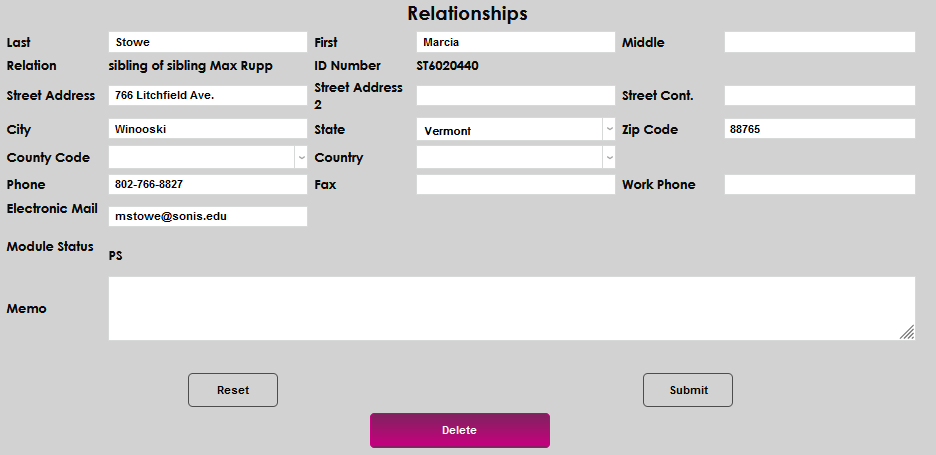
Click the Confirm Delete button to finalize the removal. Follow the steps to add a relationship to add the correct relationship association.

Adding a Related Person to SONIS
If the No records match button displays after executing a search, it is important to execute more searches to ensure the individual isn't in SONIS before adding them. Return to the search screen using the browser back button. Once due diligence has been performed, it is important to do a final search with the exact name that the relationship should be added with. It is then safe to click the No records match button and proceed with adding the new user record.

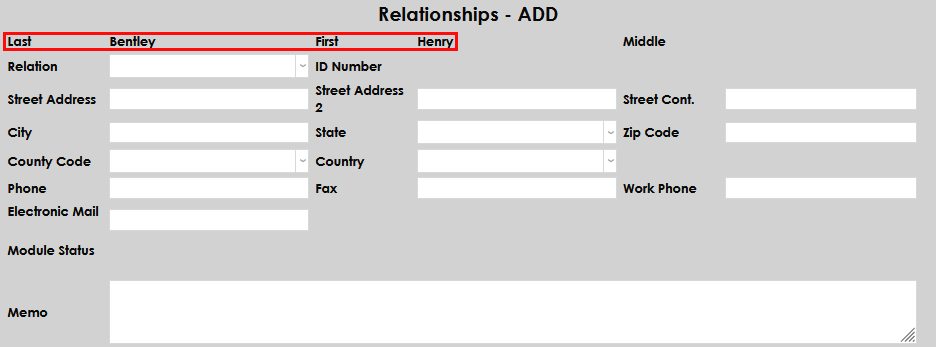
The following page will display the name that was entered in the search and cannot be edited. This page is used to associate the relationship and to add any contact details known. The Module Status cannot be edited, as this method of adding exclusively creates a Constituent record.
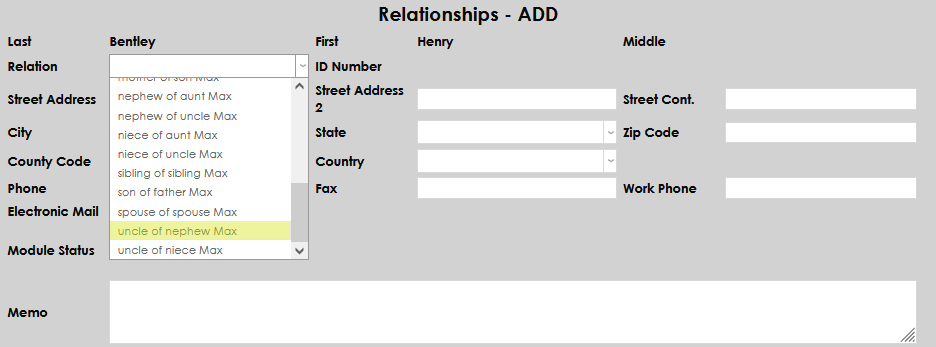
Select the desired relationship from the Relation menu. Add any known contact details, then click Submit.
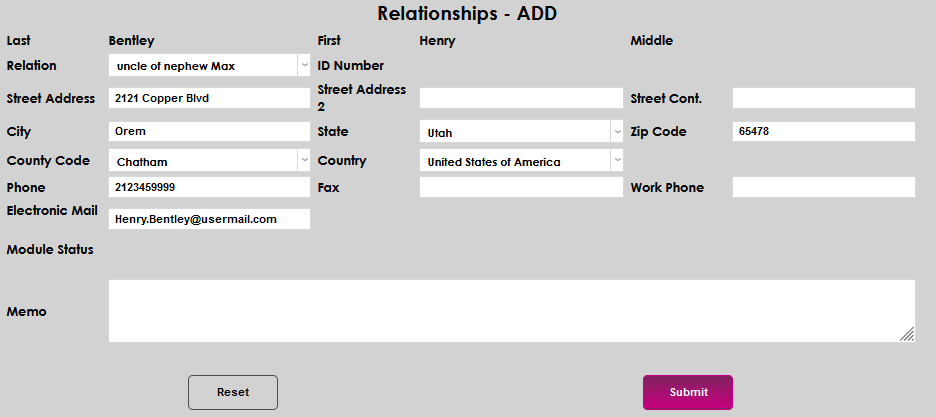
The added record will now display on the constituent's relationship page.
