Online Application
Overview
The Jenzabar SONIS Online Application is an easy to use, free tool that clients can use to accept applications. It's highly customizable and applicants are easy to import once they've created an account. Schools can have multiple applications that serve different purposes and ask for different information as needed. See Online Application Setup for OA setup instructions.
Login
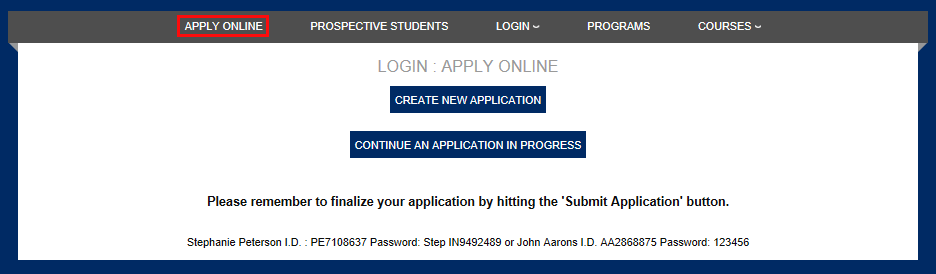
The Online Application login button can appear in several places because each school's setup varies. When it's clicked, the user is taken to a pages that allows them to either create a new application or continue with one that they have already begun.
Creating a New Application
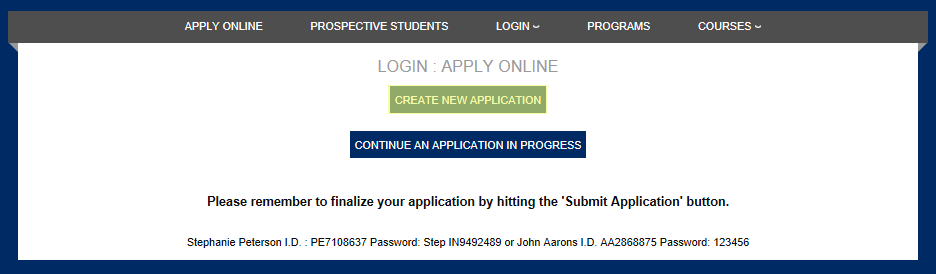
A student should begin by clicking the Create New Application button.
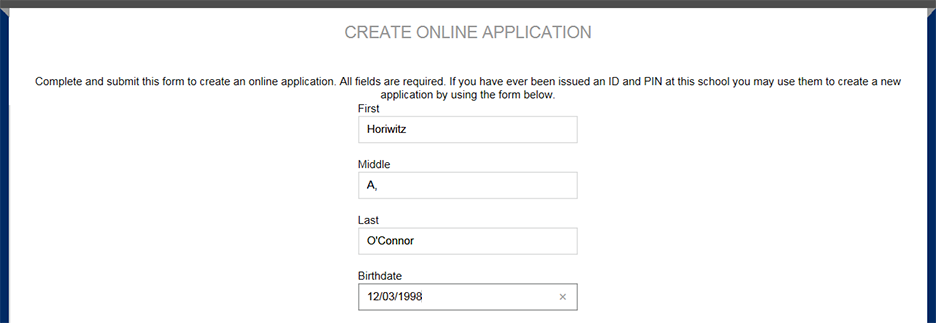
If the individual creating an online application is new to the SONIS system, then they must fill out the top portion of the page. By doing so, the individual is creating both an "OA" account and a new application.
If the individual already has an account, they should log into SONIS using the login template provided at the bottom of the page. In addition to logging them in, an OA status is added to their record in order to enable them to subsequently log in as an online applicant.
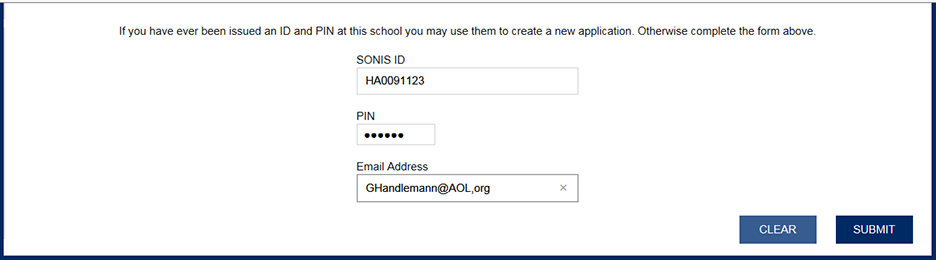
If a new account is created, by default the new applicant is sent an email message created in Online Application Setup. This email message contains the PID and PIN for the new account. A message displays telling the new online applicant to check their email and log in with the provided PID and PIN.
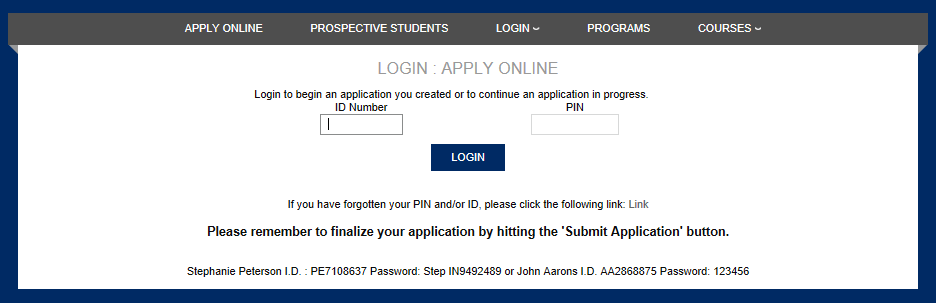
The Online Application login page is where they can enter the PID and PIN in the email message.
On the OA Setup page, there is a Direct OA Login checkbox that controls what happens next.
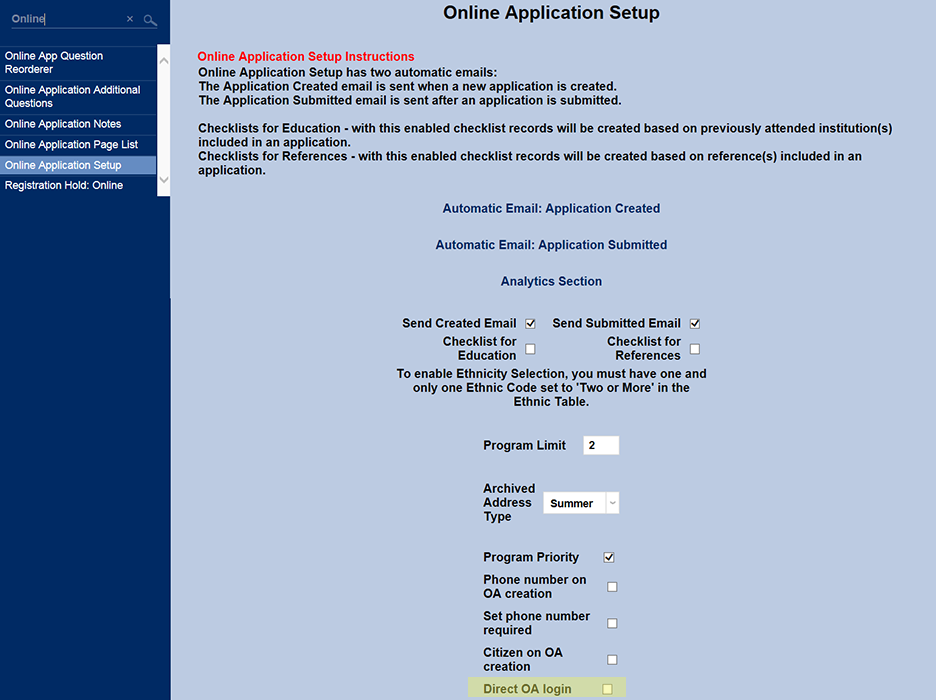
If the Direct OA Login box is not checked, the applicant will need to find the username and PIN sent to them by email and use them to log back in.
Using the PID and PIN in their email message, the new OA applicant will need to login in order to get to their online application. This is the default.
This is also how the online applicant will return to their application until it is completed.
If the Direct OA Login box is checked, the user can click a Continue button as soon as they've filled out the first page of information and will immediately be taken to the rest of the application without having to log in.
Continuing an Application in Progress
The Continue button takes the online applicant to the login page where they can enter their username and PIN.
The Application
Personal Information
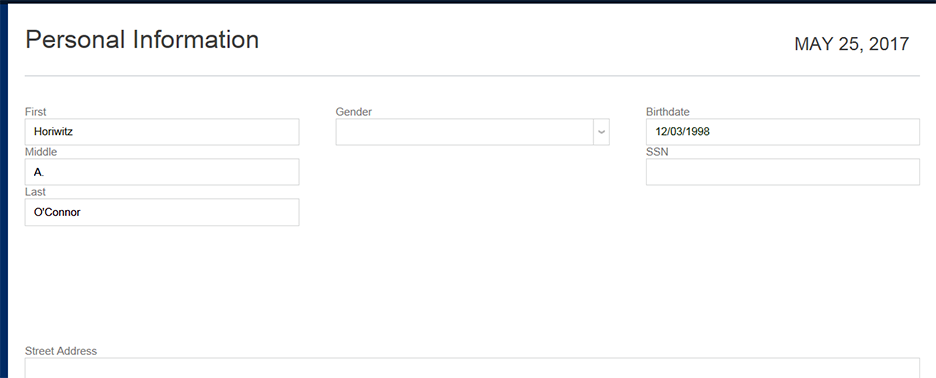
Upon a successful login, the first page of the OA application requires additional personal information.
Note
The information entered when creating a new Jenzabar SONIS account is saved to the online application.
For more information on additional pages included in the application and the potential fields they can contain, see Online Application Setup.