Parking
Overview
The Parking page in the Users hub provides the ability to record vehicle details and parking assignments, including permit information for institutions who issue parking permits. If a user has any parking incidents such as fines or accidents, these can be recorded on the Parking Incidents page. You can search for existing parking data using the Parking Search utility, located under the Systems hub.
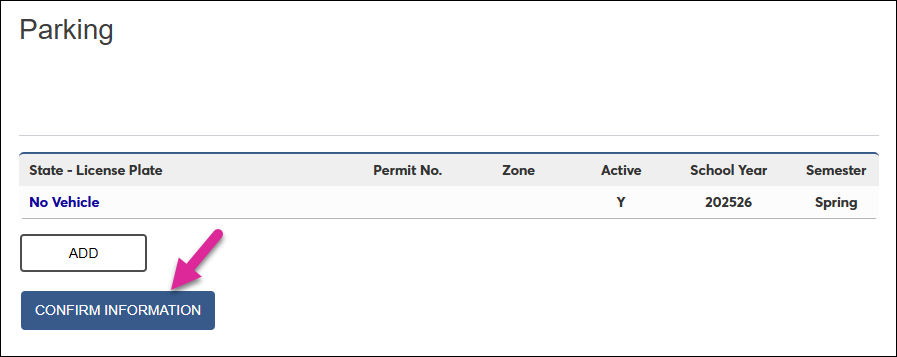
Students can enter their own vehicle information to request a parking permit through the Student portal Parking page. This page can be turned on and off using the Portal Menu Utility. You can make it mandatory for students to enter vehicle information before accessing resigistration by creating a parking hold from the Holds by Semester utility under the Systems hub. Students can automatically remove the hold by confirming their parking information.
Parking Zone Set Up
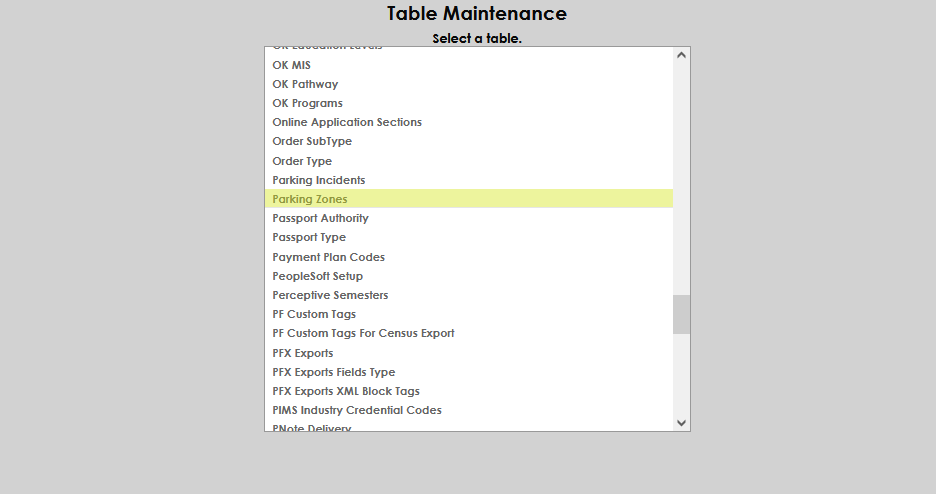
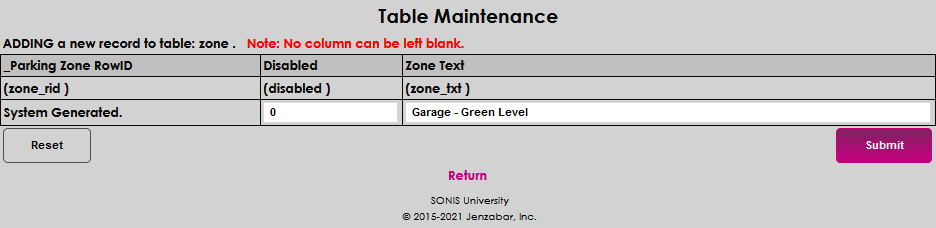
The parking zones must be set up using the Parking Zone table in Table Maintenance. To create a new Parking Zone, select Parking Zone from the menu.
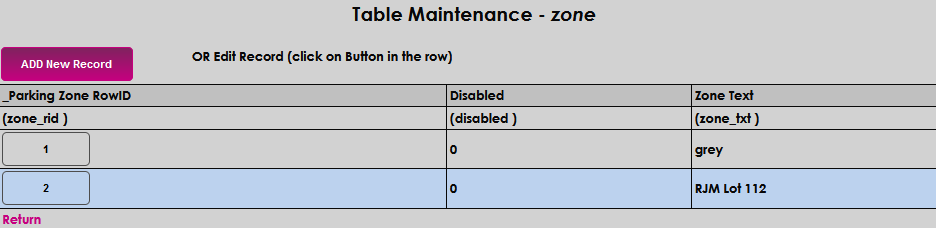
Click the Add New Record button.
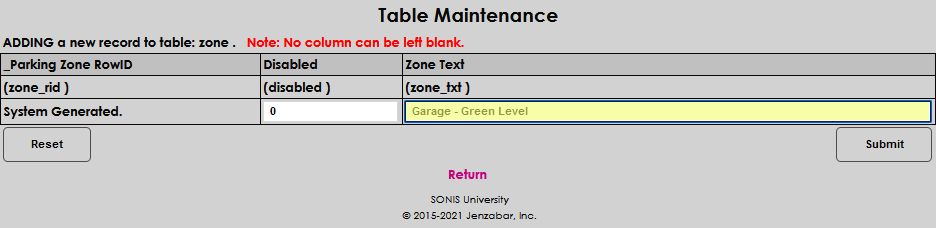
Type the name of the parking zone in the Zone Text field. This field allows 30 characters. Click Submit to save the entry.
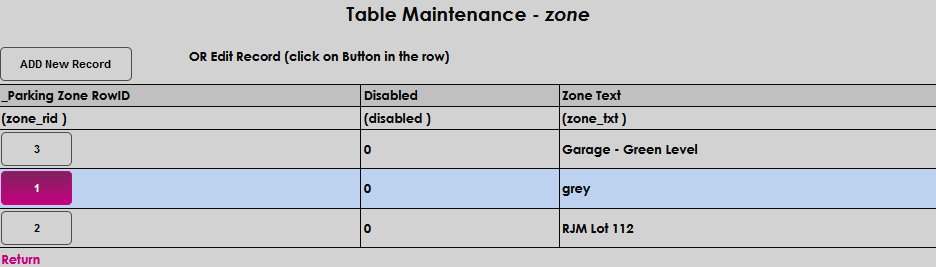
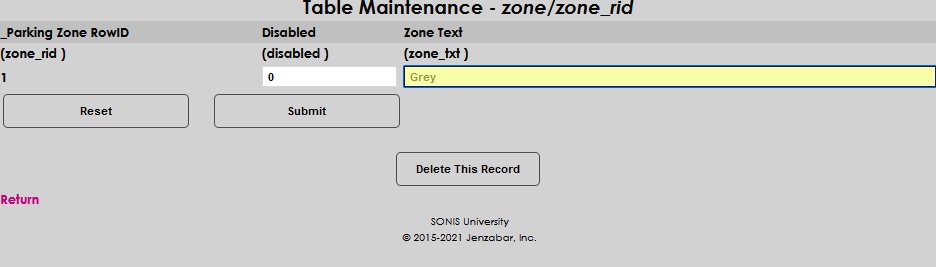
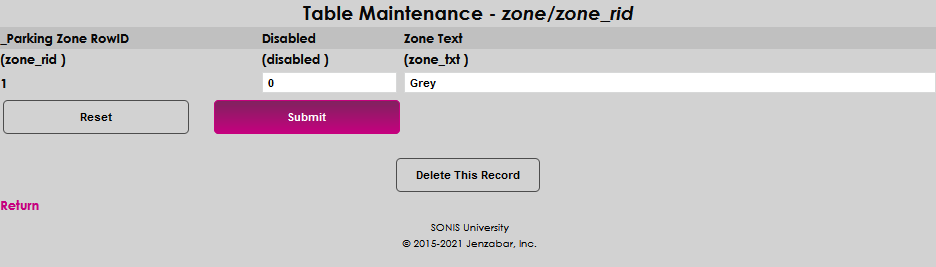
To edit an existing record, click on the Row ID number. Make the desired edits and click Submit to save your changes.
Use
To add information to the Parking page, click Add.

Note
If you turn on the Parking page in the student portal, students can add their own vehicle information. Anything that has been added from that page will be available to edit here and the student will see any changes you made along with the permit number and zone of their parking permit, if applicable.
If the student does not have a vehicle or need a parking permit, you can select the No Vehicle checkbox. This will erase any existing data in the other fields.
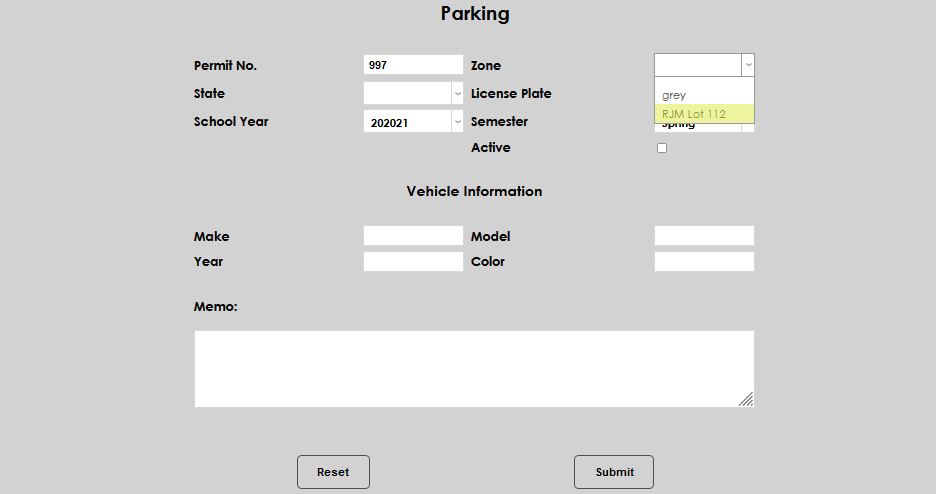
If the student is receiving a permit, enter the Permit number and the Zone or area that the student is allowed to park in with the permit.
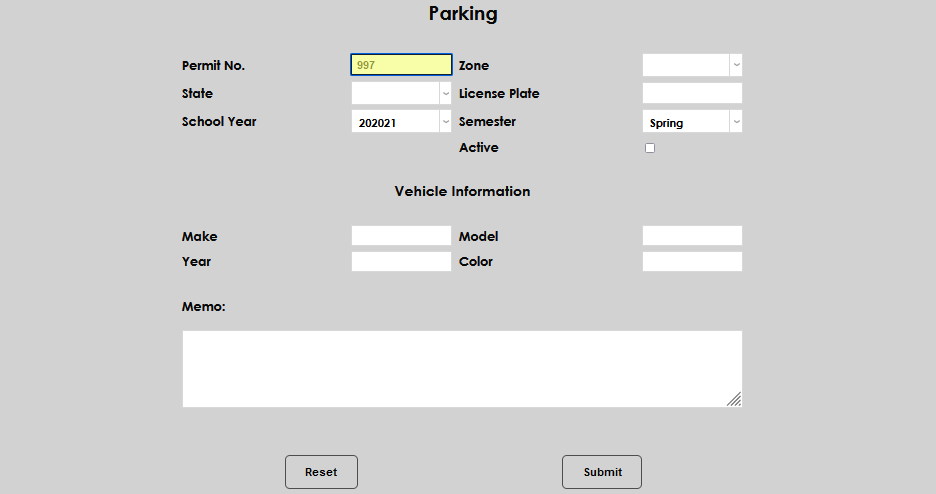
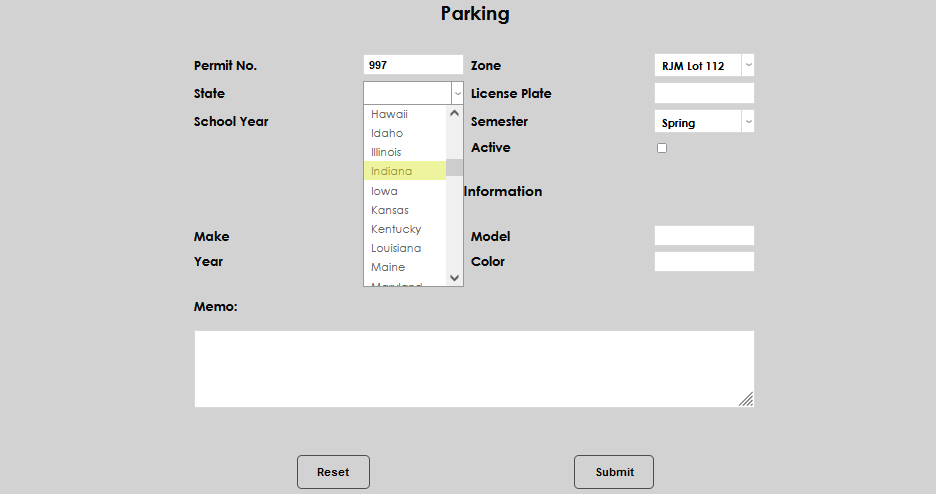
Enter the license plate number and state of the vehicle associated with the permit.
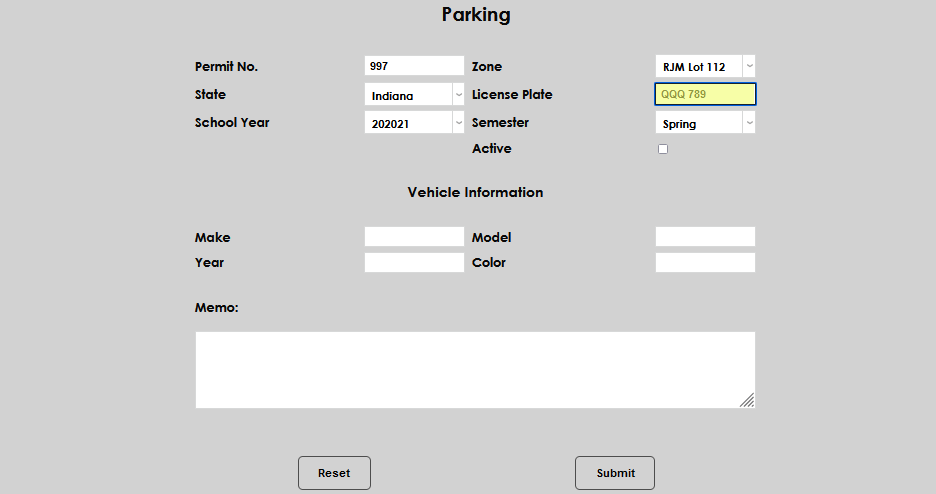
Enter the School Year and Semester the permit is valid for.
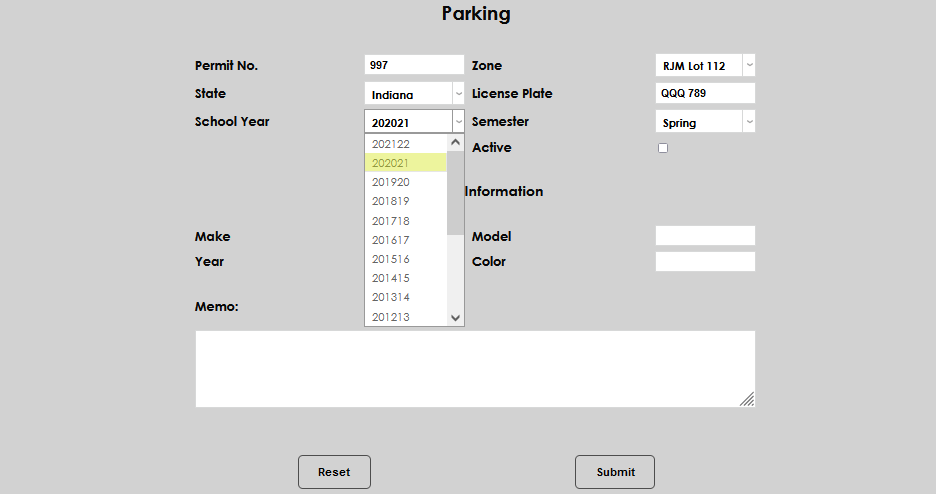
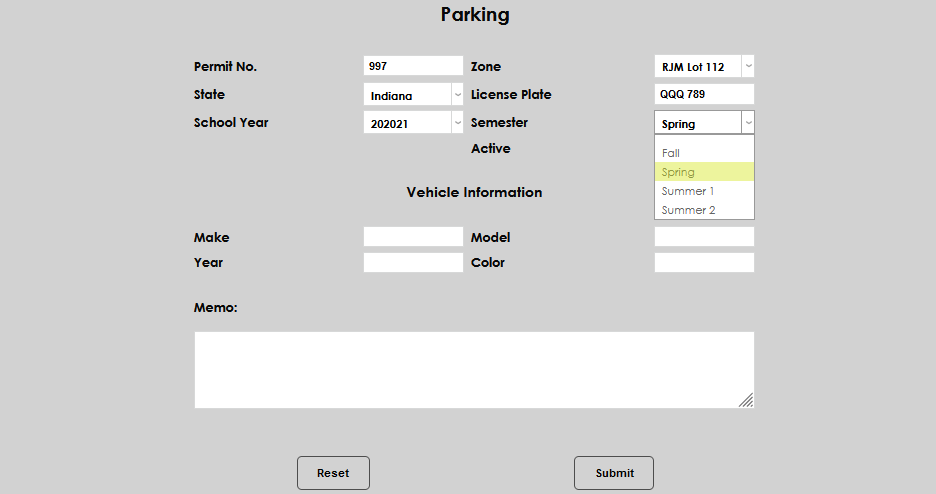
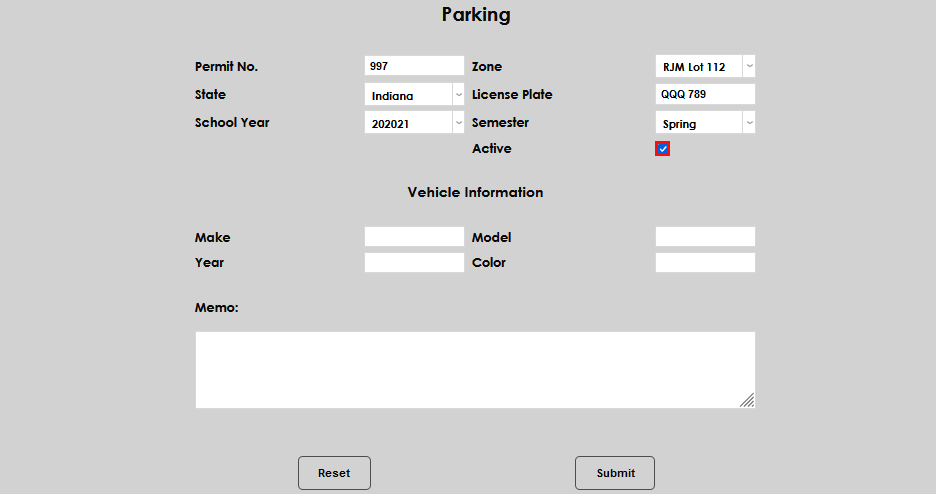
Activate the permit, by checking the Active box.
Describe the user's vehicle in the Vehicle Information fields. Enter the Make and Model of the car.
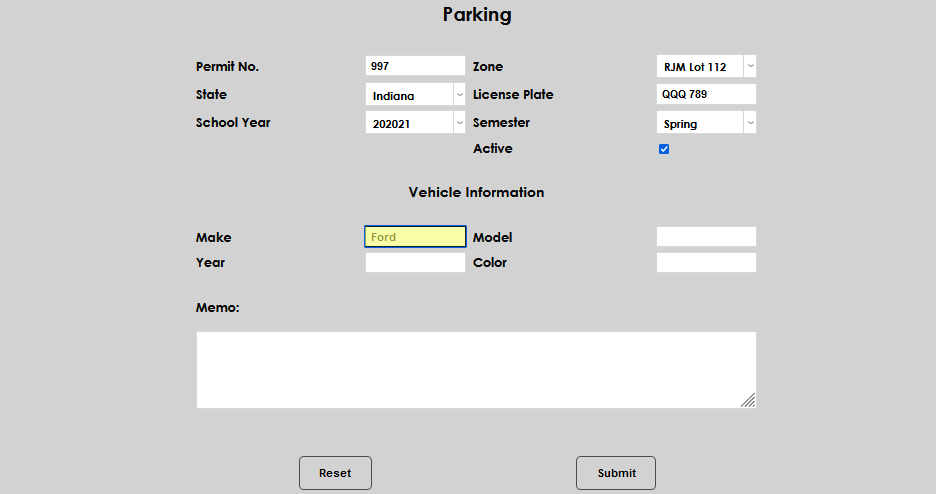
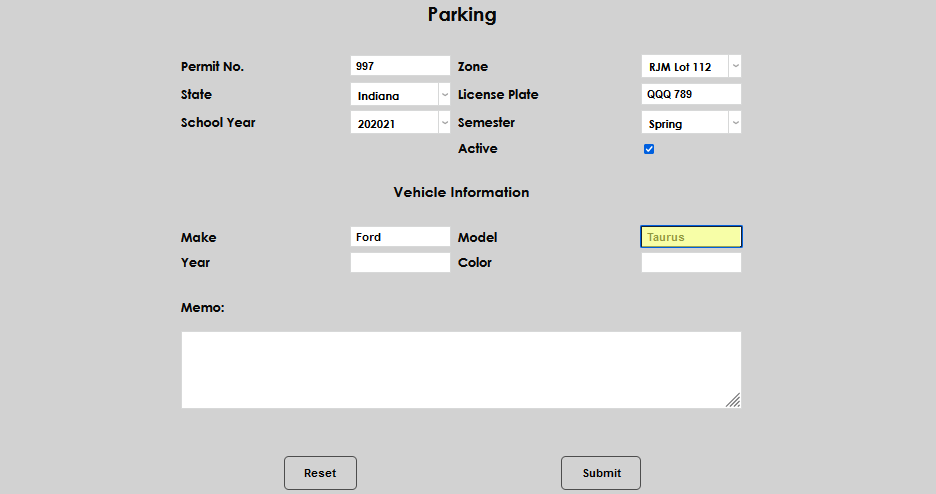
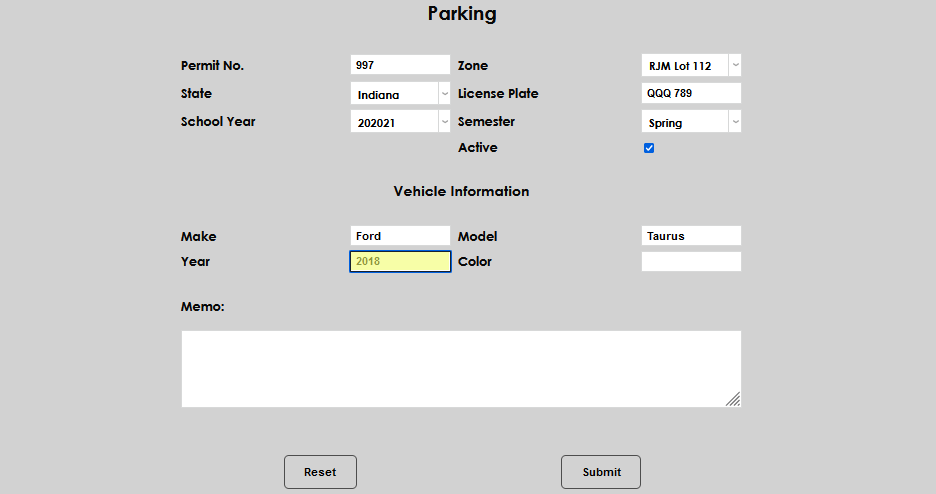
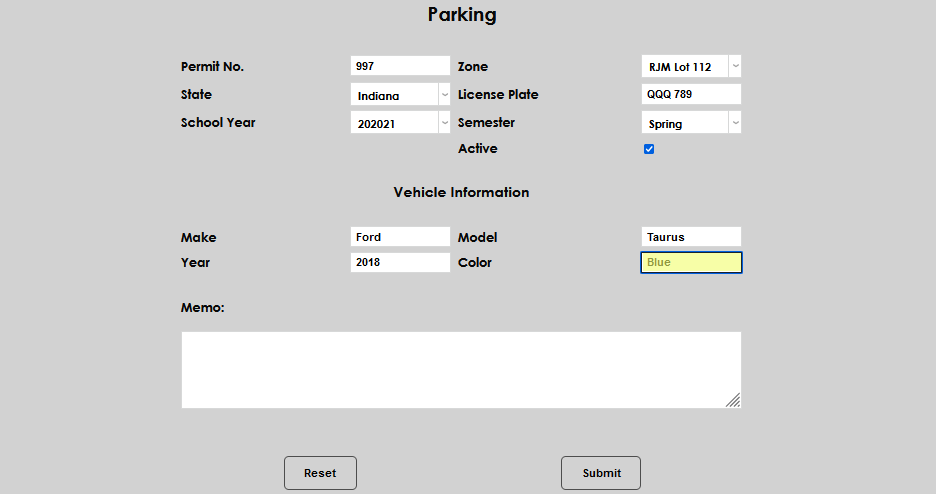
Then enter the Year and Color of the car. These fields are all optional, but can be helpful in identifying vehicles.
The Memo field can be used to store additional details related to the permit.
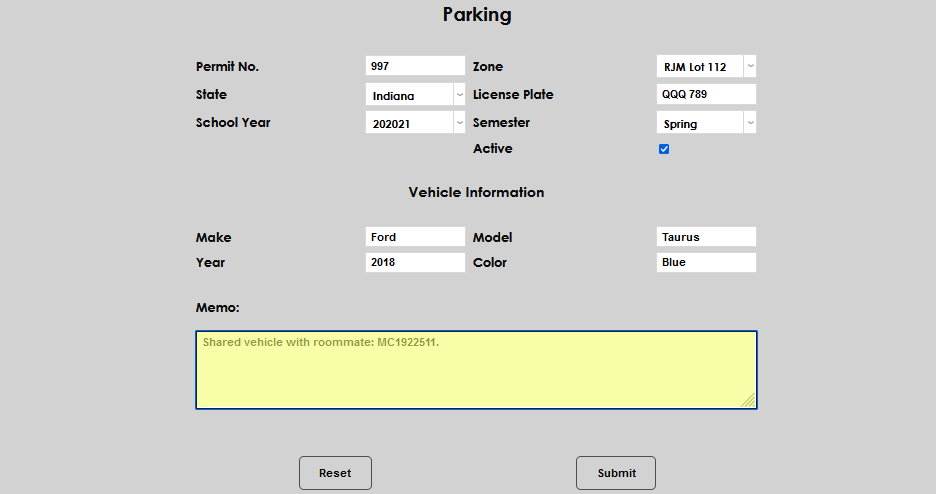
Click Submit.
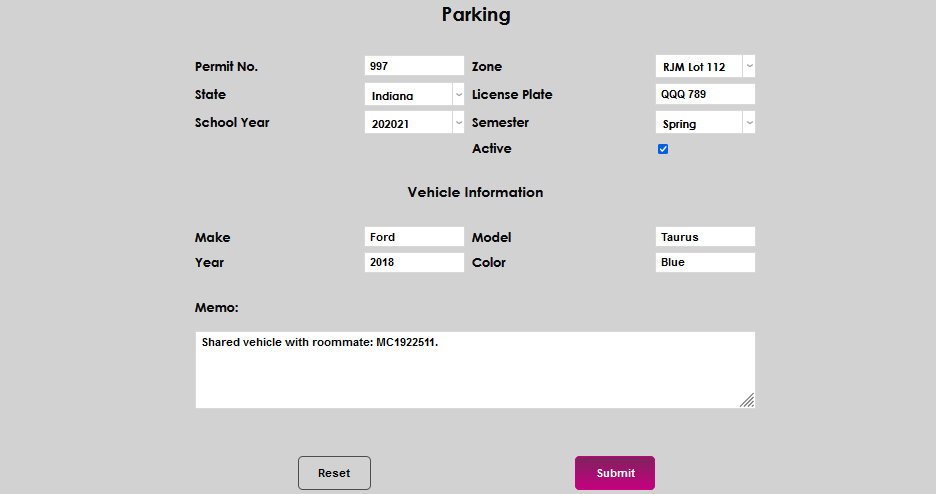
To edit an existing Parking record, click the title. Make any desired edits and Submit.

Holds by Semester
You can create a hold that will prevent students from accessing their Registration page in the Student portal until they have entered and verified their parking information. Navigate to Holds by Semester under the Systems hub to begin.
Click Add to create a new hold.
In the Hold Description field, enter this exact text: Update Your Parking Information
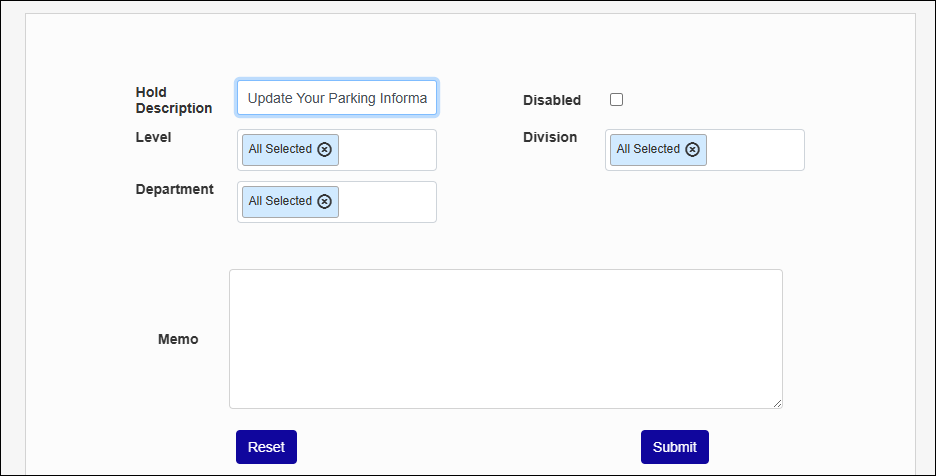
Use the Level, Division, and Department fields to choose who this hold should apply to. If all students must entere vehicle information before beginning registration, leave the All Selected option in place.
Enter any additional information that the student might need in the Memo field.
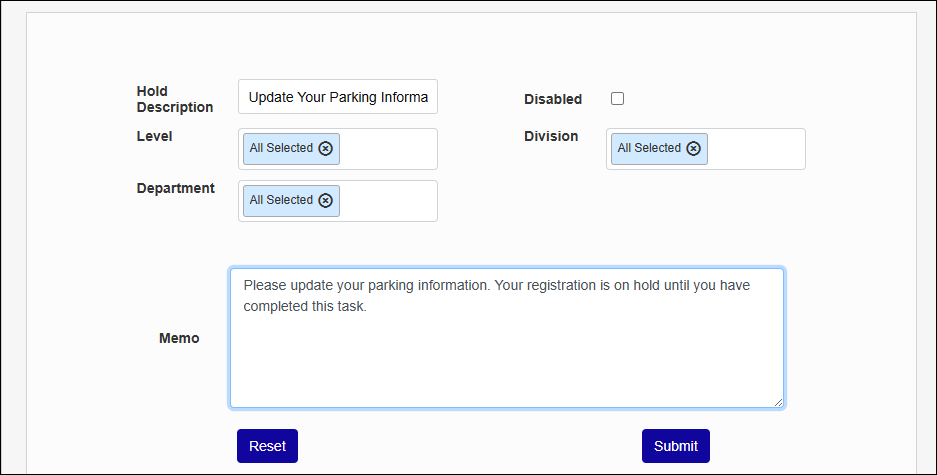
If you want to save this hold for later, check the Disabled box before submitting the changes. Otherwise, leave this box unchecked and click Submit to put the hold in place immediately.
When a student visits their Registration page, they'll see the hold. They'll click on the Click here to view Hold Details button to see the hold description and the memo. From there, they can continue to the Parking page.
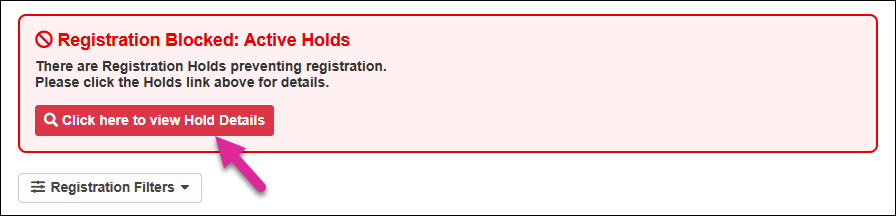

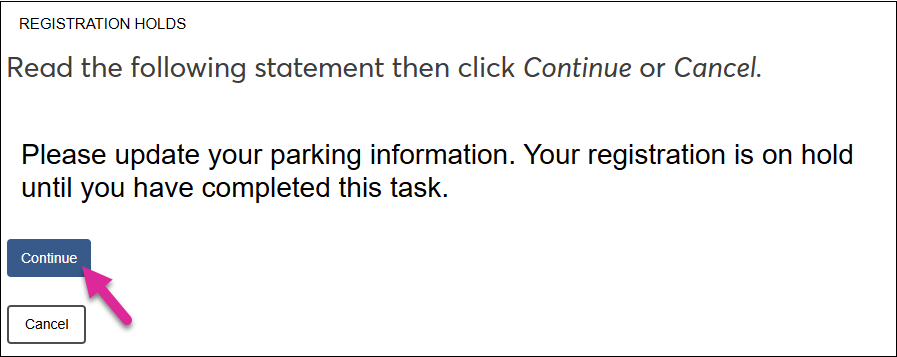
The student will enter their vehicle information here, if they haven't already, and then click Confirm Information to remove the hold.