Conclusive Goals
Overview
Jenzabar SONIS provides an integration with Advisor, a degree audit program from Conclusive Systems. Administrators can create primary goals and peer goals for individual students using the Conclusive Goals Jenzabar SONIS Users hub page, and export those goals to the Advisor program. The export process is automated through the SONIS utility.
Setting Up Goals
Overview
Jenzabar SONIS provides an integration with Advisor, a degree audit program from Conclusive Systems. Administrators can create primary goals and peer goals for individual students using the Conclusive Goals Jenzabar SONIS Users hub page, and export those goals to the Advisor program. The export process is automated through the SONIS utility.
Creating a Goal
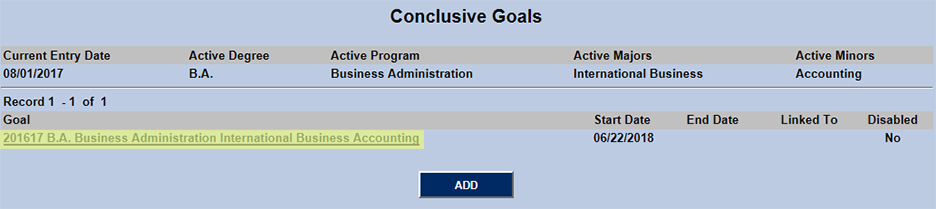
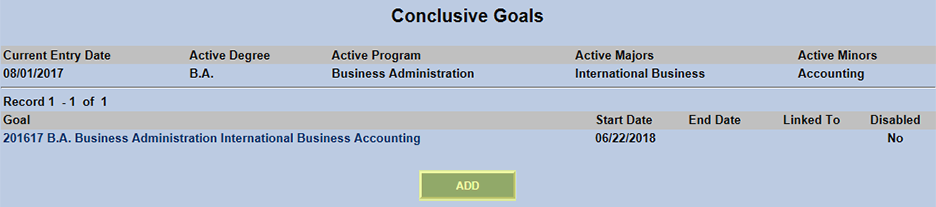
To create a student goal, select a student through the Name Search and navigate to the Conclusive Goals utility. The student's Current Entry Date, Active Degree, Active Program, Active Majors, and Active Minors will all be listed along with any goals that have been set up previously. Click Add to add a primary goal.

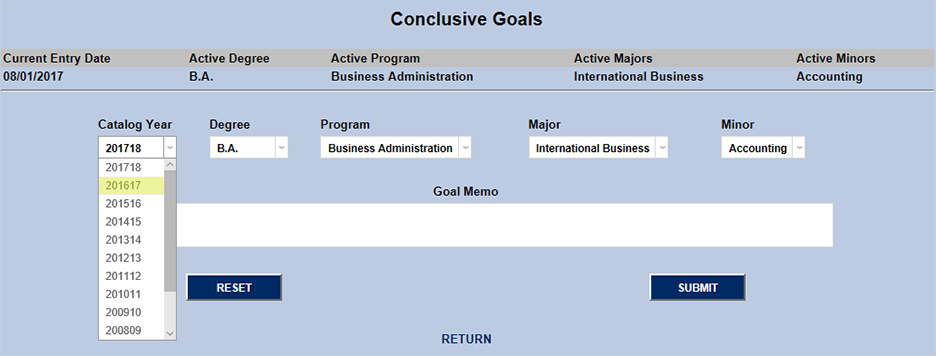
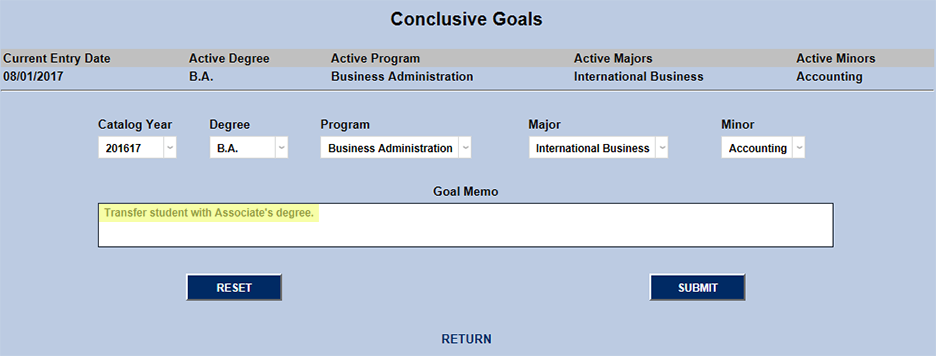
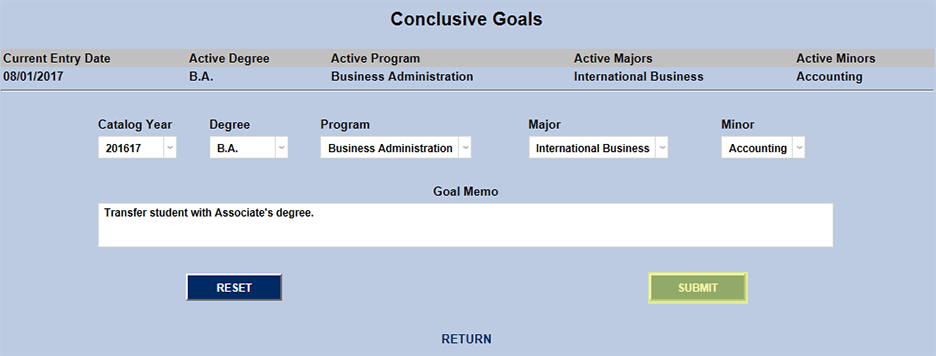
The following page offers the option to change the Catalog Year, Degree, Program, Major, and/or Minor via dropdown menus. Users can also add a Goal Memo that will display with the goal. Make any necessary changes and click Submit to create the goal.
Editing a Goal
To edit a goal that has already been created, navigate to the Conclusive Goals utility with a student record selected and click on the name of the goal.
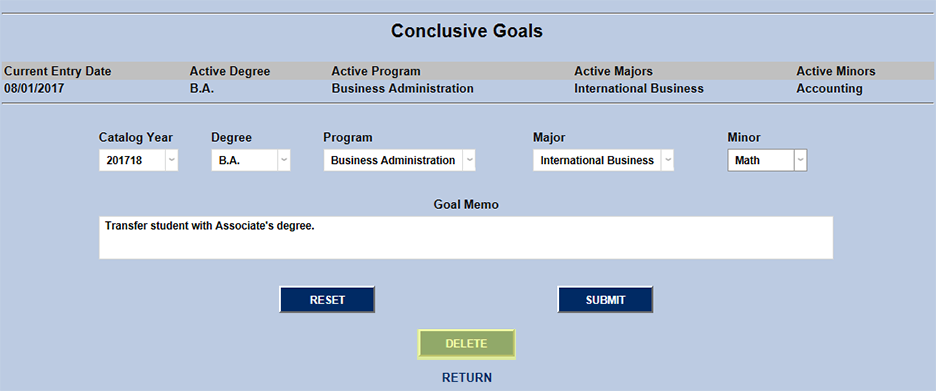
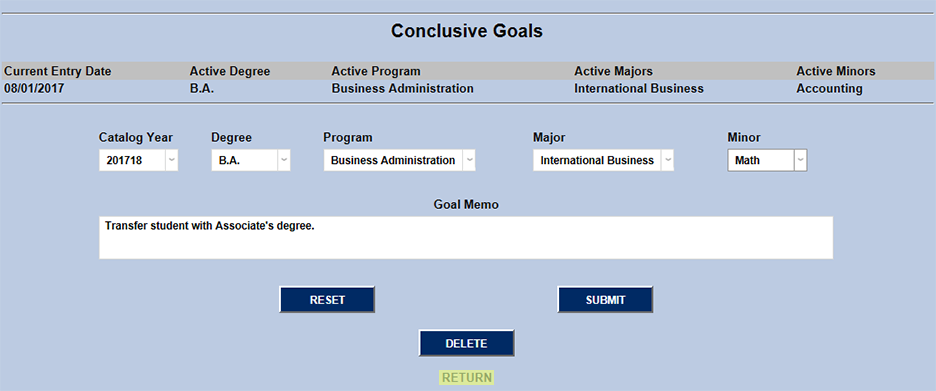
The following page offers the option to change the Catalog Year, Degree, Program, Major, and/or Minor via dropdown menus. Users can also add or edit a Goal Memo that will display with the goal. Make any necessary changes and click Submit to create the goal. The option to Delete the goal is also available on this page. Or click Return if no changes are needed.
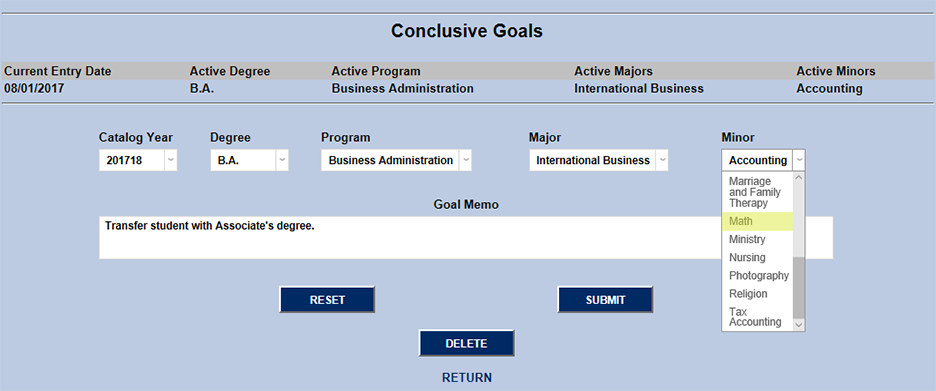
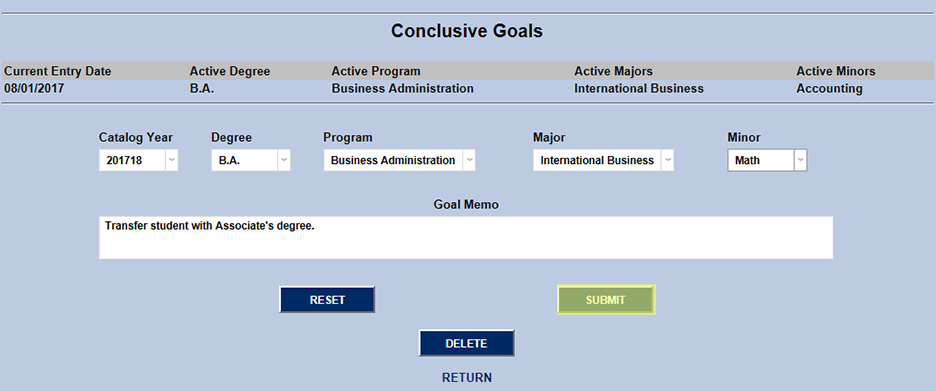
The option to Delete the goal is also available on this page. Or click Return if no changes are needed.
Creating a Peer Goal
The Conclusive integration with SONIS also offers the ability to create Peer Goals, concurrent goals that the enrolled student is working towards accomplishing. Peer goals can be used for students with double majors and minors or to track degrees and certificates that can be awarded on the way to a higher degree. To add a peer goal, click the Add button after an initial goal has been created.
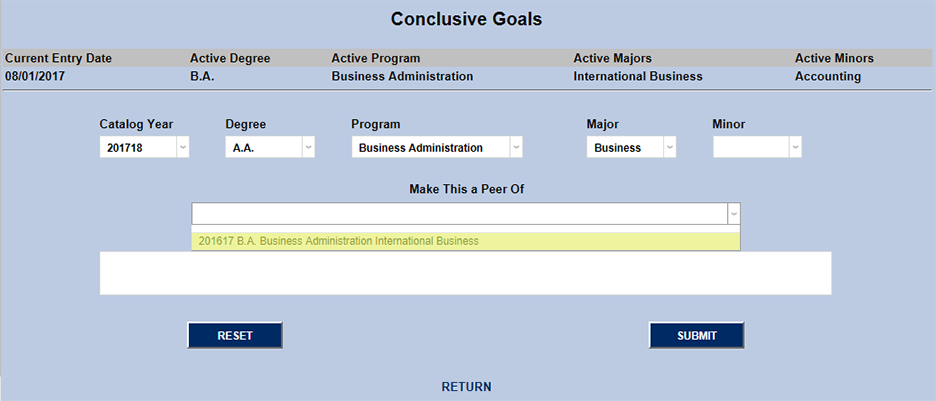
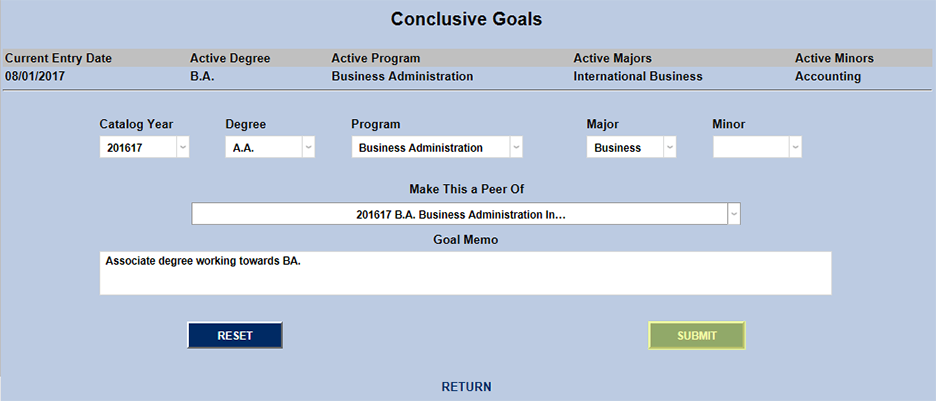
Change the necessary dropdown values and select your previous goal from the Make This a Peer Of dropdown. Click Submit to save changes.
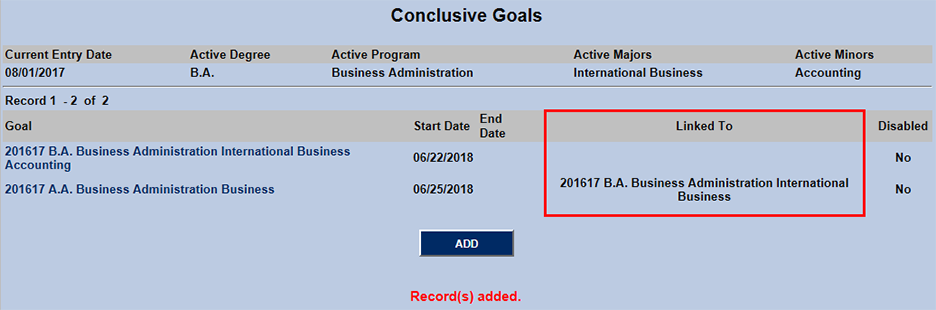
The Conclusive Goals summary page will now note that the two goals are linked together. There is no limit on the number of peer goals that can be created.
Disabling a Goal
Once goals have been exported to Conclusive, they can no longer be edited or deleted. Goals that are no longer valid must be disabled. Navigate back to the Conclusive Goals utility in the Users hub and click on the goal to be disabled. If the file has been exported properly, the delete button will have been replaced by a Disable checkbox.
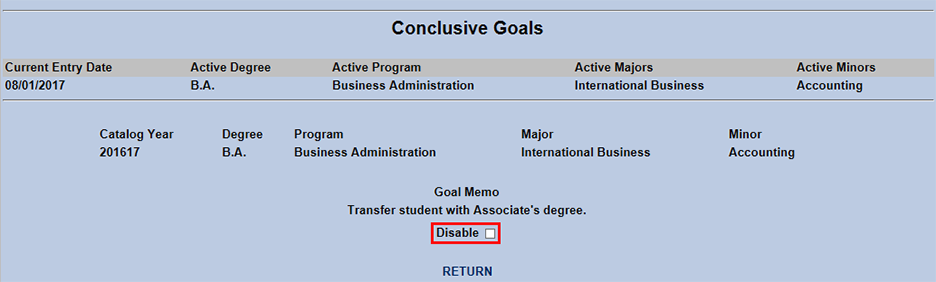
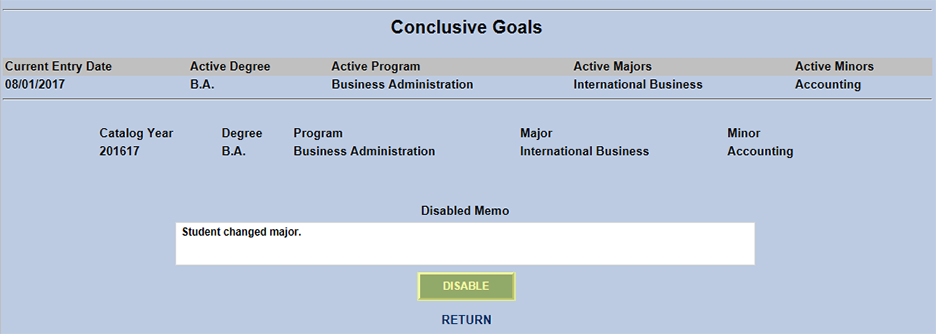
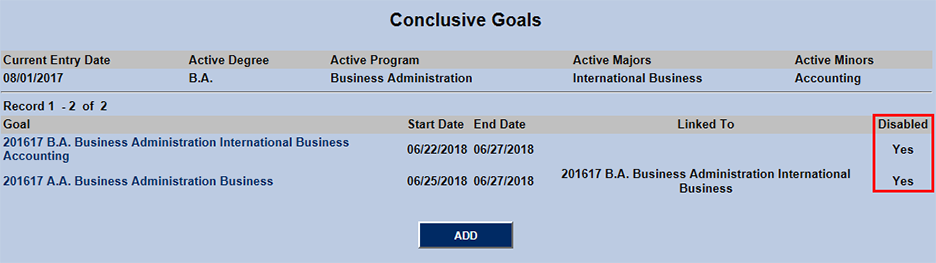
Checking the Disable checkbox will update the page and open up a Disabled Memo box for administrators to leave a note explaining why the goal is being disabled. Fill in the box if desired and click Disable button to save changes and disable the goal. A warning will pop up notifying the administrator that this goal and all peer goals will be disabled. These goals can not be re-enabled.
Exporting Goals
Linking with Conclusive
To export goals to Conclusive's Advisor program, navigate to the SONIS Conclusive Utility in the Systems hub. Enter the Conclusive School ID and Conclusive Key. These values are assigned by Conclusive to each school using the Advisor product. Select which categories of SONIS user goals should be exported using the checkboxes to select Student, Alumni, Withdrawn, and Continuing Education goals.
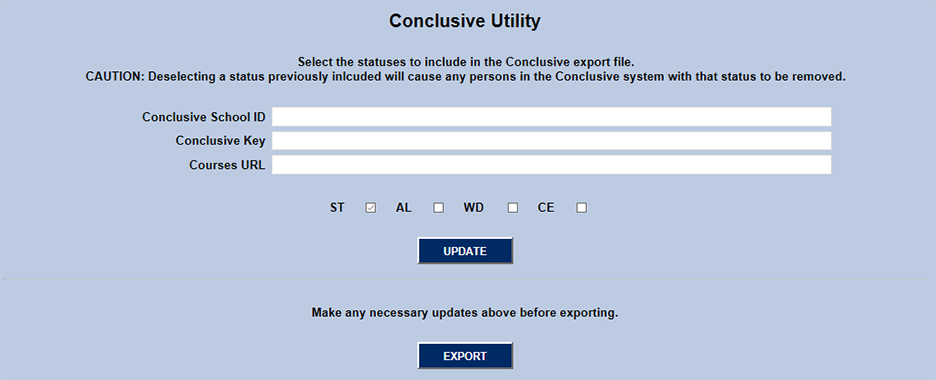
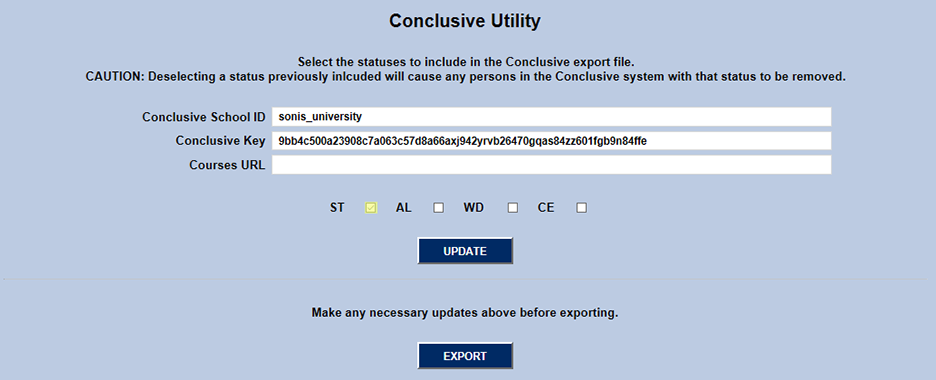
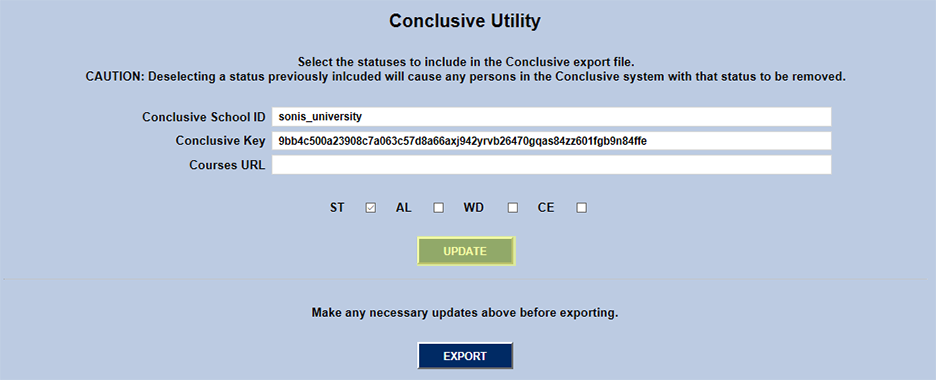
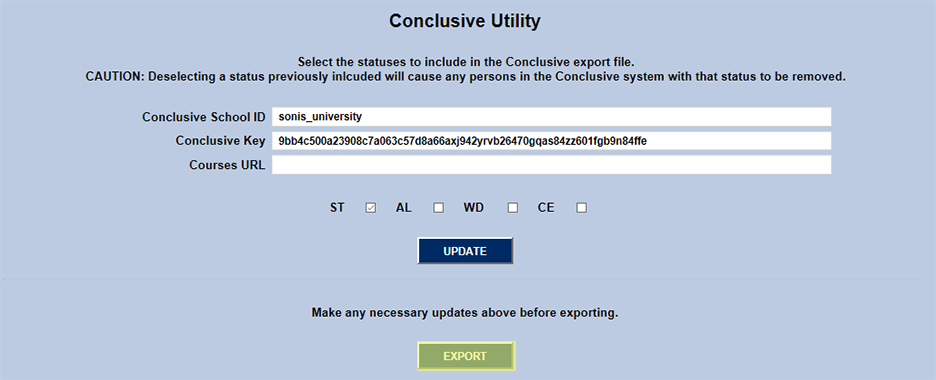
Once the School ID and Conclusive Key have been entered and the proper set of SONIS users have been selected, click Update to save changes and Export to send the export file to Conclusive.
Creating Timed Task
A new task has been added to the Timed Task Scheduler utility located in the Systems hub. This task will send the export file to Conclusive on a regular basis so Advisor degree audits stay updated. Navigate to the Timed Task Scheduler and click Add" to create a new task.
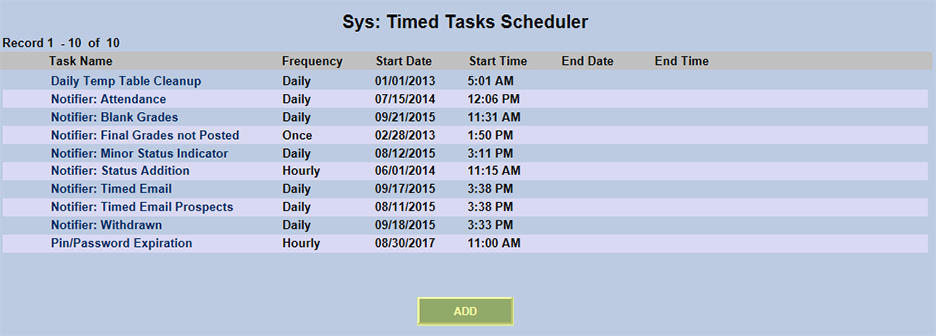
Select Conclusive Export from the Task Name dropdown menu.
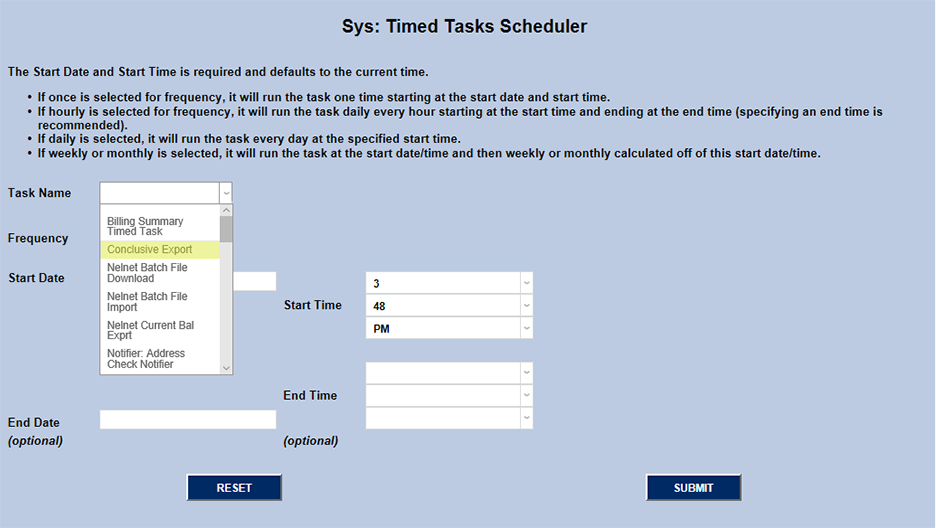
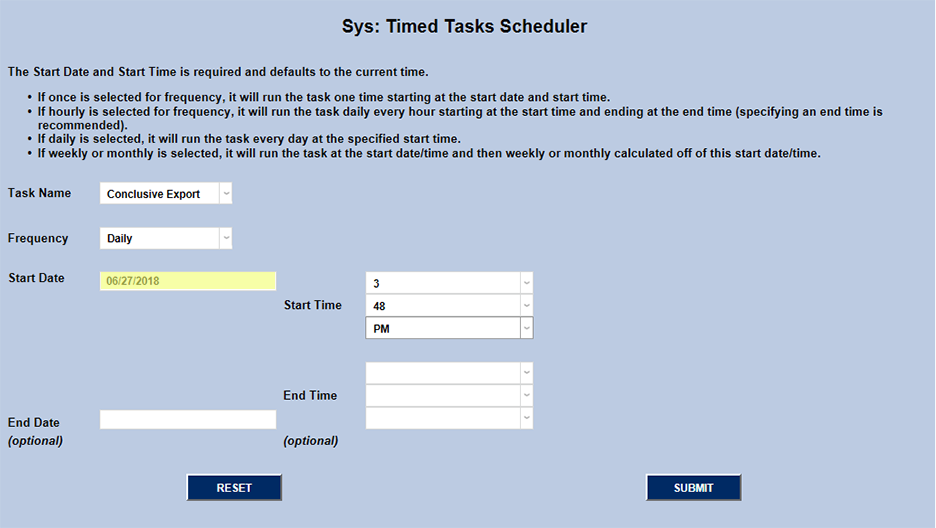
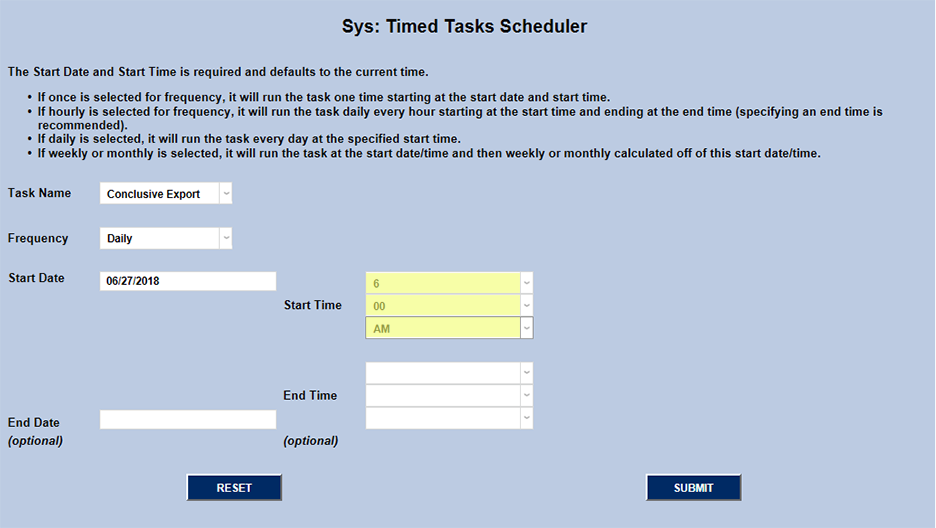
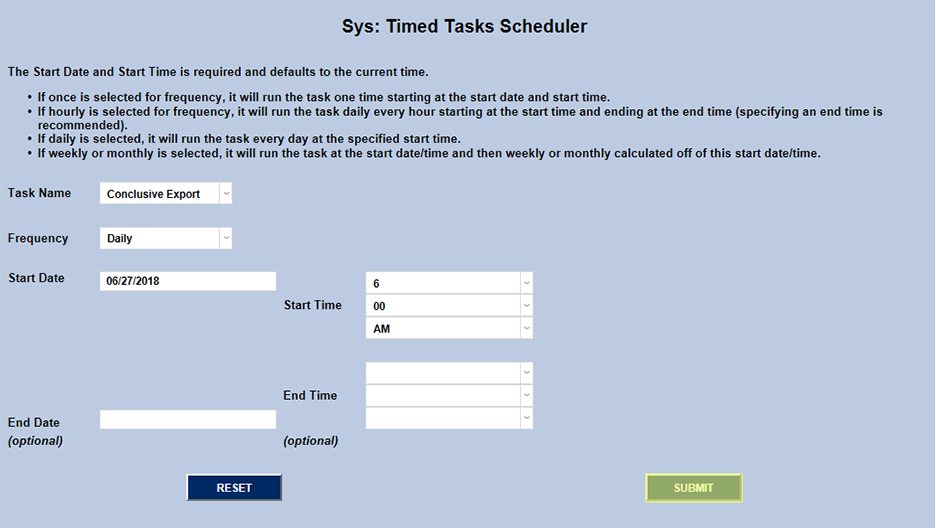
Specify how often the task should run by selecting a timeframe from the Frequency dropdown menu and set a date and time using the Start Date and Start Time menus. The start date and start time will default to the current date and time, but can be changed as needed.End Date and End Time are optional. The task can safely run while other SONIS tasks are running. Click Submit to save changes and begin the schedule.
Response Codes
Depending on your system setup, you may not be able to see error Conclusive response code messages in Jenzabar SONIS. For many users, only a numerical error code will appear. The codes are as follows:
200: Success
444: Cannot Create/Update Record at This Time
445: Attempting Additional Response
490: HMAC Does Not Equal CMAC
491: Unable to Deserialize JSON
492: The Request Has Expired
493: Invalid School Token
494: Invalid SONIS ID
495: Invalid Request