SnatchBot Interface
Overview
SnatchBot is an artificial intelligence platform that allows users to create chatbots to communicate simple instructions to clients. The SnatchBot Builder Platform can be configured for a wide variety of uses, but most relevant to Jenzabar SONIS customers, it can be used to create a personalized customer service bot to give virtual assistance to students and other users without a need for human customer support staff. Basic SnatchBot functionality is offered for free with increased functionality available for a nominal fee.
To facilitate the use of this product, SONIS Product Development added a new Miscellaneous Memo that, when activated, will appear on every page of the Administrative Portal. Additionally, a new Page Note option is available for each of the portal pages and the existing Login Page Notes fields have been updated to accept scripts, allowing services like SnatchBot to be used in each portal and externally on login pages. These notes fields can be used for other script-based additions as well as for standard help text or other notes. Both a script and text can be entered in the same field simultaneously.
SnatchBot Setup
To use SnatchBot artificial intelligence with SONIS, first visit the SnatchBot homepage and create an account. Create a new bot either from scratch or using one of SnatchBot’s free templates. Read the SnatchBot Getting Started document for more on this process. Bots can have a customized name and logo that’s specific to each school.
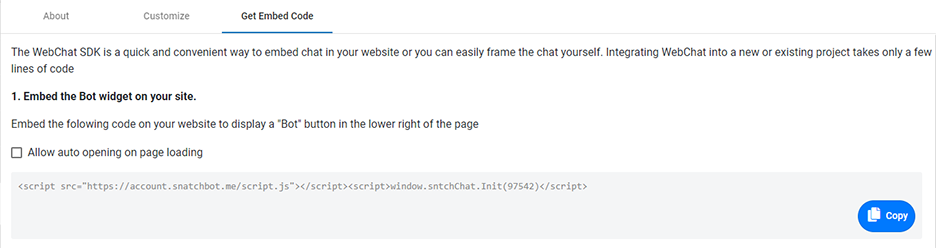
When a bot is ready to be deployed, navigate to My Bots section and select the bot to be deployed. Then, navigate to the Channels page from the left-nav on the SnatchBot site and choose the Get Embed Code tab. Click the Copy button to copy the script that embeds the bot widget. This is the code that will be pasted into SONIS.
SnatchBot Interface
Overview
SnatchBot is an artificial intelligence platform that allows users to create chatbots to communicate simple instructions to clients. The SnatchBot Builder Platform can be configured for a wide variety of uses, but most relevant to Jenzabar SONIS customers, it can be used to create a personalized customer service bot to give virtual assistance to students and other users without a need for human customer support staff. Basic SnatchBot functionality is offered for free with increased functionality available for a nominal fee.
To facilitate the use of this product, SONIS Product Development added a new Miscellaneous Memo that, when activated, will appear on every page of the Administrative Portal. Additionally, a new Page Note option is available for each of the portal pages and the existing Login Page Notes fields have been updated to accept scripts, allowing services like SnatchBot to be used in each portal and externally on login pages. These notes fields can be used for other script-based additions as well as for standard help text or other notes. Both a script and text can be entered in the same field simultaneously.
SnatchBot Setup
To use SnatchBot artificial intelligence with SONIS, first visit the SnatchBot homepage and create an account. Create a new bot either from scratch or using one of SnatchBot’s free templates. Read the SnatchBot Getting Started document for more on this process. Bots can have a customized name and logo that’s specific to each school.
When a bot is ready to be deployed, navigate to My Bots section and select the bot to be deployed. Then, navigate to the Channels page from the left-nav on the SnatchBot site and choose the Get Embed Code tab. Click the Copy button to copy the script that embeds the bot widget. This is the code that will be pasted into SONIS.
Reusing topic #UUID-9d68d35e-eb56-f130-b10b-4a82b75affa3