Training
Overview
The Training page provides Jenzabar SONIS member institutions the opportunity to record and maintain training records for staff, faculty, constituents, students, and applicants. Training types must be set up on the Training Type table in Systems, Table Maintenance.
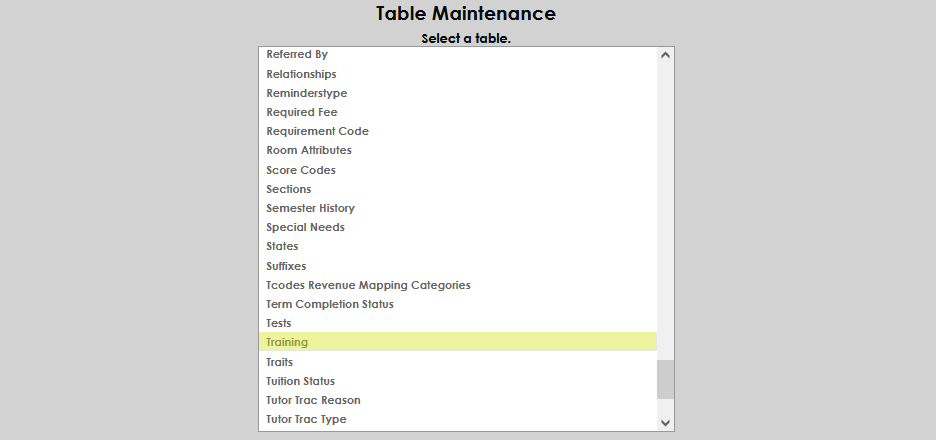
To add training types, navigate to Table Maintenance in the Systems hub and select the Training table.
Select Add New Record.
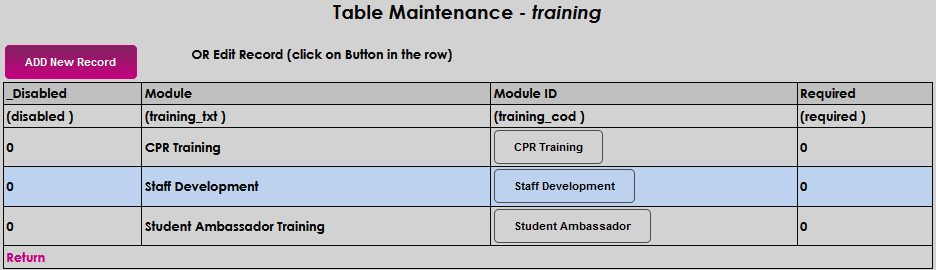
In the Module ID field, enter the name of the training.

In the Module field, enter a more detailed description of the training. The Module ID name can be repeated, if appropriate.

In the Required field, enter a 0 if the training is not required or a 1 if the training is required for those who are assigned it.

Select Submit to save the entries.

Training Table Editing
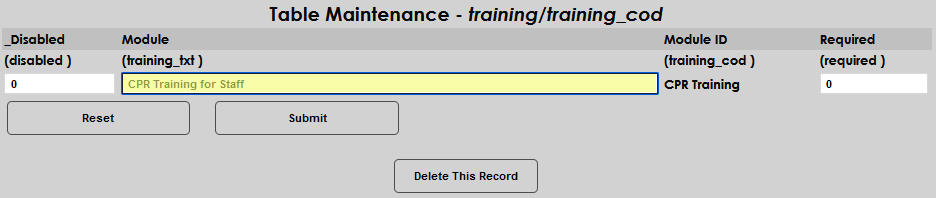
To edit an existing Training Type, click on the Module ID name of the training.
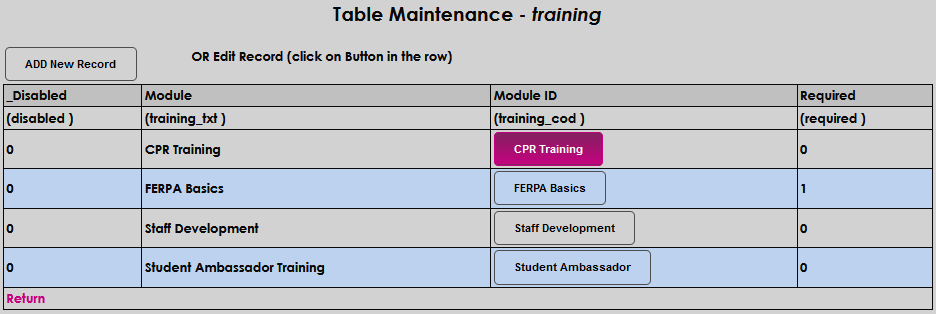
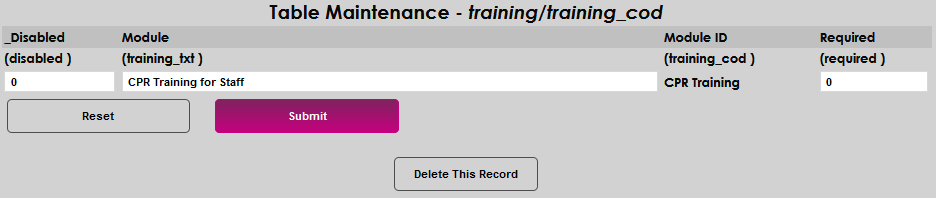
Make any desired edits. In this example, the Module name has been edited. Click Submit to save the changes.
Removing a Training Type
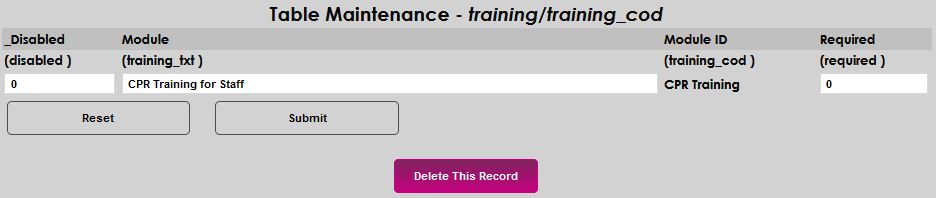
If a Training Type has never been recorded for a user, and is no longer needed, it can be deleted by selecting the Module ID and then clicking Delete.
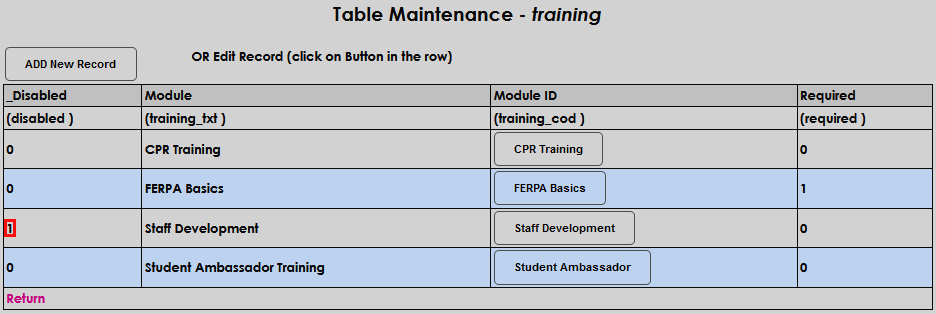
If a Training Type has been recorded for a user, and is no longer needed, it can be Disabled instead of deleted. Enter a 1 in the Disabled field and click Submit to save the change.


The disabled training will display on the Training table with a 1 indicating that it is disabled, and will no longer display for users to select.
Assigning a Training Type
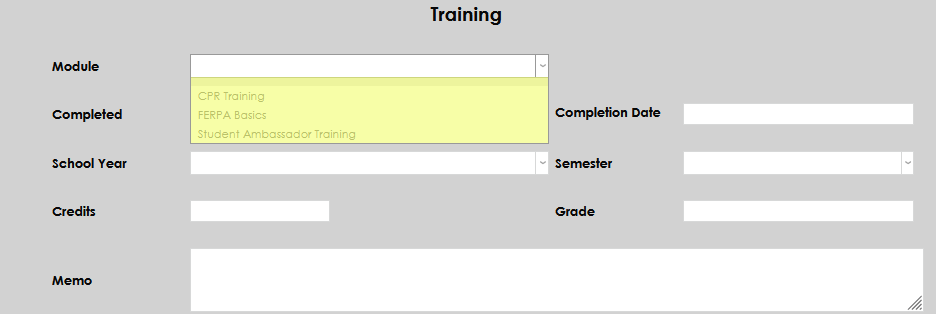
Navigate to the Training page in the Users hub. Select Add to assign or record a training.

Select the desired training from the Module dropdown.
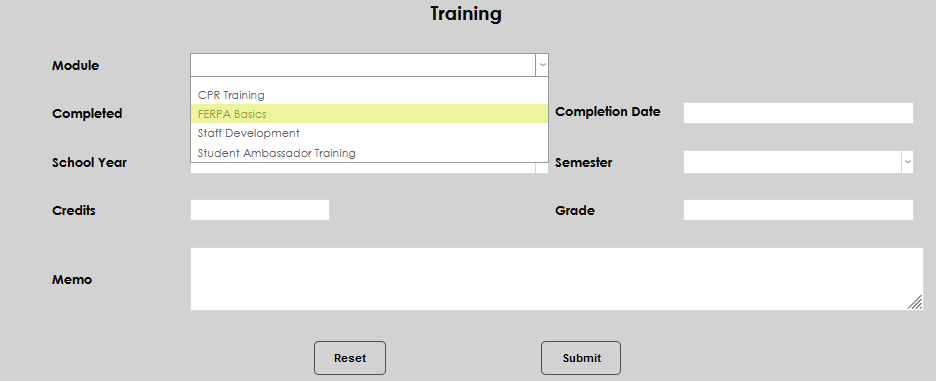
Select Submit to save the assigned Training to the user's record.
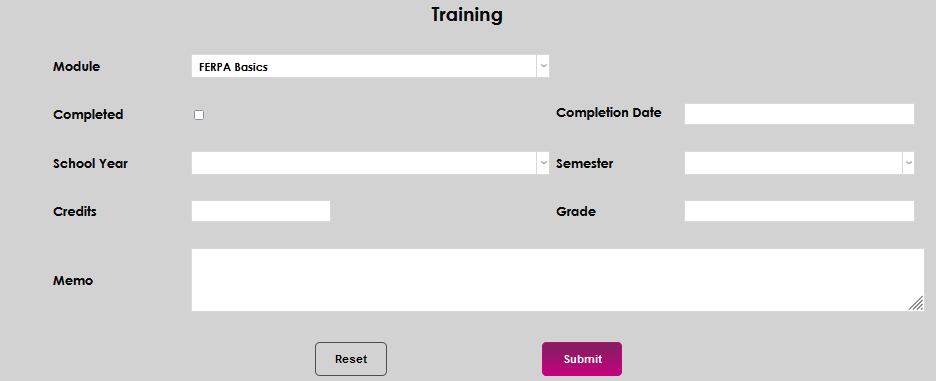
Recording Completed Training
From the user's Training screen, click on the Module name.

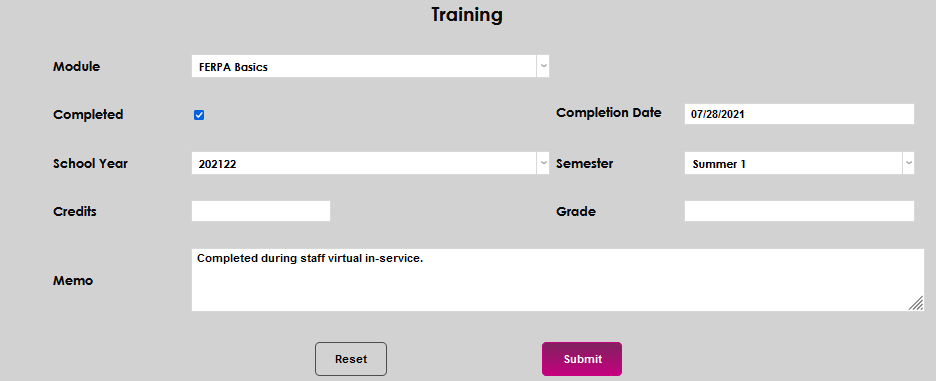
Click the Completed checkbox and enter the date the training was completed in the Completion Date field.
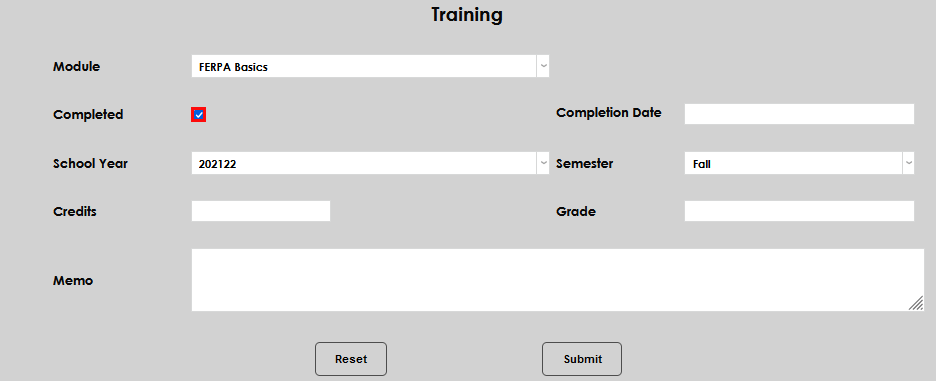
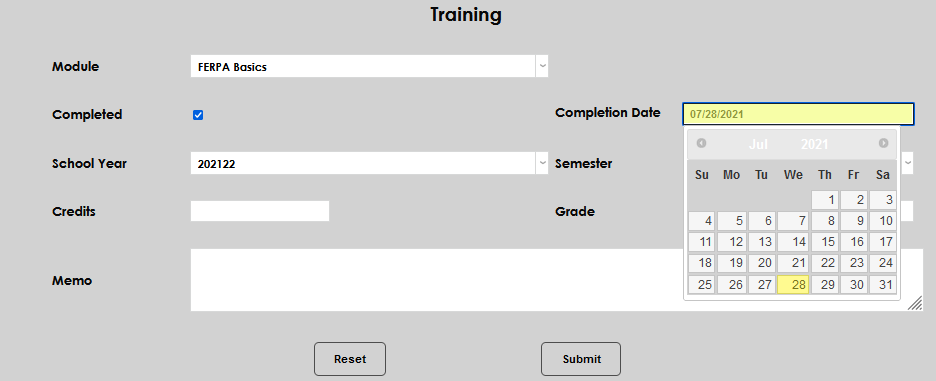
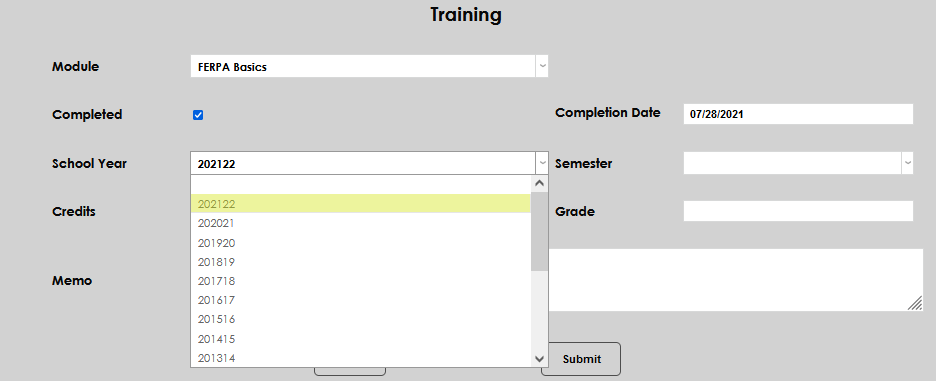
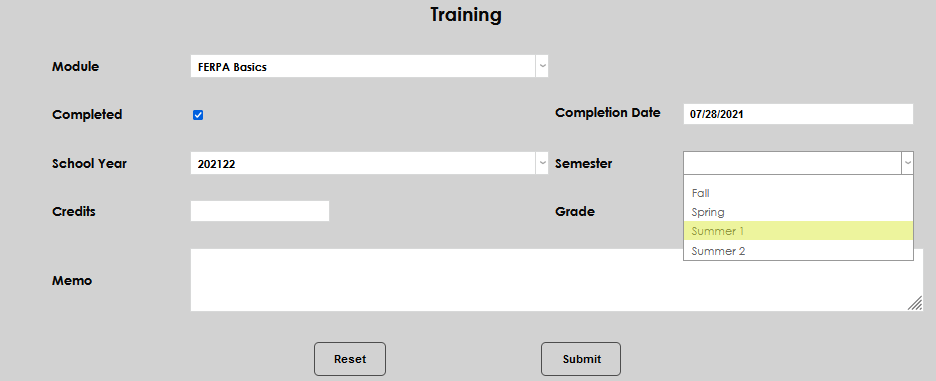
If appropriate for the training type, select the School Year and Semester during which the training was completed.
If the individuals who completed the training earned Credits or were assigned a Grade, enter these in the corresponding fields.
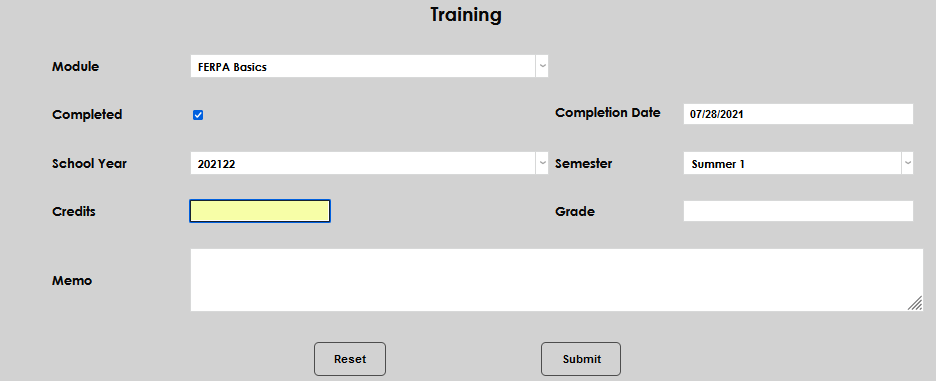
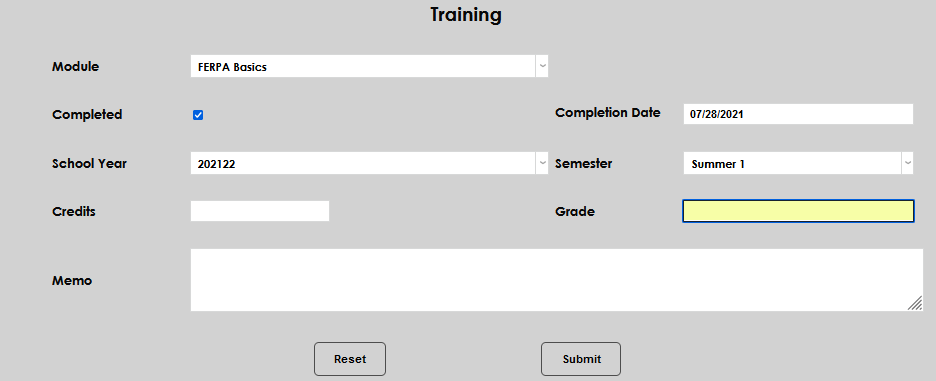
Enter any other details about the training completion in the Memo field.
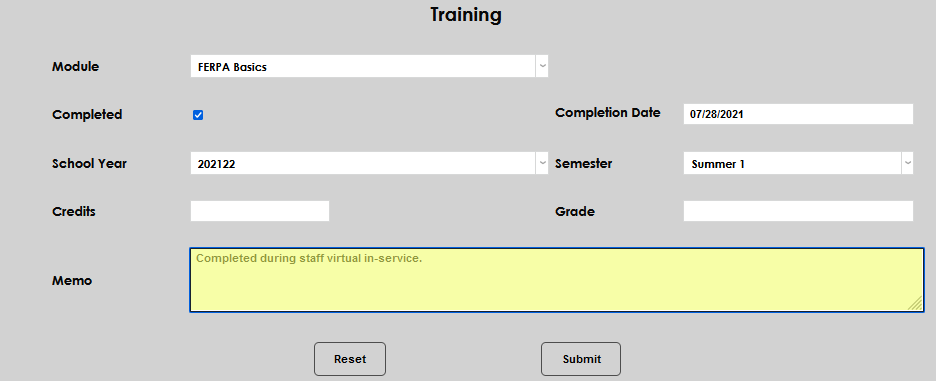
Click Submit to save the entered information.