PIN Codes
Overview
PIN Codes is a simple Jenzabar SONIS Systems hub utility that allows institutions to create and/or reset PIN codes in bulk. Administrators can create PIN codes by module status or reset existing PINs either by module status or for all portal users. To set or alter the rules that users are required to follow when creating their own PINs and control how often the codes reset, visit the Password & PIN Utility.
System-Generated PIN Settings
Separate from the PIN utility, but closely related is a setting in Web Options, which allows schools to choose how the initial PIN for each user added to the system is created.
Scroll down to the New PIN Setting option and choose from one following:
No PIN - With this choice, users do not have PINS and log in with their IDs only. This is not recommended.
Random - With this choice, PINs are generated automatically to comply with the PIN rules. This is the most secure method.
Birthdate - With this choice, PINs are generated to conform with the individual's birthdate in the mmddyy format. (Ex. 010396)

Regardless of the method chosen, users will be asked to create their own unique PIN when they log in for the first time.
PIN Types
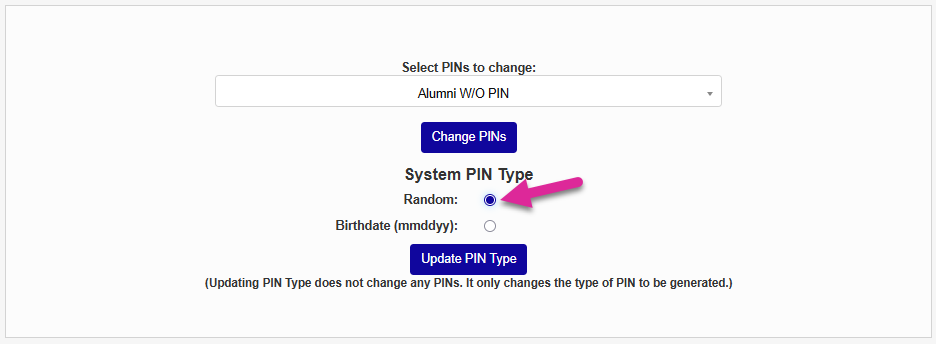
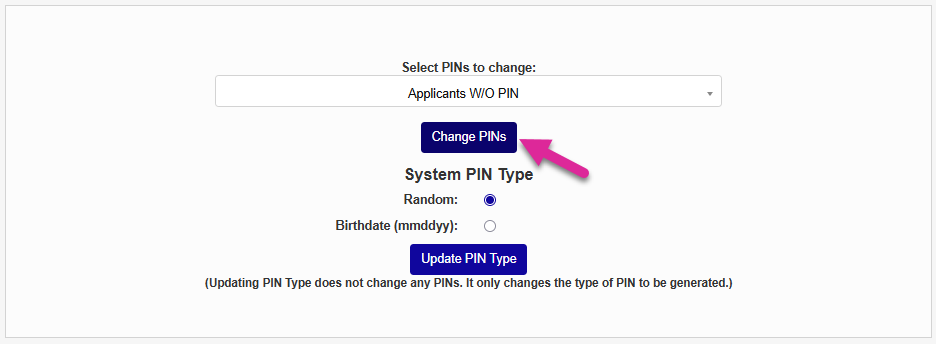
Before creating or resetting PIN codes, select a System PIN Type. Select Random to create PINs with a random set of digits or Birthdate to create PINs based on the user's date of birth.
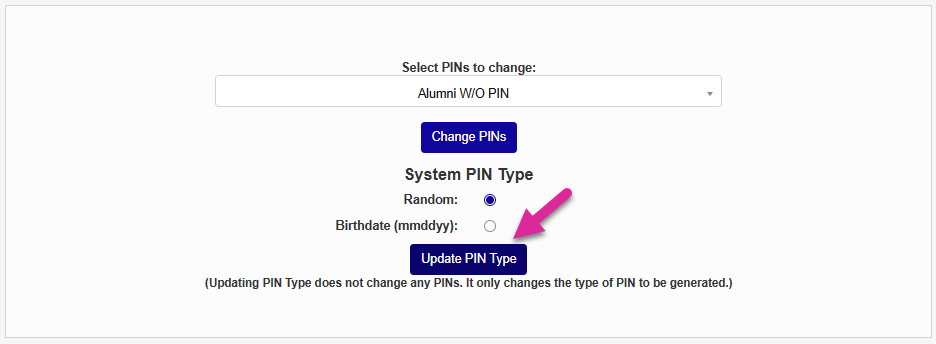
Click Update PIN Type to save this choice. PINs created through this utility will now be based on the selected type. Updating the PIN type does not change existing PINs or change the way system-generated PINs are created.
Change PINs
The first option offered by the utility is to create PINs for SONIS users who not have them. Generally, all SONIS users should have PINs unless the No PIN option mentioned above has been selected in Web Options. Additionally, some user user imports from third party programs do not assign PINs automatically.
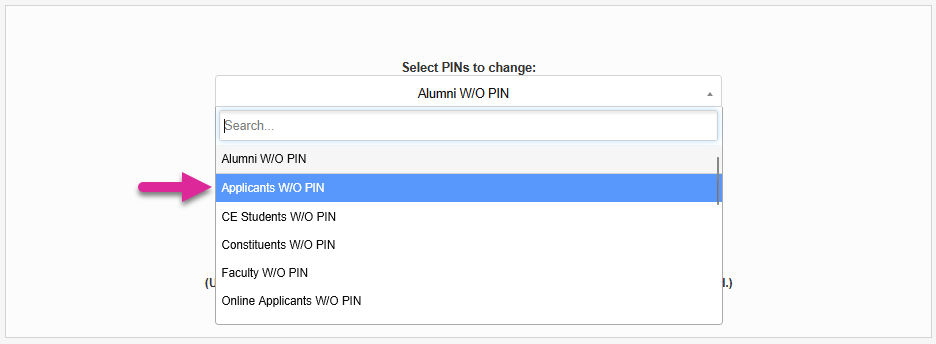
Select Alumni w/o PIN, Applicants w/o PIN, CE Students w/o PIN, Constituents w/o PIN, Faculty w/o PIN, Online Applicants w/o PIN, Students w/o PIN, or Withdrawn w/o PIN from the dropdown menu.
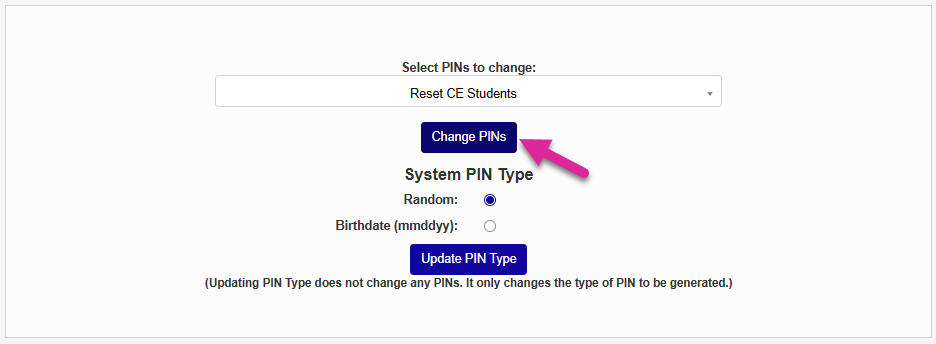
Click Change PINs to create PINs for the selected users.
The other option offered is to reset the PINs of existing users. This could be done after a security breach, when importing users with preexisting PINs from another application, after a change in passwords standards, or even periodically to ensure that unattended accounts have not been compromised.
Select Reset Applicants, Reset Alumni, Reset CE Students, Reset Constituents, Reset Faculty, Reset Online Applicants, Reset Students, Reset Withdrawn, or Reset Everyone from the dropdown menu.
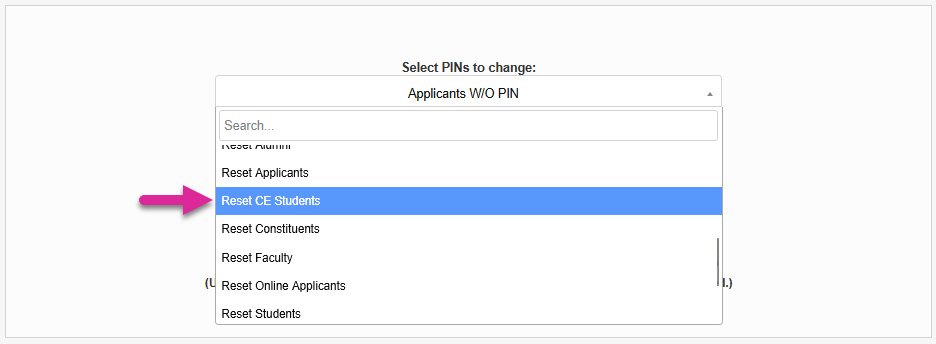
Click Change PIN to immediately reset the PINs.