PIMS Export
Overview
The Systems hub page, PIMS Export, is used to create the files necessary for completing Pennsylvania Department of Education's (PDE) student-level data reporting requirements. These files are submitted through the PIMS site. This process is updated yearly by Jenzabar SONIS Product Development as necessary.
Jenzabar SONIS member institutions who wish to use the PIMS utility must notify Jenzabar SONIS Support and have the functions enabled in their database.
PIMS Industry Credential Codes Table
Once SONIS Support has enabled the PIMS functions, the PIMS Industry Credential Codes table in Table Maintenance must be populated with credential codes corresponding to the industry programs the institution will report to PIMS. To add an industry code, enter the PIMS Industry Credential Codes table from the Table Maintenance option in the Systems hub. Click Add New Record.
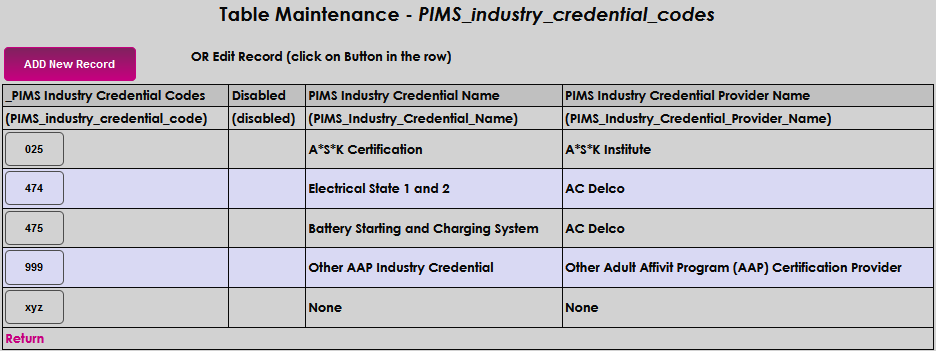
Enter a code made up of three alphanumeric characters that will represent the industry credential in the PIMS Industry Credential Codes field. This can be the state-assigned code or a code of the institution's choosing.

Enter the name of the credential in the PIMS Industry Credential Name field. This field accepts up to 70 alphanumeric characters.

Enter the name of the credential provider in the PIMS Industry Credential Provider Name field. This field accepts up to 70 characters. Click Submit to save the entries and create the code.


PIMS and the Biographic Page
After the PIMS features are enabled, a PIMS Information link will display in the Users hub Biographic page. Upon clicking the link, a window opens and allows users to view, add, and/or edit PIMS information at the individual student level.
Creating the Export Files
Enter the PIMS Export utility from the Systems hub. Click Continue to create the files.

Data Consideration
The PIMS Export process will review the data and display results pages to allow for data correction before file creation. A page will display that lists the type of error, the name, and the identification number for each individual with the error. Three data conditions are reviewed for and highlighted:
•Anyone in the institutions' SONIS database with a program without a start date. •Anyone in the institutions' SONIS database with more than one program without a stop date for one of the programs. •Anyone in the institutions' SONIS database with no ethnicity record.
Correct the errors and begin the export process again.
Created Files
After correcting the identified data issues and rerunning the process, four Excel files will be created and saved to the batch folder configured in the institution's Jenzabar SONIS database based on the Web Options File Destination Directory.
The four files are uniquely titled and contain the data required to complete reporting, in the required format as follows:
• _CTE_STUDENT_CREDENTIAL_yyyymmddtime
• _CTE_STUDENT_FACT_yyyymmddtime
• _STUD_SNAPSHOT_yyyymmddtime
• _STUDENT_yyyymmddtime
An example of how the four files will display within the user's directory:
