Import Final Grades
Overview
The Systems hub utility, Import Final Grades and Import Midterm Grades, provides administrators the ability to import an Excel file of final grades. Each row in the spreadsheet must contain the ID of the course section, the ID of the student, and a valid grade. During import, the file is reviewed to ensure the values in the first four columns of the header row are the required values. If one or more of the columns do not include the appropriate header value a message is displayed indicating which column header should be corrected. If the selected Excel or CSV file contains the appropriate column headers, the rows will be reviewed to ensure they contain valid values in each column. Grades will only be imported into student course records that do not have an official grade. If there is an existing grade it will be overwritten.
The Import Final Grades and Import Midterm Grades utilities function identically, with the only difference being which grade field is updated. Click here to download a sample file that complies with the requirements for both utilities.
Note
The Import Numeric Grades utility is used to import grades that have both a letter and numeric component.
Importing Final Grades
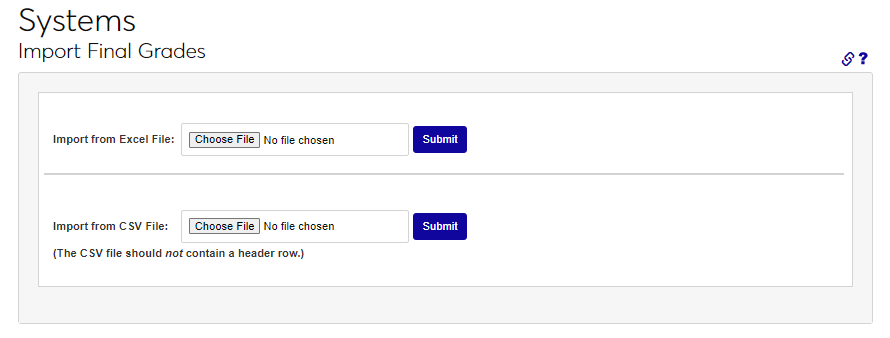
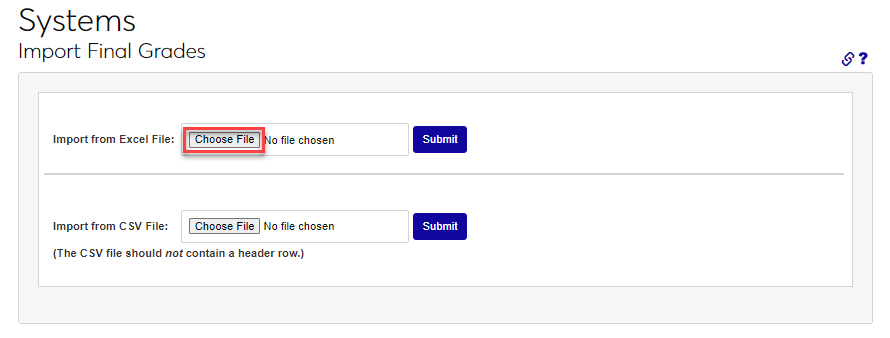
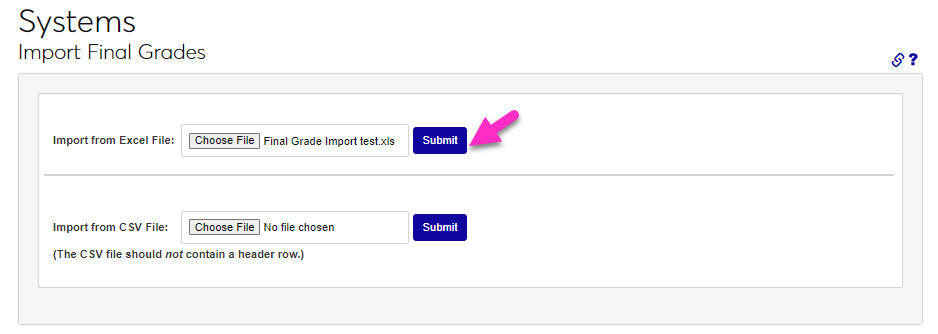
Enter the Import Final Grades utility from the Systems menu. Click Choose File button and use the file picker to select the needed file. The import file must be in Excel .xls or .csv format.
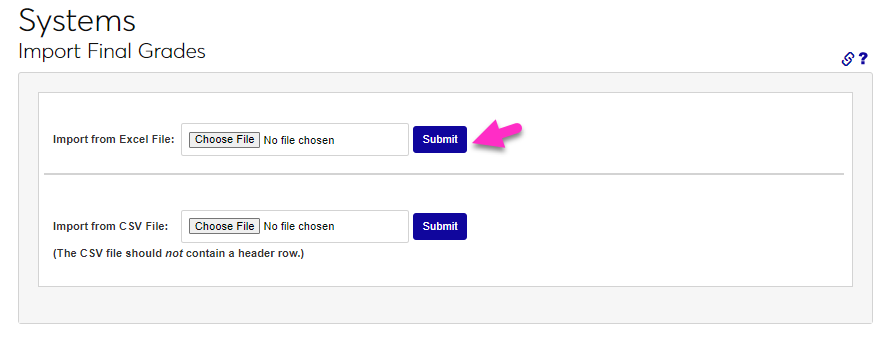
Click the Submit button.
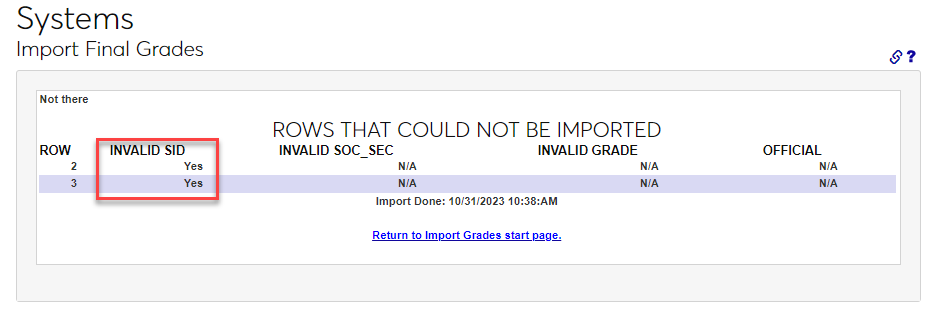
If any rows have data that cannot be processed, an error message will display with the associated issue. In this example, the Course Section ID is not correct. After correcting the error(s) in the file, repeat the import steps. When a file is successfully imported, a confirmation message will display with the number of successful updates made.

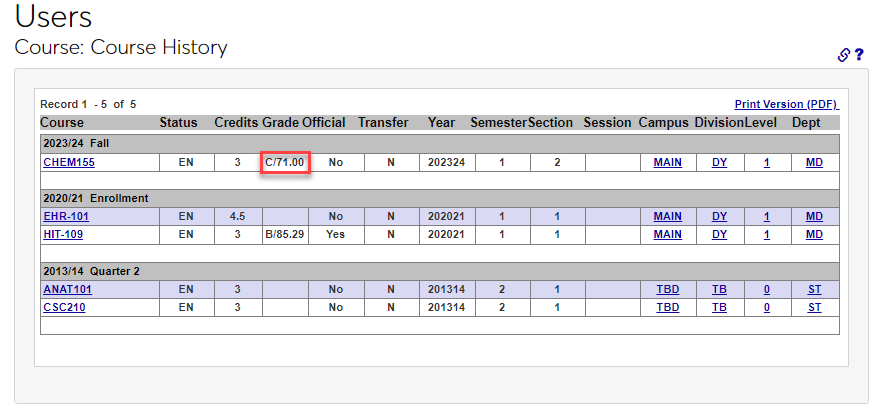
After importing, the numeric and letter grades will display in grade display locations, such as the Users hub Course History Summary.