Jenzabar SONIS Version 3.5 PowerFAIDS Updates
Overview
Based on client feedback, SONIS Product Development made a number of enhancements to the way PowerFAIDS interacts with the Jenzabar SONIS system. These changes were released as part of the 3.5 product update.
Anticipated Award Utility Orphaned Records Update
The PowerFAIDS Anticipated Awards Utility under the systems menu be can be used to void awards and disbursements to clean up errors. However, this can cause huge problems when the transactions being voided have already been sent to the school's general ledger software. A fix was added that prevents awards that have already been posted to an accounting batch from being voided in this manner.
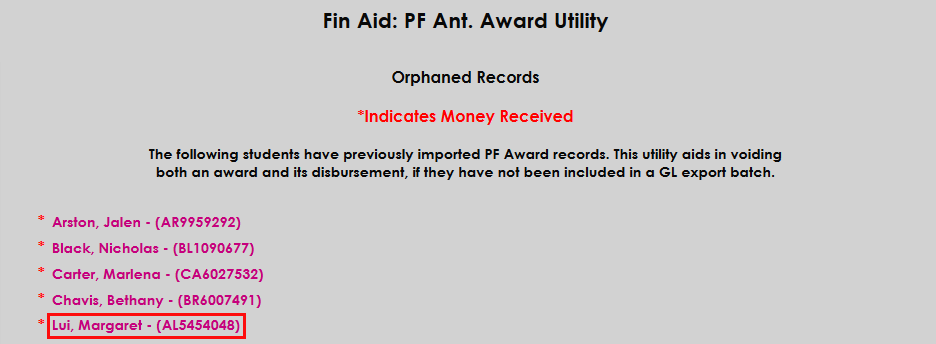
From the PF Ant. Award Utility start page, click on the name of a student with an award. A red asterisk indicates money received.
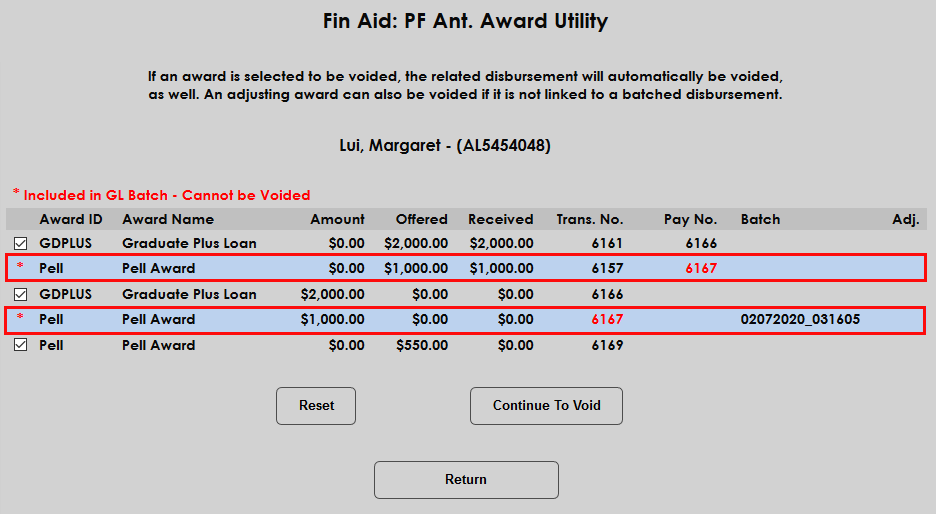
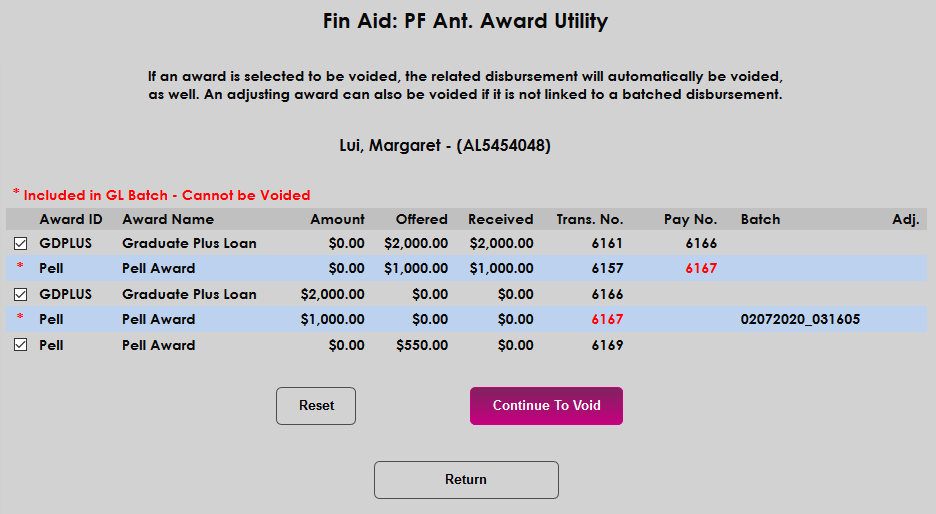
On the following page, a red asterisk is utilized again, this time in place of a checkbox to indicate awards and disbursements that can not be voided because they're part of an existing batch. Click Continue to Void to void the files with checked boxes, ignoring the asterisked files.
Anticipated Award Import Orphaned Records Update
Jenzabar SONIS has modified the way that adjusting awards are handled for added clarity and ease of use. Previously, an adjusting award of $0 imported from PowerFAIDS would still display despite it not altering the student's balance. Beginning with version 3.5, these $0 transactions will no longer display.
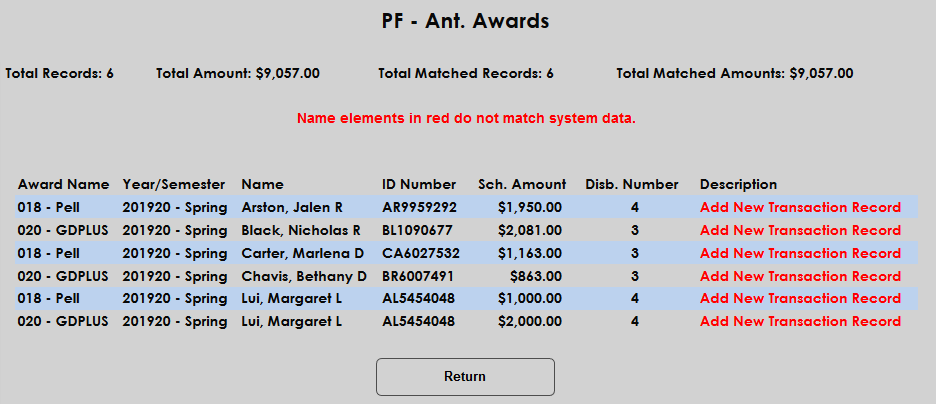
In the below example, six anticipated award transactions were imported from PowerFAIDS. These transactions were then disbursed.
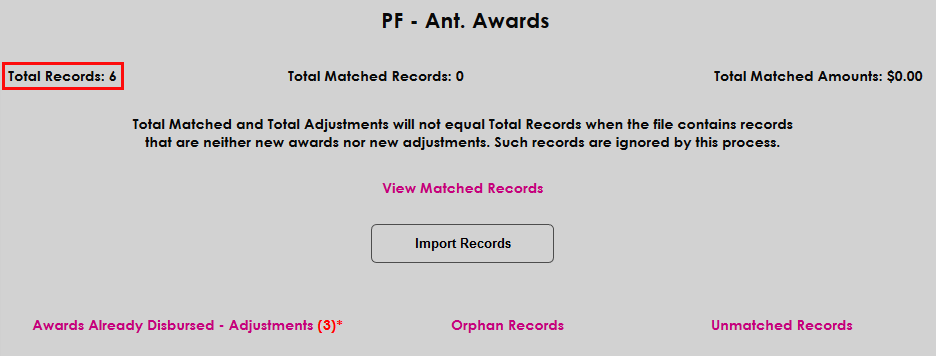
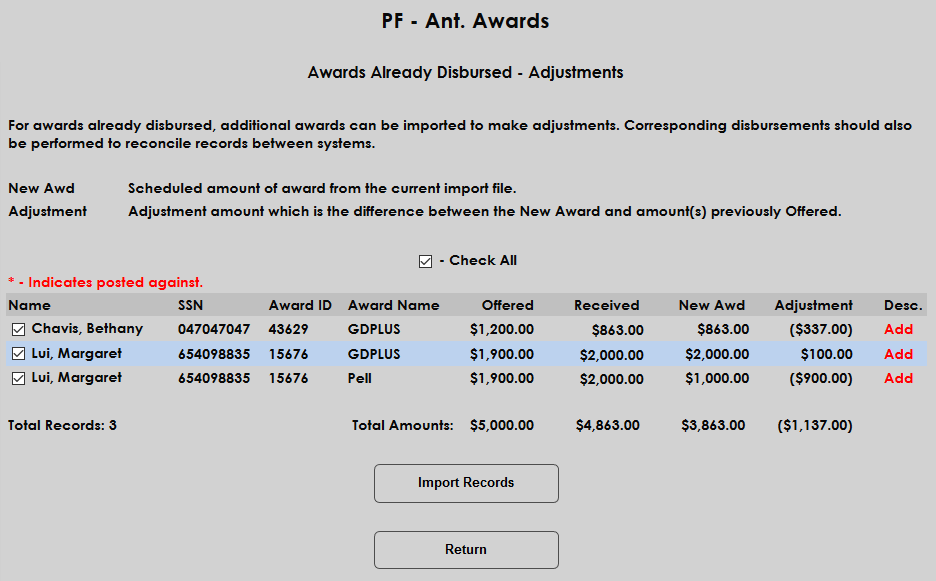
Another file was imported featuring awards transactions for the same students for the same semester. While six total records were imported to SONIS, only three adjustments are visible since the other three were identical to the original totals.
Applicant Data XML Export
Previously, only student data could be exported to PowerFAIDS. Now, applicant data can be exported as well.
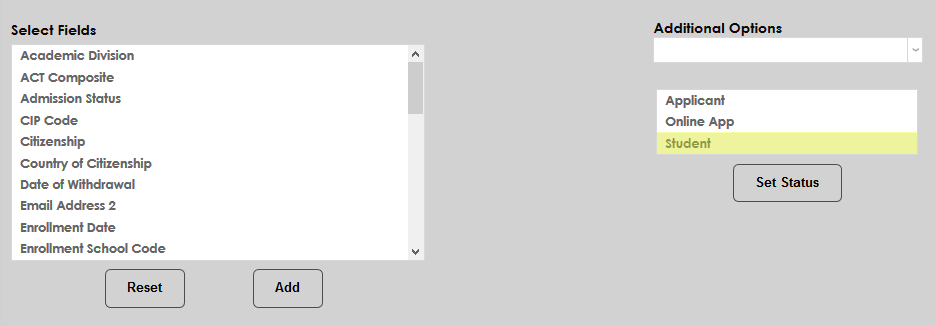
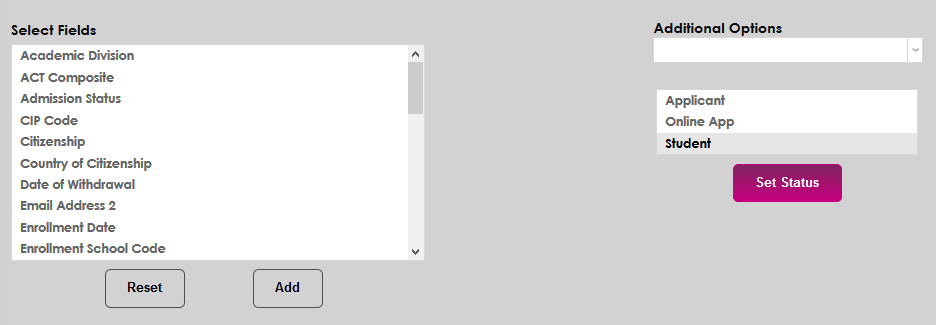
Each export type can be set to include a single or multiple module statuses from the PowerFAIDS XML Setup page under the Systems menu. Select one more more module statuses and click Set Status. Only users with this status will be included in the export. If no modules are selected, only students will be exported.
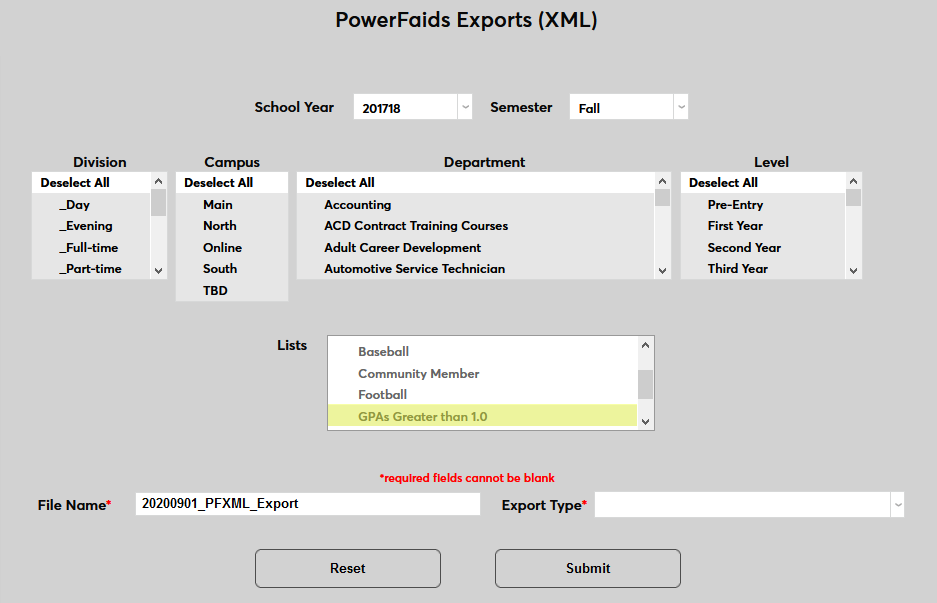
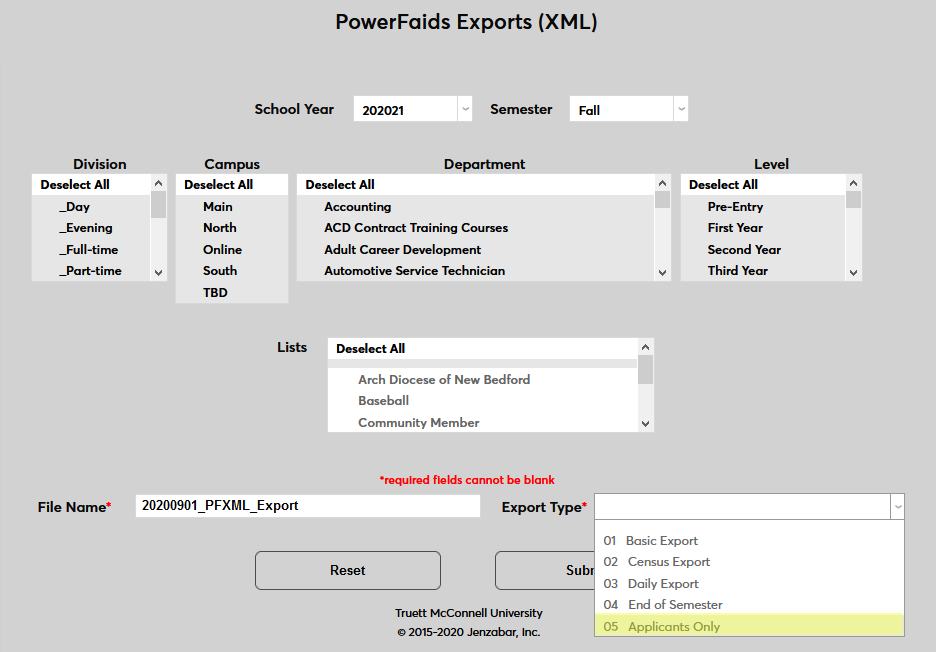
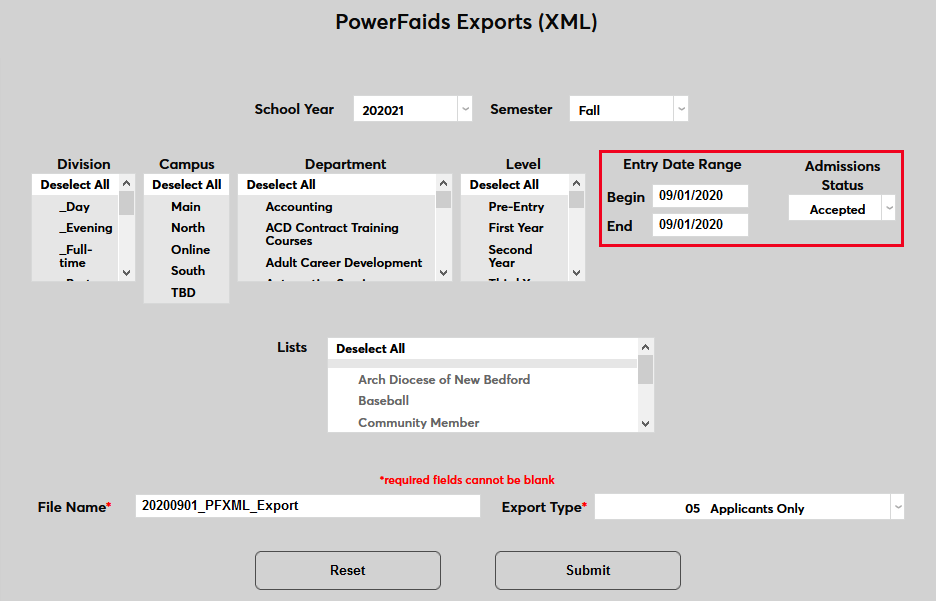
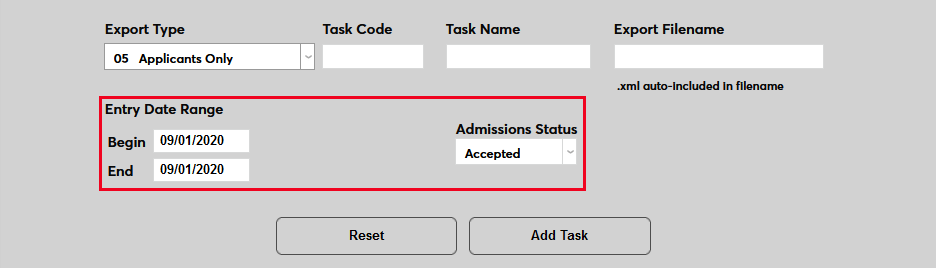
On the manual PowerFAIDS Export page, if an Export Type that includes applicants and/or online applicants is selected, two new fields appear that can be used to filter the export file: Entry Date Range and Admissions Status.
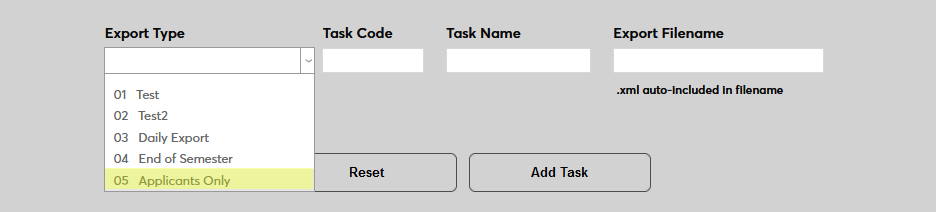
The same process is in place on the PowerFaids Exports (XML) Schedule Task page. If an Export Type that includes applicants and/or online applicants is selected, the same new filters appear.
For more about the PowerFAIDS XML export, visit the PowerFAIDS overview page.
Automatic File Transfer
Schools that are hosted by SONIS or host their PowerFAIDS on an SFTP server can have their PowerFAIDS export files automatically transferred to the PowerFAIDS server as part of the export process. To set up the process, navigate to the Web Options page under the Systems menu. Scroll down to the bottom of the page and fill in the PowerFAIDS export fields with the correct information for the local server. Click Submit to save the changes.

Once the Web Options setup has been completed, the files will be automatically sent to the specified location when either the manual process or the automatic process is run.
Export Lists Enhancement
In addition to the applicant-specific fields mentioned earlier, PowerFAIDS export files can now be sorted by lists. Lists are created in Table Maintenance. Users are assigned to lists using the Lists Management Utility under the Systems menu.
To use the optional filter, simply select one more more lists on the manual PowerFaids Exports (XML) page.