Bulk Withdraw Enhanced
Overview
The Bulk: Withdraw Enhanced utility, available in the Systems hub, provides administrators with the ability to identify and place a withdraw record on a group of students who meet specific criteria at once. In addition to adding a Leave Status record, the utility changes the selected students from a module status of Student to Withdrawn. Once the change is made, there is no bulk process to change back. Therefore, it is recommended that this utility be run infrequently and only after careful planning.
Note
If student already has a Withdrawn status, their existing Student status is deleted so the Withdrawn status is the only one remaining. If they do not have a Withdrawn status, their student status is replaced by a Withdrawn status.
The most current school year and semester or term that the student took a course in is used to determine what withdrawal date is entered on the student record. If the student has never taken a course, the entry date of the active education record is used as the withdrawal date. Attendance records are not used to determine the date of withdrawal. The course section end date will be used as the withdrawal date regardless of whether or not the student completed or withdrew from classes in the current school year and term.
Note
The utility will only capture Jenzabar SONIS users with a Student module status. Additionally, users who have an active application with an entry date that is either in the future or less than 270 days in the past are not included.
Withdrawing Students
Warning
The Bulk Withdraw function is resource intensive. You should only run this utility when system activity is low, such as at night or on the weekend.
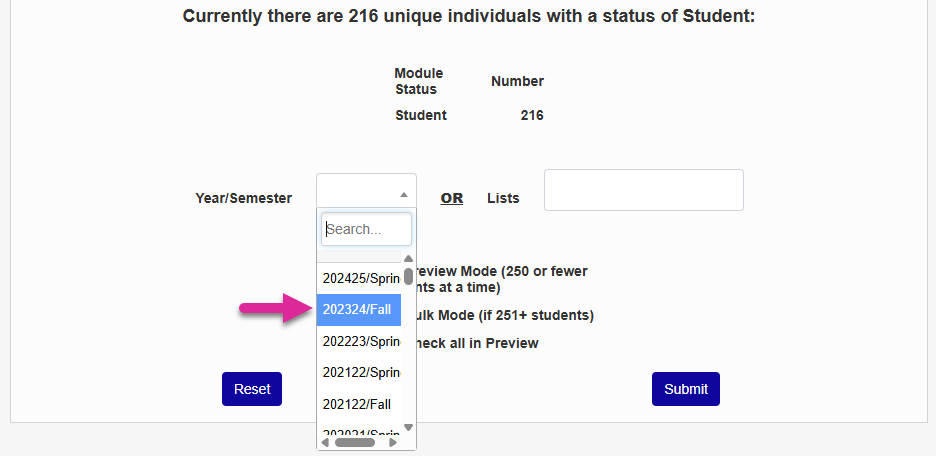
To begin, choose a school year and semester to base the calculation on. Any student who has not taken a course in the time since the selected school year and semester will be included in the list for withdrawal.
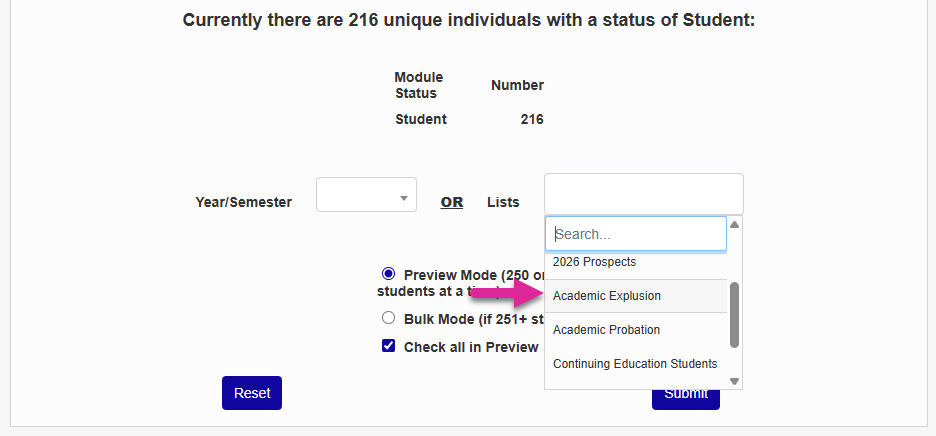
Alternately, you can select a list that you've prepared of students who should be withdrawn. See List Management for more on creating and editing lists.
Note
If you select both a list and a school year/semester, the list will override the school year/semester selection and the system will ignore it.
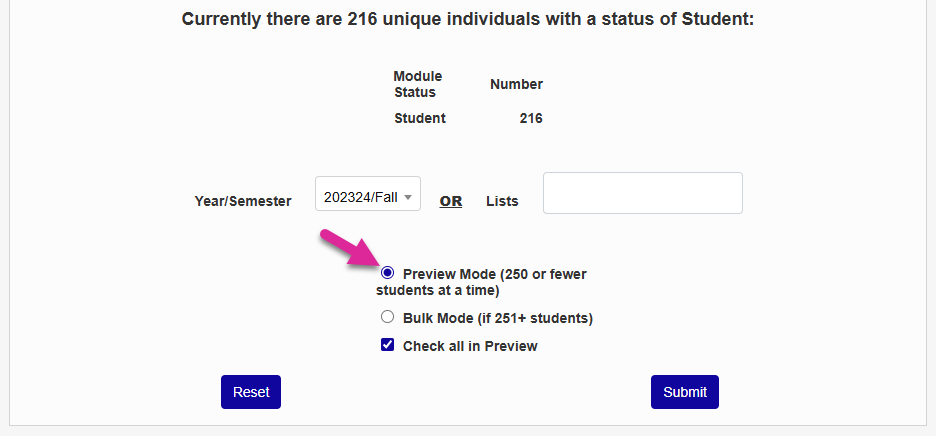
Select the Preview Mode radio button to view the list of students to be withdrawn and select/deselect individuals. Or select Bulk Mode to see only the number of students to be withdrawn with no option to deselect.
Tip
Though the page instructions suggest that you only use Preview Mode if the resulting list will contain 250 students or less because this is all the system will display at one time, you can still use Preview Mode for larger lists and run the search a second time after you've cleared out the first group of withdrawals.
Leave the Check all in Preview box marked to start your preview with all the students selected or uncheck it to start your preview with all of them deselected. This box has no effect on Bulk Mode.
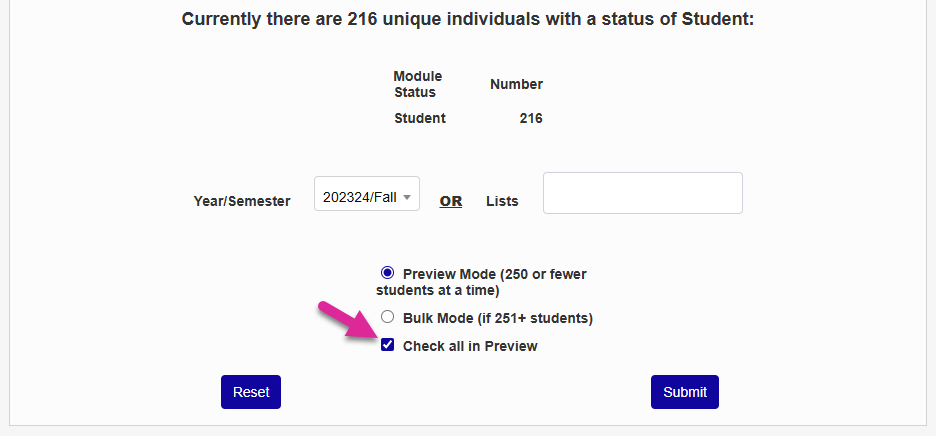
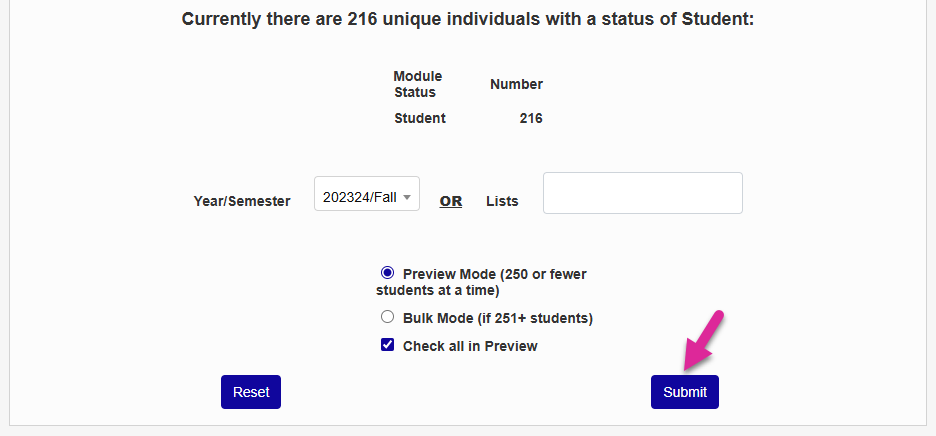
Click Submit to continue.
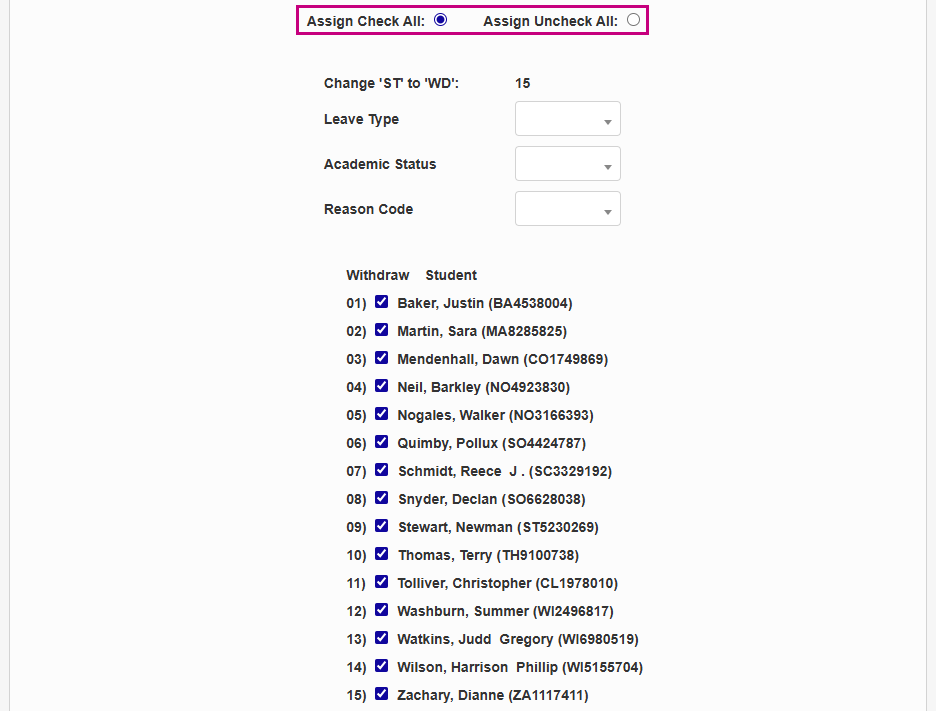
On the following page, if you chose Preview Mode, you can use the Check All and Uncheck All buttons at the top to make quick changes.
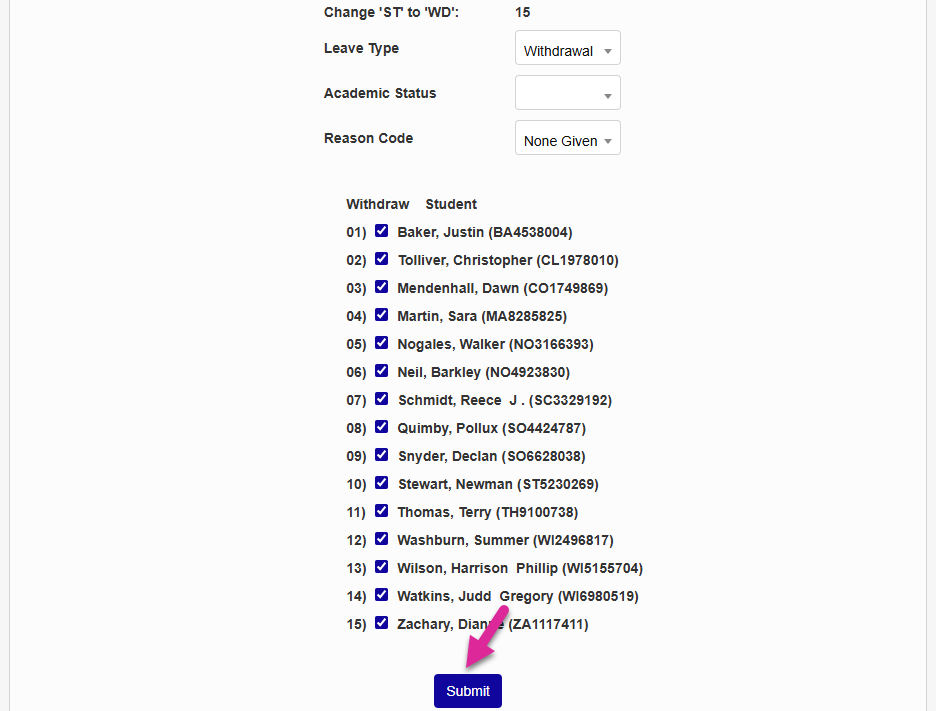
Select the Leave Type that will appear on each student's Leave Status record. Leave Type options are created and edited through Table Maintenance.
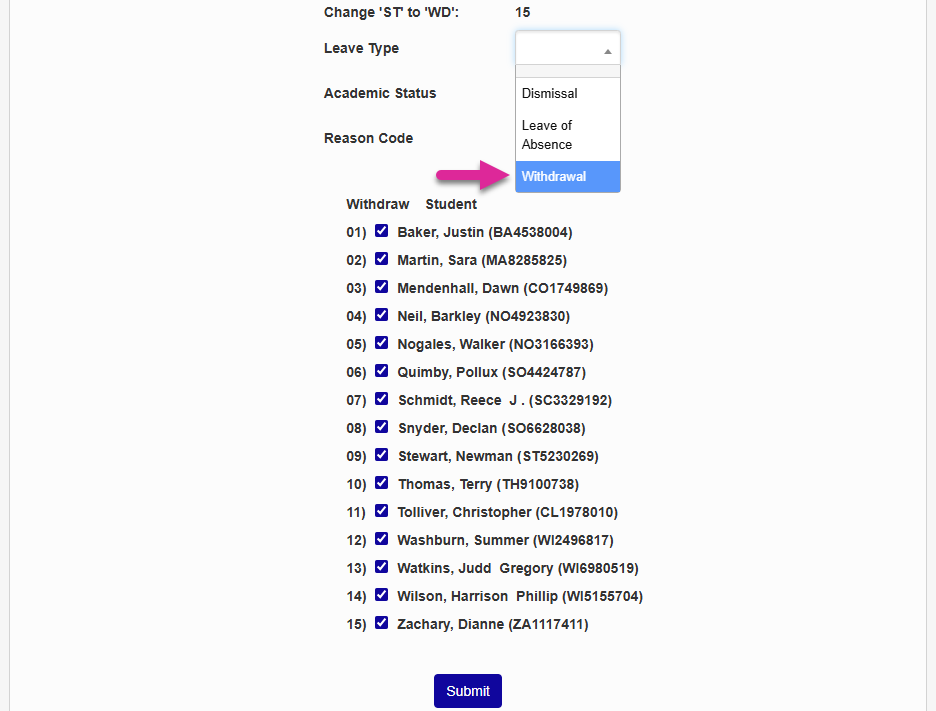
Choose an optional change in Academic Status for the selected students. Academic Status options are created and edited through Table Maintenance.
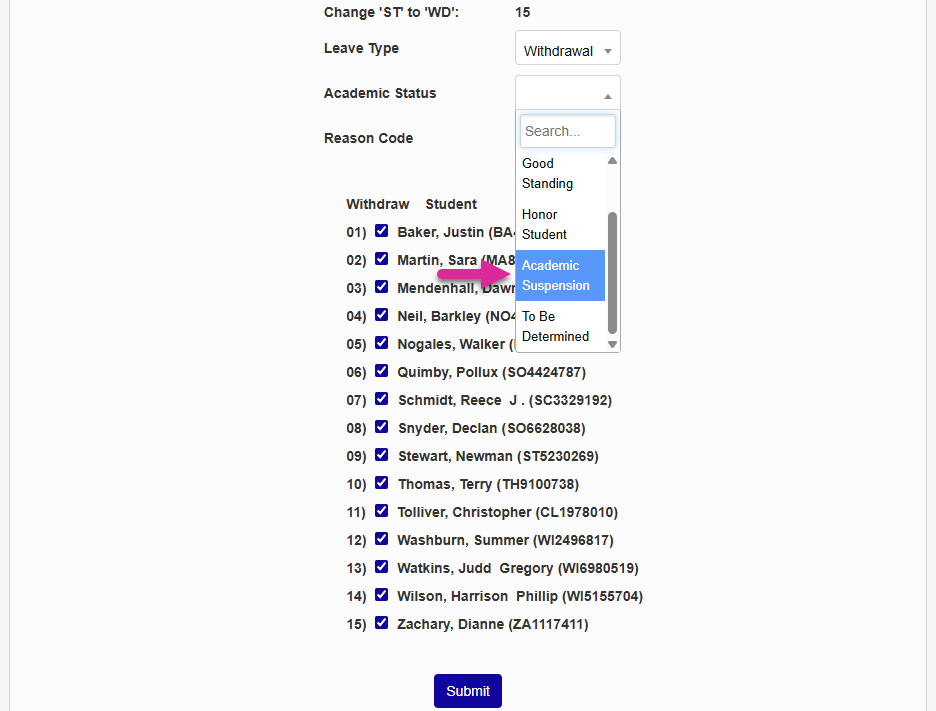
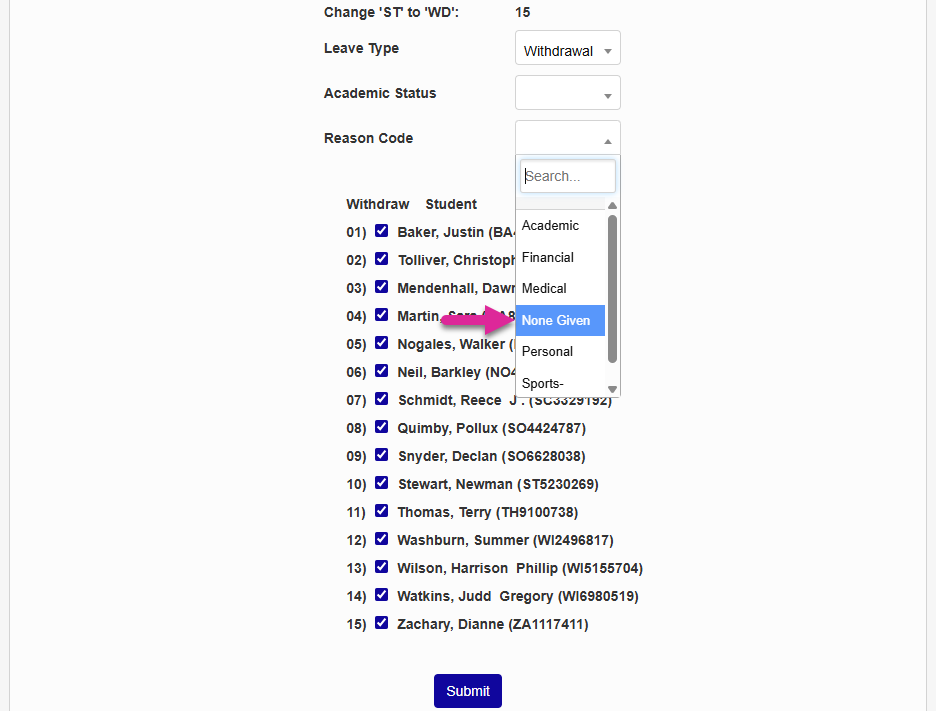
Select a reason code that will appear on each student's Leave Status record. Reason Codes are created and edited through Table Maintenance.
Check and uncheck the boxes in the Withdraw column to choose which students will be included.
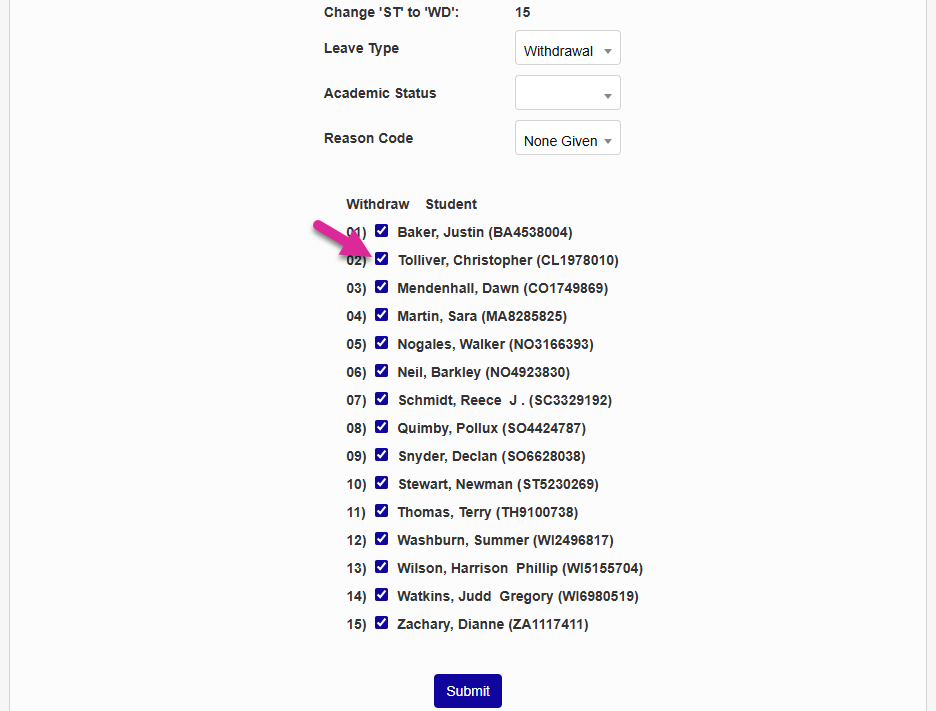
Click Submit to complete the withdrawal.