Program Type
Overview
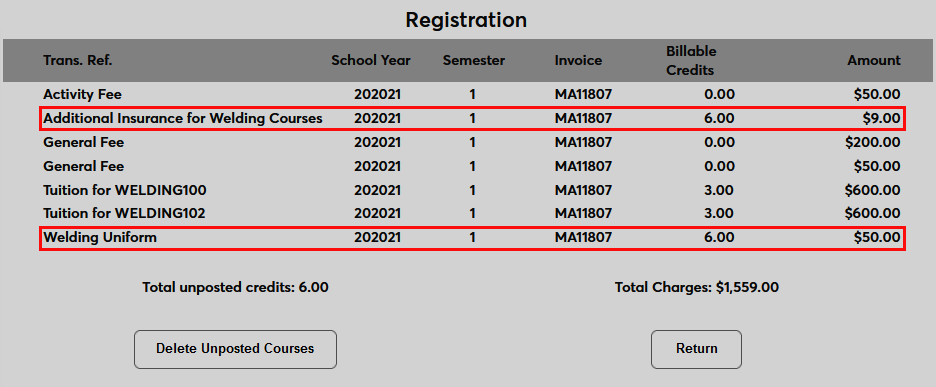
The Program Type utility, located in the Systems hub, provides an easy way for Jenzabar SONIS clients to assign monetary fees to their programs. These fees are generally created to defray some of the cost associated with delivering a particular program. For example, some programs may require additional insurance, a uniform, or specialized tools that cannot be reused. Fees can be flat or per credit and multiple fees can be attached to the same program. The fees are grouped together by the Program Type designation.
Transaction Codes
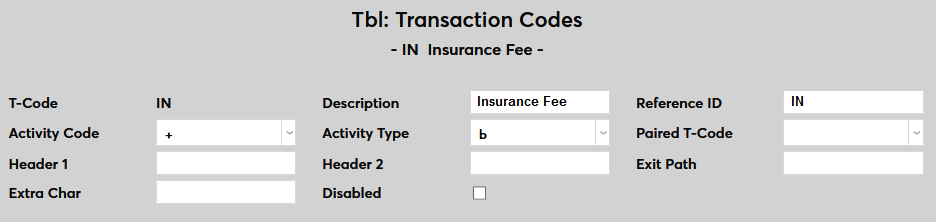
Each individual fee created using the Program Type utility must have its own Transaction Code. Navigate to the Transaction Codes utility to create a code for each fee that will be set up.
Creating Program Types
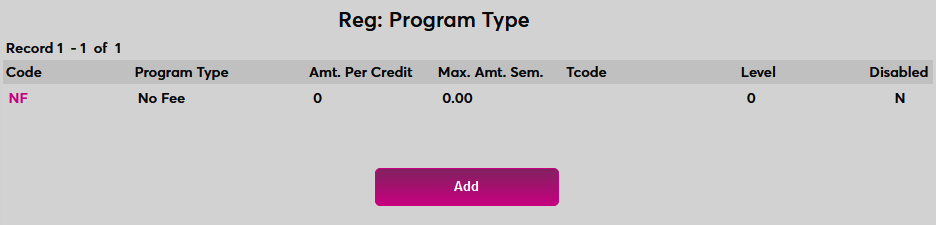
To begin creating a program type, navigate to the Program Type page in the Systems hub and click the Add button.
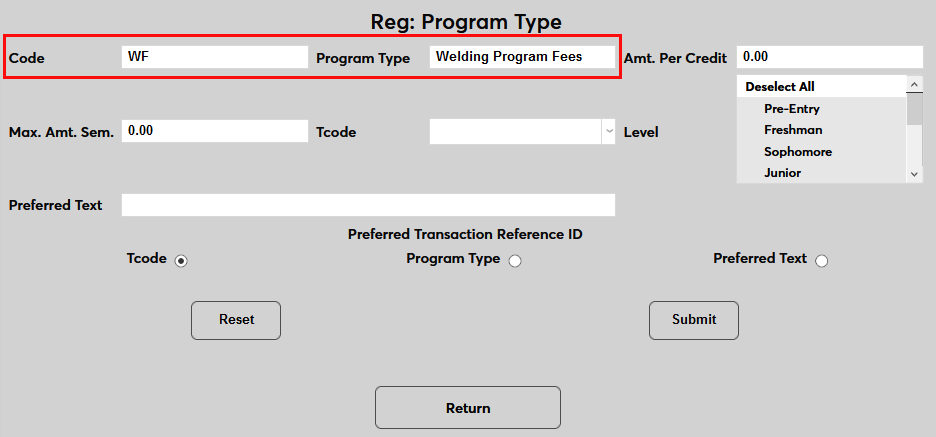
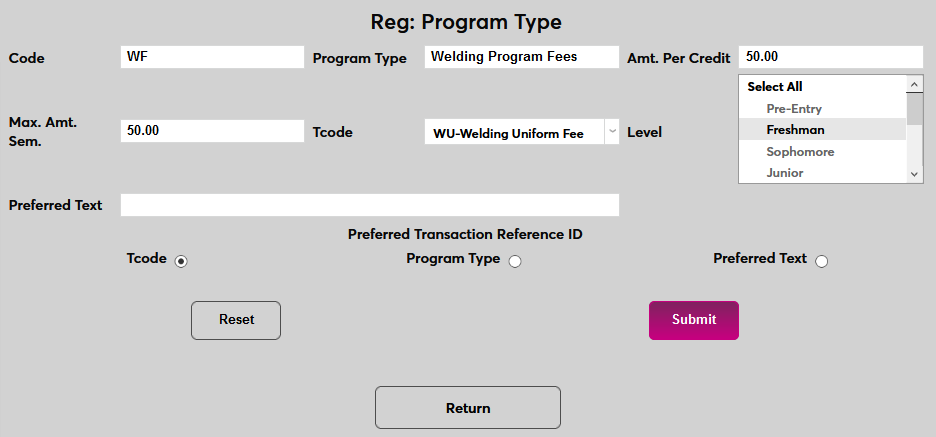
On the following page, create a name for the program type in the Program Type field. This field has a 25-character limit.
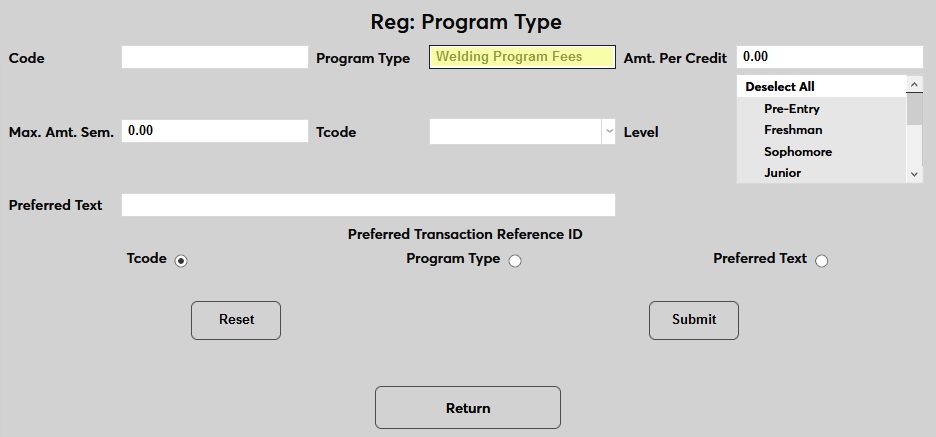
Next, create a shortened version of the program type to server as the Code that will be identify the program type in the table. This field has a three-character limit.
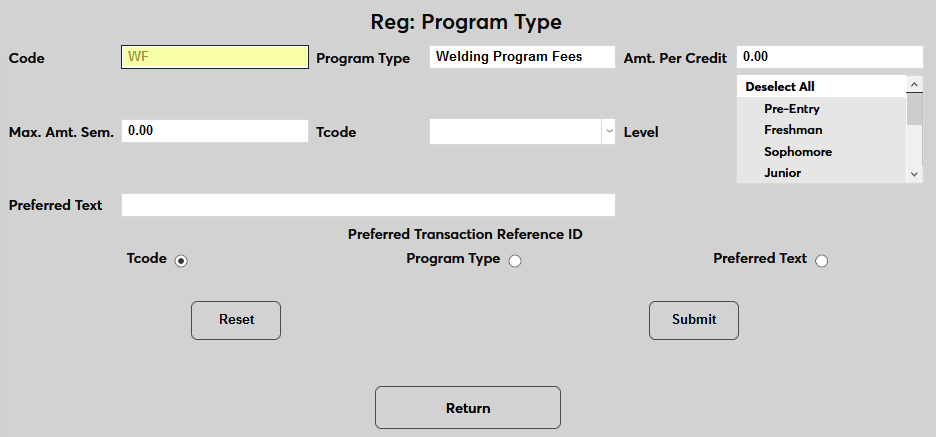
These two fields will be the same for all fees that are grouped under this program type.
Per Credit Fee
To create a per credit fee, fill in an amount in the Amount Per Credit field. This value must be in dollars and cents. The student will be charged this amount for each credit they take under the program.
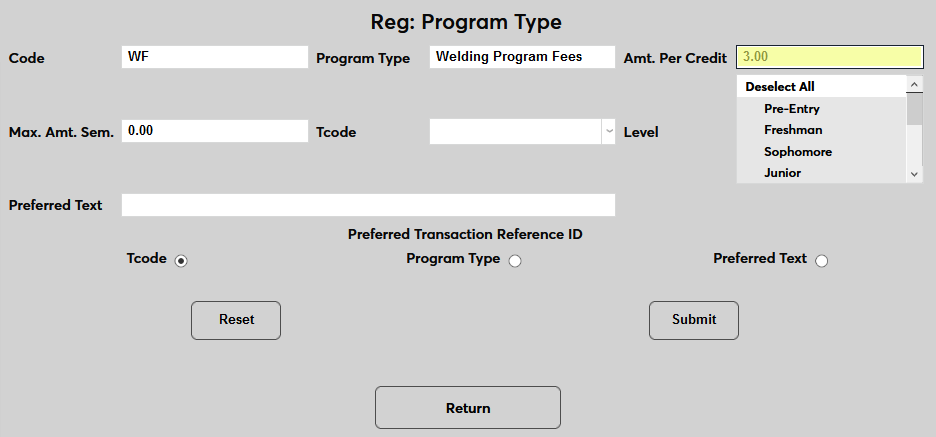
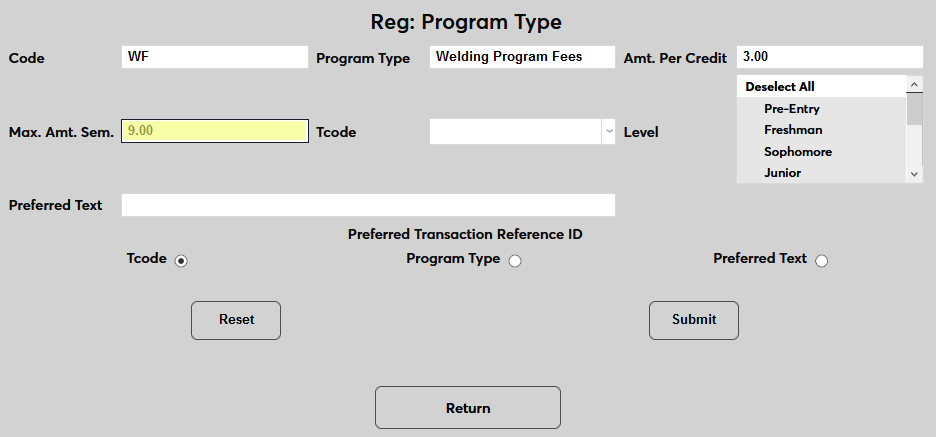
Next, enter the maximum amount that the student can be charged in a single semester in the Maximum Amount per Semester field.
Select the T-code for the specific fee to be charged.
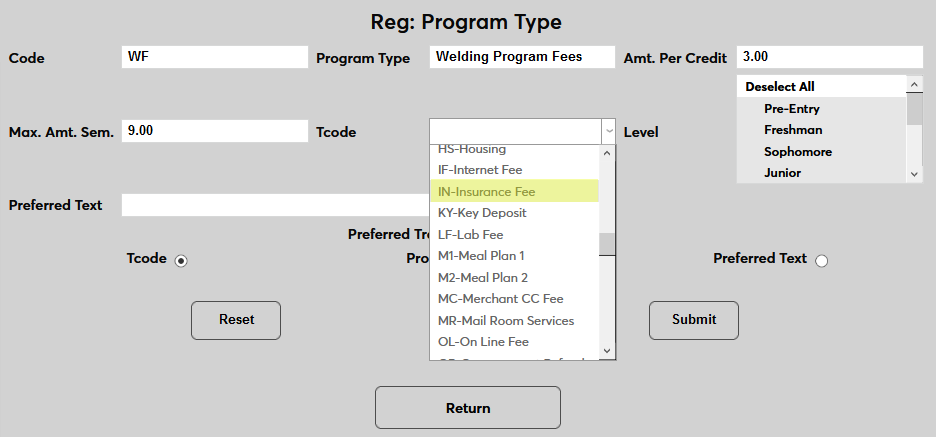
Choose which Level or levels of students who will be charged the fee.
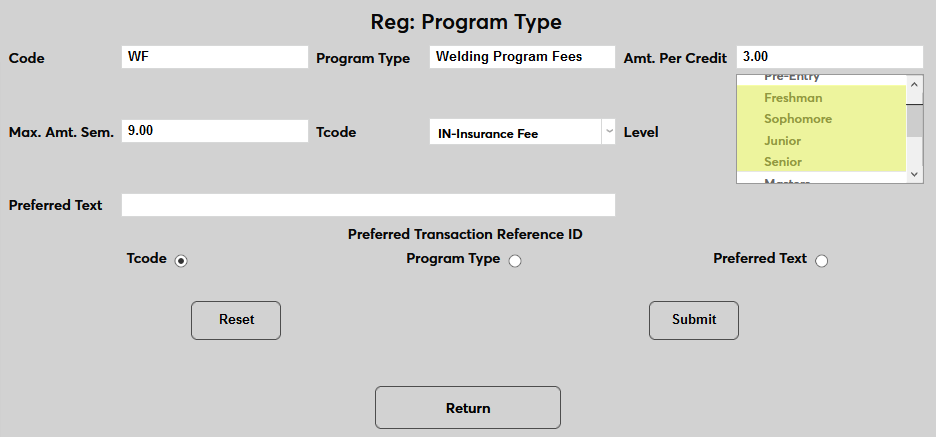
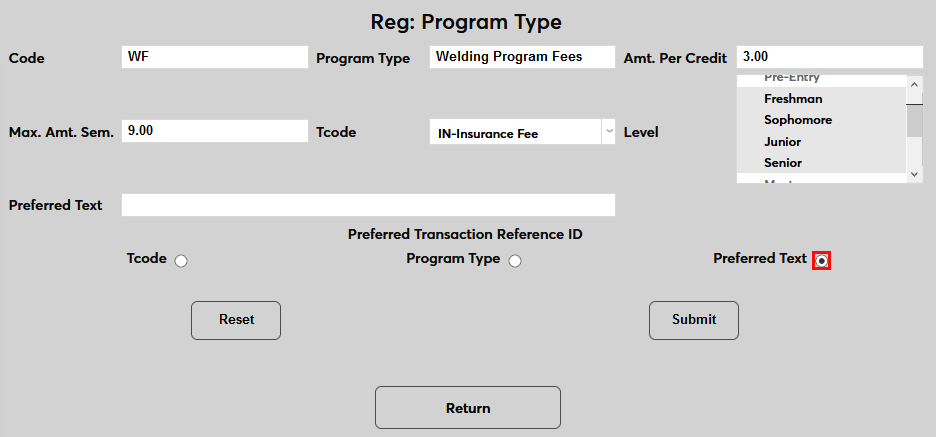
Choose whether billing summaries will include the T-code or the Program Type set above or use the Preferred Text field. If Preferred Text is chosen, enter a value in the Preferred Text field. Otherwise, it can be left blank.
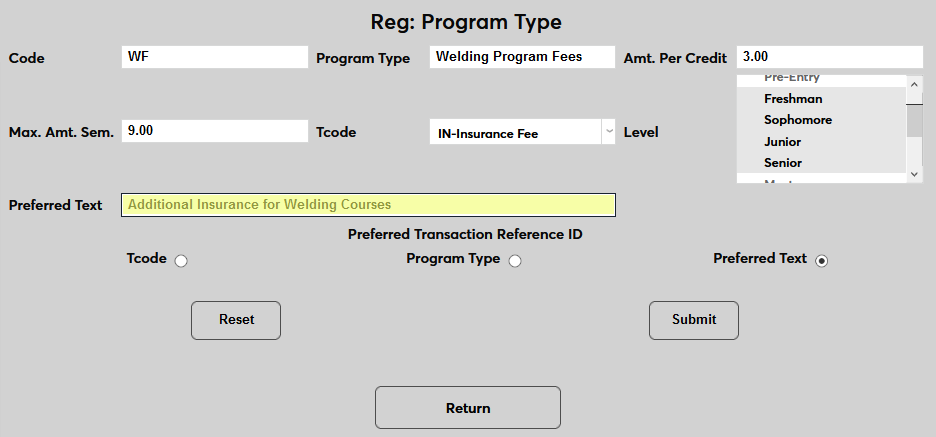
Click Submit to save the fee.
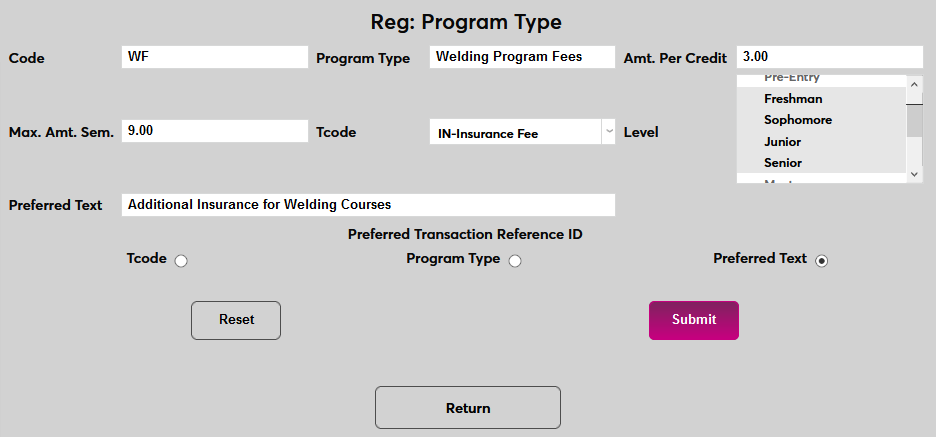
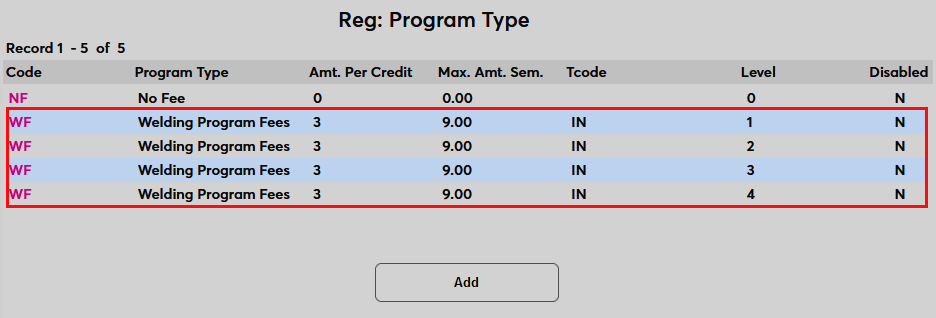
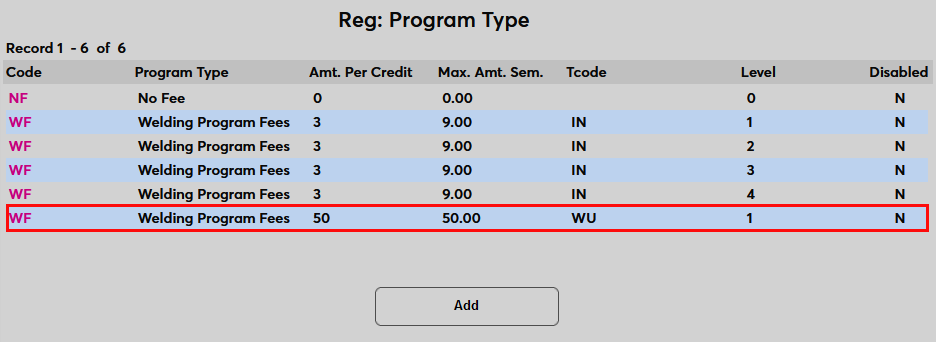
A program type listing is added for each level included.
Flat Fee
When adding a second fee that will be attached to the same program, the Program Type and Code must be the same.
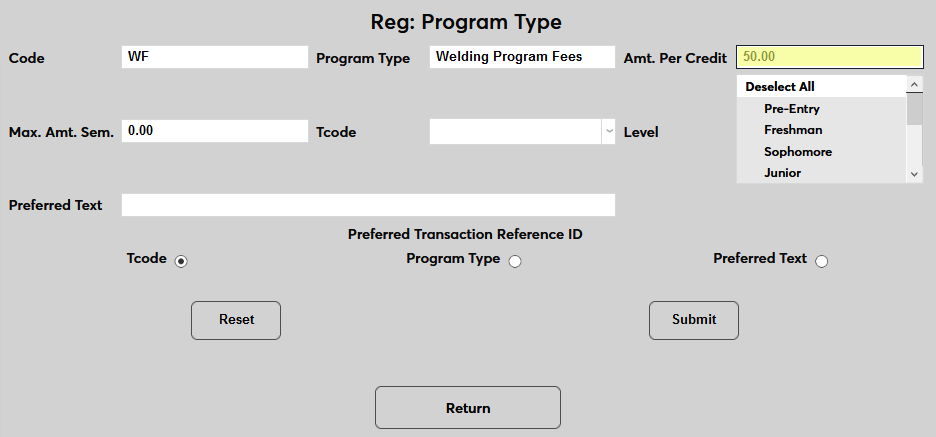
To set a flat fee, enter the amount of the fee Amount Per Credit field and then enter the same amount in the Maximum Amount per Semester field. This will ensure that anyone who signs up for a course in the program will be charged a single amount and no more.
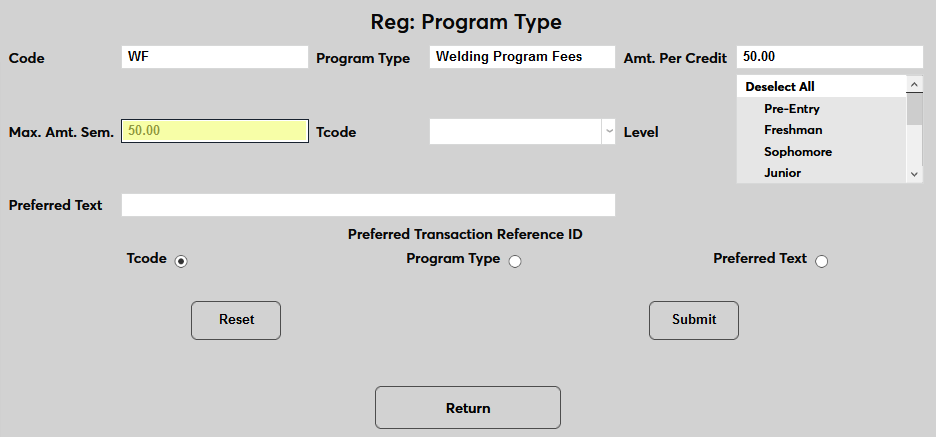
Complete the other fields as in the prior example and click Submit to save the fee.
Adding Fees to Program
Once a program type as been created, it must be attached to a program in order for those fees to go into effect. Navigate to the Programs table in the Systems hub. Click Add to create a new program or click on the name of an existing to edit. On the program setup page, select the created program type from the Type dropdown menu.
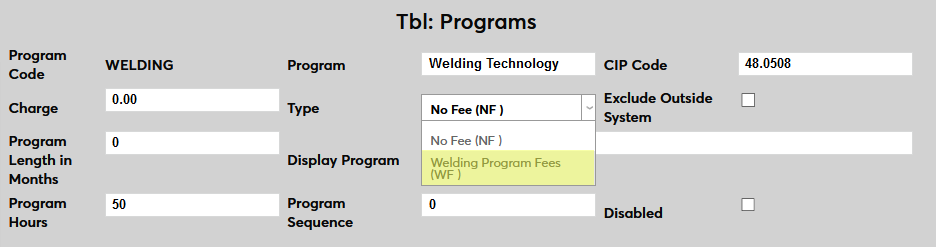
Submit the page to save the change. The program type will be listed on the summary page and all fees listed under that program type will be attached.

Once the program type has been attached, any students enrolled in the program will have the associated fees assigned when they register for courses.