Post Transactions By List
Overview
The Post Transactions by List utility allows administrators to create a record of financial transactions for individuals on a chosen list. These transactions can be charges or payments. Transactions that are automatically created through other processes should not be posted in duplicate. All new transactions should be posted before utilizing the Post to Billing utility.
A secondary function of Post Transactions by List allows the creation of a list of Unposted Transactions.
Before posting Pell transactions for the 2024-2025 Pell processing year or beyond, review the updates that were made in Jenzabar SONIS 2024.
Posting
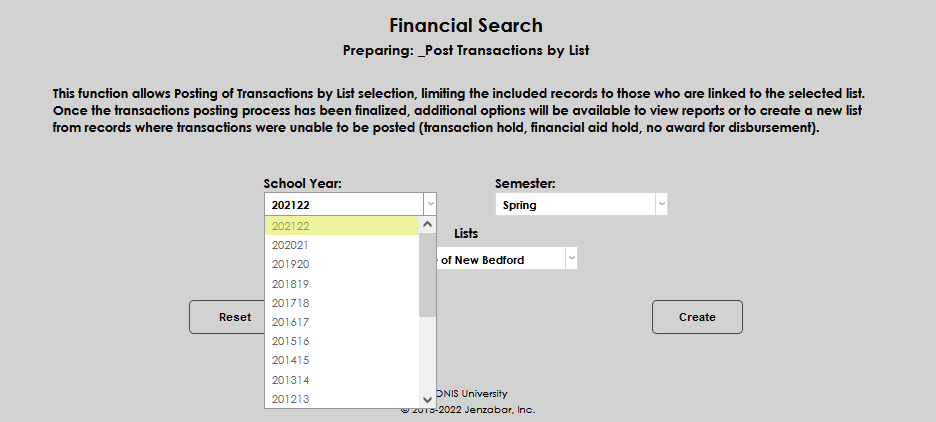
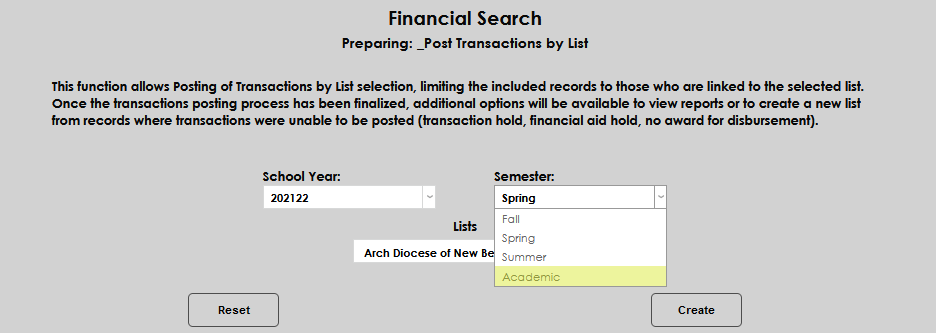
To begin posting transactions, navigate to the Post Transactions by List utility under the Financials menu. The page will automatically populate with the current School Year and Semester. If these are not the ones the transaction should be associated with, select the appropriate values.
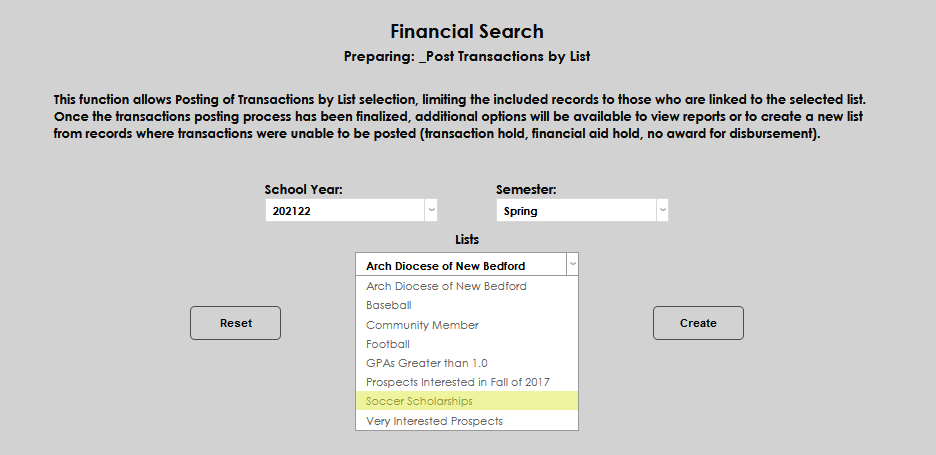
Select the List the transaction will be posted to. Click Create to move to the next step.
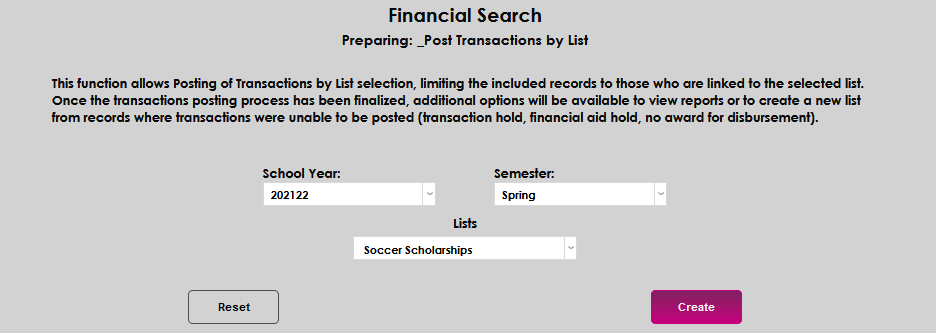
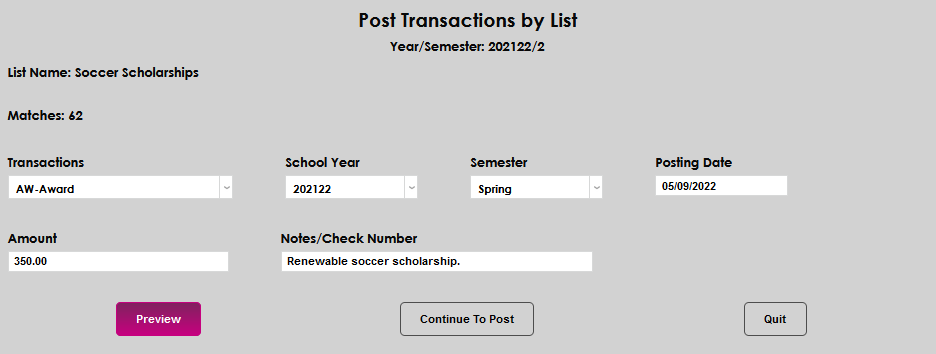
The List Name and number of records, or Matches, are displayed at the top of the page.
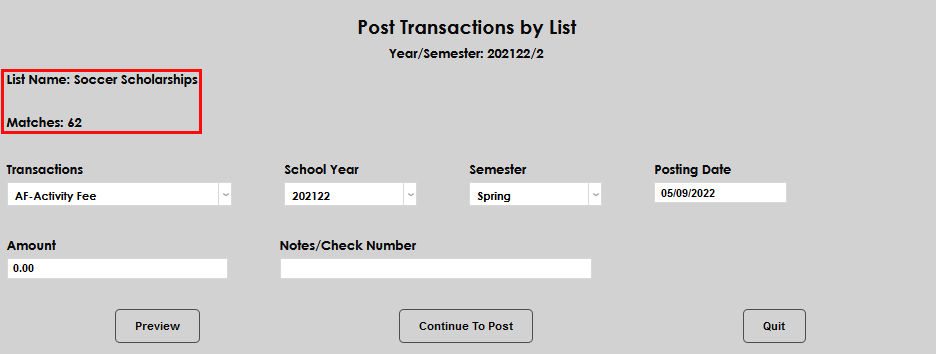
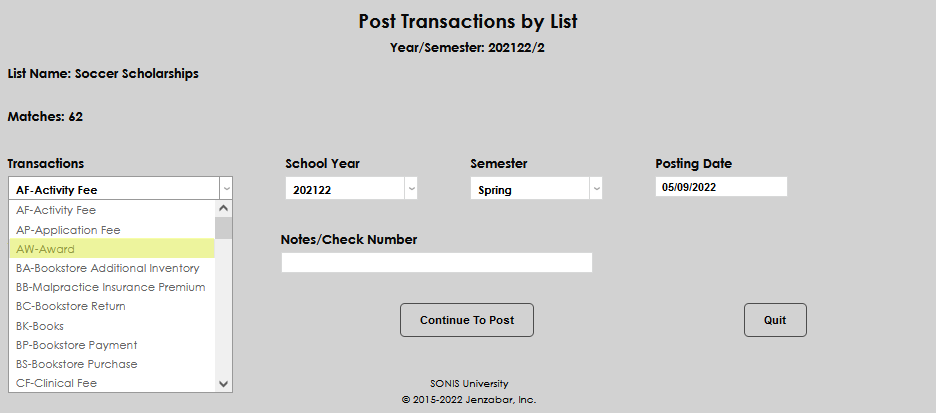
Select the appropriate transaction from the Transactions drop-down. If the needed transaction isn't available, it must be created in the Transaction Code management areas.
School Year and Semester will display as selected in the previous screen. Update the menus if necessary. Enter a posting date for the transaction. This date can be the current date or the transaction can be dated forward or backward depending on individual needs. The date is only for record-keeping and will not affect the date when the transaction actually posts.
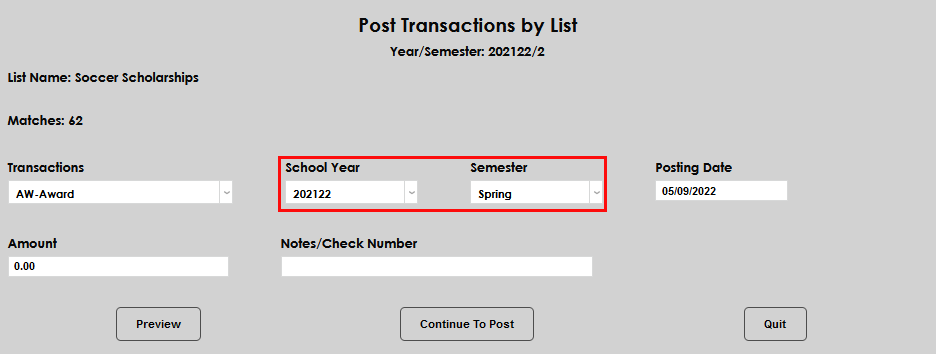
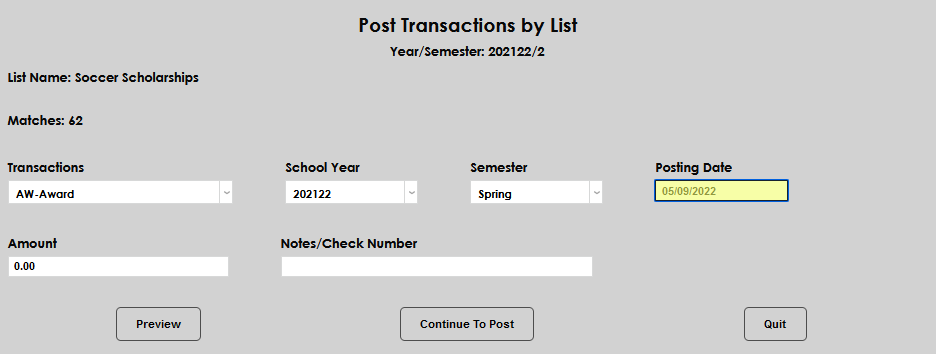
Enter an amount for the transaction with decimals.
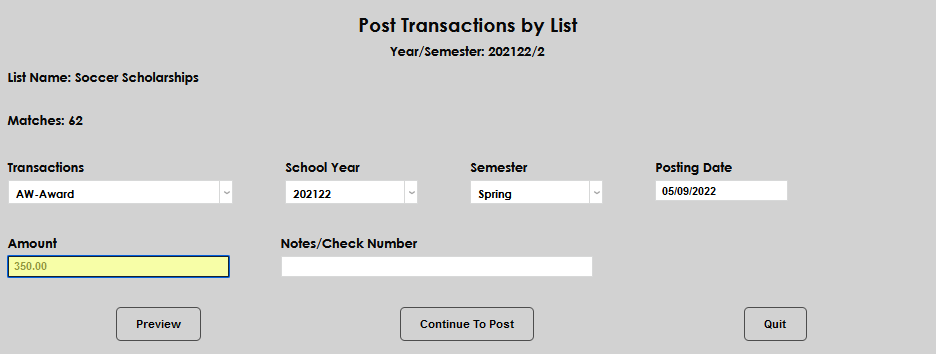
The Notes/Check Number field is optional and accepts up to 50 alphanumeric characters.
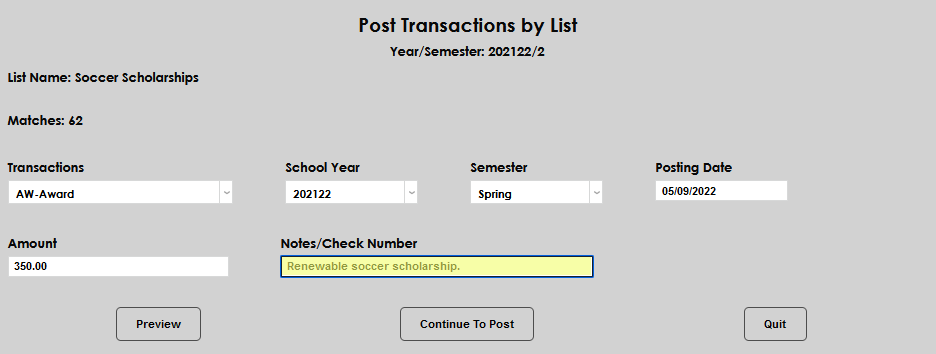
At this point, the user must choose to post the transaction with the Continue to Post button or to Preview the transaction.
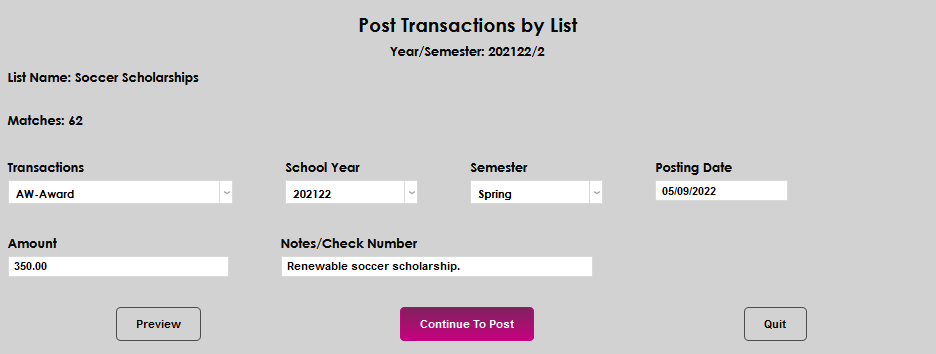
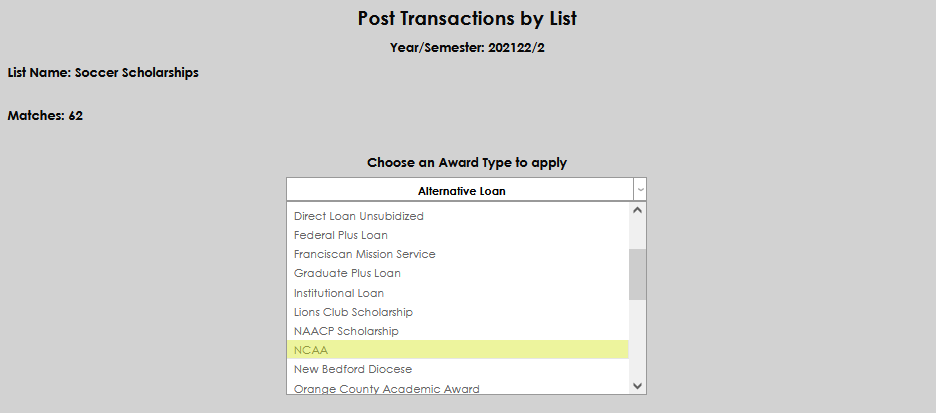
After selecting Preview, the user must Choose an Award Type to apply from the dropdown menu. After selecting an award, click Continue.

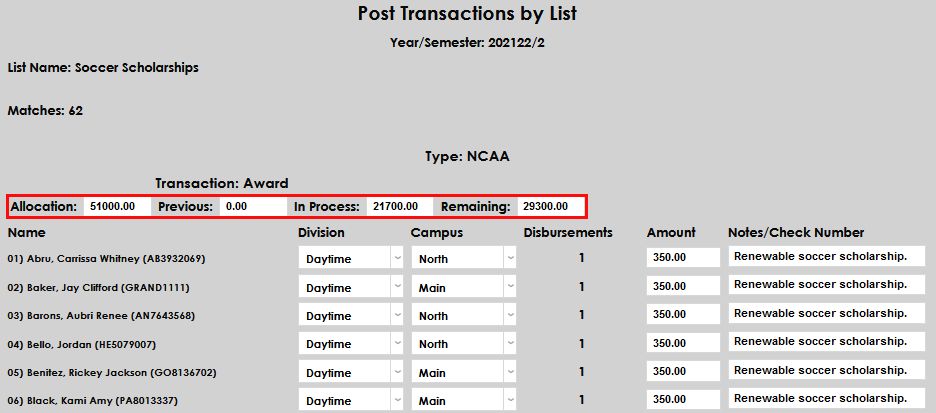
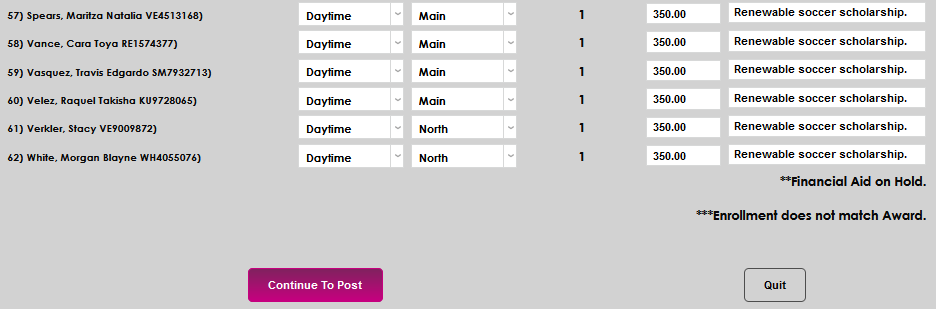
The preview page displays next. For different types of transactions, different information can display, as appropriate to the type. In this example, an award is being posted and information about the dollars allocated to the fund displays. Below that, the students in the list display. For each student in the list, the of the fields may be updated prior to submitting.
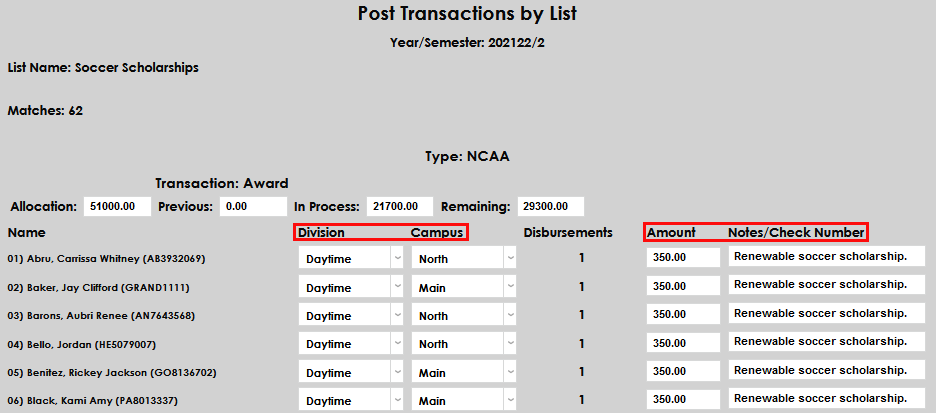
Once any necessary changes have been made, click Continue to Post.
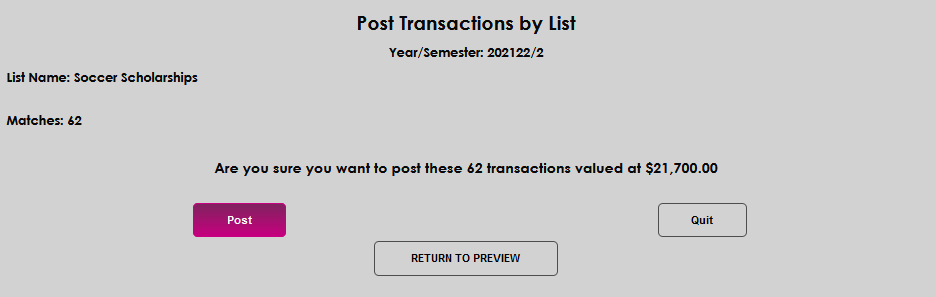
Administrators are provided one last chance to Quit and not post the payment. They can also Return to Preview. Click Post to complete the posting of the transaction.
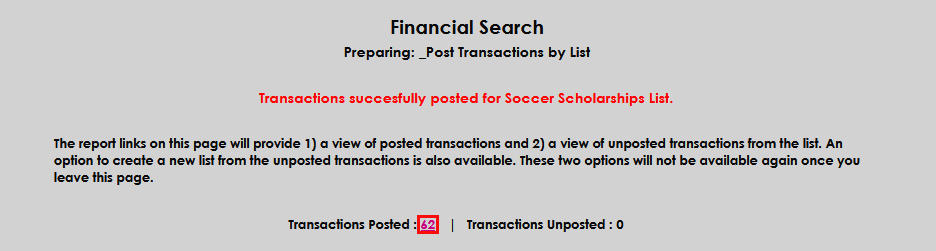
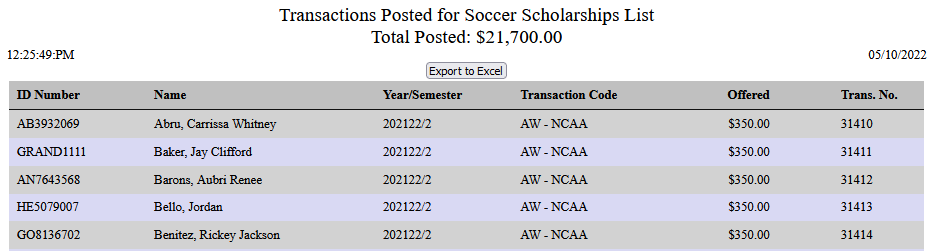
The posted transactions may be viewed by clicking the number of Transactions Posted.
Unposted Transactions List
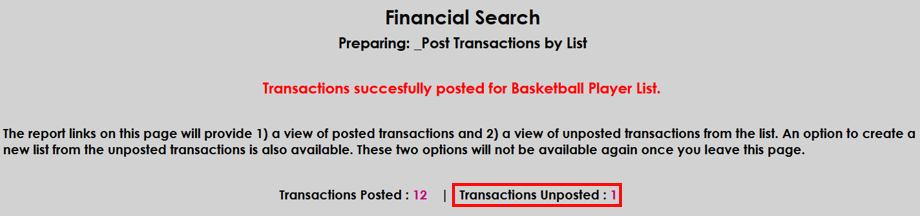
If a transaction was not able to be posted, a number will display next to the Transactions Unposted label. Click the number to view the details about the student(s) with the transaction(s) that did not post.
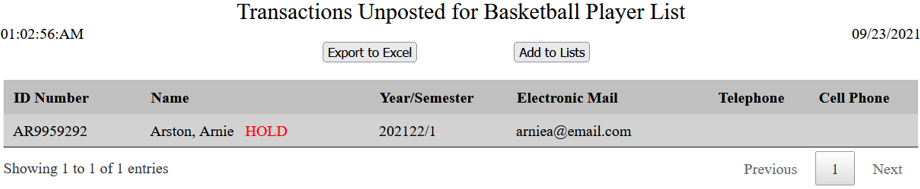
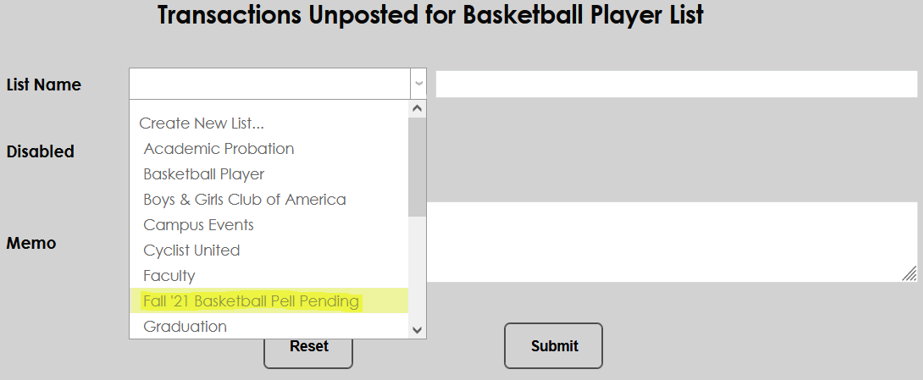
In addition to the student details, an option to save the unposted transaction(s) to a new list. Click the Add to List button in the display window to open a page allowing the creation of the new list. Enter the name of the new list in the List Name field and click Submit to save the transactions to a new list.
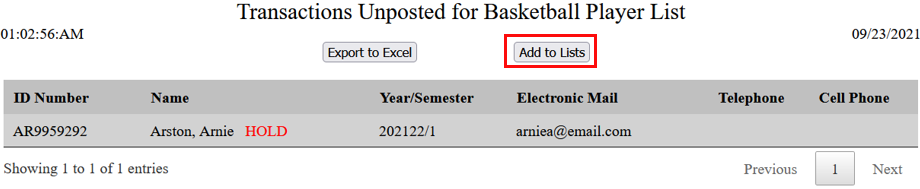
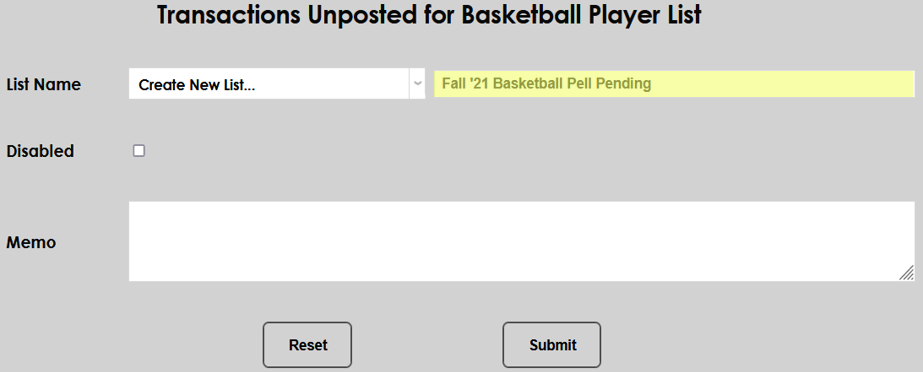
The Unposted Transactions may also be added to an existing list by clicking the Add to List option and selecting an existing List Name. Clicking Submit saves the unposted transactions to the existing list.