SONIS Integration IDs
Overview
The Jenzabar SONIS Integration ID is an identification value used by thirty party programs to interact with the SONIS system. While most third party integrations with the SONIS system identify students based on the students' SONIS ID numbers, some platforms require an additional data token. Generally, this value is provided by the third party application when a new student is added to their system through a SONIS export process. The value is stored in the Integration ID table and accessed via each user's Biographic page.
User Security
Before an administrator can access a student's integration ID, they must have the proper user security permission enabled. If this permission is not enabled, the admin user will see Unauthorized listed in the Integration ID field whenever they visit a student's Biographic page.

To grant an administrator access to view and edit integration IDs, navigate to the administrator's User Security page and select the appropriate User ID. Click Edit to make changes to the ID.


Continue through until the Do you wish to add additional privileges (Ex. overrides) to this user's access? option is presented. Click Yes to see the list of privileges.

On the following page, select View/modify integration IDs from the list of Tasks and click Submit.


Perceptive ID
In versions of Jenzabar SONIS prior to SONIS 2023, the Perceptive ID was automatically populated to the Users hub page Biographic using pre-defined ID creation specifications during the import of Perceptive records.
In SONIS 2023 this process was updated to automatically create an Integration ID that will display on the Biographic page, Integration ID area, and existing Perceptive IDs have been moved to the Integration ID field. The Perceptive ID field has been removed from the Biographic page and the Names table.
It is important to note that if Perceptive features are not displaying within a SONIS member institution's Administrative portal, they must be turned on by Jenzabar Support.
JRM ID
In versions of SONIS prior to SONIS 2023, selecting the JRM ID was not an option on the Integration Table and JRM IDs were populated and displayed in the Other PID field on the Biographic page. In SONIS 2023 this process was updated to automatically create an Integration ID as described above in this article. The JRM ID will be displayed in the Integration ID field on the Biographic page and has been removed from the Other PID field.
Viewing/Modifying IDs
To view a student's integration ID, navigate to the student's Biographic page, find the Integration ID field, and click View. A new page will open.

If the student does not have an existing integration ID, a message noting that there are No Integration ID Records.
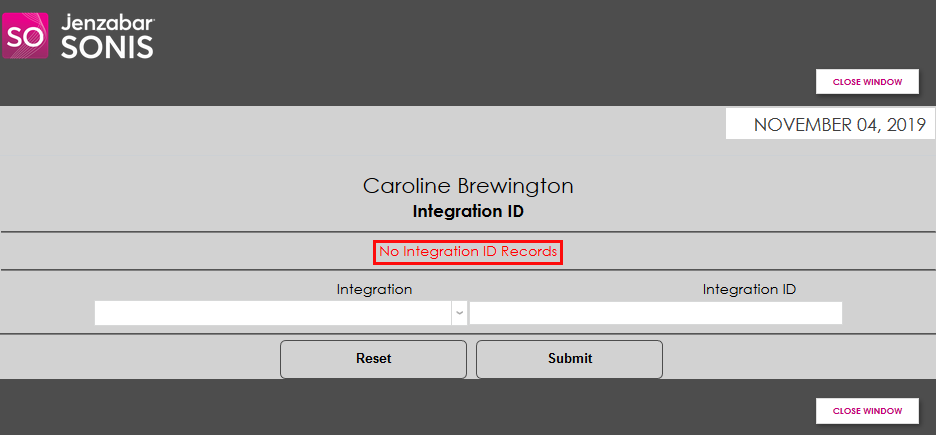
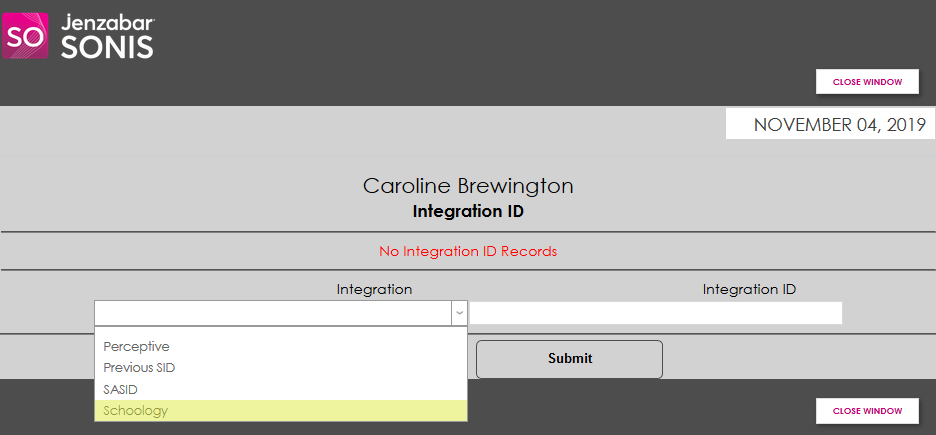
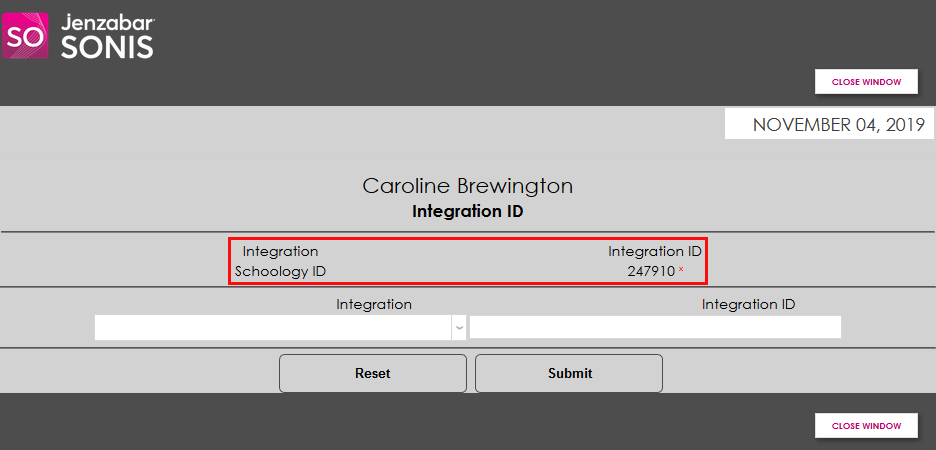
To add a new integration ID, select a third party application from the Integration dropdown menu. This list is populated by SONIS Product Development and Support and may vary from school to school. Type the ID into the Integration ID field and click Submit.
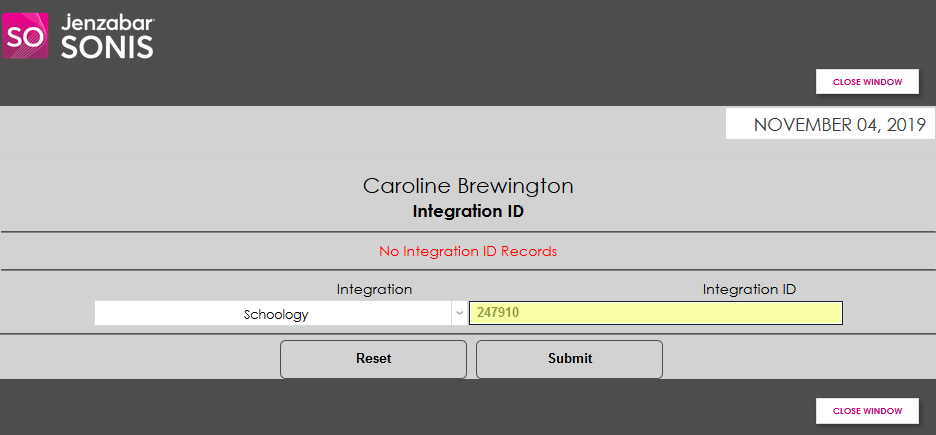
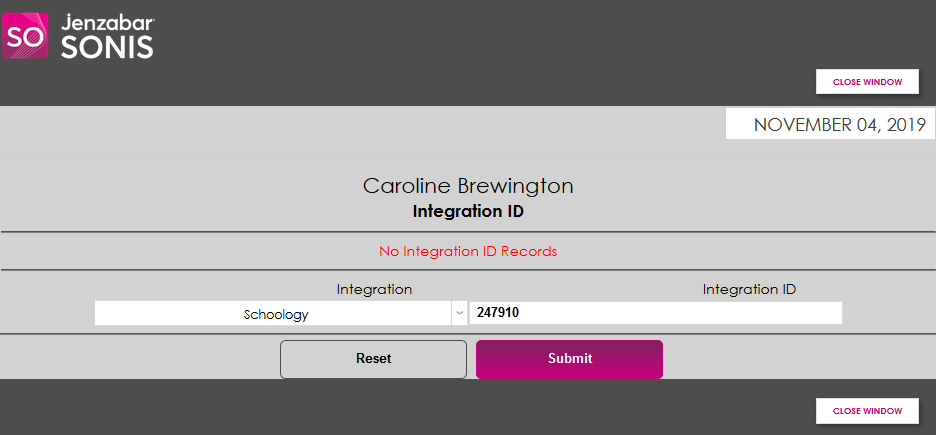
Once the student has an ID on record, the ID is listed at the top of the page along with the integration it pertains to.
Deleting Integration IDs
When Integration IDs are displayed in the Integration ID area of the Biographic page, they can be deleted. Click the Delete radio button and click Submit to remove it.