Remind Class
Overview
The Remind Class utility allows instructors and other faculty members to send notifications to users about important events. Instructors can create reminders that will inform their students of upcoming tests and quizzes, due dates for papers and projects, and other notable dates.
Class Reminders are enabled for use in the faculty portal in Portal Menu Utility.
Sending Class Reminders
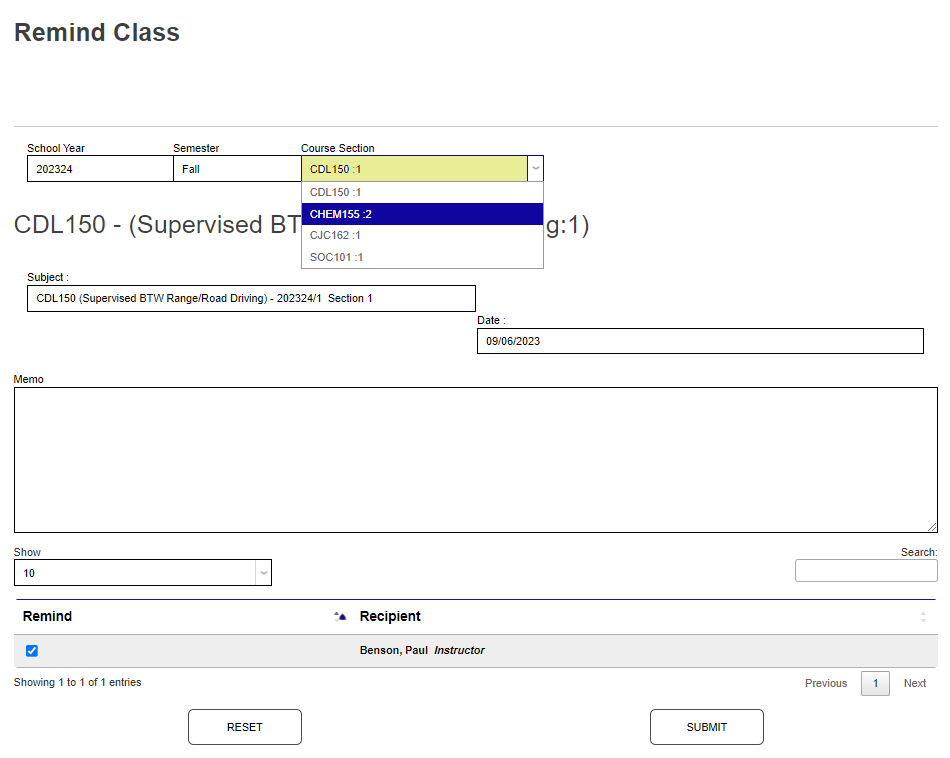
To send a portal message to students enrolled in the section, select Remind Class from the Course Management menu. The School Year and Semester autofill based on the active year and semester settings. To change either value, click in the field(s) and select the desired year and/or term from the dropdown menu(s).
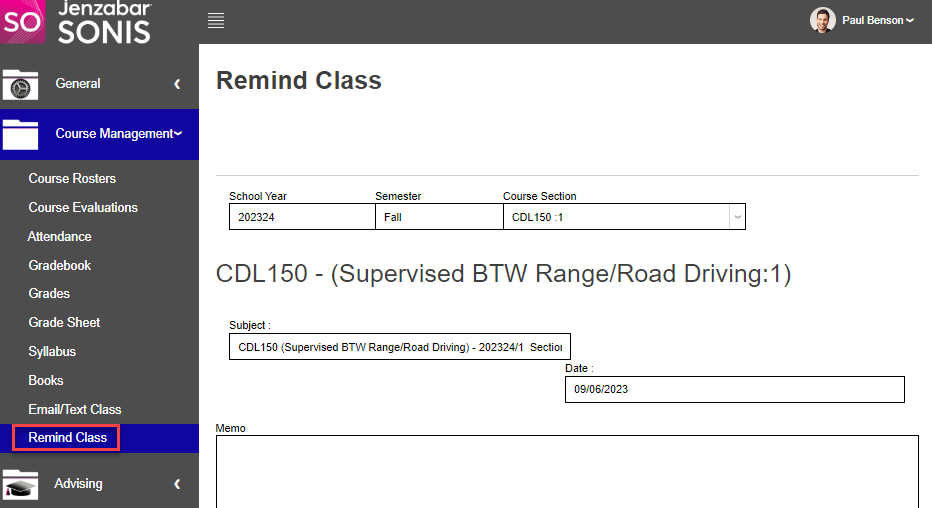
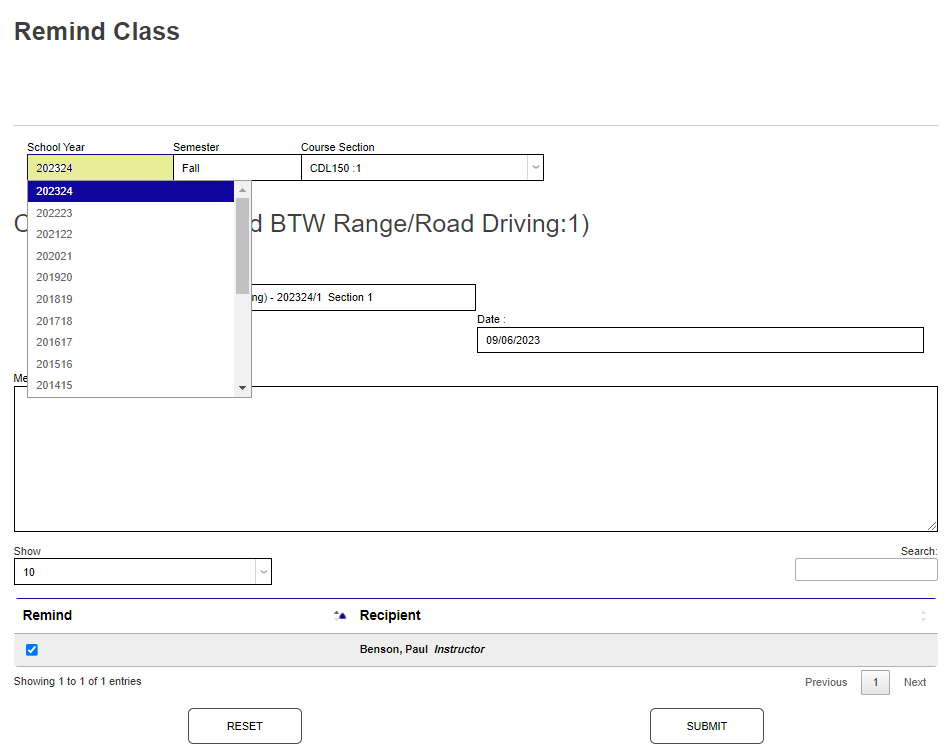
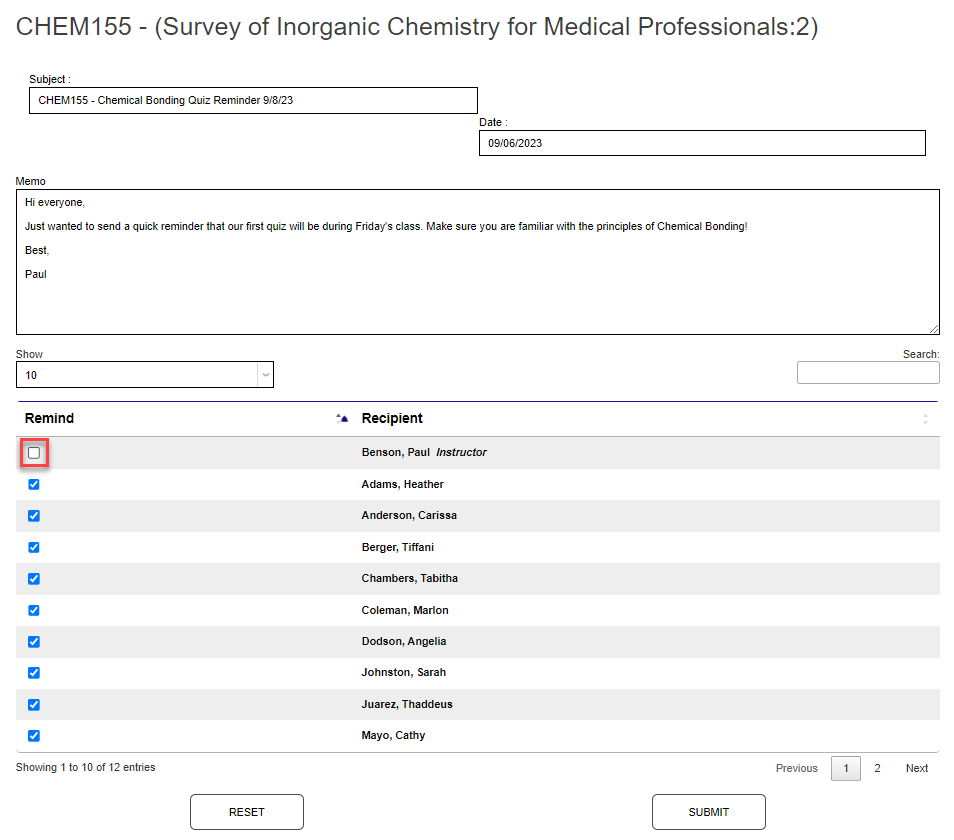
If the desired Course Section is not displayed, select it from the dropdown menu by clicking in the field and selecting it from the displayed options. The Subject will autofill with the name of the course and it's section information. Click in the field and edit, as desired.
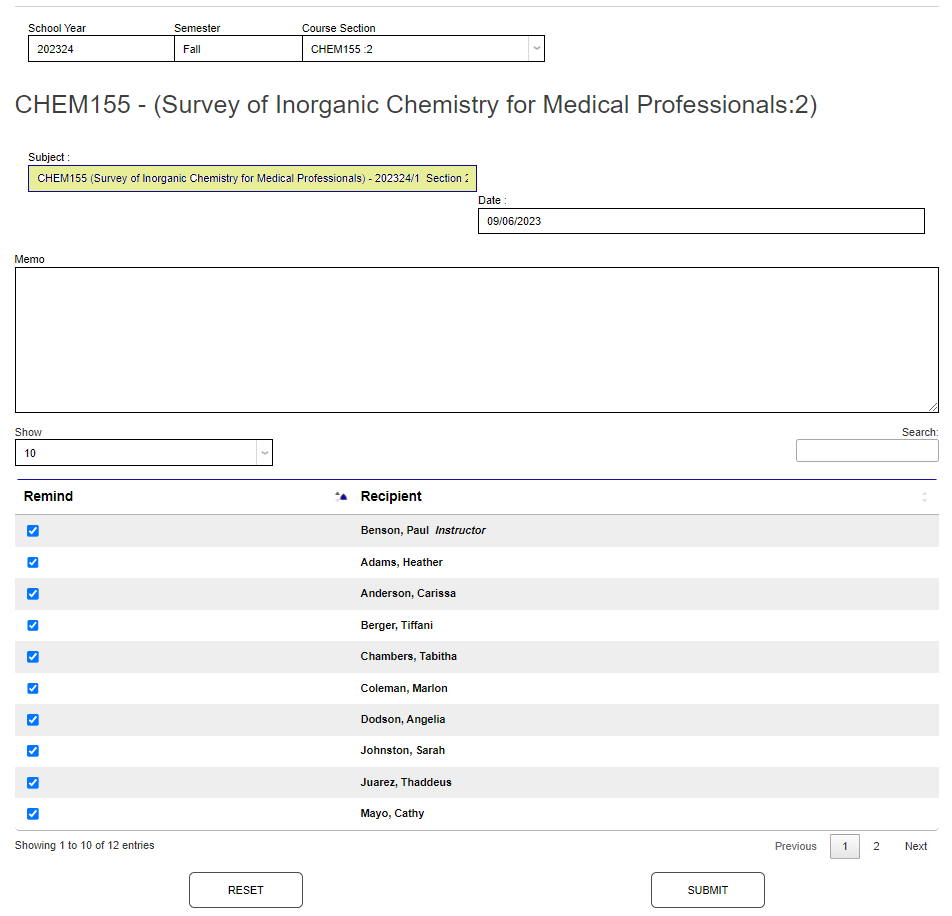
The Date will populate with today's date. It can be changed, if necessary, by clicking in the field and entering the desired date. Type the message to be sent as a reminder in the Memo field. There is no character limit in this field.
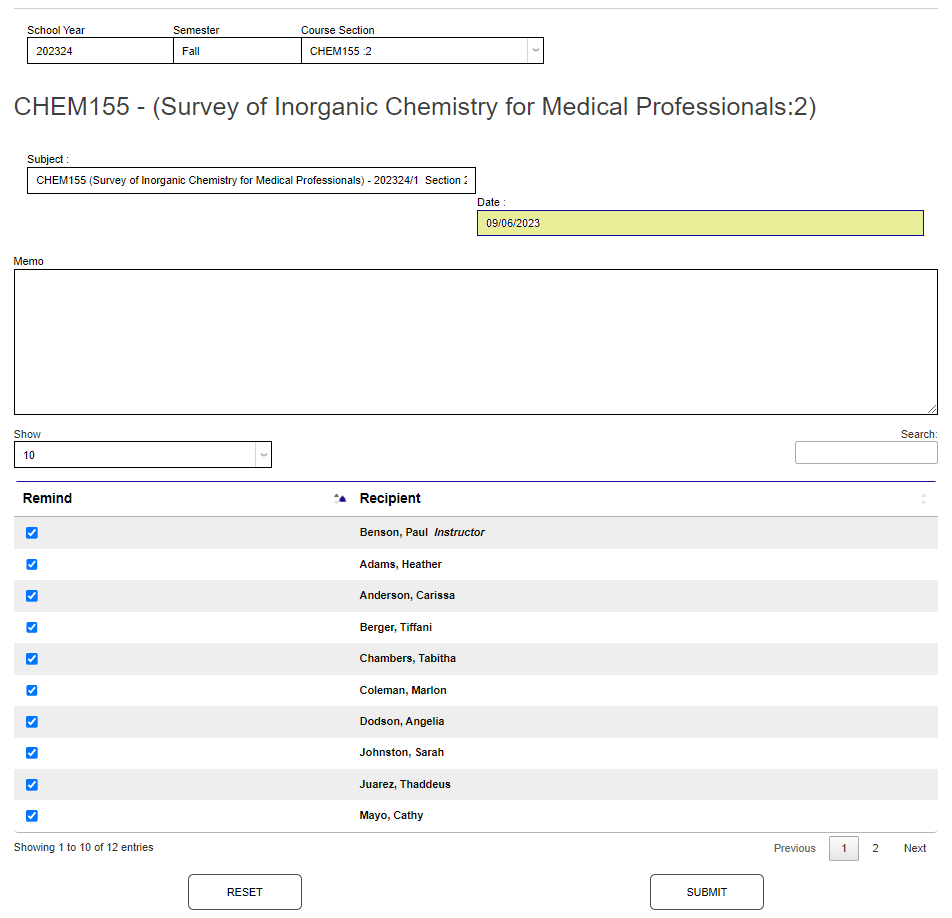
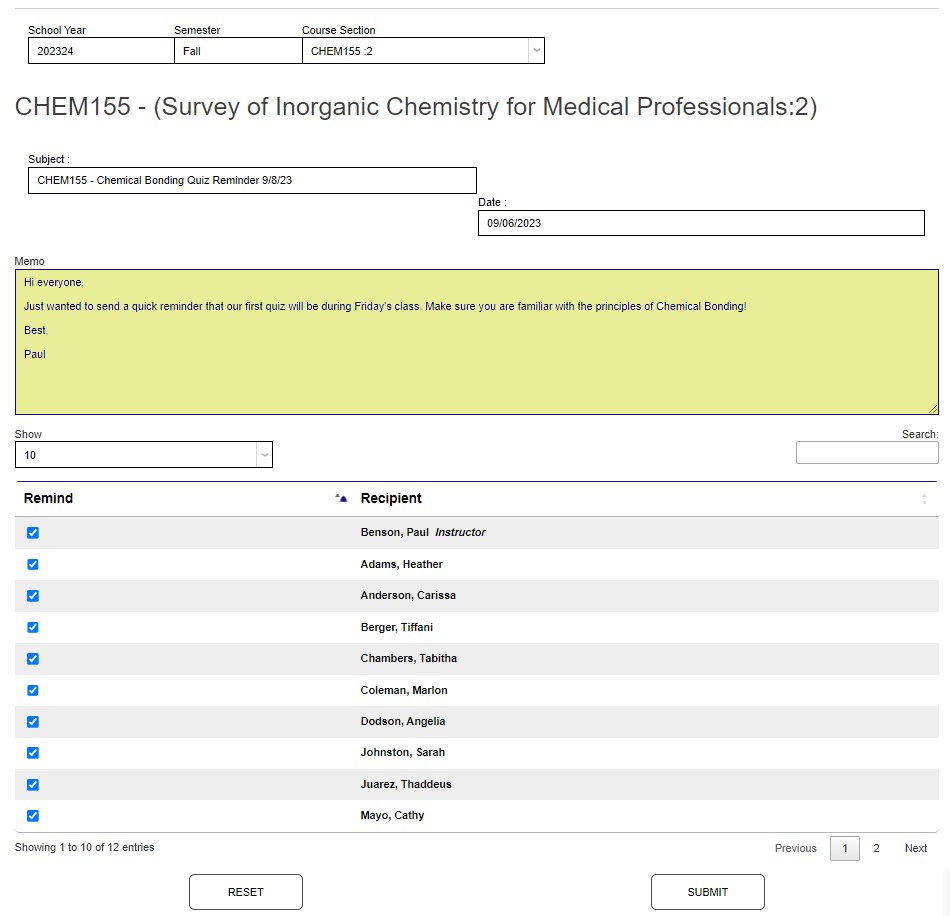
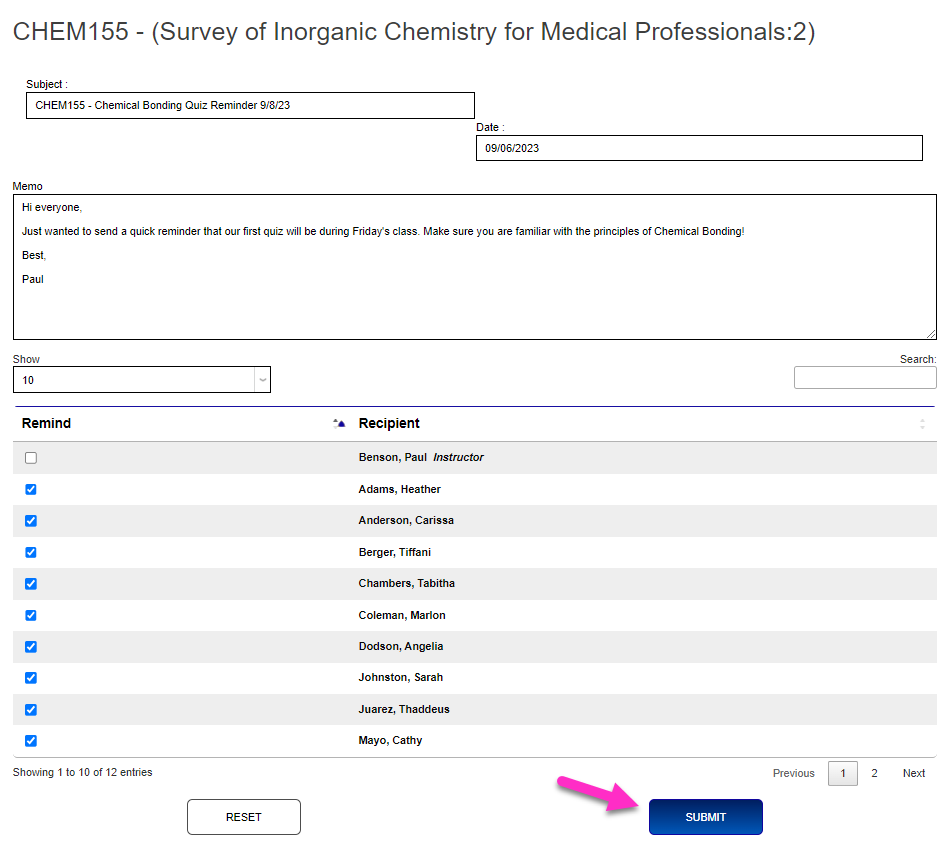
If some of the students should not receive the reminder, or the instructor does not wish to receive a copy, uncheck the box in the Remind column that corresponds with the Recipient name. Click Submit to send the reminder.
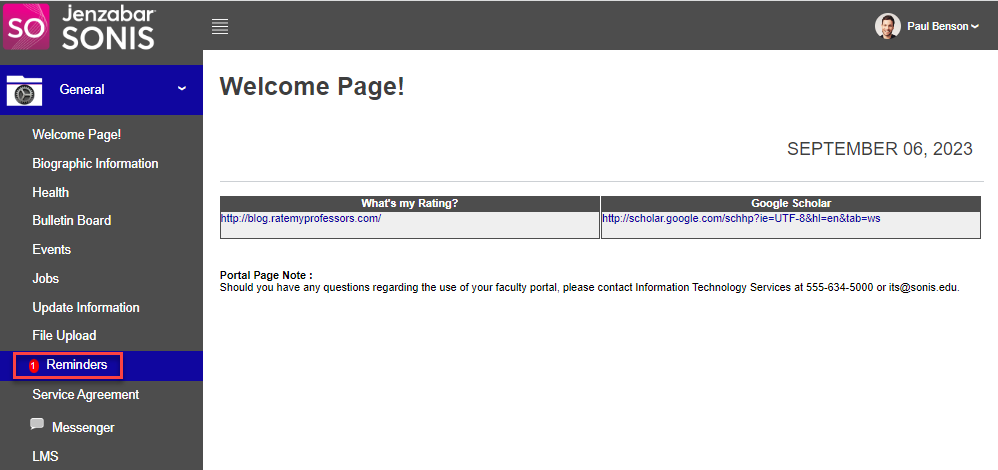
The reminder will display in the user's Reminders section of their portal.
Viewing Sent Reminders
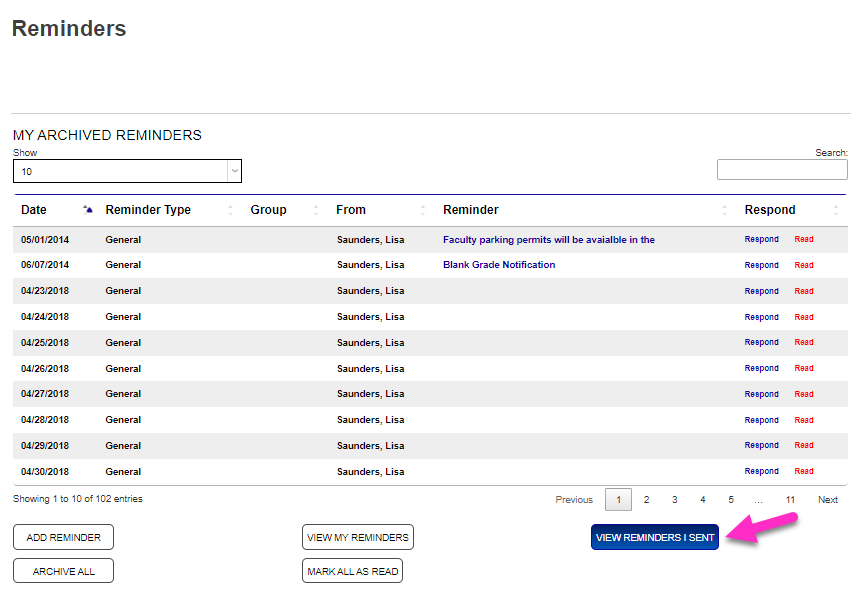
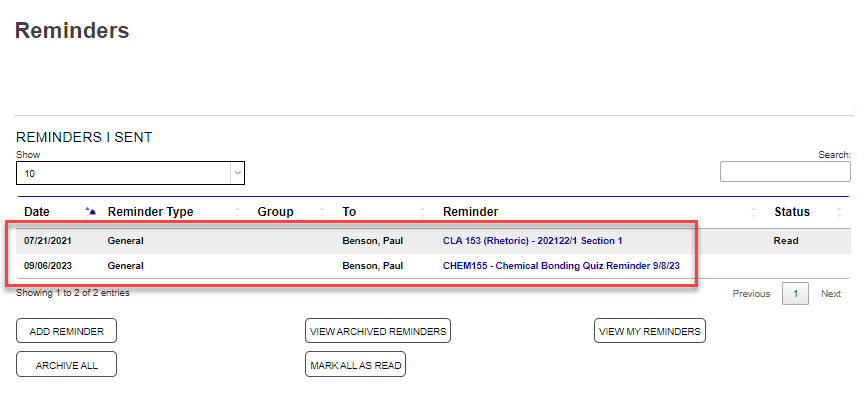
Faculty can view any reminders previously sent within the Reminders section of the faculty portal. Simply click View Reminders I Sent.