Bulk Section Copy
Overview
The Jenzabar SONIS Bulk Section Copy utility allows administrators to copy course sections from previous semesters for re-use in a new semester. Rather than creating each new course section one at a time, users can recreate old sections in bulk to jumpstart the process and save time. The utility takes course restrictions into account when copying them. If a course has a program or level restriction, that restriction will stay in place when the course is copied and must be changed manually if the restriction no longer applies.
Copying Course Sections
Filtering Results
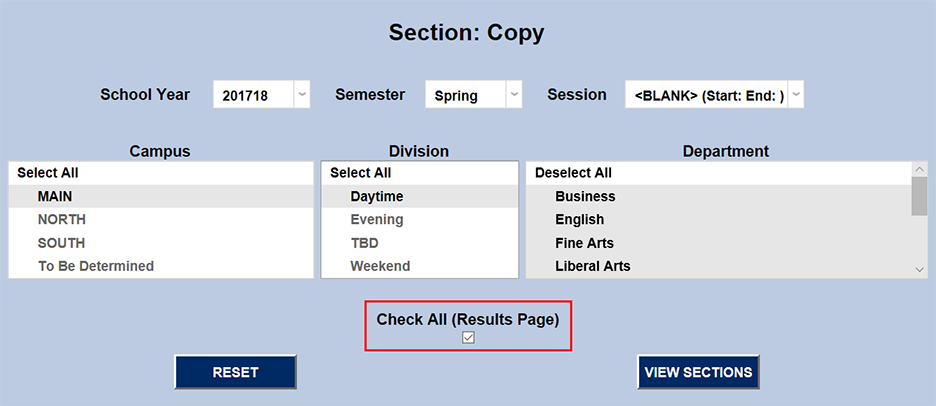
To begin copying course sections, navigate to the Section Copy page in the Systems hub and select a School Year to copy from.
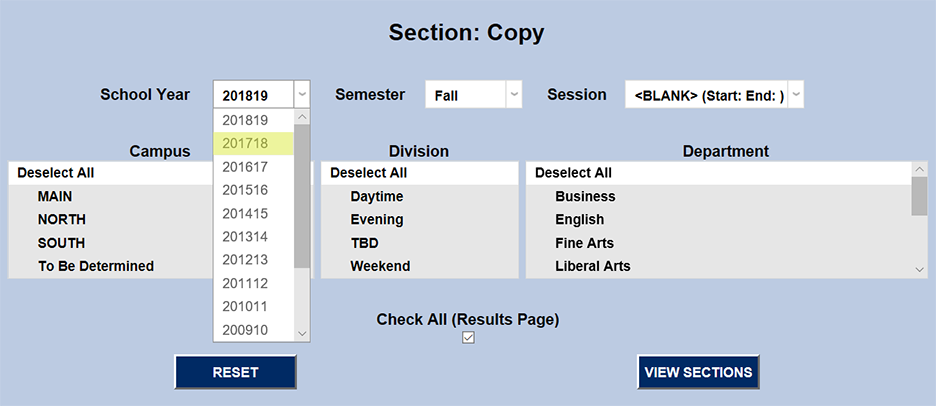
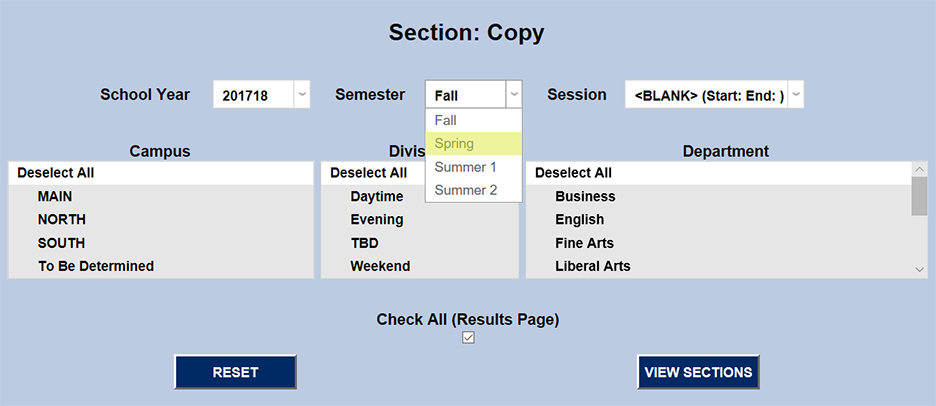
Next, select a semester from that school year from the Semester dropdown. Either select a Session or leave it blank to return all.
The Campus, Division, and Department menus can be used to further narrow down the results or left with all selected to return a larger list of course sections.
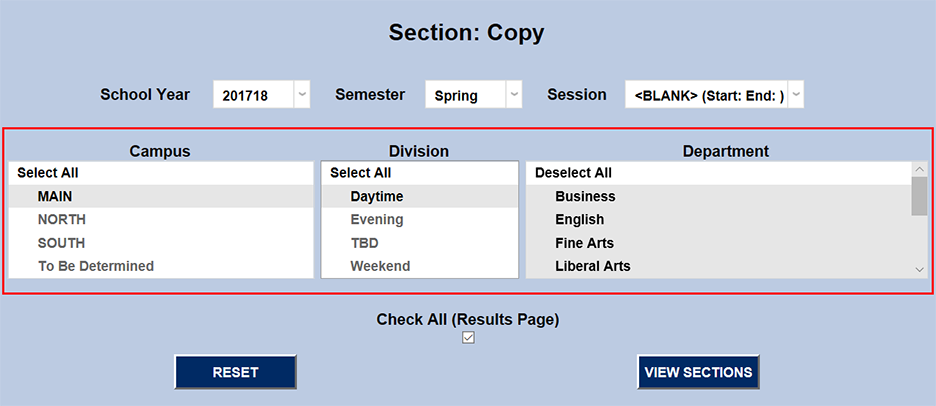
The Check All (Results Page) box determines whether the courses on the results page will be all checked and ready to be imported or all unchecked and need to be selected one by one.
Copying Section List
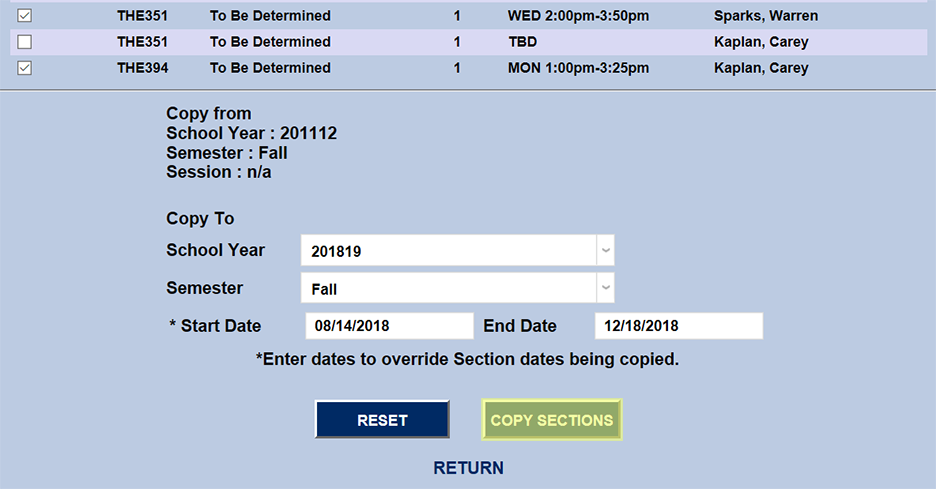
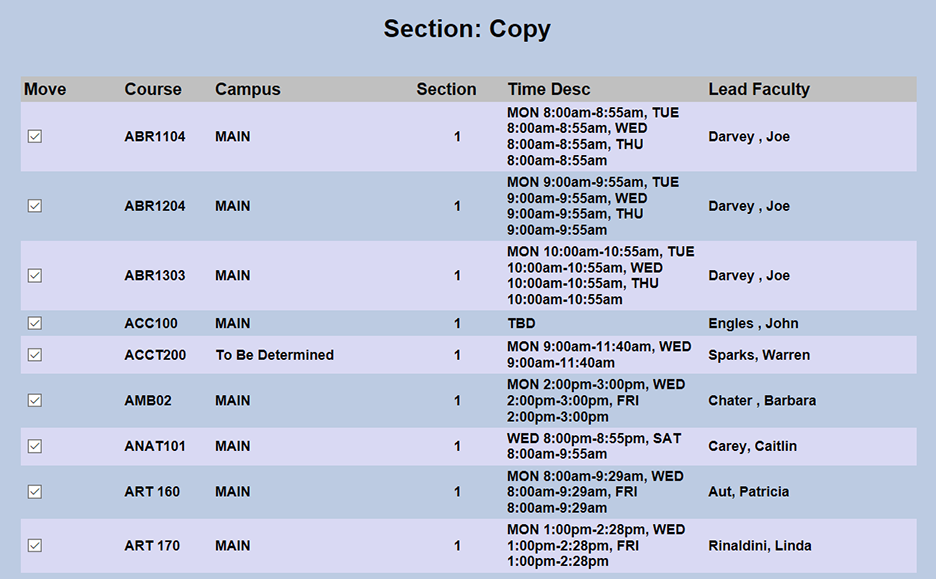
The following page lists all of the course sections in the SONIS system for the filters, along with the campus, section, time description, and lead faculty.
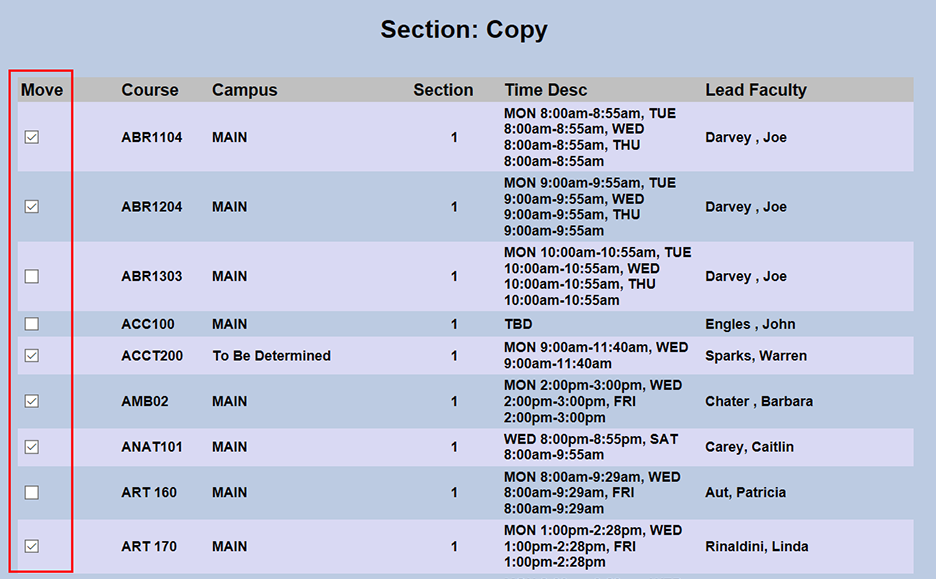
The checkboxes in the Move column specify whether the course section will be copied or not. Check and uncheck Move column boxes to add or remove course sections from the list to be copied.
At the bottom of the page, select the School Year and Semester for the sections to be copied to.
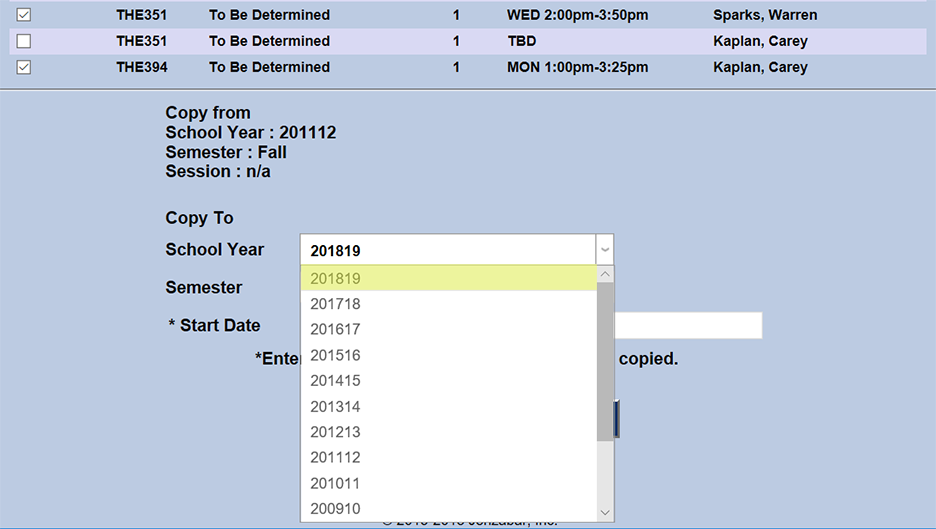
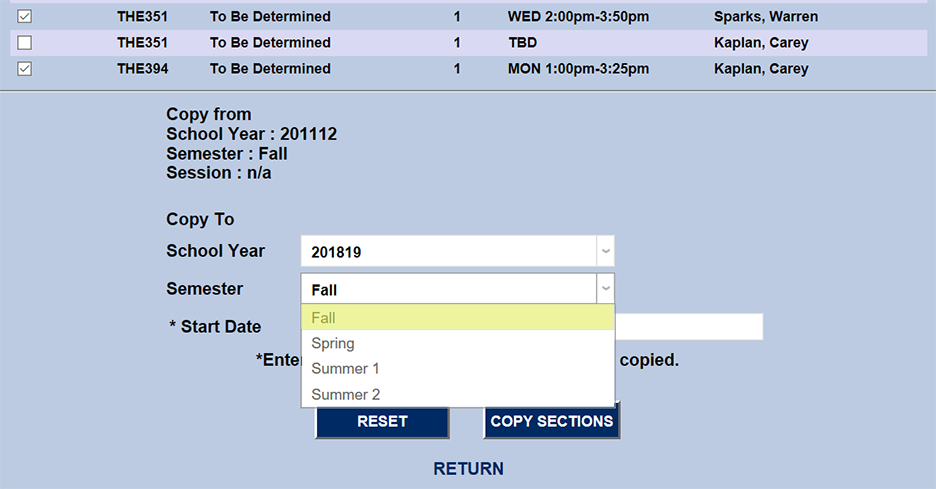
Enter a Start Date and an End Date. These dates will override the start and end dates from the courses being copied.
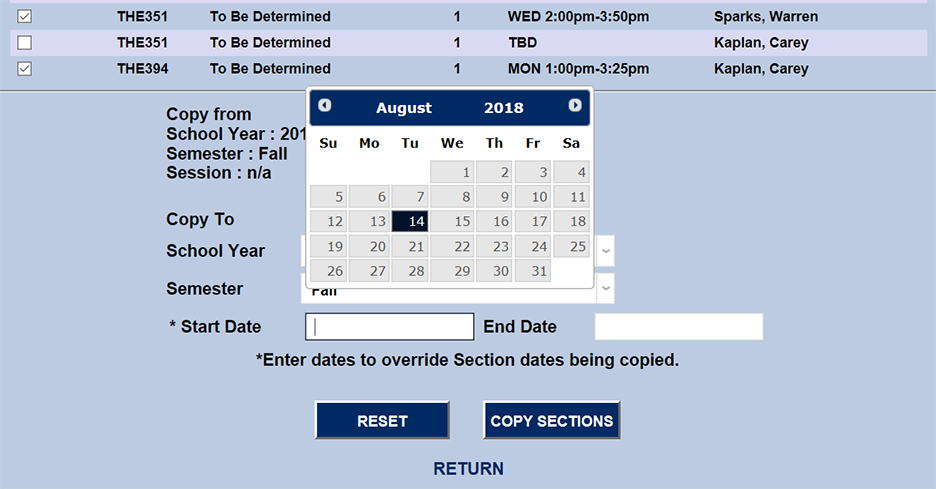
Click Copy Sections to complete the process.