Transact Integration
Overview
Transact, formerly known as CashNet, is an online payment gateway that allows customers to link their bank accounts to send and receive money in a quick and secure manner. Jenzabar SONIS allows member institutions to use Transact for student bills, payments, and refunds. These transactions are communicated in the form of a .txt export file from SONIS and/or transferred via secure endpoint calls, depending upon the process. Notifiers are provided to communicate payment plan and refund activities to SONIS administrators.
Additionally, Jenzabar SONIS offers the ability for schools to set up a single sign-on process from the SONIS Applicant, Student, and Alumni user portals to Transact. Once this has been enabled, students can log in to Transact through SONIS without having to enter an additional username and password.
Integration Setup
Integration with Transact requires detailed setup, to include enabling secure file transmission endpoints. Because of the inherent complexities, we strongly recommend engaging with the institution's SONIS Customer Service Manager (CSM) and Jenzabar Technical Services before beginning any integration activities.
Setup within SONIS is not limited to the fields and values shown on Business: Transact Account and these values and selections should not be modified after integration is complete, without first consulting with Jenzabar and Transact Technical Services. During integration setup, the Business: Transact Account page will be filled out with values provided by Transact, Jenzabar, and through institutional decisions. For reference and preparation, an overview is provided here.
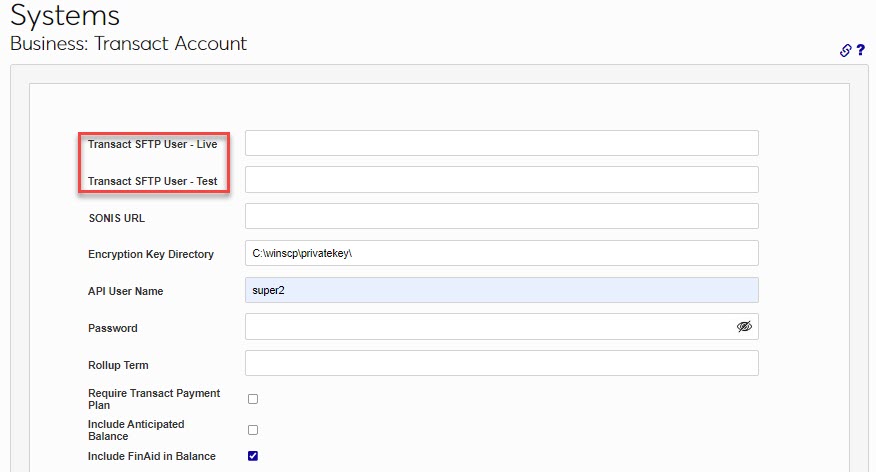
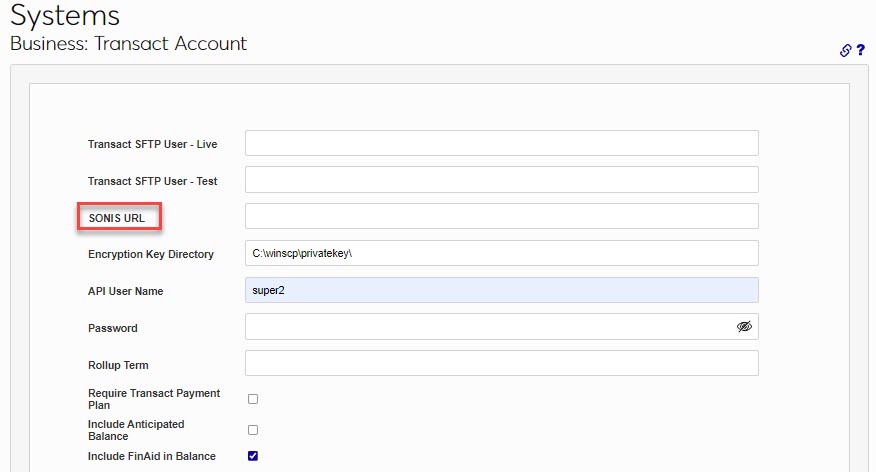
Transact SFTP User - Live and Transact SFTP User - Test are used for securely transferring files and are provided by Transact. The SONIS URL is the URL that is used to access SONIS.
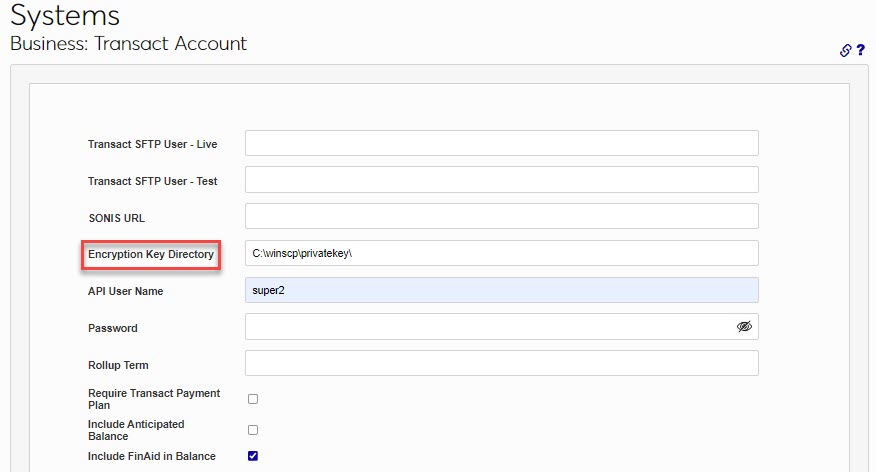
The Encryption Key Directory and API User Name are delivered populated as shown, but may be changed or modified during the integration.
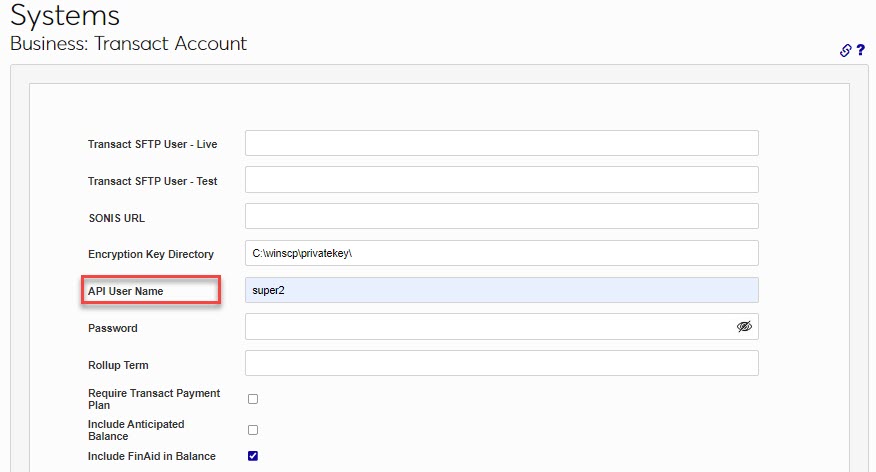
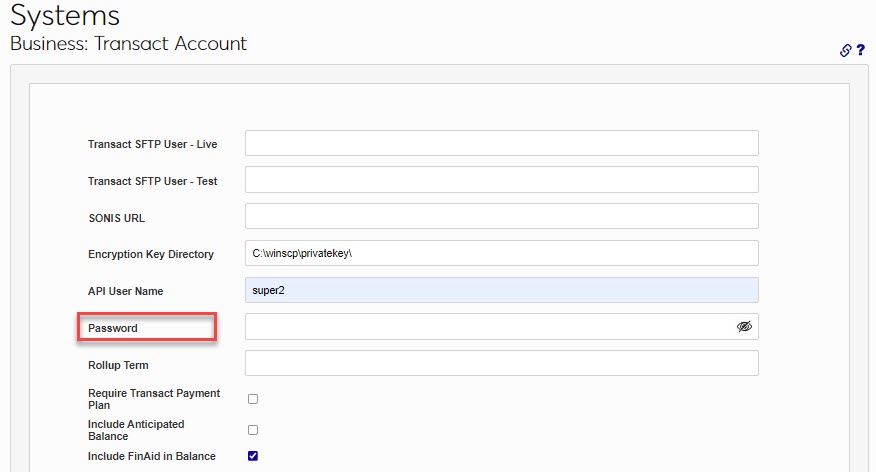
The Password must be the password that is associated with the entered API User Name. The Rollup Term is the over-arching term that will be used. For example, if the institution has one 15-week semester, with two 7-week short terms, and a 2-week mini-mester within it, the 15-week semester would be the Rollup Term.
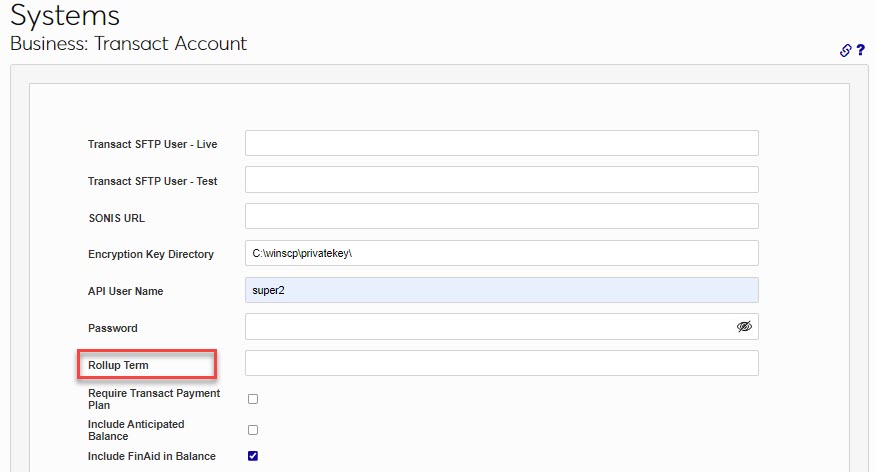
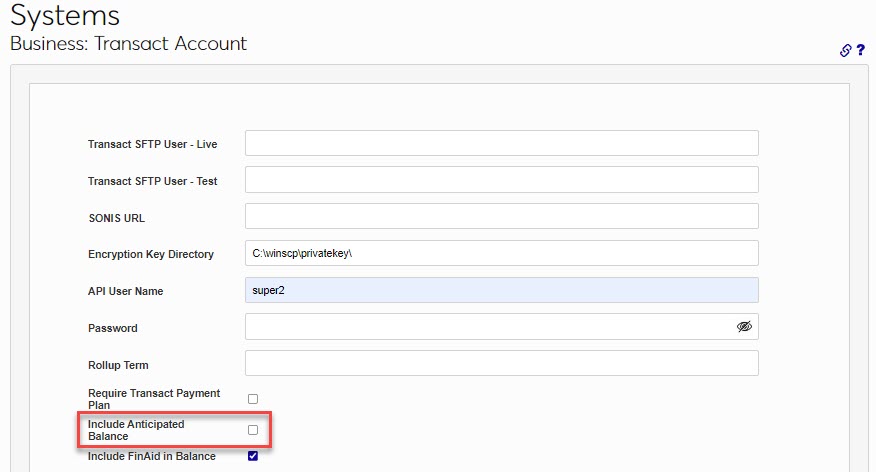
If a Transact Payment Plan will be required for each user, the Require Transact Payment Plan box must be checked. If the predicted balance should be sent to Transact, check the Include Anticipated Balance field.
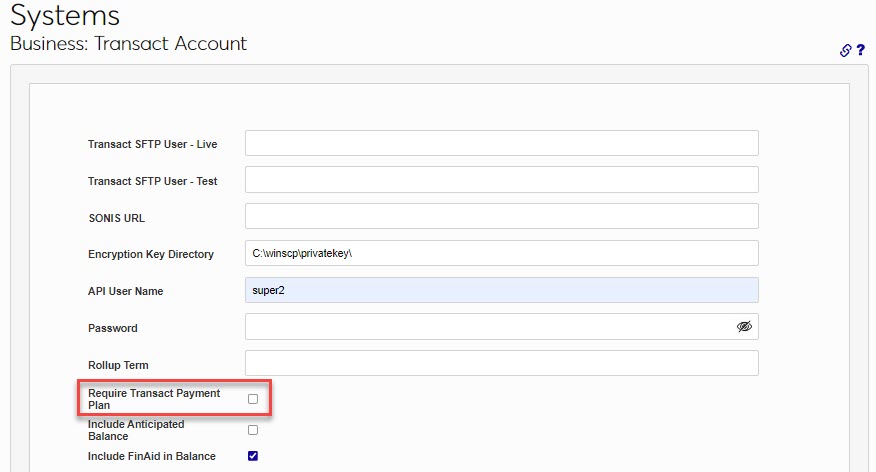
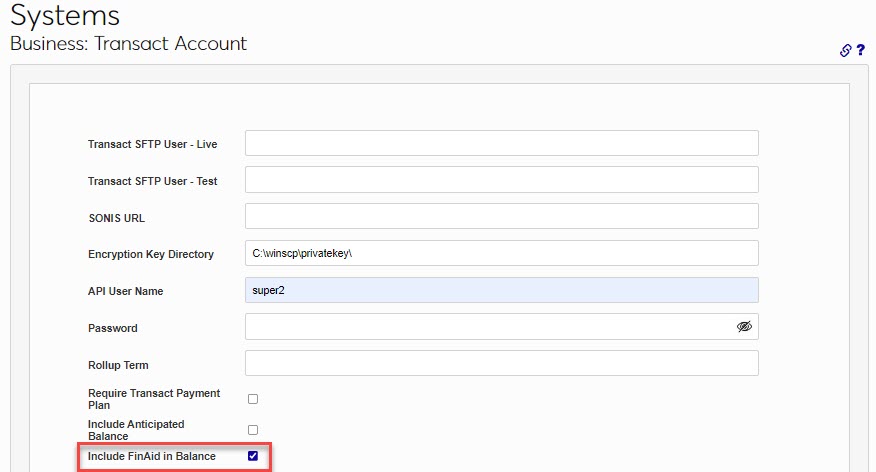
By default, any financial aid balance will be included. If this is not desired, uncheck the Include FinAid in Balance box.
Transact eBill & Refund Options
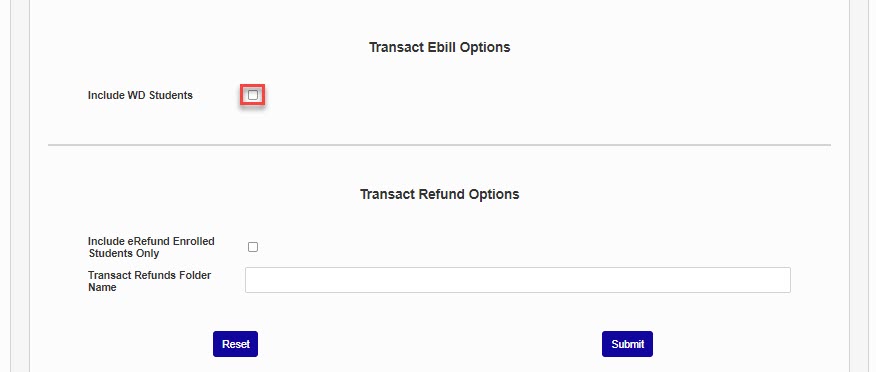
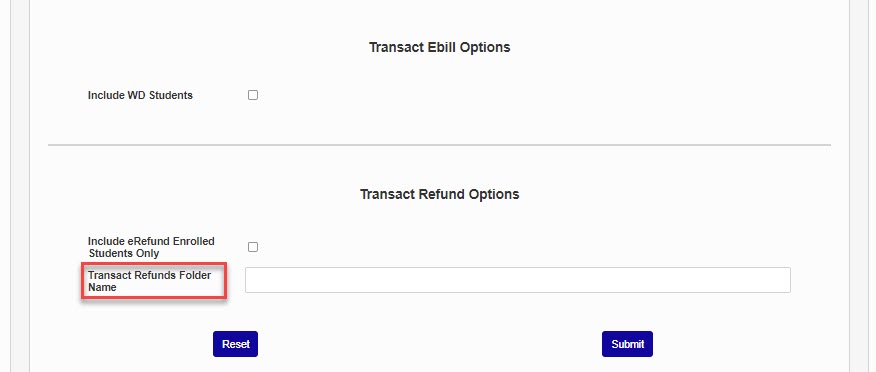
If withdrawn students should be included in the eBill batches, select the Include WD Students checkbox.
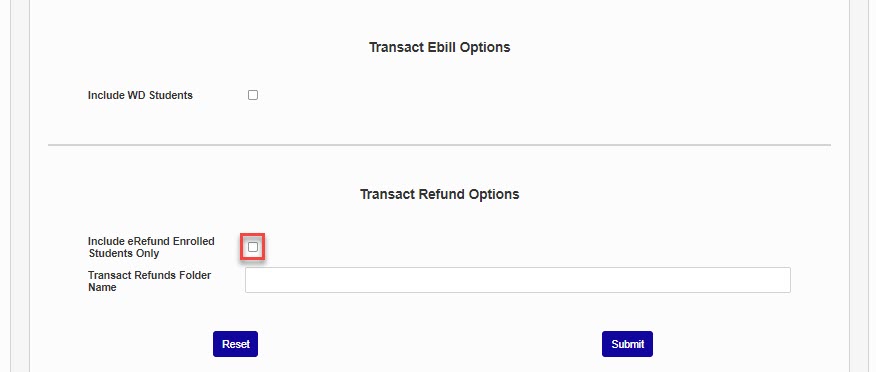
If only students who have enrolled in eRefund through Transact should be included in eRefund batches, check the Include eRefund Enrolled Students Only box. Enter the name of the batch folder where Transact eRefund files should be created in the Transact Refunds Folder Name field.
Real Time Processes
Jenzabar SONIS does not make API calls to Transact. When information is needed by Transact from SONIS, Transact will invoke an endpoint to get the information. Transact will need to know the endpoint and it should be provided by the institution when SONIS is configured to work with Transact. We strongly recommend engaging with the institution's SONIS Customer Service Manager (CSM) before beginning any integration activities.
Payment Plan Notifications
When a user signs up for a payment plan, real time notifications will be sent from Transact to SONIS. SONIS will receive the notifications at the cashnet_payment_status.cfm endpoint. When appropriately configured, if a user modifies their payment plan status in any way, the changes will be recorded in the cashnet_statuses table. The Business: Transact Functions page will also be updated, as appropriate.
eRefund Notifications
When a user signs up for eRefunds, Transact sends real time notifications to SONIS via the cashnet_refund_status.cfm endpoint. Users who have signed up for eRefunds will display on the Business: Transact Functions page.
eBill
The eBill process creates an eBill File that is compliant with Transact's requested style. An option is included to send the eBill to Transact via FTP using the defined values in Business: Transact Account. eBills are generated by the Create eBill feature on the Business: Transact Functions page and can be viewed after creation by going to the Transact refunds folder, as defined on Business: Transact Account.
Dynamic Billing
Dynamic Billing is an add -on feature within Transact. When enabled, transaction details for a configurable number of days will be sent via the cashnet_balances_detail.cfm endpoint. A detailed balance will be sent in addition to the summary balance that is sent in other SONIS to Transact processes. Setup is completed in Transact.
Exports
Enrolled Students
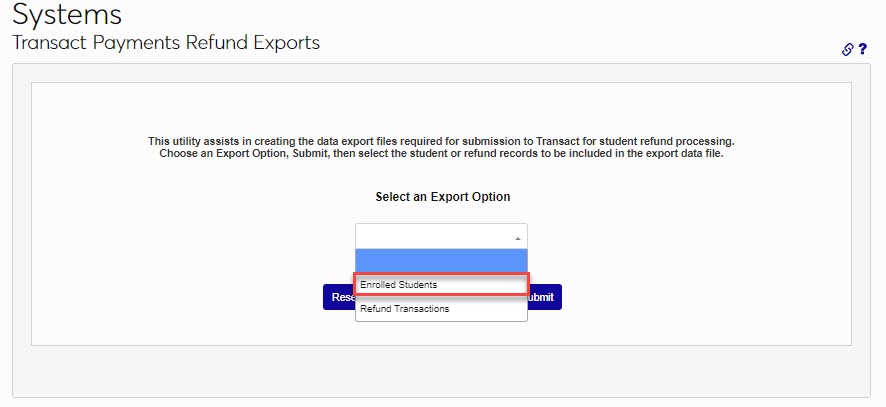
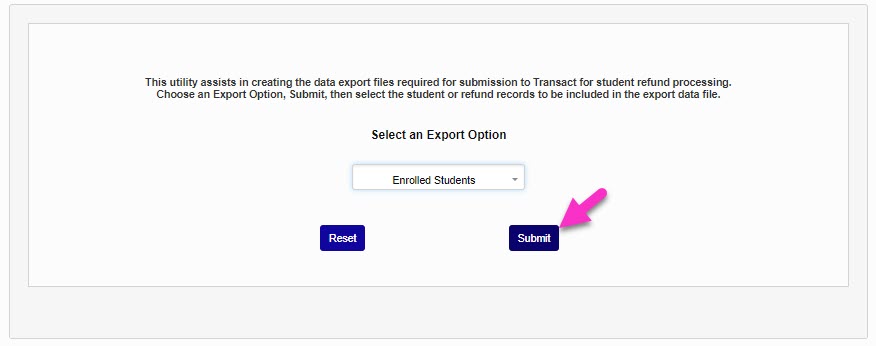
Before Transact can process payments and/or refunds, it must be provided some basic data about the students listed in the SONIS system. To export this data, navigate to the Transact Payments Refund Exports utility and select Enrolled Students from the Export Option dropdown menu. Click the Submit button to continue.
On the following page, the students that will be exported are shown. Only students enrolled for the current school year and semester are gathered. Students without a valid email address will be flagged with a warning message because Transact requires all students to have a valid email address. If possible, correct the email address on the Address page and rerun this process before exporting. Uncheck the Include box for any individual student that should not be exported. The Check All and Uncheck All buttons can be used to speed up the process if there are a large number of students.
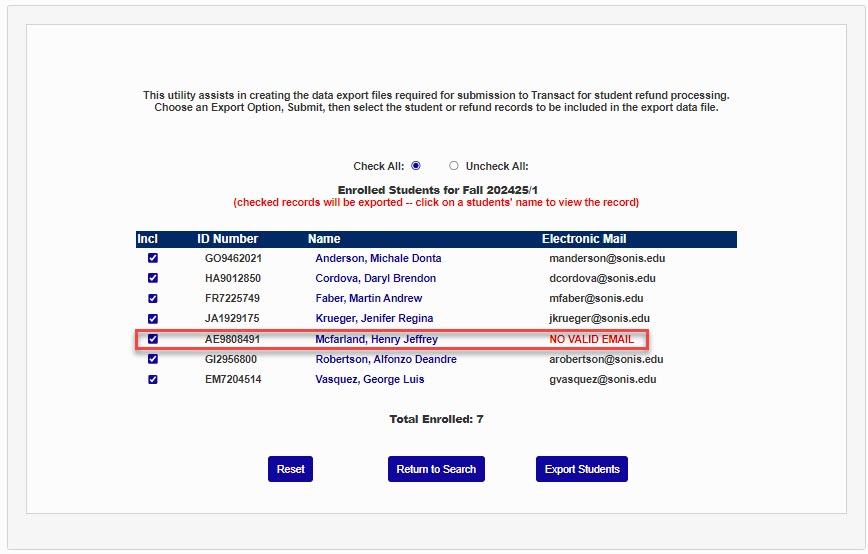
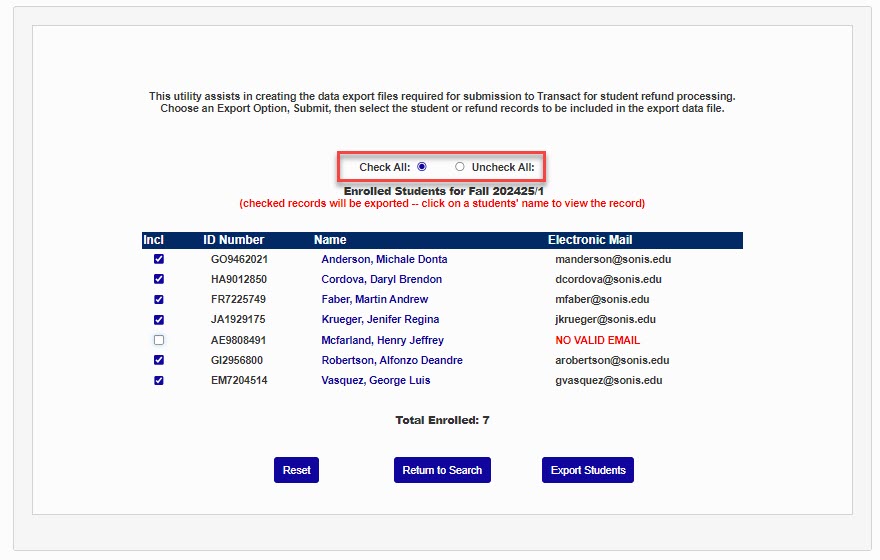
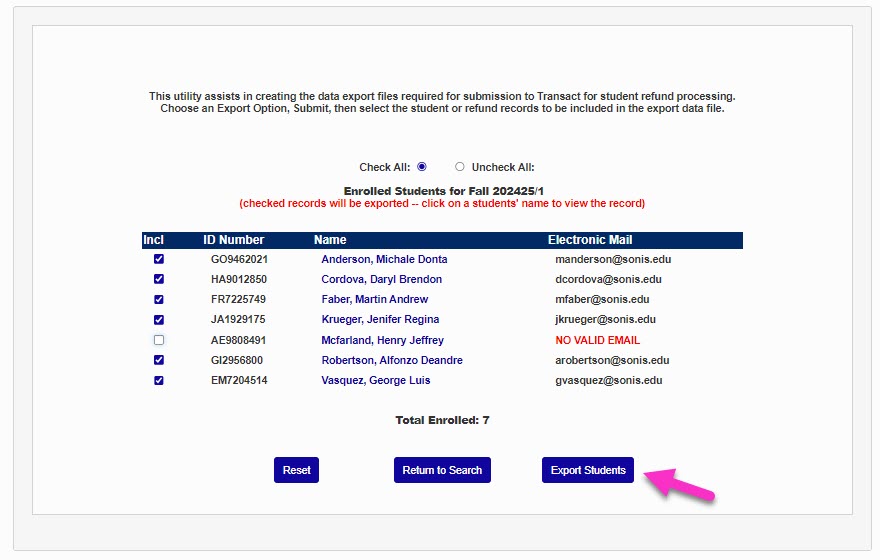
Once the correct students are selected, click the Export Students button to create the export file. The file is automatically saved to the defined batch file. From there it can be viewed and uploaded to Transact.
Refund Transactions
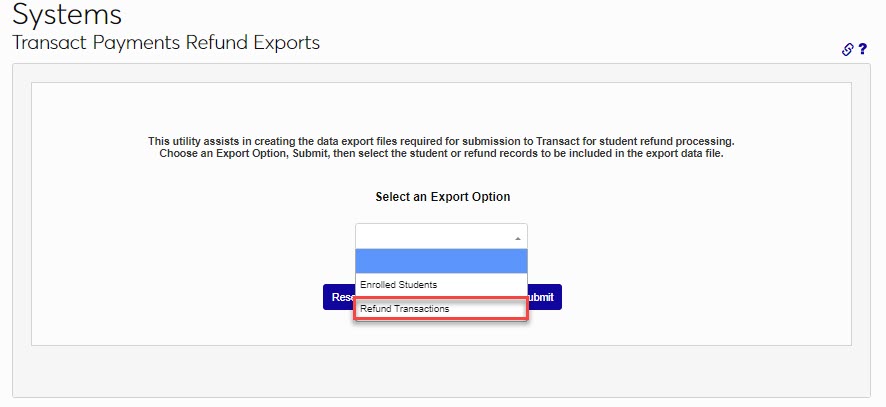
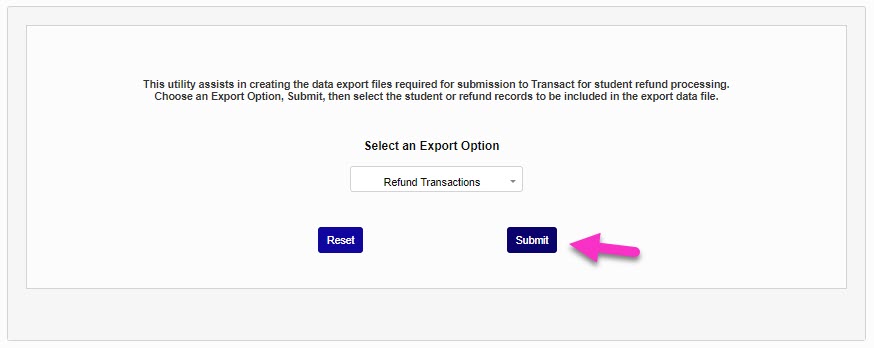
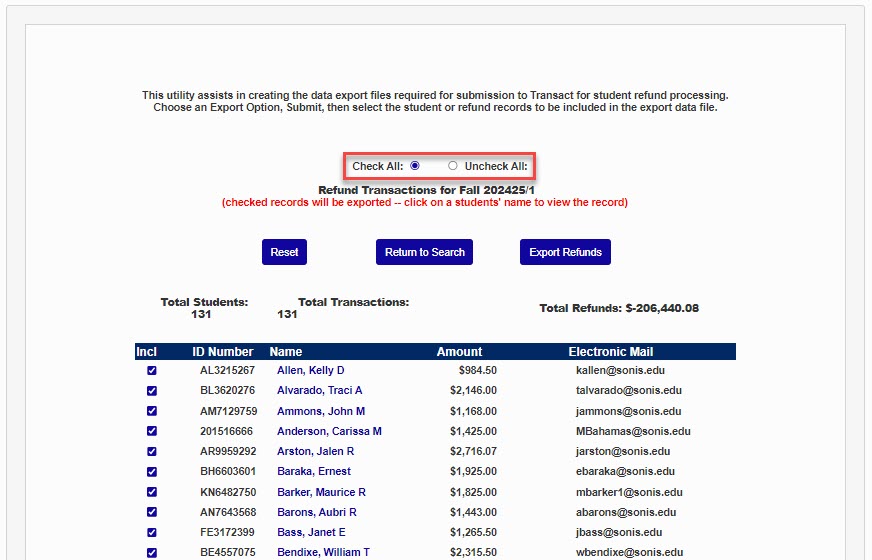
Once Transact has the student data, schools can begin exporting refund transactions. To begin, navigate to the Transact Payments Refund Exports utility and select Refund Transactions from the Export Option dropdown menu. Click the Submit button to continue.
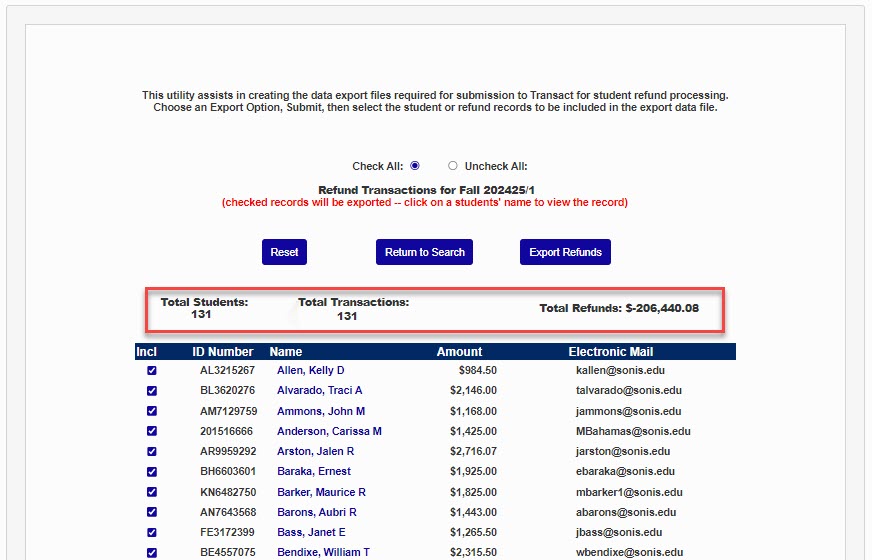
As with the student export, transactions without a valid email address are flagged. To exclude transactions uncheck the Include box. Check All and Uncheck All options are available at the top to make this process faster. At the top and bottom of the page, the Total Students , Total Transactions , and Total Refunds are listed.
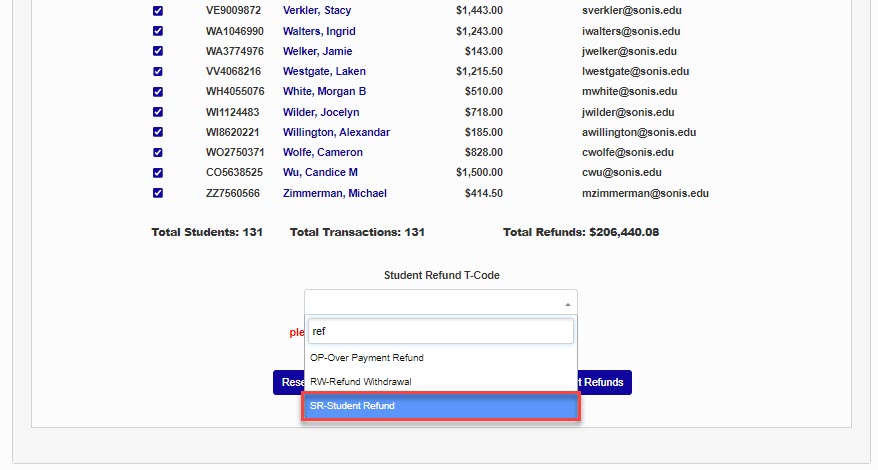
Select a transaction code from the Student Refund T-Code dropdown menu.
Caution
Although a refund transaction should debit the account back to zero, it is important to note that if it is desired to have the students’ refund transactions appear in the Credits/Payments section of the billing reports, the t-code to be used in conjunction with the Transact refund process must include an activity code of - and an activity type of c. With this t-code setup, the refund process will create a negative amount transaction in SONIS such that the account will actually be debited. However, the refund amount that is sent to Transact will be sent as a positive amount.
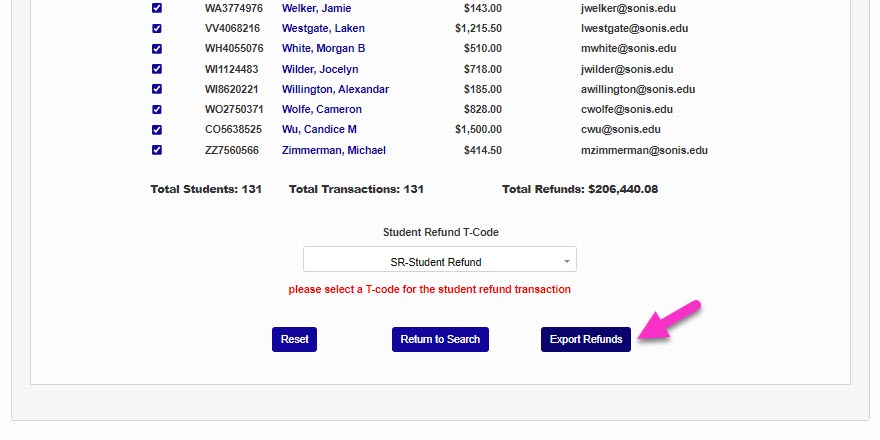
Once the proper t-code has been selected and any transactions that should not be included have been unchecked, click Export Refunds to create the export file. The file will be saved in the defined Transact batch folder.
Hold Refund Requests
If the option has been activated, students can request that their financial aid refund money held by the school and applied to future transactions rather than being returned to them. If a student has a hold refund request on file, this information will appear on the export summary page and that student's refund record will not be exported to Transact. See Hold Refund Request for more information on this process.
Business: Transact Functions Page
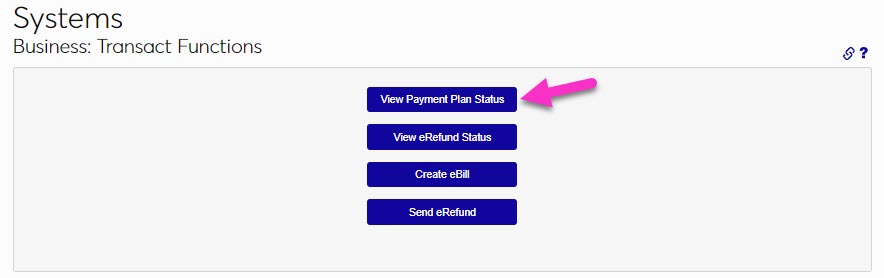
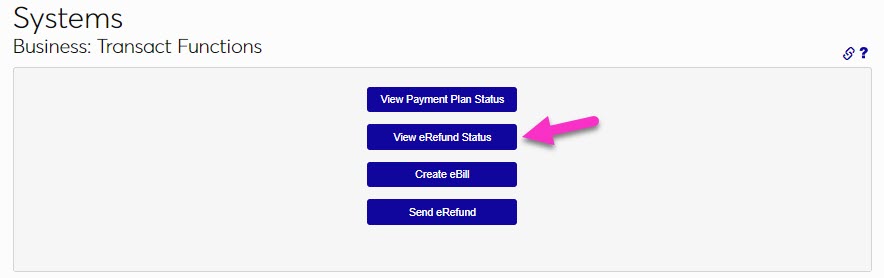
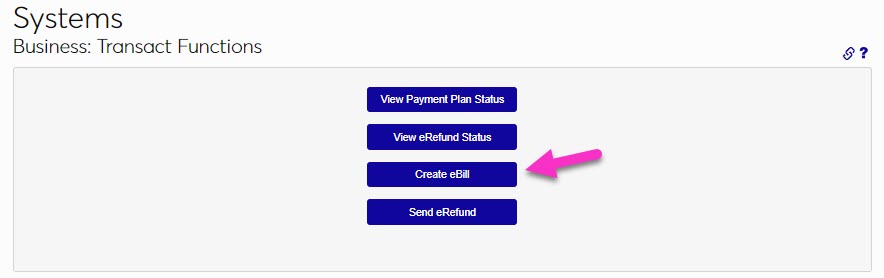
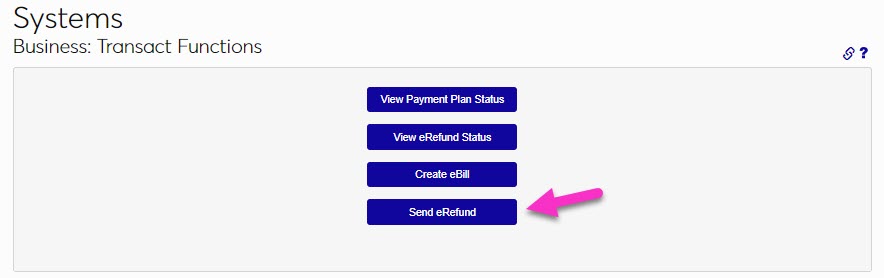
The Business: Transact Functions page, in the Systems hub, is a multi-purpose page that is used for viewing data from Transact and managing Transact-related processes: View Payment Plan Status, View eRefund Status, Create eBill, and Send eRefund.
View Payment Plan Status
When a user signs up for a payment plan, real time notifications will be sent from Transact to SONIS. SONIS will receive the notifications at the cashnet_payment_status.cfm endpoint. When appropriately configured, if a user modifies their payment plan status in any way, the changes will be recorded in the cashnet_statuses table. This page will also be updated, as appropriate. To view payment plan information, enter the Business: Transact Functions page from the Systems hub and click View Payment Plan Status.
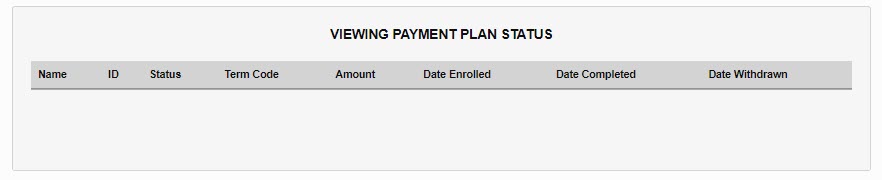
For each user with a payment plan, the Name, ID, Status, Term Code, Amount, Date Enrolled, Date Completed, and Date Withdrawn will display, as appropriate to the user's circumstances. The information displayed cannot be modified as it is reflective of what was sent by Transact. Any corrections or changes must be completed within Transact.
View eRefund Status
When a user signs up for eRefunds, Transact sends real time notifications to SONIS via the cashnet_refund_status.cfm endpoint. Users who have signed up for eRefunds will display on this page. To view eRefund information, enter the Business: Transact Functions page from the Systems hub and click View eRefund Status.
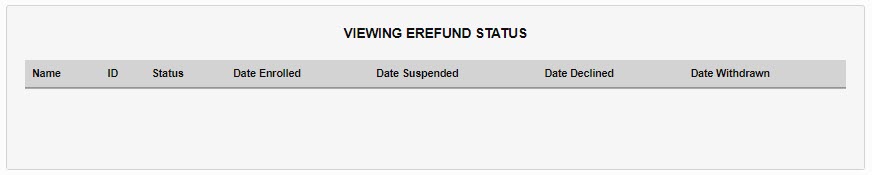
For each student that has signed up for eRefunds in Transact, the Name, ID, Status, Date Enrolled, Date Suspended, Date Declined, and Date Withdrawn displays. The information displayed cannot be modified as it is reflective of what was sent by Transact. Any corrections or changes must be completed within Transact.
Create eBill
Clicking on Create eBill creates a Transact eBill file and saves it to the Transact Refund folder in SONIS. It will then be sent via secure file transfer protocol (SFTP) using the information on the Business: Transact Account page. To create an eBill, enter the Business: Transact Functions page from the Systems hub and click Create eBill.
Send eRefund
Clicking on Send eRefund searches the Transact eRefund folder for an appropriate, previously created, eRefund file and sends it to Transact via SFTP using the information on the Business: Transact Account page. To create an eRefund file, enter the Business: Transact Functions page from the Systems hub and click Send eRefund.
Single Sign-On
Setup
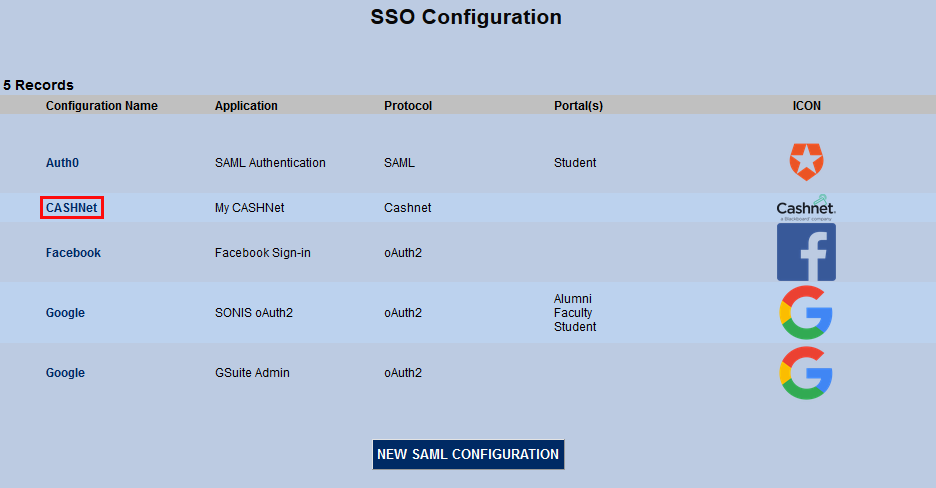
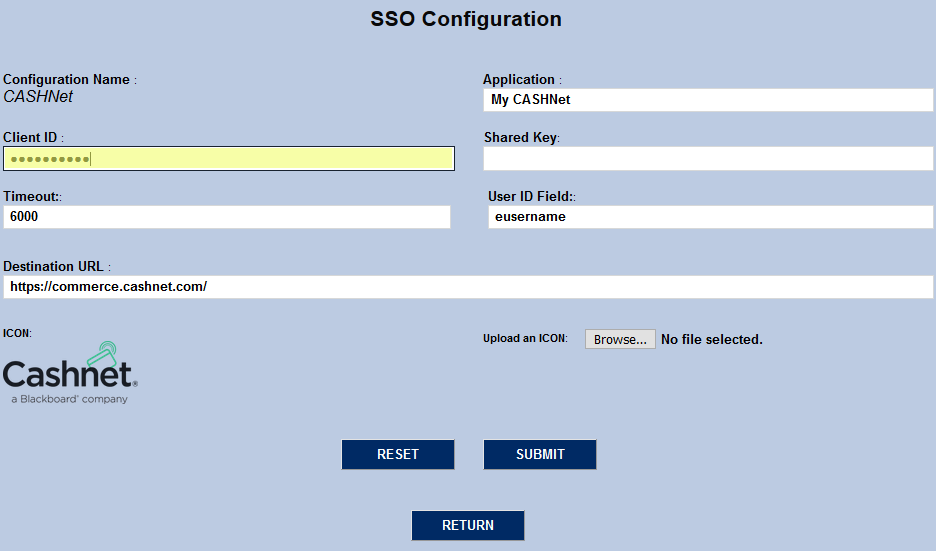
To set up Transact single sign-on, navigate to the SSO Configuration page in the Systems hub and click Transact under the Configuration Name column.
On the following page, the Application field is filled in as My Transact by default, but this can be changed to suit individual preferences. This name is used internally only as a means to identify the configuration.
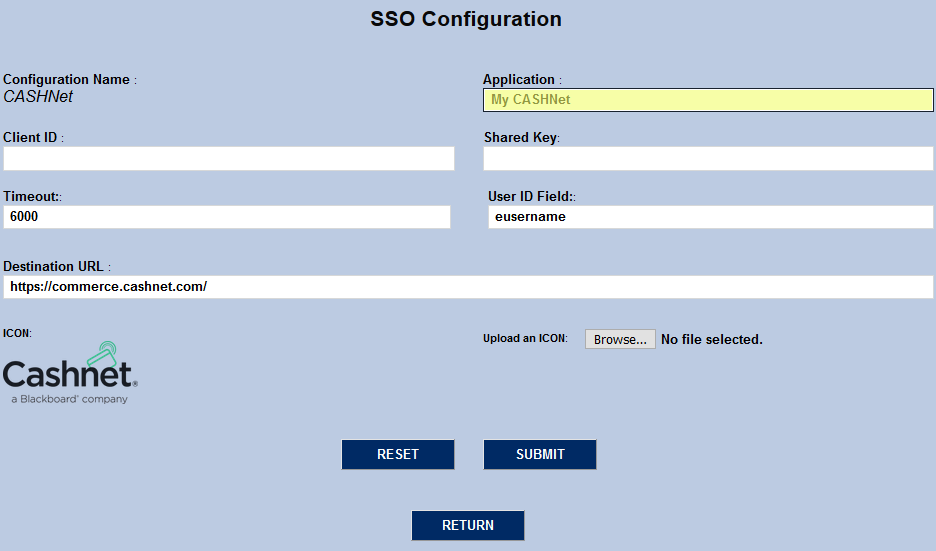
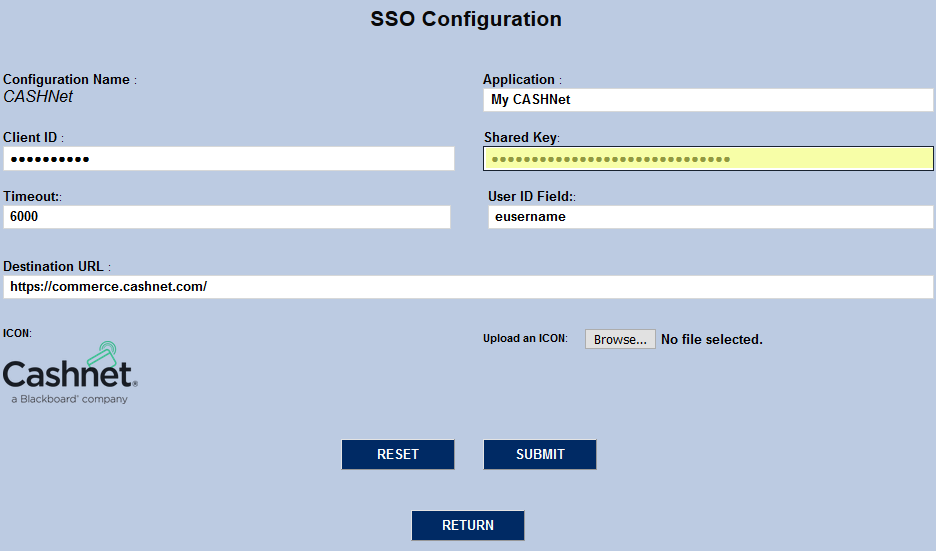
The Client ID is the school's Transact username. The Shared Key is provided by Transact as well. Both fields are protected to keep these values from being acquired by unauthorized users.
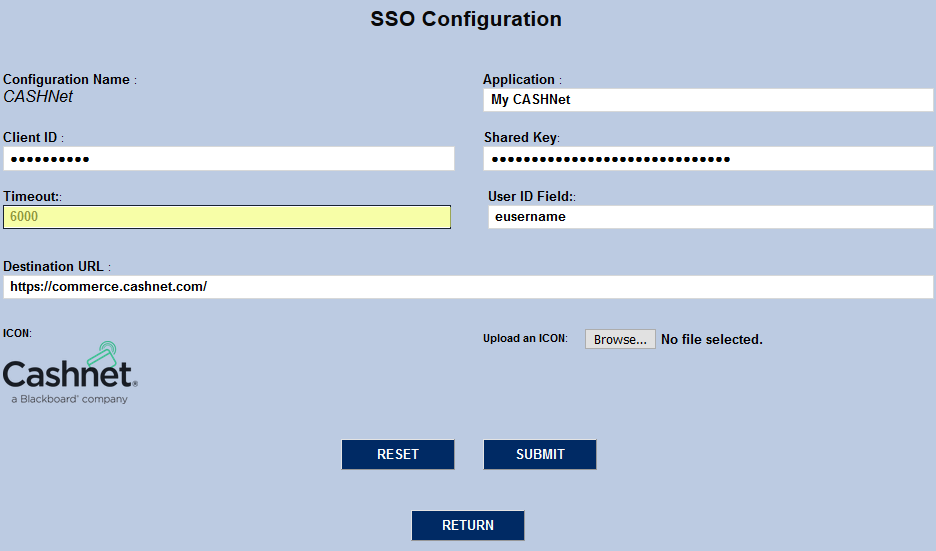
The Timeout field controls how long the Jenzabar SONIS system will attempt to connect to Transact during a login attempt before halting and displaying an error message. The value is in seconds and can be changed to suit administrator preference.
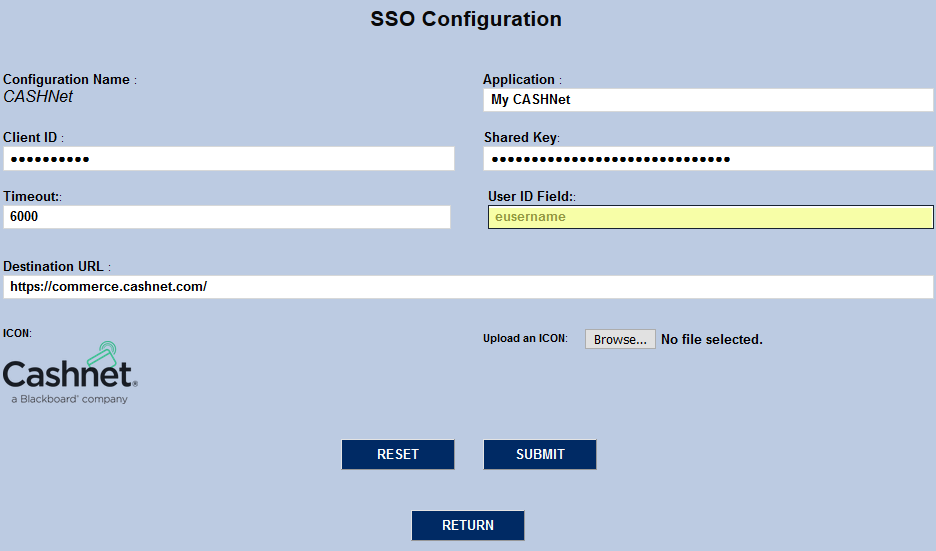
The User ID field tells Transact which user identification attribute will be used. Based on the current Transact version, the value should always be eusername .
The Destination URL tells the SONIS system where to send the login information. This value must be https://transactcampus.com/ for the single sign-on to function as long as the current configuration is in place.
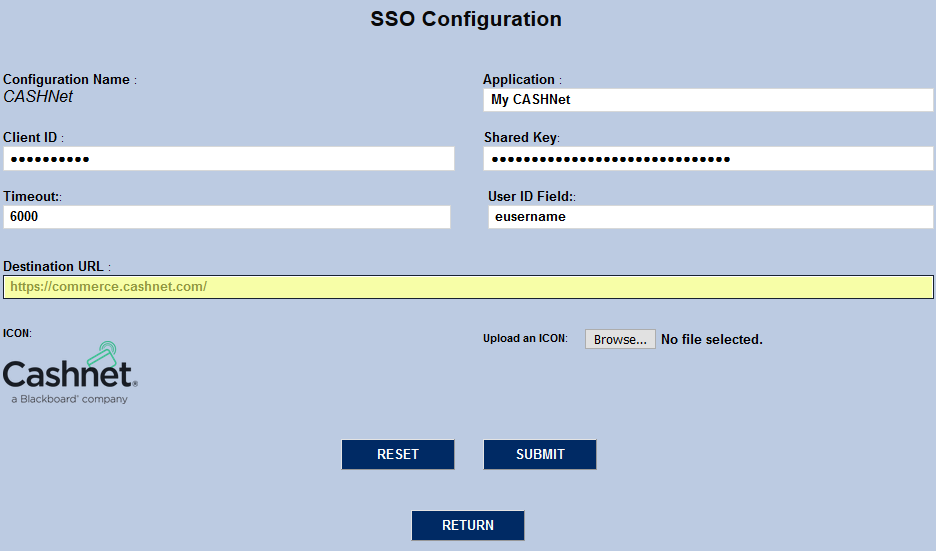
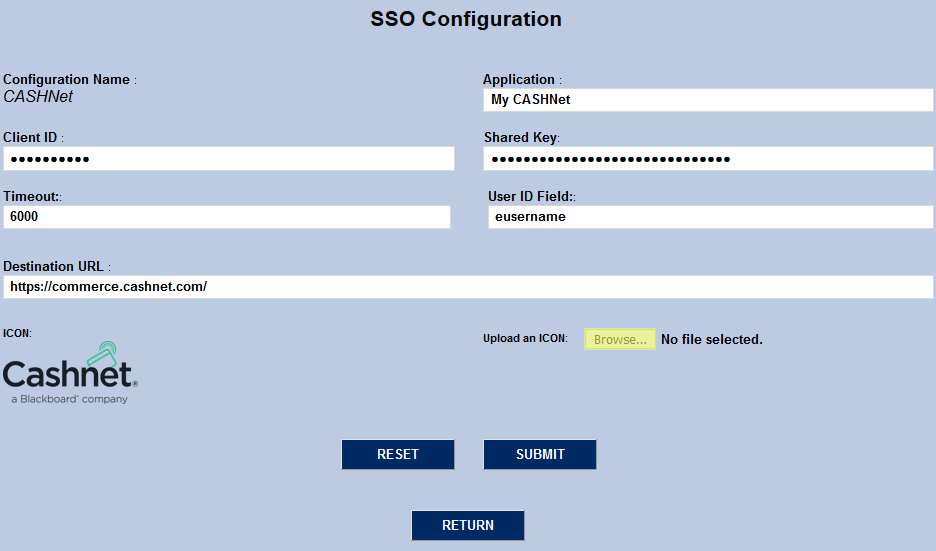
To change the Transact logo being used internally by SONIS, click the Browse button and select a new icon.
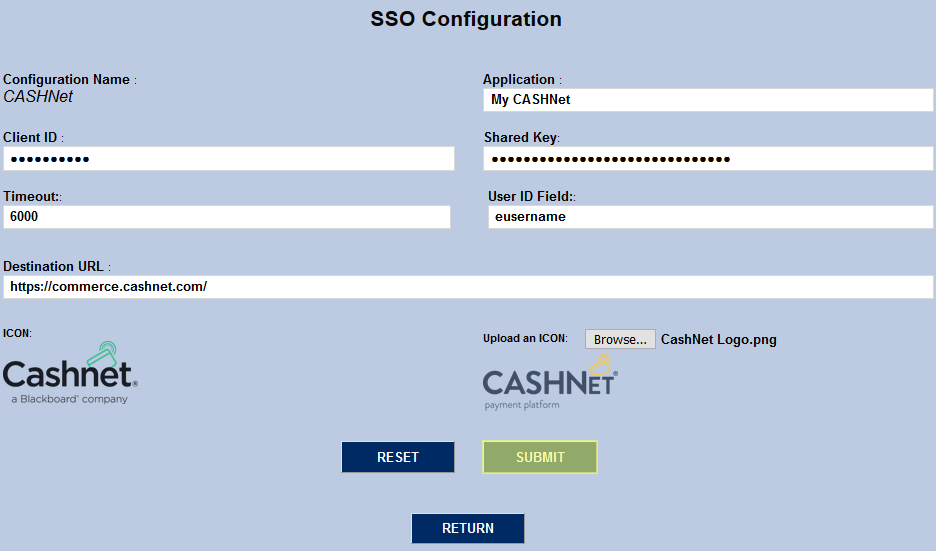
Once the configuration has been completed, click Submit to save the changes and activate the ability for students to log in to Transact.
Student Login
Once the Transact single sign-on has been set up students can log in through their portal page. Simply click on Transact on the Financial tab. The Transact logo will appear. Clicking on the Transact logo will open the Transact interface in a new window and sign the user into Transact.