IRS 1098-T
Overview
The IRS 1098-T utility allows Jenzabar SONIS administrators to view and edit tax records for students in their system. Most SONIS users used the Amounts Billed method before 2018. This method calculated tax burdens using bills delivered by the school. Beginning with the 2018 reporting year, schools will be required to use the Payments Made method for reporting qualifying tuition and related expenses. This method tallies actual student payments for qualifying tuition and related charges made in the reporting year. This will require accurate setup and the appropriate use of for both charges and payments. SONIS requires electronic filing of 1098-Ts, which is discussed at the end of this page.
Note that only payments made during the calendar year of the filing will be included. However, charges associated with these payments can be posted up to the moment when the 1098-T process is run. Furthermore, administrators can run the process a second time to include any additional prior year charges that were posted. In most cases, this will create a "corrected" 1098-T for the affected students.
To download a presentation by Jenzabar SONIS Product Manager Annabella Flores about the 1098-T process given in October of 2019, click here. This presentation provides a comprehensive breakdown of each box on the 1098-T form and the steps schools should take to ensure that their 1098-T process runs smoothly. The presenter's spoken notes are viewable in the document's top-left corner.
For additional guidance on 1098-T setup and processing, click here to download a PDF from Jenzabar Senior Business Consultant Cynthia McDaniel.
Setup
Transaction Codes
For the IRS 1098-T utility to properly catalog student charges and payments, the transaction codes for these payments must be set up properly. Before running the 1098-T process, schools must ensure that they have properly formatted codes in place and that all qualifying charges and payments are marked with these codes.
QTRE Charges
According to the IRS, “Qualified tuition and related expenses (QTRE) are tuition, fees, and course materials required for a student to be enrolled at or attend an eligible educational institution.” The only payments that are eligible to be included are payments made for QTRE. Under IRS rules, schools may assume that all payments received go first toward QTRE and then to nonqualified expenses such as room and board. The one exception is any financial aid that specifies that it cannot be used to pay QTRE. For example, a scholarship for room and board only.
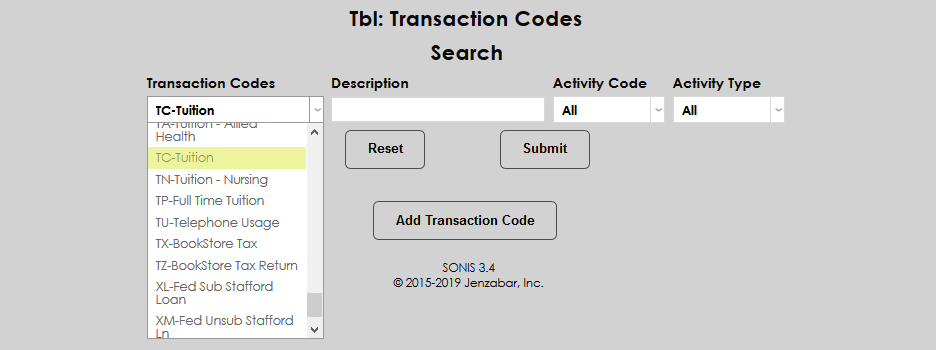
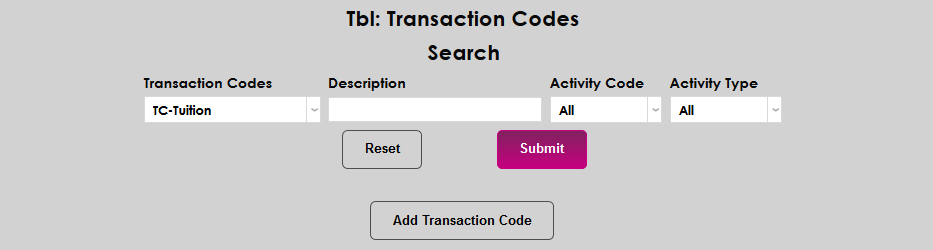
To create and edit QTRE t-codes in SONIS, navigate to the Transaction Codes table in the Systems hub. Click Add Transaction Code to create a new t-code or select a preexisting code from the Transaction Codes dropdown menu and click Submit to edit that code. Users can also enter a search term in the Description field and click Submit to narrow down the list.
To edit an existing code, click on the t-code's abbreviation in the T-Code column.
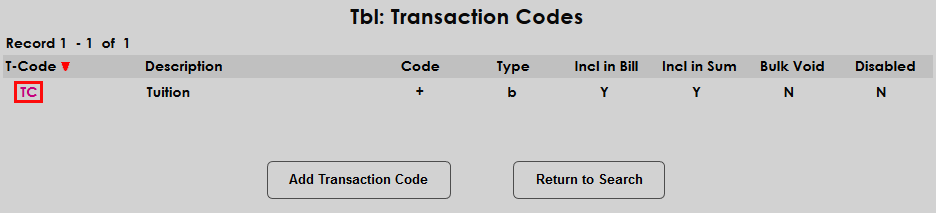
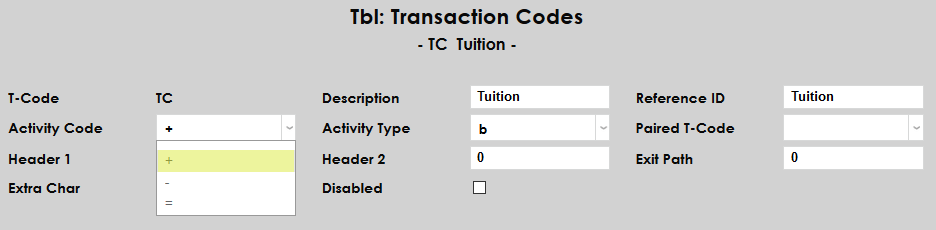
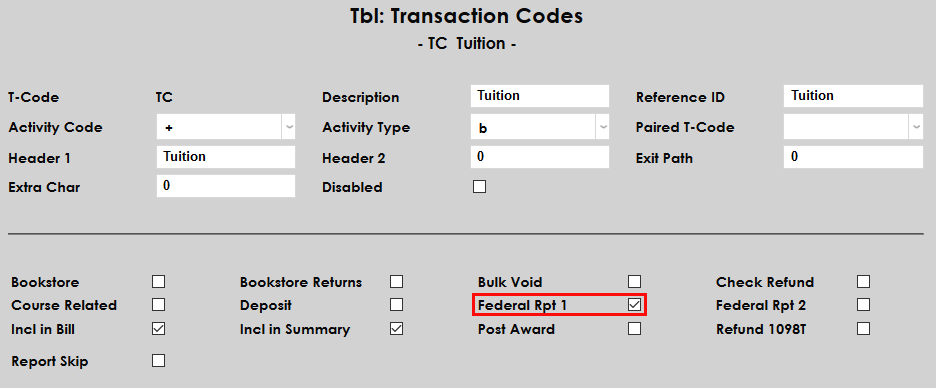
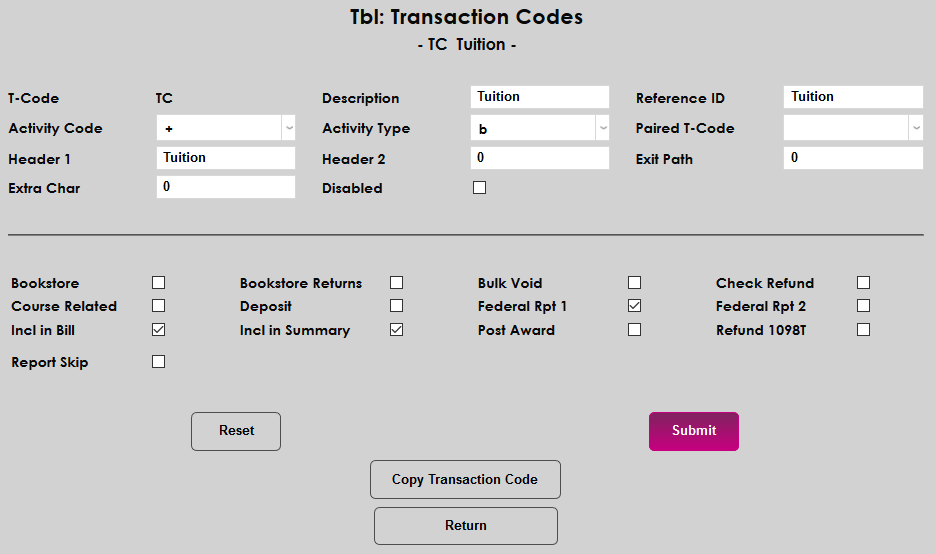
For all QTRE charges, the Activity Code of the associated t-code must be + and the Federal Report 1 box must be checked. If this box is not checked, payments toward this charge will not be included in 1098-T payment calculations.
Click Submit to save the changes and update or create the t-code.
Student Payments
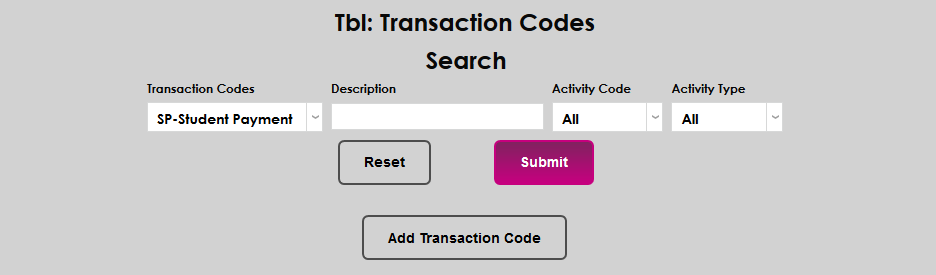
As with charges, only QTRE payments will be included in the 1098-T. To create and edit student payment transaction codes, visit the Transaction Codes table under the Systems menu. Click Add Transaction Code to create a new t-code or select a preexisting code from the Transaction Codes dropdown menu and click Submit to edit that code. Users can also enter a search term and click Submit to narrow down the list.
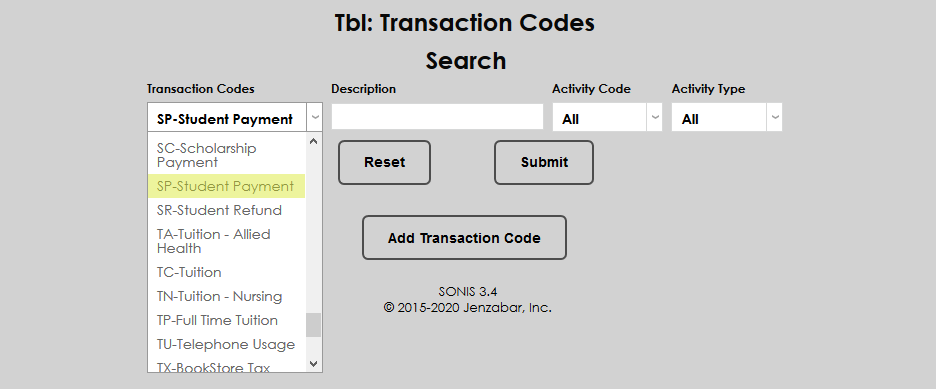
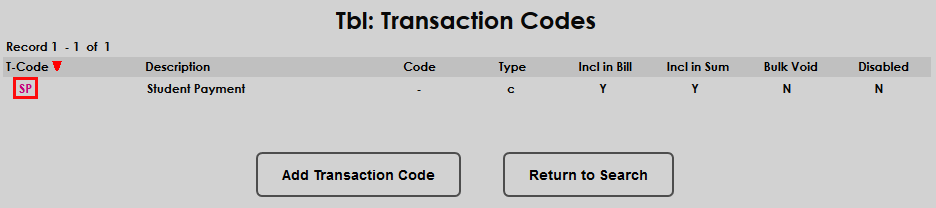
On the following page, click the abbreviation of the code under the T-Code column.
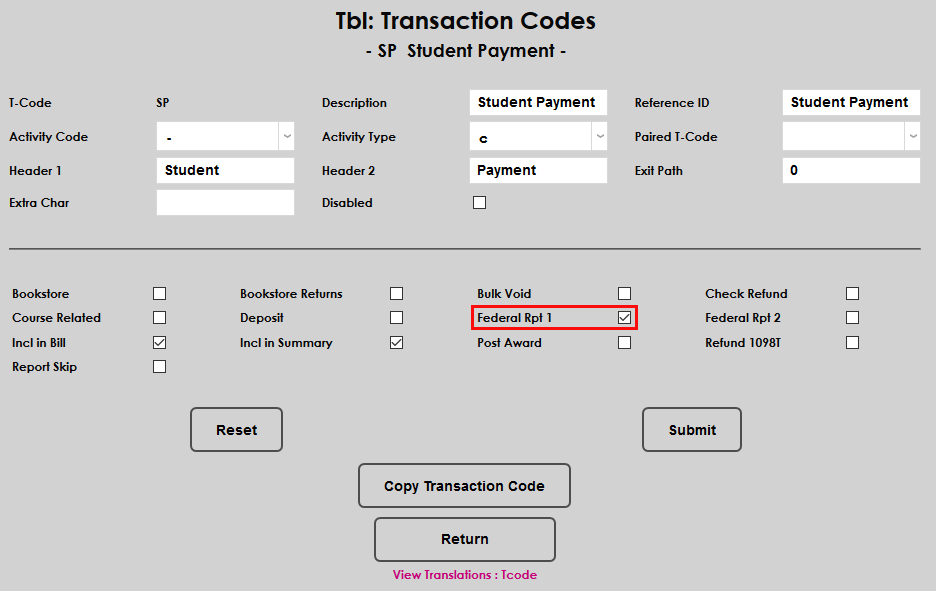
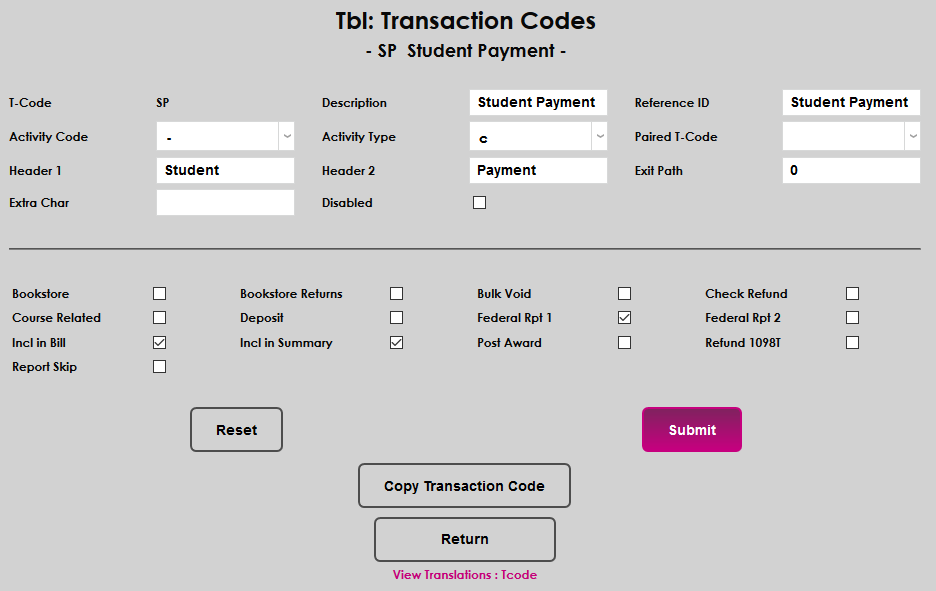
Most schools use a Student Payment (SP) t-code to document the majority of student payments. Those who wish to provide more differentiation between types of payments can set up additional codes. However the payment t-codes are setup, payment codes that will be included in the 1098-T calculations must be set up with the Federal Report 1 box checked. In addition, all payment t-codes must have an Activity Code of - and an Activity Type of c. Once the code is set up properly, click Submit to save the changes.
Provider Payments
Transaction codes for Provider Payments must also be set up properly for those payments to be included in student 1098-T forms. To create and edit transaction codes, visit the Transaction Codes table under the Systems menu. Click Add Transaction Code to create a new t-code or select a preexisting code from the Transaction Codes dropdown menu and click Submit to edit that code. Users can also enter a search term and click submit to narrow down the list.
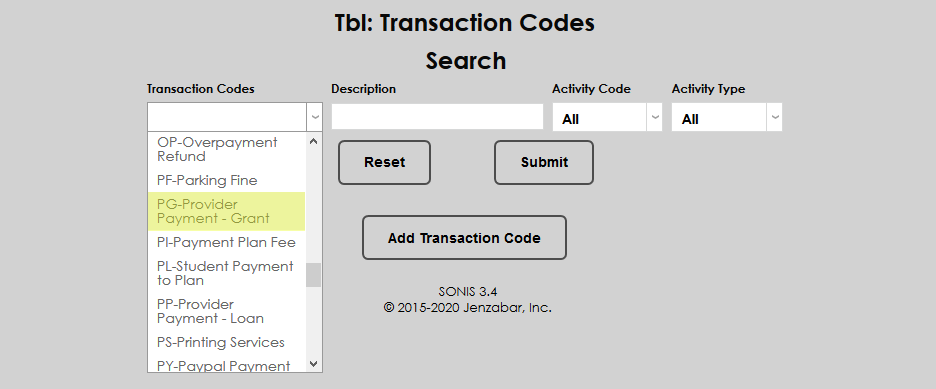
On the following page, click the abbreviation of the code under the T-code column.
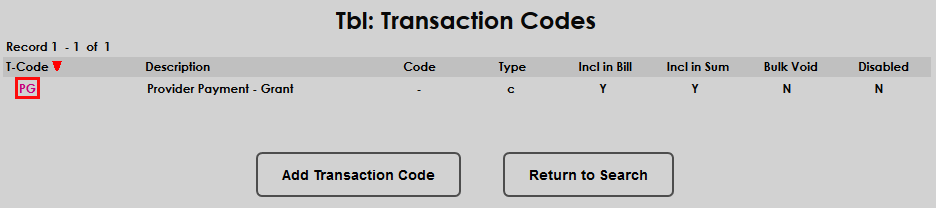
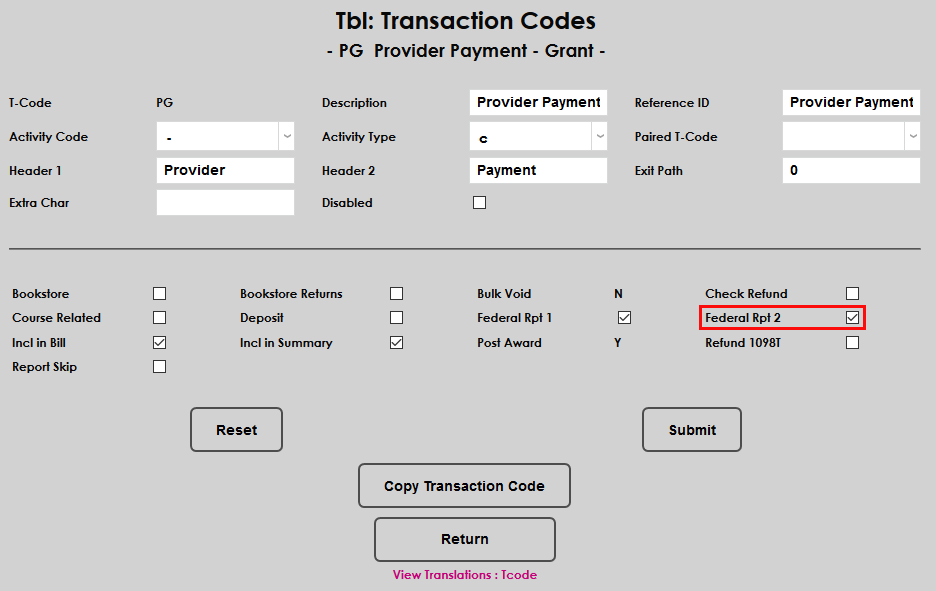
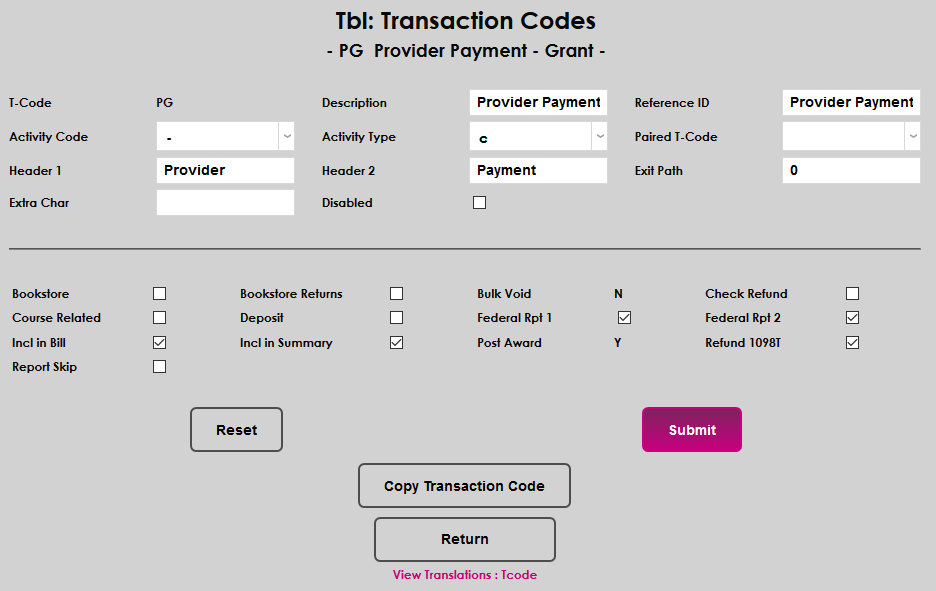
Most schools use Provider Payment t-codes to document student loan and grant/scholarship payments made to students. All payment t-codes must have an Activity Code of - and an Activity Type of c. Codes that handle loan payments should have the Federal Rpt 1 box checked. Codes for scholarships and grants should have the Federal Rpt 2 box checked. Checking Federal Rpt 2 box tells SONIS to include these transactions in Box 5 on the 1098-T form.
Note that opinions vary on whether or not scholarship and grant payments should be included in Box 1 on the 1098-T. Check the Federal Rpt 1 box to include these payments. To exclude them, ensure that it is not checked. Please consult a licensed accountant for additional questions on this matter.
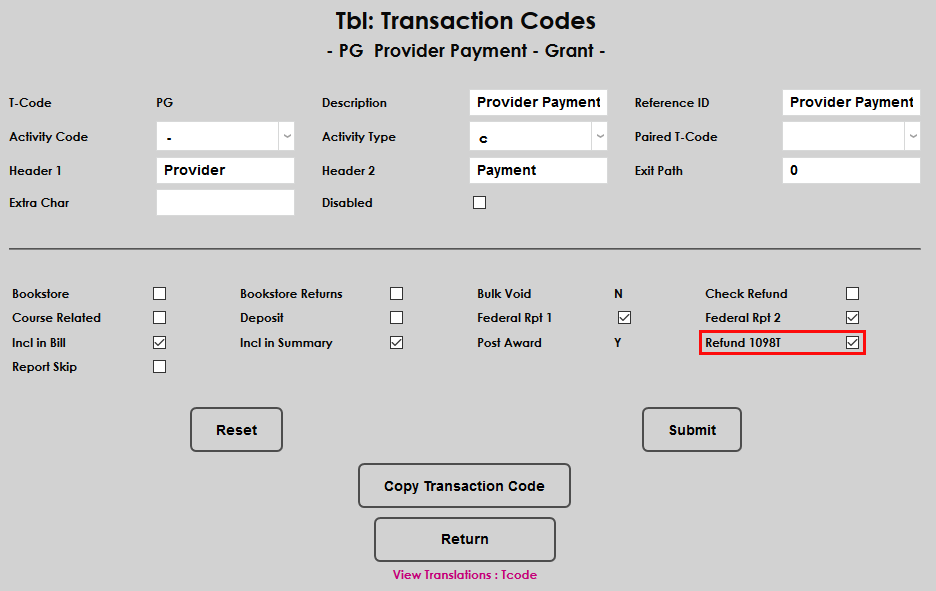
To reduce the number of scholarships or grants reported in a prior year, schools must post a transaction with a t-code configured with the Refund 1098T box checked. Once the code is set up properly, click Submit to save the changes.
Positive Dollar Adjustments
There are two ways to adjust student balances: by entering a negative dollar amount with a positive transaction code or by entering a positive dollar amount with a negative transaction code. While most SONIS member institutions perform adjustments using the former method, both are valid. However, the second method will not be reflected correctly in the student's 1098-T without an additional step being taken. When a school uses a credit-defined t-code (-/c) with a positive dollar amount to effect an adjustment, the checkbox labeled Positive Dollar 1098T Adj must be checked.
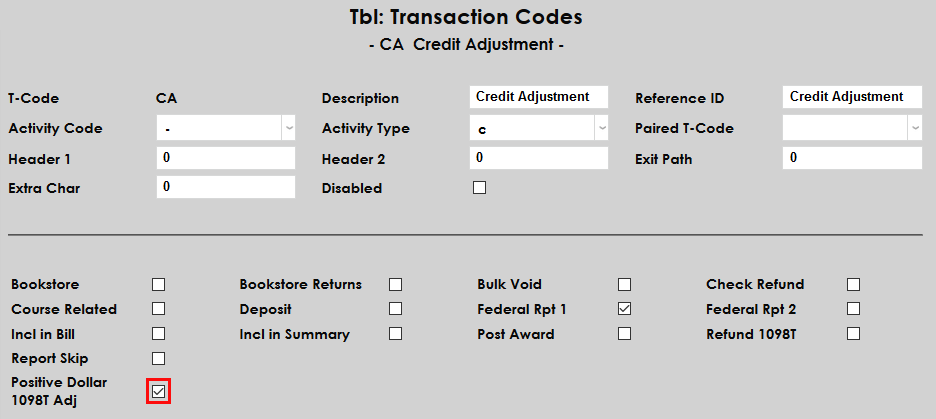
The box does not appear as editable until after a t-code with an activity code of - and an activity type of c with the Federal Rpt 1 box checked has been created.
Calendar Year
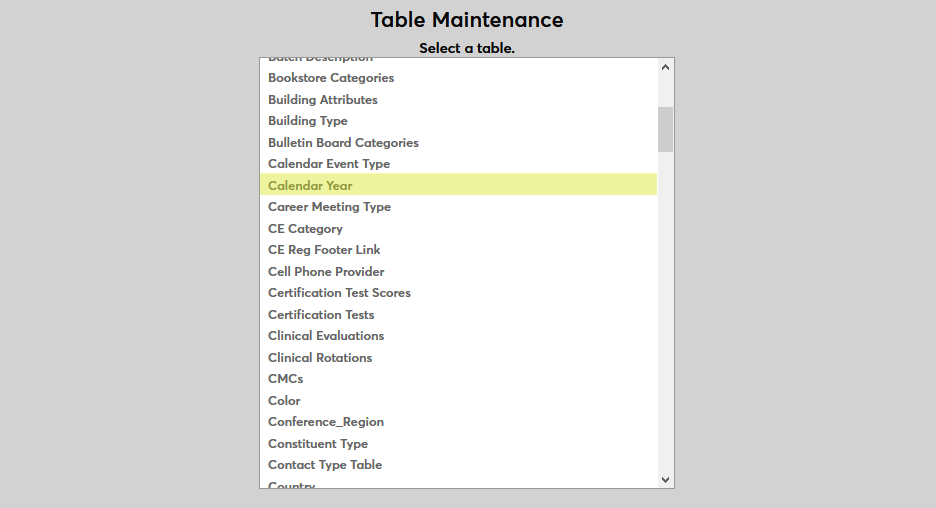
For the IRS 1098-T page to tabulate taxes correctly, the school's Calendar Year must be set up properly. To view and edit the current year or add the upcoming year, navigate to the Calendar Year table through Table Maintenance in the Systems hub. These records identify which qualifying school year/semester combinations fall within the reporting year.
In the below example, the school's first session each semester is Fall, followed by Spring, Summer 1, and Summer 2. Therefore, Semesters 2, 3, and 4 of the 201718 school year would take place in 2018 with only semester 1 taking place in 2017. This setup is mirrored for the 2018 calendar year.
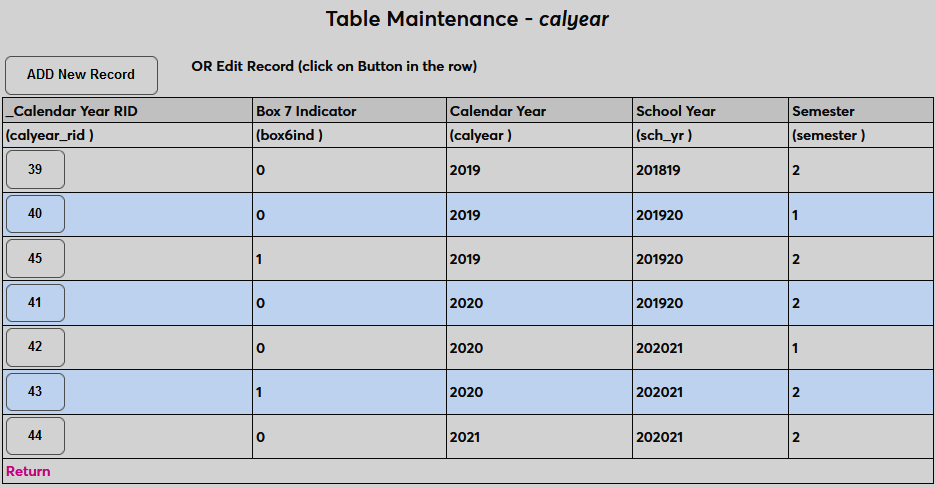
The column labeled Box 7 Indicator controls whether Box 7 on the 1098-T form should be checked for this semester or not. The column will display a 1 if the box is checked and a 0 if it is not checked. Box 7 is used for cases where qualifying payments for the spring semester of the following year are posted in the reporting year rather than in the calendar year when they're actually made. (For example, if spring 2022 registration is being paid for and posted in fall 2021.) If the member school does not post payments received for the spring semester of the following year in a given reporting year, then the Box 7 indicator should not be checked. If the school records billing and payment posting in this manner, the Box 7 indicator should be set to one. When a payment is posted in the current reporting year that applies to charges related to the next calendar year, those payments will be included in Box 1 of the current year 1098-T and the checkbox in Box 7 will be checked.
To turn the Box 7 indicator on or off or make other changes to a particular calendar year, click the calendar ID number for that year.
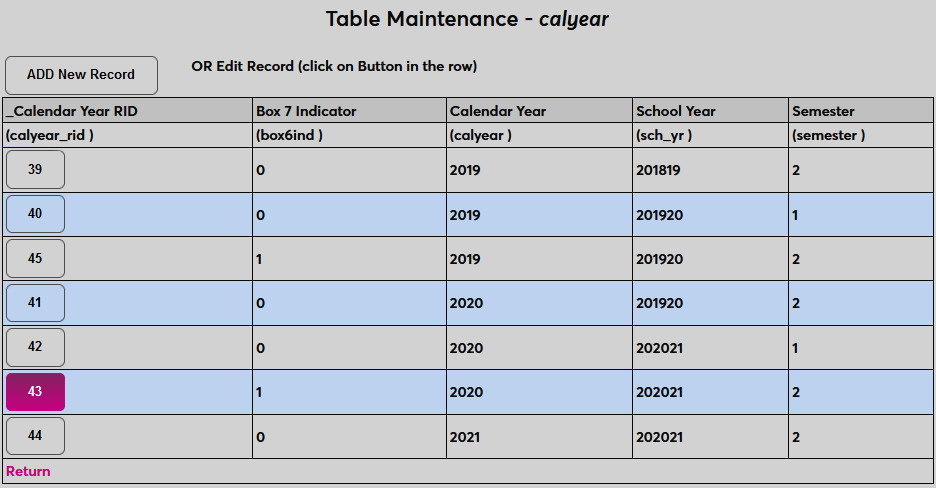
On the following page, replace the 0 in the Box 7 Indicator field with a 1 to ensure that Box 7 will be checked where appropriate. Click Submit to save the changes.
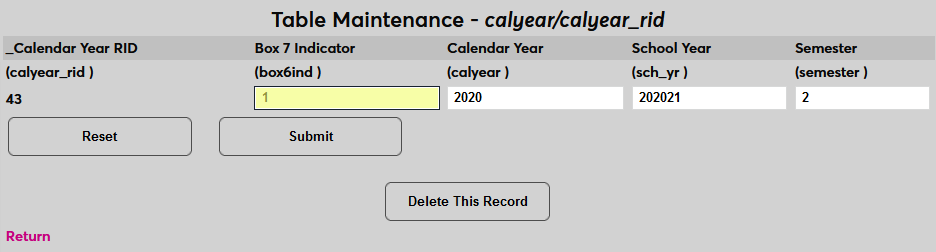
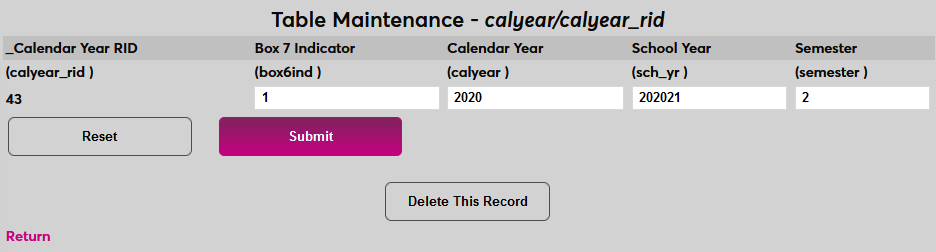
It is important that the Calendar Year table is set up properly to ensure that all qualifying charges are included in the 1098-T reporting process. Records for a single semester may span more than one calendar year. It is entirely possible for the same semester to appear in two separate calendar/tax reporting years, once with the box 7 attribute set to 1 and another, in the subsequent year, with the box 7 attribute set to 0. See the above images for an example of what this looks like. Any payments made in 2020 for Spring 2021 would be included, and Box 7 should be checked. In 2021, any other eligible payments or charges for Spring 2021 will also need to be included, but box 7 will not need to be checked for those 1098-Ts UNLESS there are eligible payments made in 2021 for Spring 2022.
School Info
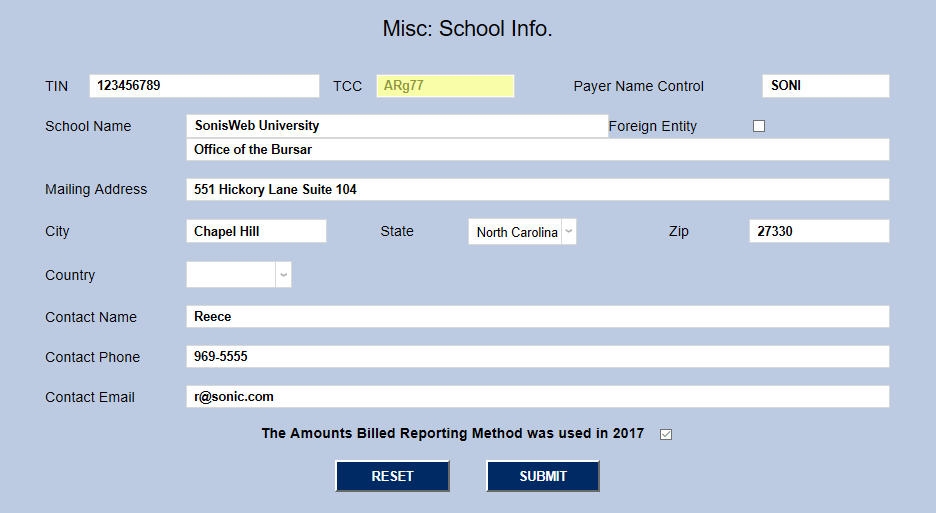
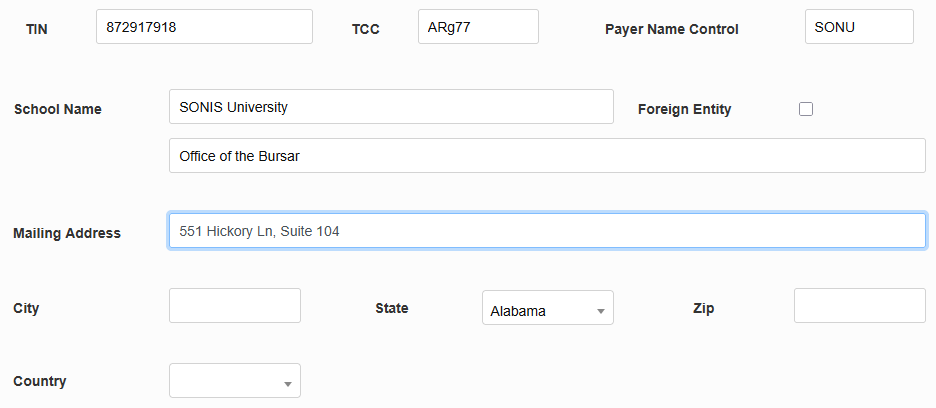
The Miscellaneous School Info page in the Systems hub is used to provide the IRS with the school's tax information. All schools that will be creating 1098-T reports must ensure that these fields are filled out correctly.
First, fill in the institution's Tax Identification Number, the number used by the IRS to identify the school. This number can be obtained from the IRS if not already known.
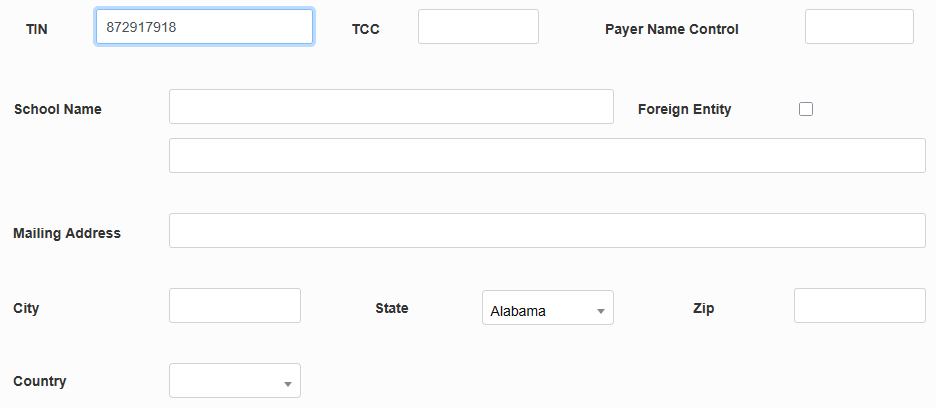
Next, fill in the Transmitter Control Code, a five-character value typically consisting of two digits, one letter, and two more digits. The TCC is assigned to the institution by the IRS after applying to file returns electronically.
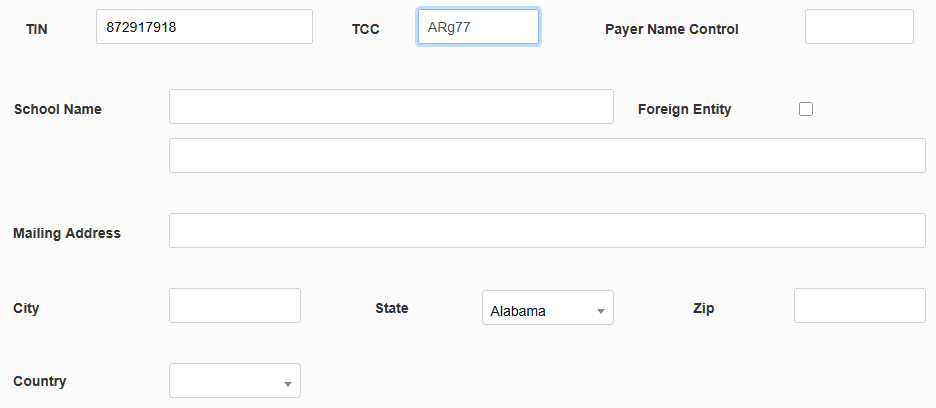
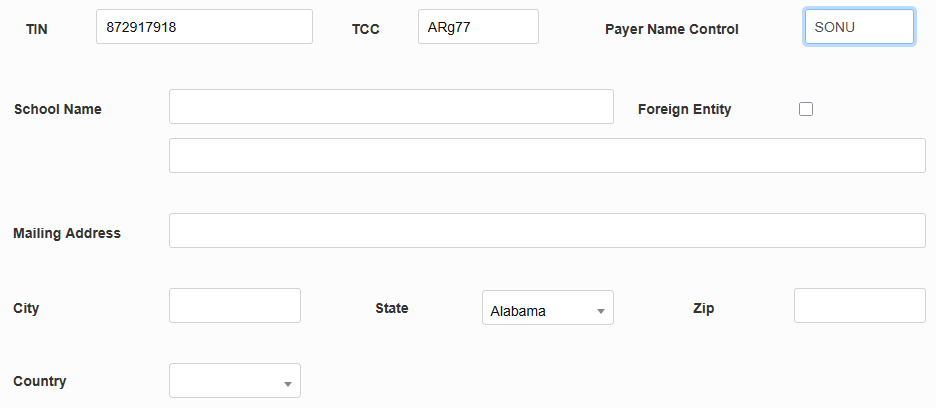
The Payer Name Control is established by the IRS when the taxpayer requests an Employer Identification Number (EIN). The IRS creates the name control from the legal name listed on the Form SS-4, Application for Employer Identification Number. It is commonly the first four characters of the business name.
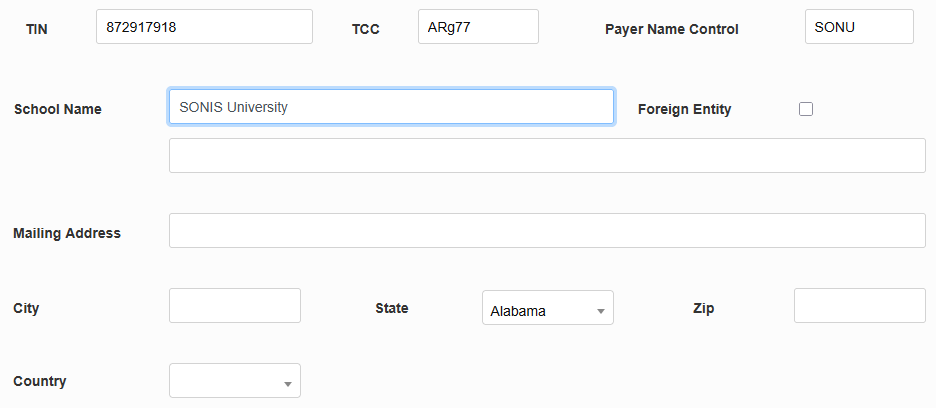
Fill out the School Name field with the official name of the institution and check the Foreign Entity box if the school is located outside of the US.
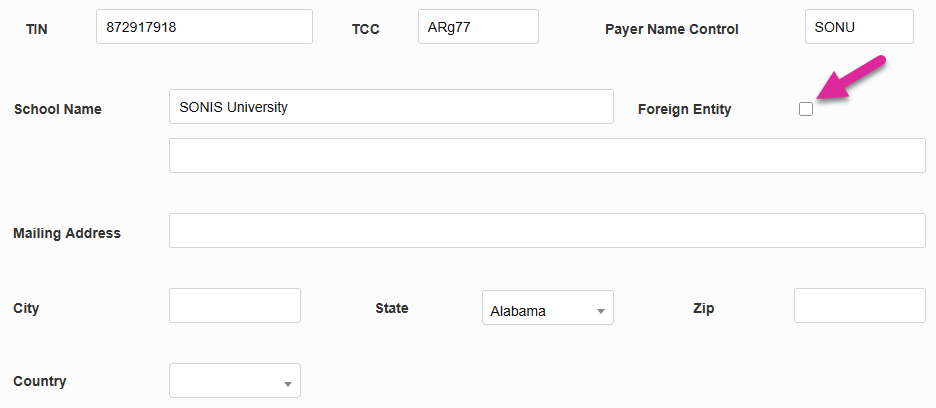
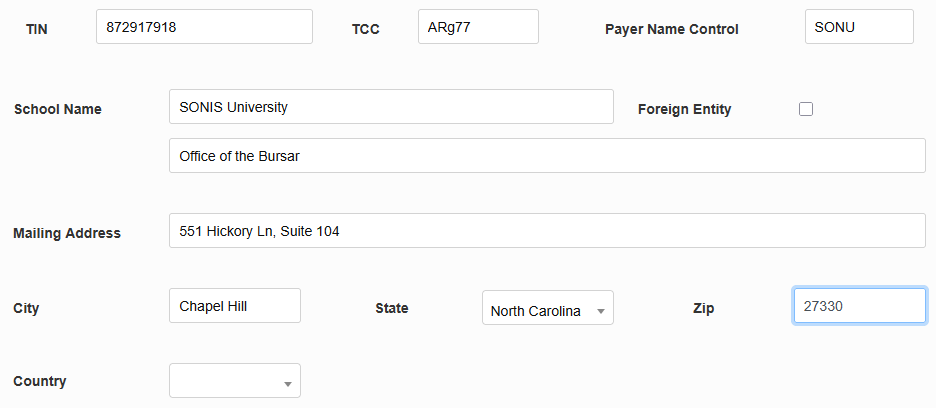
Fill in the Mailing Address for the school, including the City, State, Zip Code, and Country. The values in the State and Country fields can be created and edited in Table Maintenance under the Systems menu.
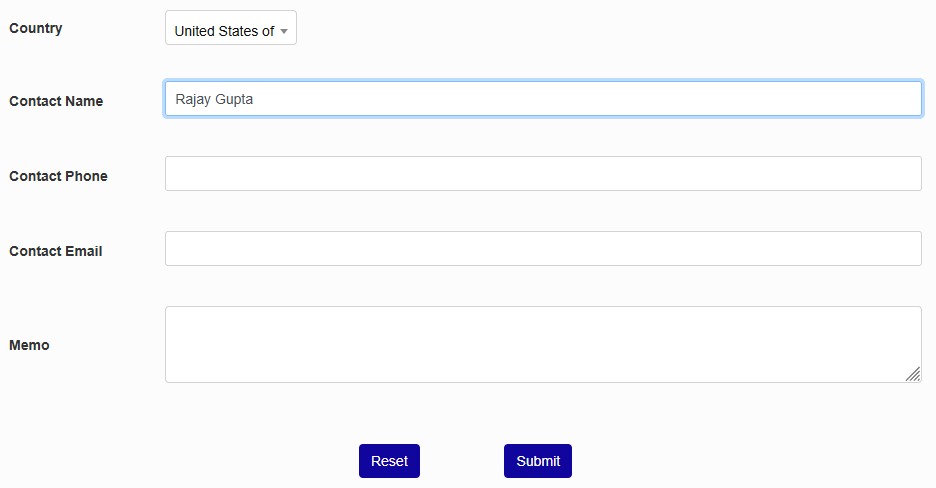
Finally, enter the Name, Phone Number, and Email Address of the person who will be the institution's contact to the IRS.
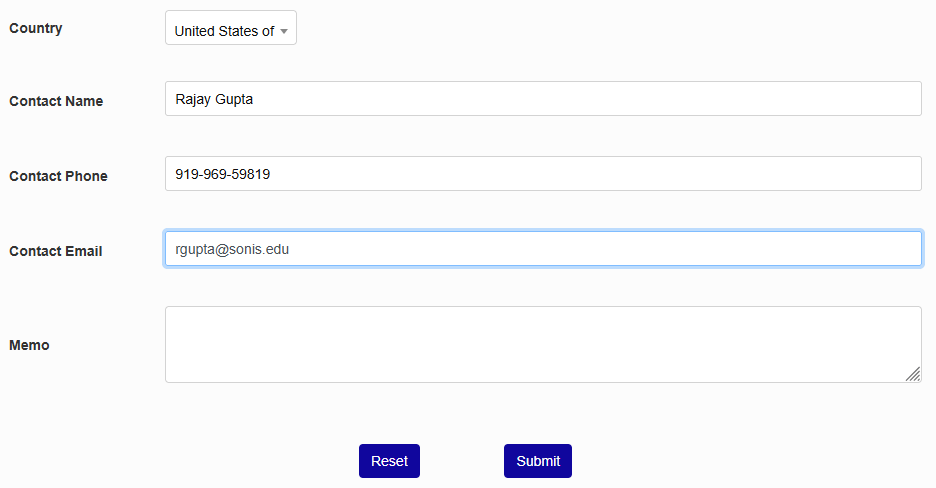
The Memo field can be used to store your school's old TIN for auditing purposes if a change has been made. It can also be used to store other data or left blank.
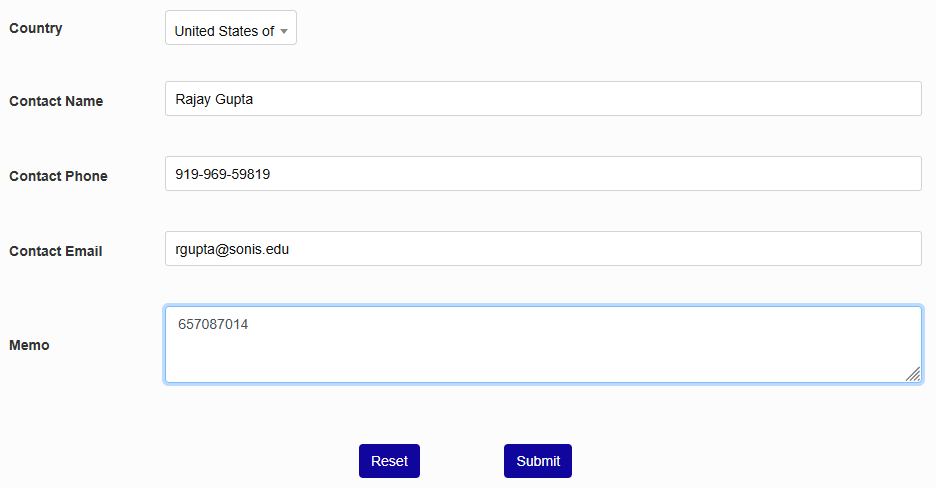
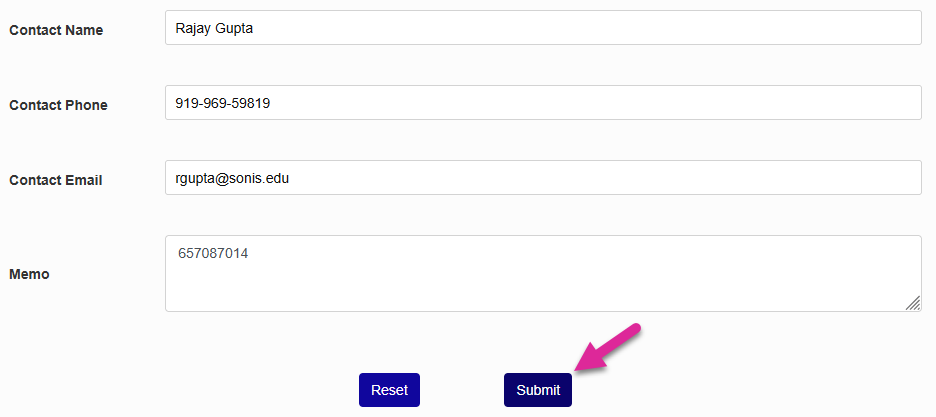
Click Submit to save the changes.
Campuses
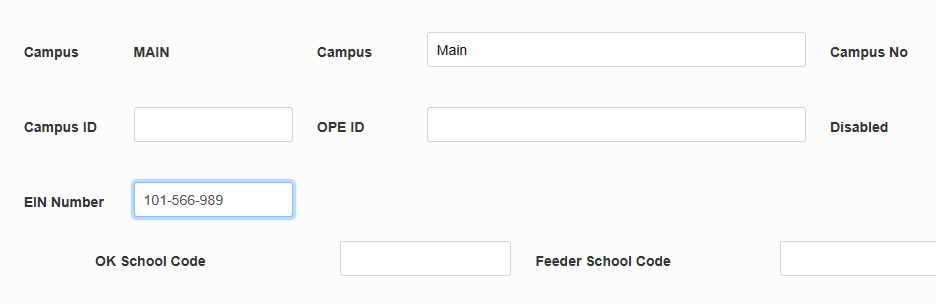
If your campuses have separate Employer Identification Numbers, you can enter each them using the Campuses utility. The 1098-T build process will use the appropriate EIN based on each student's campus data as set on the Biographic page. If a student is associated with more than one campus/EIN in the same tax year, they will have two separate 1098-T records.
Note
Employee Identification Numbers are stored when 1098-T records are built, ensuring that EIN changes only affect records going forward and do not change 1098-Ts from prior years.
Warning
A student's campus and EIN must be set before the charges and payments associated with that campus are entered. There is no way to change the campus/EIN attached to a transaction after it has been posted.
IRS 1098-T Utility
The IRS 1098-T utility is located in the Systems hub.
Build
To begin building a 1098-T report, click the Build button.

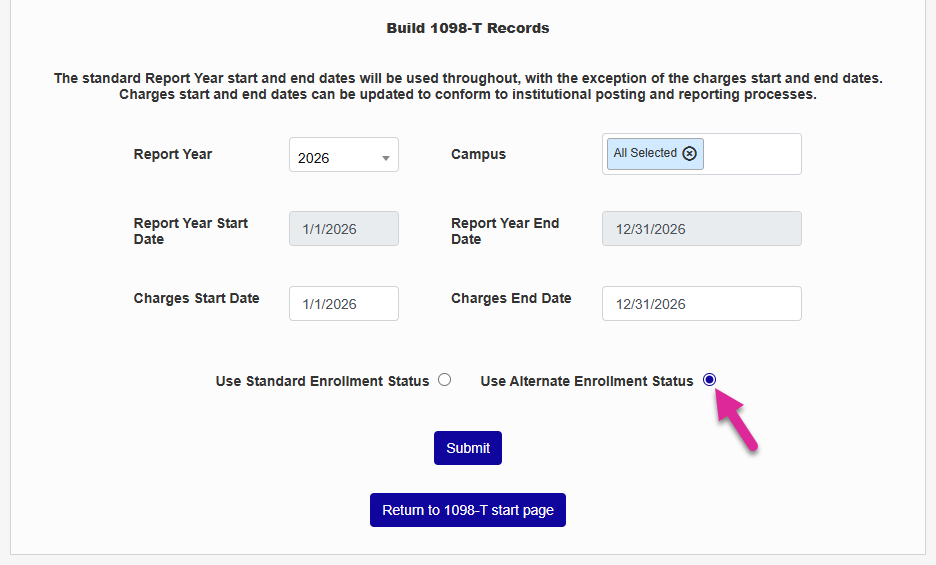
The start page for the Build process has two distinct setups depending on how the SONIS member school treats its enrollment. If the SONIS member school uses the Alternate Enrollment Status Utility to specify enrollment status on a per-degree basis as in the example below where the school has defined Halftime Enrollment for the MA and MBA degrees differently than in the Enrollment Status table, the page will offer the option to Use Standard Enrollment Status or Use Alternate Enrollment Status. If the Use Standard Enrollment Status option is selected, then the value in the Enrollment Status table will be used for everyone in the list that's created.
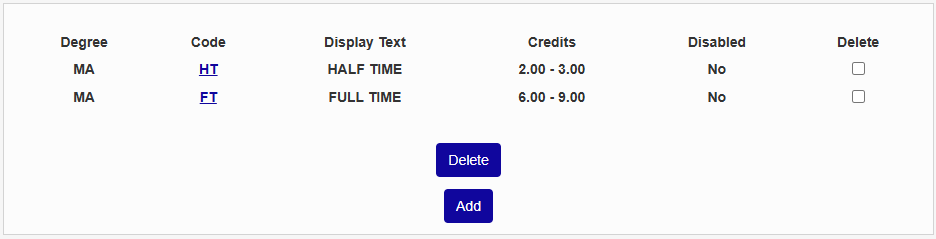
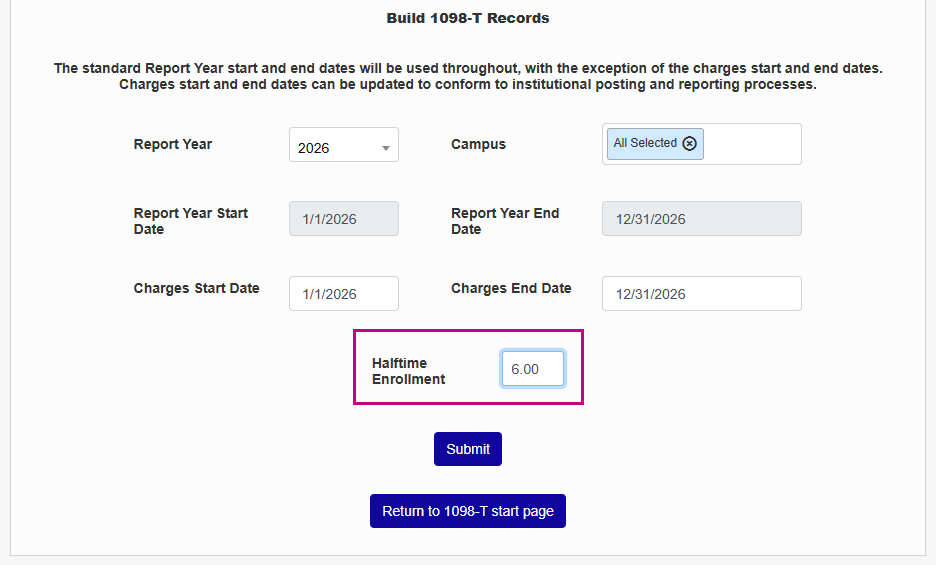
If a school has not set up an Alternate Enrollment Status per degree, the page will display a numerical field automatically populated with the standard half-time enrollment. This number is created and can be altered in the Enrollment Status in Table Maintenance in the Systems hub. The field can also be edited on an ad-hoc basis before continuing the build. If a student's total credits equal or exceed the half-time enrollment threshold, the checkbox in Box 8 on their 1098-T form will be checked.
Select the Report Year you're building. You can also select one or more items from the Campus list if the report should be narrowed down in this manner or leave you can them all selected.
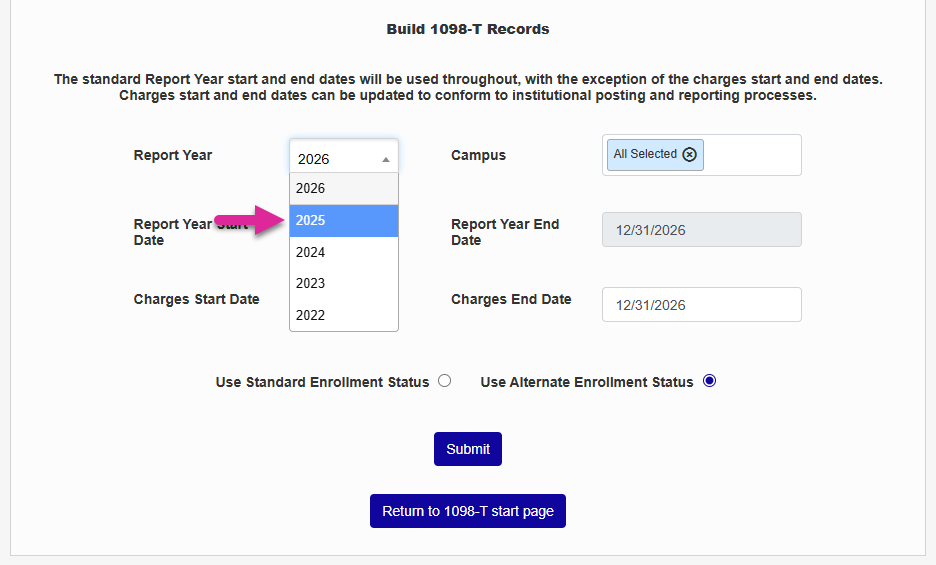
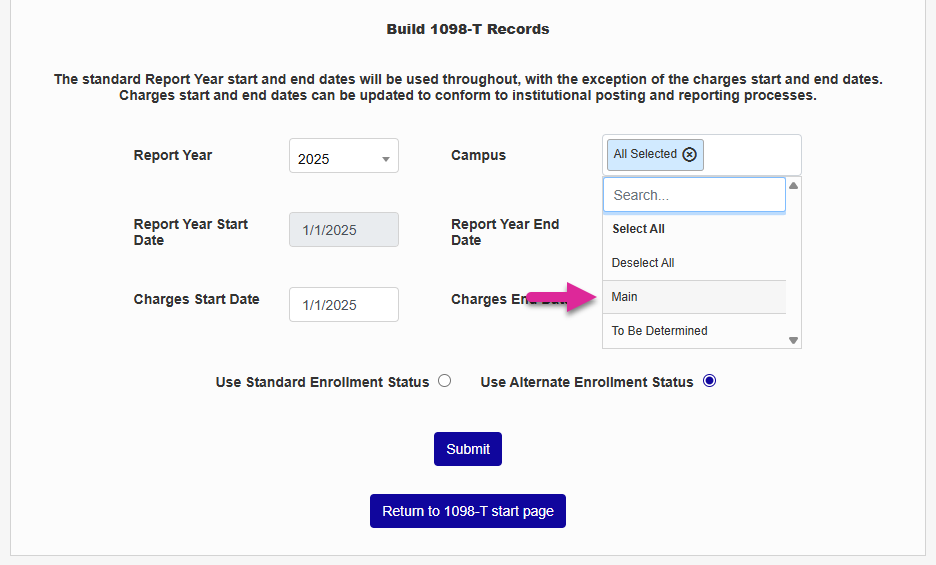
The Report Year Start Date and Report Year End Date automatically update when you select a new year. These values are based on the data in the Calendar Year table and cannot be edited.
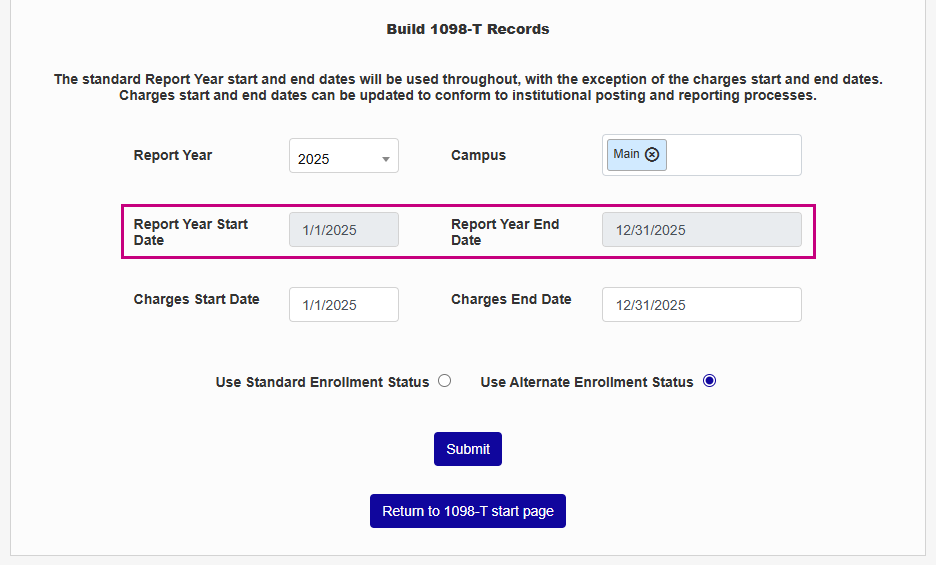
The Charges Start Date and Charges End Date fields also default to the first and last dates in the selected calendar year, but they can be edited to include dates outside of the calendar year. Only change these if you need to include charges from another calendar year that apply to this calendar year. For example, you can change these dates if your school charges students in the Fall for courses that they'll take in the Spring and wants these charges included in the 1098-T for the following year.
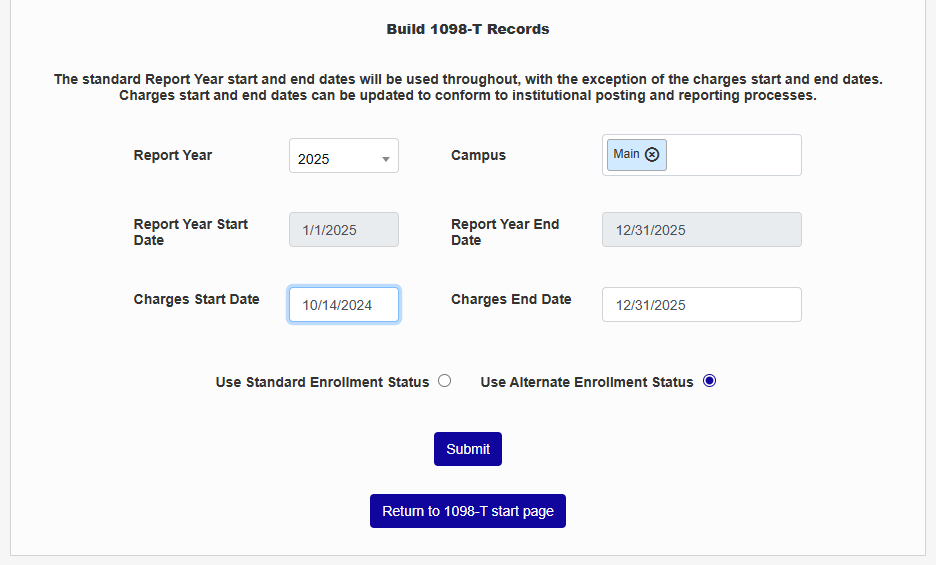
Note
Payments are always included in the year they were made. Changing the Charges dates does not affect which payments are included.
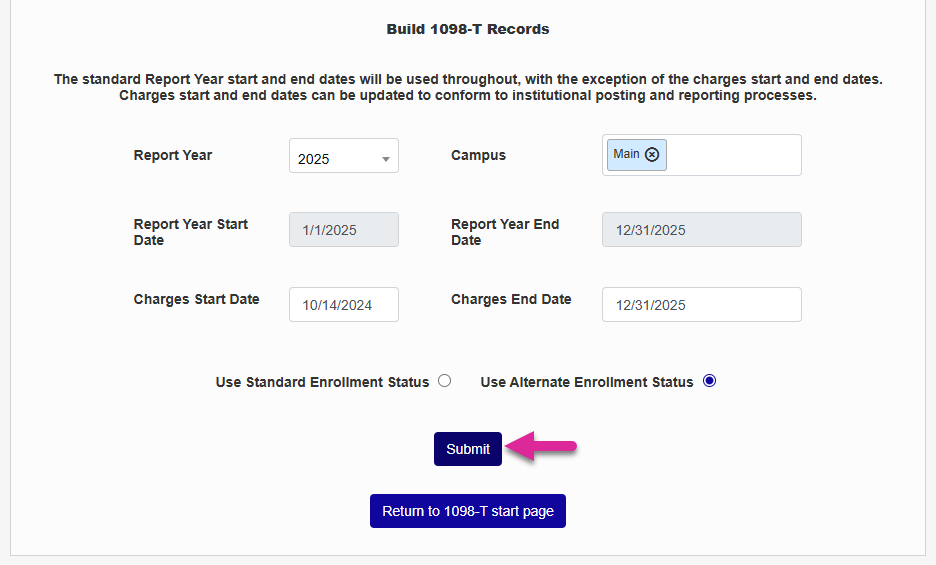
Click Submit to continue.
Edit
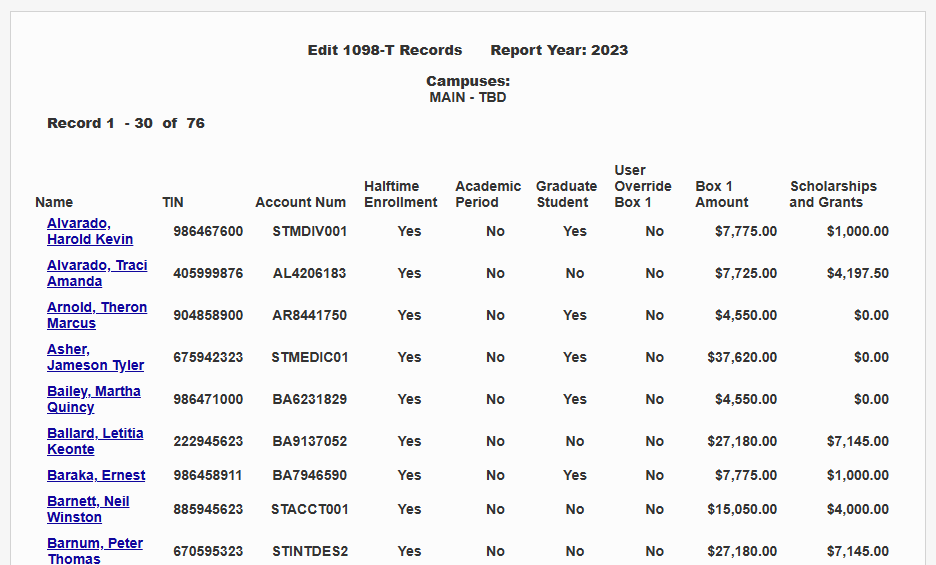
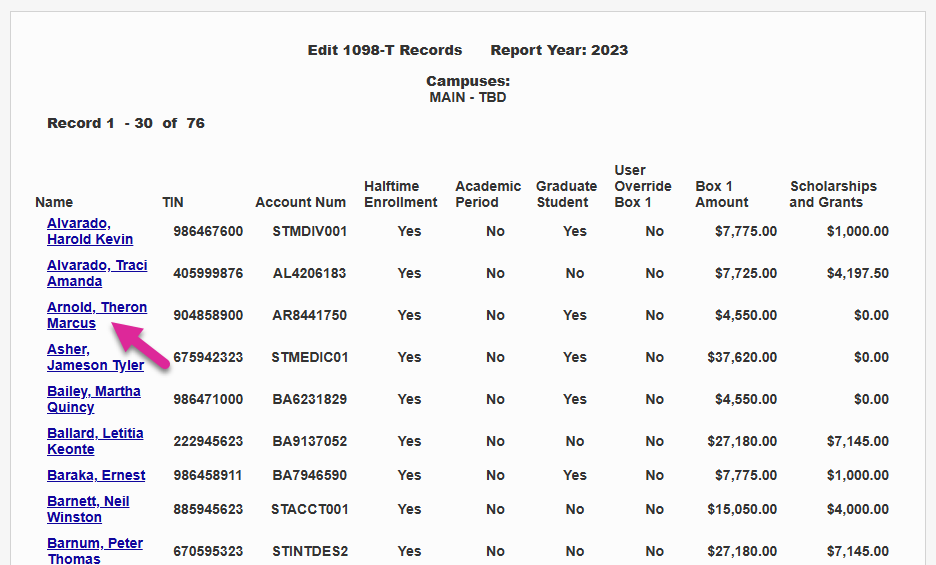
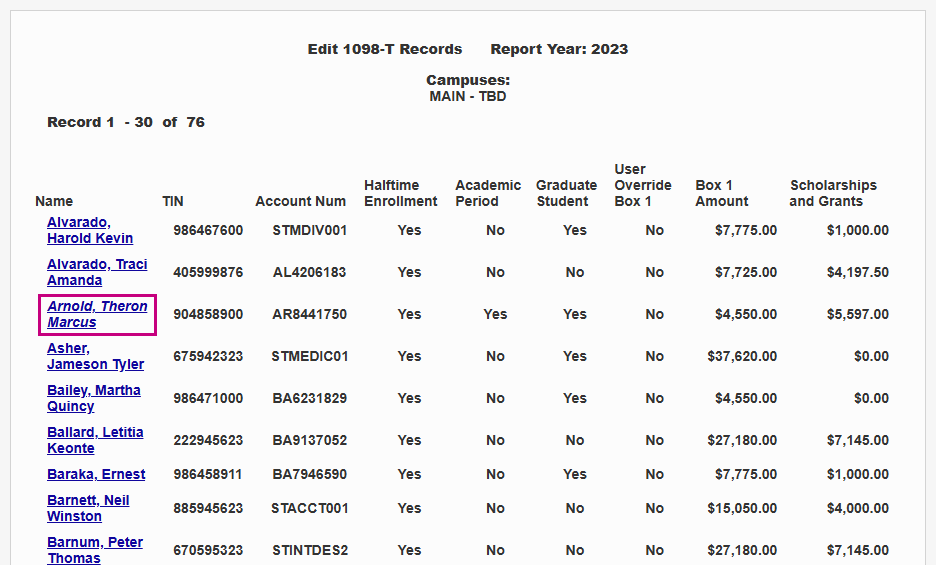
After clicking the Submit button on the build page, a page will display showing each student along with additional tax information and the following:
TIN: The student's tax ID number, typically their social security number.
Account Number: The student's SONIS ID.
Halftime Enrollment: Displays "Yes" if the student has enrolled at least half-time or "No" if the student is not.
Academic Period: Refers to Box 7 on the 1098-T. It will display "Yes" if the student paid for qualifying amounts applicable to the January through March period in the upcoming year. This happens if the school bills for spring charges in the prior year AND accepts and posts payments for those charges in the prior year.
Graduate Student: Displays "Yes" if the student is a graduate student and "No" if they are not.
Box 1 Amount: Displays the amount that will appear in Box 1 on the student's 1098-T. Student payments must be posted before they will appear here.
Scholarships and Grants: Displays the total amount of scholarship and grant money awarded to the student. Only payments that have been processed in SONIS will count towards this total.
An option to Export to Excel is provided, allowing the user to export the compiled students for record saving or ease of follow-up and data correction. Simply click the link and open the export from the pop-up or browser download.
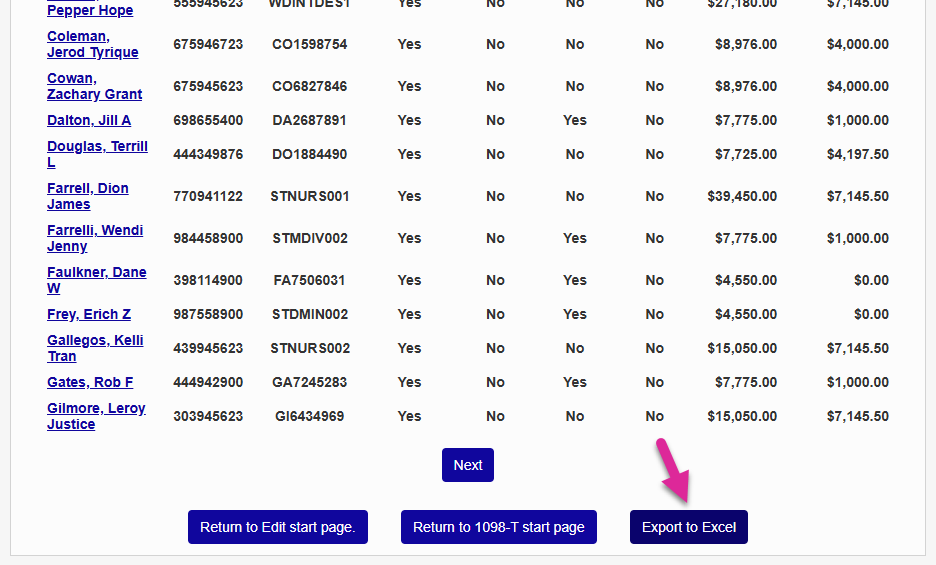

The export includes the following information, if applicable to each individual student:
Name
ID
TIN
TIN Type
Charges Balance Forward
Report Year Charges
Report Year Payments
Previous Year Payments
1098-T Box 1 Amount
Box 1 Override
Graduate Student
Scholarships and Grants
Prior Year Adjustments
Prior Year Scholarship Adjustments
Halftime Enrollment
Academic Period Box 7
Corrected
Exclude from 1098-T
Credits
Edited
If returning to the IRS 1098-T utility start page after creating an up-to-date build previously, click the Edit button. Click on a student's name to edit that student's 1098-T information.

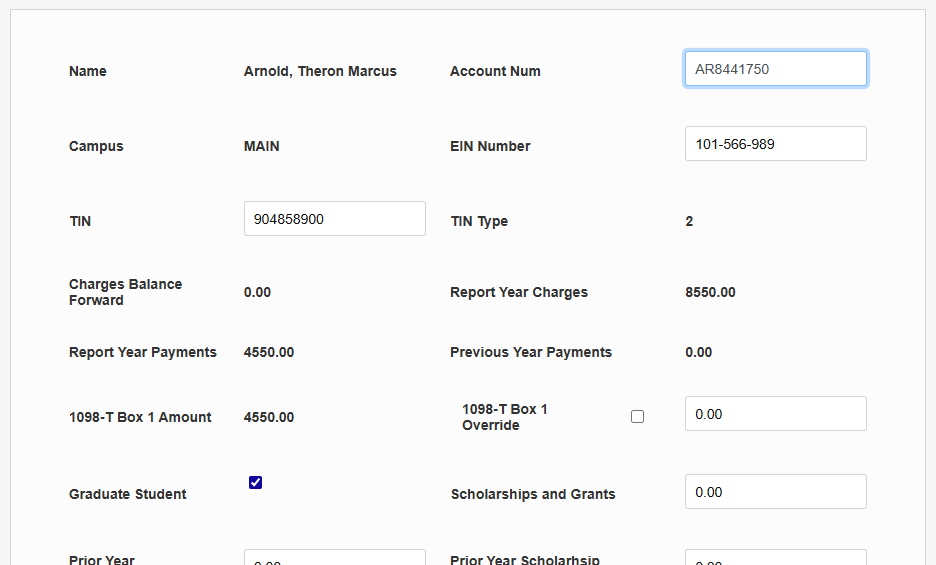
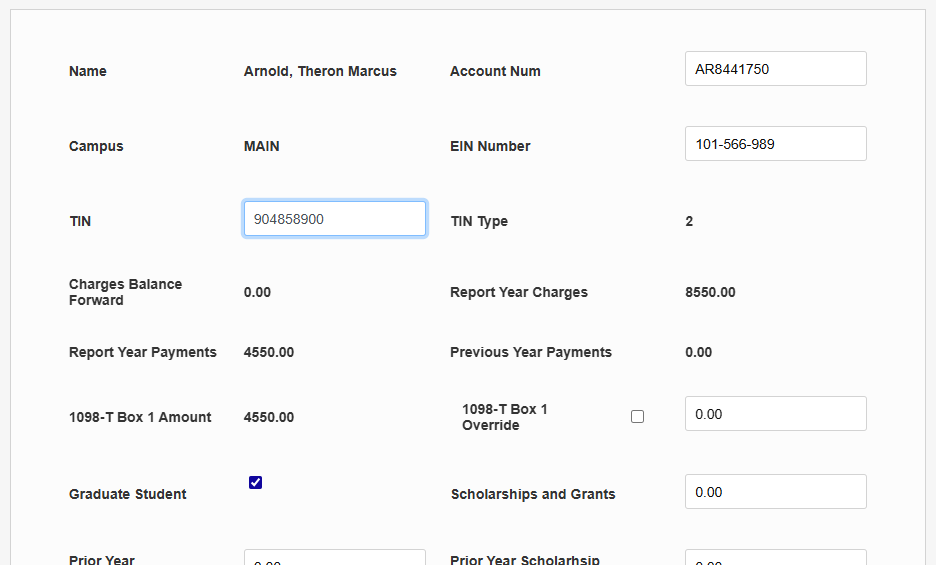
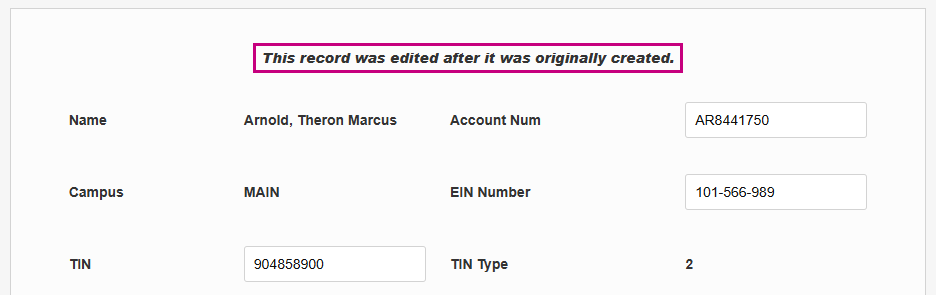
You can edit the student's Account Number and Tax Identification Number or change the Employer Identification Number that applies to them if the correct values differ from the standard values in SONIS for whatever reason.
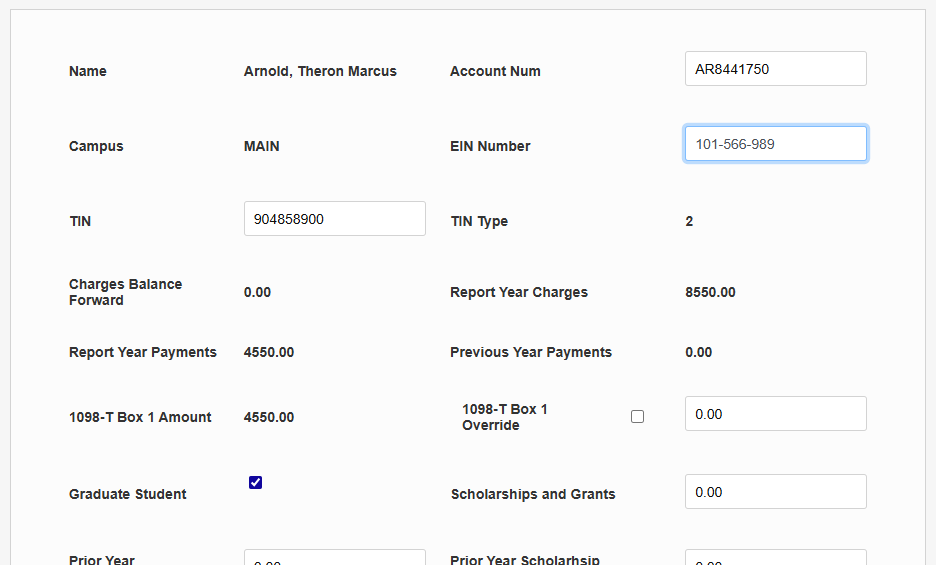
Note
If your school has more than one campus and each campus has its own Employer Identification Number, any students who were assigned to more than one campus/EIN through their Biographic page within the same tax year will have a 1098-T record for each campus.
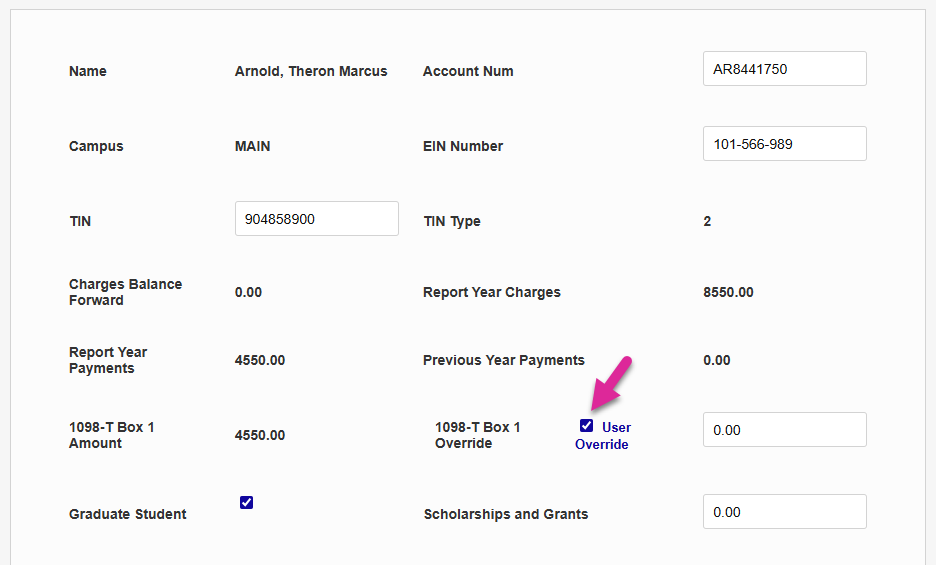
The student's Charges Balance Forward, Report Year Charges, Report Year Payments, Previous Year Payments, and 1098-T Box 1 Amount cannot be edited from this screen and must be changed by posting additional payments or charges. However, the 1098-T Box 1 information can be overridden if payments have been made outside of the SONIS system that should be included.
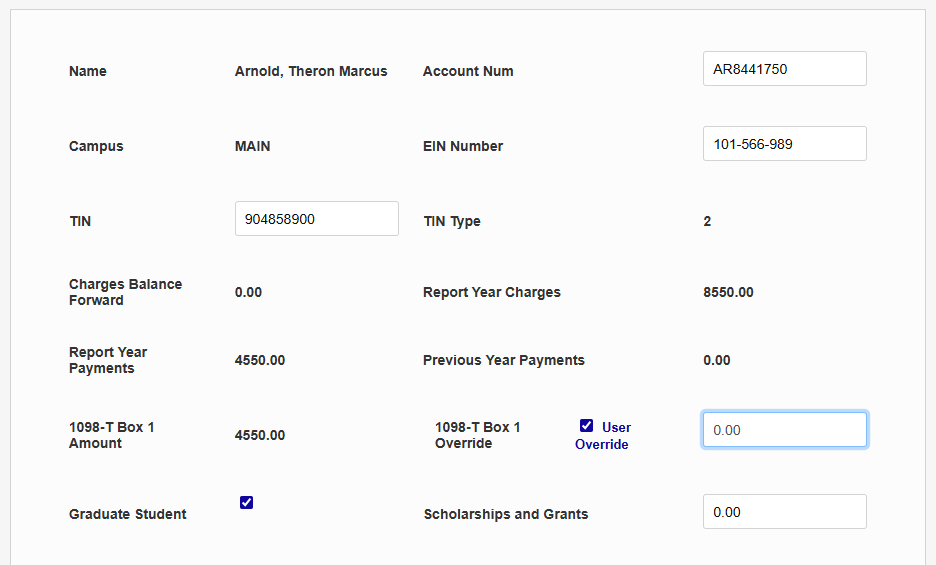
Check the 1098-T Override box to override the previously calculated value. Either update the Box 1 amount or click in and out of the amount field to leave the new Box 1 amount at "$0.00." A pop-up will appear asking you to confirm that you want to use the amount in the field. If you click Cancel, the box will be unchecked.
On the following row, administrators can check the Graduate Student box to change the student's designation for tax purposes and edit the total amount of Scholarships and Grants received by the student.
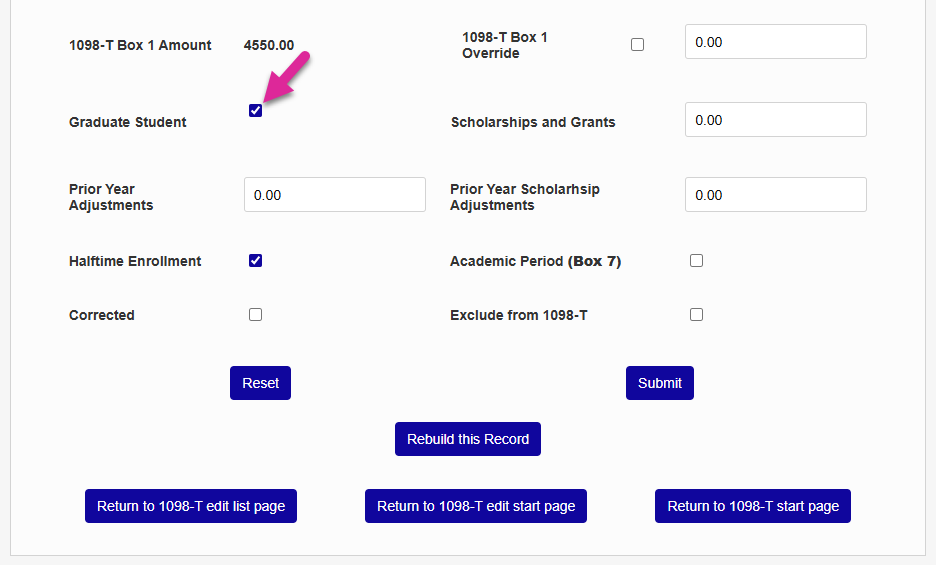
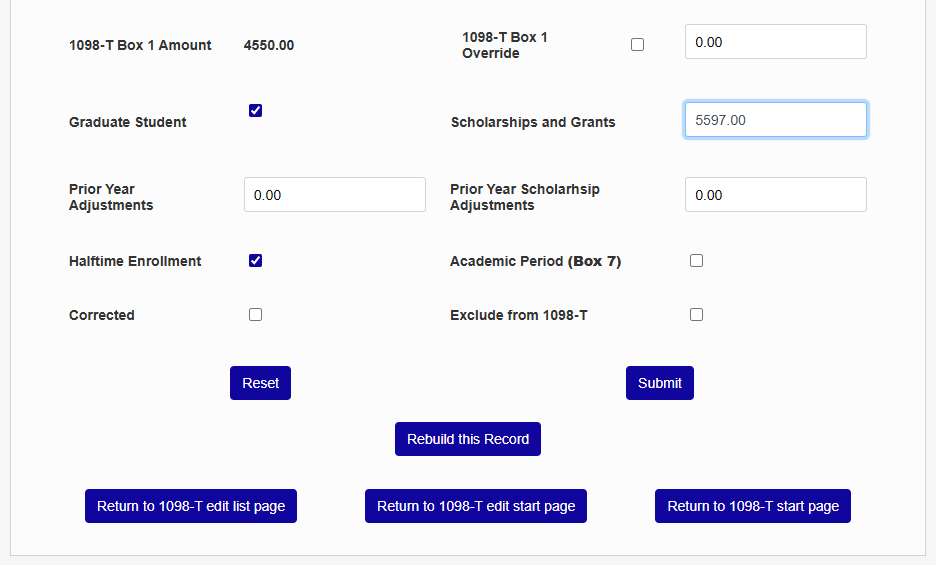
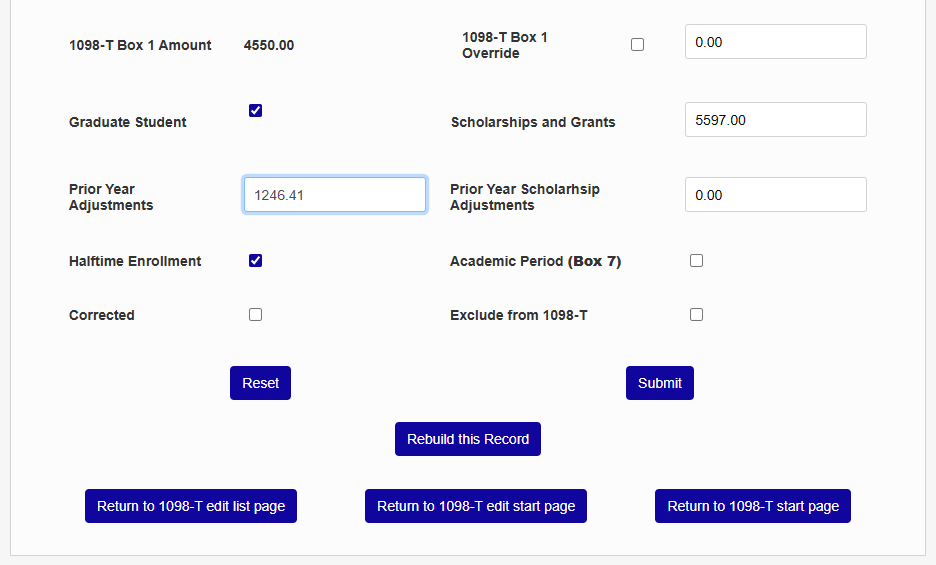
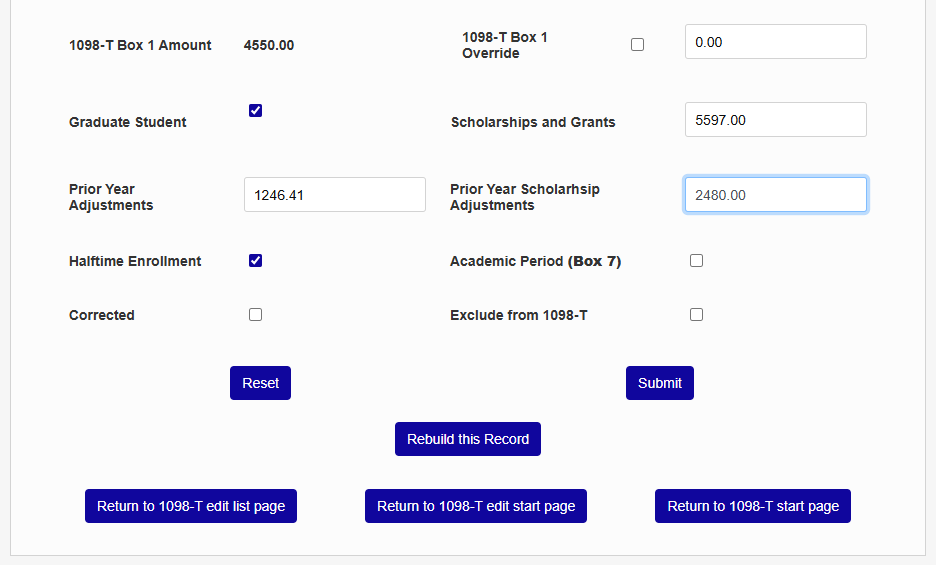
Note any Prior Year Adjustments and Prior Year Scholarship Adjustments in the boxes provided for these totals if such adjustments have been made.
Note
Employee Identification Numbers are stored when 1098-T records are built, ensuring that EIN changes only affect records going forward and do not change 1098-Ts from prior years.
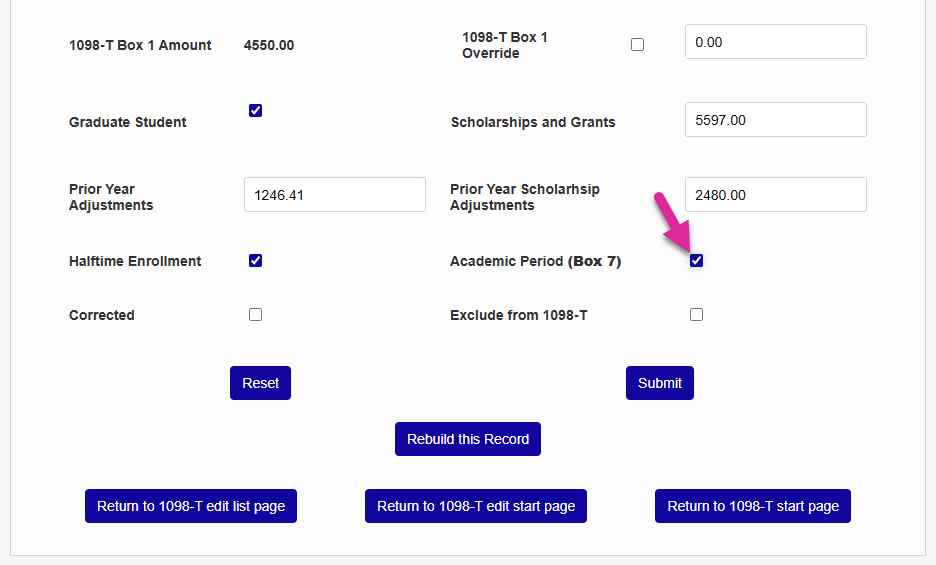
The Halftime Enrollment checkbox can be toggled if the student's status in the SONIS system is incorrect. This box should be checked if the student has at least half-time enrollment. As mentioned above, the Academic Period/Box 7 checkbox notes that the student has made qualifying payments for a semester in the upcoming calendar year and can be turned off and on from this screen.
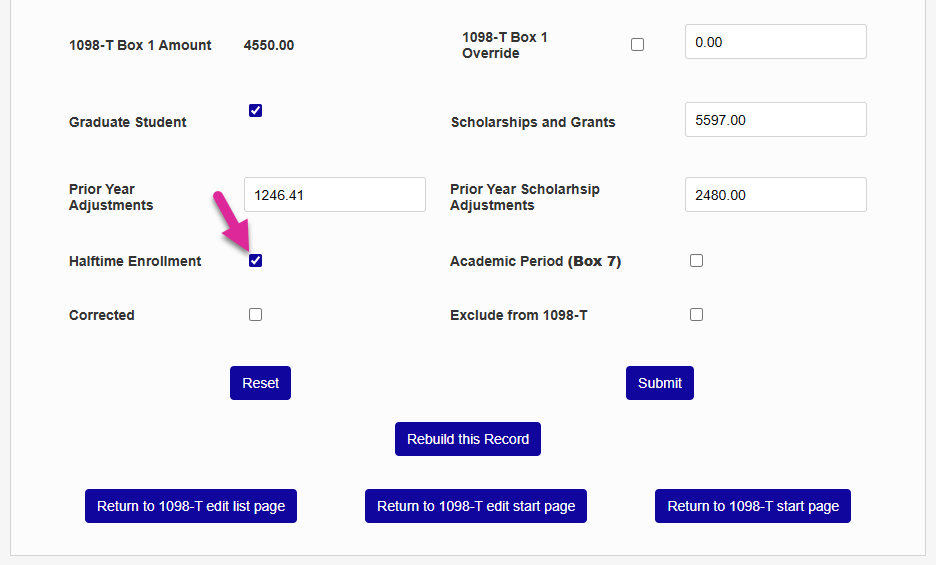
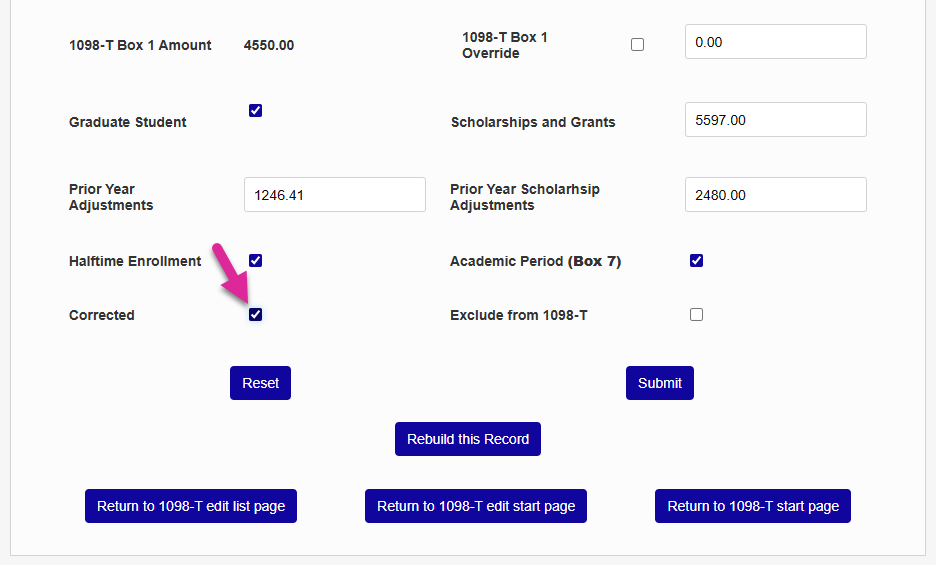
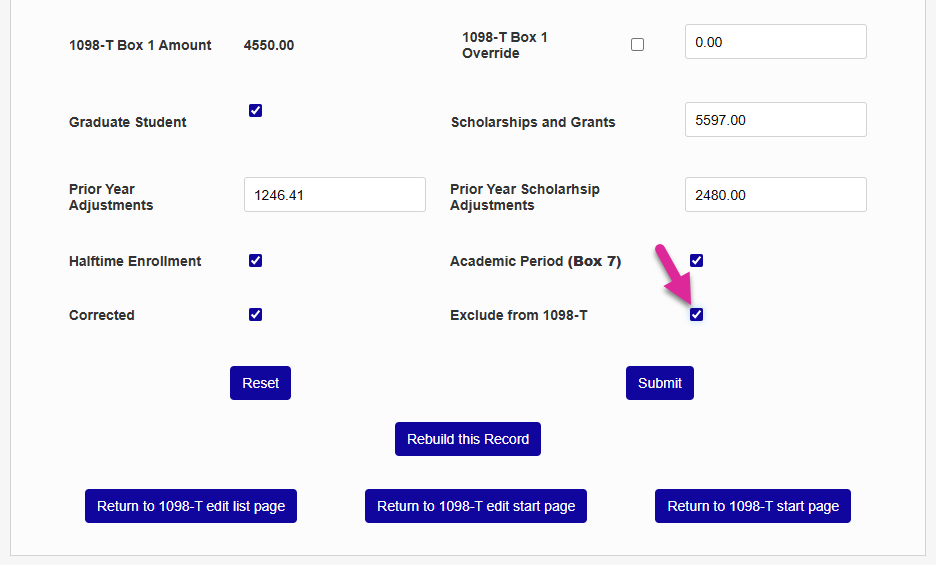
Check the Corrected box if edits have been made. Check the Exclude from 1098-T box if this student should not have a 1098-T form submitted.
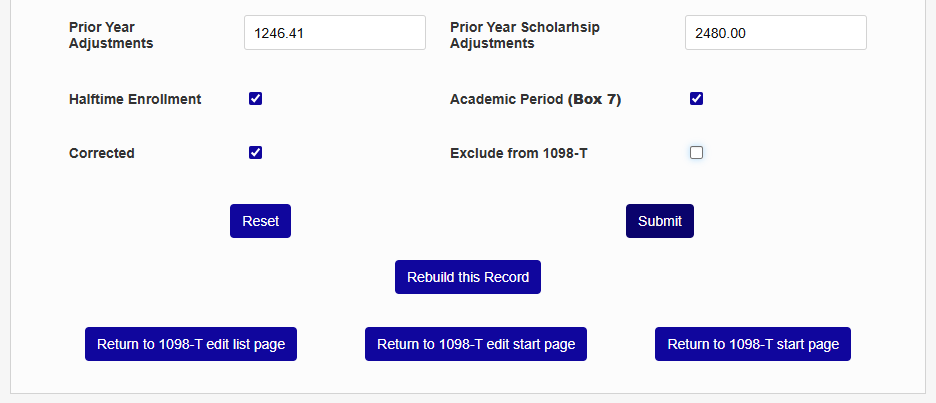
Click Submit to save any changes that have been made or use one of the bottom links to return to one of the previous pages. If changes are submitted, the text will appear at the top of the page noting that This record was edited after it was originally created.
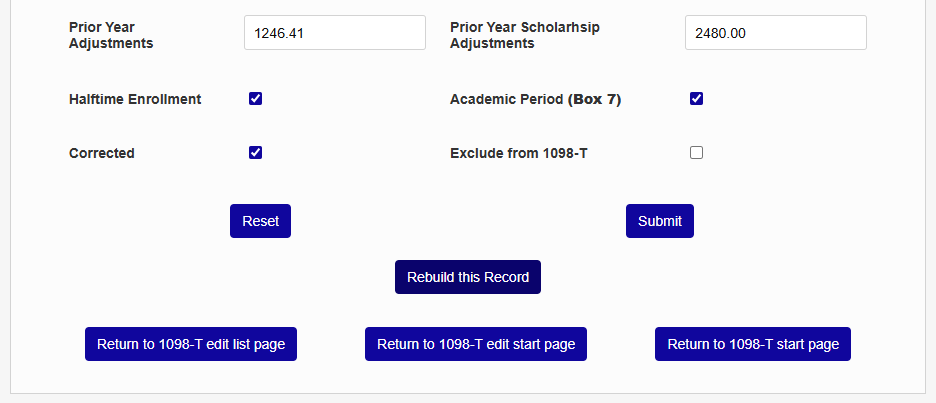
If a student has made payments or received scholarships/grants that should be posted in the SONIS system but were missed for some reason, you can post these payments and click Rebuild This Record upon returning to the page to refresh it with the new payments included.
When attempting to build a report, the SONIS system will interrupt this build if any changes to student pages have been made. You can choose to Rebuild All, which will overwrite any changes, Rebuild Unedited, which will build the rest of the list while leaving these changes intact, or Cancel. If the Rebuild Unedited button is chosen, any student account with unsaved changes will display in italics.
Export
From the IRS 1098-T start page, click Export to begin the export process.

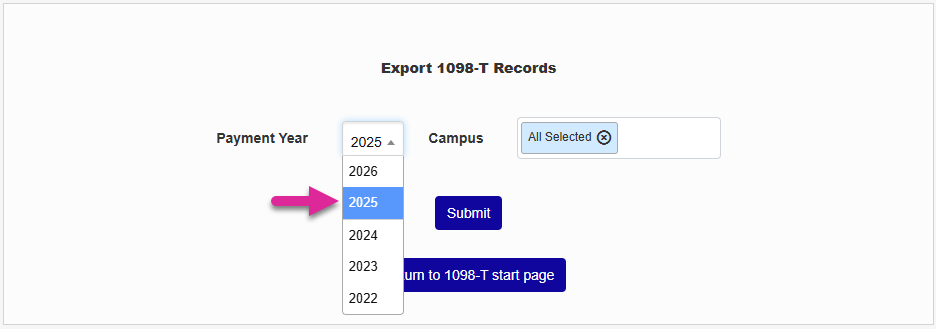
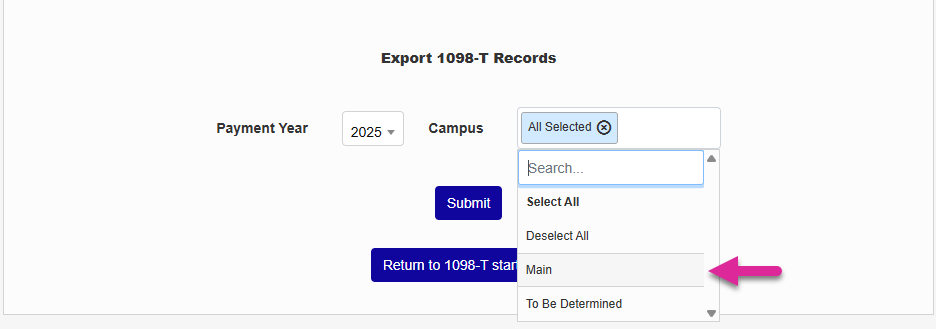
Select a Payment Year for the export file. As in the build creation process, the export file can be narrowed down by campus, or all campuses can be included depending on school needs. Click Submit to continue.
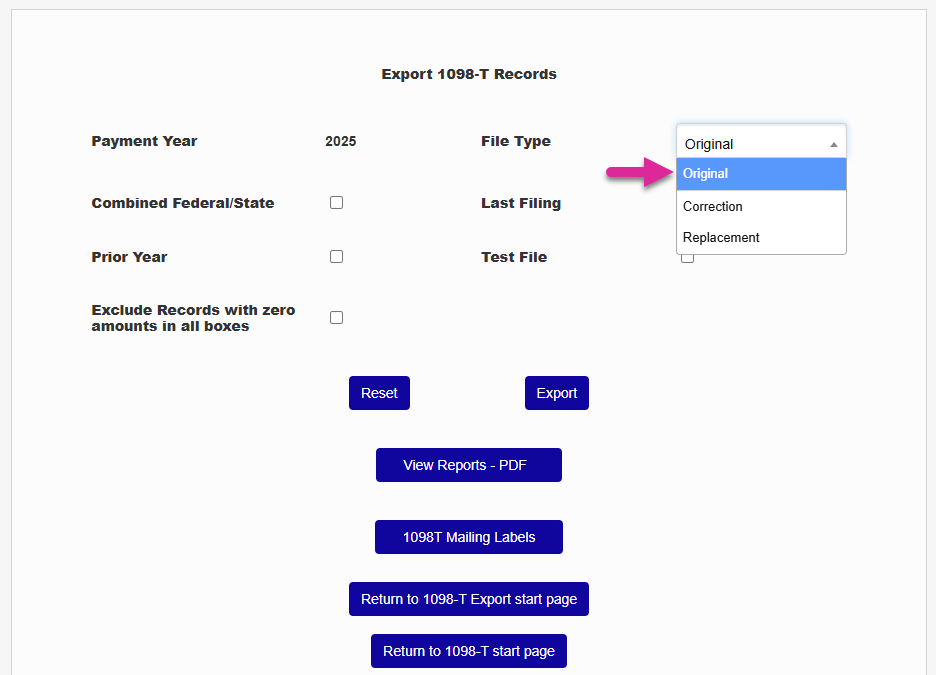
At the top of the page, select a File Type. There are three types offered.
Original: The first file uploaded for a given reporting year.
Correction: A file that includes only student records that have been corrected.
Replacement: A file that replaces a previous file. Includes all student records not flagged to be excluded. A notation in the Header Record of the export file will alert the IRS of the replacement status. Only send a replacement file at the request of the IRS because of errors encountered while processing your original file or a previous replacement file.
Select the appropriate file type from the dropdown menu.
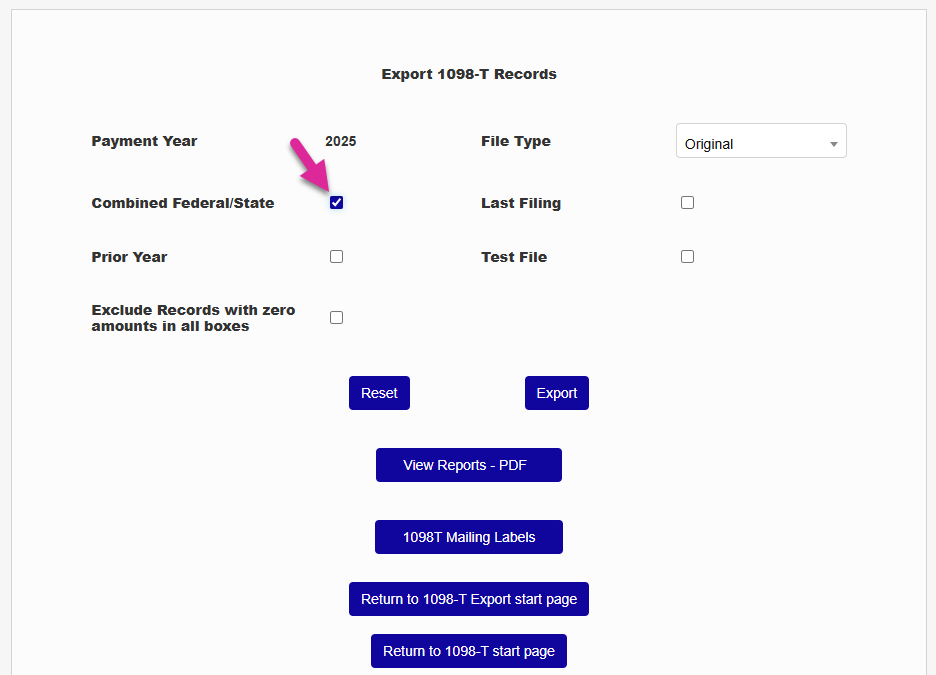
The Combined Federal/State checkbox can be checked if the state where the school files accepts the same export file that is uploaded to the IRS. The Last Filing checkbox only applies to schools that are ceasing operations and will not be filing 1098-T forms in the future. It should be left unchecked in all other instances.
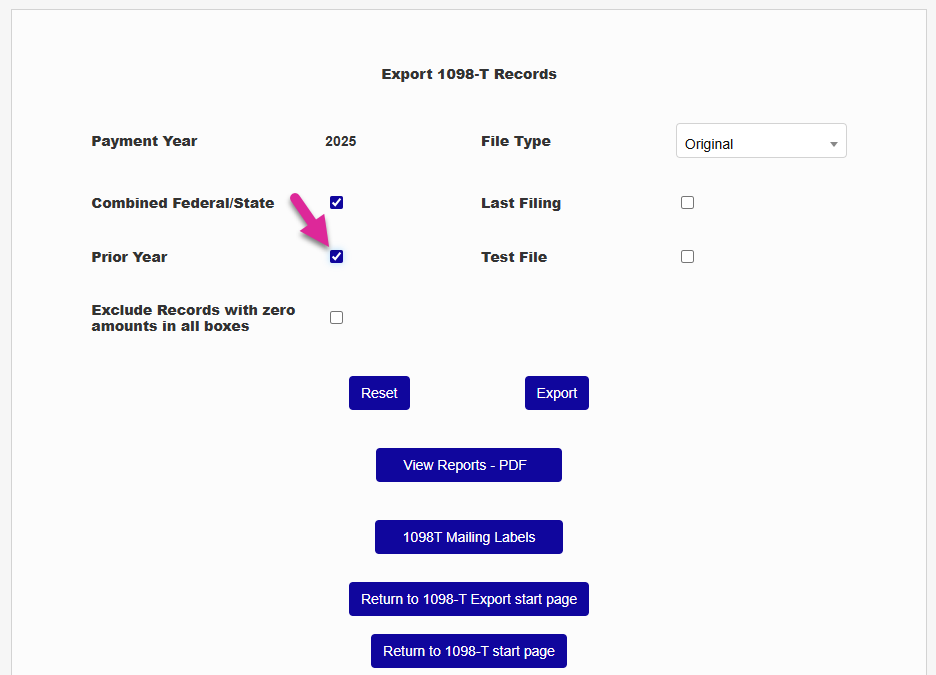
Check the Prior Year option if you're resubmitting a file from a previous year. Leave it unchecked otherwise.
If the Test File checkbox is selected a file will be uploaded to the IRS to have it validated. Schools that generate an export file in SONIS for the first time or change reporting methods may wish to take advantage of this feature. Test files should be created using the Original file type.
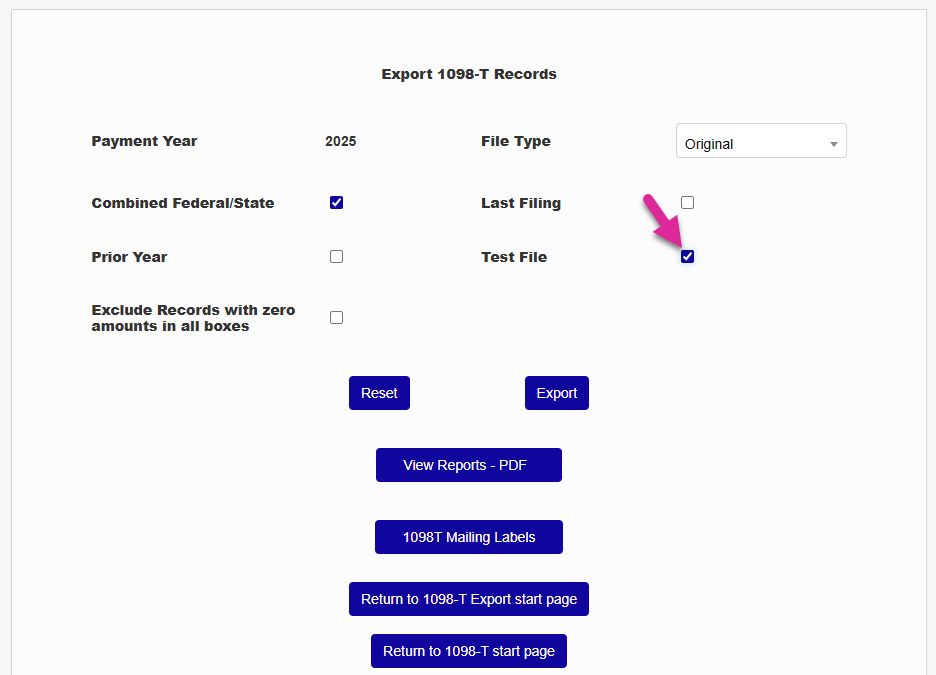
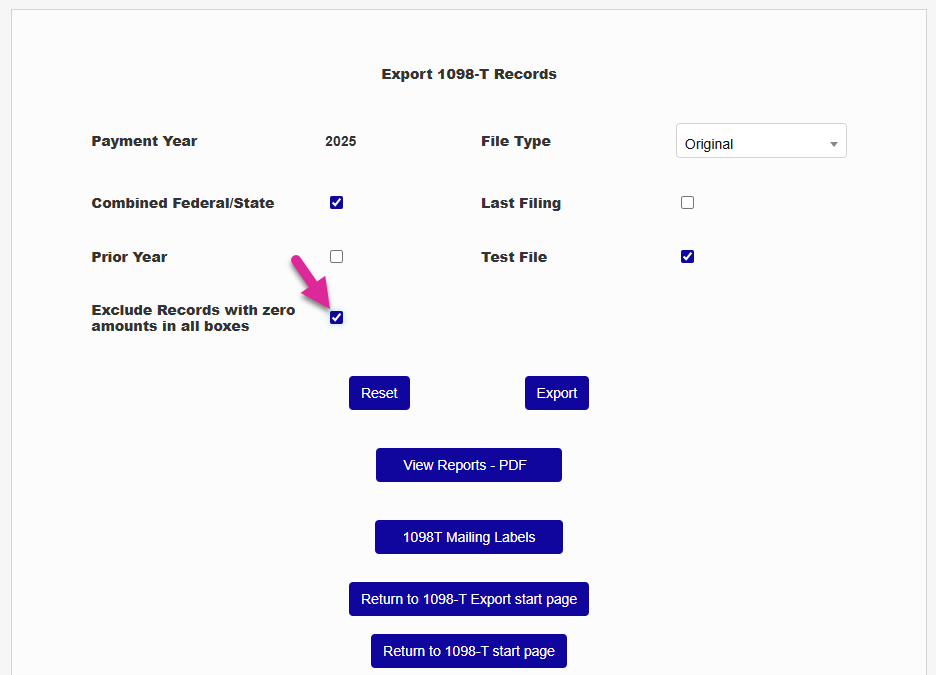
The Exclude Records with zero amounts in all boxes option creates a file that excludes anyone calculated to have only zero amounts without checking the Exclude from 1098-T checkbox on individual records. Records of this type will only exist if the students had qualifying charges posted in the reporting year and no qualifying payments posted in the reporting year or for prior years.
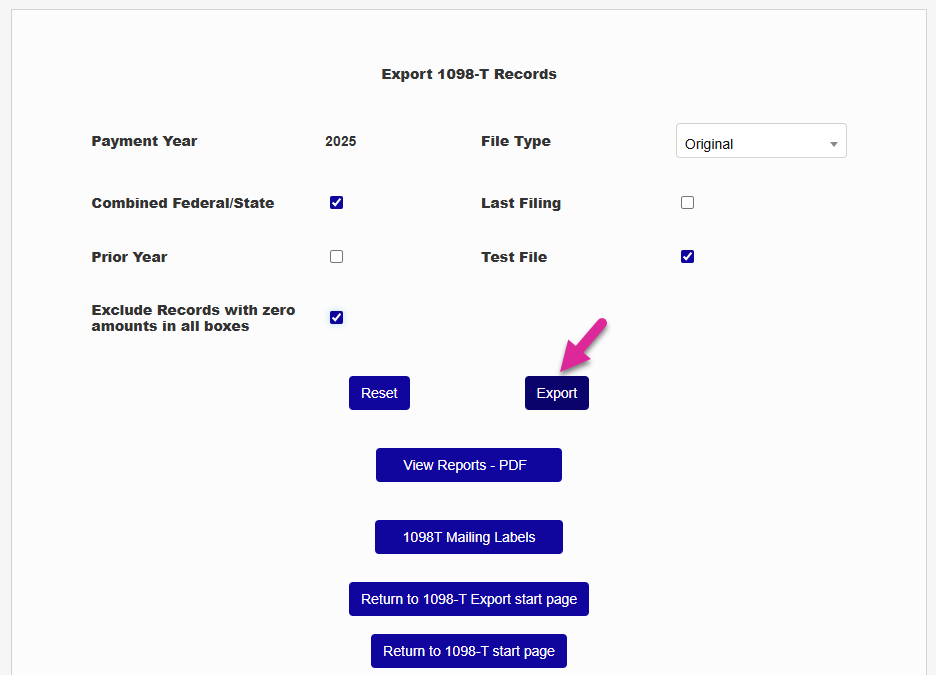
Click Export to continue the process. The file will be saved in .txt format in the SONIS Batch Folder.
View as PDF
1098-T reports can also be viewed as a PDF file from the Export page. Click View Reports-PDF
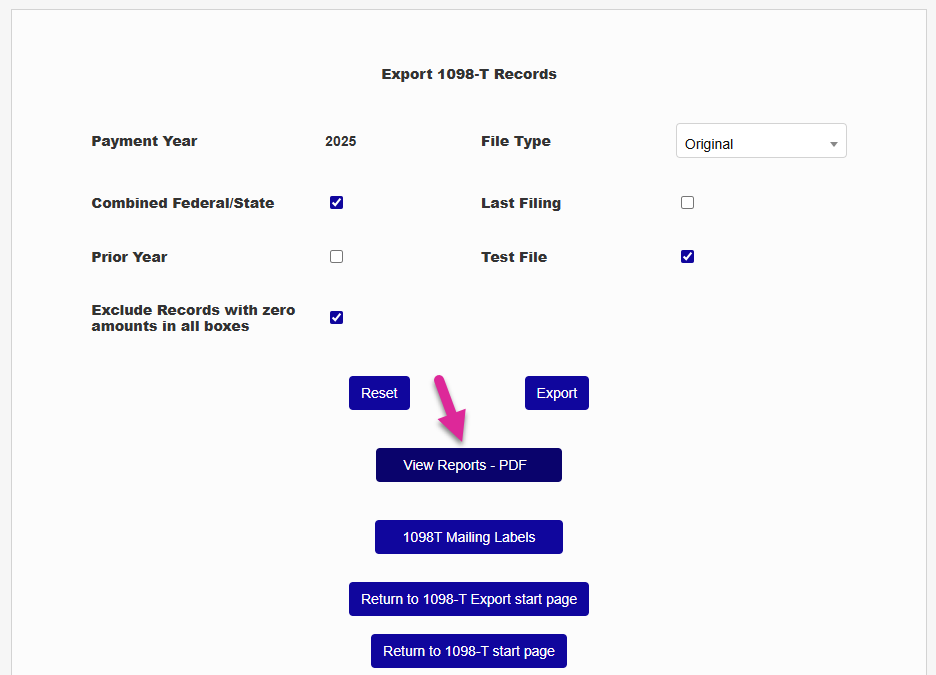
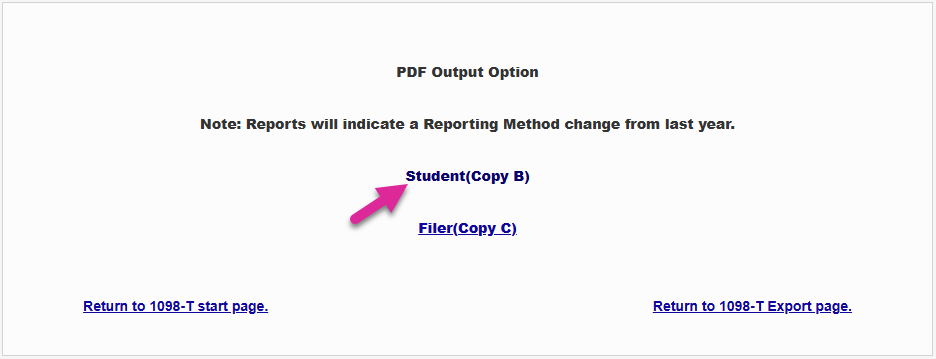
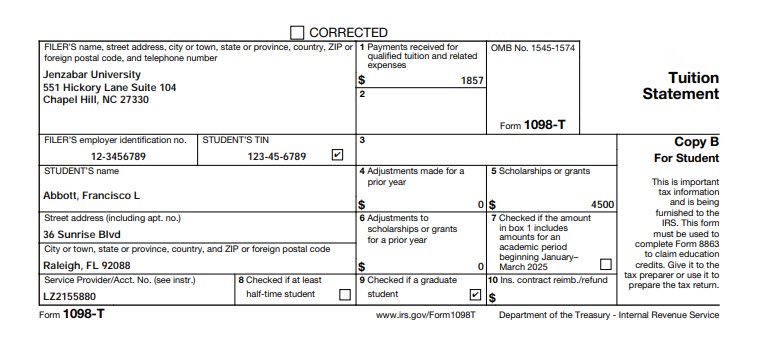
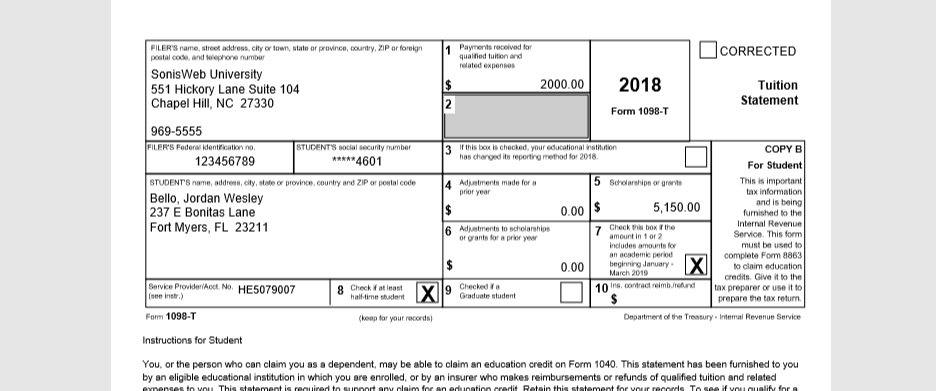
The following page will offer a Student copy that can be printed and mailed to students or a Filer copy for record-keeping purposes. The Student copy will include the current instructions for using the 1098-T when preparing tax returns whereas the Filer copy does not include these instructions. Click on the appropriate link. The PDF will open in a new window. An example1098-T is displayed below.
Mailing Labels
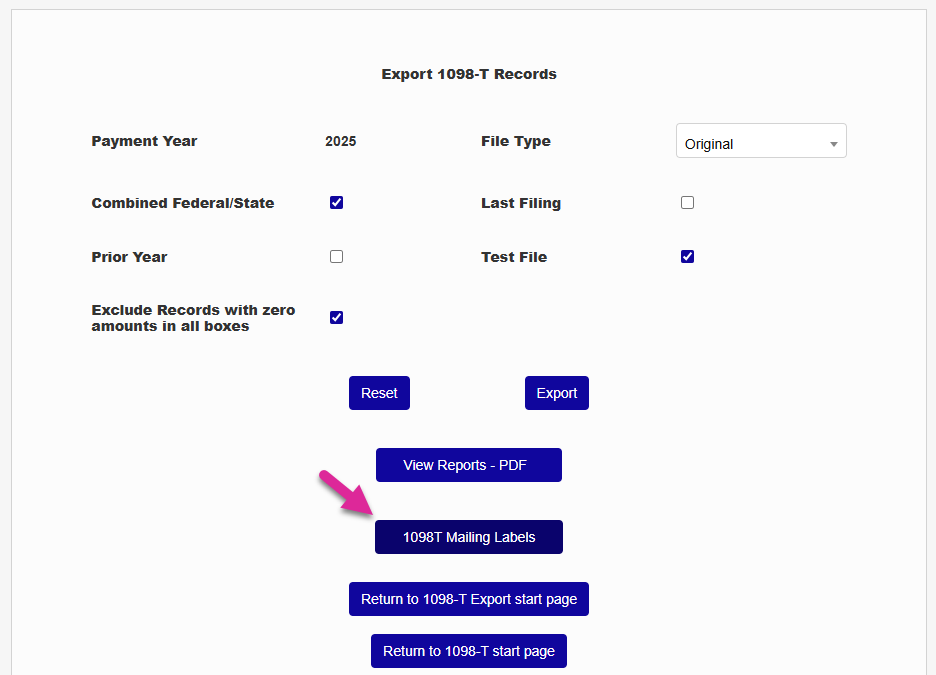
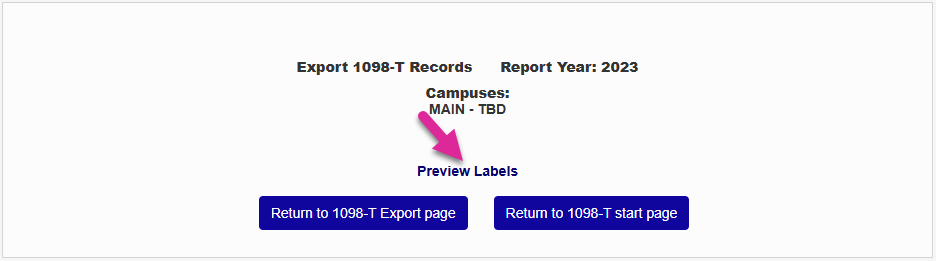
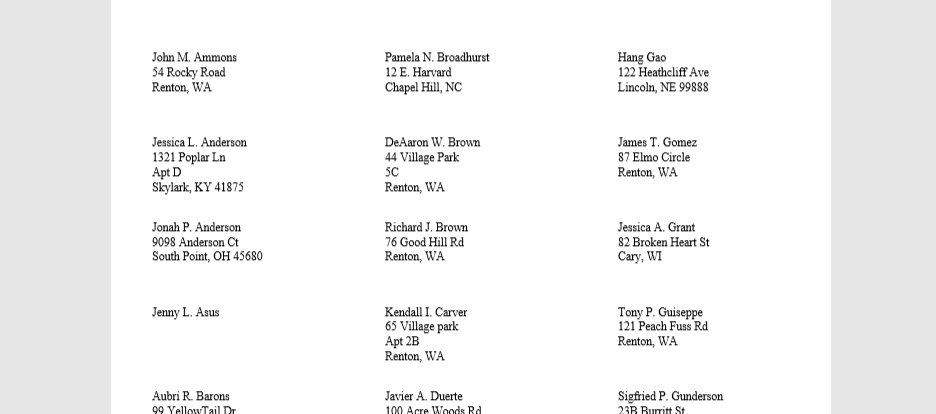
Jenzabar SONIS offers mailing label functionality for users who wish to mail a physical copy of their 1098-T forms to each student. Click 1098T Mailing Labels and then Preview Labels. The labels will open in a new window.
Student and User Portals
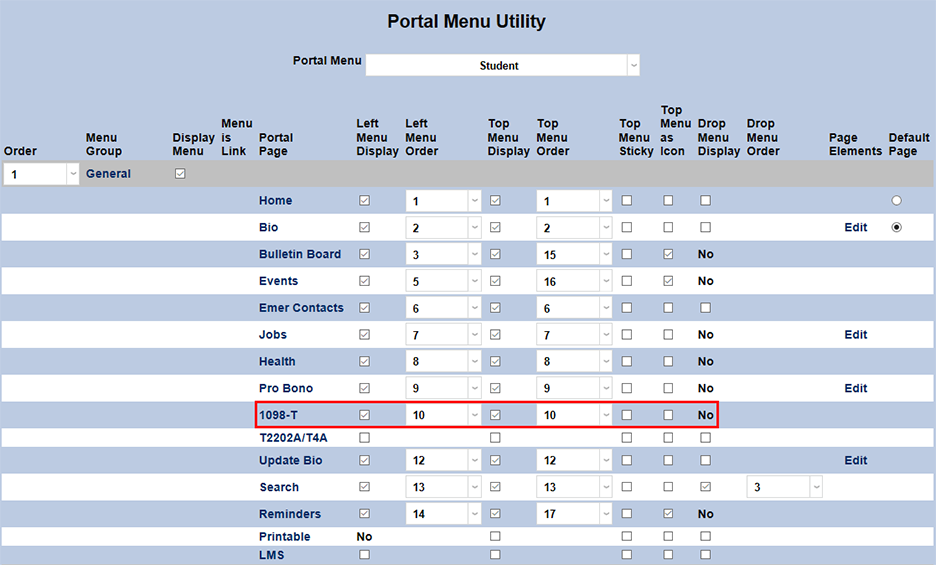
SONIS also includes the option of allowing users to download a copy of their 1098-T form from their portal. To activate this option, navigate to the Portal Menu Utility in the Systems hub and select the appropriate portal from the dropdown menu. In this example, the Student portal is being setup.

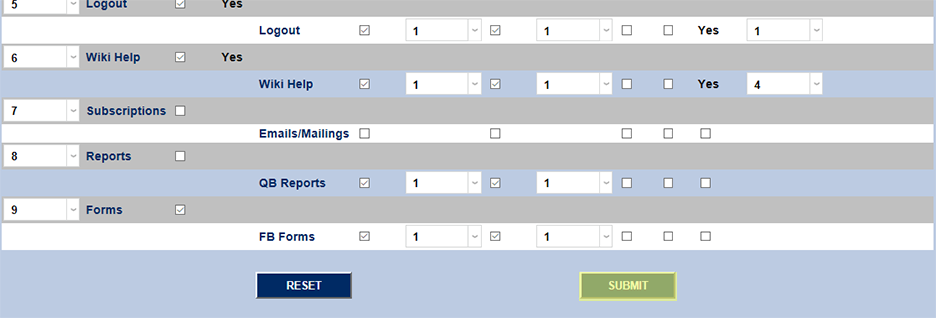
Check the Left Menu Display and/or Top Menu Display boxes next to the 1098-T link. In this row, administrators can change the order of the menu items using the dropdowns, make it a top menu sticky, or choose to display it as an icon rather than text. The display name of the portal page can also be changed by clicking on the link itself. Click Submit to save changes.
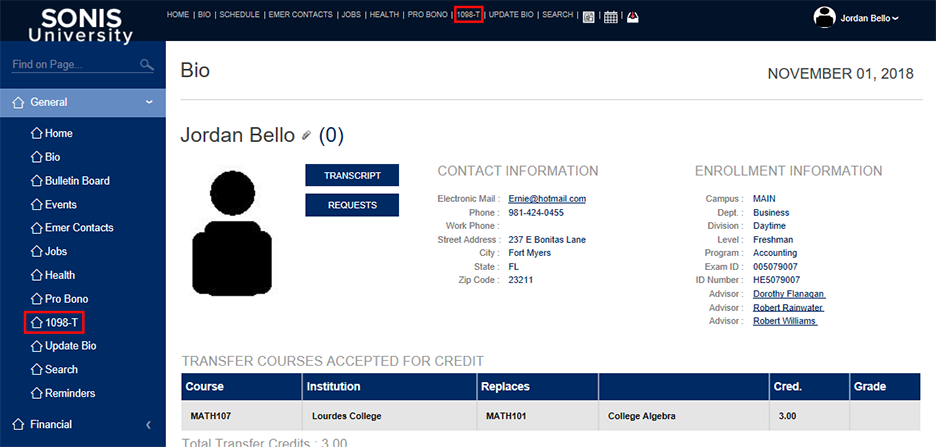
When logged into the student portal, students will see a link to their 1098-T form either in their top nav, left nav, or both depending on the options selected during the Portal Menu Utility setup of the portal. Clicking on either of these links will take the student to the download page, where they can open their 1098-T forms in PDF format and save them for their personal records if they so choose. Each 1098-T form they've been issued will appear in a dropdown menu, and a download button for each one will be created once they're selected. All the user portals provide the same functionality.

Note
If your school has more than one campus and each campus has its own Employer Identification Number, any students who were assigned to more than one campus/EIN through their Biographic page within the same tax year will have a separate 1098-T record displayed for each campus.
Electronic Filing
SONIS requires schools to file 1098-Ts electronically with the IRS via the FIRE (Filing Information Returns Electronically) system. Complete information on applying and filing online can be found in IRS Publication 1220 at this link. Upon approval, each school will be given a unique TCC code. This code must be entered on the School Info page in the Systems hub.