Course Equivalency
Overview
The Course Equivalency utility is used to designate courses as equivalent for two primary reasons. Firstly, it's often needed to create a prerequisite or corequisite substitute for another course, either a course from another department that not all students have access to or a old course that's no longer offered. Alternately, institutions can use Course Equivalency to create auto-repeat courses that can be used for grade replacement. A student who did poorly at one course can take the equivalent course to improve their grade.
Note
The Course Equivalency utility should not be used for transfer courses. To create transfer courses that are equivalent to home institution courses, create these courses using the Course Search page.
Auto-Repeat
To allow equivalent courses to be repeated as a grade replacement, some setup is required. Navigate to the Web Options page in the Systems hub and check the Auto-Repeat Courses box. When this box is checked, a student taking a course a second time or taking an equivalent course has the grade of the second course substituted for the grade of the first.

Note
Using equivalent courses as automatic replacements can cause issues if students actually want to take both courses for credit. Replaced courses still appear on a student's transcript, but do not factor into their GPA.
Course Equivalency Utility
Creating Equivalency
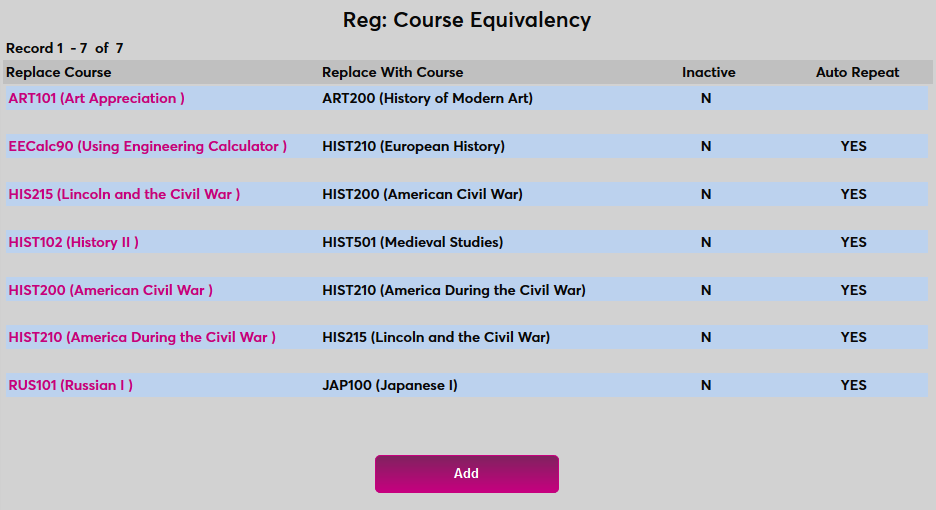
To create a new course equivalency, navigate to the Course Equivalency utility under the Systems menu and click Add.
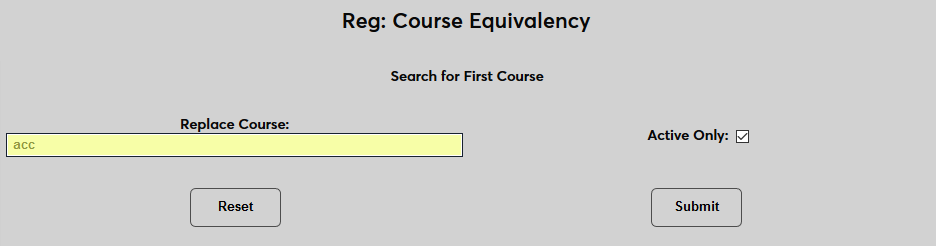
On the following page, type in a search term in the Replace Course box. This can be either the course number or the description.
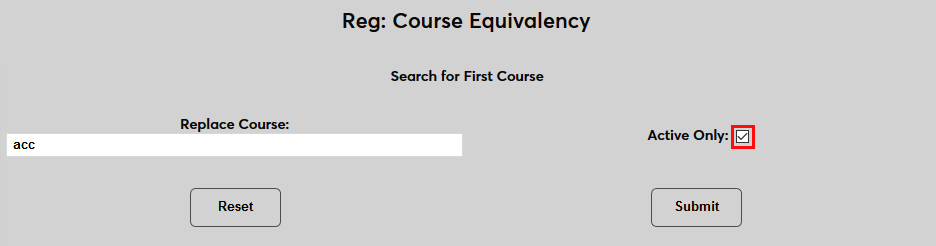
Leave the the Active Only box checked to include only active courses in the search results or uncheck it to include inactive courses as well. Click Submit to search.
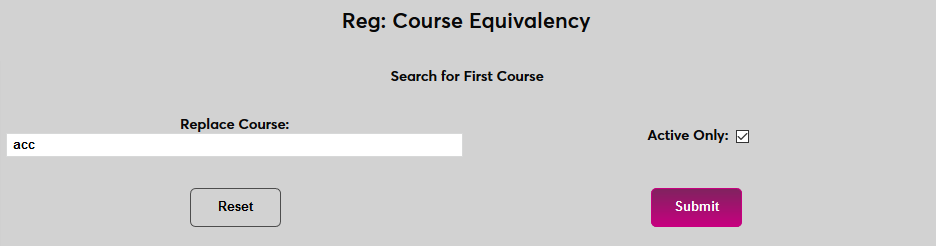
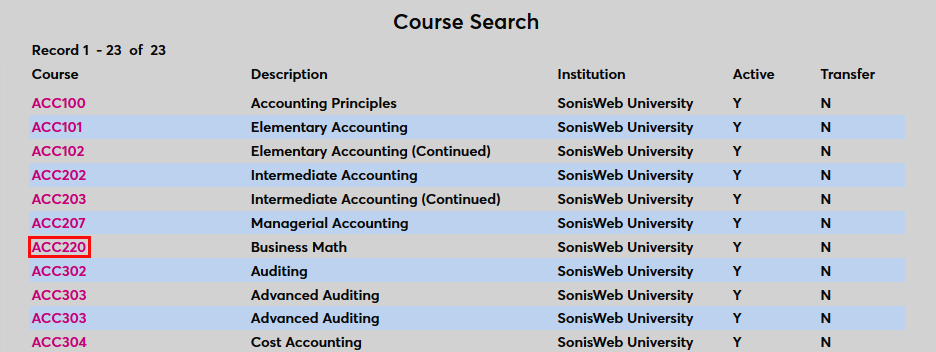
On the results page, select a course from the list to continue.
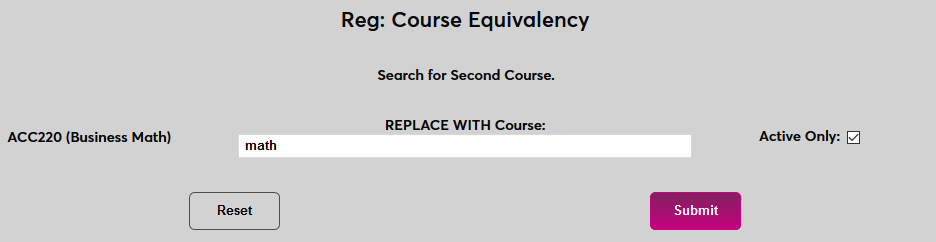
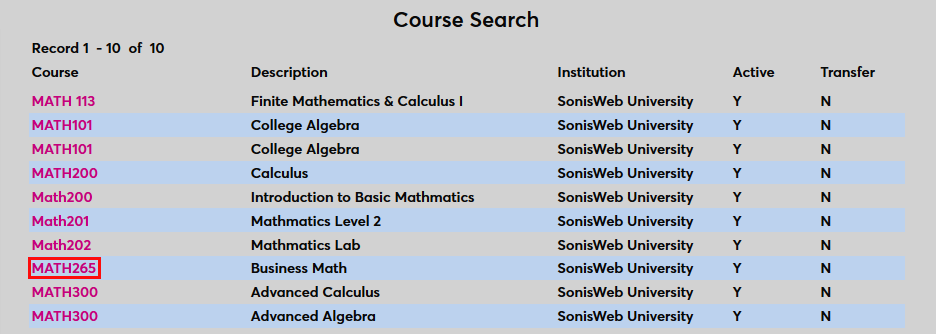
Once the first course has been selected, perform a second search find the course that will be replace that course. Select the course from the results.
If the Skip Auto-Repeat box is checked, this equivalency cannot be used to repeat a course and will not trigger automatic grade replacement. The equivalency will only be used for corequisite and prerequisite checking.
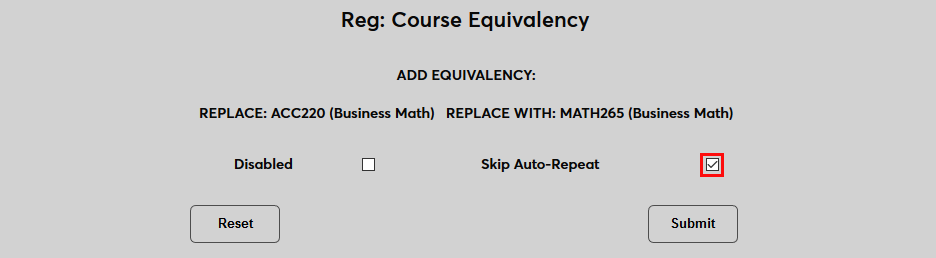
Click Submit to save the changes and mark the courses as equivalent.
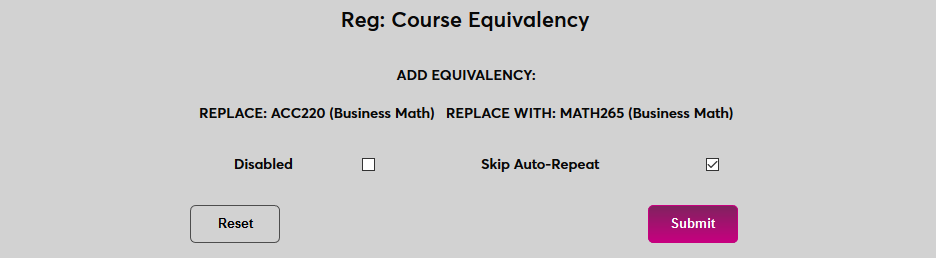
Note that, for two courses to be equivalent to each other, a second equivalency must be created with the Replace With course selected first.
Editing Equivalency
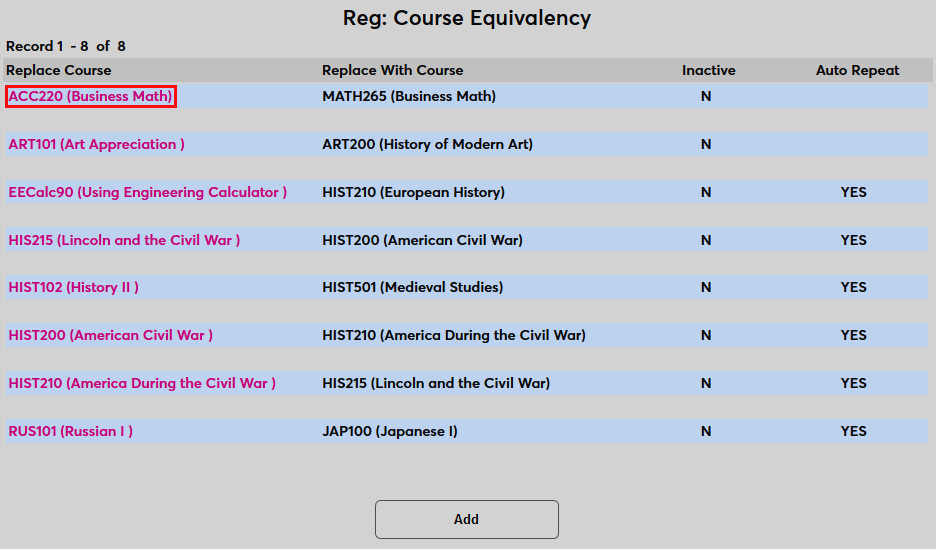
Once an equivalency has been created, click on the Replace Course link to edit the relationship.
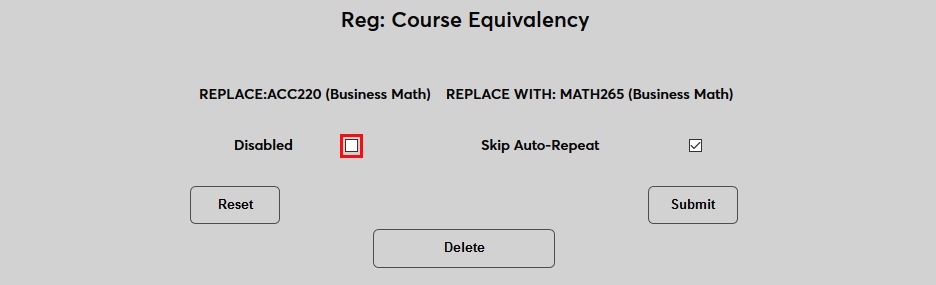
On the following page, the Skip Auto-Repeat setting can be edited. Check the Disabled box to prevent the equivalency from being used or the Deleted button to remove it altogether.
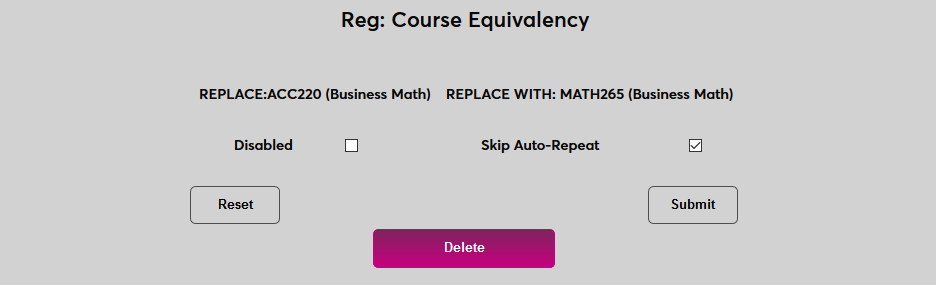
Once a course equivalency has been used in registration, it cannot be deleted.
Course Add/Edit
Once an equivalency has been created, the Replace With Course is listed under the same name as the Replace Course with an (E) beside it in the Prerequisite list and the Corequisite list on the Course Add/Edit page. Select both when setting up the course to allow either the original course or its equivalent to satisfy the prerequisite or corequisite requirement. Or select only the original course and not the [Course](E) option to allow only the original course to fulfill the requirement.

Student Courses
Equivalent courses that have been replaced or taken as a replacement are marked in the student's Courses record.

