Biographic
Overview
The Biographic page, available in the Users hub, captures the basic description of a student (ST), a faculty member (FA), an applicant (AP), Online Applicant (OA), an alumna or alumnus (AL), a staff member (SF), a prospective student (PS), Withdrawn Student (WD), or a constituent (CO). Administrators with appropriate User Security are able to edit information on this page.
Not all schools use all of the information in this display.
Gender & Ethnicity
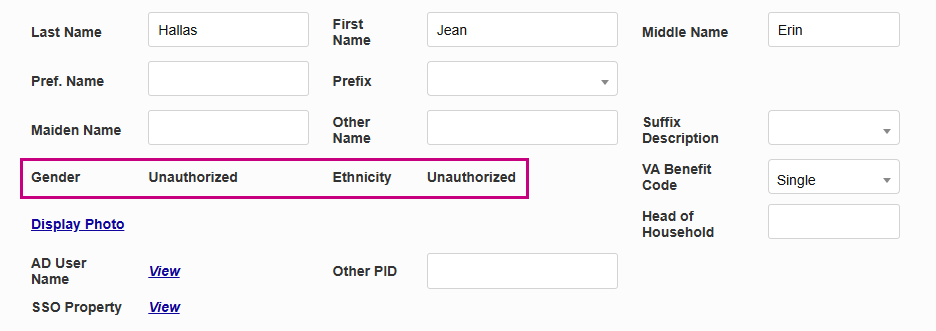
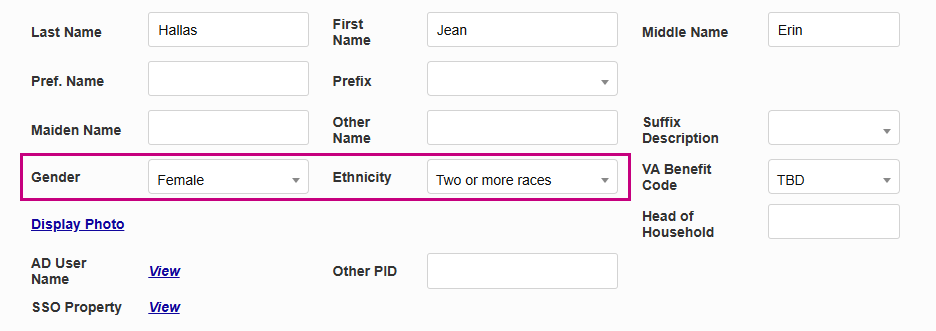
To safeguard privacy, the SONIS system prevents administrators from viewing or editing a user's ethnicity or gender unless they've been granted the Ethnicity Access and/or Gender Access User Security permissions.
Note
These permissions are also needed to view or edit a user's gender or ethnicity anywhere else in the system, including the Admissions Hub, the User Summary page, the Citizenship/Ethnic IPEDS record, and any report that contains gender or ethnicity information.
Exam ID
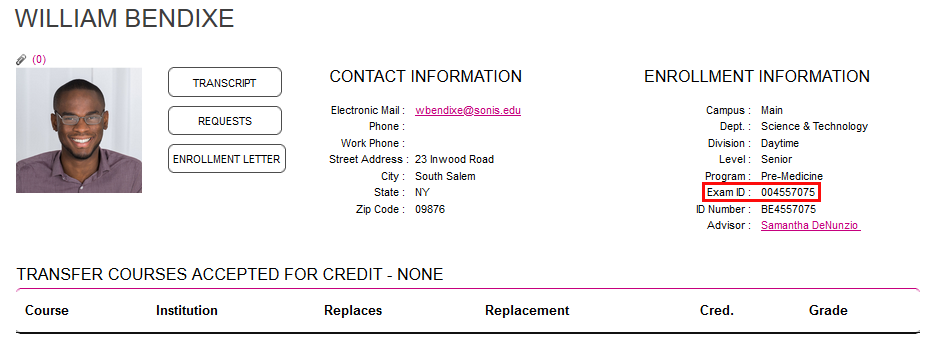
Exam IDs are designed to allow instructors to grade exams and other course material anonymously. Exam IDs can be viewed and edited by administrators with the appropriate permissions from this page.
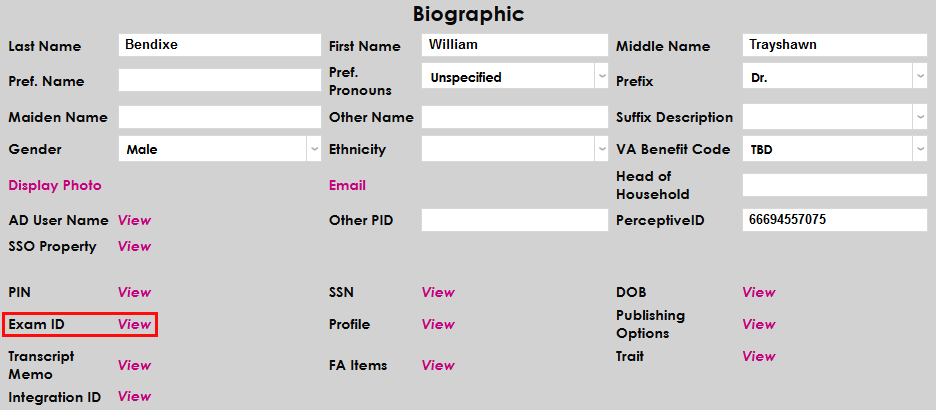
Edit the ID manually and click Submit or click the Generate ID button to generate a new number programmatically that will not match any existing exam ID.

Web Options
While Exam IDs can still be stored in the system and used for other purposes, they only provide anonymity within SONIS when the Use Exam ID option in Web Options has been turned on.

When the Use Exam ID box is checked, students are still listed by their name in the course roster in the Faculty portal, but their name is replaced by their exam ID in the Gradebook.
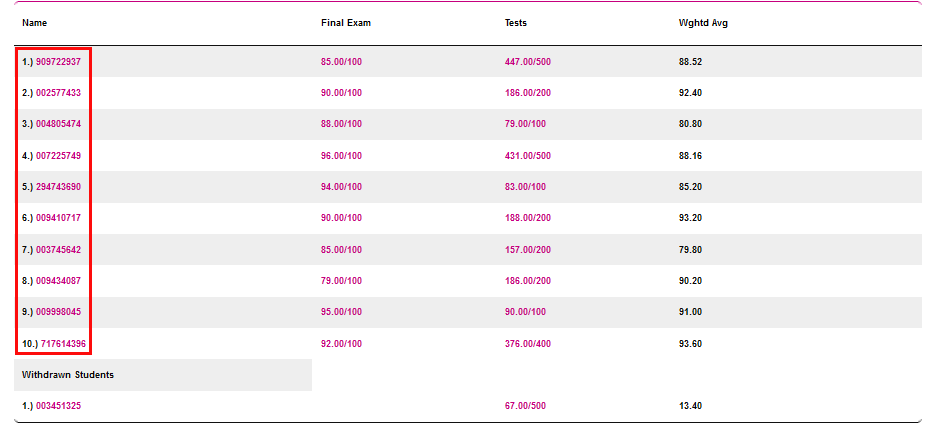
There's also a web option that controls whether students have access to their own exam ID or not. If the Allow students to view Exam IDs option is active, each student's ID will be listed on their Bio page in the Student portal. If the option is turned off, it will not appear.

Exam ID Utility
Exam IDs can also be updated in bulk using the Exam ID Utility.

Alternate Name Search
Administrators can also search for users by their exam ID using the Alternate Name Search.

Preferred Name
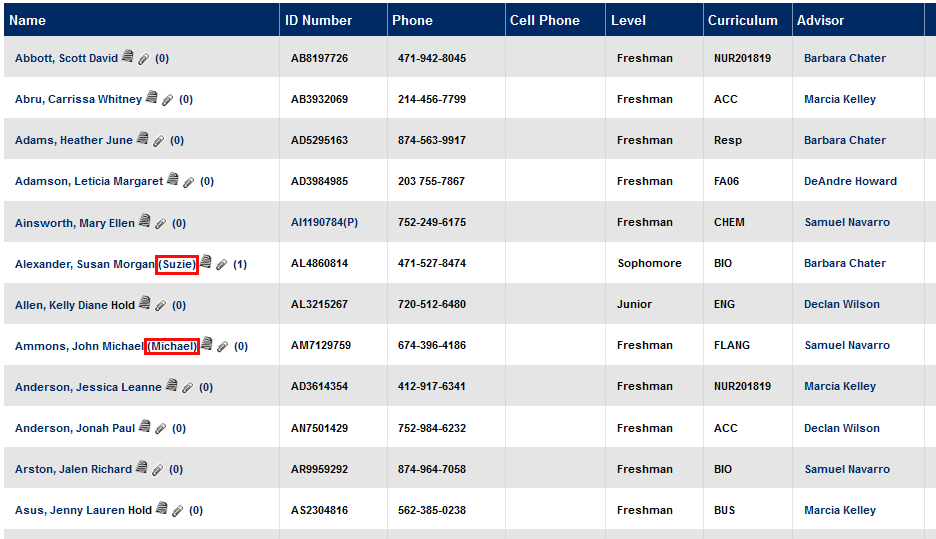
If the student has a preferred name that they wish to be called rather than their given name, use the Preferred Name field to make note of this. If a student has a preferred name on record, it will display in parentheses on the roster so instructors can call them by the name they prefer.
Preferred Pronouns
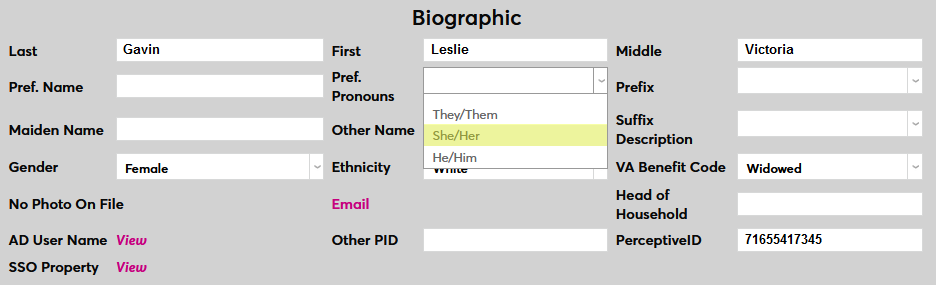
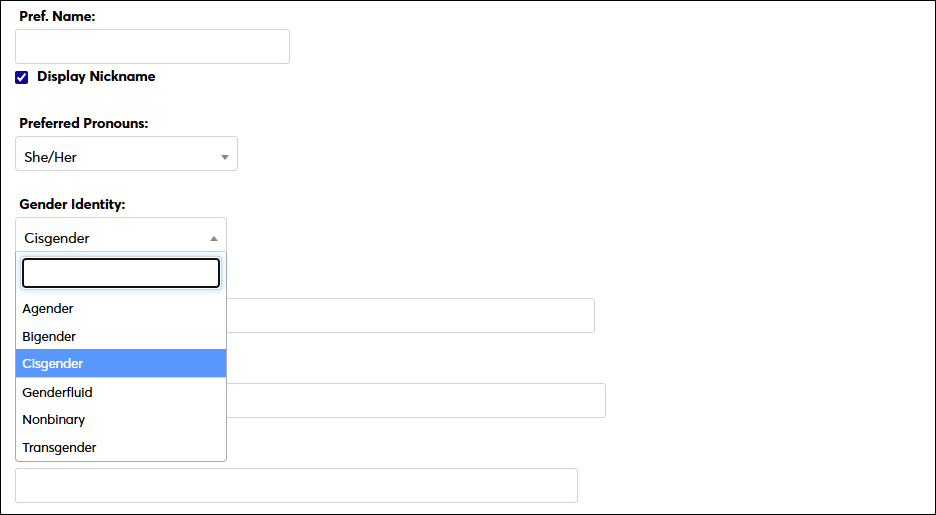
The Biographic page contains an optional Preferred Pronouns field where administrators can enter the pronoun(s) that the user prefers. To turn this feature on, navigate to Web Options under the Systems menu and check the Enable Pronouns box. Submit the page to save the change.

By default, this field includes he/him, she/her, and they/them pronouns. To add additional pronouns, navigate to Table Maintenance and Edit the Preferred Pronouns table.
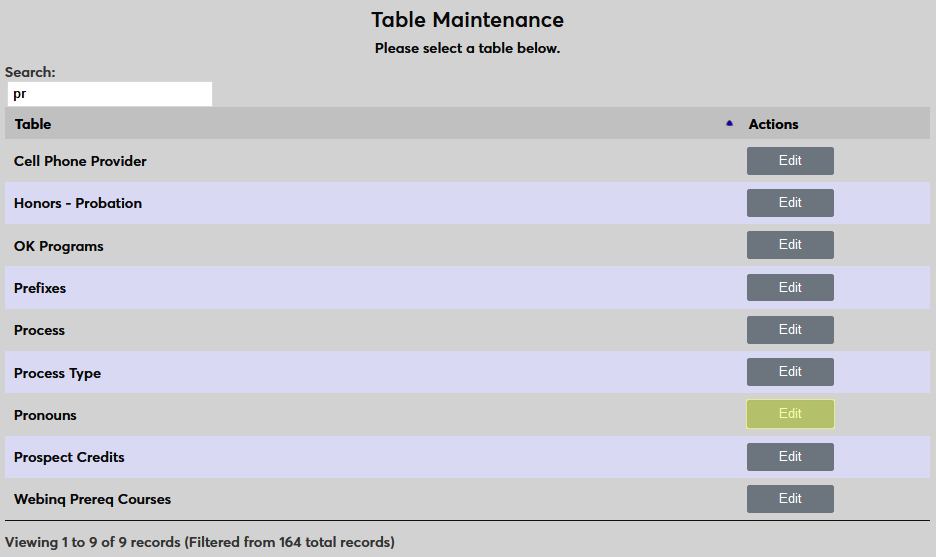
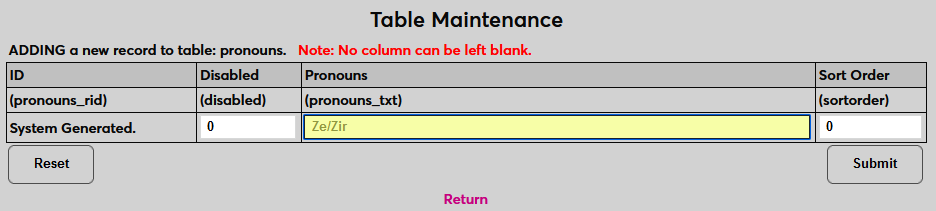
Once the Preferred Pronouns table has been selected, click Add New Record to create a new set of pronouns.
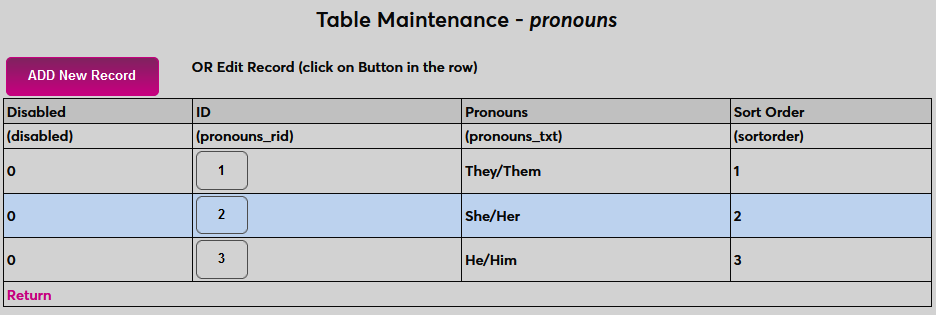
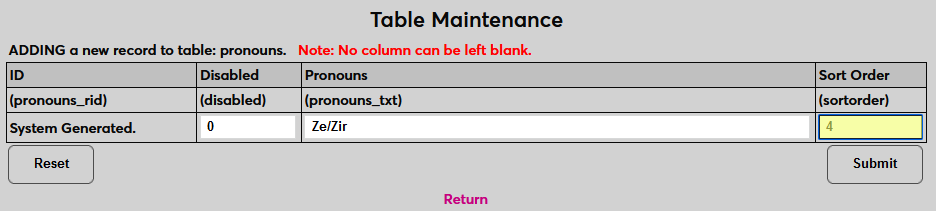
On the following page, enter the pronouns in the Pronouns field and enter a whole number for the Sort Order. The sort order controls where they appear in menus. Click Submit to complete the process.
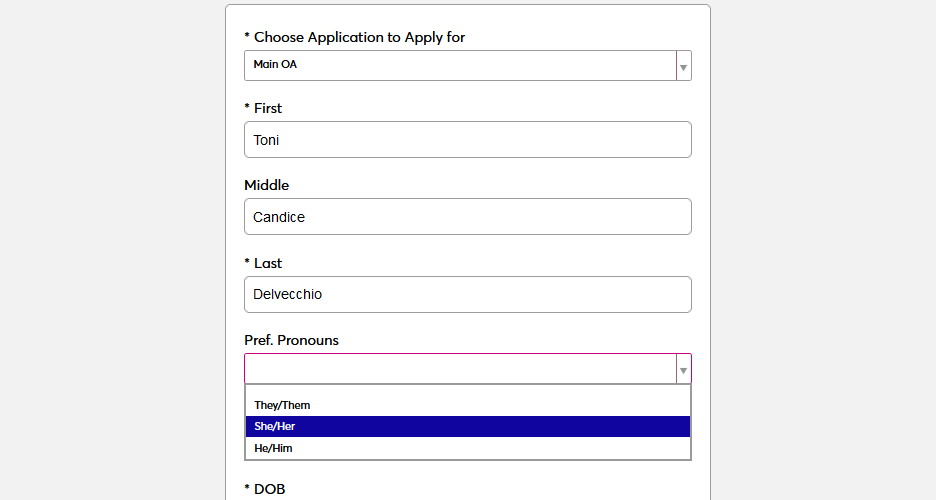
Users can enter their own pronouns through the Prospect Web inquiry page or when applying through the SONIS Online Application.
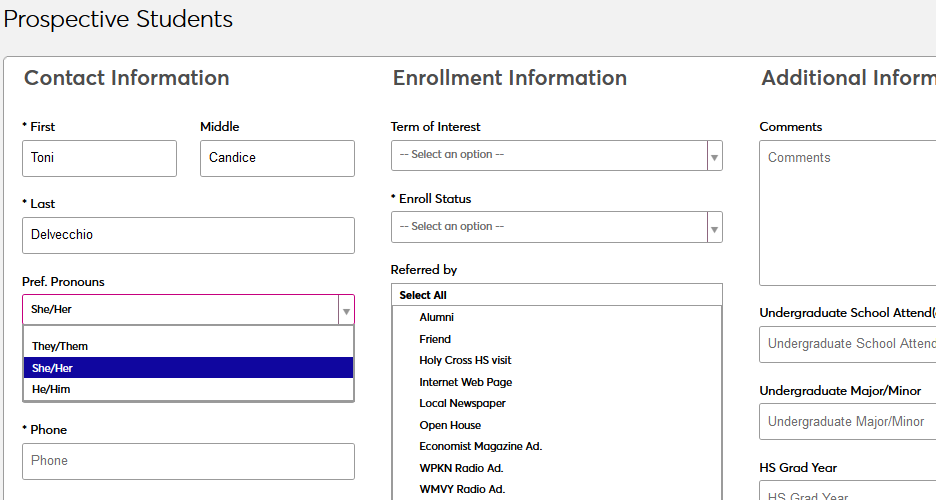
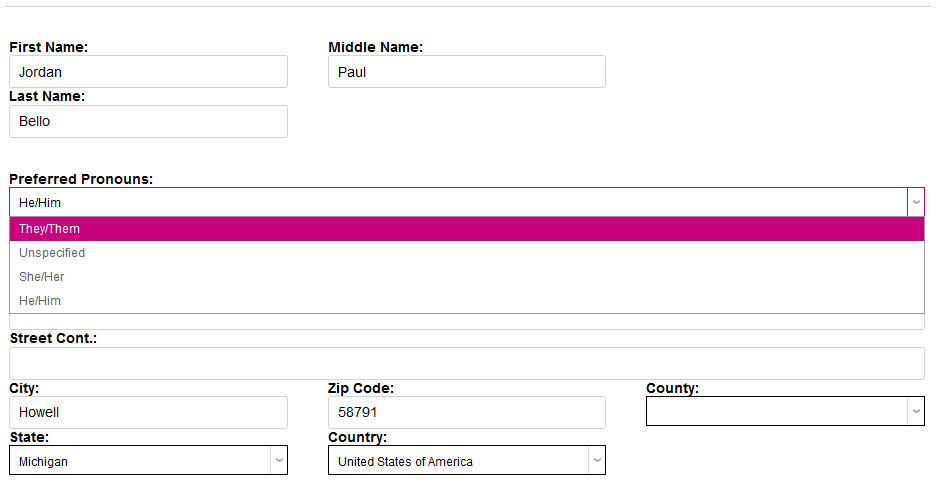
To set pronouns for a user from the Biographic page, simply select the correct pronouns from the Preferred Pronouns drop-down menu and save the page.
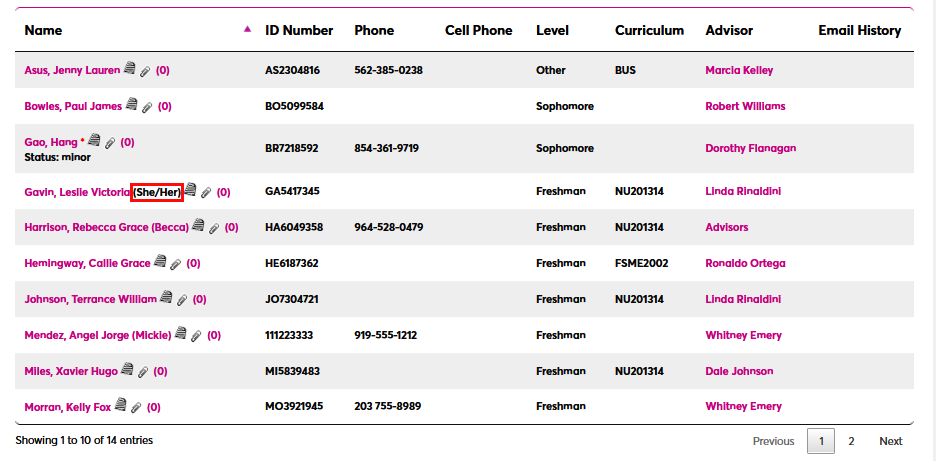
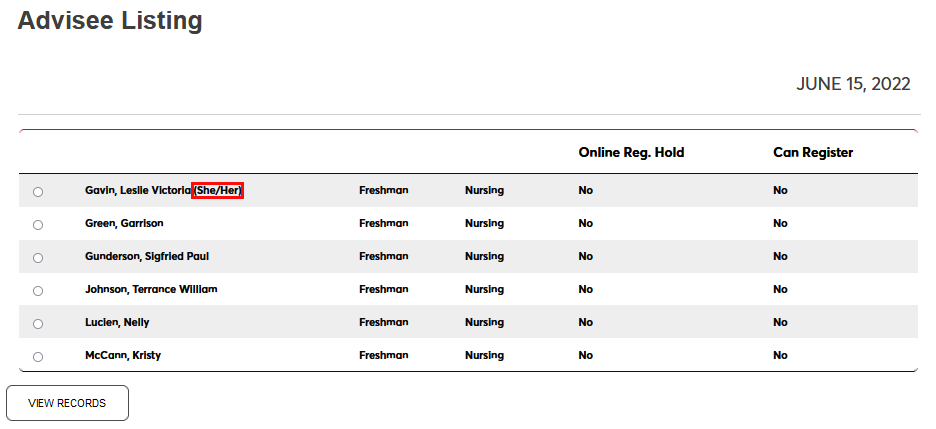
Once preferred pronouns have been set, they can by viewed by faculty from their Course Roster or Advisee Listing.
Update Bio
Institutions can allow their students and faculty to update their pronouns directly through the Update Bio pages on the Student and Faculty portal.
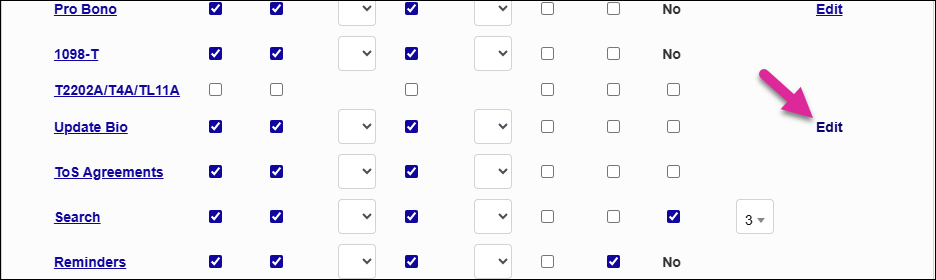
To turn on this feature, navigate to Portal Menu Utility and select either Student or Faculty. Scroll down to the Update Bio row and click the Edit link.
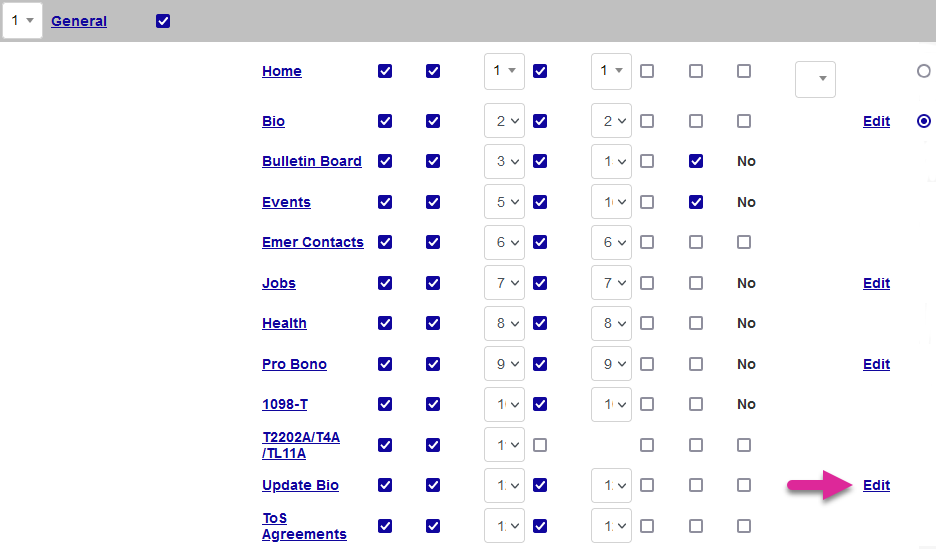
On the following page, check the Display Element to ensure that the user's pronouns appear on the Update Bio page and the Allow Edit box to allow them to make changes. Click Submit to save the change.
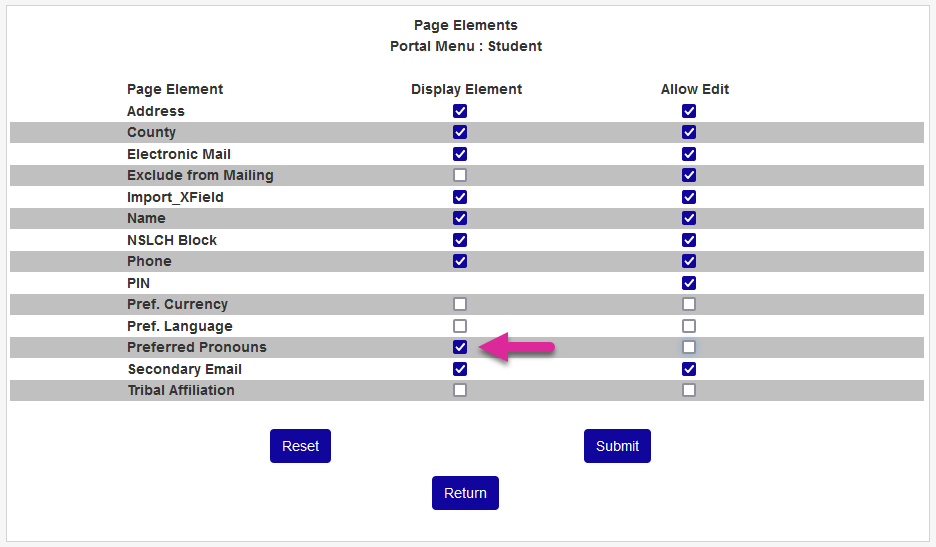
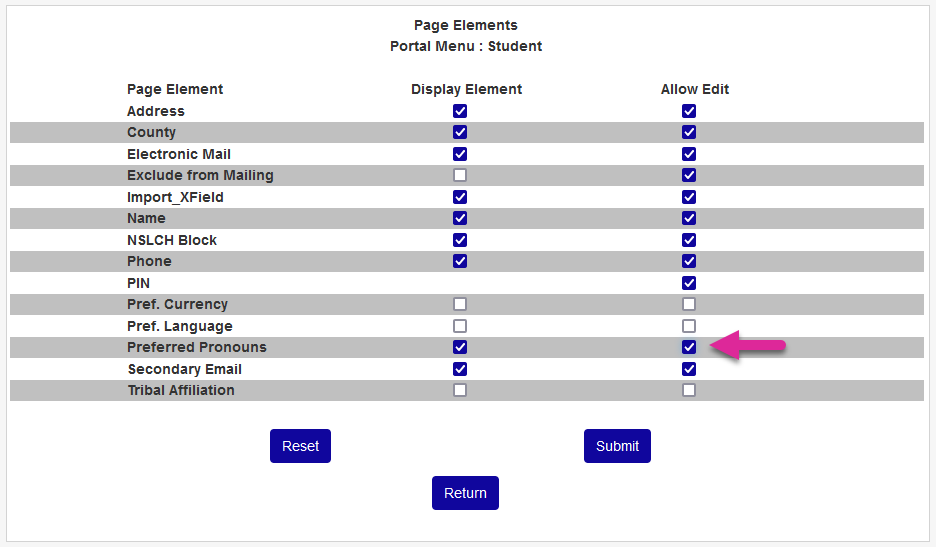
Once the option has been activated, users will see their Preferred Pronouns at the top of the page and can select a new set. Updates made from this page change the Admin Biographic page.
Gender identity
The Biographic page includes an optional Gender Identity field with a table that populates it. If you wish to use this field, contact your Jenzabar SONIS account manager to have it turned on.
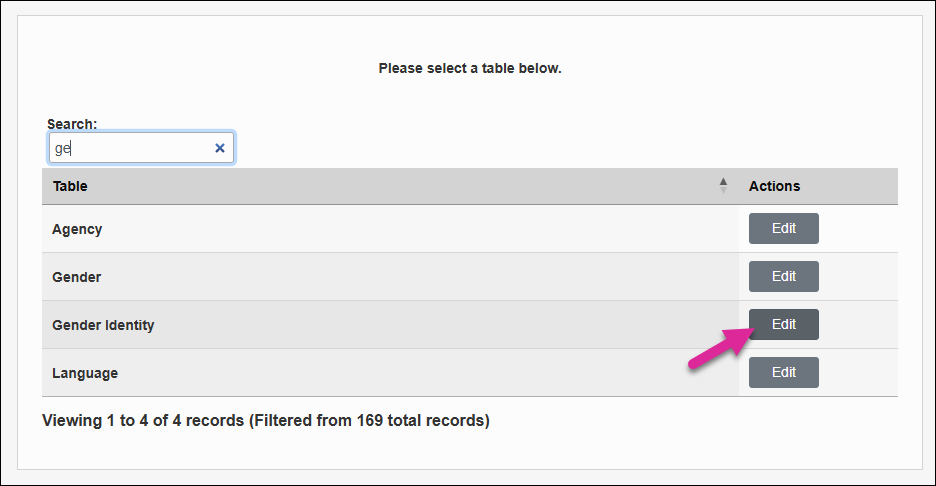
Once the feature has been turned on, a Gender Identity table will appear in Table Maintenance. Click the Edit button to add entries to the table. The Gender Identity Code is the value that the database will use to store the option. The Gender Identity is the text that will display in the drop-down menu.
Note
Once you've assigned a gender identity to a user, you can no longer delete that option from the table. You can disable the option and prevent it from showing up in the drop-down menu by editing it and placing a 1 in the Disabled box.
Add or import new records until you've added every option you will need in your Gender Identity drop-down menu.
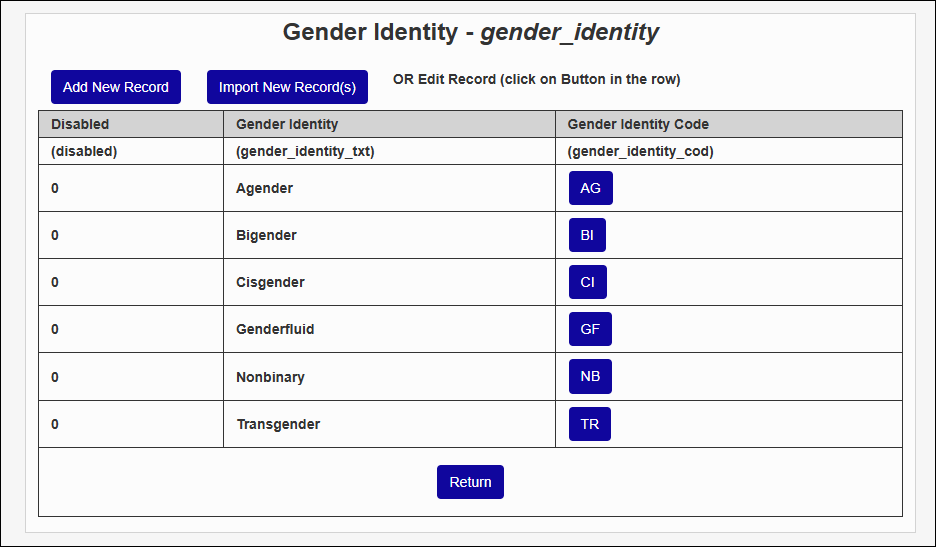
Next, navigate to Web Options, check the Enable Gender Identity box, and click Submit to save the page.

Once you've activated the field, you'll see it on each user's Biographic page.
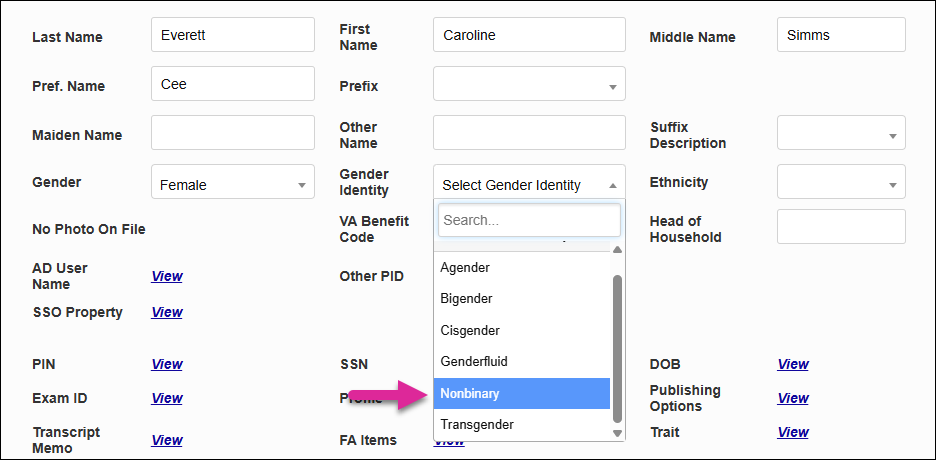
Gender Idenity information can also optionally appear on each student's Update Bio page. By default, it will only show the value that you have entered as a staff member, but you can give them the ability to make changes as well.
To make this change, navigate to the Portal Menu Utility under the Systems hub and click on the Edit link in the Update Bio row. Ensure that both the Display Element and Allow Edit boxes are checked and click Submit.
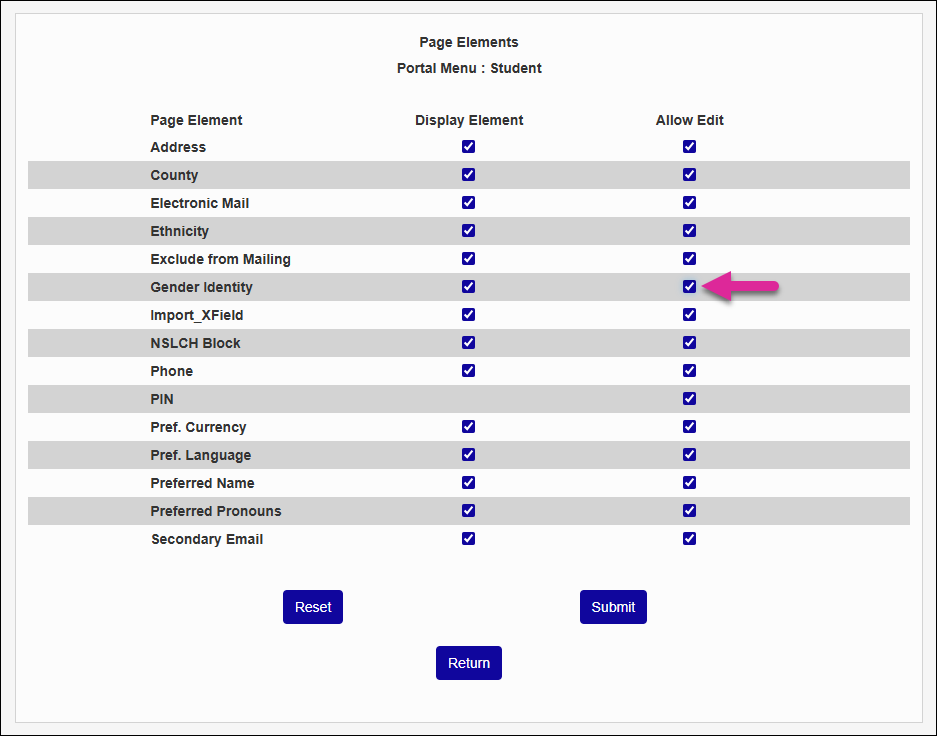
Once you've activated the option, students will be able to update their gender identity from their Update Bio page.
Admissions Counselor Designation
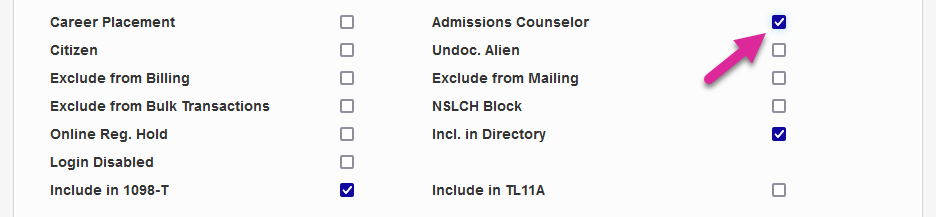
Many schools like to have each admissions counselor on their staff assigned to a specific pool of applicants. In order to make that assignment, Jenzabar SONIS users must first be designated as admissions counselors. A user must have a module status of Staff in order to be an admissions counselor in SONIS.
To designate a user as an admissions counselor, check the Admissions Counselor box.
For more on how admissions counselors are used in Jenzabar SONIS, visit the Admissions Hub documentation.