Duplicate Name Search
Overview
The Jenzabar SONIS Duplicate Name Search utility has two uses. First, it allows administrators to search for duplicate name records that may have been created in error. Secondly, the utility can be used to set the fields that are used for duplication checking throughout the system. Parts of the system that use these criteria include Import Functions, Section Add/Edit Roster, and many others. The Email Duplication Checker can be used to search for duplicate email addresses as well.
Searching for Duplicates
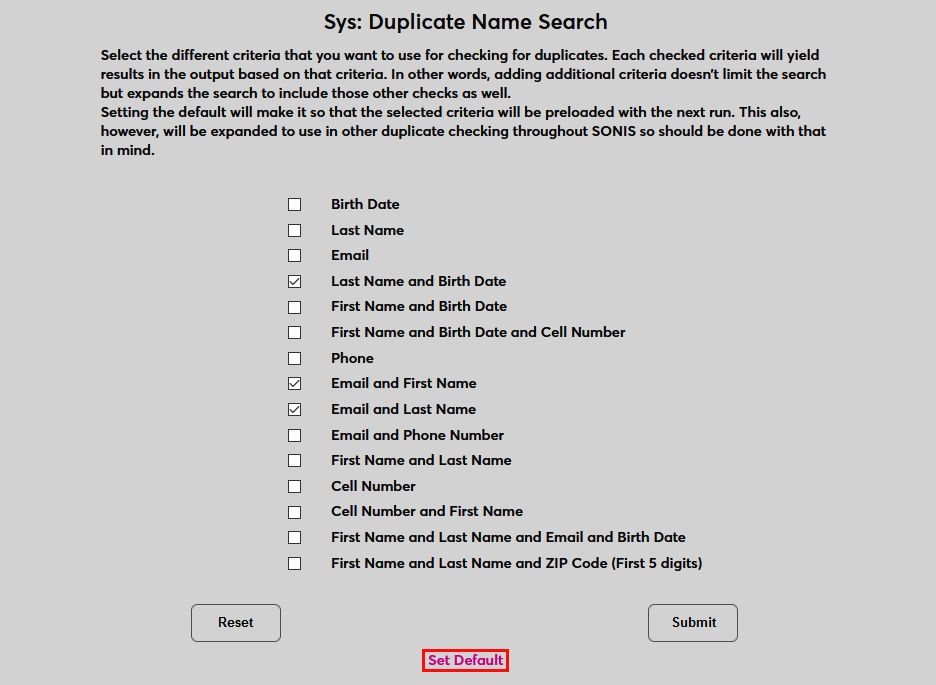
To search for duplicate name records, begin by selecting search criteria. Some criteria encompasses more than one field and will only display results when matches are found in both listed fields. Other criteria looks for any users who have the same value in a singular field.
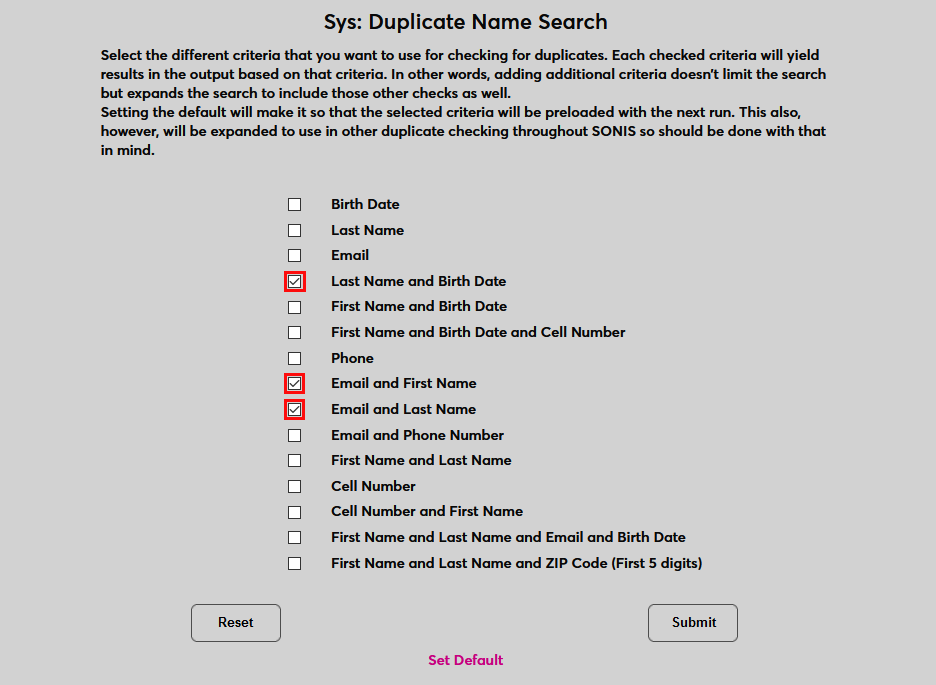
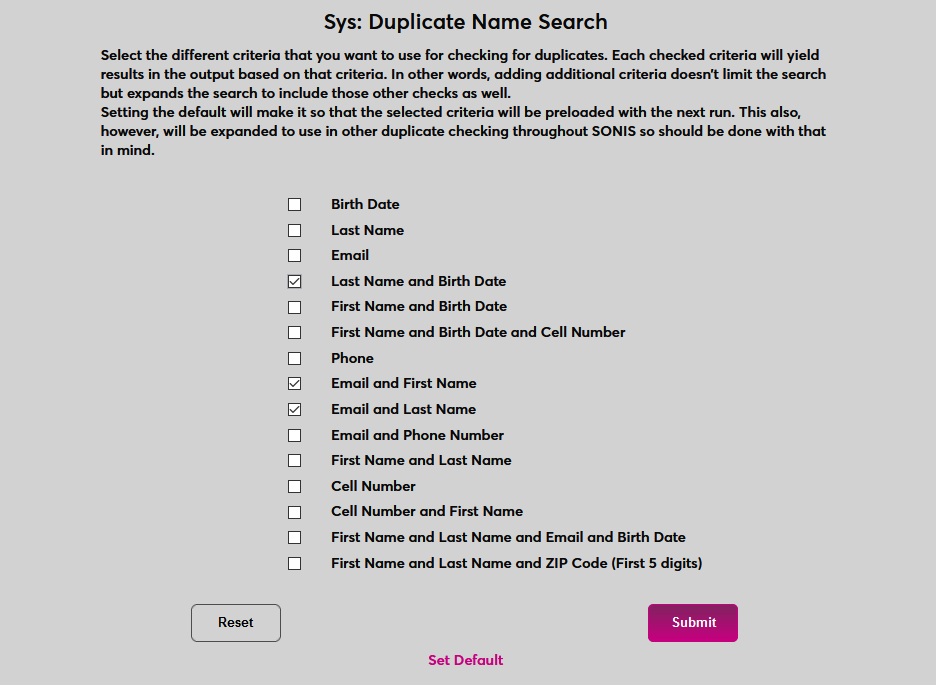
Once the correct search criteria has been selected, click Submit to perform the search.
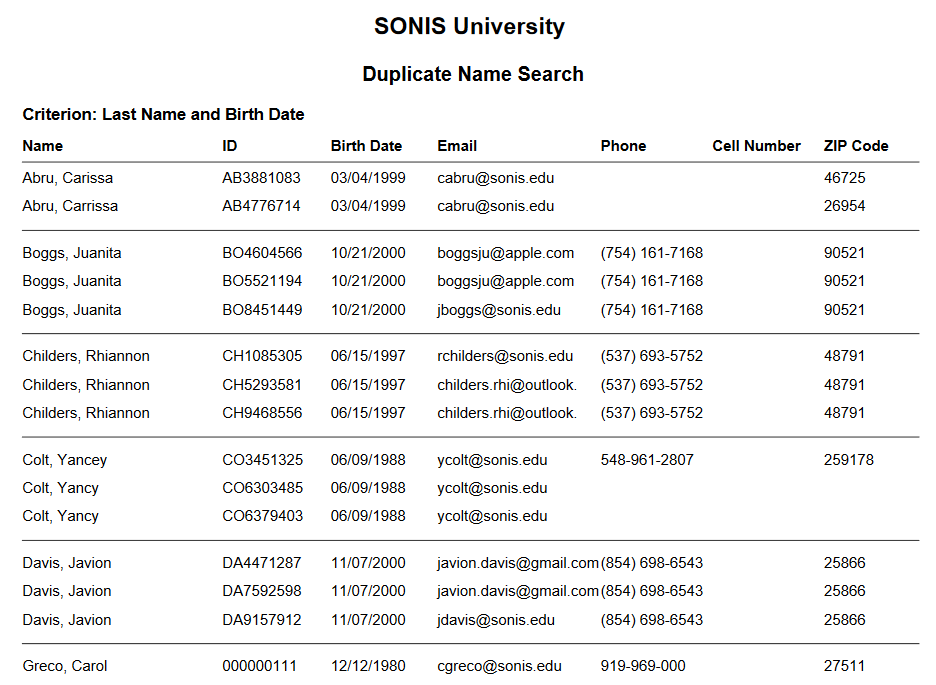
A new tab will open to display a PDF report of the results.
Setting Default
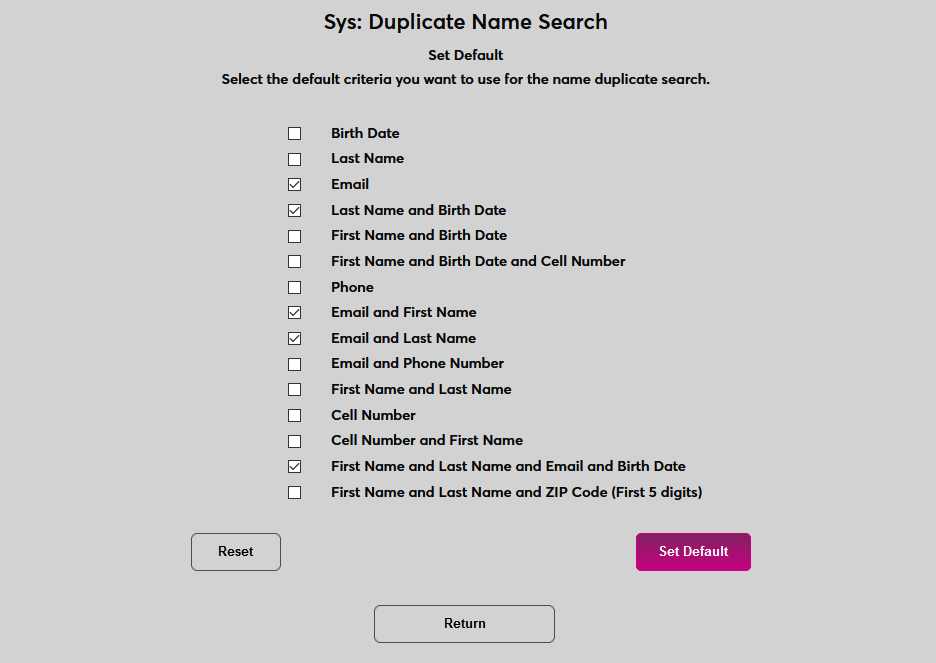
To set the default criteria that will be used to identify duplicate name records, click the Set Default link at the bottom of the page.
Check and uncheck boxes to choose the default search criteria that will be used. As with the immediate search, some criteria encompasses more than one field and will only display results when matches are found in both listed fields. Other criteria looks for any users who have the same value in a singular field.
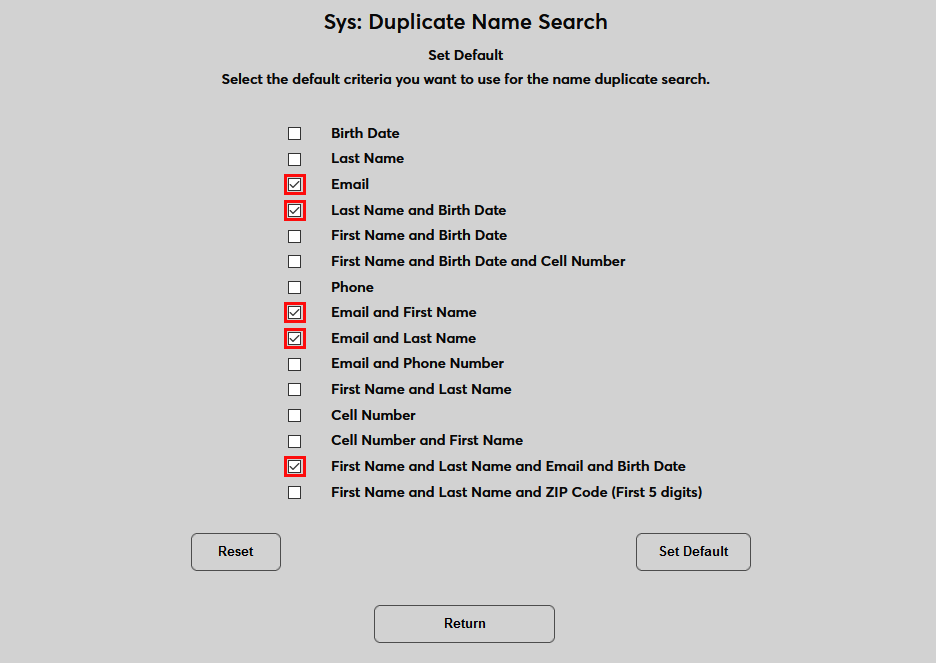
Once the proper criteria has been selected, click Set Default to save this criteria as the new default duplicate checking criteria. Records that match on any of the selected fields will be flagged as potential duplicates.