User IDs
Overview
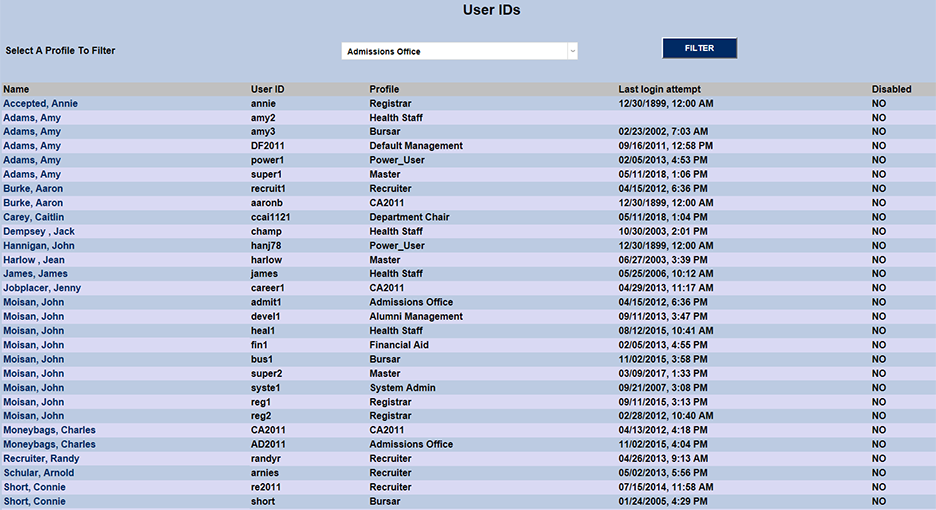
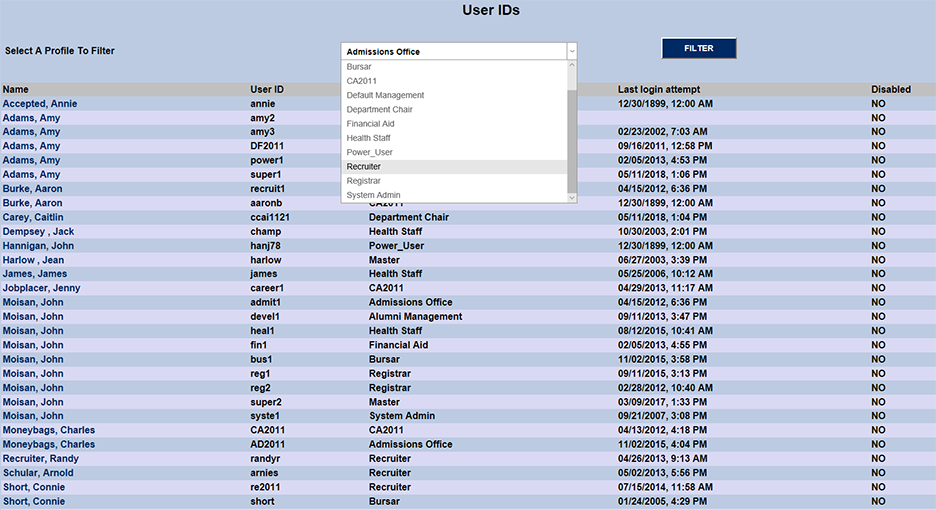
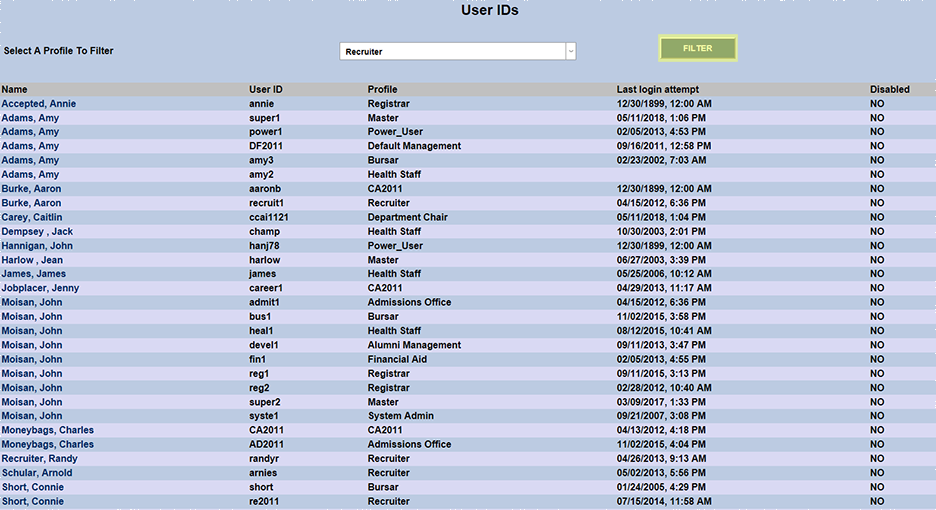
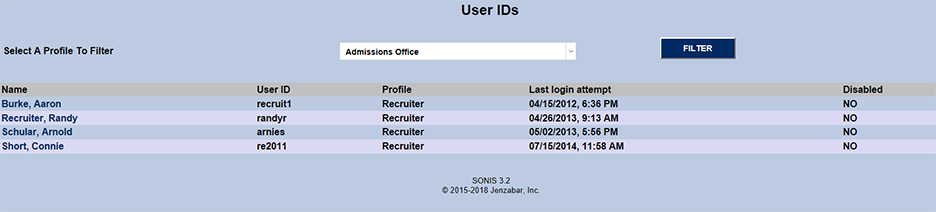
User IDs is a Jenzabar SONIS application, which allows administrators to view and edit the profiles of SONIS users who have administrator-level access. The User IDs homepage displays a list of every user who has an administrator login. This list will not include students, faculty, and staff who log in with a PIN. The list can be filtered by profile using the dropdown menu and the Filter button. These profiles are created and edited using the Profile Utility.
Editing User IDs
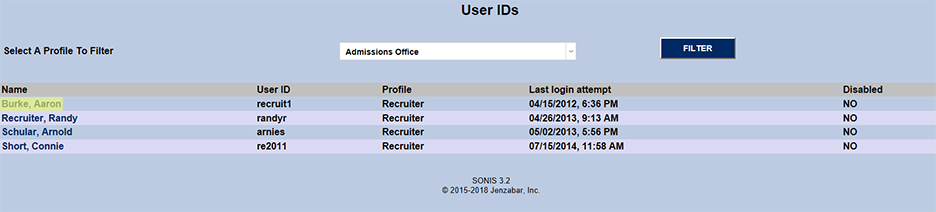
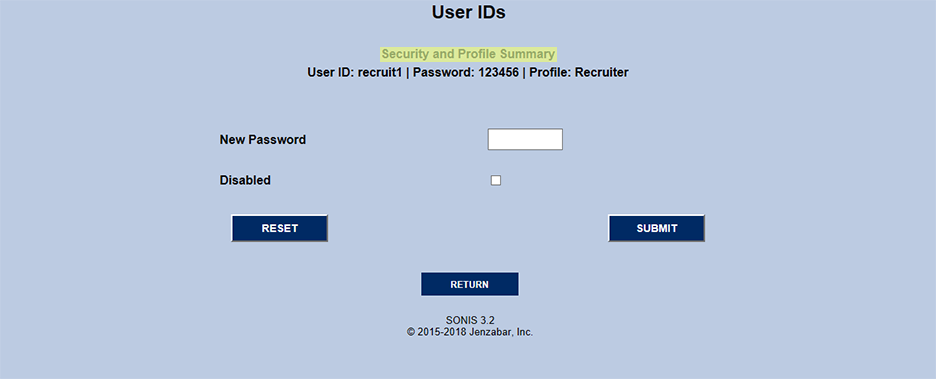
To edit a user ID from the User IDs homepage, simply click on the name of the person whose ID needs to be altered. The following page will provide multiple editing options. Some users may have multiple logins with different profiles. If so, each account will need to be edited separately.
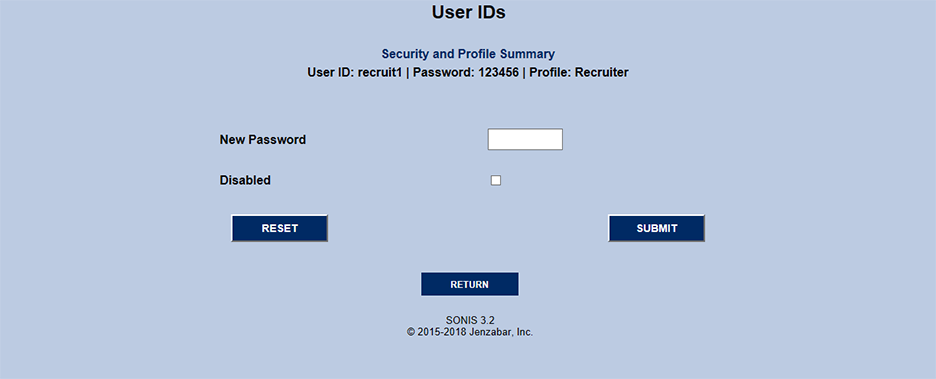
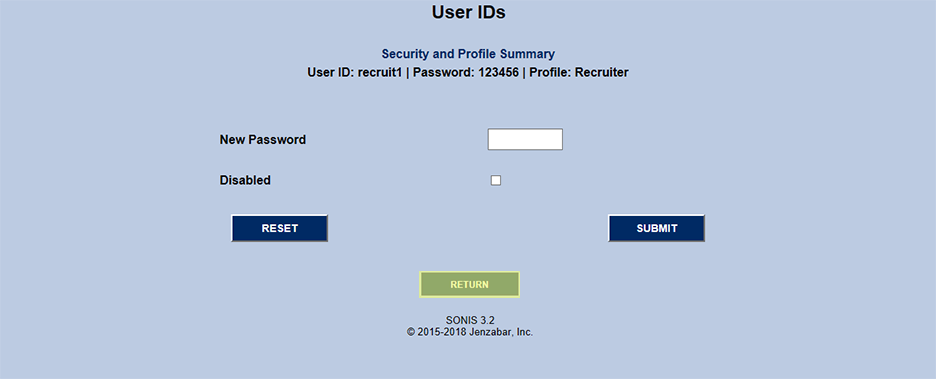
To return to the full list of user IDs, click the Return button.
Security and Profile Summary
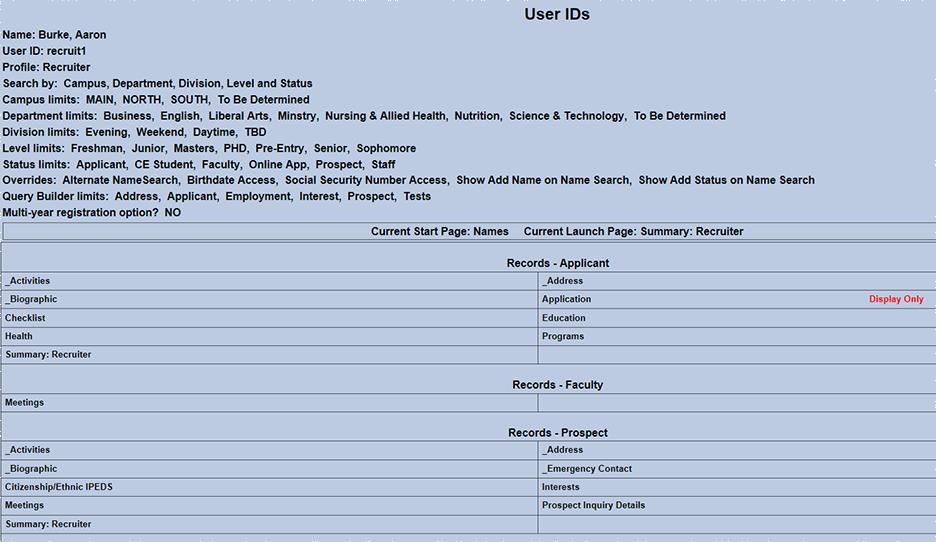
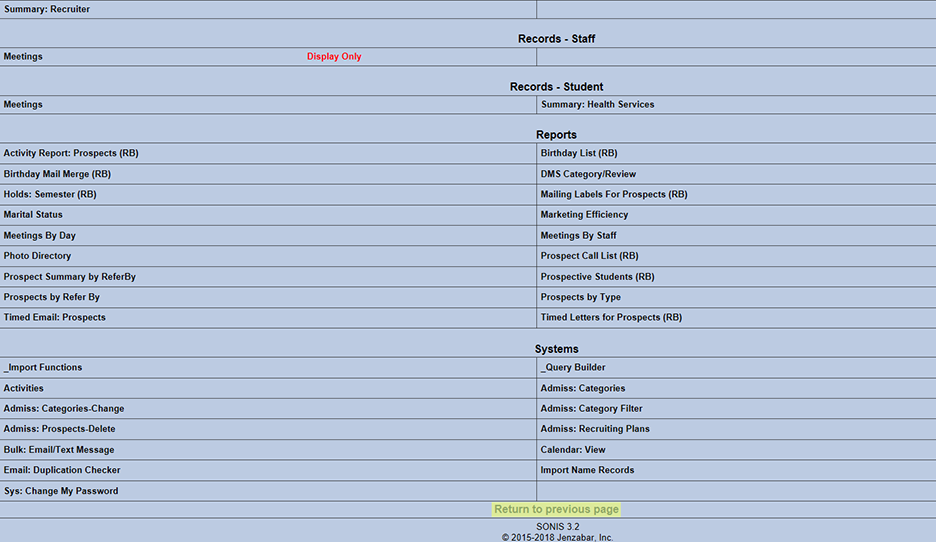
To view a summary of this user's security and profile, click the text that says Security and Profile Summary. This summary details all of the user's application access and limits. To change these settings, visit the User Security application. To return to the previous page and continue editing, click the text that says Return to previous page at the bottom.
Changing User Password
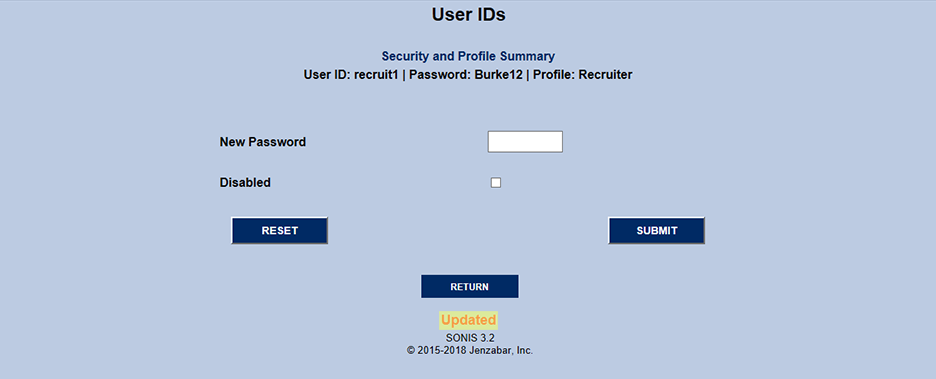
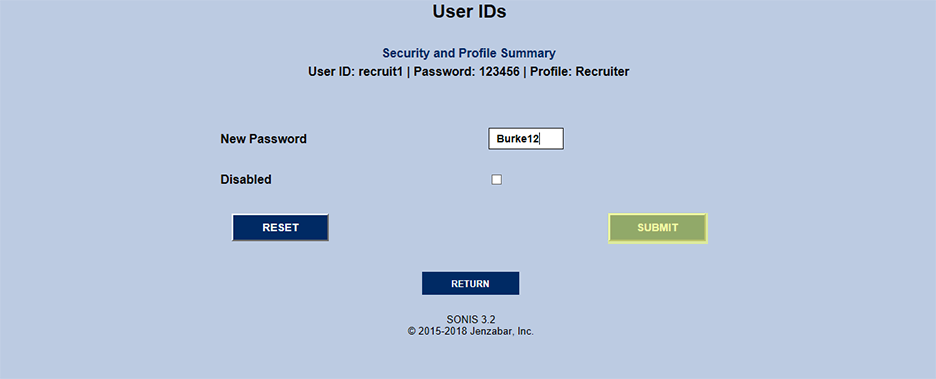
To change a user's password, navigate to the user's User ID page and type a new password into the New Password field. Click Submit to save the change.
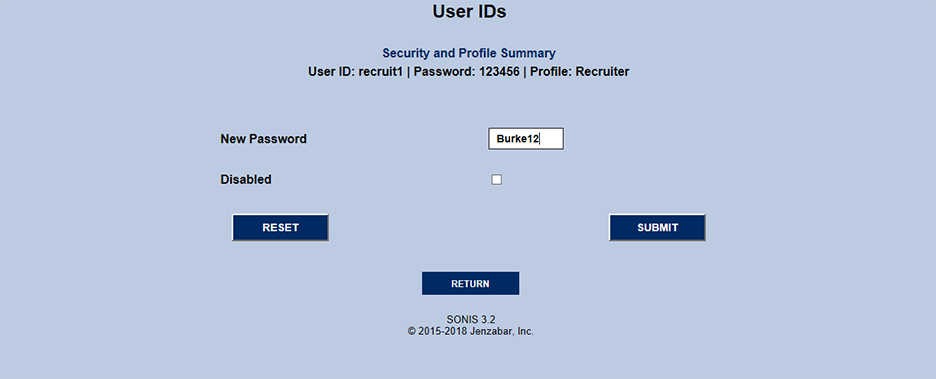
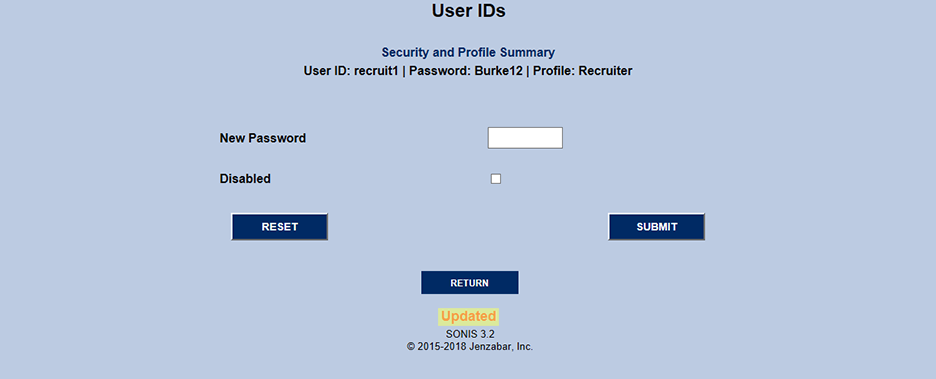
The word Updated will appear in red at the bottom of the page to confirm that the update has been successful.
Disabling a Profile
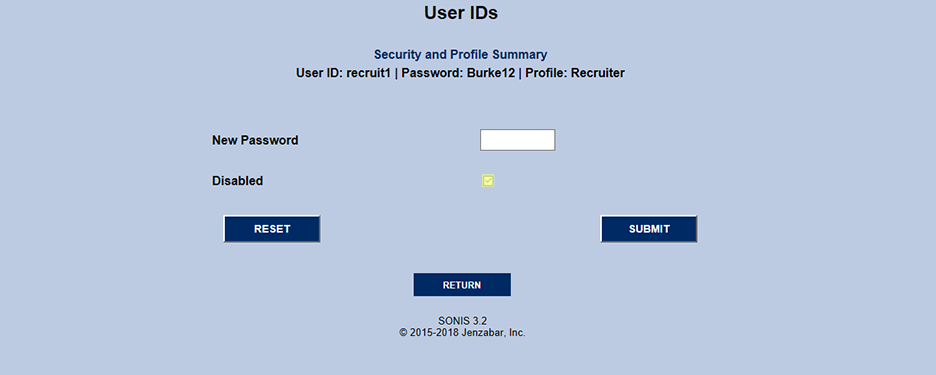
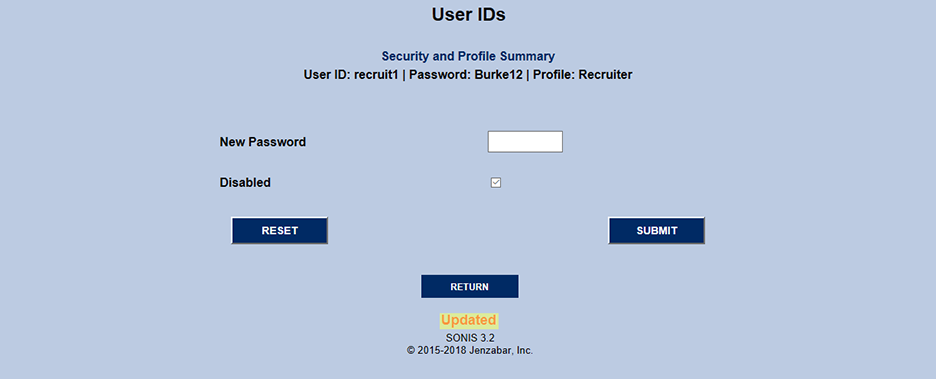
The User Ids application also provides the means to disable a profile that is no longer in use. This option may be needed when an administrator level user leaves their position or moves to a new one that requires different access. Navigate to the user's page from the User Ids homepage and check the box labeled Disabled. Click Submit and the account will be disabled.
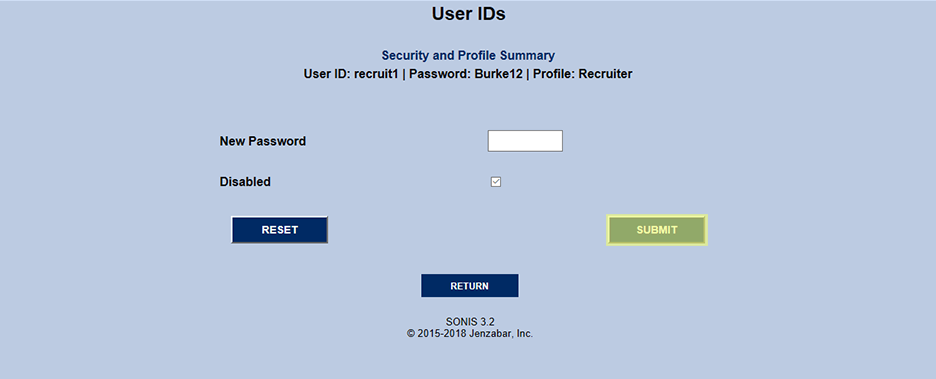
The word Updated will appear in red at the bottom of the page to confirm that the update has been successful.
Enabling a Profile
To enable a profile that has been disabled previously, simply navigate to the individual account page from the User IDs homepage, uncheck the Disabled box, and click Submit.
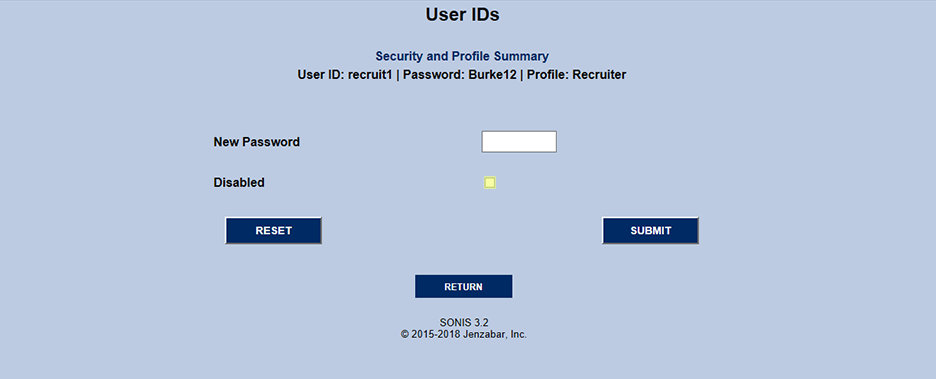
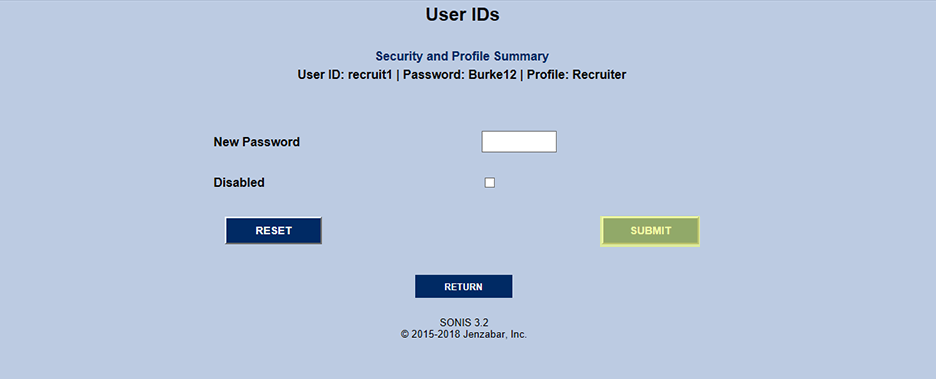
The word Updated will appear in red at the bottom of the page to confirm that the update has been successful.