Emails & Mailings
Overview
The Student Portal Emails/Mailings function allows students to subscribe and/or unsubscribe to various school-related publications delivered by email and mail. This allows students to decide which publications they wish to receive, if any, rather than continuing to receive what they consider to be junk mail.
Enter Publications Using Table Maintenance - Lists
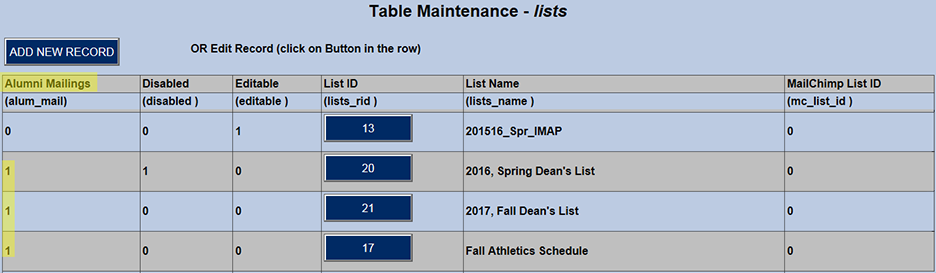
First, the titles of the school's publications must be entered in SONIS by a user using the Systems hub Table Maintenance - List utility, shown below.
Publications are either emailed or mailed via the country's postal service. The first column indicates which type of delivery is associated with each publication.
Activate Using the Portal Utility
Next, a user must use Portal Menu Utility to add Subscriptions to the Student portal menu.
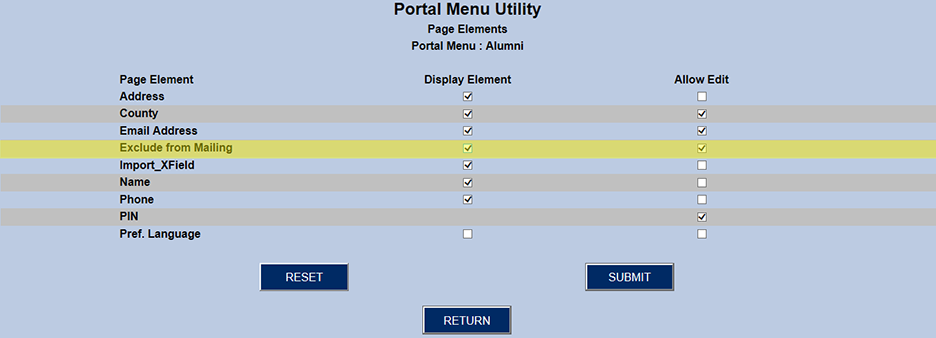
The next step is to scroll up near the top of Portal Menu Utility and locate the Menu Group General, and then Portal Page Update Bio. At the end of the row, locate the Edit button and click it.
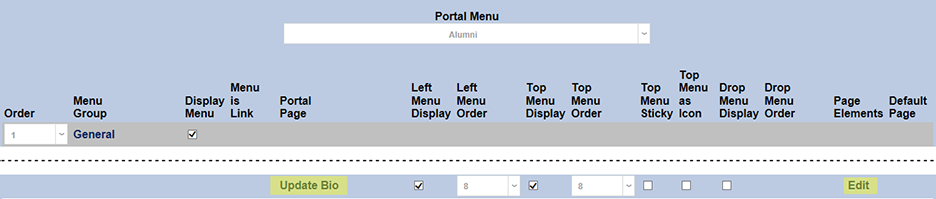
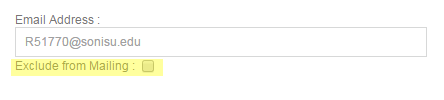
This list of elements on the Students General/Update Bio page includes the element Exclude from Mailing. Check the Display Element checkbox. This setting displays the Exclude from Mailing checkbox on the Update Bio page. Then check the Allow Edit checkbox. This setting allows the display of the check and uncheck boxes for the Exclude from Mailing option.
Below is how Exclude from Mailing will display on the Students Update Bio tab when both of the checkboxes are selected.
Subscribe/Unsubscribe to Publications
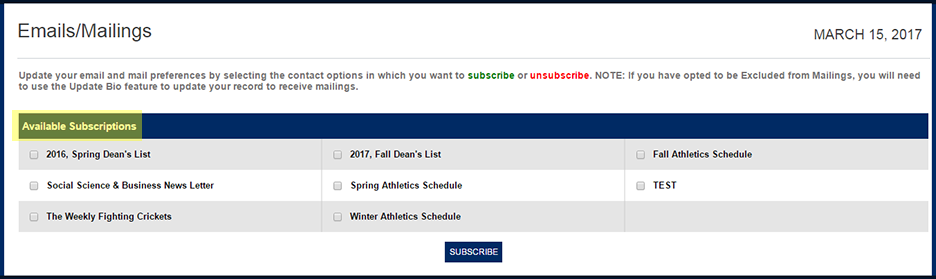
The image below shows Subscriptions from the user's perspective the first time they go to the function. Subscriptions and Emails/Mailings have been set up on the left menu, and all of the Emails/Mailings available for subscriptions are listed. Simply check the desired publications and click Subscribe.
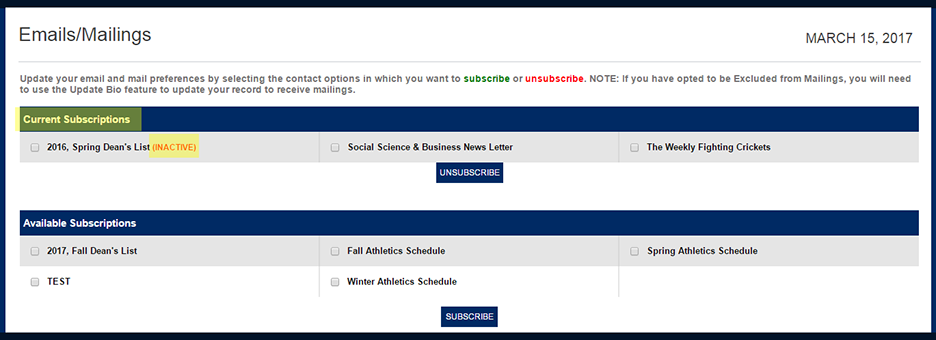
The next time the user enters the tab, their subscribed publications are listed at the top, and the unsubscribed publications are listed at the bottom.
After the 2016 Spring Dean's List, the INACTIVE indicates that this publication was disabled after this user subscribed to it. This often occurs when a publication is determined to have a shelf life. For example, once the 2017 Fall Dean's List is published, a school may decide that students will no longer need to subscribe to the previous list.
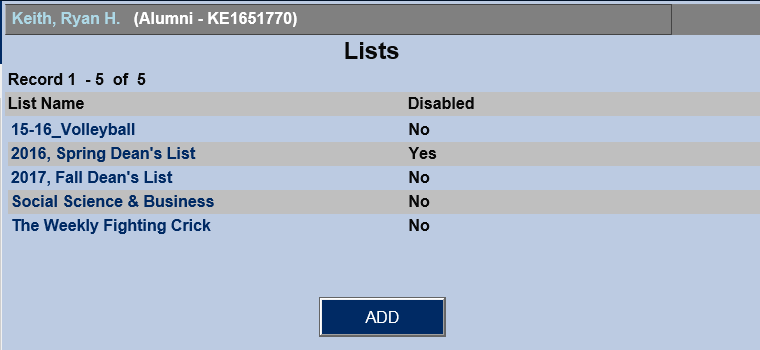
In the Administrative module, Records/Lists will display the subscriptions the user has active. From this page, an administrator can click on the List Name and edit the item or click on the ADD button and assign the selected individual additional list items from a dropdown menu.
If an attempt is made to add a list item that already exists (i.e., one with the exact name), that addition will be prevented with an alert.