Terms of Service Agreements
Overview
In order to comply with the US Family Educational Rights and Privacy Act (FERPA) and/or the European Union's General Data Protection Regulation (GDPR) and protect the institution from potential lawsuits, it's recommended that Jenzabar SONIS clients set up a Terms of Service Agreement that all SONIS users must read and consent to before first logging into the system. While SONIS is unable to provide guidance on the legal terminology that should be present in such an agreement, the Terms of Service Agreements utility offers a simple means of delivering agreements to students and other SONIS users. It can also be used for policy changes, important campus news, and anything else that the school administrators want to ensure that their users read and sign off on.
Creating Agreements
To create a new terms of service agreement, navigate to the Terms of Service Agreements utility in the Systems hub and click Add.

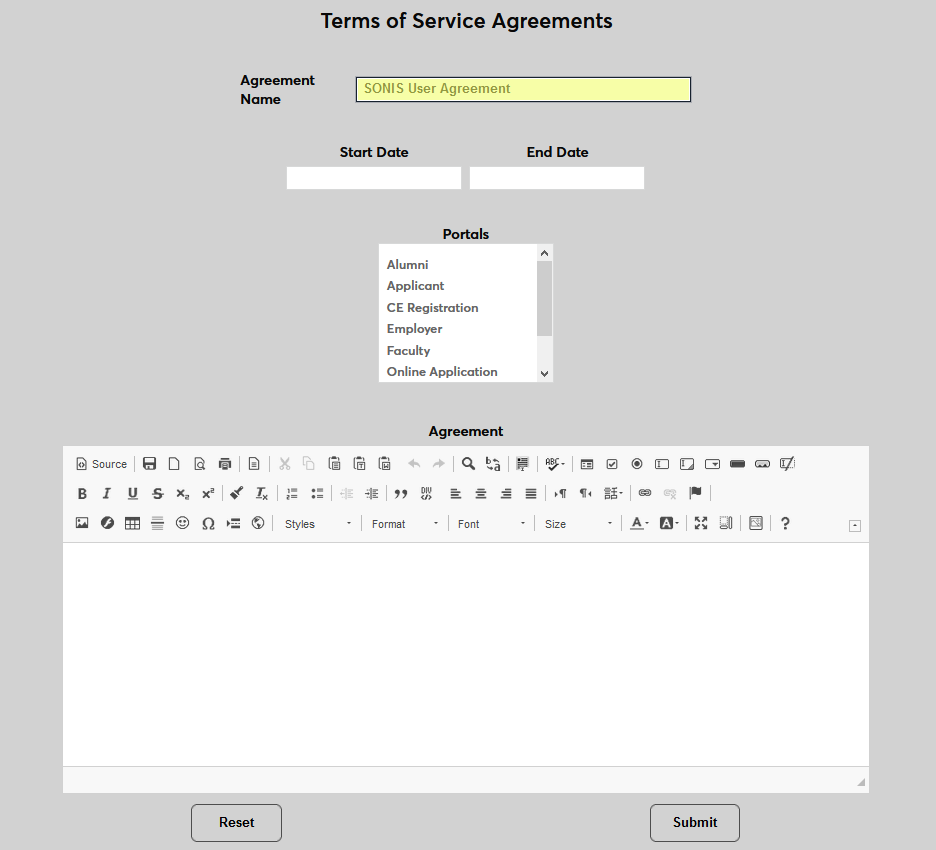
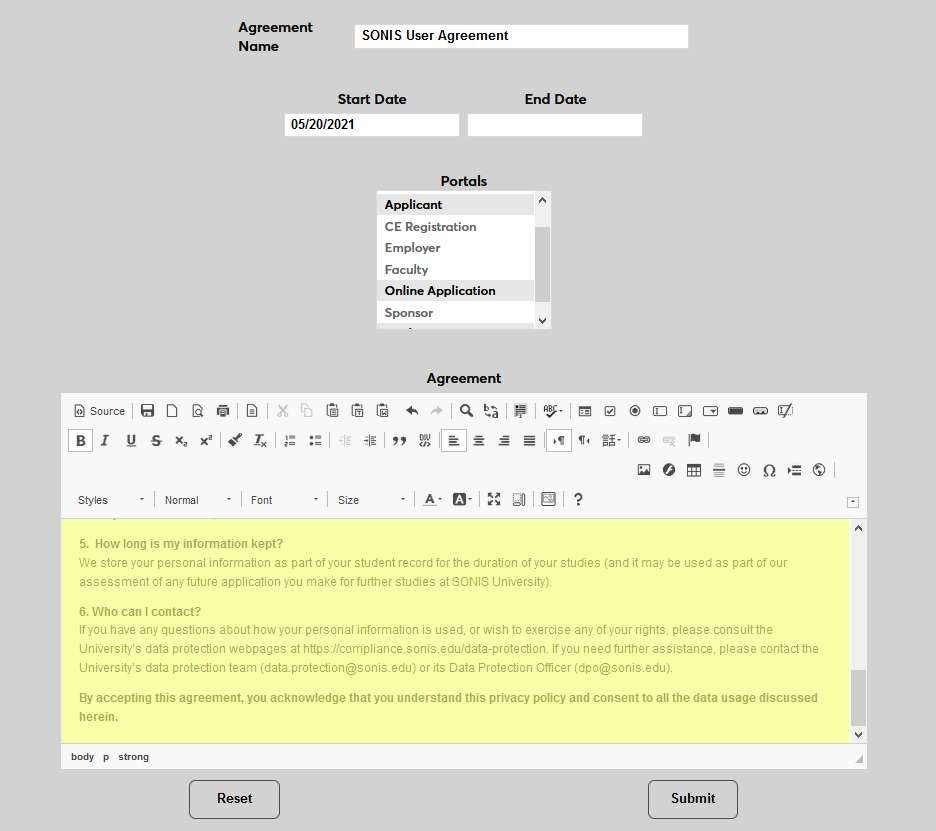
On the following page, begin by naming the agreement with the Agreement Name field.
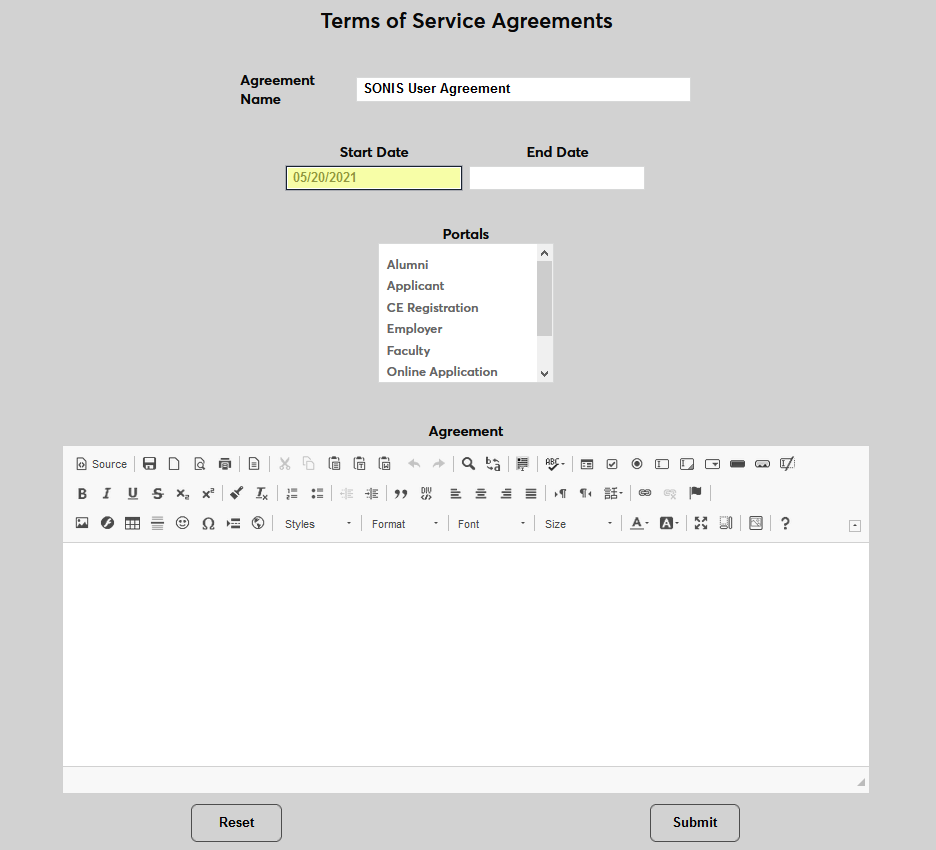
Next, create a Start Date for the agreement. If the agreement should be posted for a limited timeframe, enter an End Date as well. Otherwise, leave this field blank.
Select a portal or portals where the agreement should be posted. For government-mandated agreements, SONIS recommends selecting all portals so every user will have to consent.
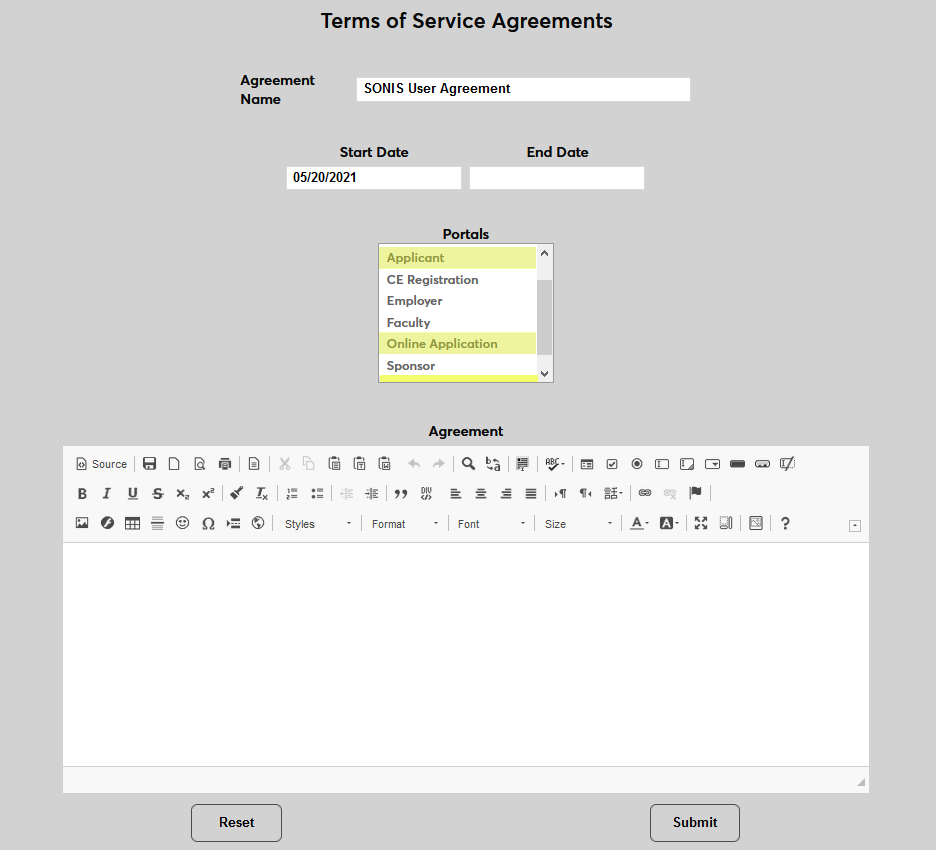
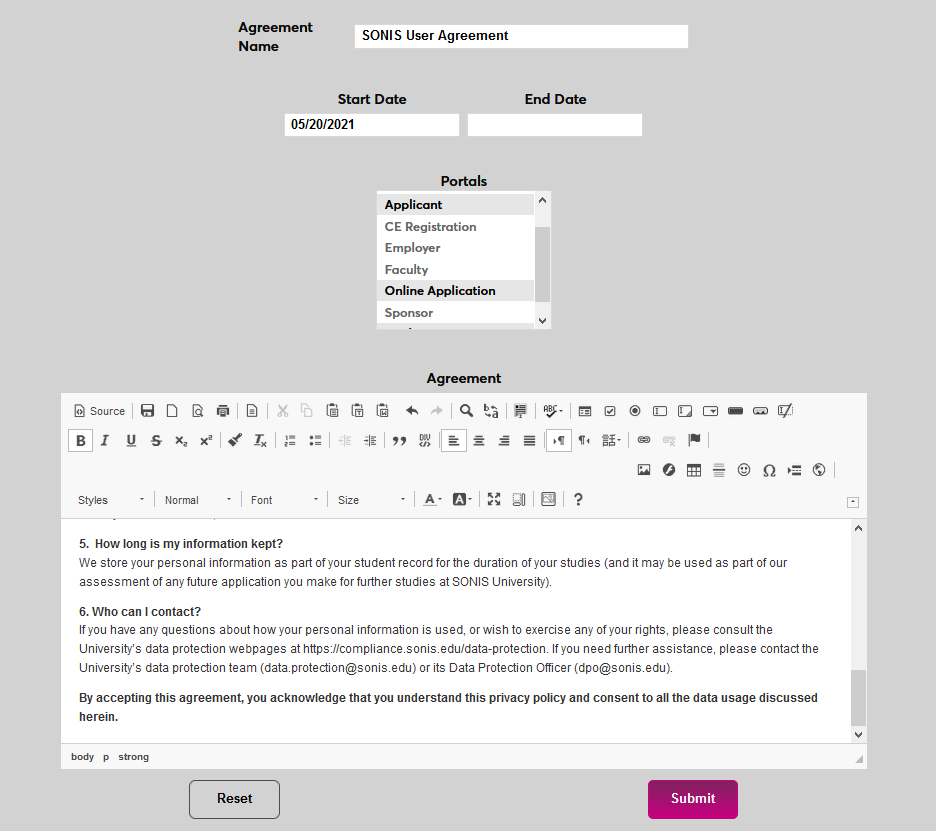
Create the agreement by entering it in the Agreement field, either by manually typing it or copying/pasting from another source. The text can be formatted using the tools at the top of the field. Source formatting is accepted as well. Click Submit to save the changes and create the form.
Editing Agreements
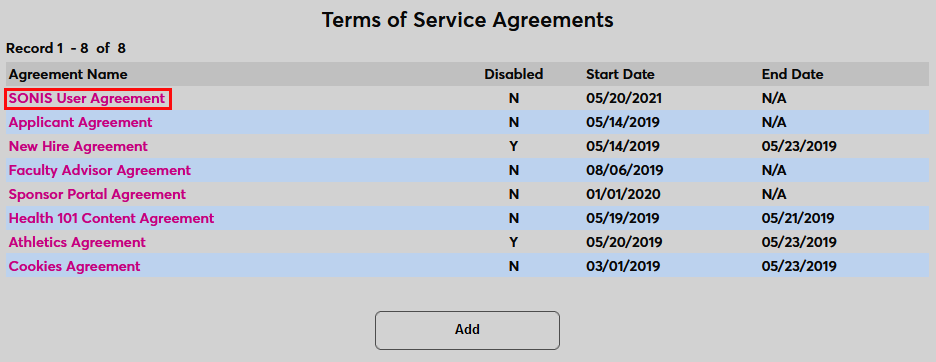
Once terms of service agreeements have been created, they appear in a table. You can sort each column in ascending or descending order using the up and down arrows in the header row. There's a Search box you can use to locate a specific agreement. The search narrows down the list as you type. Use the Show menu on the right to control how many rows display per page and the Previous, Next, and number links at the bottom to navigate between pages.
To edit a previously created agreement, click on the Agreement Name.
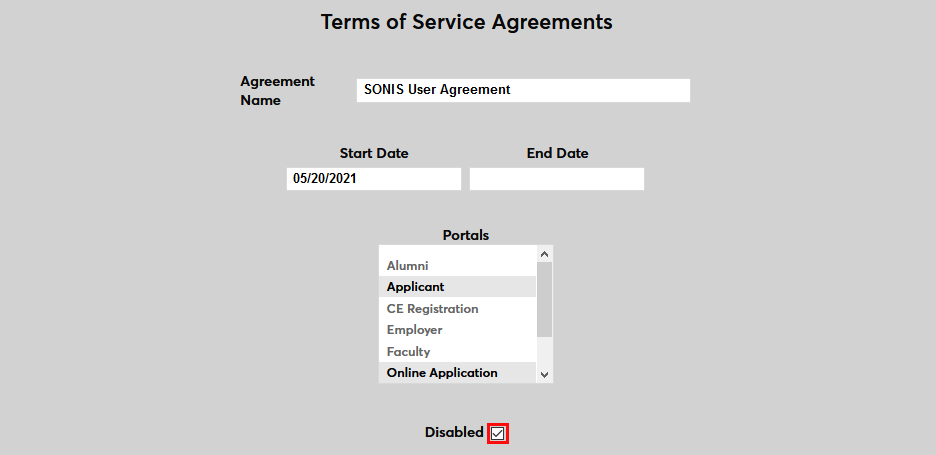
Any field of the agreement can be changed. In addition, administrators can disable the agreement by checking the Disabled box and submitting the page or delete it using the Delete button.
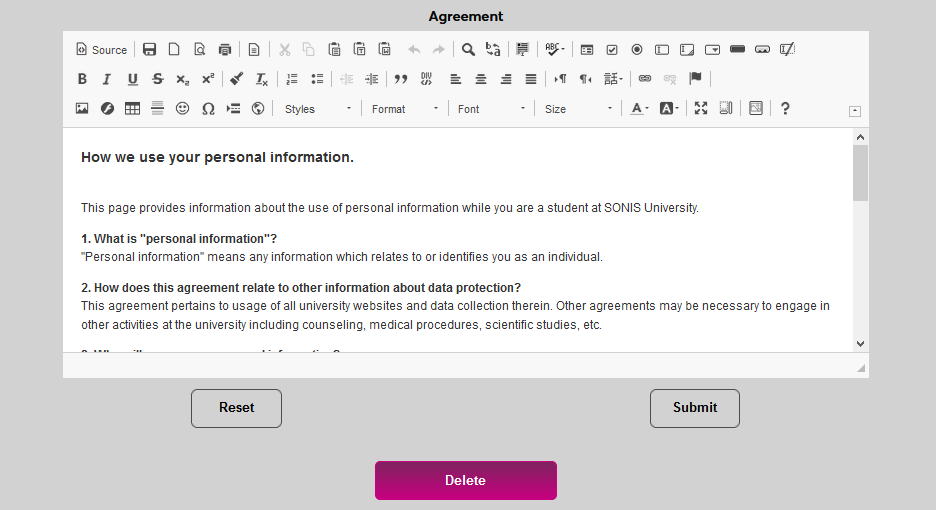
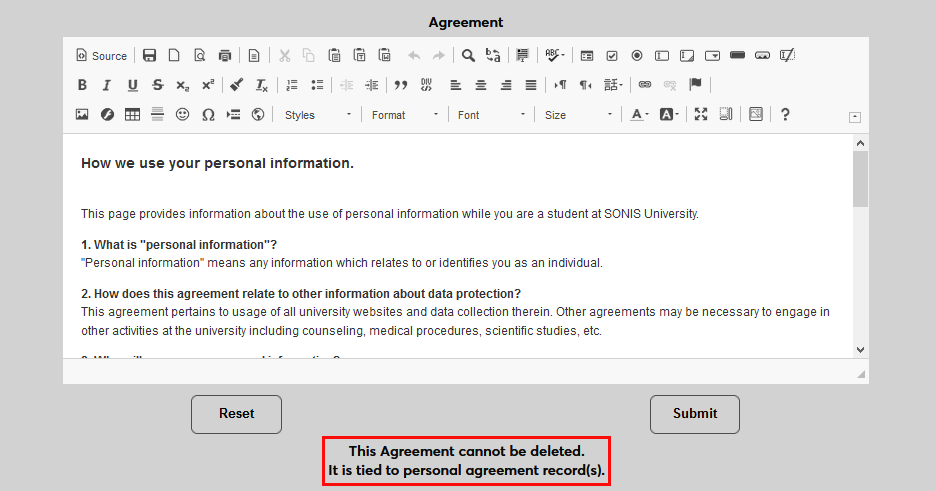
Agreements that have been accepted by a user can no longer be deleted.
Accepting/Declining Agreements
Once an agreement has been configured, portal users will be presented with the agreement the next time they attempt to log in to SONIS. They must accept before they can access the portal's content.
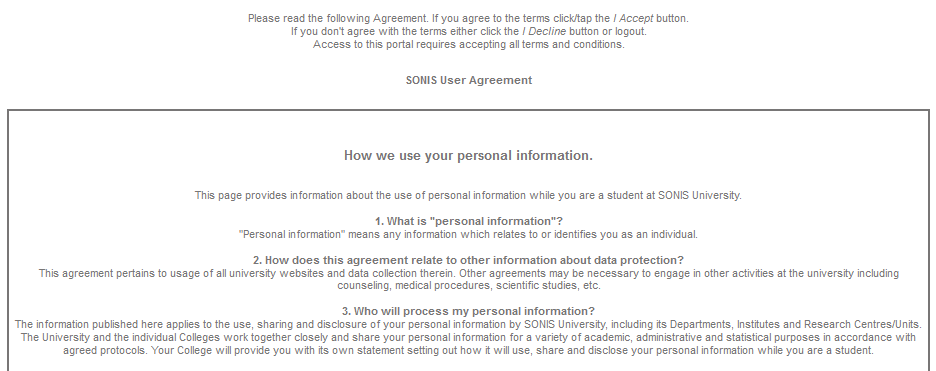
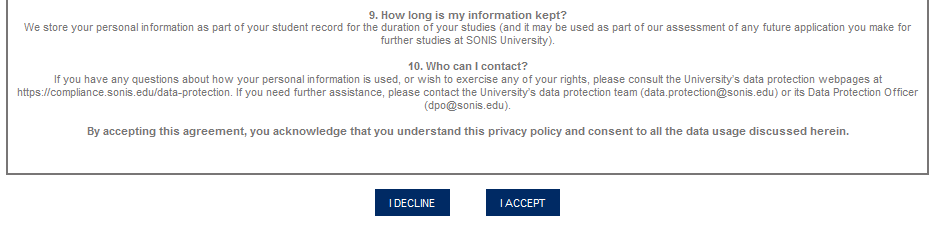
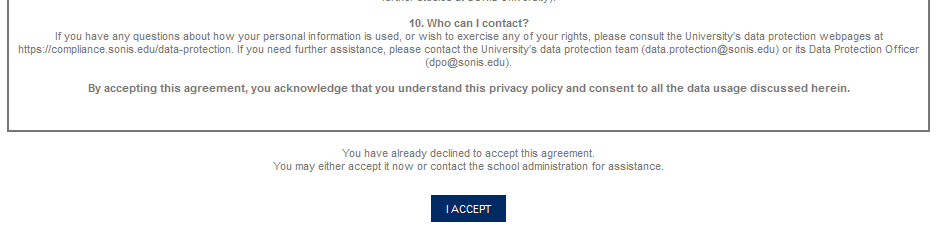
If a user declines an agreement, the Decline button will no longer be present on subsequent visits to the page.
Agreement History
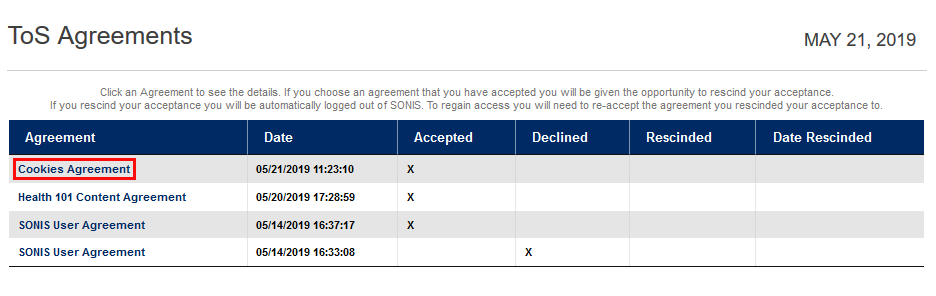
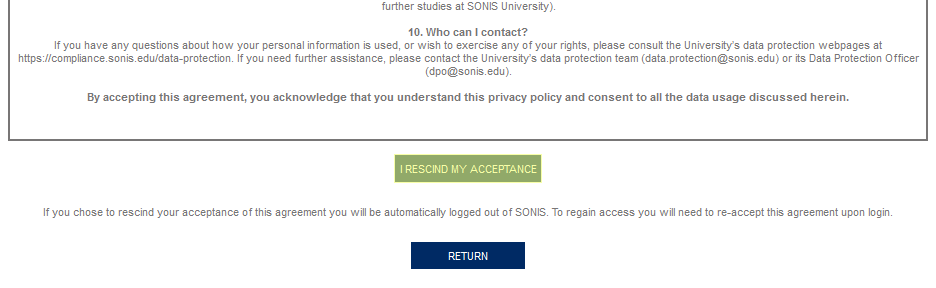
Once a user has accepted an agreement, the agreement will appear on their ToS Agreements page. The user can rescind their consent by clicking on the name of the agreement followed by the I Rescind My Acceptance button. If a student rescinds an active agreement, they will be immediately exited out of the portal and have to accept the agreement before logging back in.
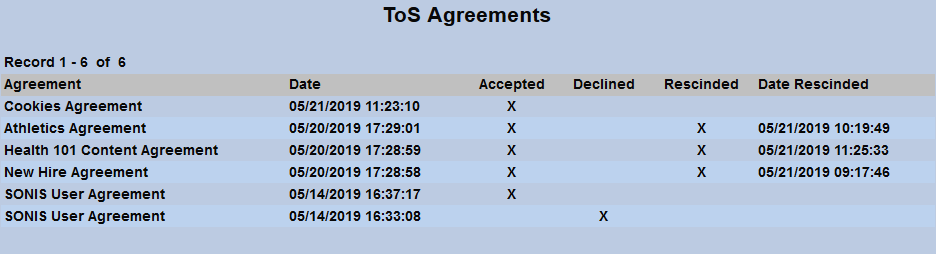
In addition, administrators can access a page in a user's Records called ToS Agreements. Included is the name of the agreement, whether it was accepted or rejected or accepted and rescinded, the date and time it was initially accepted or rejected, and the date it was rescinded, if applicable.
ToS Report
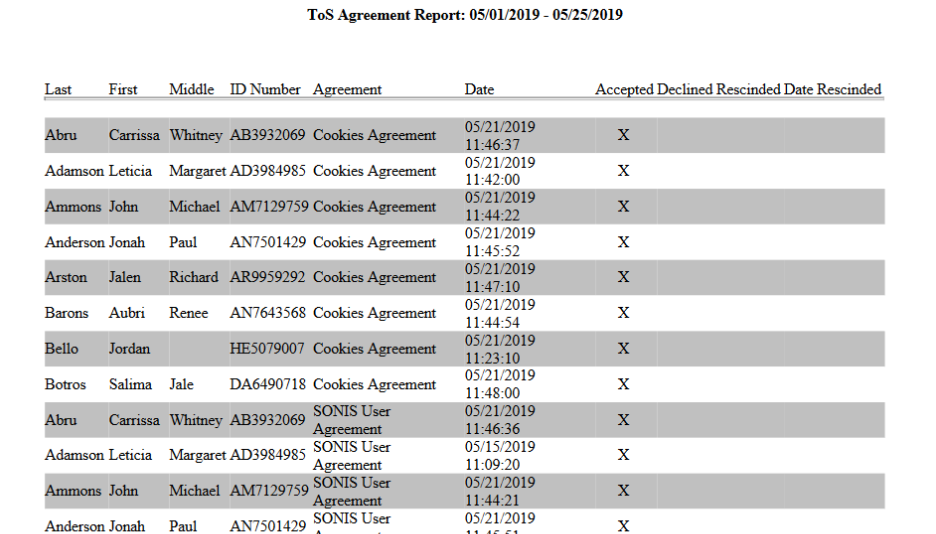
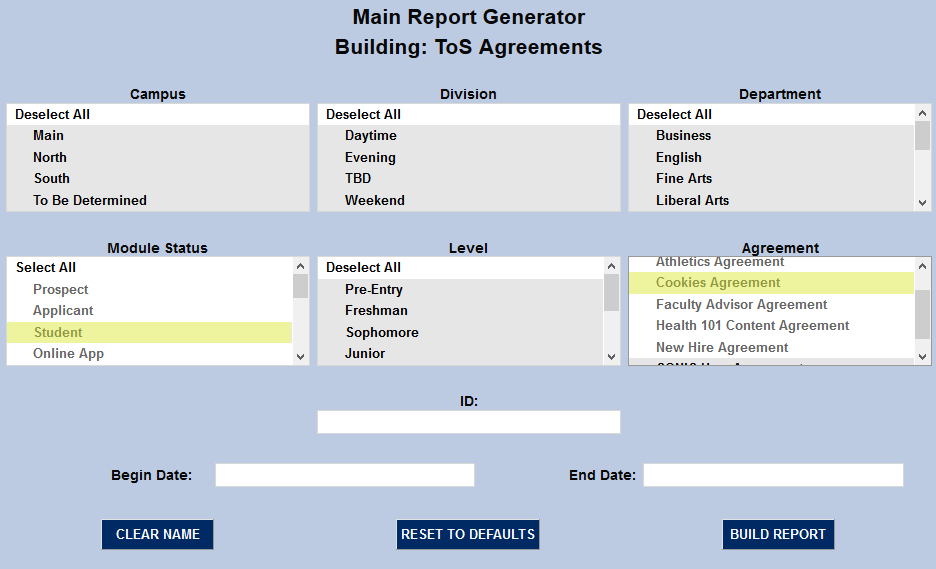
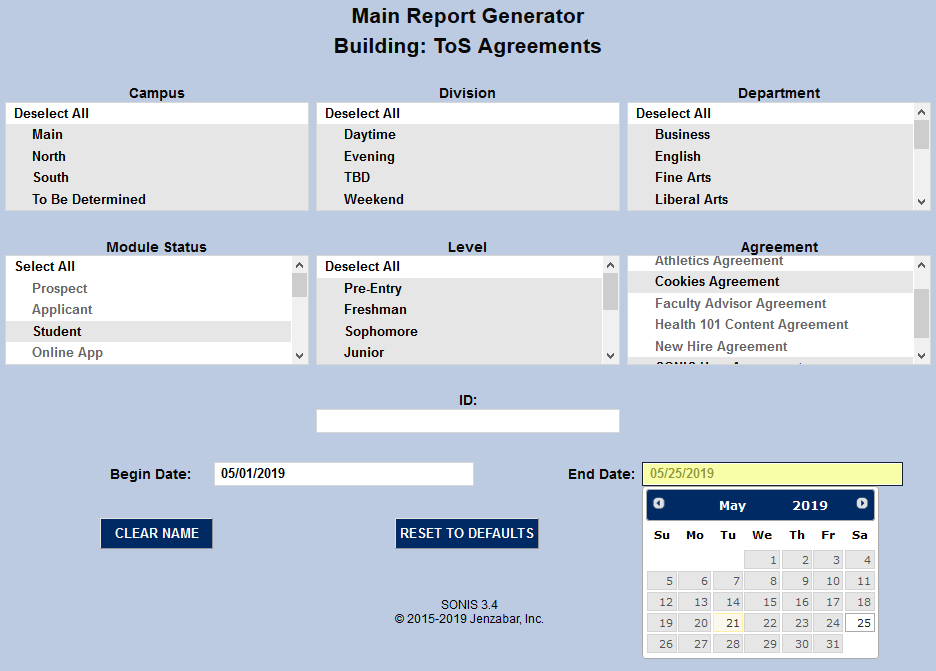
Administrators can track how SONIS users have responded to terms of service agreements using the ToS Report under the Reports menu. Select demographic information to narrow down who's included in the report, select an Agreement or agreements, enter a Begin Date and End Date to control the time period being reported, and click Build Report.
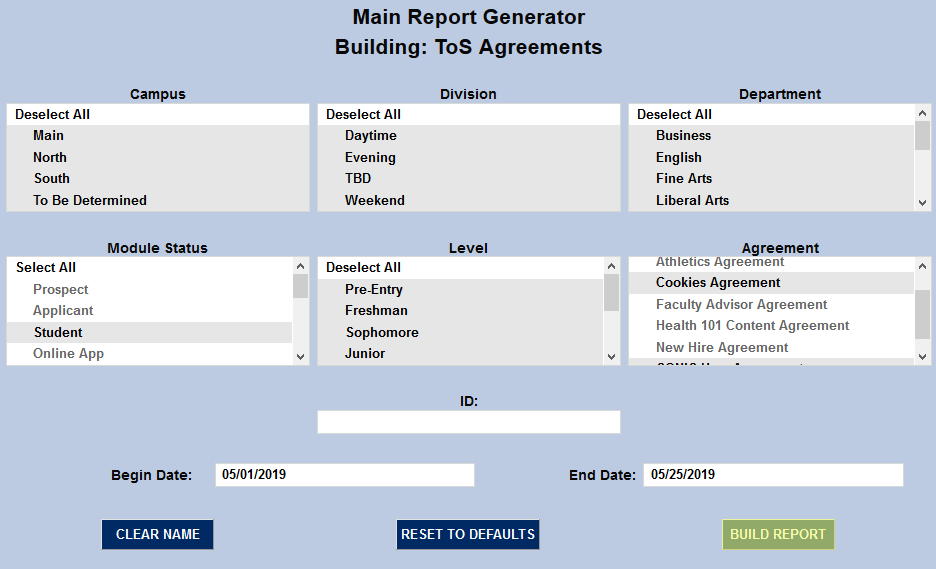
On the following page, click Preview Report to continue. The report will open as a PDF in a new window.