Holds Defined
Overview
The Jenzabar SONIS Holds utility allows administrators to place restrictions on students which prevent them from participating in certain activities such a registering for classes. The Systems hub page, Reg: Holds Defined, allows the set up of new registration holds and the editing of existing registration holds. For system-wide information on holds, visit the Holds page.
Holds Defined
To set up new registration holds and edit existing registration holds, navigate to Holds Defined in the Systems hub. Any hold created here will have the same effect when assigned, preventing a student from registering for classes.
Adding Hold Types
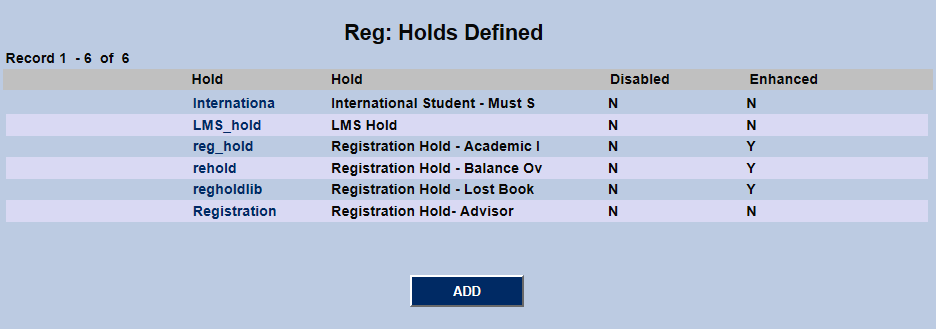
To create a new hold, click the Add button.
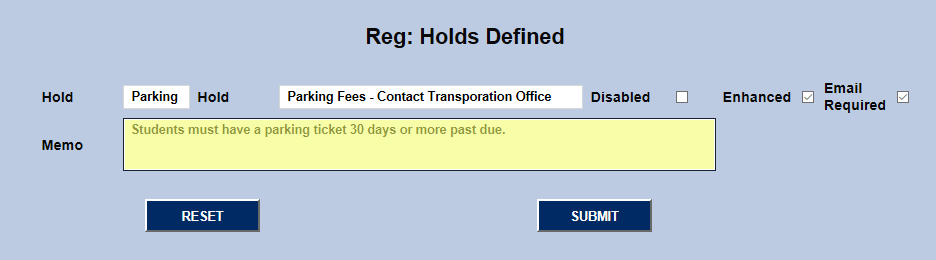
Create a name to describe the hold in the second Hold field (50 character limit) and an abbreviated version of that description in the first Hold field (12 character limit).
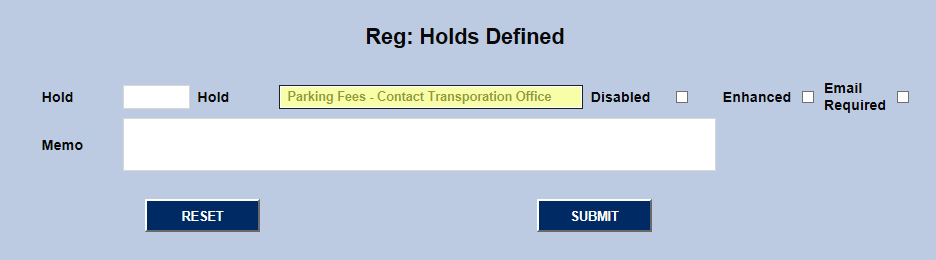
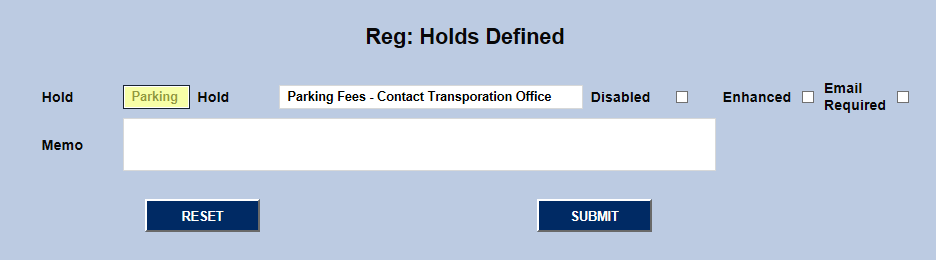
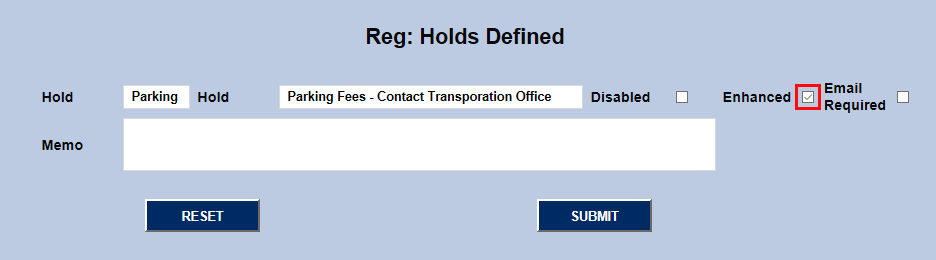
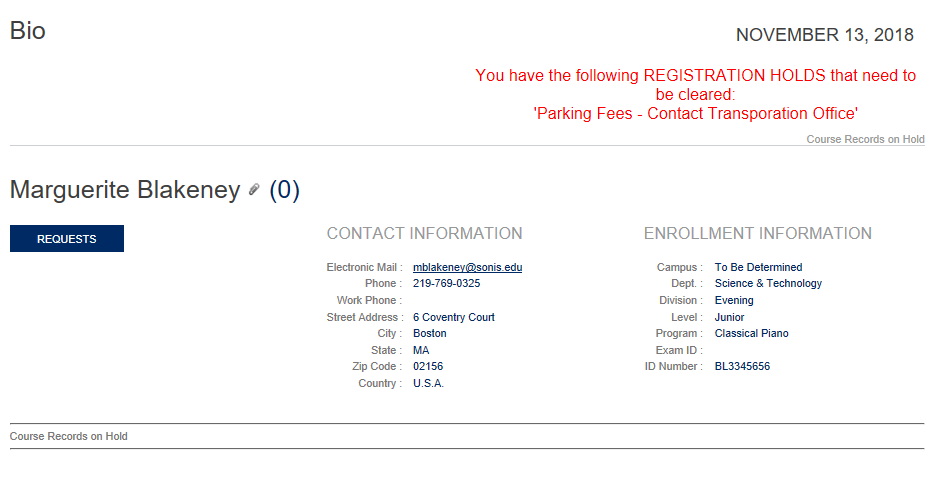
Holds can be given a greater level of severity by checking the Enhanced box. Enhanced holds appear in the Student Portal as a banner and prevent students from both viewing their schedule and running a degree audit. Only enhanced holds display in this manner.
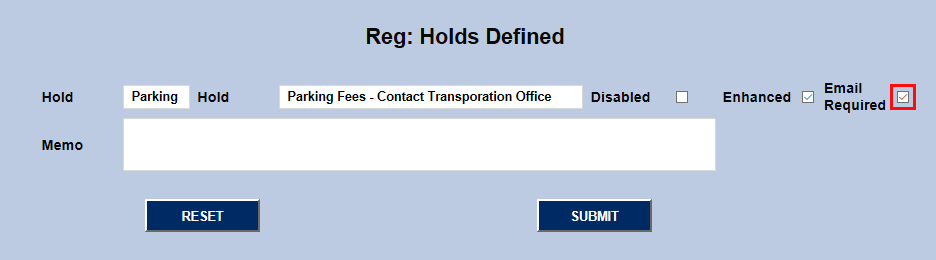
Check the Email Required box if an email should be sent to the student alerting them that they've been placed on hold.
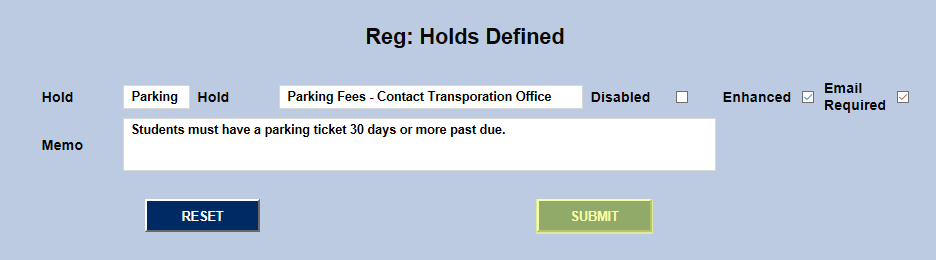
Add a Memo to further explain the hold type if needed and click Submit to save the changes.
Editing Hold Types
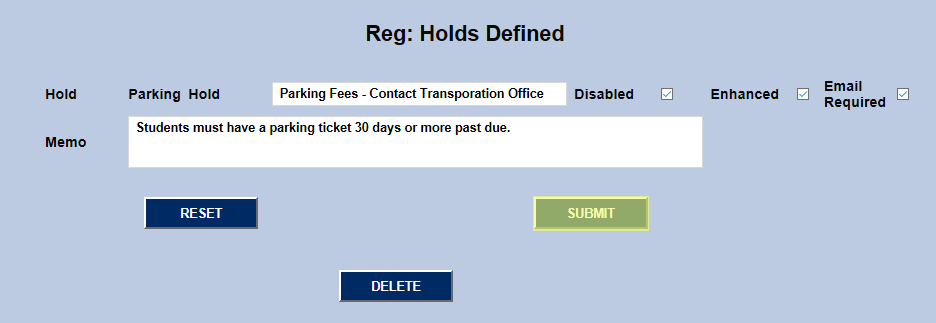
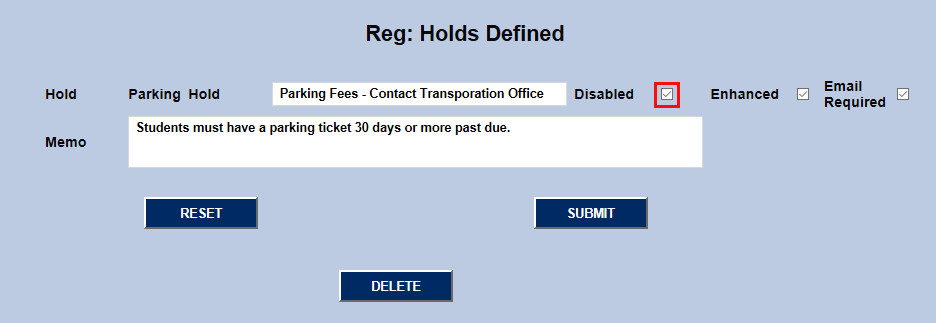
To edit a hold, click on the hold's name. The name cannot be edited, but the other data can be changed from here, including adding or taking away enhancement. In addition, administrators can disable the hold to prevent it from being used or delete it altogether.
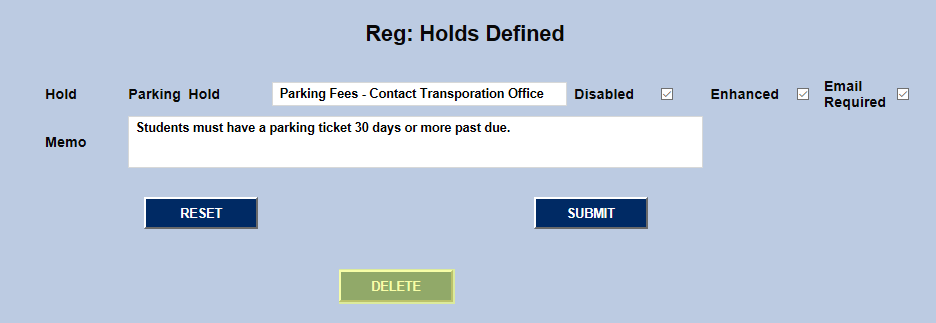
Click Submit to save any changes that are made.