Names
Overview
The functions referenced below were supplemented with the QuickSearch and User Creation Wizard. The functionality described in this article remains in place.
The toolbar includes a Names option. When it is clicked, the Name Search page opens. This page name is a bit misleading in that the page does more than simply search for names (i.e. accounts) in SONIS.
In addition, this page is used to add new names/accounts as well add new statuses (i.e. student, faculty, staff, etc.) to a name/account.
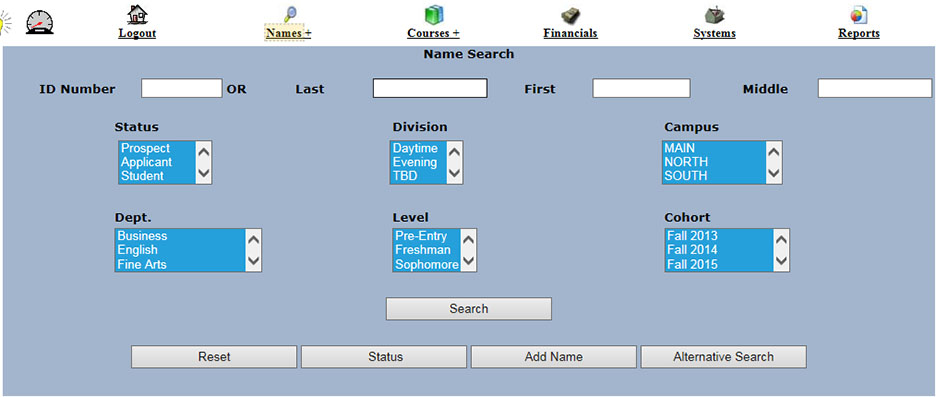
Administrative access can be limited to specific campuses, levels, statuses, etc. For example, an administrator may be limited to working only with individuals on the main campus. If so, their Campus list would only contain Main as an option. Visit User Security for additional details.
Once a name has been selected, the pages directly attached to a user are known as Records. Names, Users, and Records are often used interchangeably to refer to this section of the Jenzabar SONIS system.
Searching for Someone in SONIS - Default
As with any search engine, entering a broad search term will return a large number of "hits", many of which will have little to do with the intended outcome. On the other hand, entering items too specifically may result in no useful results at all. The best results generally come from narrowing a search but not too much.
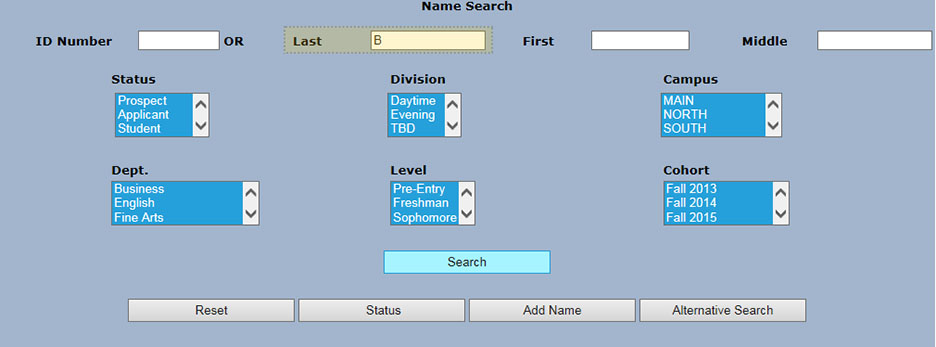
In the example below, the letter B is entered as the last name. It would be far better to also enter a first name (or initial) or some other narrowing value like a student status or level, etc., but sometimes the knowledge of the record being searched for is limited.
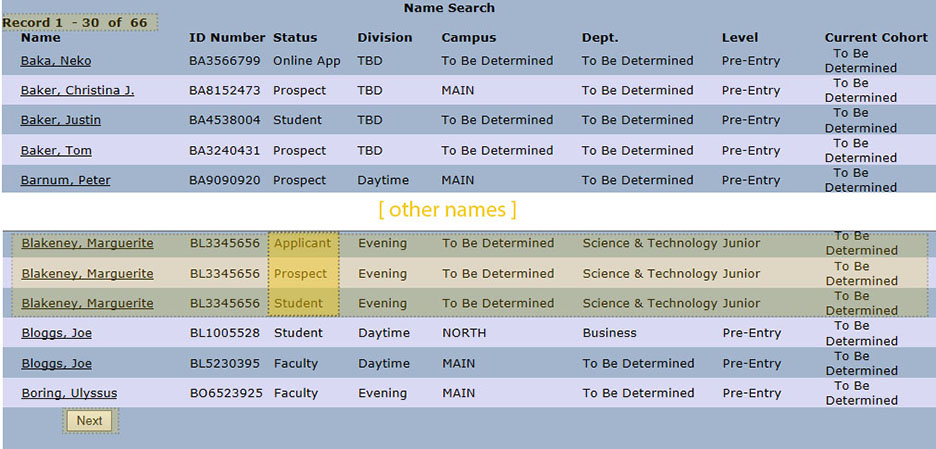
When a large number of results are found, for efficiency purposes, only a small number of them are actually displayed. In the example below, 66 names were found but only the first 30 are listed. This information is displayed above the list. Names 31-60 are displayed by clicking the Next button at the end of the list. On the page listing names 31-60 (not shown), a Previous button would appear beside the Next button. Previous would return to displaying names 1-30 and Next would display names 31-66. The number of names that display at one time can be changed be modifying the default setting in Web Options.
In the example below, Blakeney, Marguerite appears in the list three times because she has three different module statuses. An individual's status determines which functions will appear in the left side menu.
Status Bar Names and Courses
Once a search is narrowed to one individual with one status, either by clicking on a link in the list of names or searching narrowly enough to have only one record returned, the selected individual's name, status, and Jenzabar SONIS ID appear in the Status Bar.

+ (Saved Searches)
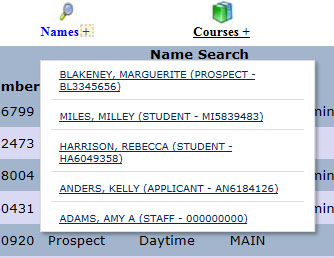
The + to the right of the Names option on the toolbar opens a popup list of X number of previous searches as determined by a setting in Web Options. As noted previously, a unique search name may be a combination of name and status. Therefore, as in the name search list, an individual will appear twice if they have been searched, for example, as both a student and applicant. In reality, two individuals with the same exact name and status can appear in a search list. However, their SONIS IDs would differ. SONIS uses the ID to determine uniqueness, but if the administrator does not know their ID, hopefully there would be other information (ex. campus, level, etc.) that can serve to identify the correct user.
The Reset button removes all the previous search choices, presenting a refreshed Name Search page.
Adding A Name
Adding a name requires that one, and only one, campus, level, etc. be selected to assign to the new name/account.
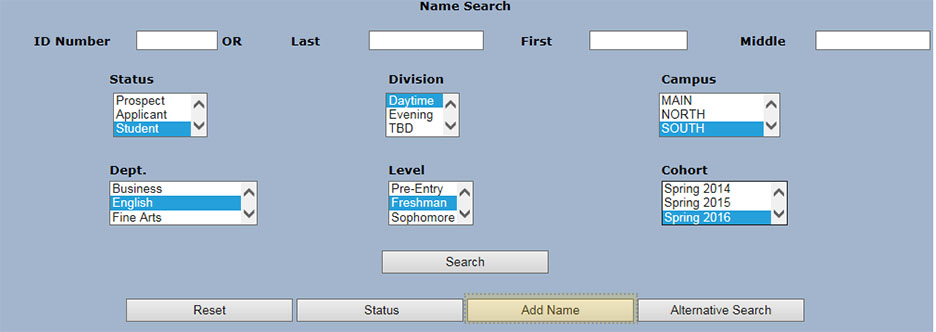
The ** fields are required. Not only is this information necessary for identifying an individual, but these fields are used to reduce the likelihood of adding a name more than once. System-Generated refers to a built-in default ID generator that assures that each user ID is unique. The is determined by a setting in Web Options.
SONIS also provides the option to enter an ID for a new account. Since it must be unique and 9 characters in length, its uniqueness and length are checked. Web Options includes the option to use a person's email address as their portal login ID. This feature exists because individuals already know their email addresses, which are already unique; therefore, they will not need to remember yet another ID. However, SONIS IDs are still assigned to everyone since they are used within the system for identification. The email address is only an ID when logging into the System. Sometimes an email address is unknown at the time an individual is being added to SONIS. Therefore, a ? is a default so that the record can be added. The ? must be replaced as soon as possible in order for the individual to receive email messages and log into the system if email addresses are used for that ID.
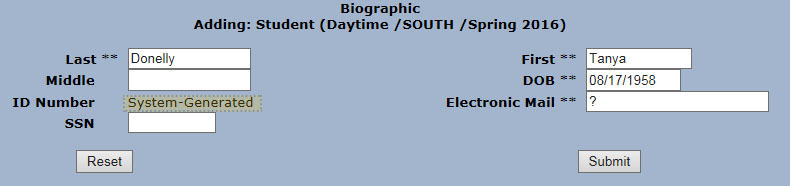
Upon submission, a skeletal account is created with the minimum information required to create an account. Administrators are encouraged to completely fill out both the new account's Biographic and Address pages. This assures that all SONIS functions using this information will be fully operational.
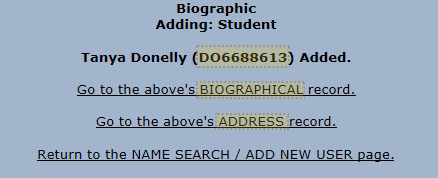
Biographic
If the administrator has the right to view PINs, they can view the PIN on the Biographic page. The PIN Length article provides more information about the generation of PINs. The Biographic page contains more information.
Address
The Address page contains all of the expected contact information once filled out completely. A new account, as illustrated below, contains little information in the beginning. The new account is assigned an Address Type of Primary and is marked as Preferred. Address Type is a description of the type of address, such as Mailing, Parents, and Campus. The Preferred address is the main address used by Jenzabar SONIS in displays, reports, and mailings. The others are treated as alternative ways to contact a person if they could not be contacted via the Preferred address.
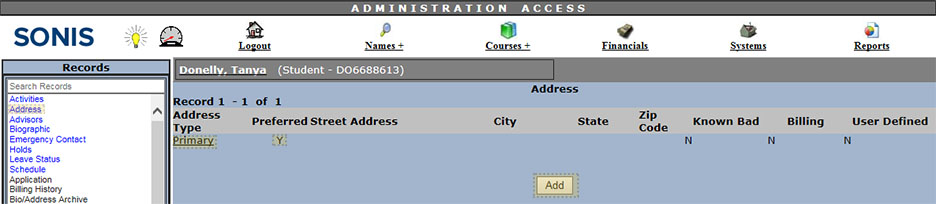
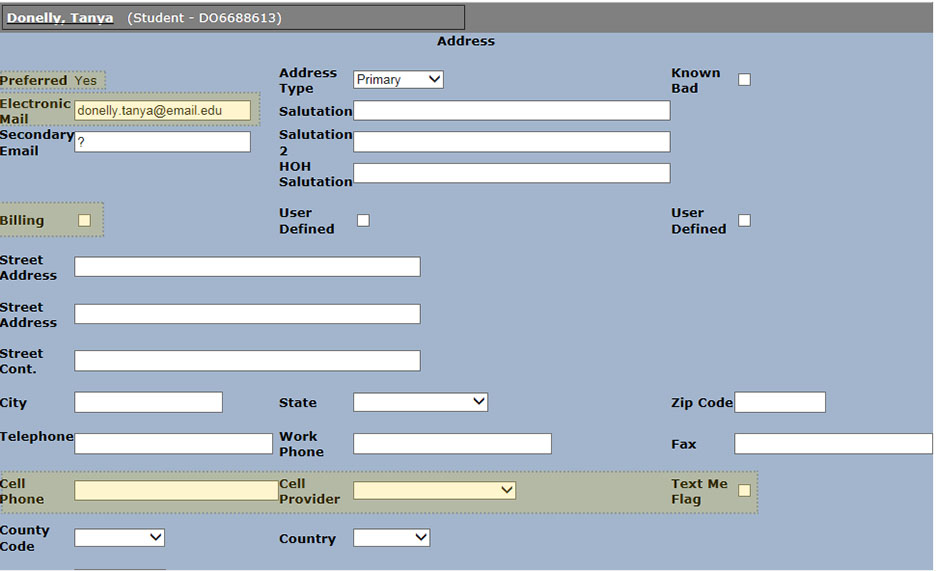
By clicking the Address Type link, the rest of the address record is presented. Here is where an email address should be entered as soon as possible. The email address of the Preferred address is used for all Jenzabar SONIS email communication, display, and reporting. The Billing checkbox is checked to assign a specific address as the one to receive billing information. Full mailing addresses, phone numbers, etc. should be entered as soon as possible.
Cell Phone and Cell Provider are used in combination for texting. The primary intention of cell phone information is for communicating time-sensitive information (campus-wide emergencies, sudden class cancellations, etc.) via text messaging. However, use can be limited to phone calls by keeping the Text Me Flag unchecked. The Cell Phone number should be entered without the +1 and with the area code. It may be entered with or without dashes.
Additional addresses can be added using the Add button previously shown. The Add button opens a blank template. It differs from the Primary address template shown previously in that Preferred has a check box and Address Type has a drop list of types from which to choose. Note that Primary is not on the list. There can be only one address per type, so if a type has already been used, it will no longer appear as a choice. Only one address can be Preferred.

If an address is submitted as Preferred when there is already a Preferred address, the screen below will appear. It shows the current Preferred address and the one currently being suggested as the new Preferred address. Submit changes the Preferred address to the new one, and Cancel leaves the current Preferred address as is.

Adding or Replacing a Status
This function takes an existing account and simply adds/replaces a Status. The Biographic, Address, etc. records are unchanged. The status basically makes logging into a portal (i.e. Student, Faculty, etc.) possible for a given ID/PIN combination. In doing so, it also potentially presents that person with an additional group of functions.
The function requires that an ID be entered and a single Status be selected. In the example below, the status Alumni is being added or replacing an existing status.
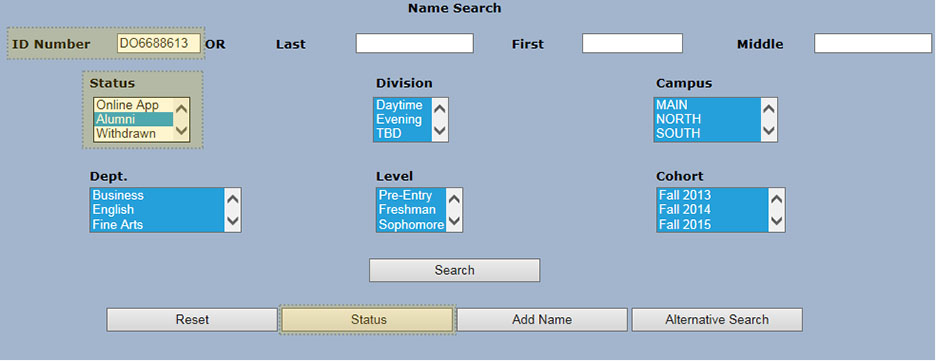
When Status is clicked, basic information is displayed for the purpose of confirming that the correct person is being changed. The function checks the individual's status(es) and reports back the options available. The link shows the existing status(es) of the person. If the person has multiple statuses, there would be a link for each existing status. In the example below, the person only has the Student status, and they do not have the Alumni status, so Alumni can be added. The Status link chosen is especially important when the intent is to replace the status.
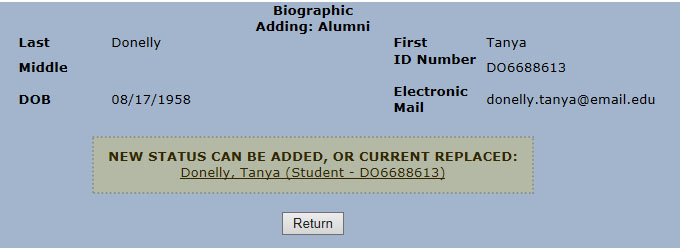
Clicking the above link presents links that offer the option to add or replace. Click as appropriate.
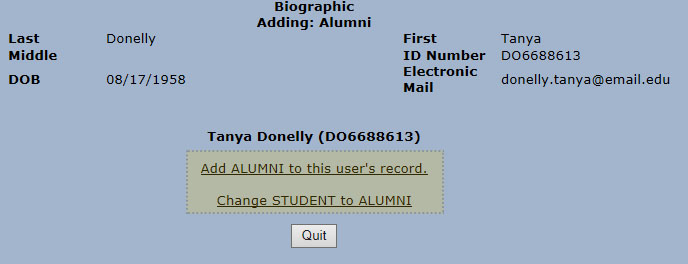
In this example, adding Alumni was clicked. The Status is added and SONIS goes to the same page of options that appears when adding a new name. Notice that the person is identified by the new status, Alumni.
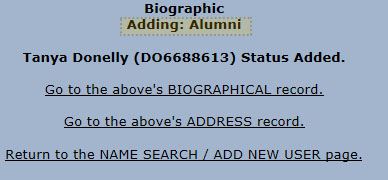
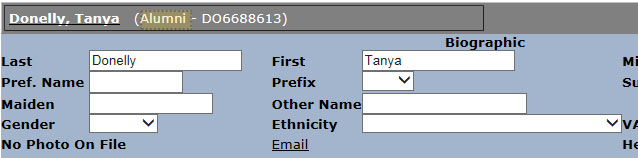
By clicking on the Biographical link, the page shows Alumni in the Status Bar. However, SONIS is pointing to the same Biographic record as it did when this individual was added as a Student.
The screenshot below shows the result of searching for Tanya Donelly. Two records are found, one for her as Alumni and one as a Student. Everything else displayed is the same, because they are the same person with two different statuses.

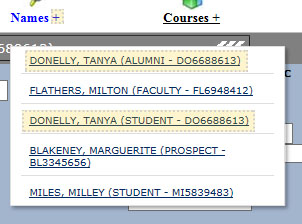
The next screenshot reiterates what was described in + (Saved Searches) above. It shows a new search for Tanya Donelly as Alumni as well as the earlier search for her as a Student. This is necessary because the functions available to each status potentially varies.
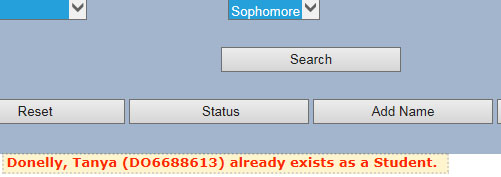
SONIS prevents an administrator from adding a Status that the individual already has.
Searching for Someone in SONIS - Alternative Search
Sometimes an administrator only knows the birth date, Social Security Number, etc. of the person they want to look up. SONIS offers a number of Alternative Searches for situations in which the default Name Search filters do not match what the administrator knows about the individual. The Alternative Name Search Table in the Systems hub allows administrators to exclude search options and prevent them from appearing when the feature is accessed.
To access Alternative Name Search, click the Alternative Search button at the bottom of the primary Name Search page. Which, if any, alternative searches an administrator has available is determined by their individual security setting. See User Security for additional details.
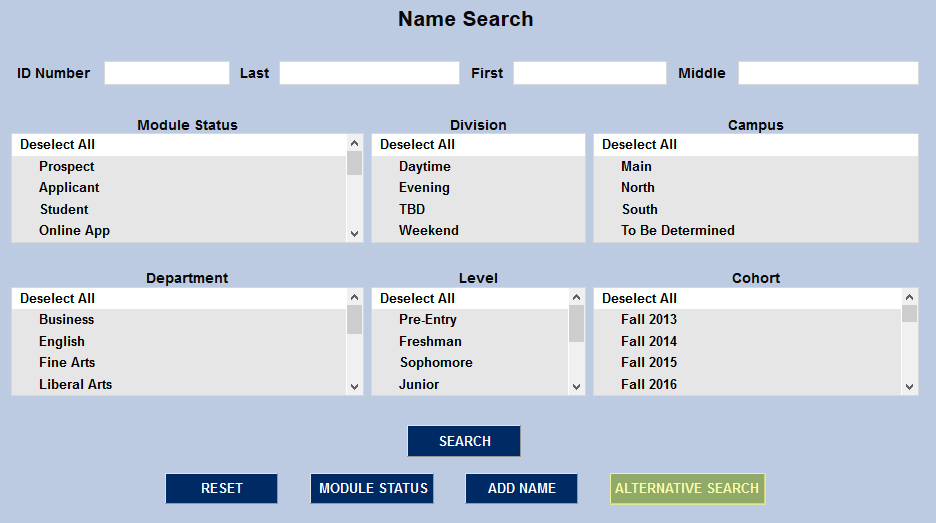

Once a type of search has been selected, click Submit to continue.

Birthdate
After selecting Birthdate from the list and clicking Submit select a date from the calendar or enter it manually.

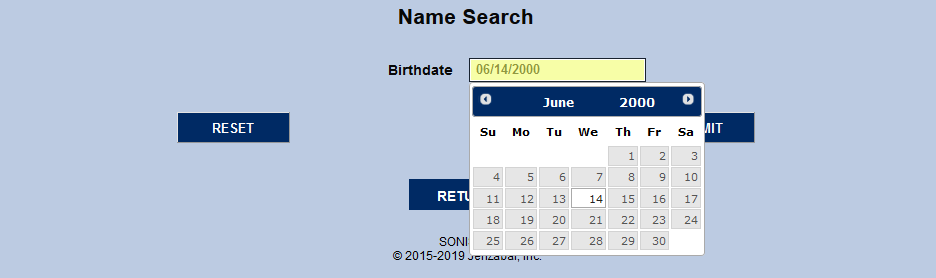
Click Submit to perform the search.

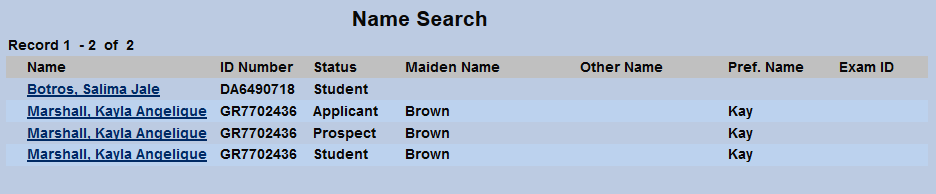
The results page lists all SONIS users with the searched birthdate with each Status they have in the system listed separately. Click on the user's Name to access their records.
Disposition
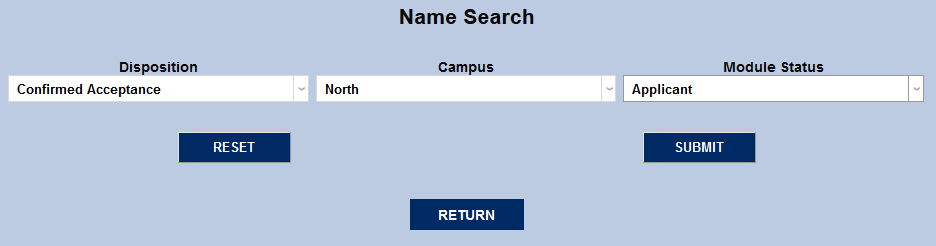
After selecting the Disposition alternative search option, the user will be given the option to search by Disposition, Campus, and/or Module Status. Select one for a wide search or use all three to locate a specific student.
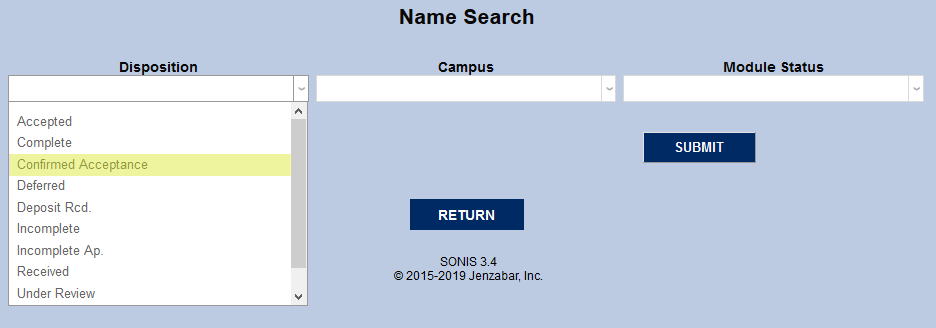
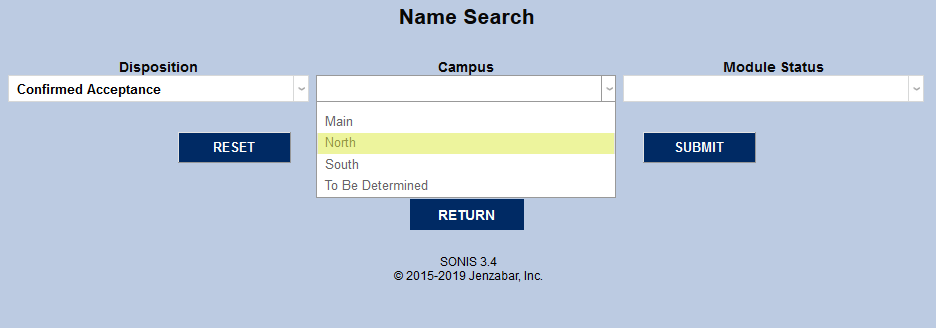
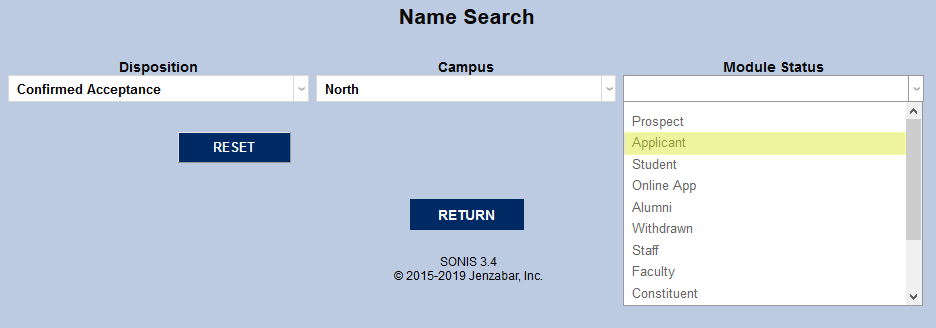
Click Submit to perform the search.
Email Address
To search for a user by email address, enter a valid Email Address using the @ symbol and click Submit. Users can be searched by Primary or Secondary email addresses, but only addresses found in their Preferred Address record.


Exam ID
Exam ID is a randomized number that can be assigned to students to use an alternate identifier that's anonymous to their peers. The numbers are created with the Exam ID Utility in the Systems hub. A student's exam ID can be viewed on their Biographic page. To search by Exam ID, enter the ID number and click Submit.


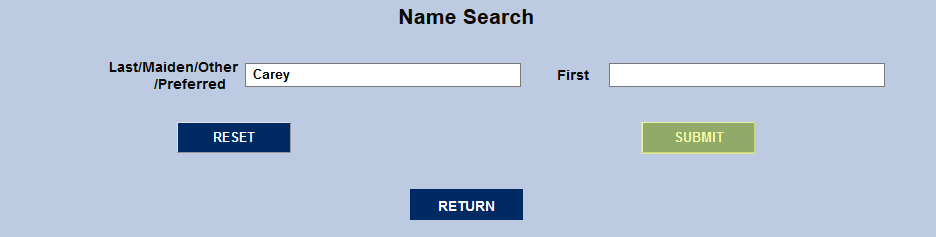
Last/Maiden/Other/Preferred - First Name
The Last/Maiden/Other/Preferred - First Name search has two fields. The first is a catch-all search that can be used to search any of the fields listed. Results will be displayed no matter which of the listed fields they match. The second searches only the first name. The first field is especially useful for instances where a SONIS user may have gotten married or divorced since the last contact. Their former last name will likely be in their records as one of the listed options.
Fill in one or both fields and click Submit to perform the search.

Home/Work/Cell Numbers
To search by a user's phone number, enter it into the Phone field and click Submit. A user's home phone number, secondary phone number, work phone number, and cell phone number can all be searched. However, as with the email address search, only a user's Preferred address information will be searched.


Note that if a number is entered with dashes, the search will ignore the dashes. So, for example, an administrator could search for "573-697-8174" or "5736978174" and get the same results.
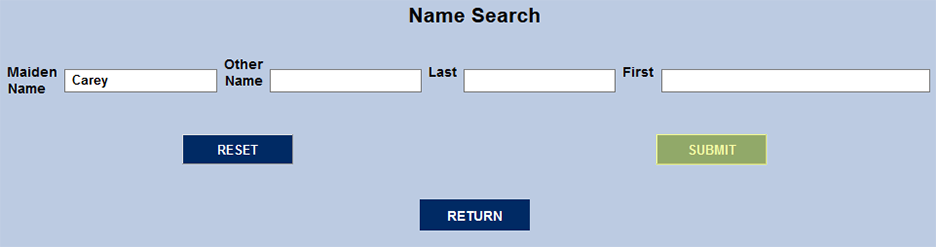
Maiden Name OR Other Name OR Last Name
The Maiden Name OR Other Name OR Last Name search provides four fields: one to search for a maiden name, one to search for a last name, one to search for a first name, and one to search for a name listed in the Other field of a user's biographic record. Each field only searches for matching values within the specific field that's listed. So, for example, a maiden name match won't be found if the name is entered in the Last Name or Other Name field.

Constituents
Constituents are individuals and/or organizations closely aligned with the school. They may be donors, volunteers, alumni, and students' family and friends.
Sponsors
A Sponsor is a Constituent assigned to a student or students. The sponsor has access to a limited amount of their associated students' records via the Sponsor portal.
Social Security Number
Administrators can search by a SONIS user's full social security number by leaving the No button turned on or just the last four digits by selecting the Match on last 4 integers option.