User Security
Overview
User Security is a function that allows system administrators to change the level of access given to individual users. To access the function, pull up a faculty or staff user account from the Name Search page and select User Security from the menu on the left. If the User selected does not have an account, the administrator will be prompted to create one.
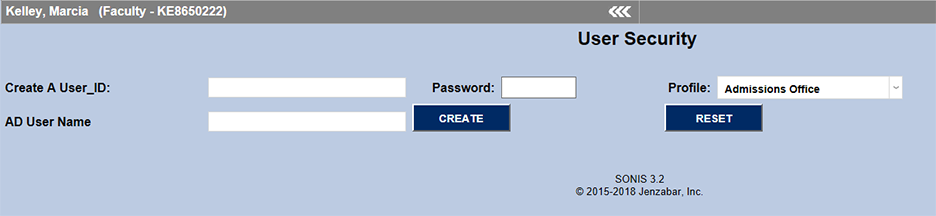
Creating User ID
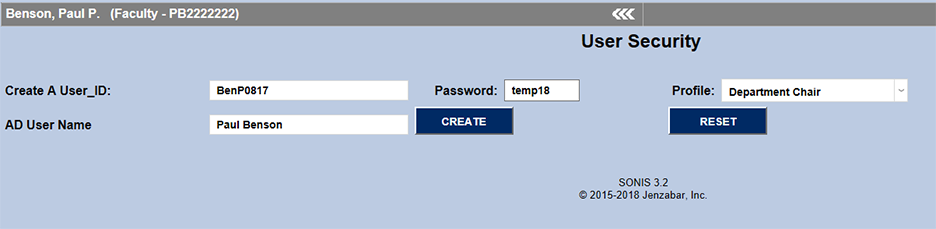
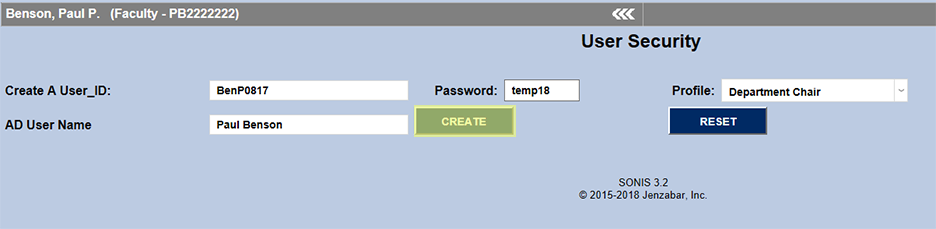
Enter a unique User_ID, Active Directory User Name, and a temporary Password. Then, select one of the predefined Profiles from the field on the left. New profiles can be created and existing profiles can be edited using the Profile Utility located under the Systems hub. Each profile allows access to certain parts of the SONIS program. Once a profile has been selected, exceptions can still be made for the individual user. When all fields are filled out or selected, click Create to save changes and continue.
Choosing Search Options
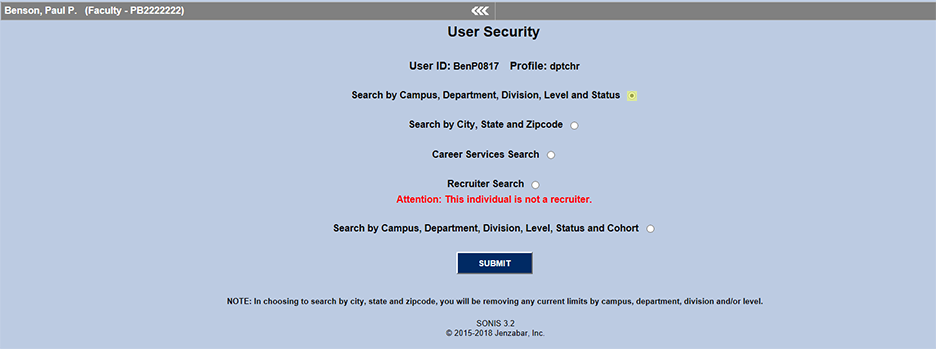
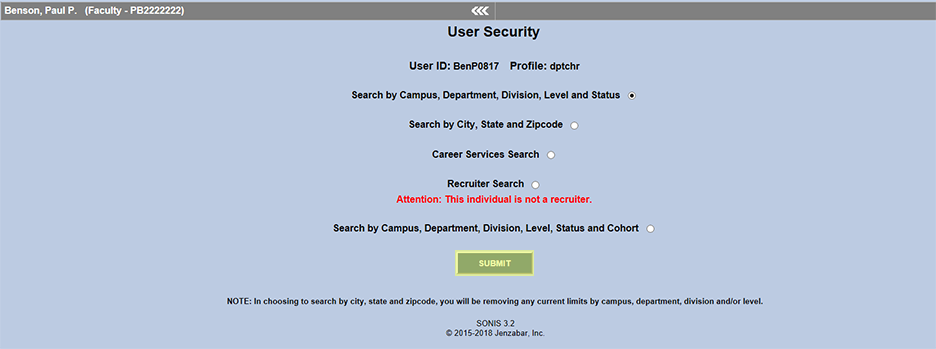
The next page controls the fields that will be available in the user's Name Search utility. The default search is by Campus, Department, Division, Level, and Status. Other available searches include a search by City, State, and Zip Code; a Career Services Search; a Recruiter Search; and a search by Campus, Department, Division, Level, and Status with the option to search by Cohort added. Each search type is designed to accommodate a different kind of school employee. If the user is not listed in the system as a recruiter, a warning will appear in red saying Attention: This individual is not a recruiter. Choosing the "City, State, and Zip Code" option will remove any campus, department, division, and/or level restrictions previously placed on the user. Once the appropriate search fields have been selected, click Submit to save changes and continue.
Limiting Access
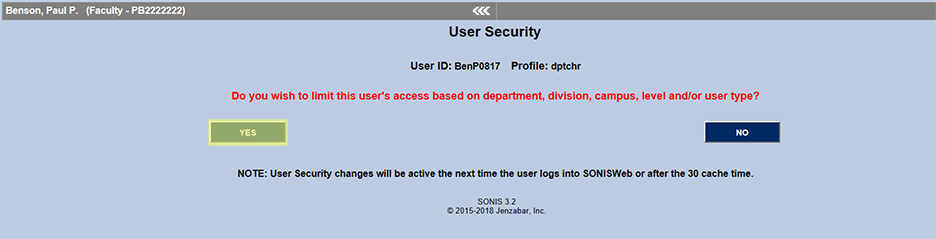
SONIS next provides the ability to limit the user's access by department, division, campus, level, and/or user type. If these limits are not necessary for the user being edited, click the No button. If this user should be limited by one of the listed categories, click Yes to create and/or edit these limits.
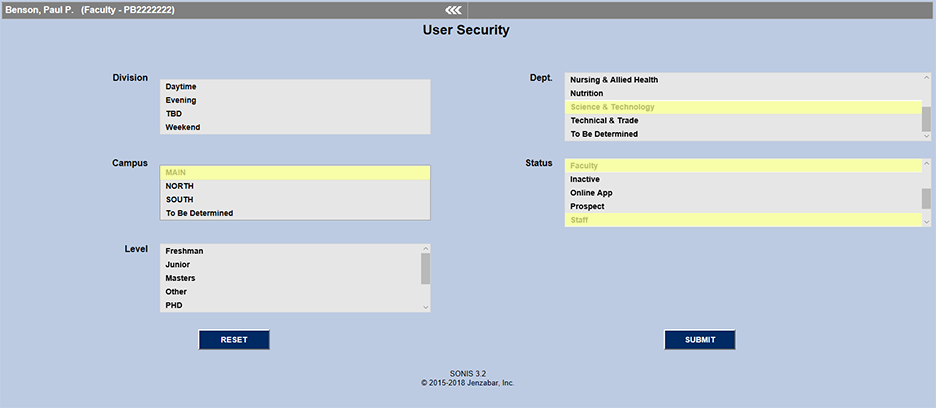
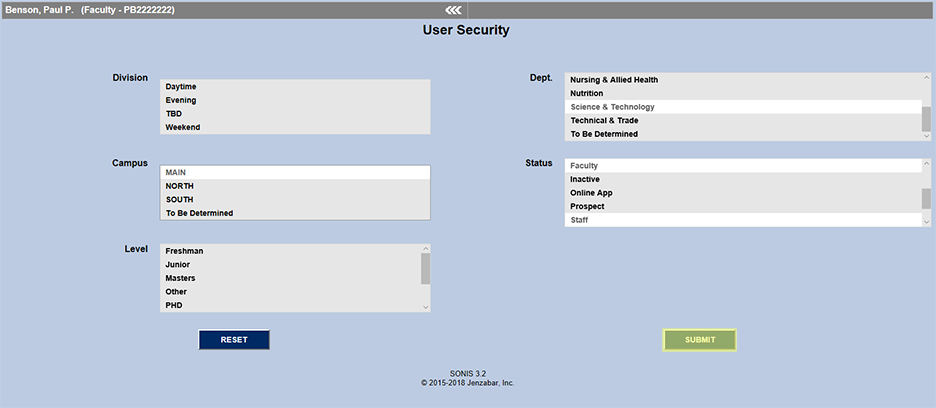
Select Division, Department, Campus, Status, and Level limits for this user. The user will only be allowed to search within and edit data for the selected departments. To select multiple options within the same category, hold CTRL while clicking. Once the appropriate selections have been made, click "Submit" to save changes and continue. A "Reset" button is available to remove errant selections.
Adding Additional Privileges
The following page gives the administrator the opportunity to add additional privileges such as overrides. If no additional privileges need to be added, click the No button. Additional privileges are added by clicking Yes to continue.
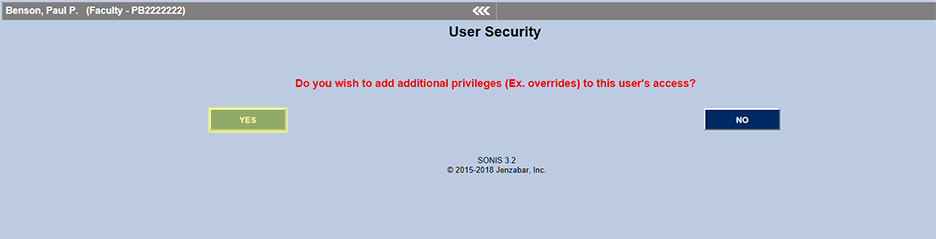
Select any privileges from the list that the user being edited needs to have. Again, hold the CTRL button while clicking to select multiple options. Click Submit when finished selecting or Reset to remove errant selections.


Biographic
The following privileges all control access to various parts of the Biographic page.
AD User ID
The AD User ID privilege allows administrators to access and alter users' Active Directory ID. Without this permission activated, the AD User Name field will appear as Unauthorized.

Advisor Type
On each faculty member's Biographic page is a checkbox to designate that faculty member as an advisor. With the Advisor Type security privilege, administrators can also view and edit the user's advisor types.

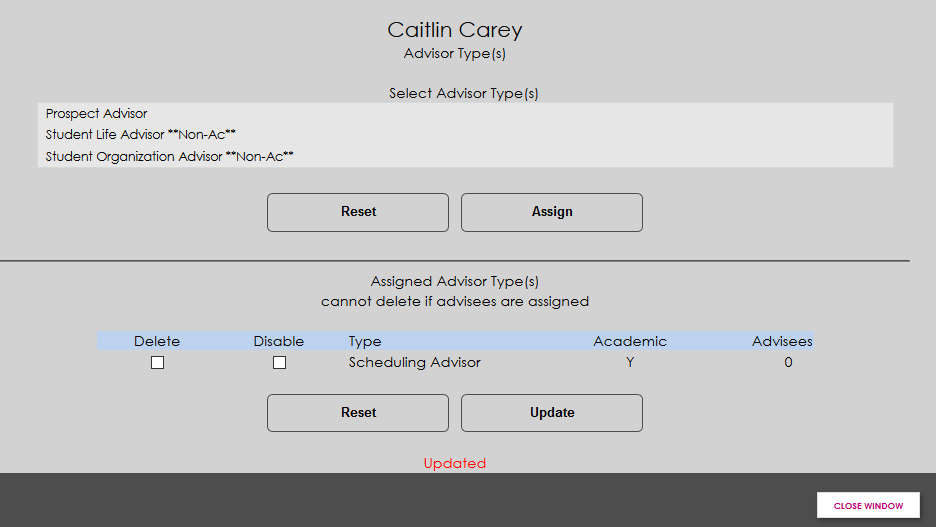
Without the privilege, the View link is replaced by text noting that viewing and changing advisor types is Unauthorized.

Birthdate Access
The Birthdate Access privilege allows administrators to access and alter users' birthdate. Without this permission activated, the DOB field will appear as Unauthorized. Access must also be granted in order for an administrator to add the date of birth to the Enrolled Student Listing report.

Change Single Sign-On Property Value
Users in schools using Microsoft Azure for seamless single sign-on will each have an SSO Property assigned to them by Microsoft. In some cases, this value may need to be changed. The SSO Property field on the biographic page can be used to update this data. The field only appears if single sign-on is active from the Web Options page and the administrator has the Change Single Sign-On Property Value privilege. If either condition is not met, the field is not shown on the page.

Disable Login
The Disable Login privilege allows administrative users to prohibit users from logging in using a checkbox on that user's Biographic page. With this privilege enabled, administrators can also uncheck the Disable Login box to allow users to regain access after their account is automatically disabled due to too many bad login attempts. With the privilege, administrators can see whether a user's login is disabled or not, but cannot change that status.


Ethnicity & Gender Access
To safeguard privacy, administrators are unable to view a user's ethnicity or gender unless they've been granted the Ethnicity Access and/or Gender Access permissions.
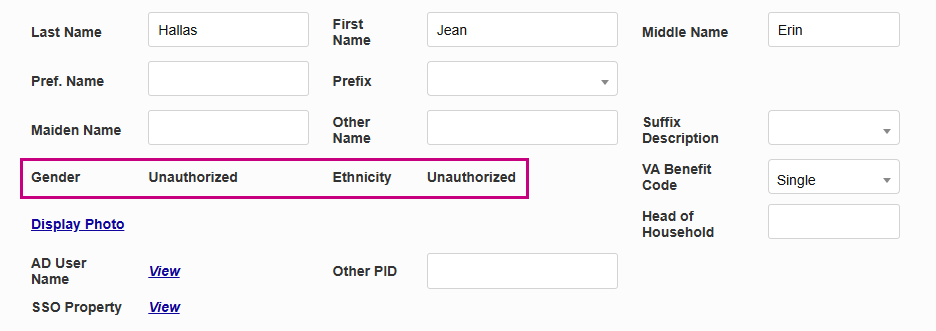
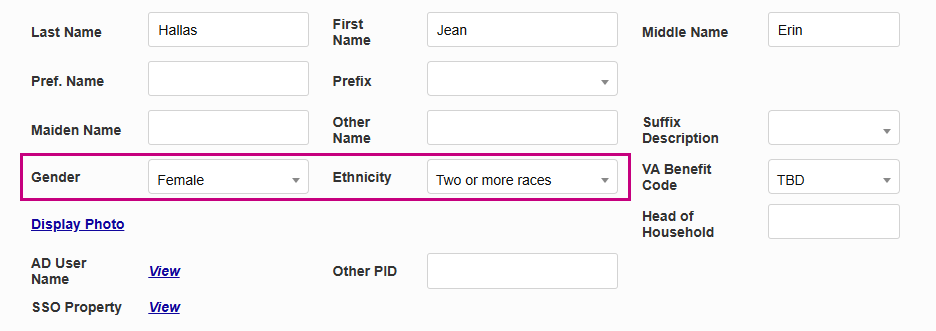
These permissions are also needed to view or edit a user's gender or ethnicity anywhere else in the system, including the Admissions Hub, the User Summary page, the Citizenship/Ethnic IPEDS record, and any report that contains gender or ethnicity information.
View/Modify PINs
The View/Modify PINs privilege allows administrators to access and alter users' personal identification number, their passcode to log in to SONIS. Without this permission activated, the PIN field will appear as Unauthorized.

View Sensitive Affiliations
Affiliations provide a way to categorize students that can affect their tuition, fees, and other charges. Affiliations can be marked as sensitive, masking them from users that don't have the View Sensitive Affiliations privilege. Without this privilege, sensitive affiliations appear under a false name and are not editable. For more on how sensitive affiliations work, visit the Affiliation wiki page.

Financials
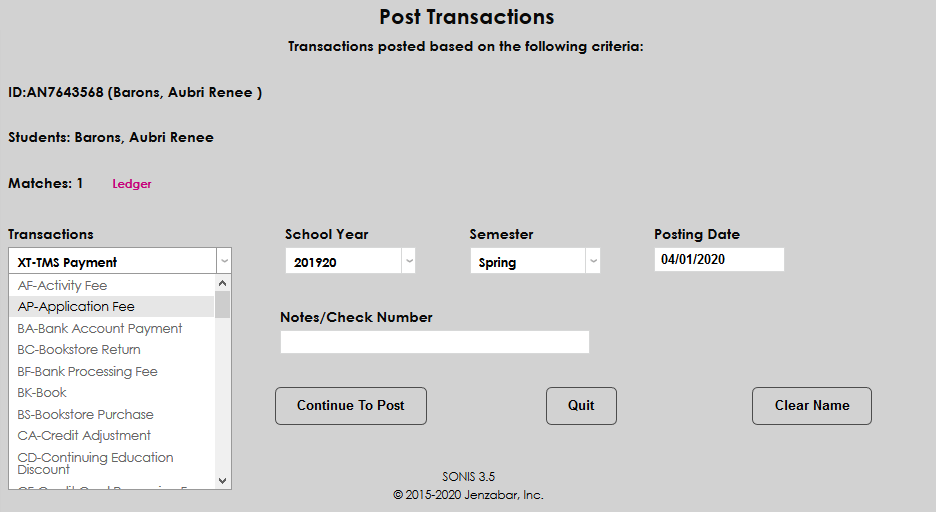
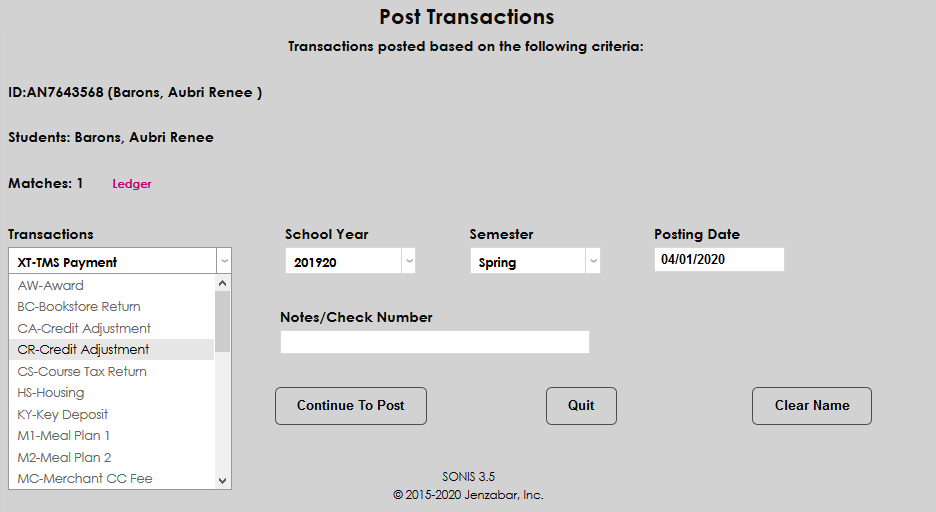
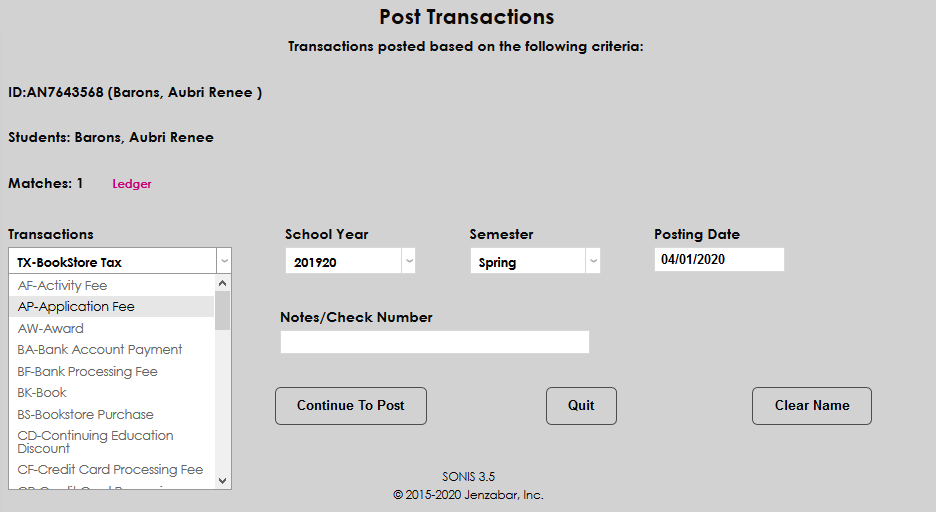
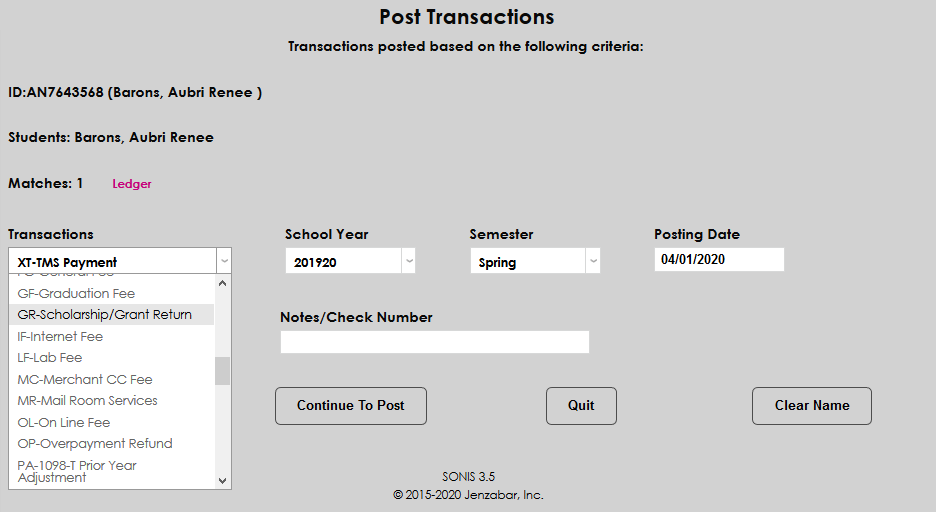
These privileges provide access to create various kinds of transactions from the Post Transactions page.
Awards
The Awards privilege grants access to create transactions with the Award transaction code, which has an activity type of a and an activity code of =. Without the privilege, this code is not available when posting transactions.
Charges
The Charges privilege grants access to create transactions with all charge transaction codes, which have an activity type of b and an activity code of +. Without the privilege, these codes are not available when posting transactions.
Credits
The Credits privilege grants access to create transactions with all credit transaction codes, which have an activity type of c and an activity code of -. Without the privilege, these codes are not available when posting transactions.
Housing
The Housing privilege grants access to create transactions with transaction codes related to housing, which have an activity type of h and can have an activity code of + or - depending on whether they're housing charges or credits. Without the privilege, these codes are not available when posting transactions.
Name Search
Alternate Name Search
The Alternate Name Search privilege allows administrators to access alternative searches from the Name Search page. Without this privilege enabled, the Alternate Name Search button does not appear on the page.
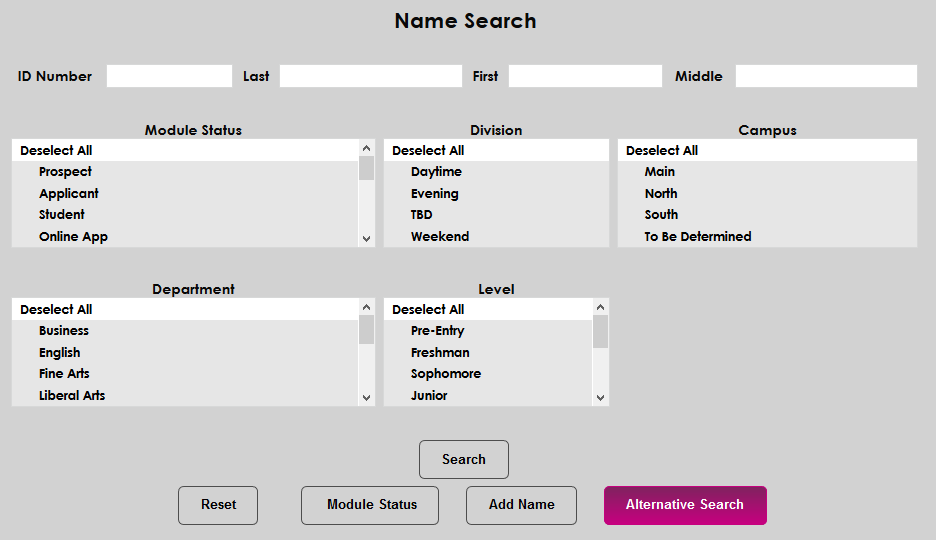
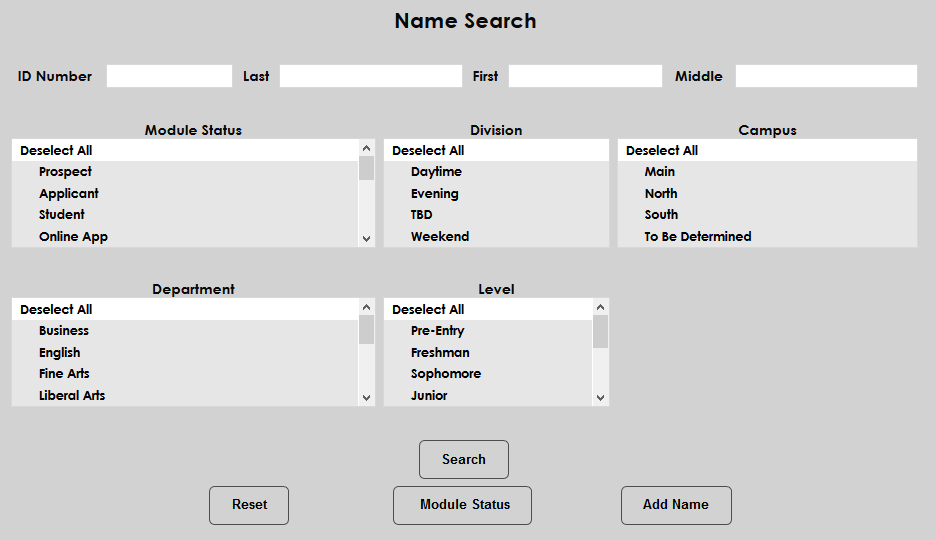
Show Add Name on Name Search
The Show Add Name on Name Search privilege gives administrators access to add new users to the SONIS system through Name Search. Without this privilege enabled, the system displays a message reading You have no rights to ADD this person when an administrator attempts to add a user with the Add Name button.
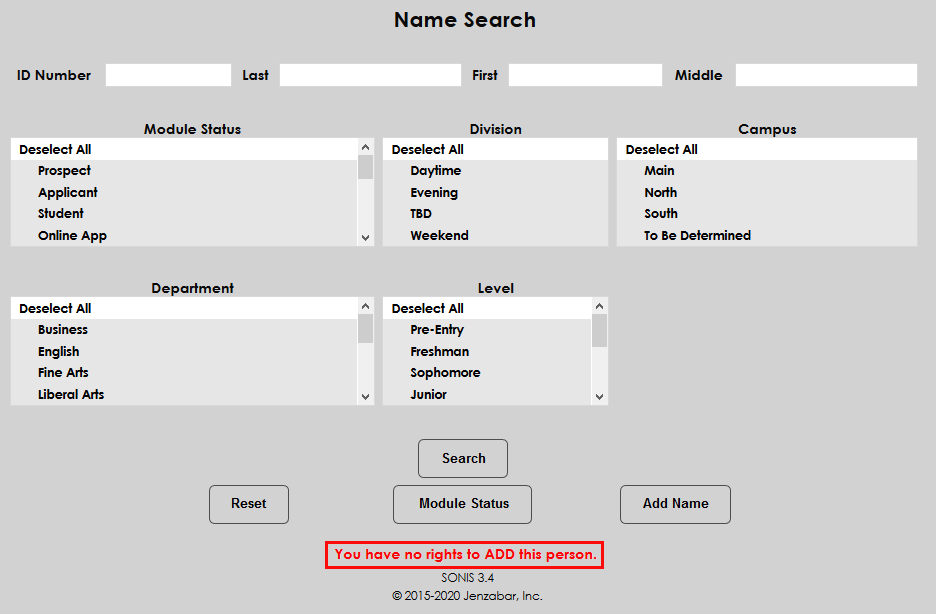
Show Add Status on Name Search
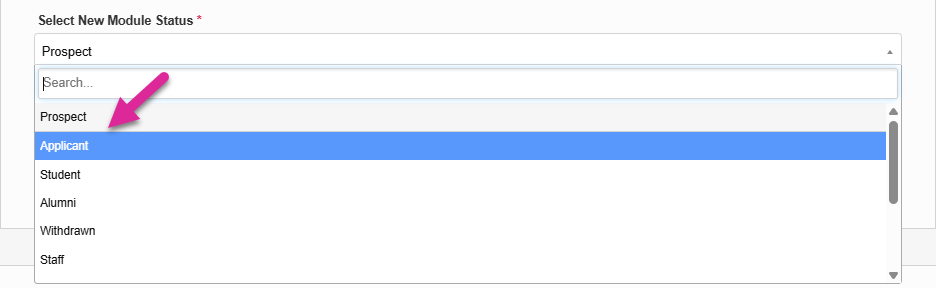
The Show Add Status on Name Search privilege gives administrators access to add an additional module status to a user in the SONIS system through Name Search. Without this privilege enabled, the system displays a message reading You have no rights to ADD this person when an administrator attempts to add a status with the Module Status button.
With this privilege enabled, staff members can also access the Add/Replace Module Status modal, a tool that allows for quick module status changes.

Registration
The following privileges are related to the registration process.
Enroll From Waitlist
The Enroll From Waitlist privilege allows administrators to enroll students who are waitlisted into a course. Without the privilege the only options for the administrator are to remove the student from the waitlist or to cancel and return to the previous page.

When the privilege is active, users can move students from the waitlist to the course as long as the course has open spaces. The Overbook Courses privilege is needed to register waitlisted students for a course with no open seats. Note that administrators with the Override Waitlist option have access to register waitlisted students to a course regardless of whether this privilege is active or not.

Overbook Courses
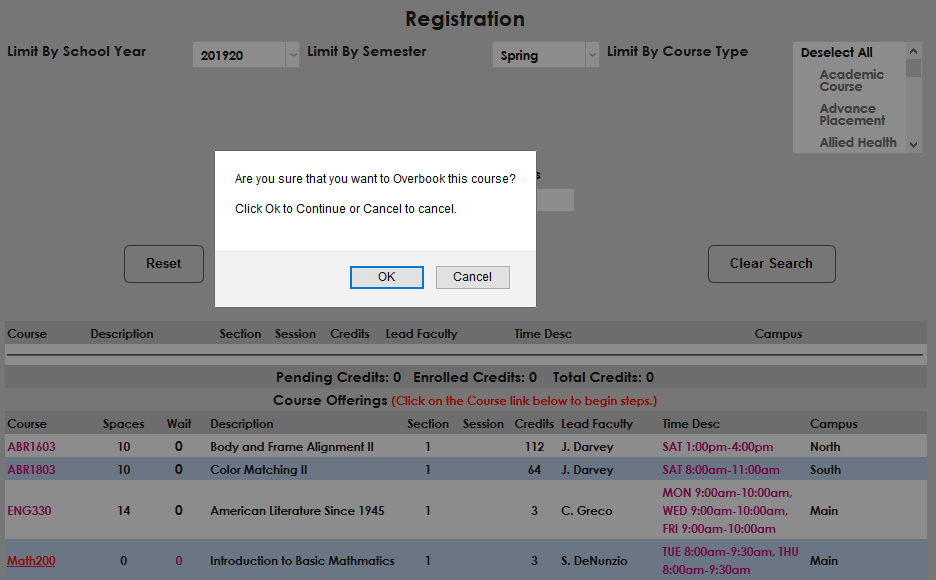
The Overbook Courses option allows administrators to enroll students in courses that are full based on the Spaces limit set on the Course Section edit page.

If an administrator has the Overbook Courses privilege, a pop-up asks "Are you sure you want to overbook this course?" Administrators without the Overbook Courses privilege are not given this option.
Override Corequisite
The Course Add/Edit page allows administrators to specify a corequisite that must be taken concurrently.
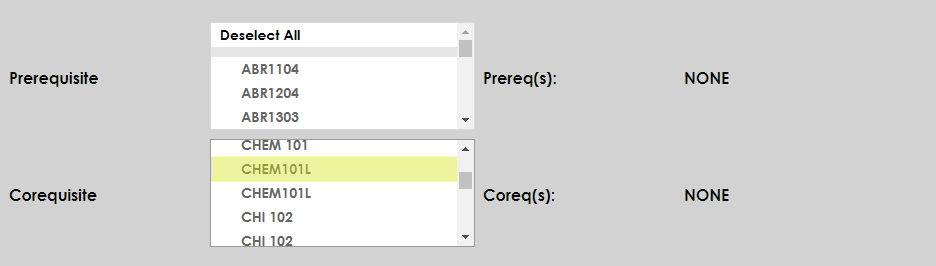
The Override Corequisite privilege allows administrators to register students for this course alone without its corequisite. Without the privilege, administrators are told that the two courses must be taken together.

With the privilege enabled, administrators are given this same message, but have the option to Continue to register anyway.

Override Credit Limit
The Registration Settings section of Web Options includes a field to specify the Maximum Number of Credits Allowed during registration.

If an administrator without the privilege attempts to register a student for a course or courses that would put them over the credit limit, an error message appears informing them that Enrolling in [Course] would put this student over the credit limit.

If an administrator with the privilege enabled attempts to register a student for a course or courses that would put them over the credit limit, the same error message appears, but they're given the option to Enroll anyway.

Override Level Restriction
Another restriction set on the Course Section edit page is the Level restriction.
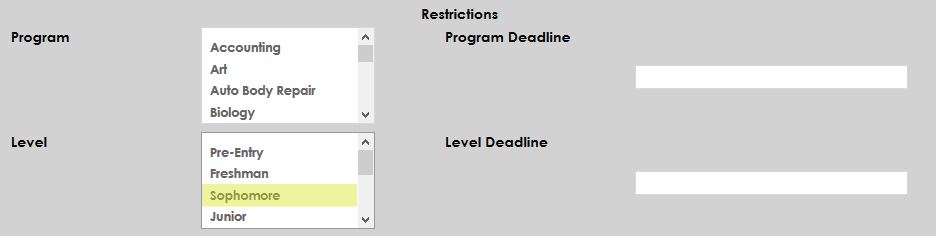
Without the Override Level Restriction privilege, administrators who attempt to register students for courses designated for other levels get the error message This Course Is Restricted To Students Of Other Levels.

With the Override Level Restriction privilege enabled, administrators see the same error message displayed, but have the option to Continue to register anyway.

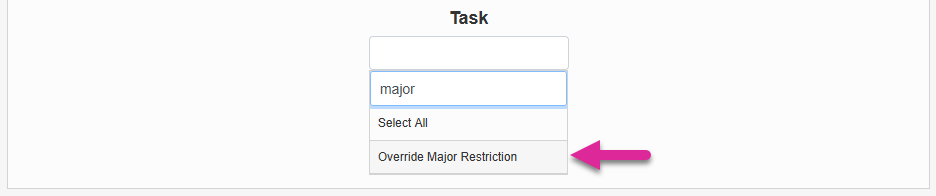
Override Major Restriction
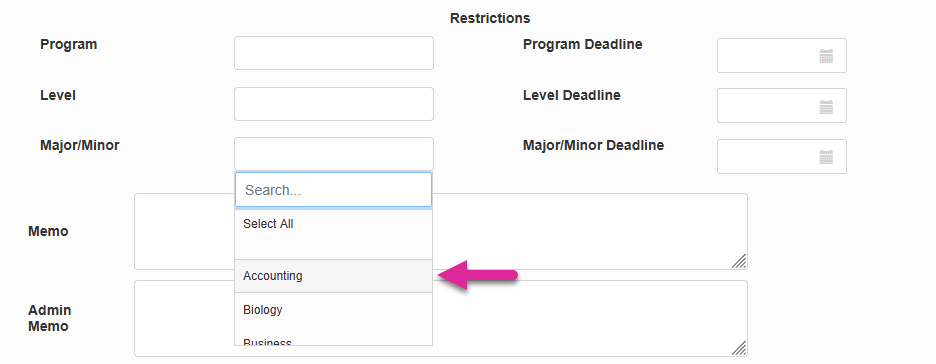
The Course Section edit page also allows courses to be restricted by Major and Minor.
Without the Override Program Restriction privilege, administrators who attempt to register students for courses designated for other levels get the error message This Course Is Restricted To Students Of Other Majors.
Note
While the privilege only says major, the restriction doesn't apply to students with the selected major set as their active minor as well.
With the Override Major Restriction privilege enabled, administrators see the same error message displayed, but have the option to Continue to register anyway.
Override Program Restriction
The Course Section edit page also allows courses to be restricted by Program.
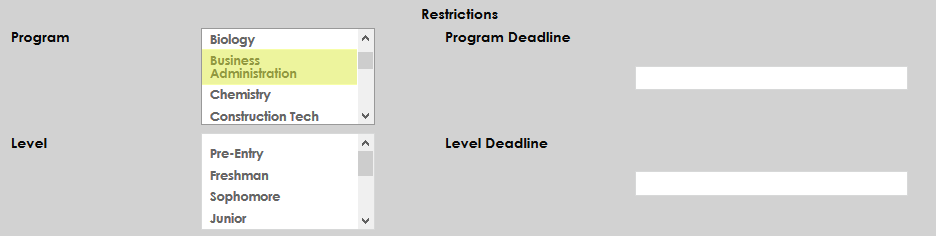
Without the Override Program Restriction privilege, administrators who attempt to register students for courses designated for other levels get the error message This Course Is Restricted To Students Of Other Programs.

With the Override Program Restriction privilege enabled, administrators see the same error message displayed, but have the option to Continue to register anyway.

Override Registration Delta Days
The Web Options page includes a Registration Started Course Delta Days setting that controls how long registration for a course stays open after the course start date.
Administrators with the Override Registration Delta Days privilege enabled can register for courses as normal after the delta days have passed. Administrators who do not have the privilege will not see any courses with start dates that put them out of this range when attempting to register students.

Override Registration Hold
Among the types of holds that can be assigned to a student from the Holds page is a Registration Hold that prevents the student from registering as long as it is active. Without the Override Registration Hold privilege, administrators who attempt to register a student with a registration hold are given an error message reading "This student has the following REGISTRATION HOLDS that need to be cleared:" along with the hold(s).

With the Override Registration Hold privilege enabled, administrators are shown the same error message, but can override the hold(s) and continue to the registration page.

Override Repeat Permission
The number of times that a course can be repeated for credit is controlled globally with a setting in Web Options.
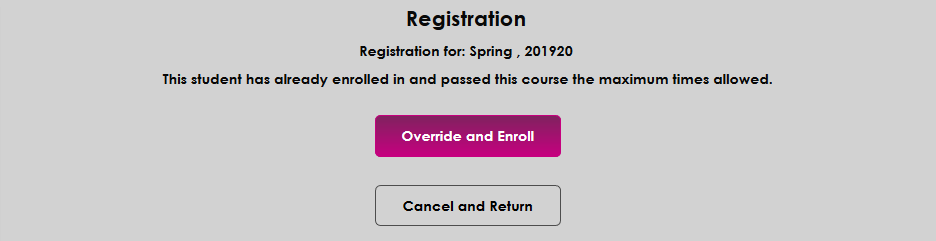
When attempting to register a student for a course that the student has taken and passed already and cannot be repeated based on the institution's repeat settings, an administrator without the Override Repeat Permission privilege will see an error message reading This student has already enrolled in and passed this course the maximum times allowed.

With the Override Repeat Permission privilege enabled, administrators see the same message, but have the option to Override and Enroll.
Override Time Conflict
The Override Time Conflict privilege allows administrators to register students for a course even when they're already registered for another course during the same time period. Without the privilege, an error message appears saying This student is already enrolled (or enrollment is pending) for the above time period.

With the Override Time Conflict privilege enabled, the same error message appears, but the administrator is given the option to Enroll anyway.
Override Waitlist
The Override Waitlist privilege allows administrators to bypass the waitlist for a course and enroll students into the course immediately. As noted above, this privilege allows administrators to enroll any student on a waitlist even if the Enroll from Waitlist privilege is not active.

Pass-Fail
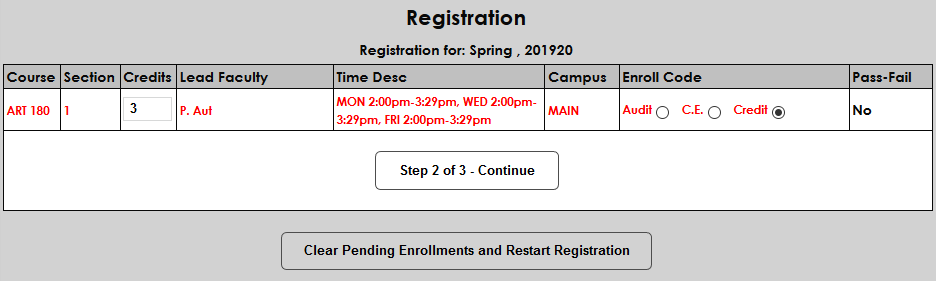
The Pass-Fail privilege allows administrators to register students for courses with a pass-fail grading system on a case by case basis even if the course is not designated as Pass-Fail on the Course Add/Edit page.
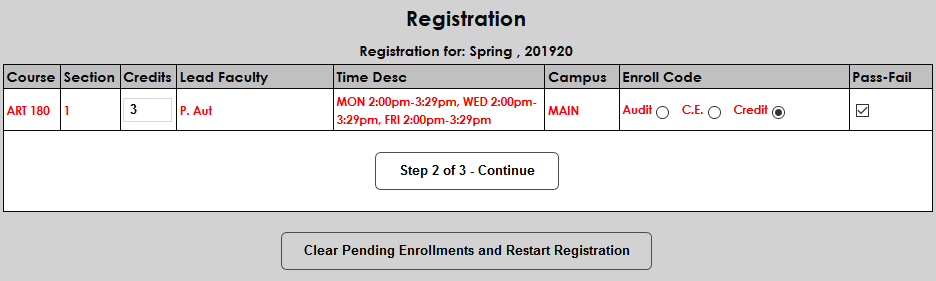
Without the privilege enabled, this option is not available and the column simply lists whether the course is designated as pass-fail or not.
Additionally, students and faculty can be given the ability to register for courses as pass-fail with the appropriate Web Options selected. For details about this process, click here.
Prerequisite Override
Some courses may have a prerequisite that must be taken and passed before the course can be taken. A prerequisite is assigned from the Course Add/Edit page.
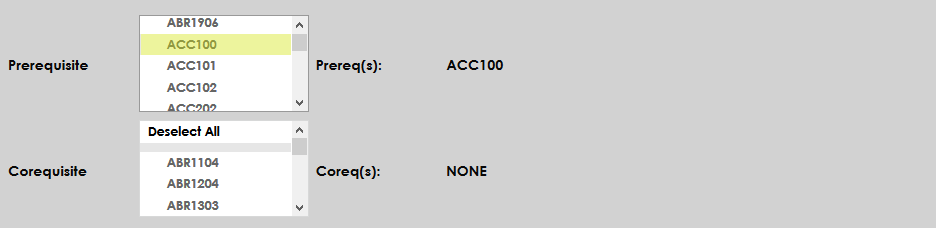
When registering a student for a course with a prerequisite that has not been fulfilled, administrators who do not have the Prereq Override privilege see the error message [Course] has a prerequisite. [Prerequisite Course] should be taken first.

With the Prereq Override privilege enabled, the same error message appears, but the administrator is given the option to Continue to register anyway.

Vary Registration Credits
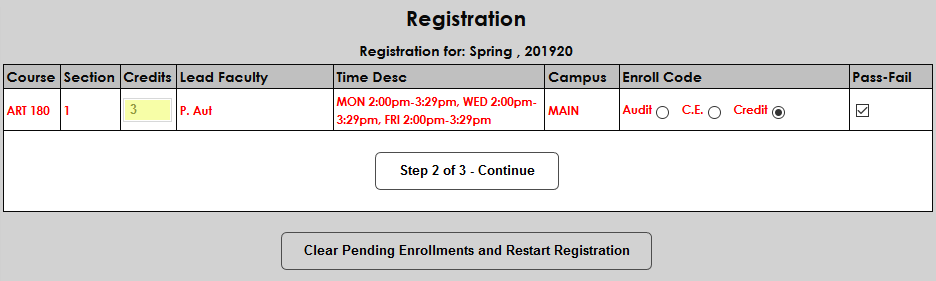
With the Vary Registration Credits privilege, administrators can alter the number of credits that a student will receive by completing a course. The credits field appears during the second step of registration. Without the privilege, the field still appears, but the number is based solely on the credits set from the Course Add/Edit page and cannot be altered.
Student Records
Copy Application
Many checklist items attached to applications may apply to other applications as well and can be fulfilled simultaneously. For this reason, a copy feature was added that allows for existing application data, including checklist item status, to be copied over to a new application record. Once this privilege is active, a Copy link will be available next to each application on each Application Users hub page. Click this link to begin the process of copying an application. For more on the application copying process, visit the Application Records page.
Delete Hold Access
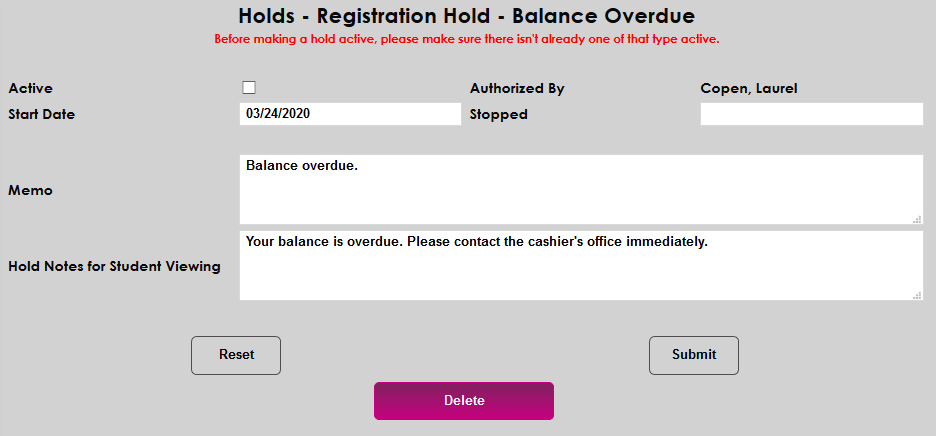
To ensure that proper student records are kept, some schools choose to limit administration ability to delete holds. With the Delete Holds Access privilege activated, a Delete button appears on the hold edit page, allowing it to be removed from the system completely.
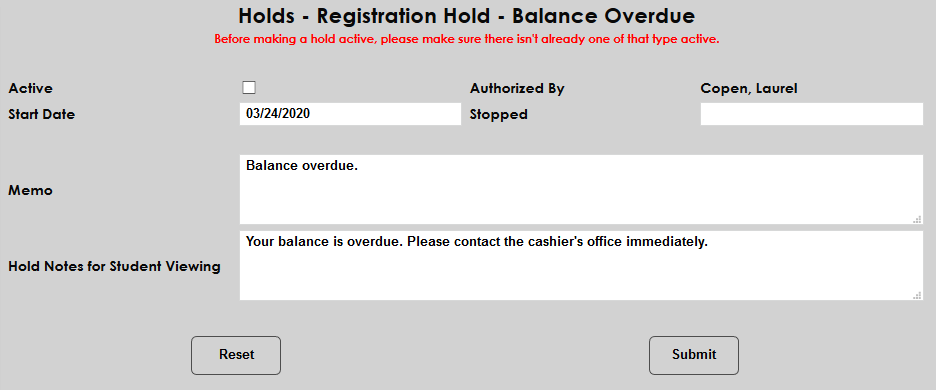
Without the privilege, holds can be made inactive, but the delete button does not appear.
Edit Enrolled Courses
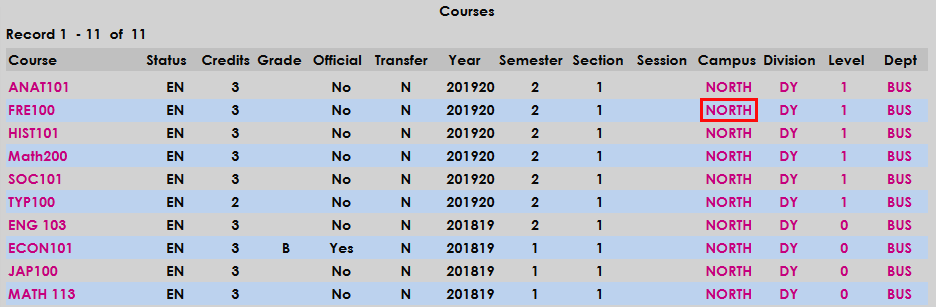
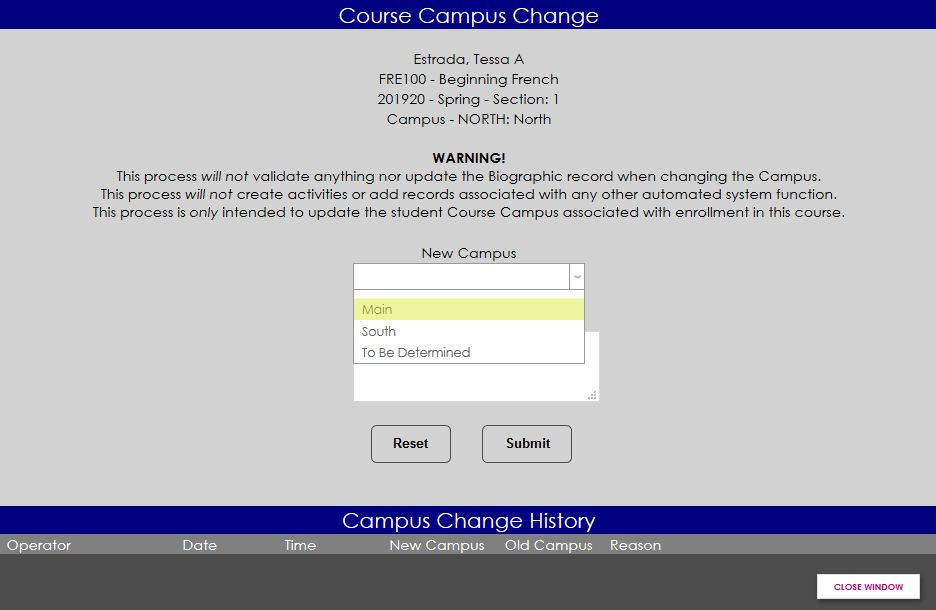
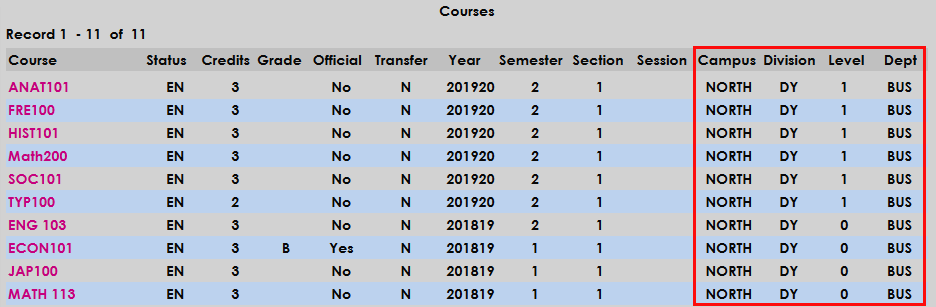
With the Edit Enrolled Courses privilege, administrators can edit the Campus, Division, Level, and Department associated with a student's course record from that student's Courses page. With the privilege enabled, each module status becomes a link that opens a pop-up window where the module status can be changed with a reason appended.
Without the privilege, the module statuses for each course are displayed but cannot be altered.
Make Grades Official
The Make Grades Official privilege allows administrators to finalize student grades from each student's Courses page. With the privilege enabled, a checkbox appears to mark the grades as official.

Without the privilege, administrators can still edit student grades, but those grades cannot be made official.

Notes Delete Override
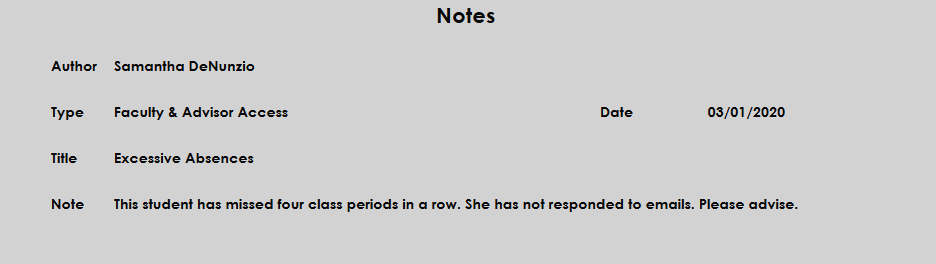
The Notes Delete Override privilege allows administrators to delete notes from student records. With the privilege activated, a delete button appears to remove the note from the student's records.
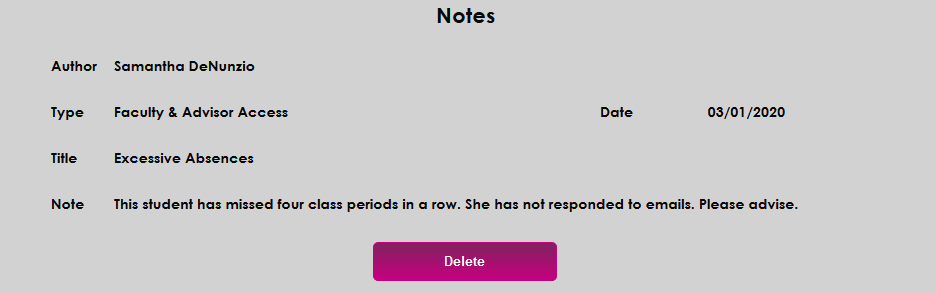
Without the privilege, administrators can delete notes that they have created, but cannot delete notes created by other users.
Override Withdrawn Enrollment
With the Override Withdrawn Enrollment privilege, administrators can put a student back into a course that they've withdrawn from from that student's Courses page. The WD is a link that allows this change when clicked.

Without the privilege enabled, the student's status is displayed but can not be altered.

User Summary Override
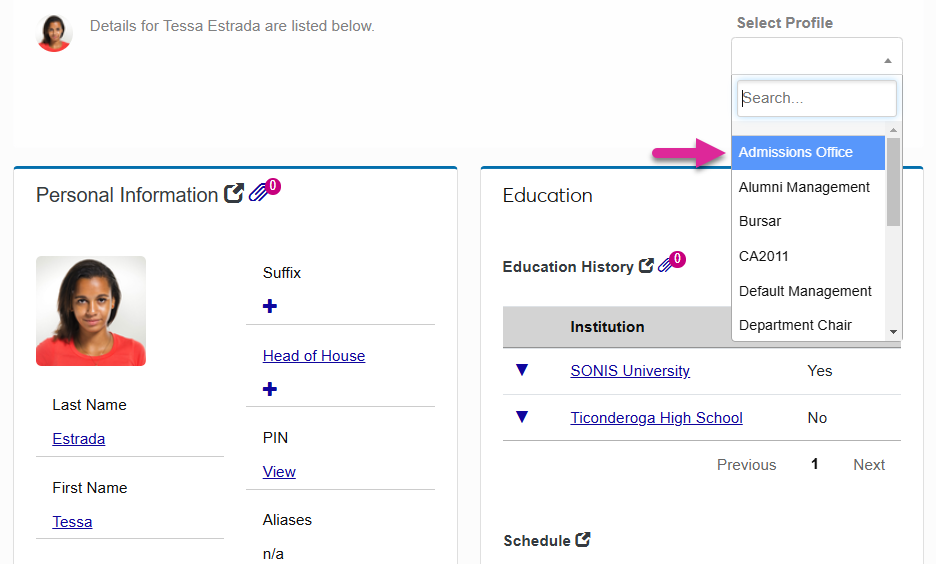
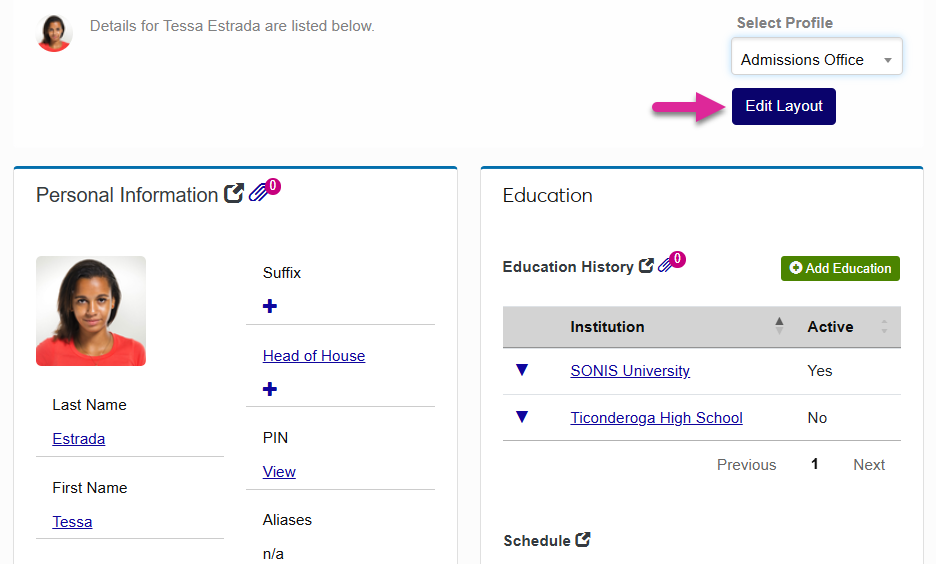
The User Summary Override gives staff members permission to edit the layout of the User Summary page.
Warning
This User Security privilege should only be given to your system administrator or another select, high-level account since it allows the user to make changes to the layout for every staff profile.
Withdraw Courses
The Withdraw Courses gives administrators the ability to edit a student's enrollment code from that student's Courses page using a dropdown menu.

Without the privilege enabled, the enrollment code appears but cannot be altered.

Systems
Bulk Official Grade Undo
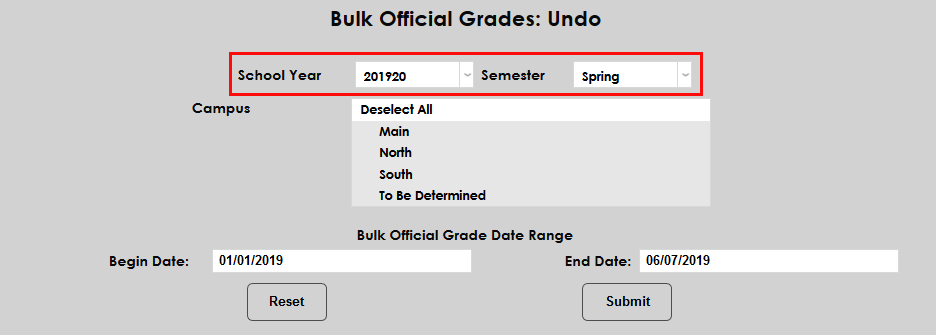
The Bulk Official Grades Undo utility allows grades that have been made official in bulk to be reversed and become unofficial. By default, the utility can only undo bulk changes from the current semester.
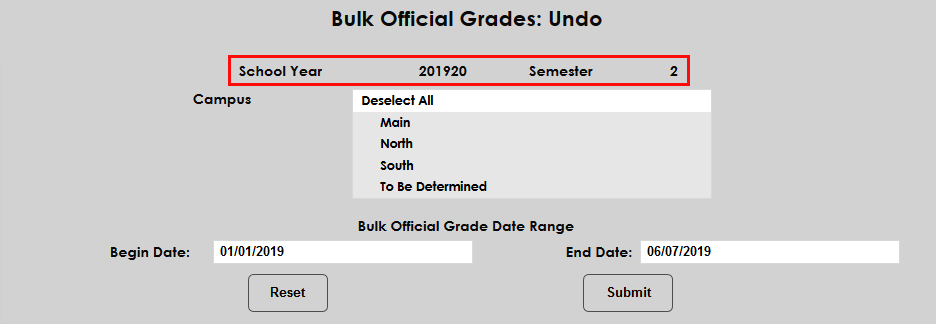
However, the Bulk Official Grade Undo privilege allows administrators to select a previous school year and semester as well.
CF Admin Password
The Web Options page includes a field to enter the ColdFusion Admin Password. This field must be filled out with the correct password for SONIS to communicate with the ColdFusion server. The CF Admin Password privilege makes this field viewable and editable for non-hosted customers. For hosted customers, this password is managed by SONIS Support.

Without the privilege enabled, the field does not show up on the page at all.
Event Calendar Delete
The Event Calendar Delete privilege allows administrators to delete events from the SONIS calendars.
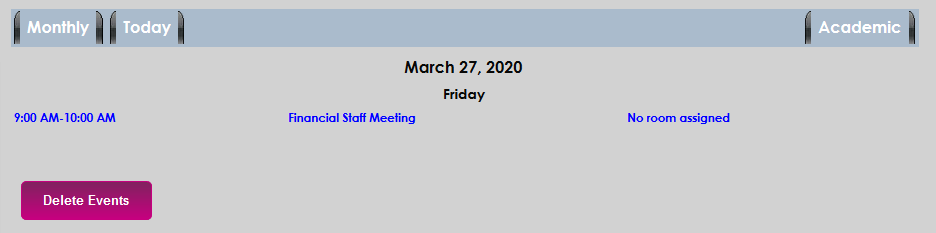
Without the privilege enabled, the delete button will not appear.
GDPR Processing
SONIS has a set of tools designed to facilitate compliance with the General Data Protection Regulation, a European Union law that grants individuals greater control over how their personal data is stored. Because data fidelity is vital, these tools are locked behind a user security privilege. With the privilege enabled, the GRPR: Data Anonymization, GRPR: Data Requests, GRPR: Data Restore, GRPR: Data Resumption, and GRPR: Data Suspension utilities can all be utilized.
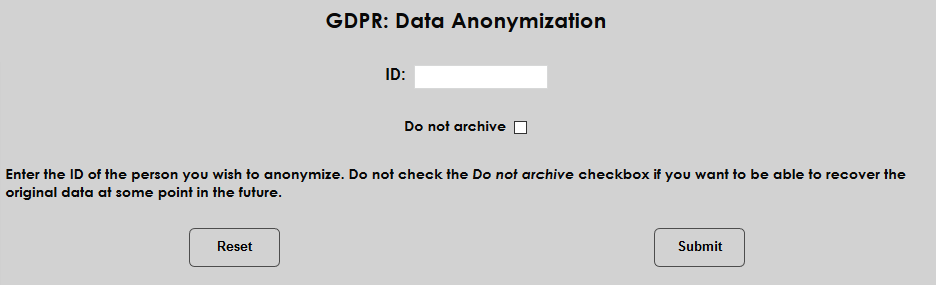
Administrators who have access to the GDPR pages but do not have the security privilege will see a message reading You do not have the required permission for this function.

Honors/Probation Ignore Requirements
The Honors/Probation Ignore Requirements privilege allows administrators to ignore previously created Honors/Probation Requirements when assigning an honors or probation status to a student from a list using the Honors/Probation Assignment utility.
With the privilege enabled, administrators can check this box to view all students from the list in the search results regardless of whether they meet the requirements for the selected status. From there, these students can be given the status as long as they have official grades for the selected semester.

If the privilege has not been granted, the checkbox will not appear.

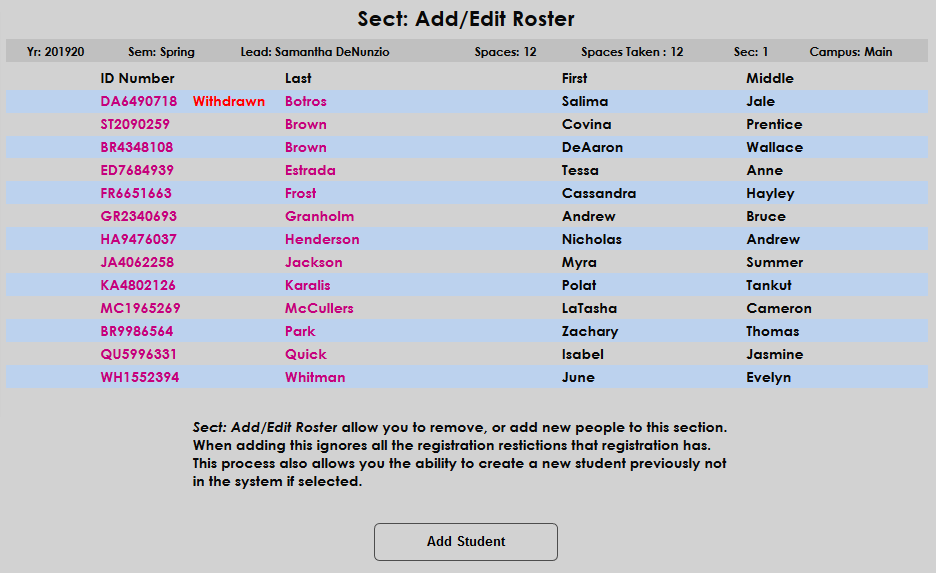
Sect: Add/Edit Roster Billing
Administrators can adjust billing for a course from the Section: Add/Edit Roster page with the Sect: Add/Edit Rost. Billing privilege. Billing for the student can be assigned to a corporate sponsor.
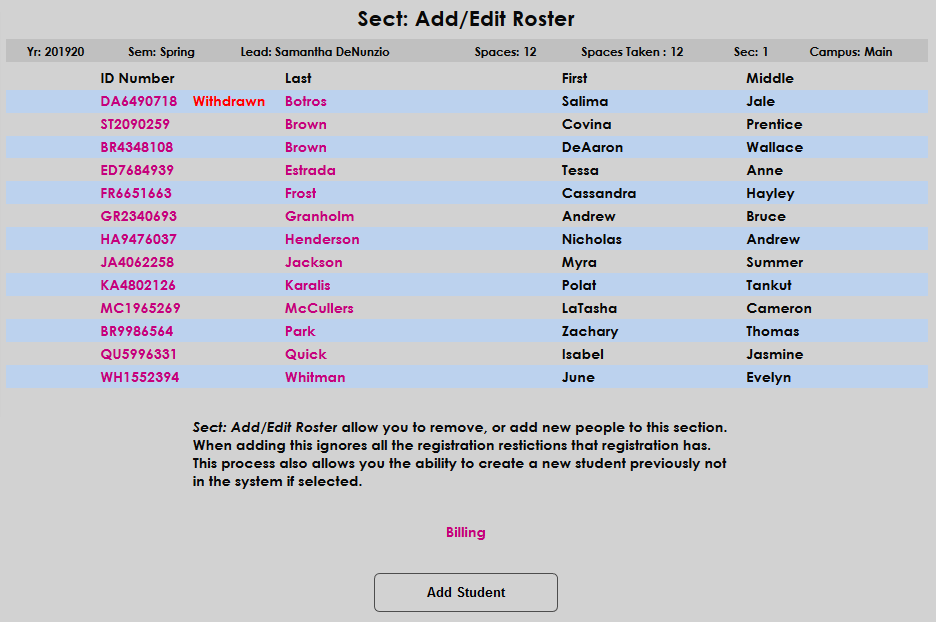
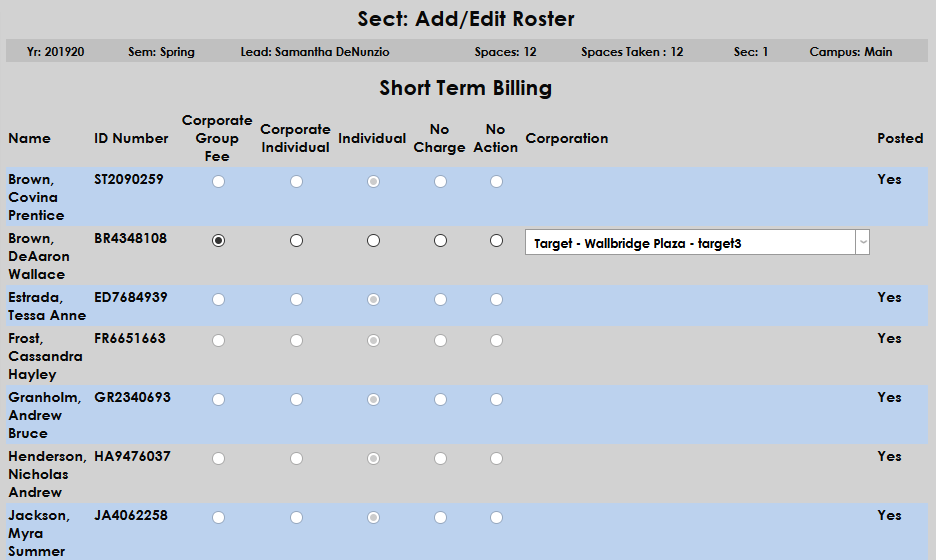
Without the privilege enabled, the Billing link does not appear.
Text Messaging
With the Text Messaging privilege enabled, administrators can send text messages to students in bulk using the Bulk: Email/Text Message utility.

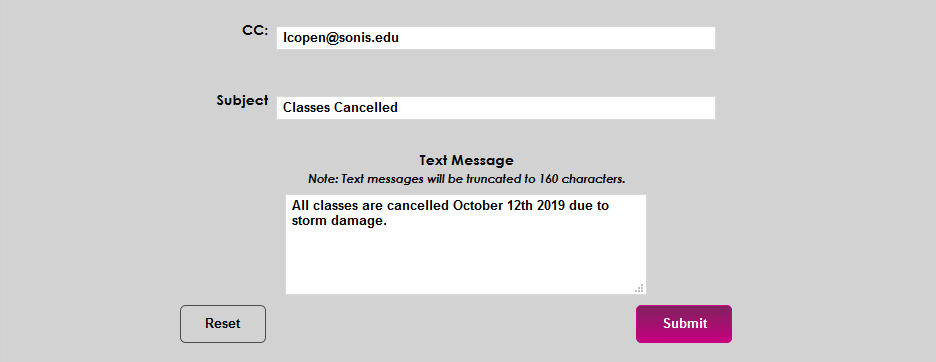
Without the privilege enabled, administrators only have the Email only option.

View Passwords
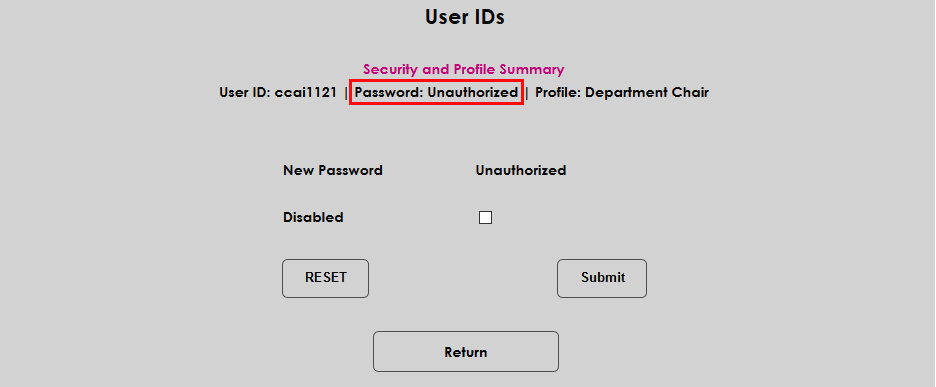
The View Passwords privilege gives administrators permission to view passwords of other SONIS users from the User IDs utility. To view a password, click on the user's Name.
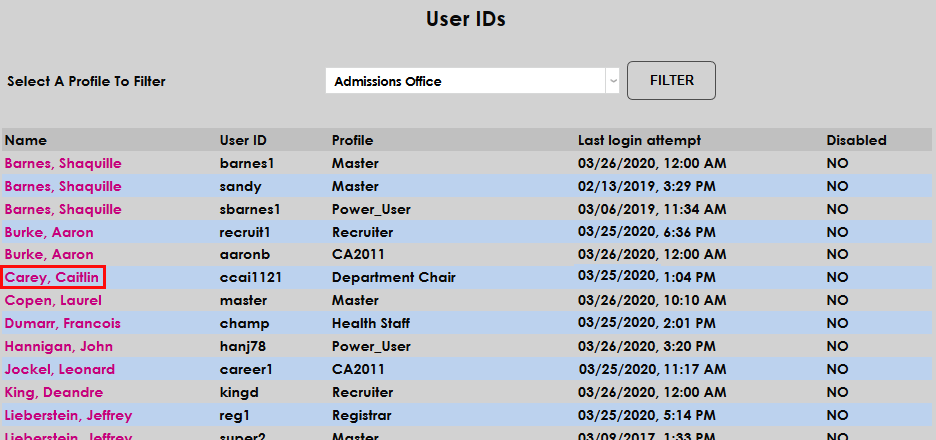
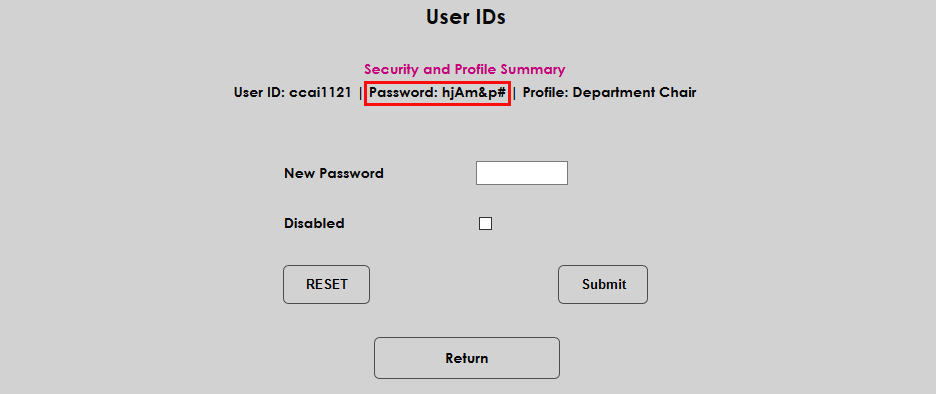
Without the privilege enabled, the password displays as Unauthorized.
Miscellaneous
Admin. Izenda Reports
By default, all master profiles have access to Izenda administration. To give another user access to these features, activate the Admin. Izenda Reports privilege. If a user has Izenda admin privileges, a wrench appears in the top-right corner. Clicking on the wrench will take the user to the Izenda settings page.
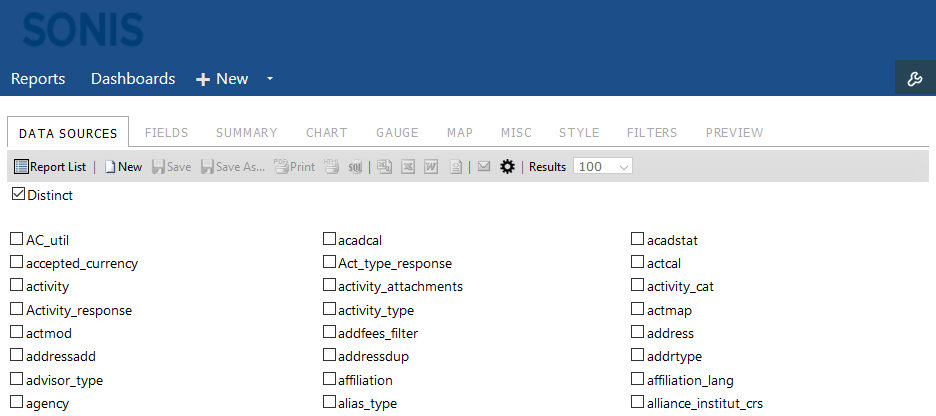
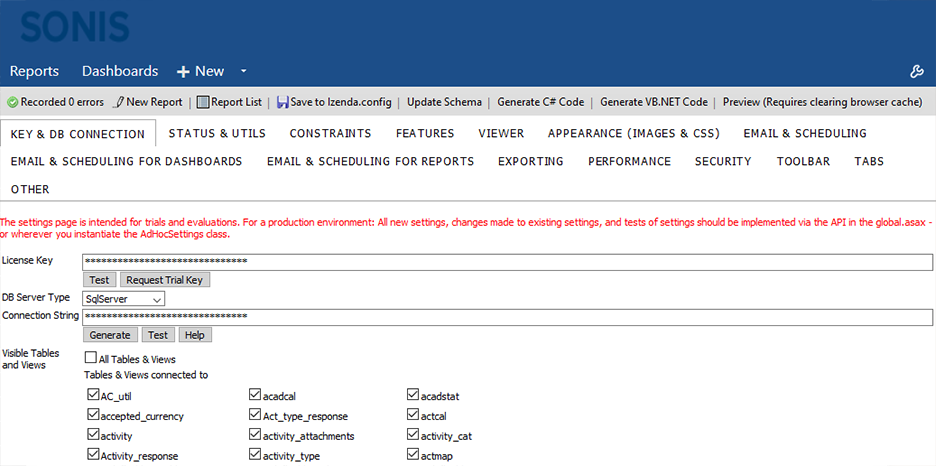
Without the privilege enabled, administrative users will not have the options of editing the Izenda settings.
At-Risk Alert Archive
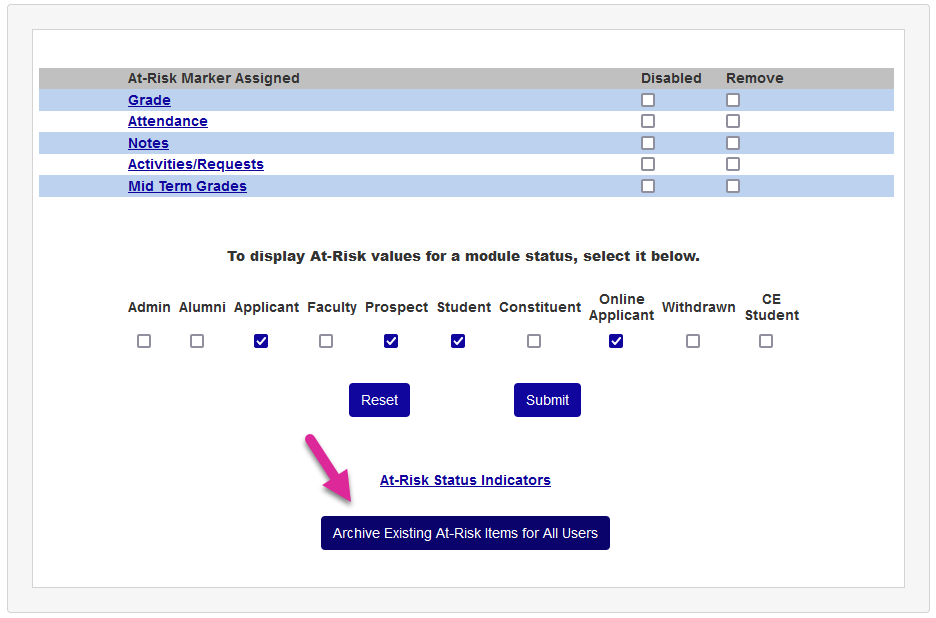
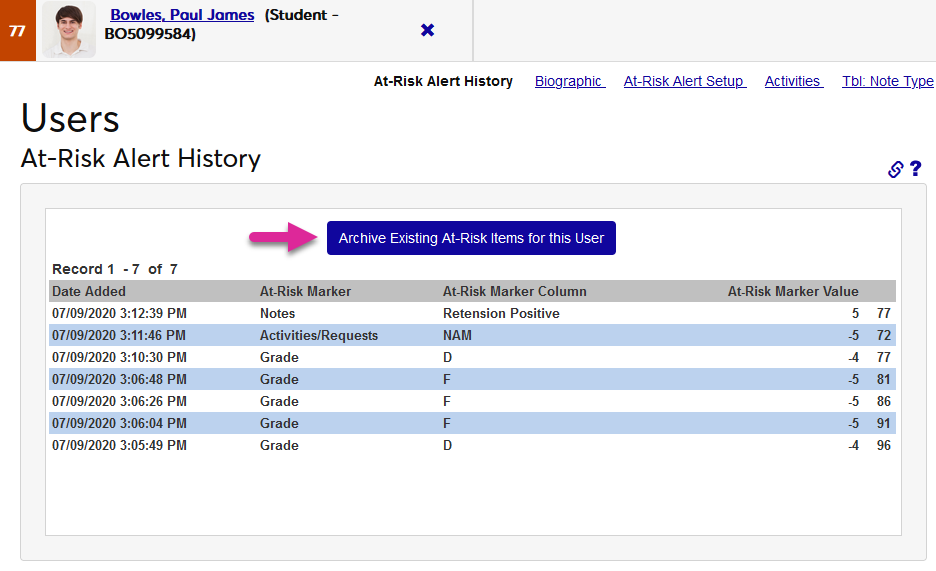
The Jenzabar SONIS At-Risk Alert system is used for retention purposes and can help administrators keep track of how students are doing academically based on their grades, attendance, etc. Once students and other SONIS users have an at-risk alert score, those scores can be reset back to 100. Before an administrator can reset scores, they must have the At-Risk Archive privilege.
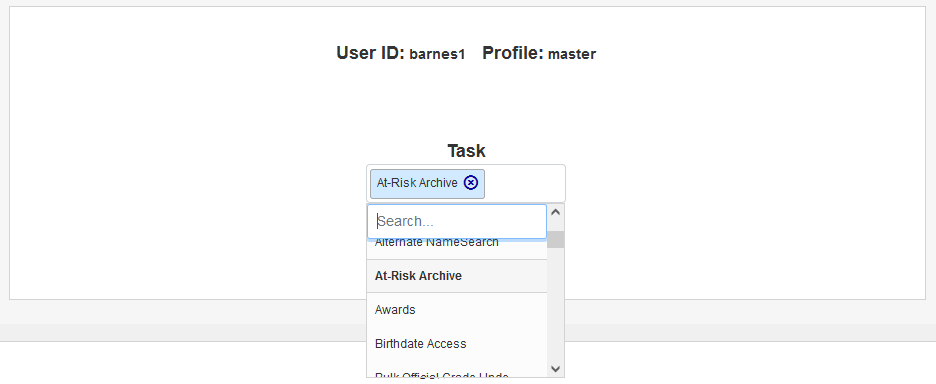
When the privilege is active, administrators can archive scores either globally for all users or for an individual users on their At-Risk Alert records page. When the privilege is inactive, these buttons do not appear.
DMS - Edit Category
When files are saved in SONIS using the Document Management System, each file is given a category. The DMS - Edit Category privilege allows this category to be changed when the file is accessed.
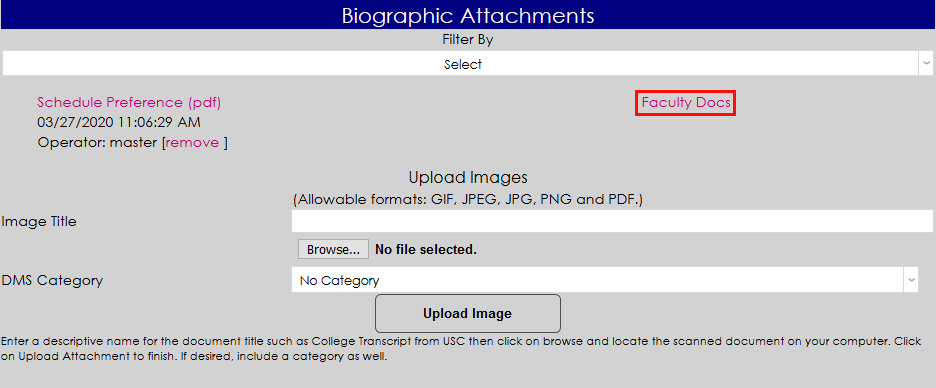
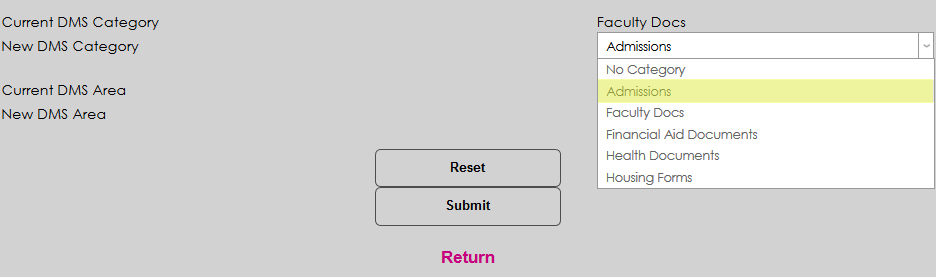
Without the privilege enabled, the category is fixed and cannot be changed.
DMS Override Ownership
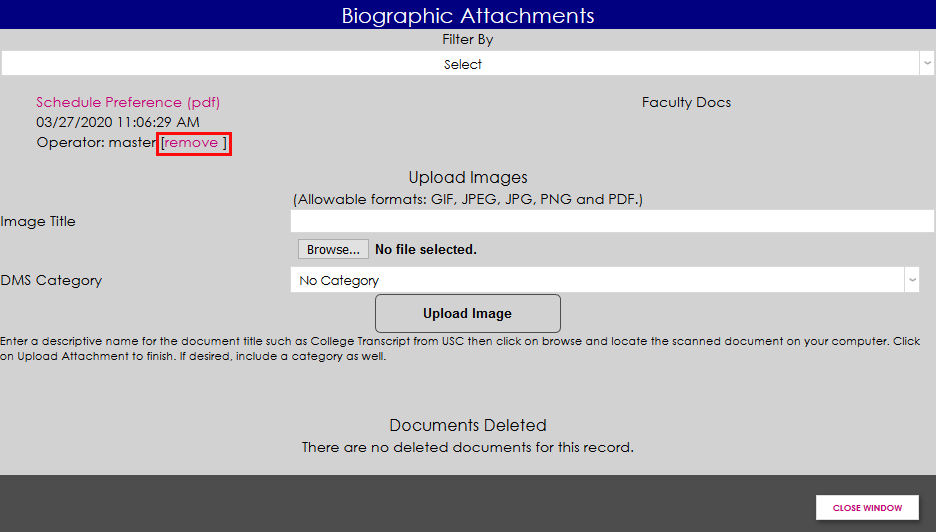
With the DMS Override Ownership privilege, administrators can remove documents that other users uploaded. With the privilege enabled, a Remove button appears regardless of who owns the document.
Without the privilege, the remove link does not appear if another user uploaded the document.
Editable Instructor Attendance
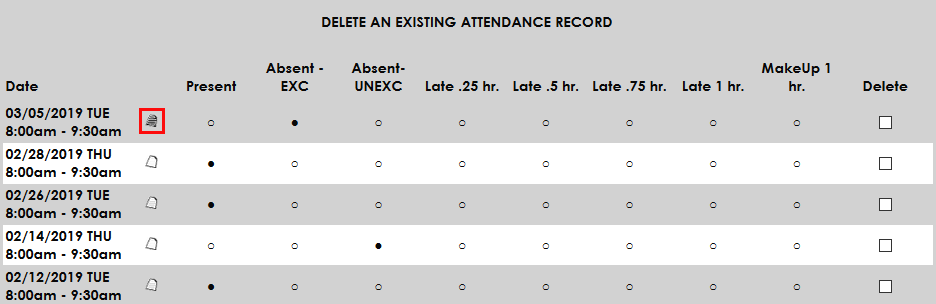
The Course Section Attendance page allows administrators to add and delete attendance records for individual students. The standard way to do this is to delete the existing attendance record and then replace it with a new one.
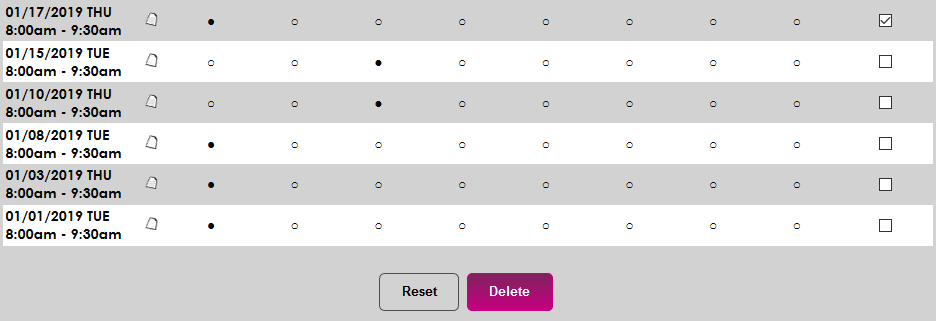
With the Editable Instructor Attendance privilege, administrators can make changes to attendance records that have been created by faculty or other administrators rather than deleting and replacing them. It's suggested that administrators doing this use the Notes field to provide a reason for the change.
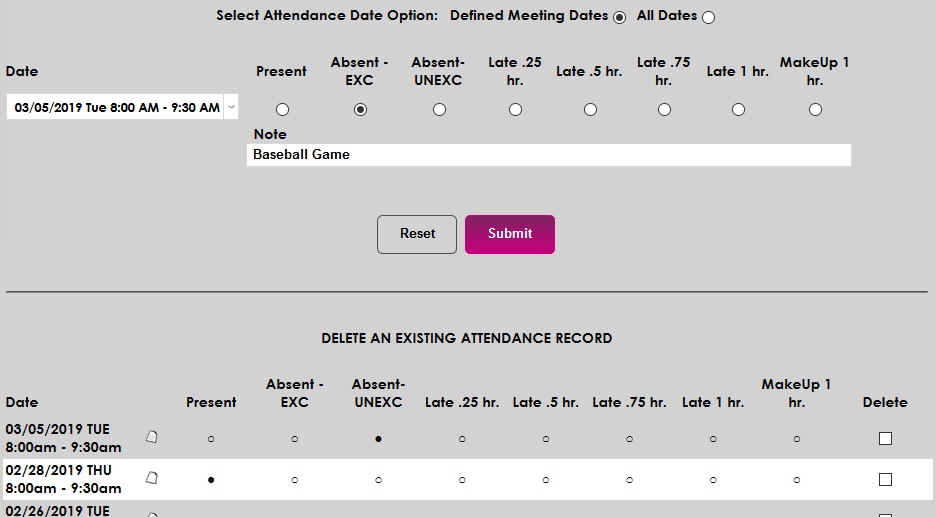
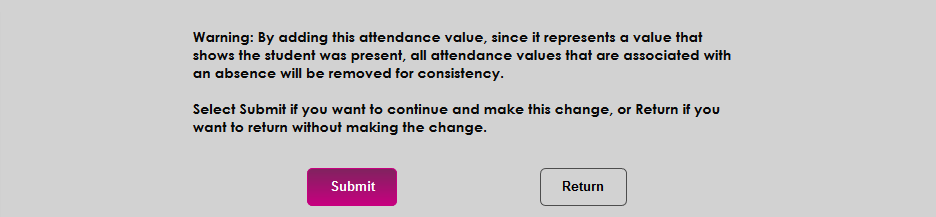
When entering an attendance record for a date that already has a record, administrators with the privilege will receive a warning that all attendance values for that record are being altered. Click Submit to continue.
Notes can be viewed by clicking the icon next to the class date and time.
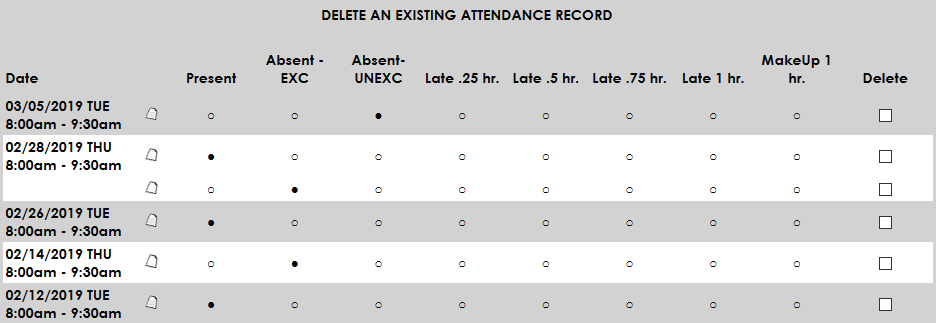
Without the privilege, attempting to alter an existing record will instead create a second record for the same class period.
Employer Contact Memo
The Employer contact page includes a Contact Memo that's only viewable with the Employer Contact Memo activated. With the privilege active, click View to view and edit the memo.

Without the privilege, the contact memo is marked as Unauthorized.

Loan Default Management
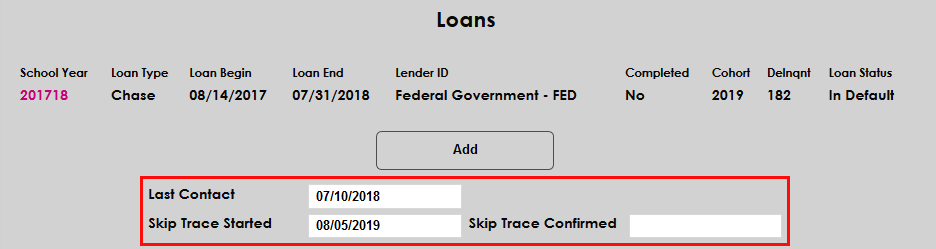
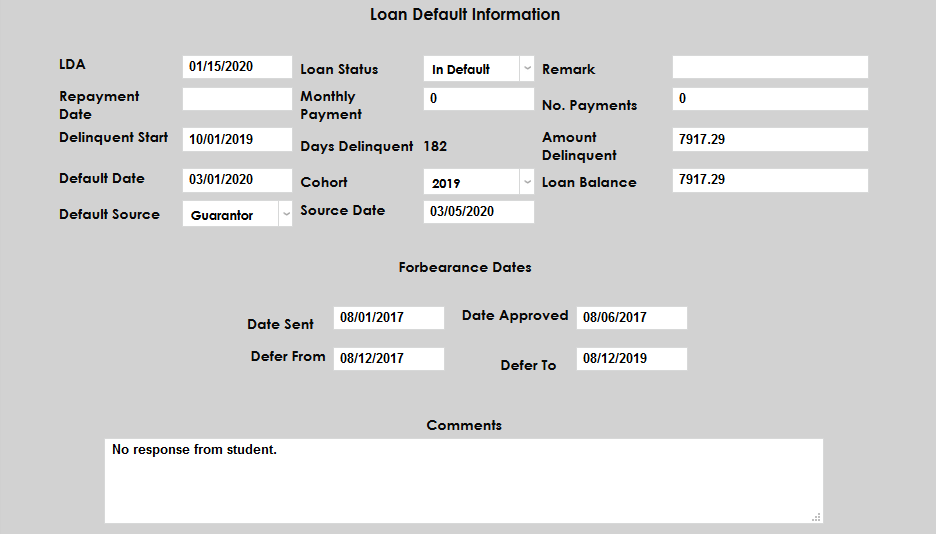
The Loan Default Management privilege provides administrators with an additional set of tools to track students' loan status and payments through their Financial Aid records page. These tools include Last Contact, Skip Trace Started, and Skip Trace Confirmed fields on the financial aid summary page as well as an entire section of the page specifically for Loan Default Information on the page for the loan itself. Without the privilege activated, these fields do not appear.
QB 2.0 Override Ownership
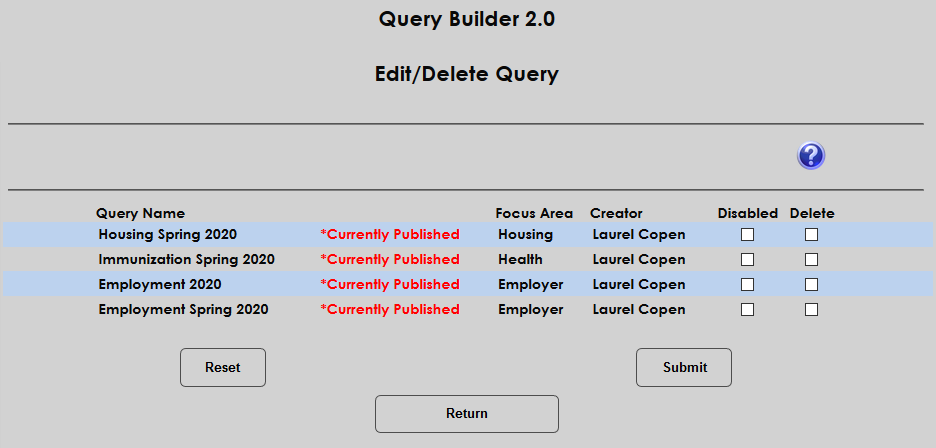
Once a Query Builder 2.0 report has been published, the administrator who created it is considered the "owner" of the report. This user is listed as the "creator" when viewing these reports. By default, an administrators can only edit, delete, disable, and publish their own reports and only reports that have not yet been published.
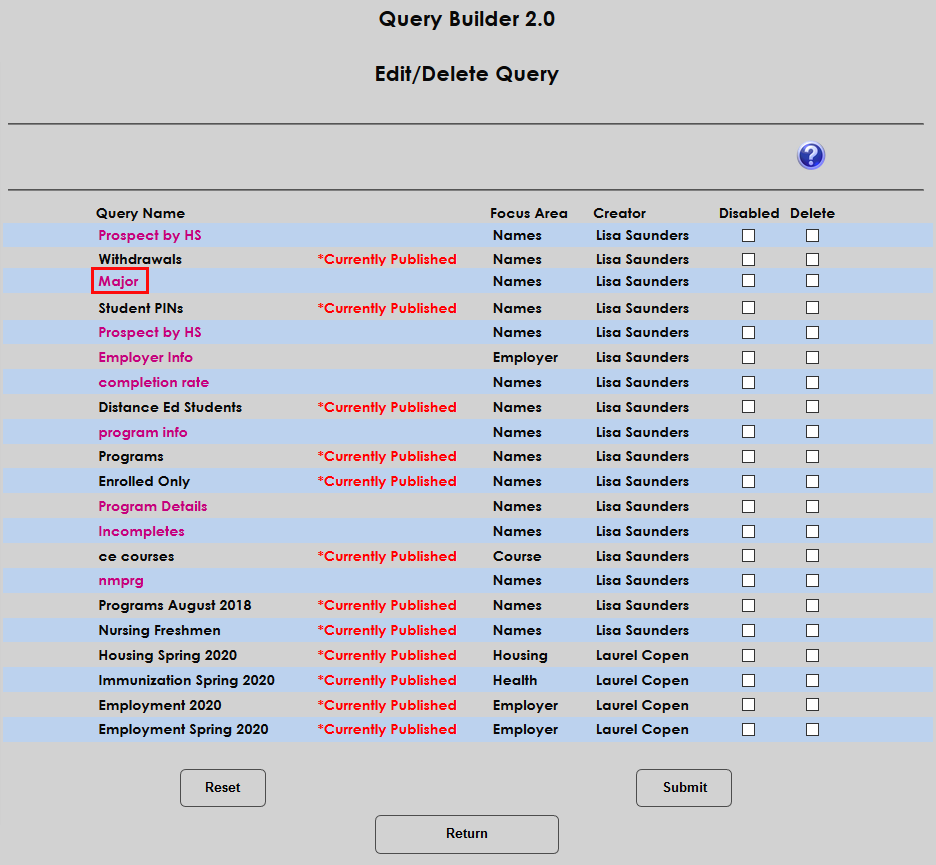
With the QB 2.0 Override Ownership privilege enabled, an administrator can edit, delete, disable, and publish unpublished reports from other users as well.
QB Cohrt/Cmp/Div/Dept/Lvl Add.
The QB Cohrt/Cmp/Div/Dept/Lvl Add. privilege allows administrators to assign a group of students in a report to a cohort or update their campus, division, department, and/or level. With the privilege enabled, two buttons appear at the bottom of each report. One is labeled Add Cohorts while the other is labeled Update Camp/Div/Dept/Level.
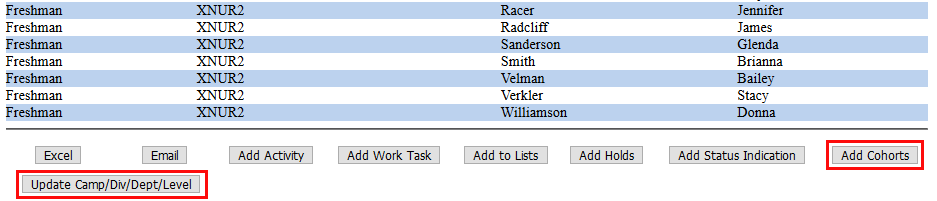
Without the privilege activated, these buttons do not appear.

For more about the process, visit the Query Builder 2.0 wiki page.
Limiting Access to Holds
The next step in the process is to limit the user's access to Holds if so desired. Select "Yes" if this user should have holds limited and "No" otherwise.
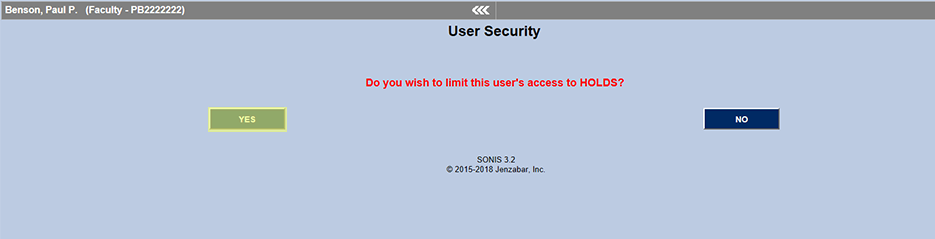
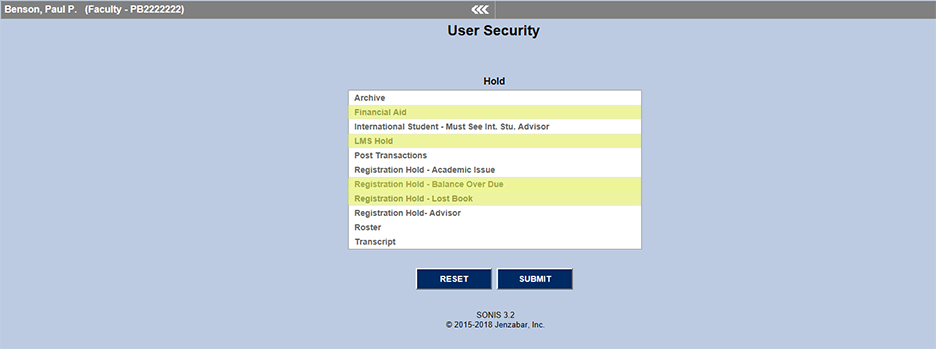
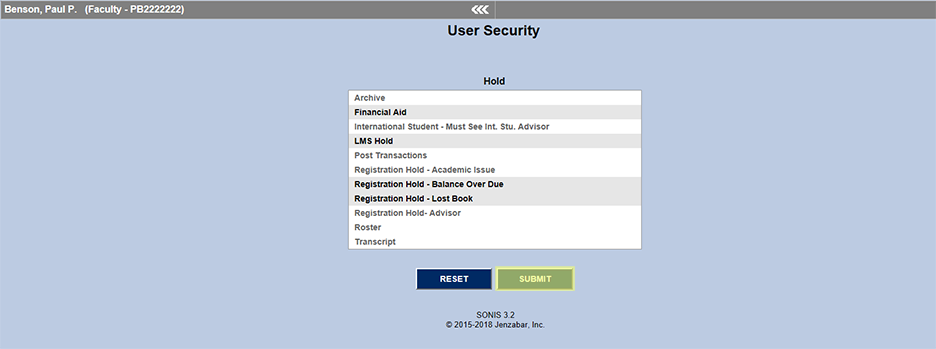
If "Yes" is chosen, select the holds that should be limited for this user and click "Submit" to save and continue. If no holds are selected, the user will be restricted from editing all holds.
Limiting Access to Query Builder
On the following screen, SONIS offers a chance to limit the user's access to the Query Builder application. Once again, choose Yes or No depending on the needs for this user.
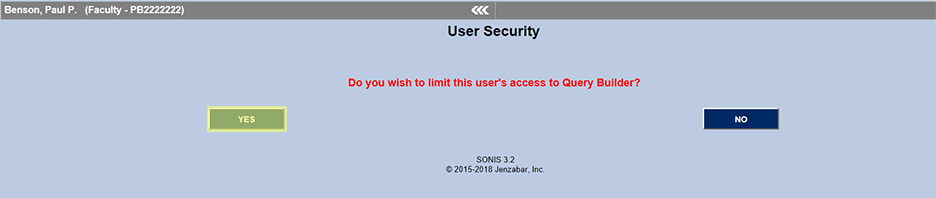
Select the queries that this user should not be able to create from the list and click the "Submit" button. If no queries are selected, the user will not have access to anything on the list.


Limiting Access to Query Builder 2
After choosing limitations for Query Builder, SONIS will prompt the administrator to limit access to Query Builder 2. Click Yes to set these limits and No to proceed without setting them.
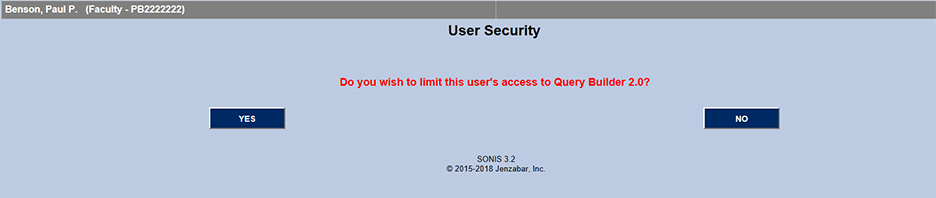
Select the Query Builder 2 queries that need to be limited and click Submit to save changes and continue. If no limits are selected, all Query Builder 2 queries will be blocked.


Limiting Course Editing by Course Type
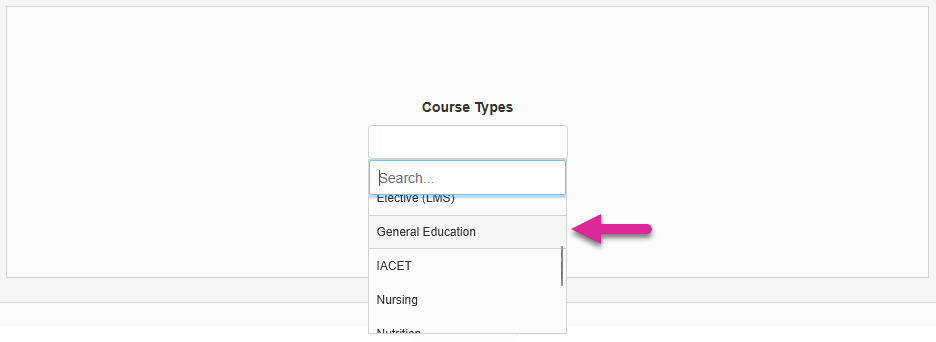
Some schools may wish to limit the type of courses that staff members can edit from the Course Add/Edit page. Click Yes when Do you wish to limit course editing by COURSE TYPE? appears to replace a restriction on your user.
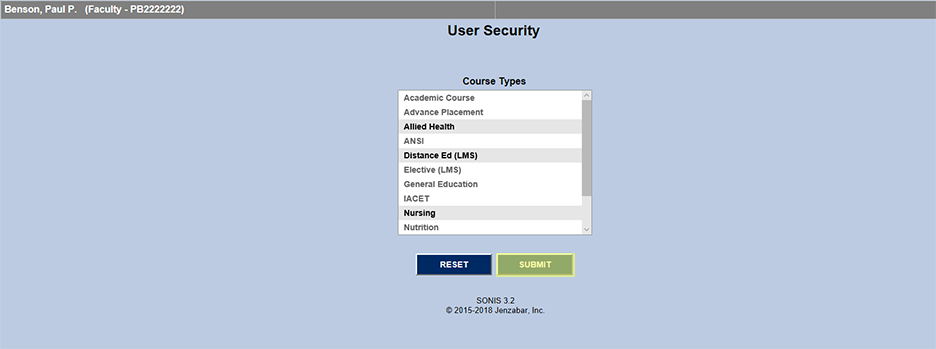
On the following page, select all Course Types that the user should have edit access to. If you select no course types, the user will not have the ability to make changes to any courses.
Note
A user who doesn't have edit access to certain course types will still be able to access these courses. However, the page will display in read-only mode with values that cannot be altered.
Click Submit to save the changes and proceed to the next step.
Limiting Registration by Course Type
The SONIS system next provides the option of limiting this user's registration by course type. Click Yes with this or No to bypass it and continue.
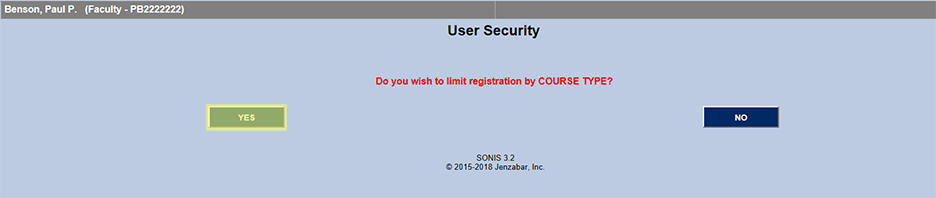
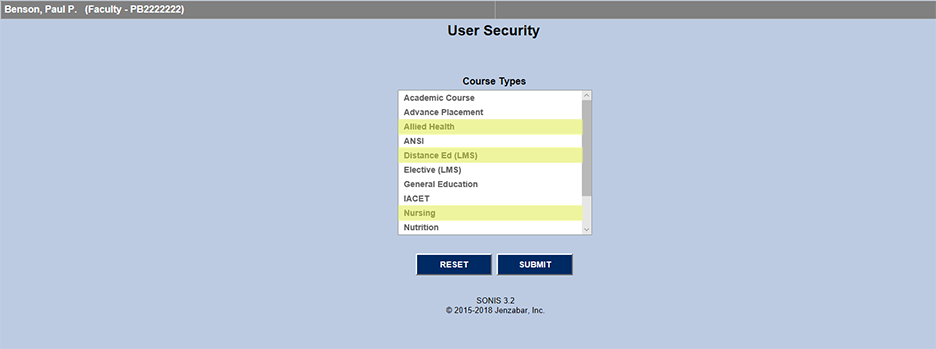
Select the course types that this user will be able to access when registering students. These course types will also be available as filter options at the top of the Registration page. Click Submit when the correct course types have been selected or Reset to undo inadvertent selections.
Limiting Access to the Executive Dashboard
The Jenzabar SONIS Executive Dashboard is designed to give high-level college officials a quick overview of key metrics. The page displays multiple charts that give a visual indication of the health of the school. You can limit staff members' access to these charts by clicking Yes when prompted.
On the following page, uncheck the box in the Activated column to ensure that the listed chart does not display on this user's Executive Dashboard page.
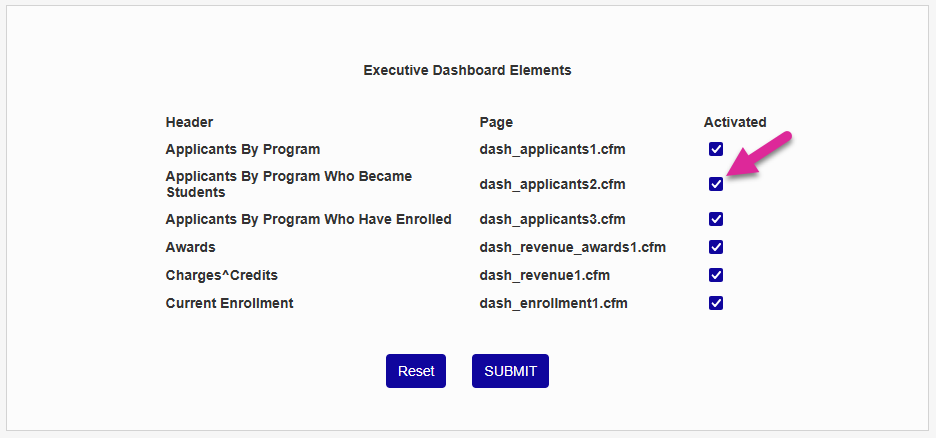
Click Submit to save the change and continue setting up the profile.
Limiting Meetings by Attendee Type
The Meetings page in the Users hub allows Jenzabar SONIS member institutions to record meetings that are scheduled for an applicant, student, or constituent. Some staff members may only meet with a certain kind of person. For example, a staff member may only meet with recruiters and prospects and have no need to see advisors, constituents, or staff listed.
To limit the types of attendees that are listed on this page for the selected staff member, click Yes when the Do you wish to limit meetings by ATTENDEE TYPE? prompt appears.
On the following page, select all Meeting Attendees that the user should be able to see as optional participants. If you select no attendee types, the user will not see any optional attendees other than the selected student.
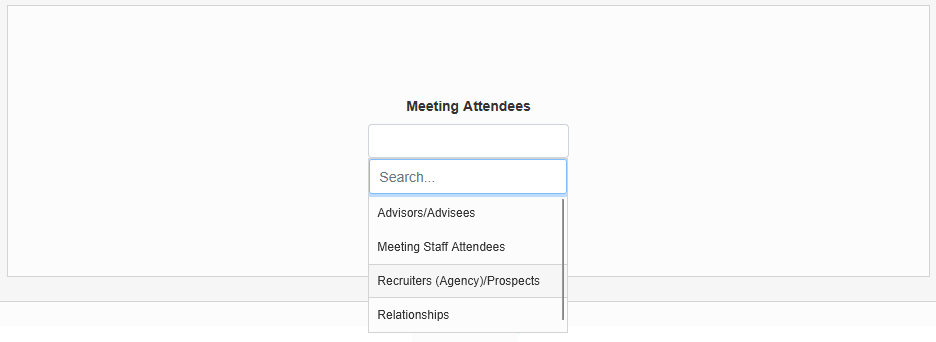
Click Submit to save the changes and proceed to the next step.
Enabling Multi-Year Registration
Check the Enable the multi-year registration option box to allow the staff member to use the Registration Users page to register student in additional semesters that are not part of the current registration period. Leave it unchecked to ensure that this staff member can only register students for courses within the designated registration period as defined in System Variables.

Note
This setting must also be active for the Registration History link on the Registration page to appear. This link allows staff members to access the selected user's registration history for each selected term in a pop-up window. In order for the link to appear, the Display Course History In Reg box in System Variables must also be checked.
This is the last step in the process and you will be returned to the User Security homepage afterwards.
Limiting Access to Table Maintenance
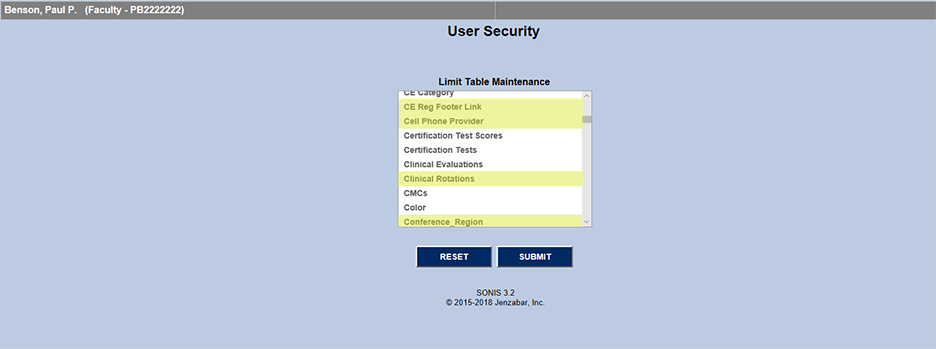
The administrator is then given the opportunity to limit the user's access to Table Maintenance , a deep editing function in the SONIS system. Once again, the administrator should click Yes to set these limits or No to continue without making changes.
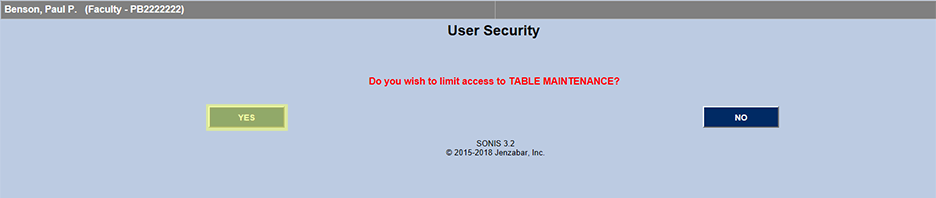
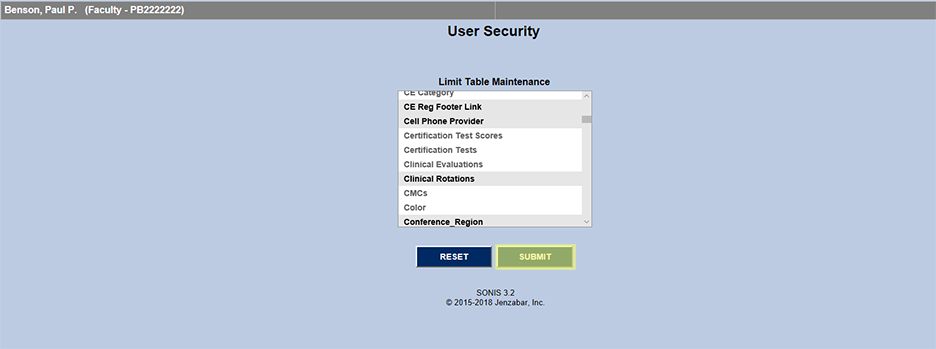
Select the areas of Table Maintenance that need to be restricted for this user and then click "Submit" to save and continue. If no table types are selected, all access to Table Maintenance will be restricted for this user.
Changing Security - Existing User
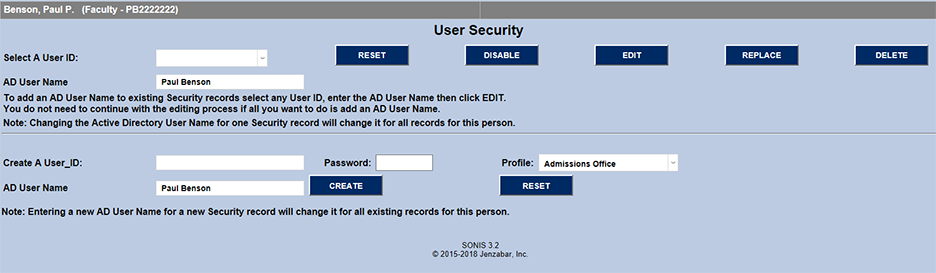
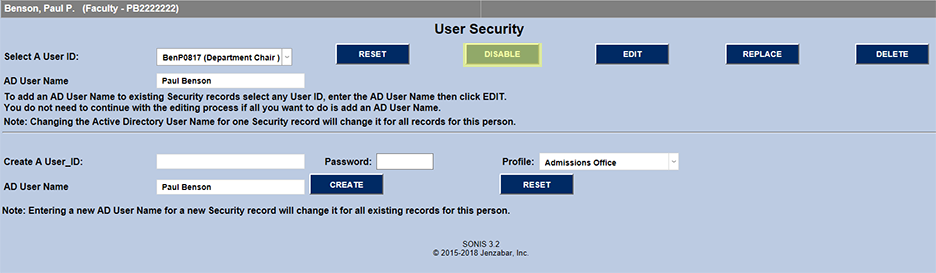
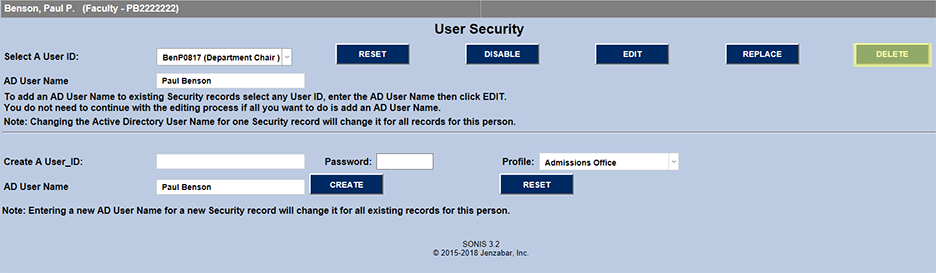
If the user has an existing user ID, the User Security homepage will offer the ability to make changes to the existing ID in addition to the ability to create a new ID. From this screen, the administrator can choose to Disable, Edit, Replace, or Delete a user's ID.
Disabling User ID
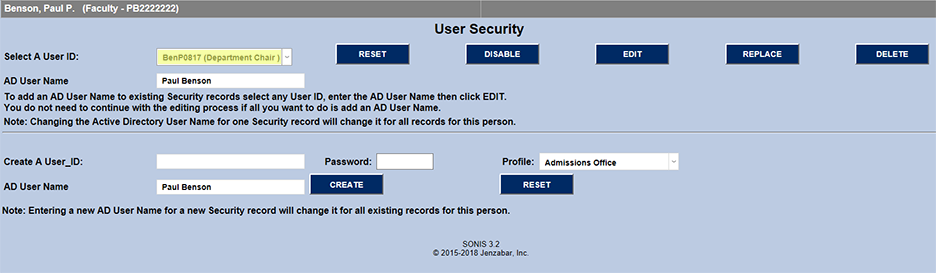
Disabling a user ID is generally done when a user is no longer with the institution. To disable an ID, select the User ID to disable from the dropdown menu on the left of the page and click the Disable button. The page will update with a note in red that the profile has been disabled. To enable a profile that has been disabled, use the User IDs application in the Systems hub.
Editing User Security
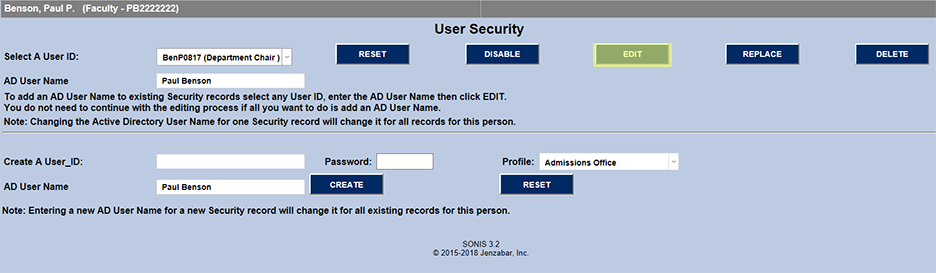
To edit User Security for an existing profile, select the profile from the dropdown menu on the left and click the Edit button. From there, the process is the same as User Security Creation process.
Replacing User Security Profile
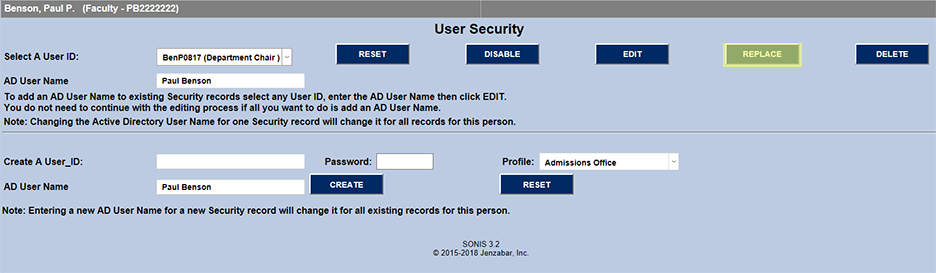
To change the user's security access to a different pre-defined profile, select the User ID to be edited from the dropdown menu on the left and click the Replace button.
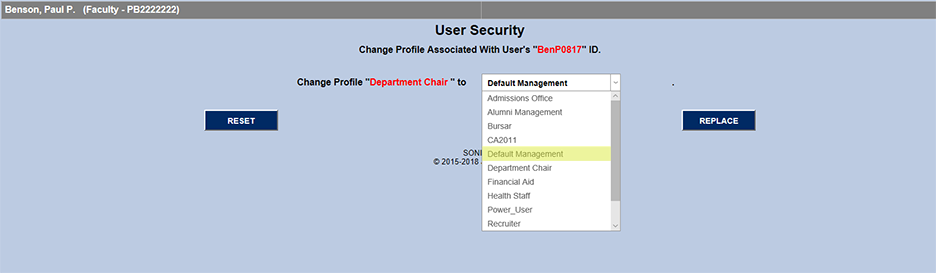
On the next page, select a new Profile for this user from the dropdown menu and click Replace to save changes and continue. SONIS will return to the User Security homepage with a note in red that the change has been successful.

Deleting Security Profile
To delete the security profile for this user, select the appropriate User ID from the dropdown menu on the left and click the "Delete" button.
Since this change cannot be undone, the SONIS system at this point prompts the administrator to "Confirm Delete". If the profile does not need to be deleted, use the browser's back button or one of the other application links to navigate away from this page. Once the profile has been deleted, the administrator will be returned to the User Security homepage and see a message in red stating that the change has been successful.

Social Security Number Access
The Social Security Number Access privilege allows administrators to access and alter users' social security number. Without this permission activated, the SSN field will appear as Unauthorized.