QuickSearch
Overview
As part of the SONIS 2023 Redesign, a single search area was added to improve usefulness and ease of navigation. Users can search within all SONIS menus from this area. Users can search within all SONIS menus from this area. A page search is provided within each of the hub areas; for Users and Courses, a user or a course section must be selected for the search to display.
Searching
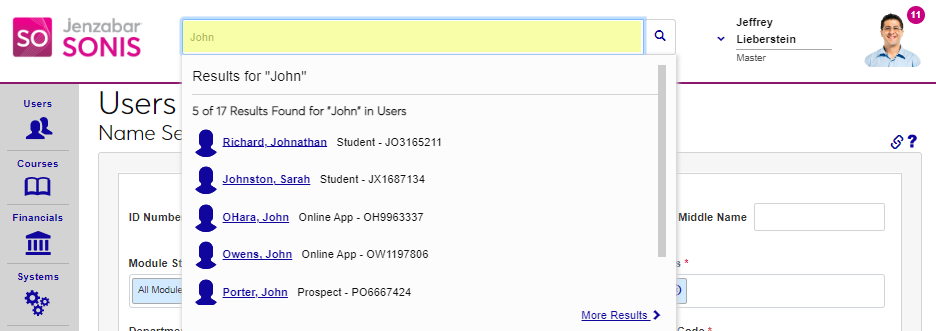
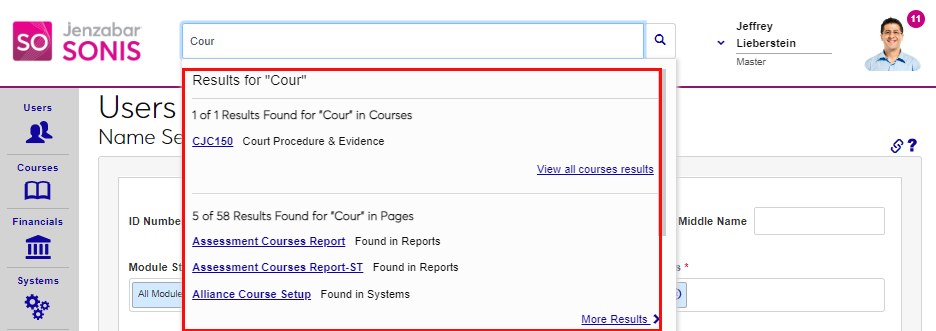
To perform a QuickSearch, click in the Search for... box at the top of any Administrative portal page. As the search terms are entered, the results list will begin to display, and will be filtered responsively, as determined by the category of results. QuickResults will display Users, Courses, Pages, and Utility Features such as Reports. If a section does not have any search results, that area will not display in the QuickResults area. It is important to note that the results displayed for any search will be limited by the user's security profile.
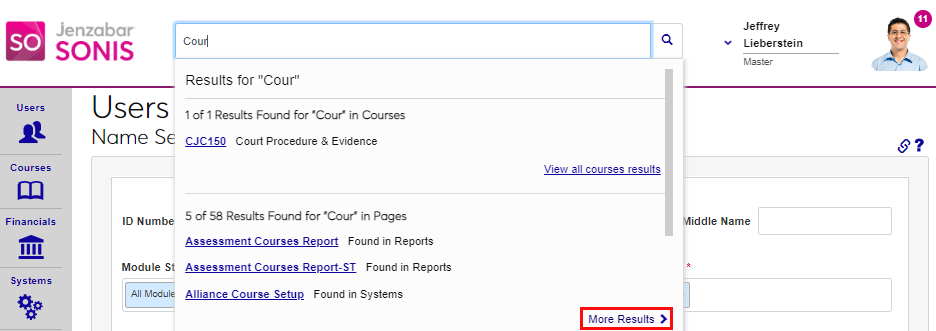
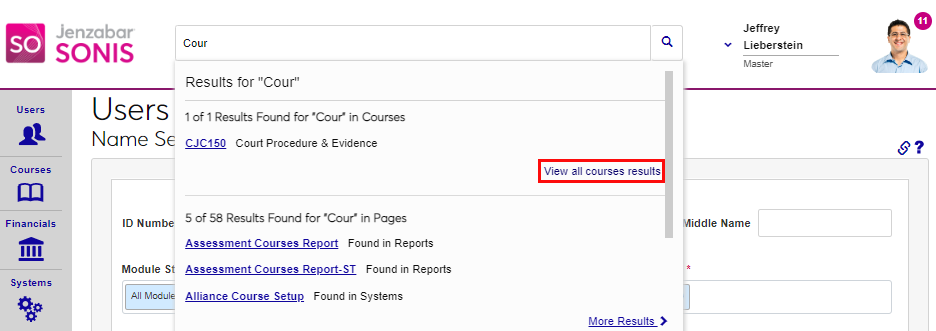
In the first example, SONIS recognizes that there are only Users who match the search criteria of "John" and displays the top five results from Users. In the second, SONIS recognizes that there are results in both the Courses and Pages categories that match "Cour" and displays the top results for each.
QuickResults
To view results from within the QuickSearch window, click the desired result's link.
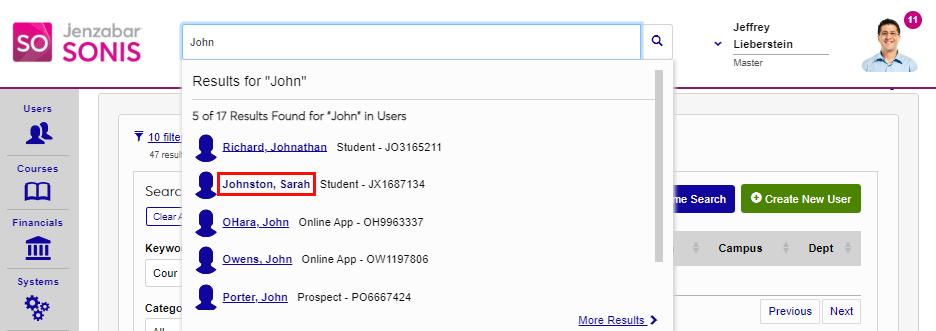
If a Users menu result was clicked, the logged in user's landing page loads. For most users, this will be the Summary or Biographic page. If a Courses menu result is clicked, the course landing page will load. Typically, this will be the Course Add/Edit page for the selected course but may be different depending on the profile. If a Pages, or Utility Features, link is clicked the named page will load.
Search Results
The user can view more results by clicking the More Results or View all... links. Clicking the View All... displays the Search Results page for the specific section and clicking the More Results link loads the Search Results for all sections.
Hub Search
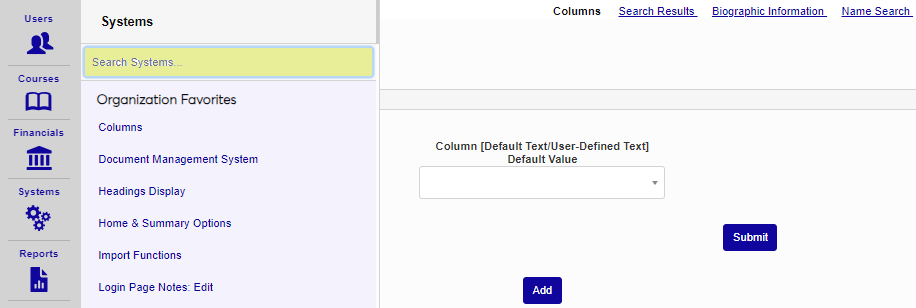
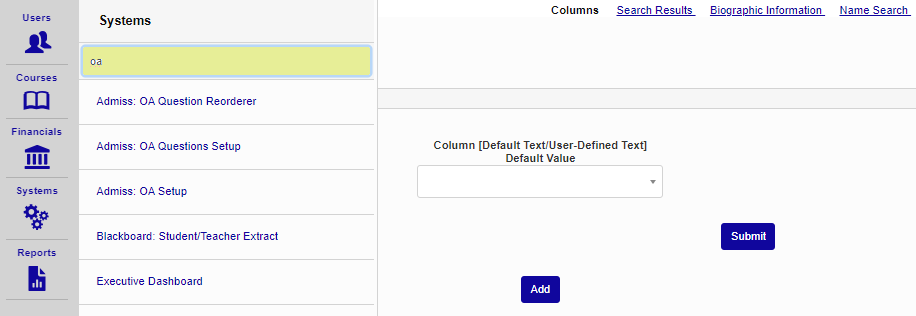
To search for a page within the Financials, Systems, or Reports hubs, click on the hub name. To search for a page within the Users or Courses hub, a user or course must first be selected. The search box displays at the top of the page listing. As the page name is typed, the listing will begin to filter and display only the pages that match the entered values. Click the page name to access the desired page.