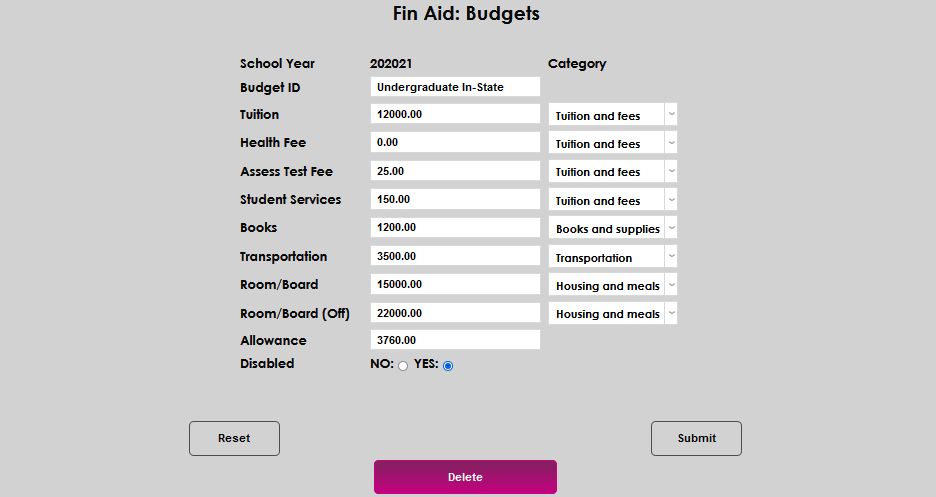
Financial Aid Budgets
Overview
Department of Education Title IV Financial Aid regulations, institutional aid practices, and many Jenzabar SONIS Financial Aid processes and reports require a budget, or cost of attendance, to be assigned to a student. Budgets are created for a school year and by student typology. Once a budget has been created in Financial Aid Budgets, it can be copied and edited; this minimizes data entry needs. For information on assigning a budget to a student, go to Financial Aid.
Creating a Budget
From the Systems hub, select Financial Aid Budgets. Click Created Budget.
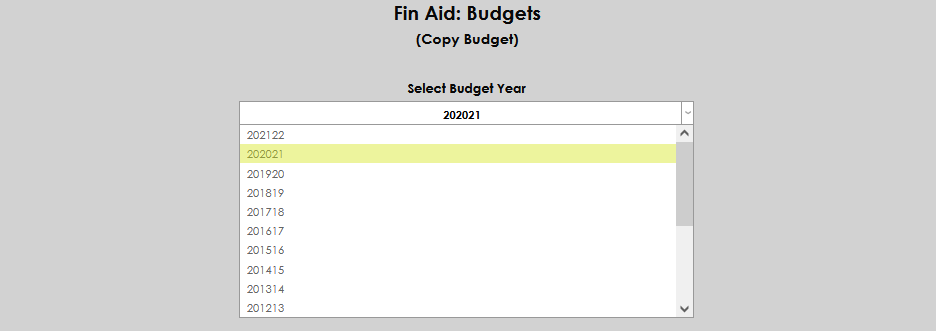
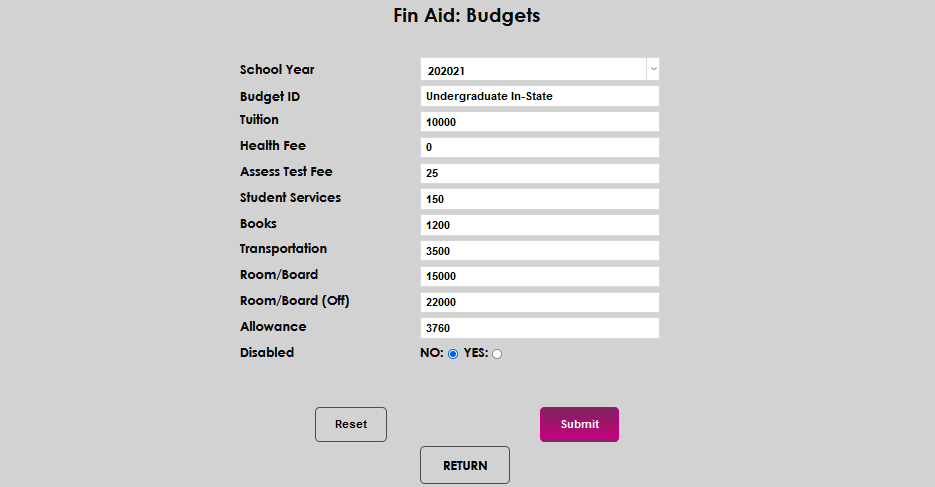
Select the desired year from the School Year dropdown.

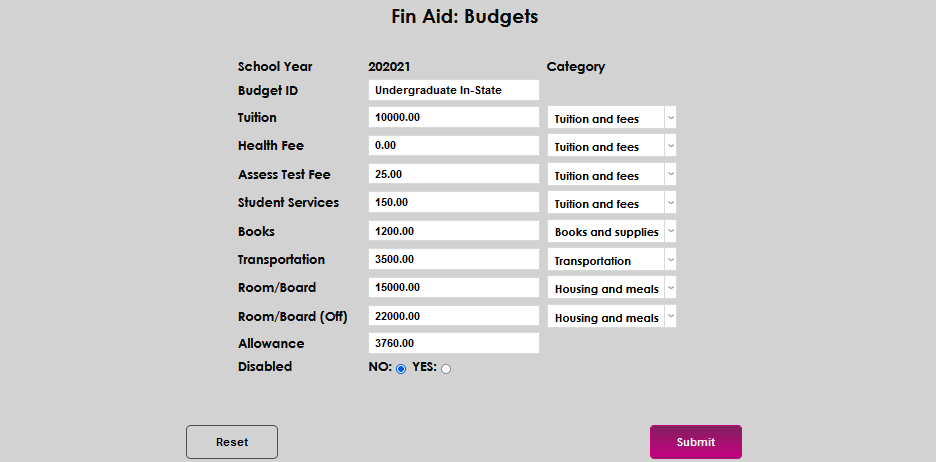
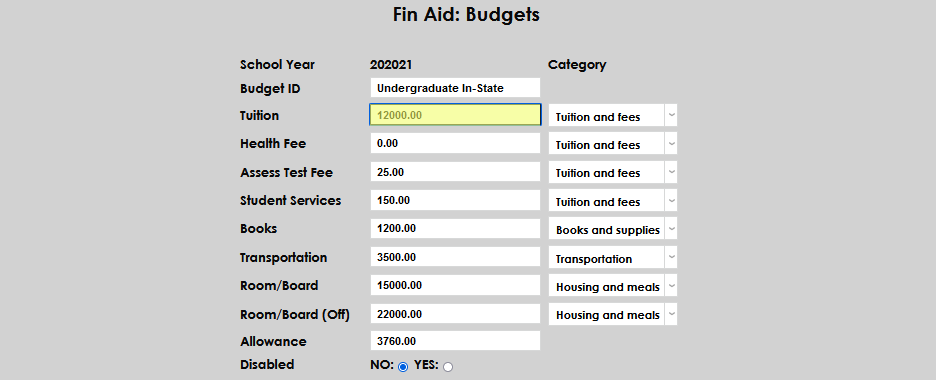
Enter the desired name of the cost of attendance in the Budget ID field. It may be up to 30 characters in length.
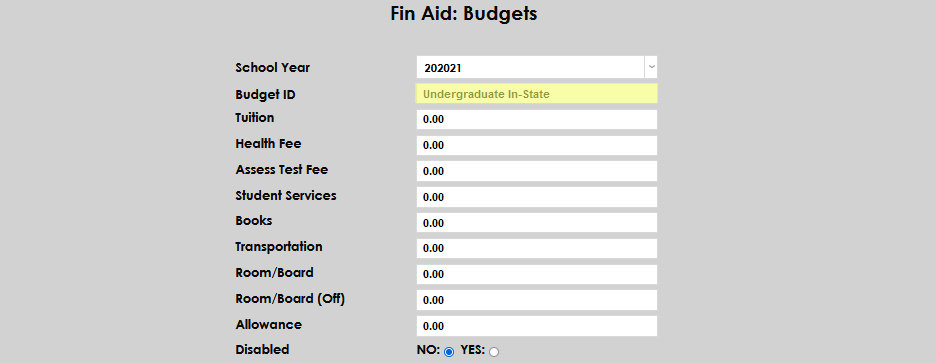
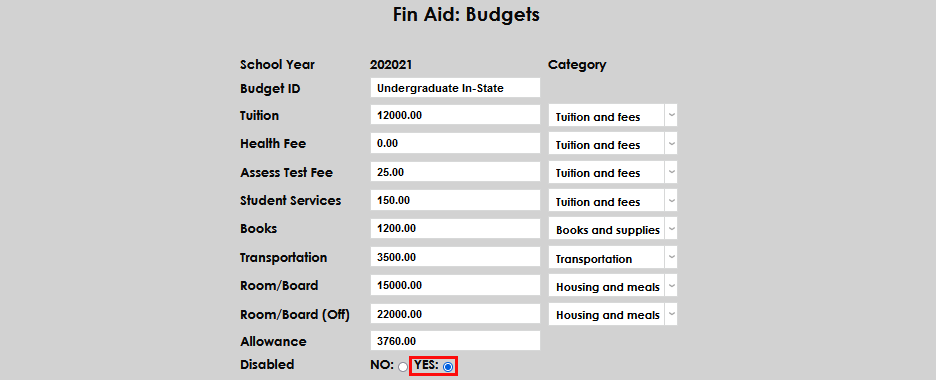
Enter the full academic year tuition amount in the Tuition field. Up to 10 characters may be entered and no decimal is required.
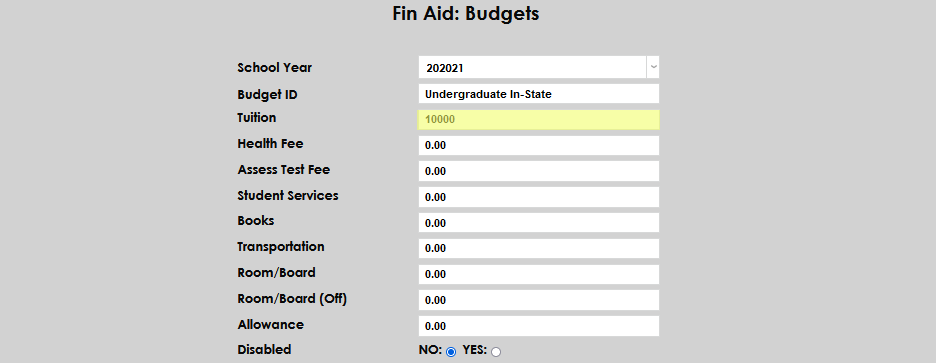
If a health services fee is charged by the school, enter the yearly amount in the Health Fee field. It is not a required field and can be skipped if not applicable. The field accepts up to 10 characters, with no decimal required.
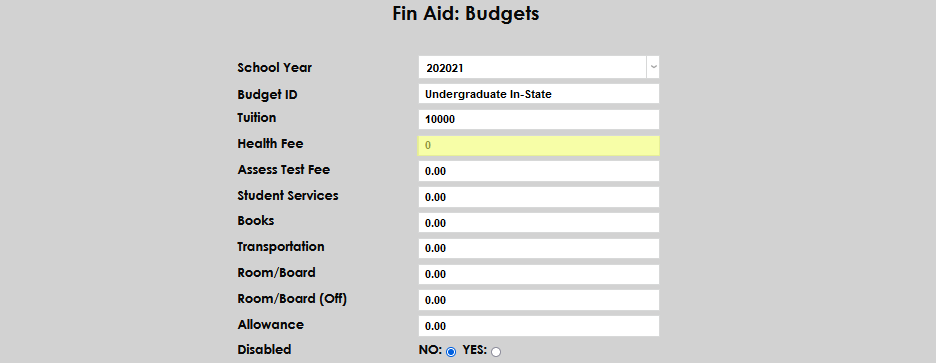
If the institution charges a fee for taking the assessment, or placement, tests, enter the amount in the Assessment Test Fee field. This field accepts up to 10 characters, is not a required field, and no decimal is needed.
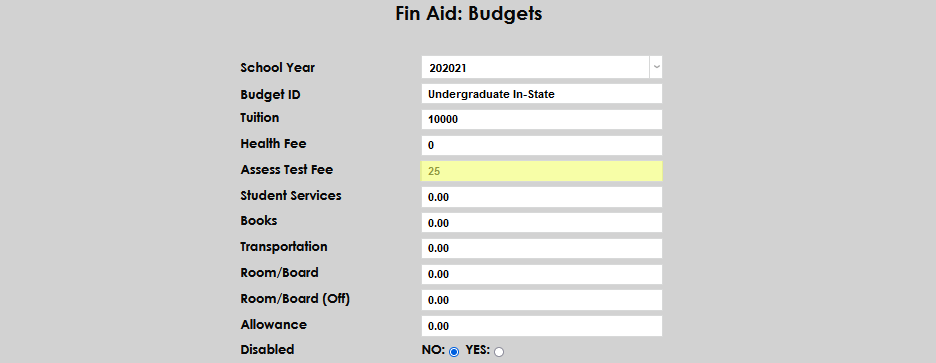
Enter any fees assessed for providing student services or activities in the Student Services Fee field. This field is not required, accepts up to 10 characters, and does not require a decimal.
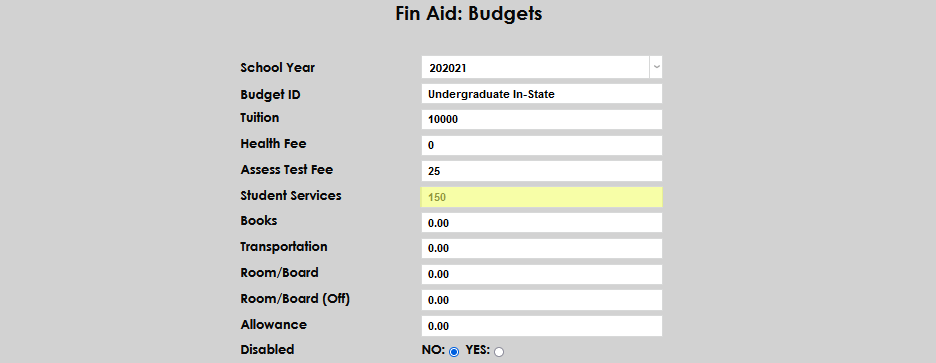
Enter the average amount a student is expected to spend on books and course supplies or materials in the Books field. This field accepts up to 10 characters, is not required, and no decimal is needed.
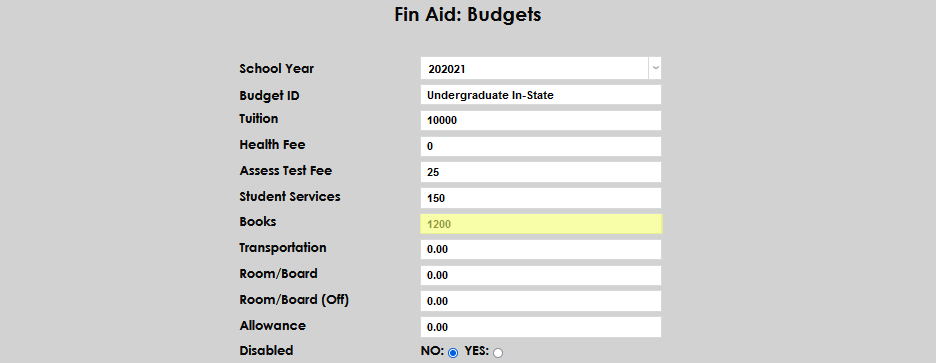
If the institution makes an allowance for transportation costs in the cost of attendance, enter the amount in the Transportation field. If not amount is allowed, enter a 0 (zero). The field accepts up to 10 characters and no decimal is needed.
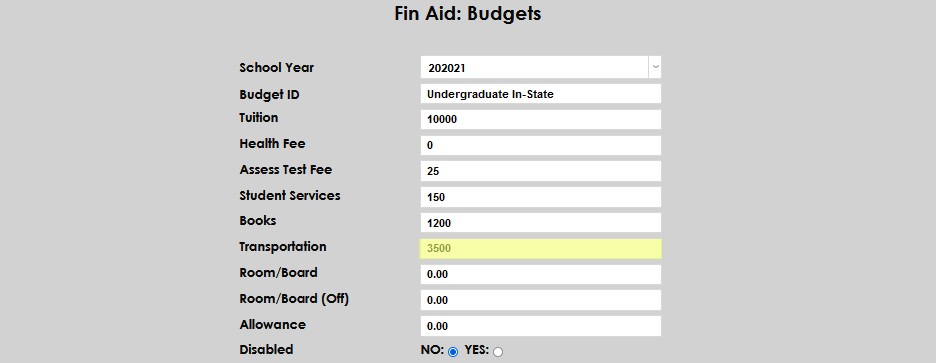
Enter the on-campus room and board allowance amount, if campus housing is provided, in the Room/Board field. If the institution does not provide housing, enter 0 (zero). This field accepts up to 10 characters and no decimal is needed.
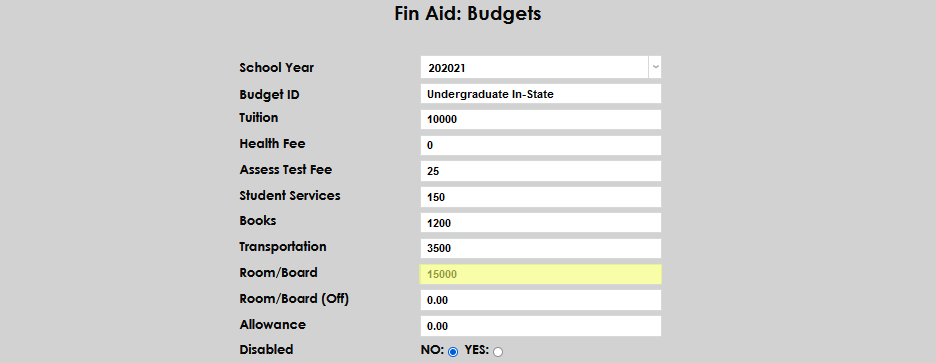
Enter the off-campus room and board allowance amount in the Room/Board (Off) field. This field was added in SONIS 3.7 to distinguish between on-campus and off-campus room and board costs for students. The field accepts up to 10 characters and no decimal is needed.
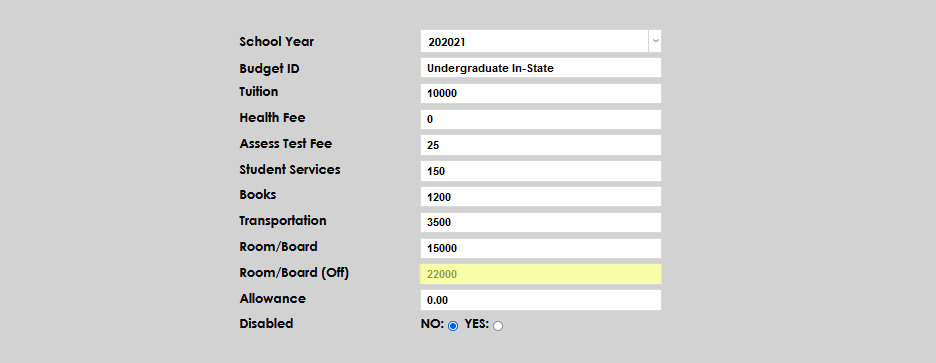
Other costs allowed in the institution's cost of attendance, such as personal expenses, institutional loan fees, or unique program costs may be entered in the Allowance field. The field accepts up to 10 characters, is not required, and no decimal is needed.
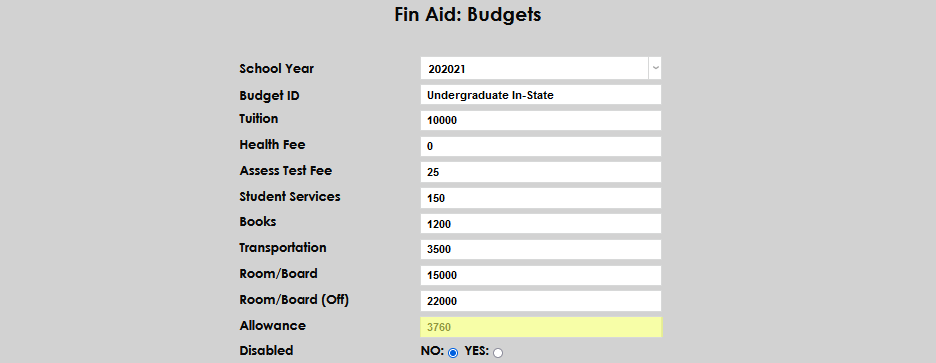
Select either the Yes or No radio button in the Disabled section. If yes is selected, the Budget will be disabled; if no is selected, the Budget will be enabled.
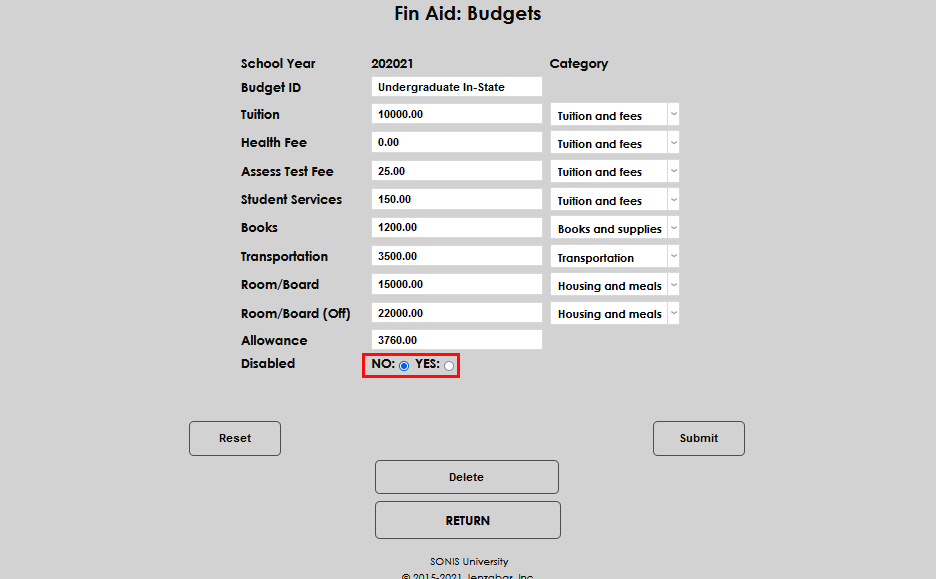
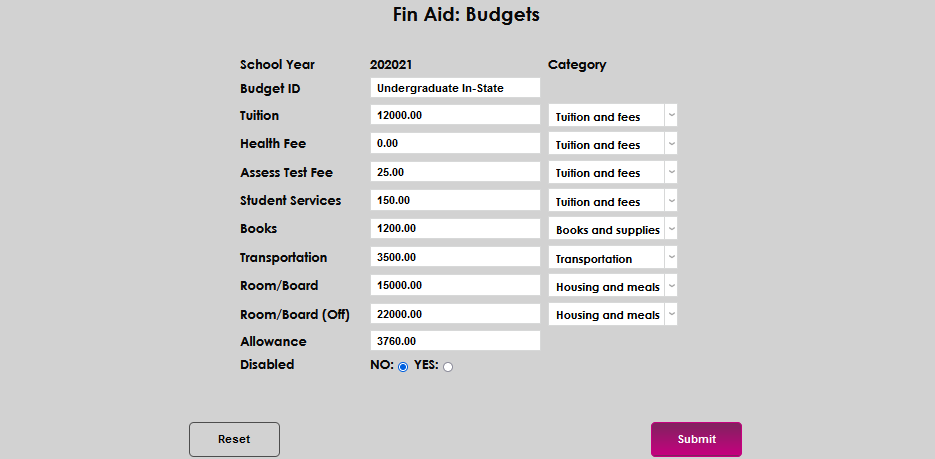
Select Submit to save.
College Financing Plan
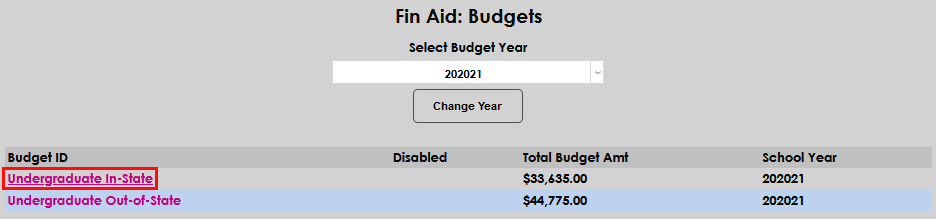
After the budget has been created, or if an existing budget will be used for the College Financing Plan, Department of Education College Financing Plan Cost of Attendance categories will need to be assigned to each budget component. Click on the Budget ID. Click here for detailed information on setting up the College Financing Plan and running the College Financing Plan Report.
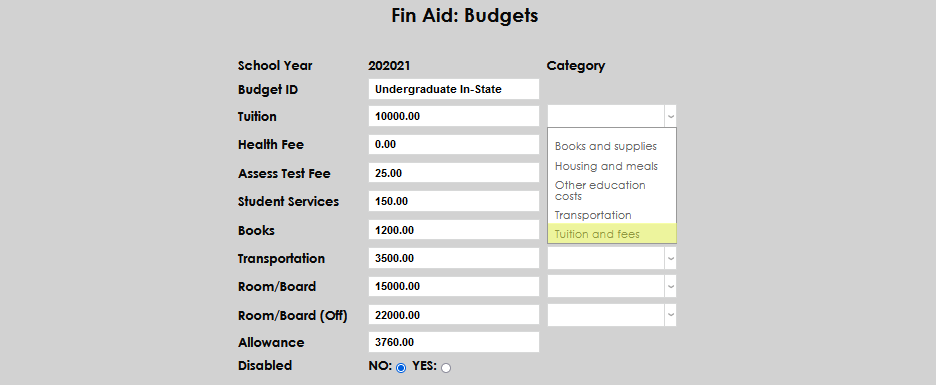
In the Category dropdowns, assign the appropriate Department of Education category to each budget component. If no category is assigned, the budget item will not display on the College Financing Plan report. When all categories are assigned, select Submit.
Existing Budgets
Any budgets that have been created in SONIS display on the Fin Aid: Budgets screen.
Viewing
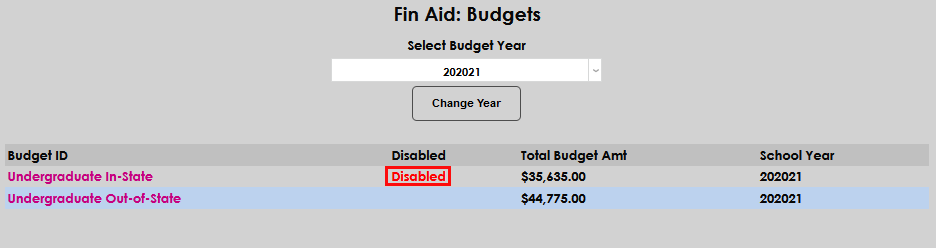
Budgets are grouped by school year and display as a list for the year selected in the Budget ID column. To change the school year displayed, select the desired year in the Select Budget Year dropdown and click Change Year.
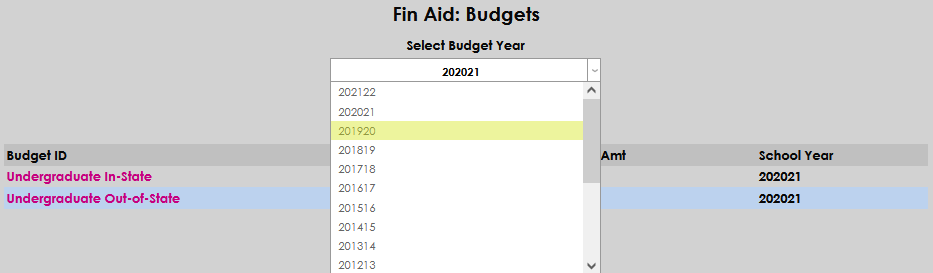

Any existing budgets for the year will then display. Click the name of the budget to view the details on a new screen.
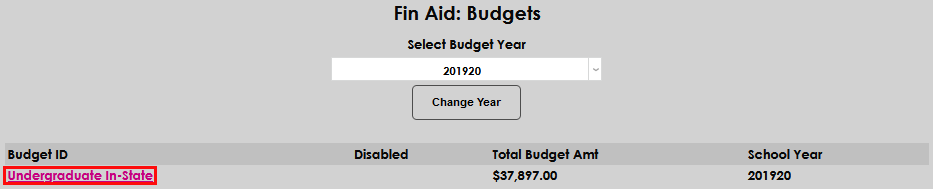
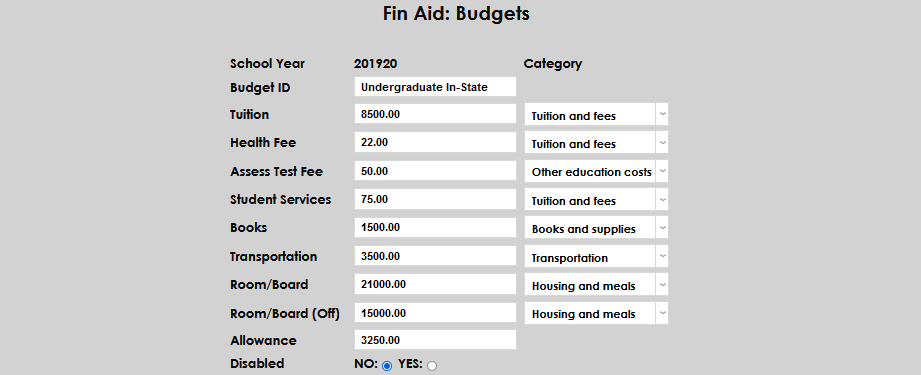
Click Return to leave the screen without making any changes.

Editing
To edit an existing budget, click on the name of the budget. Modify the data by clicking in the desired field and entering the new value(s). Click Submit to save the changes.
Copying
To copy an existing budget, click Copy Budget.
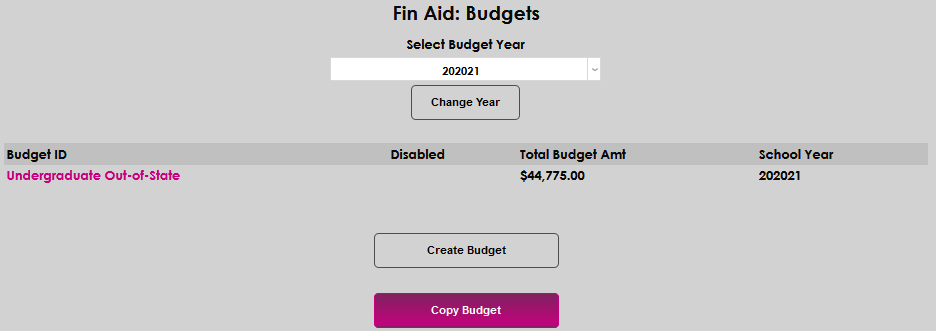
In the Copy Budget screen, choose the year applicable to the budget to be copied from the Select Budget Year dropdown and click Select Year.
Select the budget to be copied from the Please Select Budget field by clicking on the budget name, then select the year the budget should be copied to from the Destination Year dropdown, and click Submit.
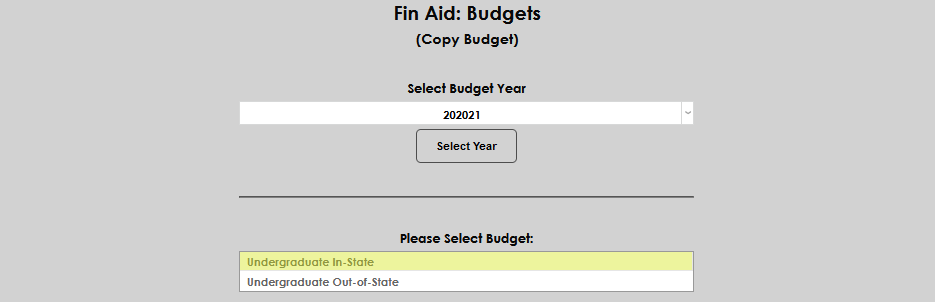
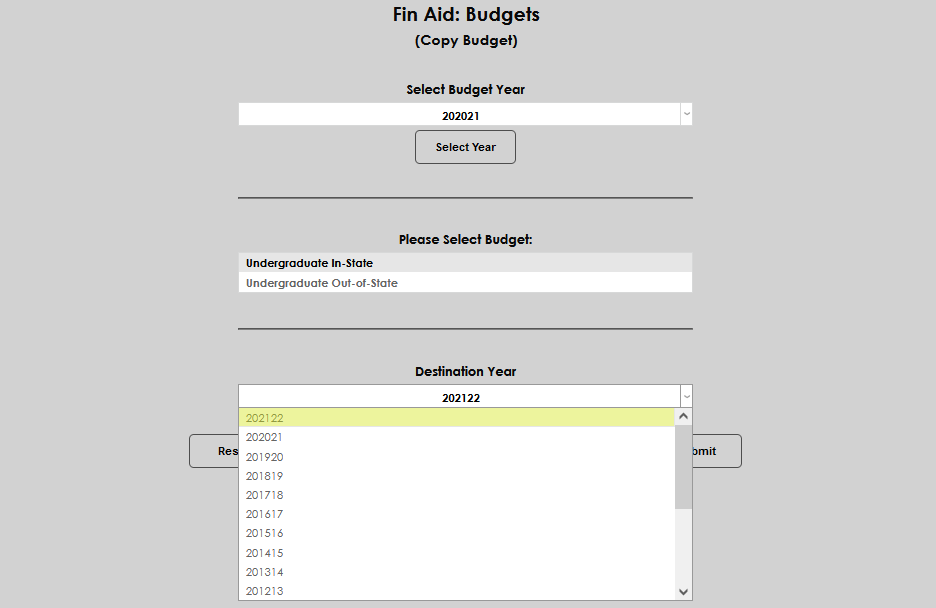
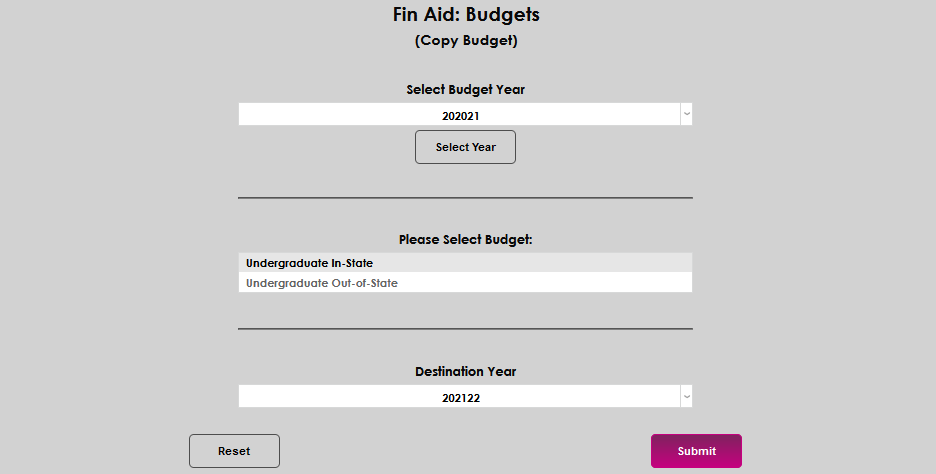
The copied budget will now display under the chosen year on the Fin Aid: Budgets screen and can be edited, if desired.

Disabling
To disable an existing budget so that it can no longer be used, but will be retained in the budget listing, click on the name of the budget. Click Yes radio button in the Disabled section. Click Submit to save the change. The budget will now display Disabled in the Disabled column. To enable the budget, simply do the reverse: click on the budget name, select the No radio button, and Submit the page.
Deleting
To delete an existing budget so that it can no longer be used, and will not be retained in the budget listing, simply click on the name of the budget and select Delete. No confirmation will display prior to deleting the budget. It is not recommended that budgets that have been assigned to students be deleted.