Address
Overview
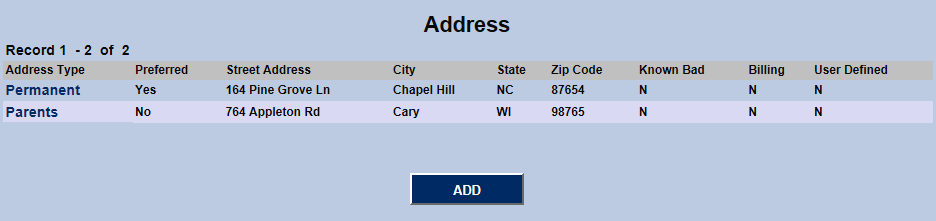
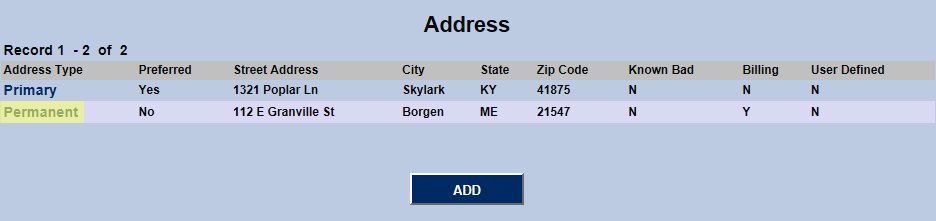
Address is the utility that stores the contact information for all SONIS users, including faculty, staff, students, prospects, and alumni. To access, add, and edit this information, select Address from the left-nav menu after selecting a SONIS user with the Names search function. Existing addresses will appear in a table along with a button to add a new address.
Address Type
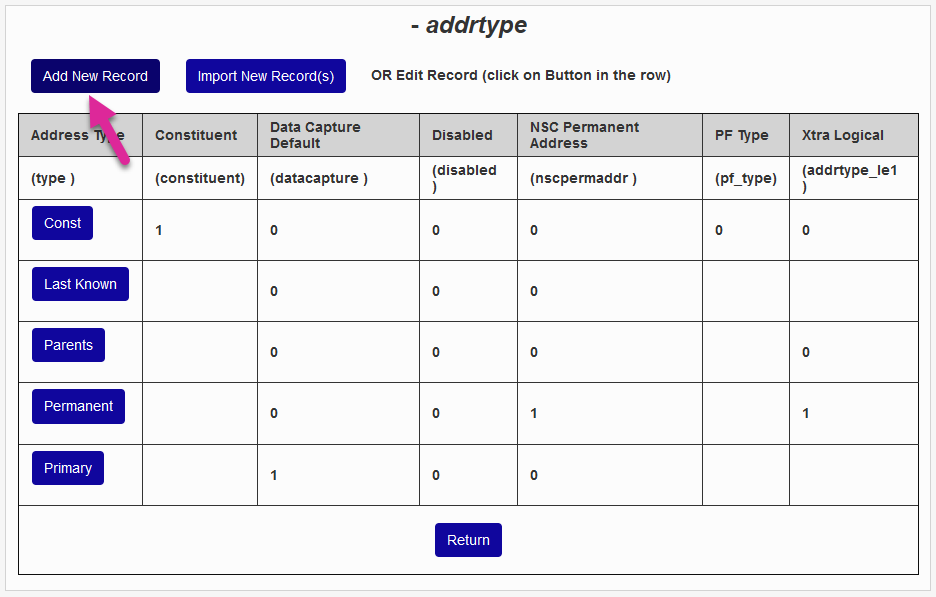
The Address Types table is used to define and categorize the different addresses associated with an institution and it's users. Types can include any desired categories, including but not limited to, Permanent, Primary, Last Known, IPEDS, and Billing. One address type must be assigned as the default for National Student Clearinghouse and Enrollment Data Collection reports.
To add a new record, click Add New Record.
Enter up to ten alphanumeric characters that will become the name of the Address Type . If this address will be used for Enrollment Data Collection , enter a 1 in the Data Capture Default field.
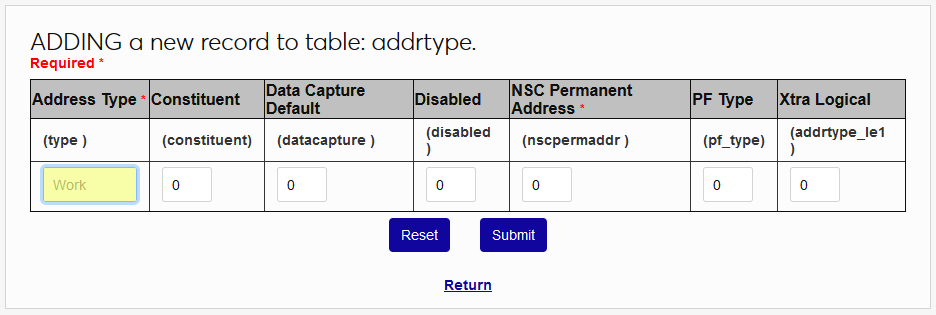
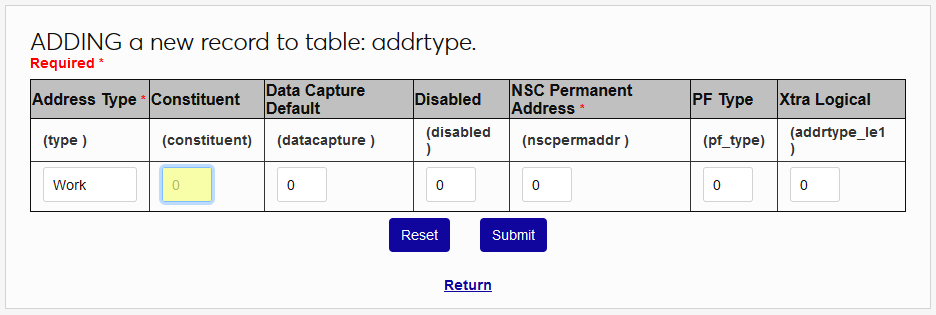
If this address should be designated for use with constituents, enter a 1 in the Constituent field. Only one address type can be designated as the constituent address type. See Constituent Contact for more information on this designation.
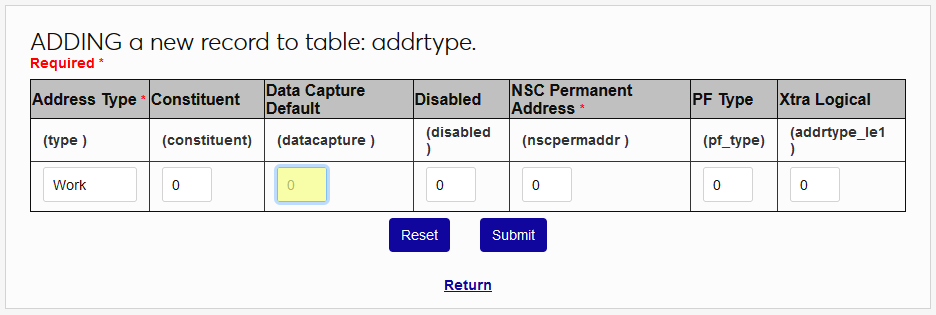
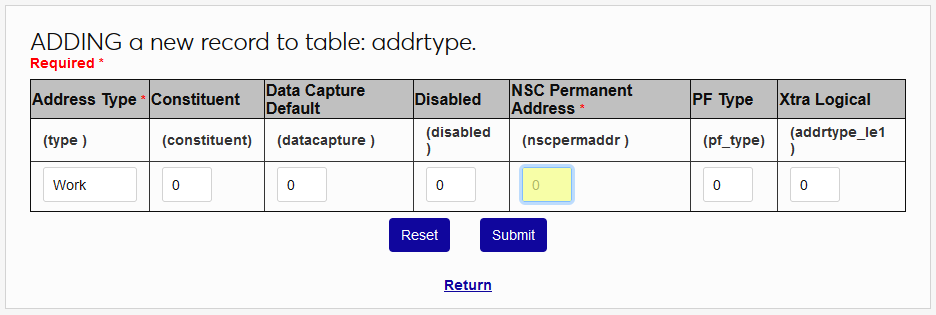
If this address will be used for Enrollment Data Collection , enter a 1 in the Data Capture Default field. If this address will be used for Clearinghouse reporting, enter a 1 in the NSC Permanent Address field.
Leave a 0 in the Disabled field to make the address type active. To disable it later, replace the zero with a 1. Click Submit to create the address type.
Adding Address
To begin adding new address information for a SONIS user, select that user with the Names utility, navigate to their Address page, and click the Add button.
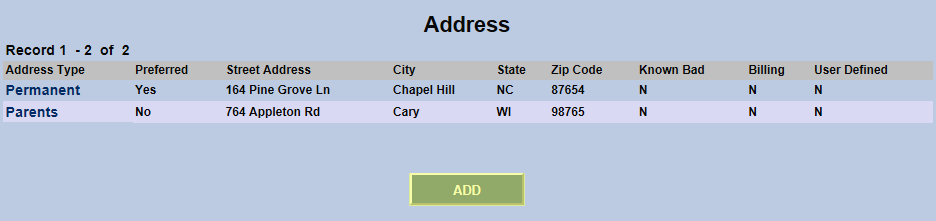
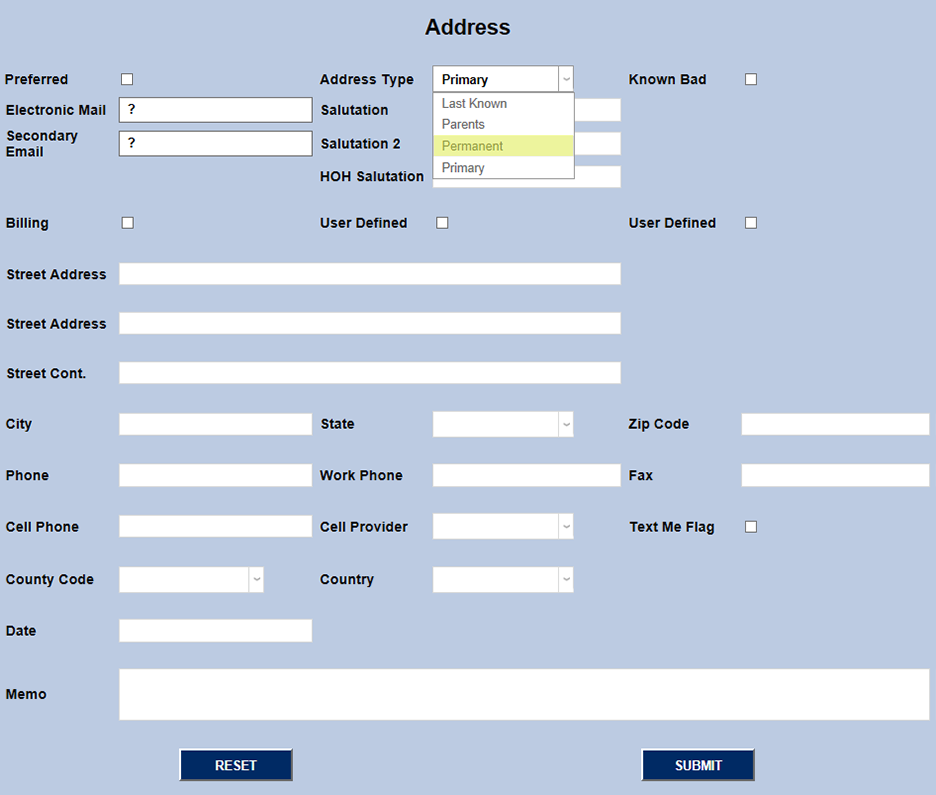
Select an Address Type from the dropdown menu. The address type menu is created and edited in Table Maintenance in the Systems hub.
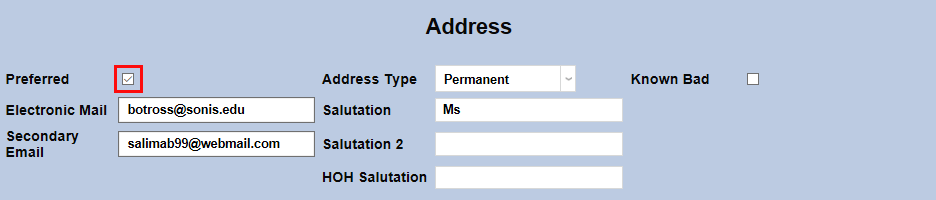
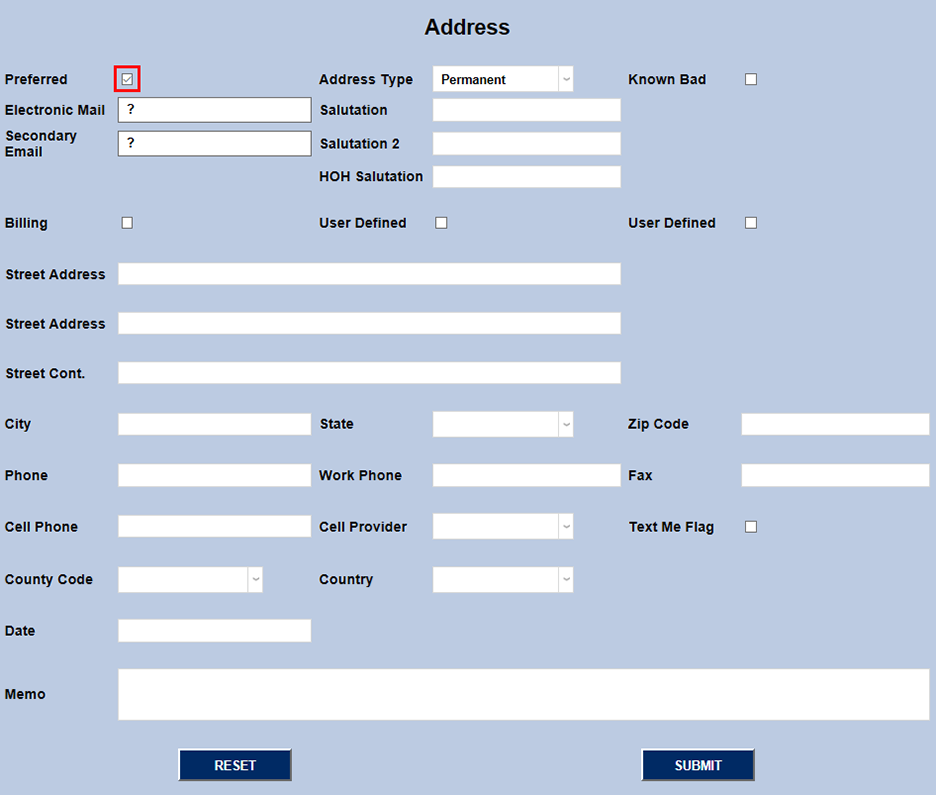
Check the Preferred box if the address should be the default for this user. Only one address can be marked as preferred at a time.
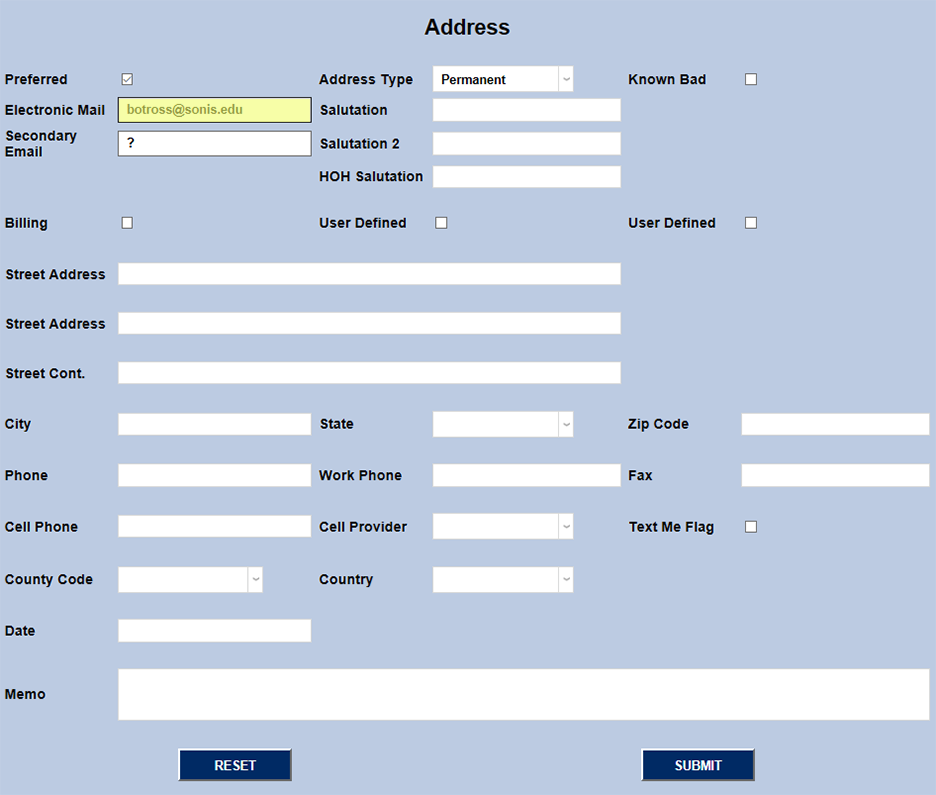
Fill in the Electronic Mail and optional Secondary Email fields for the user. Generally, the primary email address listed should be the school's provided email account for students, faculty, and staff and a personal address for prospects and alumni. Neither field can be blank and must be filled with a question mark if no email address is available.
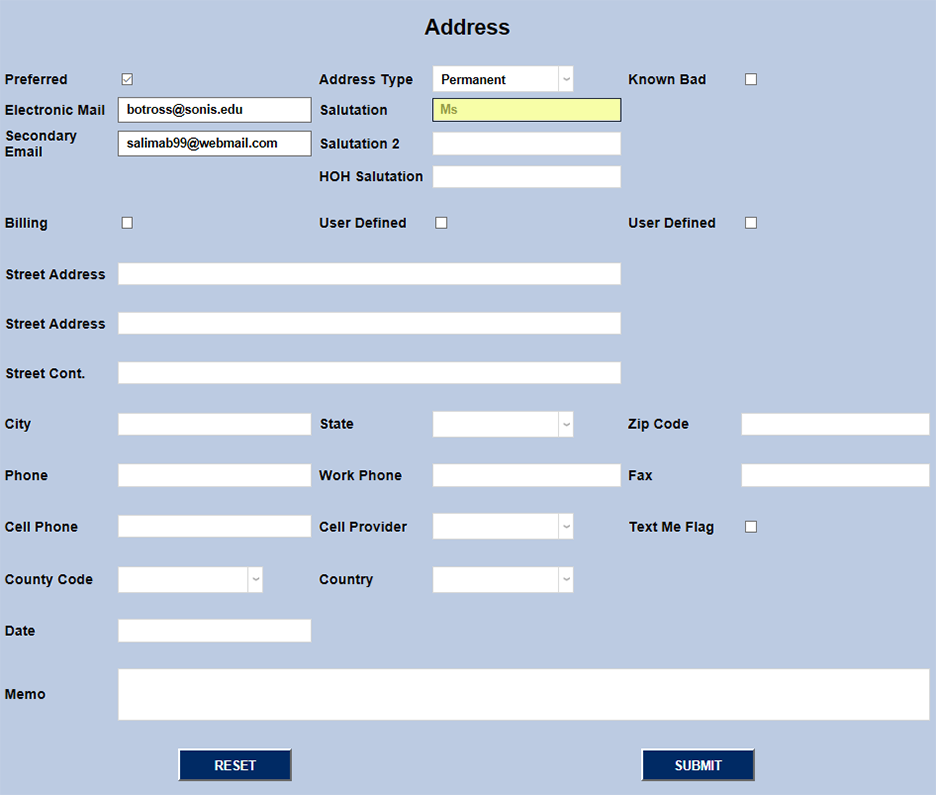
Fill in one, all, or none of the Salutation fields based on school and user preferences. These will be used when generating automatic emails and letters. The HOH Salutation will be used to address the person designated as the student's head of household.
The Known Bad checkbox is for marking addresses that are no longer correct for this user. The checkbox is purely informational and does not trigger changes elsewhere in the system. When the flag is checked, a new preferred address record should be created even if an up-to-date mailing address for the user hasn't yet been found.
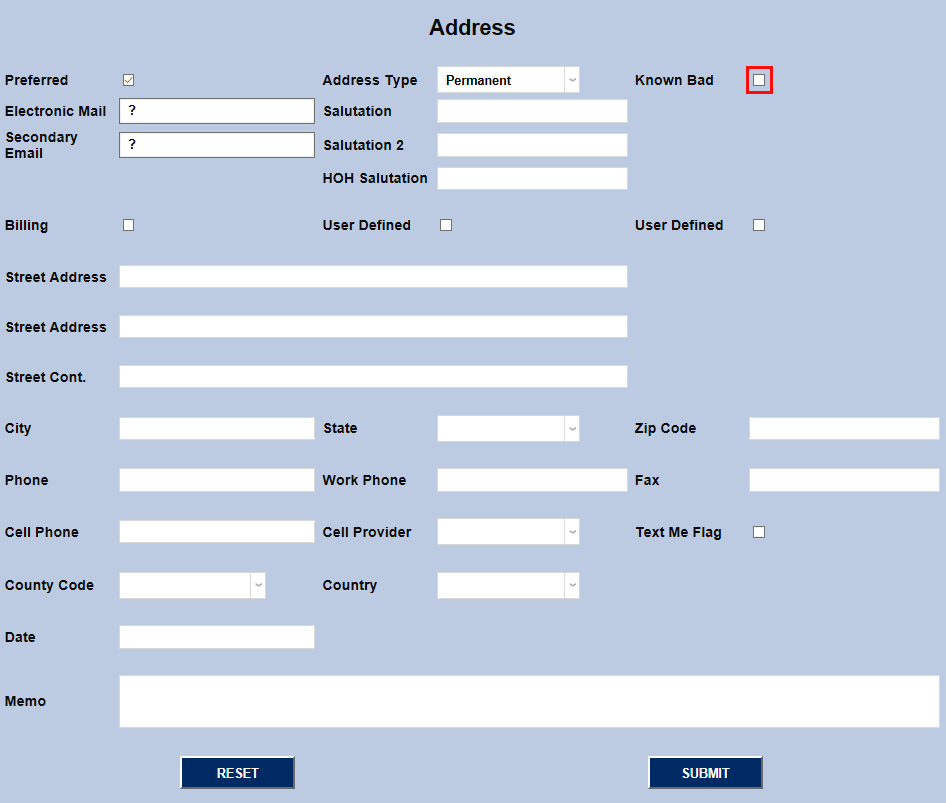
The Bad Email (MC) checkbox is used by the Mailchimp Integration with Jenzabar SONIS. It can be ignored by clients who are not working with Mailchimp.
The next-section includes three user-defined checkboxes. Like all user-defined fields these are informational only and do not output anywhere else in the system. In this example, we used the first box to indicate that this address should be used for billing purposes, but it can be relabeled other uses through the Columns utility under the Systems hub.
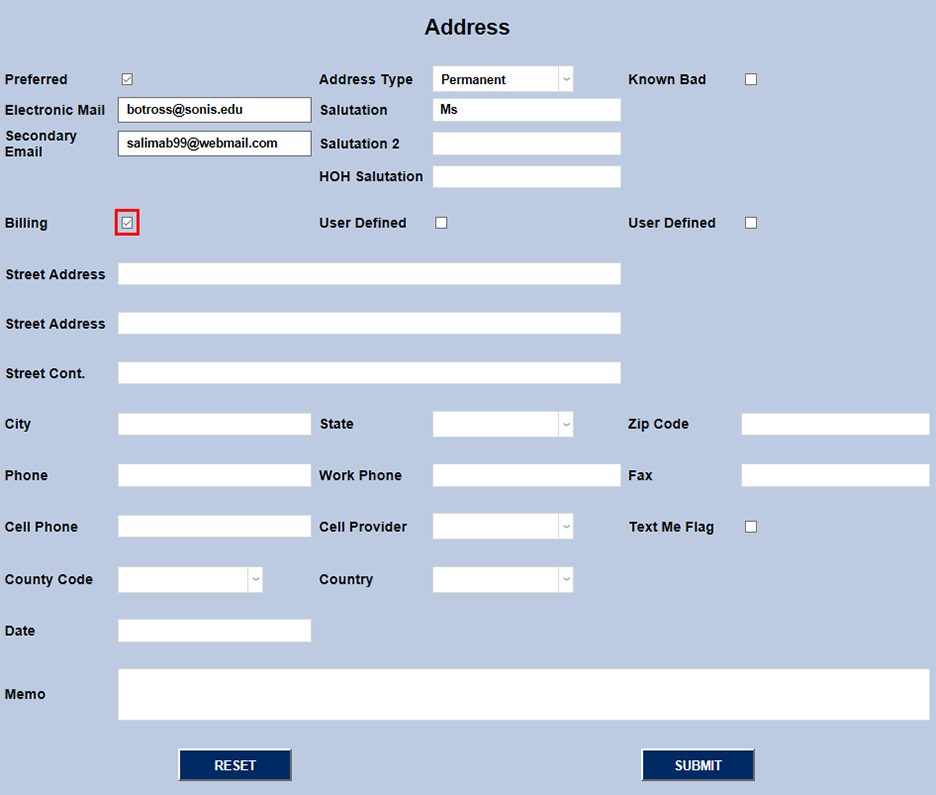
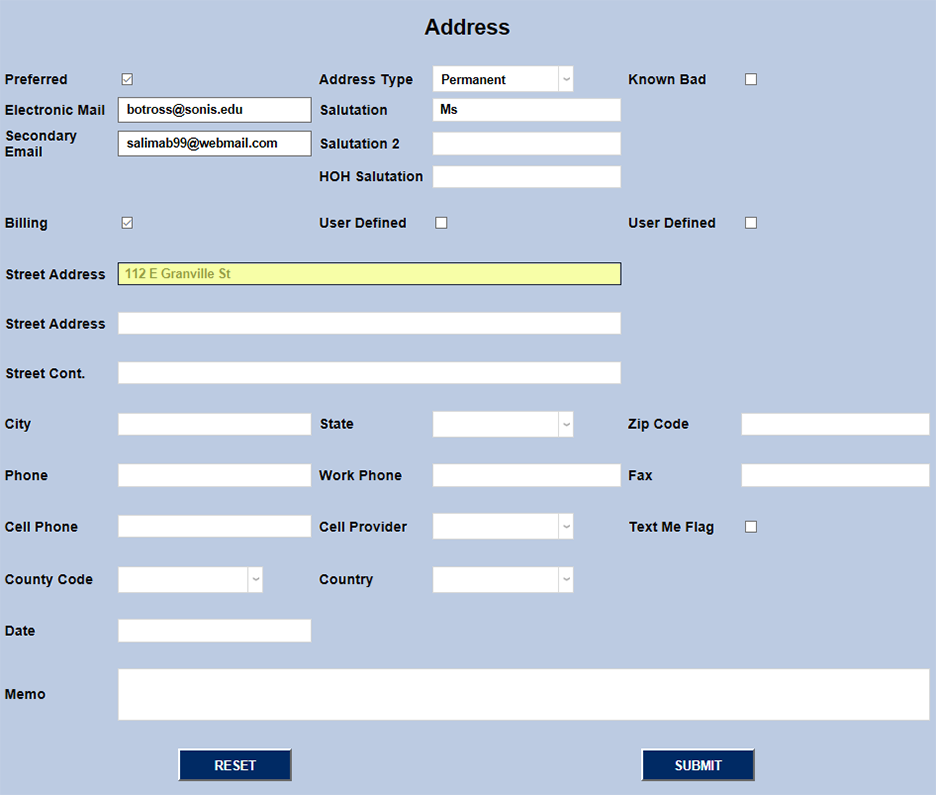
There are three Street Address fields for longer addresses, apartment numbers, and PO boxes. Use as many or as few as you need.
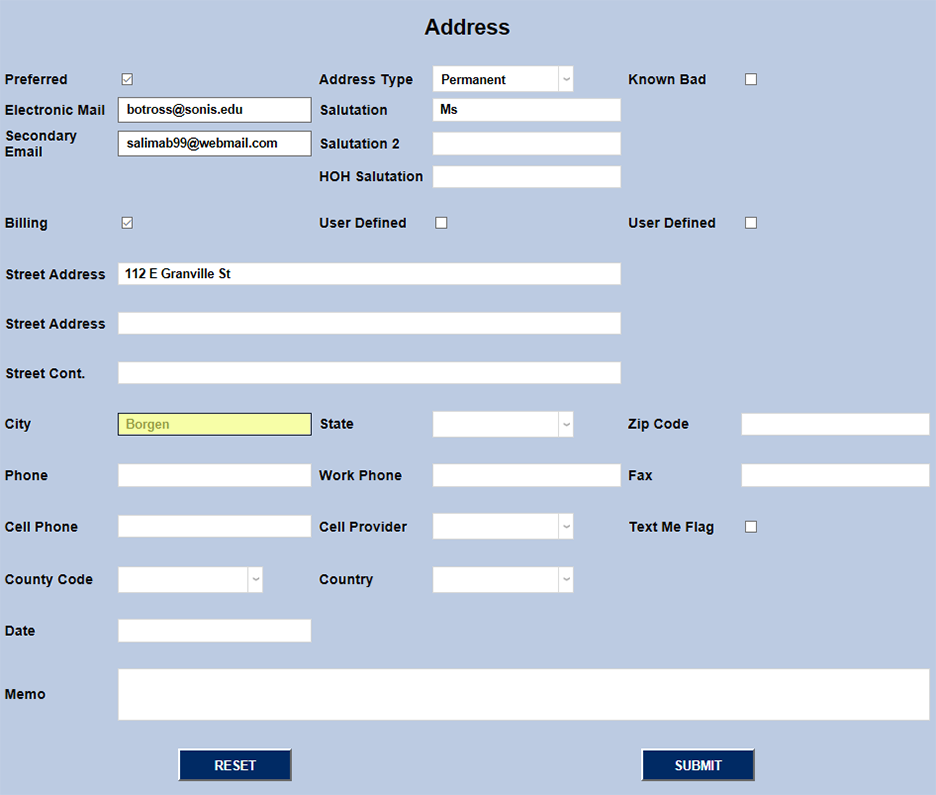
Fill out the City, State, and Zip Code fields to complete the user's physical address. The list of states can be edited through the Table Maintenance utility under the Systems hub.
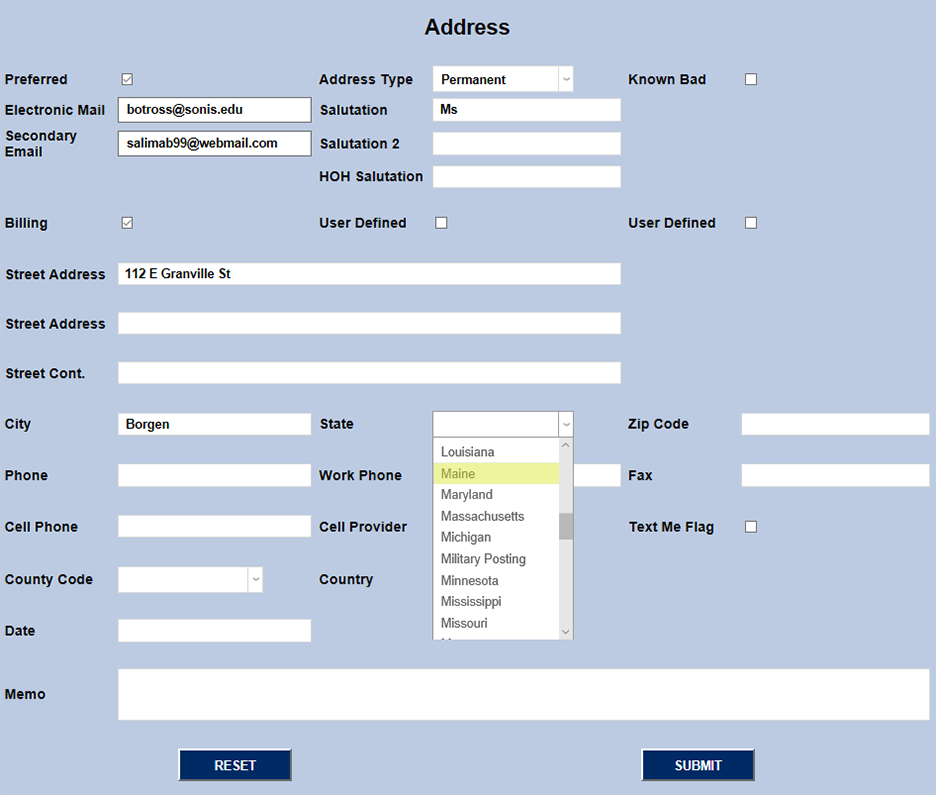
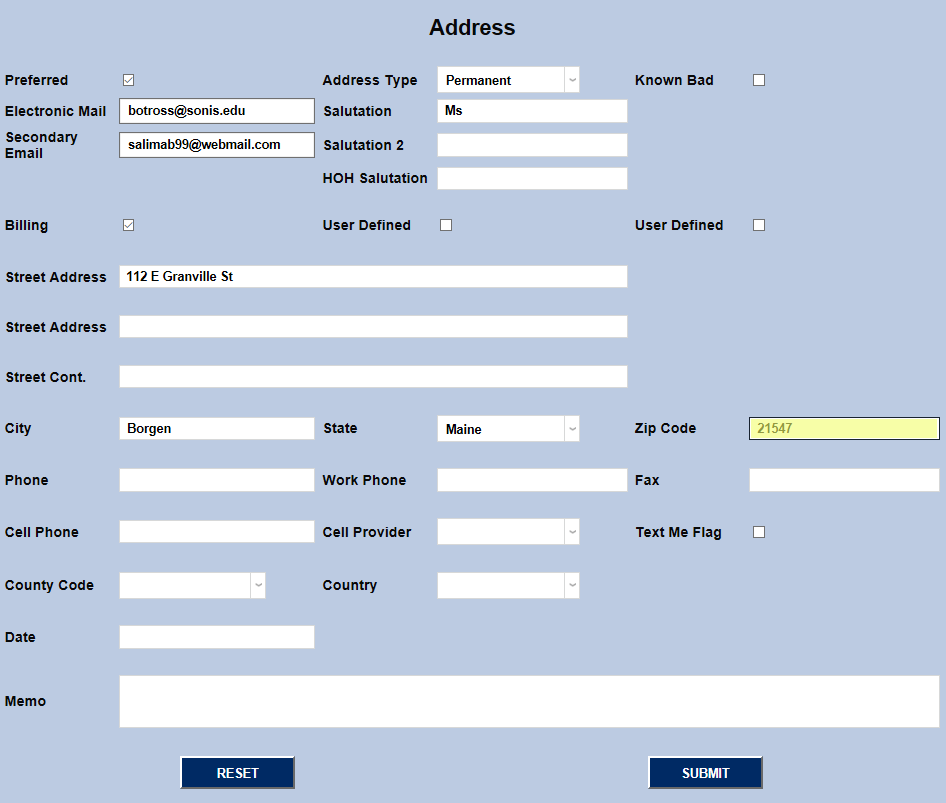
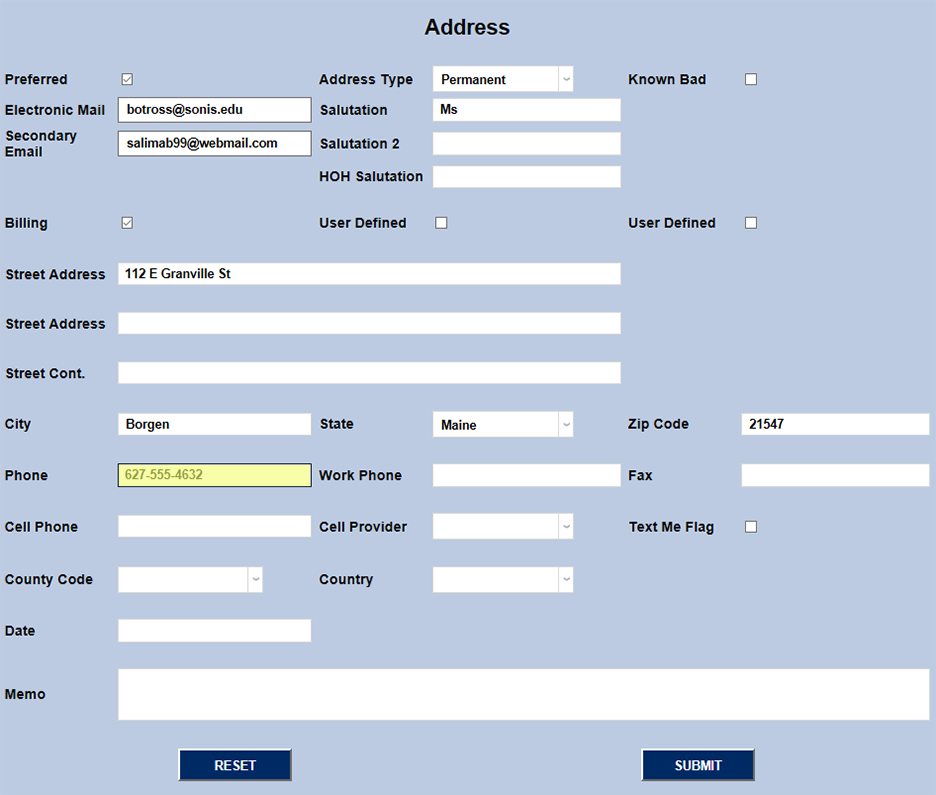
Fill in one or more of the phone number fields for the user.The Cell Provider field is no longer used.
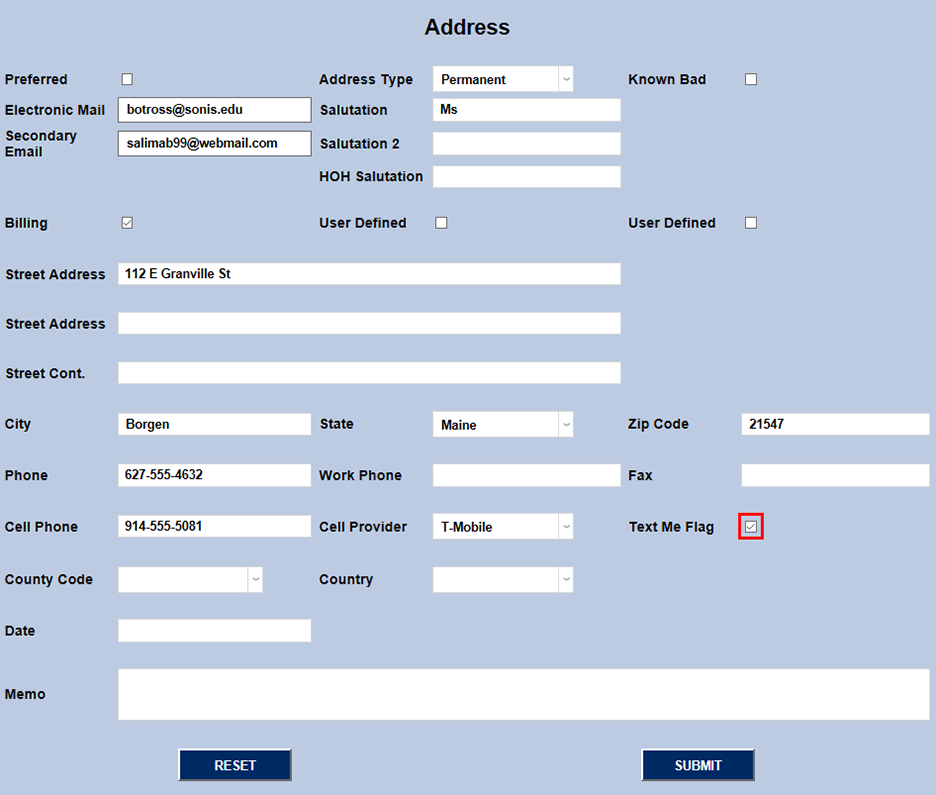
Check the Text Me box if the student has agreed to receive text messages. This box must be checked as part of the Twilio setup process.
Some schools may wish to select a County for in-state students. Select a Country as well. Both lists are created and edited through the Table Maintenance utility.
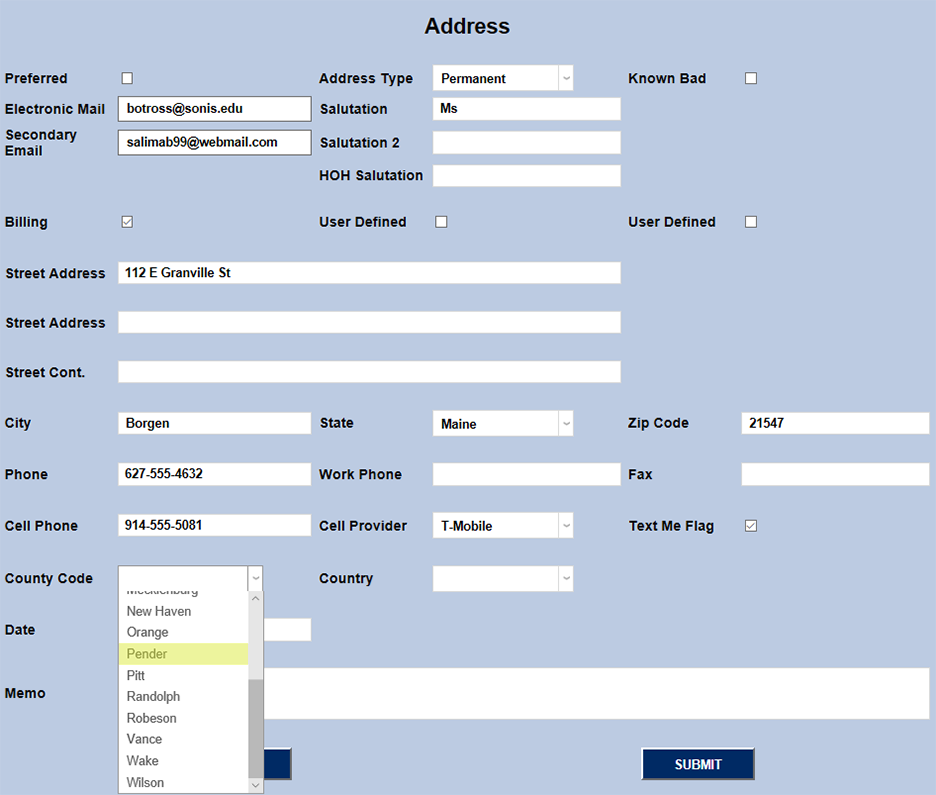
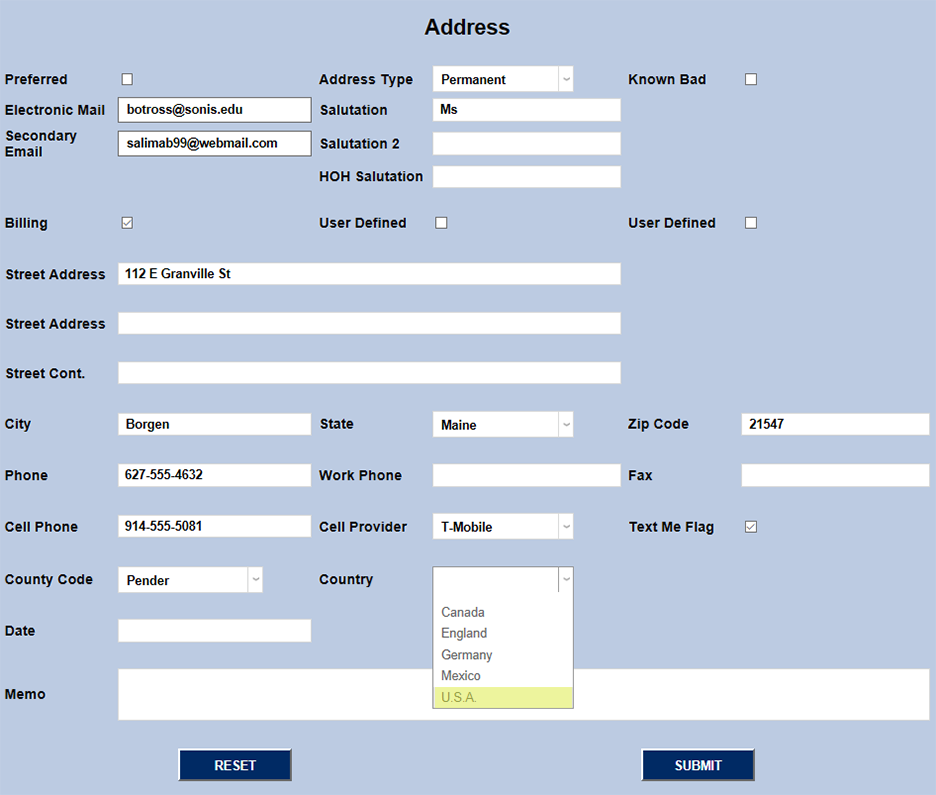
The Date field allows administrators to record the date on which the address was entered, a useful notation for other users who may come across the address and wonder how up-to-date it is. The Memo field is for any additional notes that should be appended to the address.
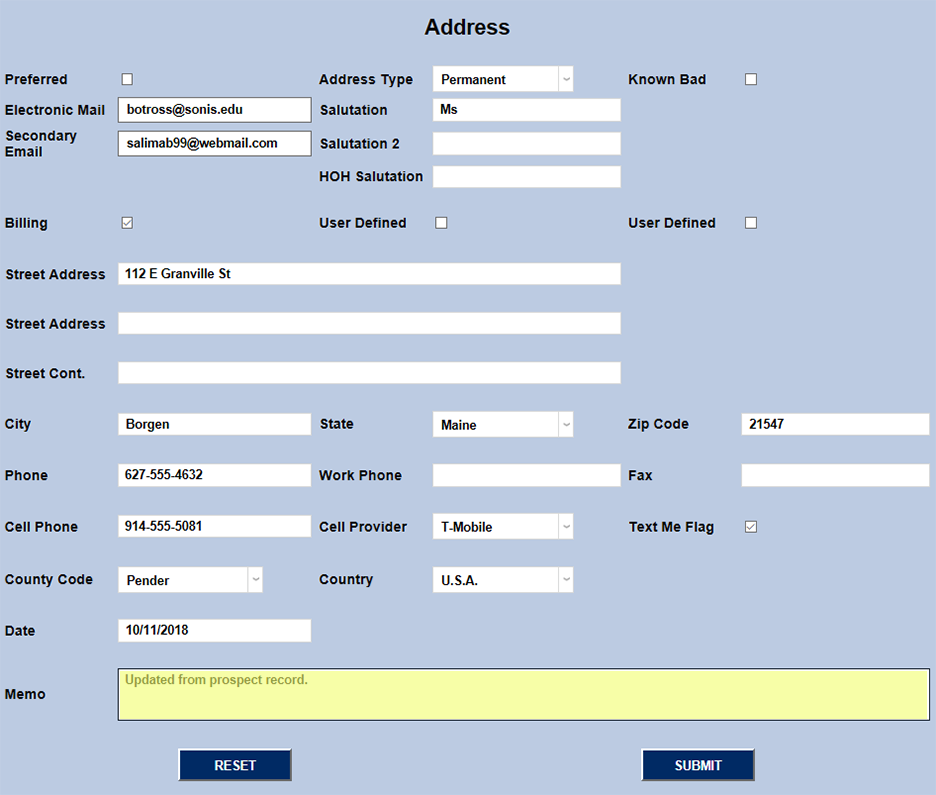
Note
There are two hidden date fields that can appear in this area. They can be turned on using the Columns utility under the Systems hub.
When all the available information has been filled in, click Submit to save the changes.
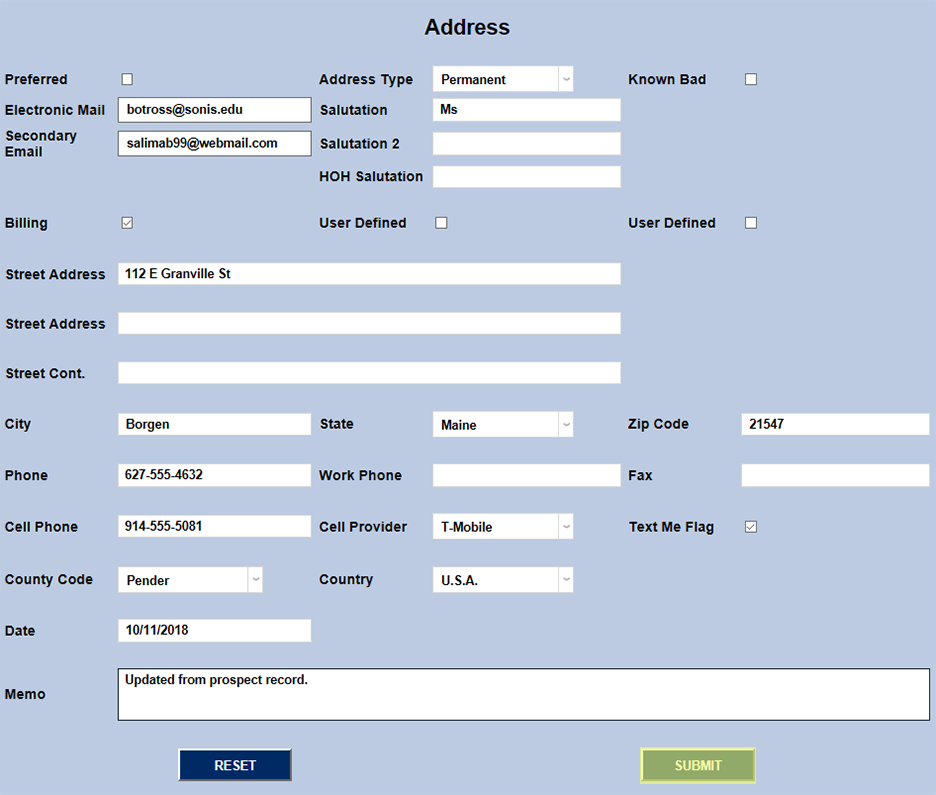
Editing Address
To edit an existing address, click on the Address Type.
The editing process is the same as the creation process above. The only difference is that, when selecting a new primary address, users are given an extra prompt to ensure that they intend to remove the primary label from the previous address. Click Confirm to continue this process or Cancel if the change has been made in error.