Jenzabar SONIS Version 3.4 Front End Rebranding & Refresh
Overview
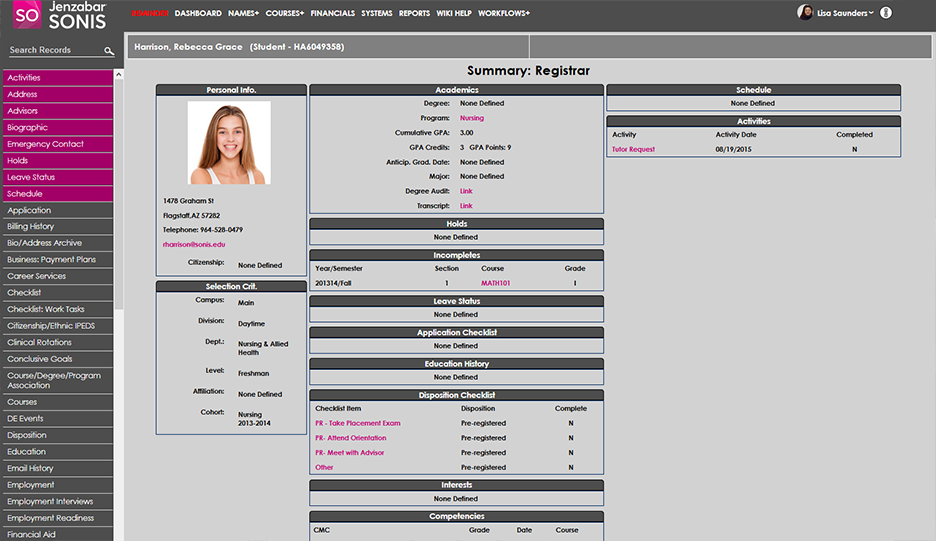
Along with the other features and updates bundled with Jenzabar SONIS Version 3.4, SONIS developers, in cooperation with the Jenzabar marketing team, have made major changes to the look and feel of the Jenzabar SONIS system. The changes incorporate Jenzabar's new logo and color scheme for SONIS while dramatically updating external pages and the user portals both aesthetically and in terms of functionality. Only SONIS institutions who use the default SONIS CSS will see the updates, though schools wishing to incorporate various elements from the update into their custom CSS may do so at their discretion.
Setup
Login Page Setup
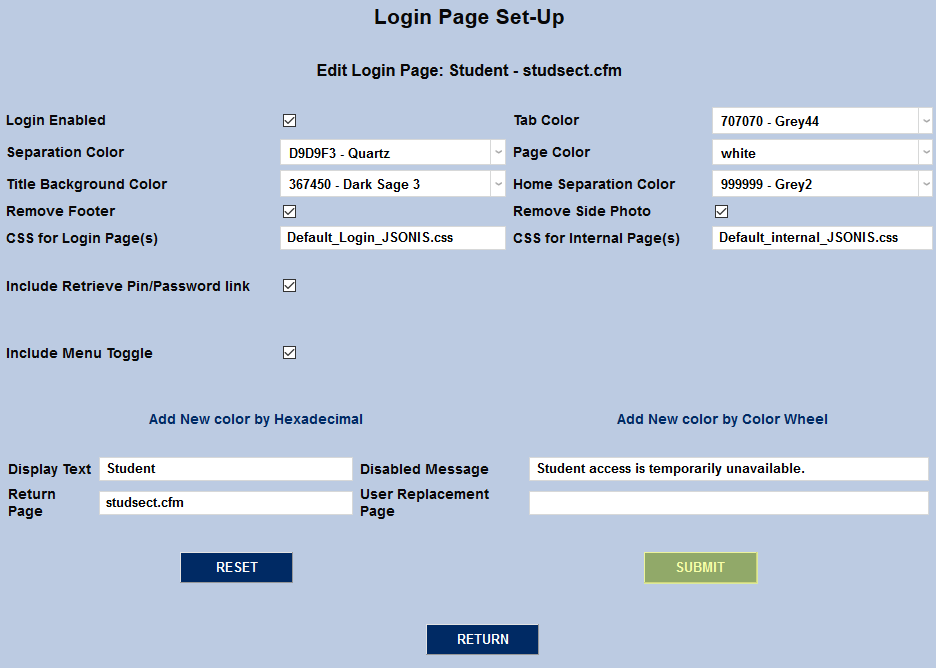
To turn on the new Jenzabar SONIS CSS, begin by navigating to the Login Page Setup utility under the Systems menu. Select a page to modify from the dropdown menu and click Select.


On the following page, replace the existing login page and external page CSS with the new CSS. These files are already saved in the correct folders and do not need to be downloaded or moved.
CSS for Login Pages: Default_Login_JSONIS.css
CSS for Internal Admin Pages: jSONISadm.css
CSS for Internal Portal Pages: Default_internal_JSONIS.css
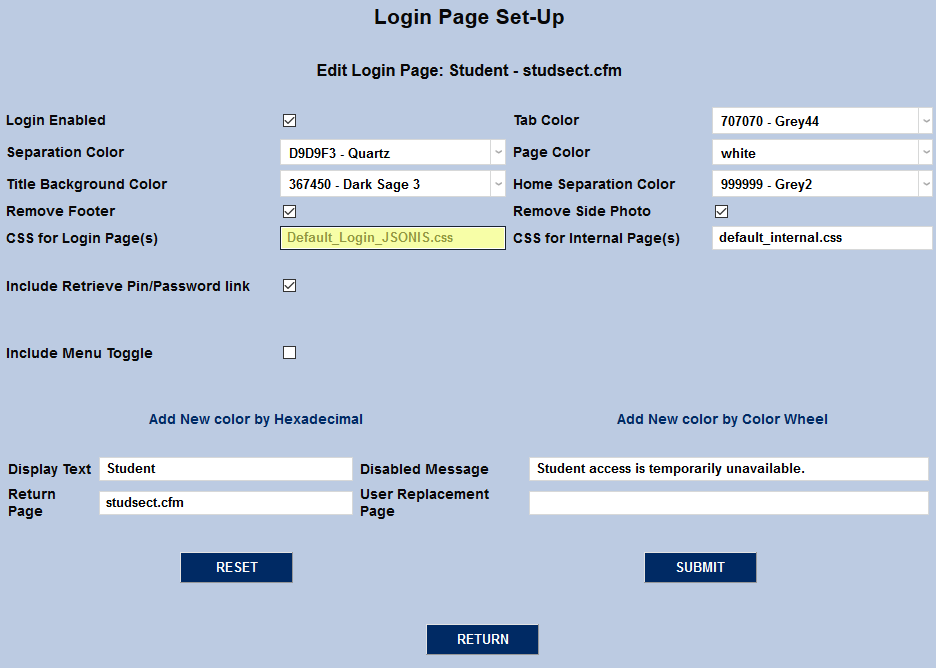
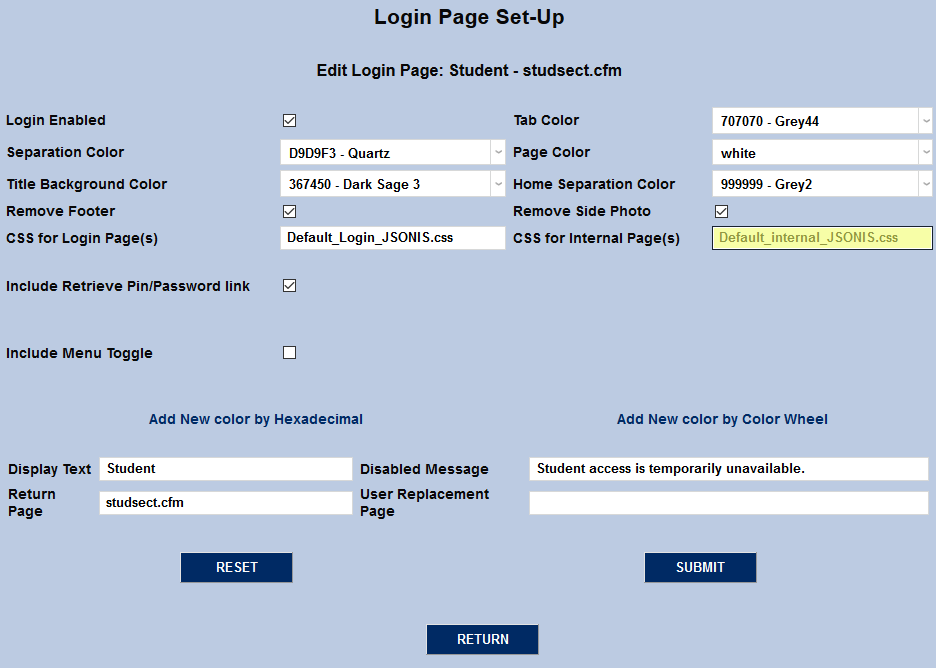
Next, check the Include Menu Toggle box. The menu toggle is an important feature of the new CSS, but will interfere with custom CSS designs if it's turned on inadvertently.
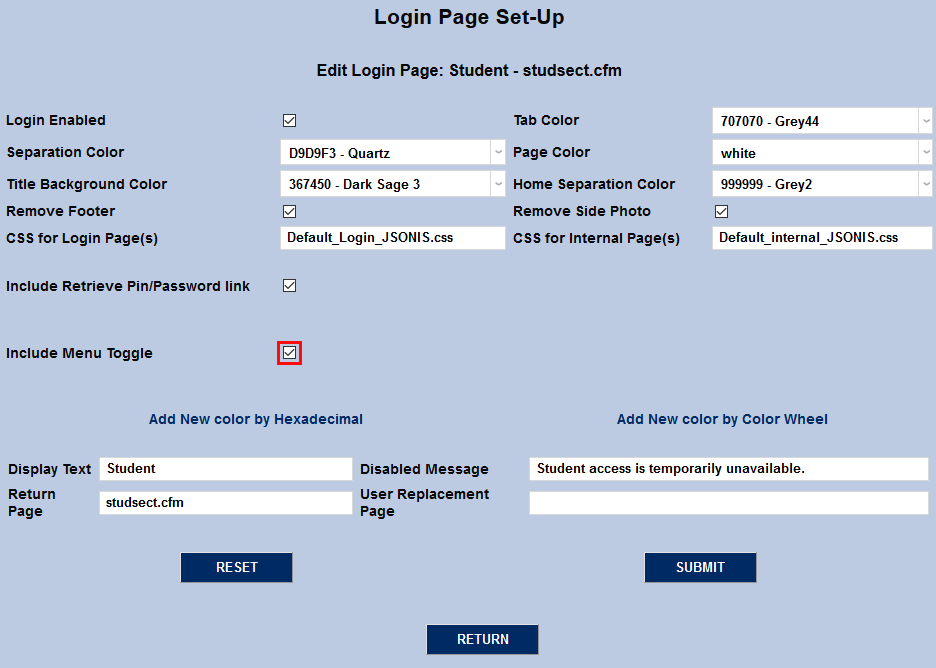
Click Submit to save the changes and repeat the process for any other pages that should be converted to the new CSS.
Portal Menu Icons
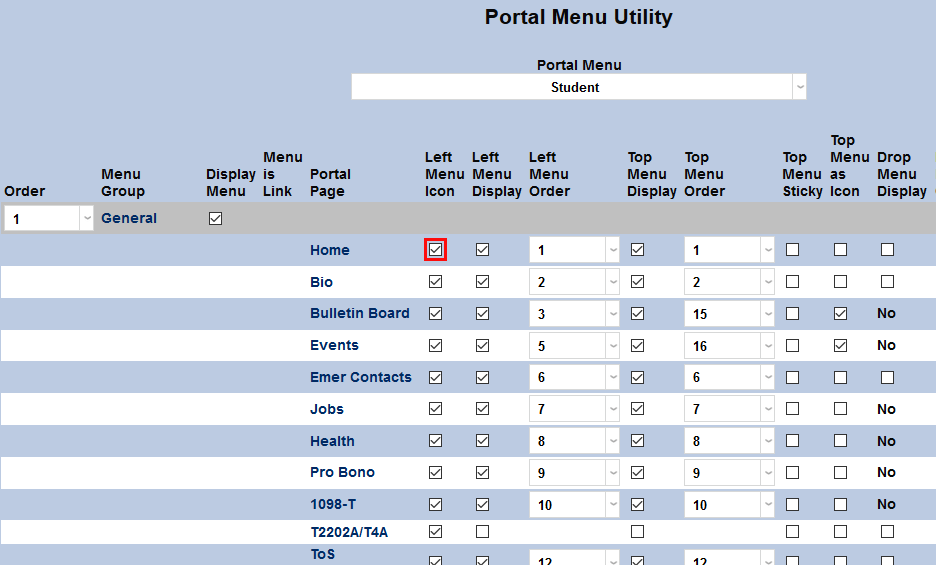
To complete the setup and allow the new left-nav menu to function properly, the optional left menu icons must be turned on. Navigate to the Portal Menu Utility under the Systems menu and select a portal to edit.

Check the Left Menu Icon box for each portal page and click Submit to save the changes.
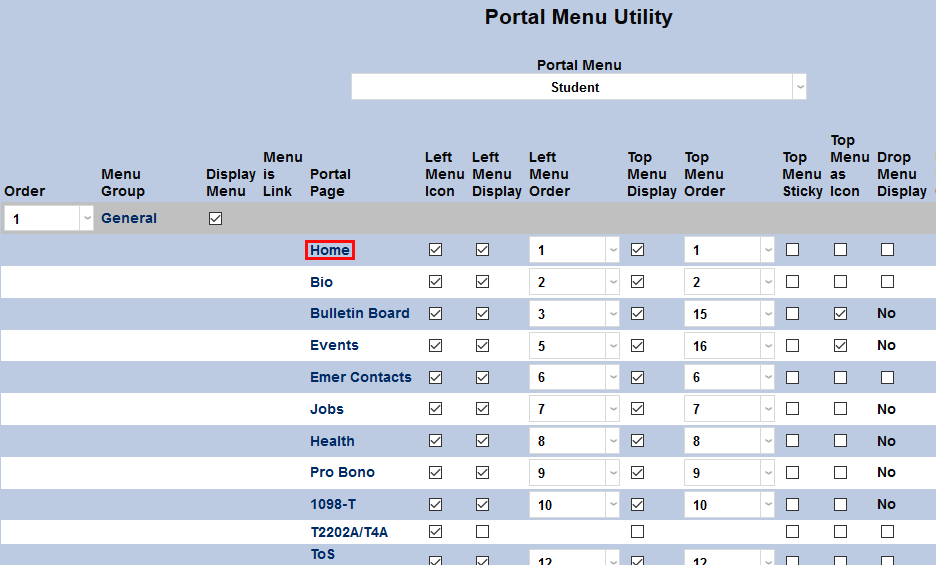
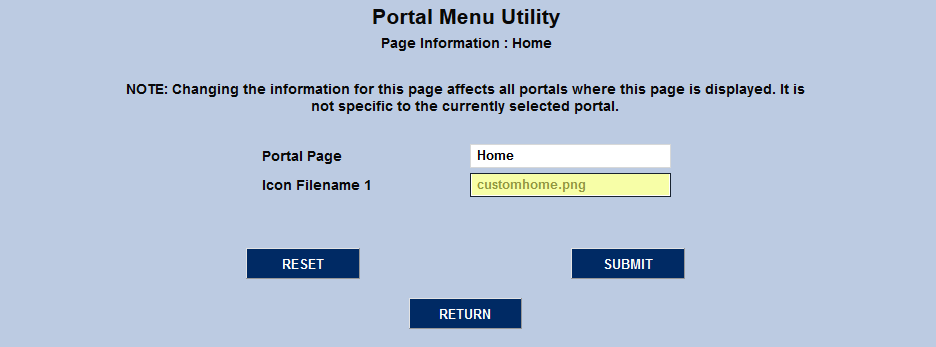
Some schools may wish to modify the default CSS by using their own custom icons. To change the icon being used, click on the Portal Page name and replace the existing filename with the replacement filename. Icons are stored in the Images/PortalIcons folder.
New Look
External Pages
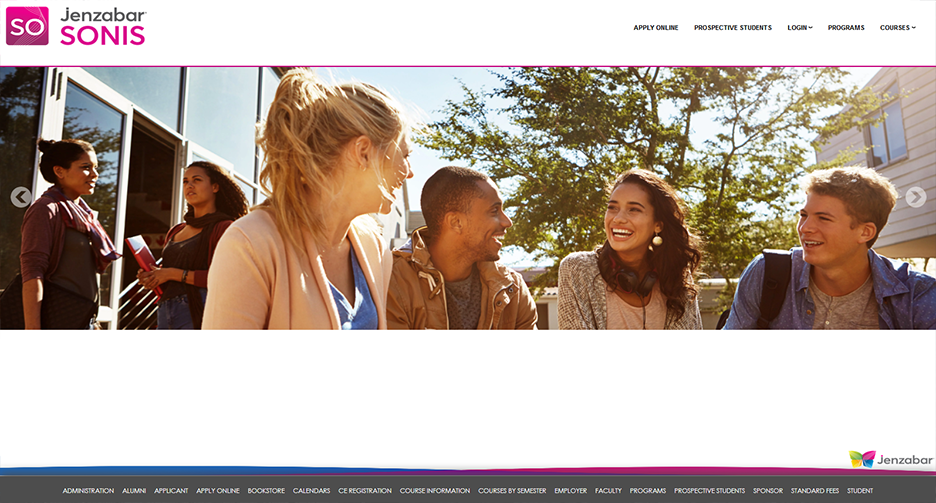
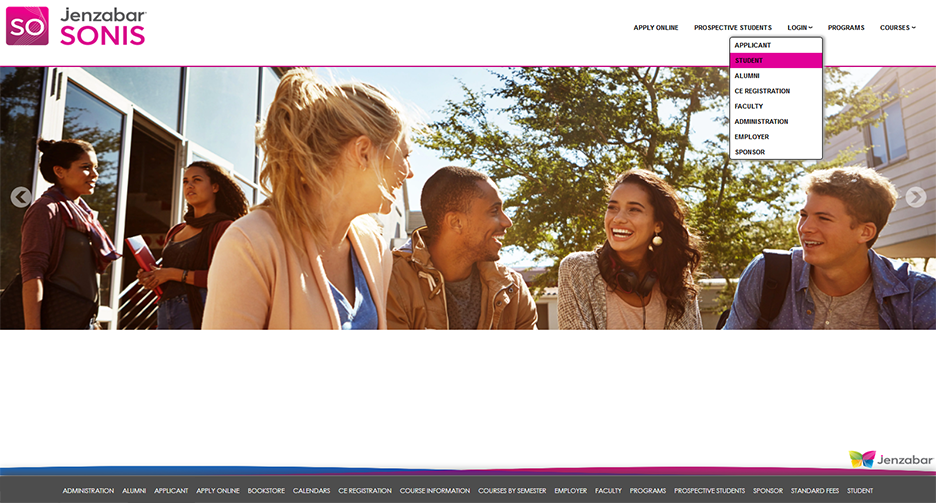
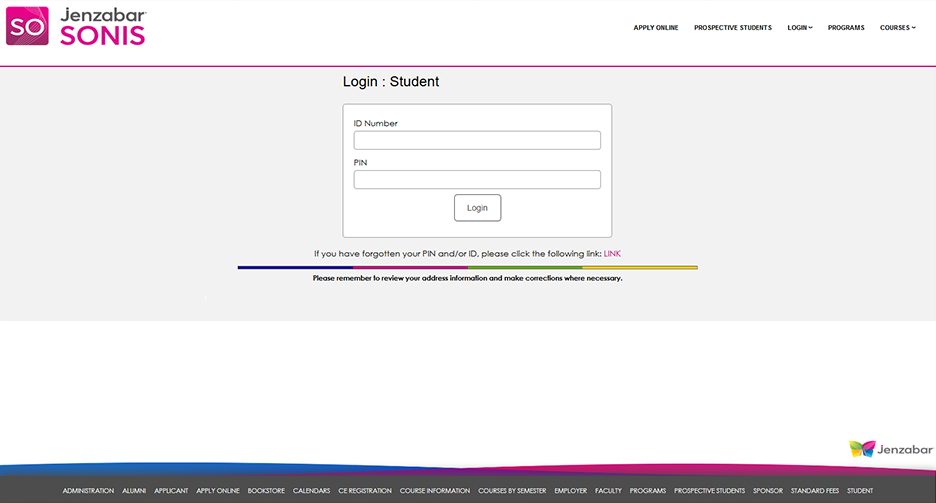
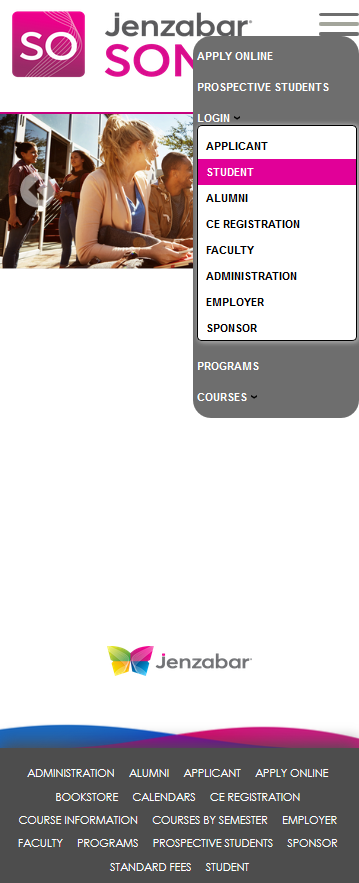
The new visual experience starts with the SONIS homepage. The page has been updated with a new, more modern appearance along with matching menus and login pages.
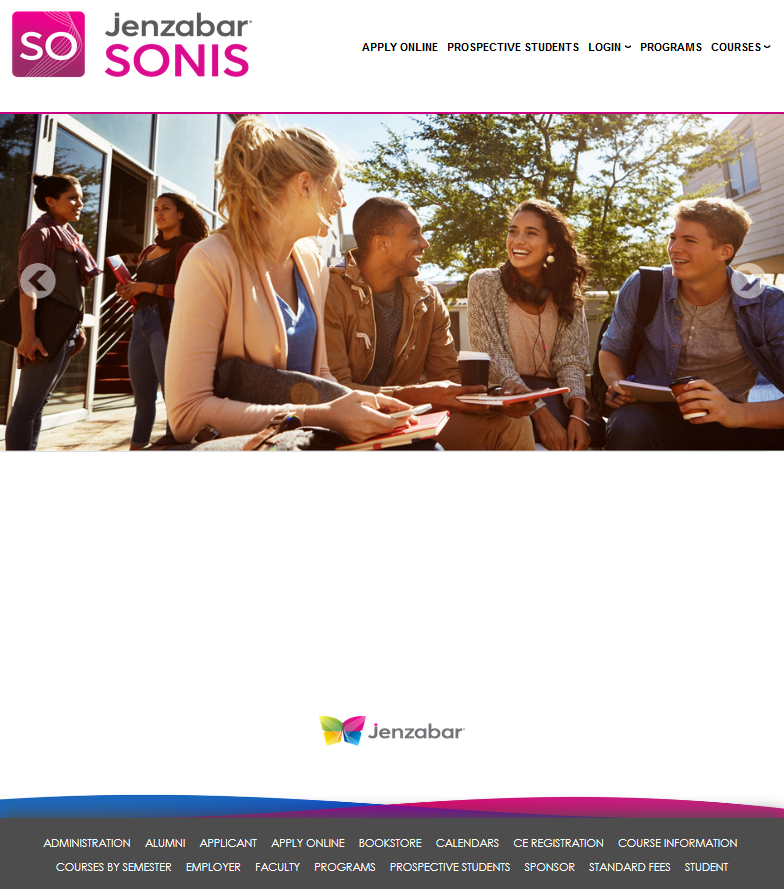
As with the previous Jenzabar SONIS design, the new CSS is fully responsive, adjusting automatically to accommodate users on tablets or phones.
User Portals
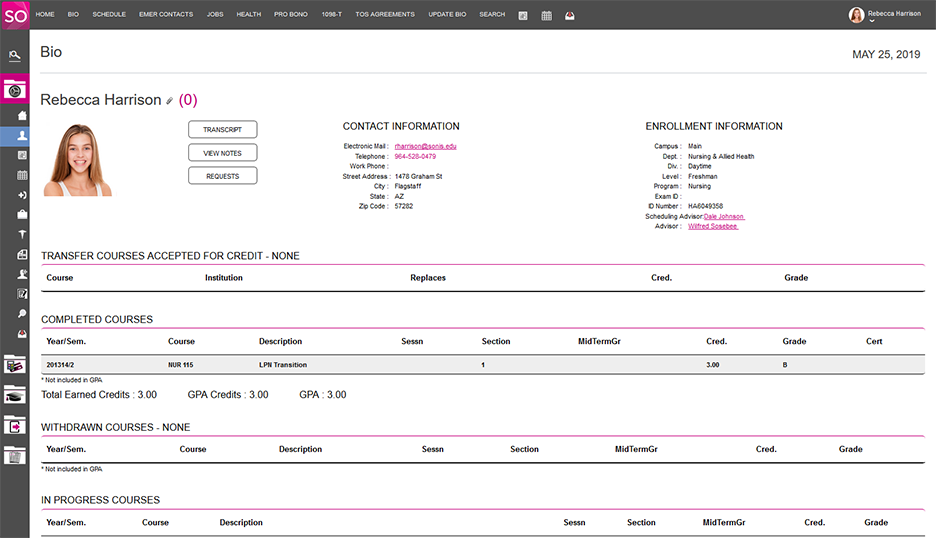
The internal user portals look dramatically different with a collapsing left-nav menu that opens on mouse-over.
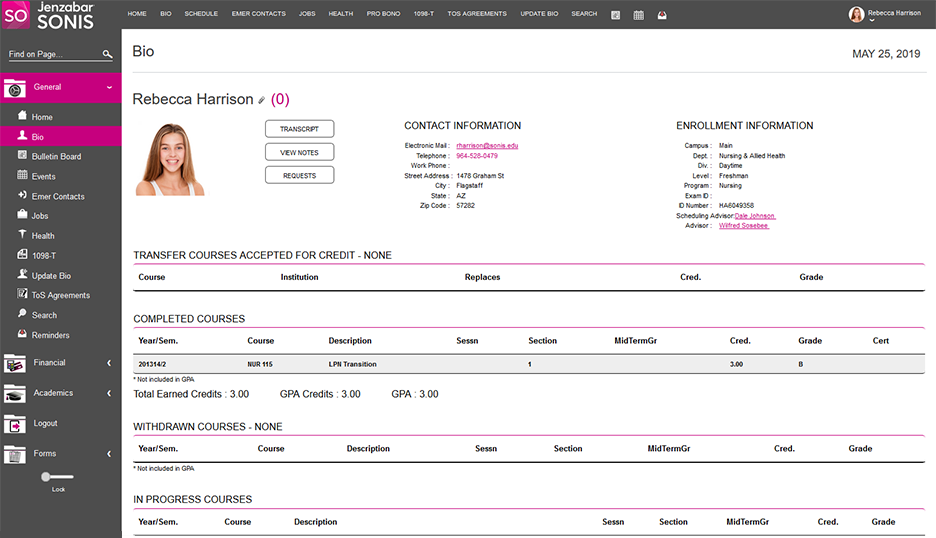
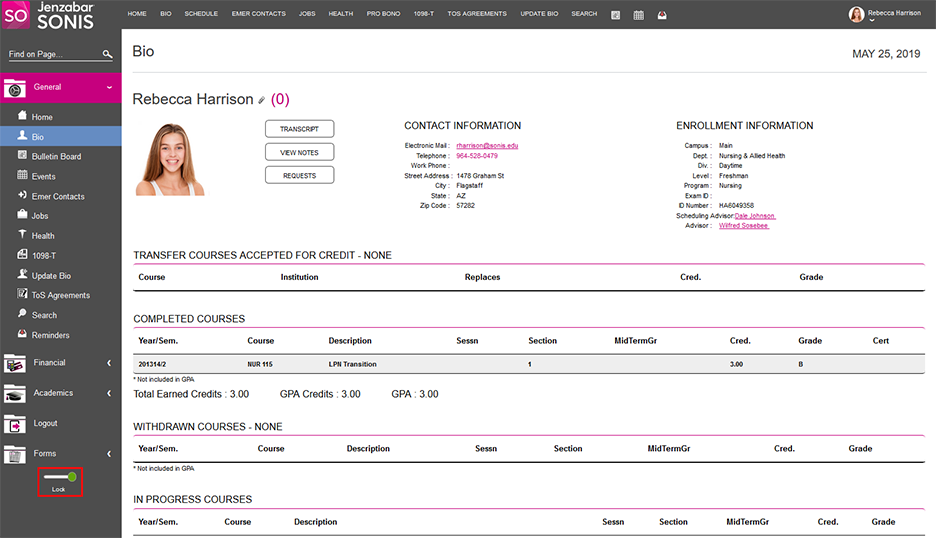
A lock toggle switch has been included in the lower left-hand corner of the menu for users who wish to lock the menu in place.
Admin Portal
The administrator portal has been updated as well with a new color scheme, new logos, and new button and menu designs.