Exam ID Utility
Overview
The Systems hub page Exam ID Utility provides the ability to create an alternate, numeric, ID for Jenzabar SONIS users in bulk. This function is necessary to allow the importing of exam scores from third-party test systems such as Scantron. It also allows faculty to grade student exams and other coursework anonymously to avoid any potential for bias or perceived bias. The exam ID creation logic replaces the two leading characters of the system ID with zeros, but any unique nine-digit value can be used as an exam ID. Logic is included that will ensure duplicate exam IDs are not created.
Web Options
While Exam IDs can still be stored in the system and used for other purposes, they only provide anonymity within SONIS when the Use Exam ID option in Web Options has been turned on.

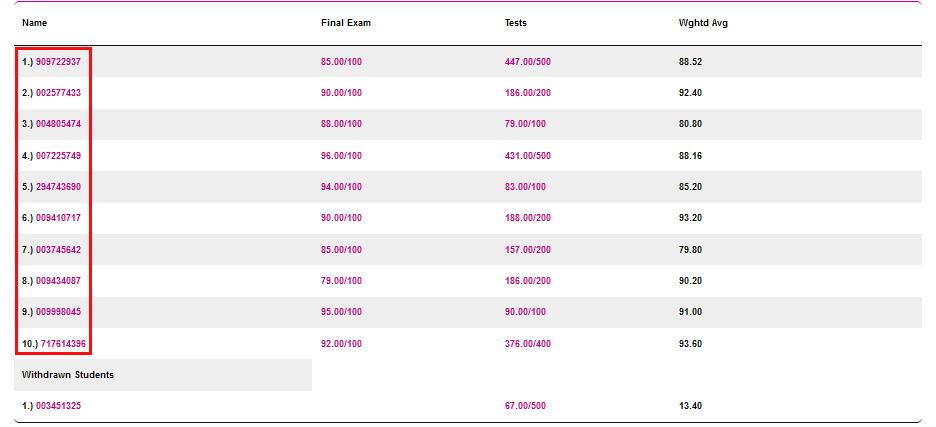
When the Use Exam ID box is checked, students are still listed by their name in the course roster in the Faculty portal, but their name is replaced by their exam ID in the Gradebook.
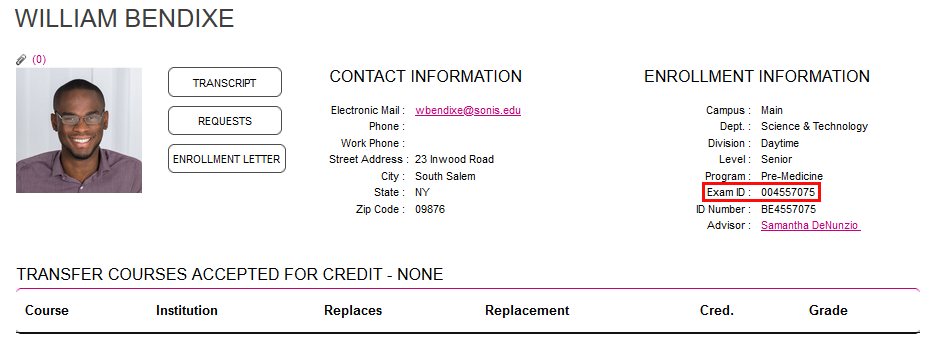
There's also a web option that controls whether students have access to their own exam ID or not. If the Allow students to view Exam IDs option is active, each student's ID will be listed on their Bio page in the Student portal. If the option is turned off, it will not appear.

Biographic
Exam IDs can be viewed and edited by administrators with the appropriate permissions on the Biographic page.
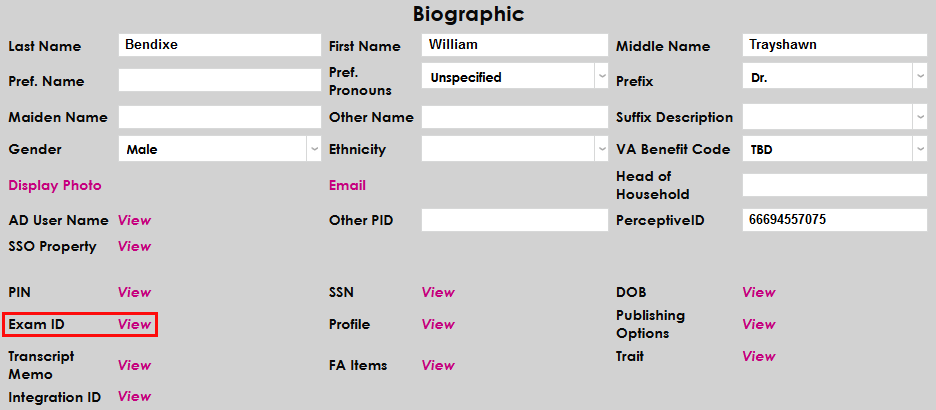
To generate a new exam ID programmatically from this page, click the Generate ID button.

Exam ID Utility
To update exam IDs in bulk, navigate to the Exam ID Utility under the Systems menu. Select a module status to update or select All to update every SONIS user regardless of module status.

Check the Replace Existing Exam IDs box to write over any exam IDs that already exist in the system or leave it unchecked to only add new exam IDs for users who don't have them.

Click Add Exam IDs to run the process and create and/or edit the selected exam IDs.
