Bulk Registration by Course Section
Overview
The Jenzabar SONIS Bulk Registration by Course Section utility is a tool that allows administrators to quickly register a group of users for a single section of a single course. The users can be filtered by Campus, Division, Department, Level, Cohort Code, Module Status, and Program as well as by their Employer. To register a group of users with the same demographics for more than one course, use the Bulk Registration utility.
Note
Both bulk registration utilities ignore class size limits and will overbook courses.
Registration
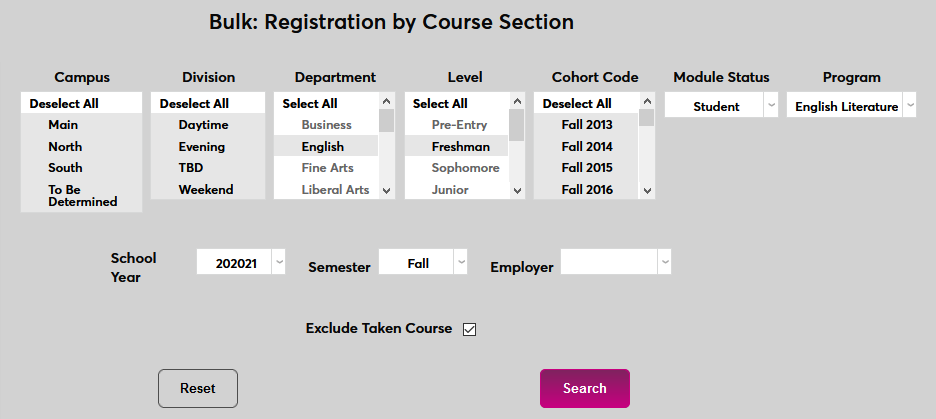
To register users for a course section in bulk, navigate to the Bulk Registration by Course Section utility in the Systems hub. Make one or more selections from the Campus, Division, Department, Level, Cohort Code, and Module Status menus.
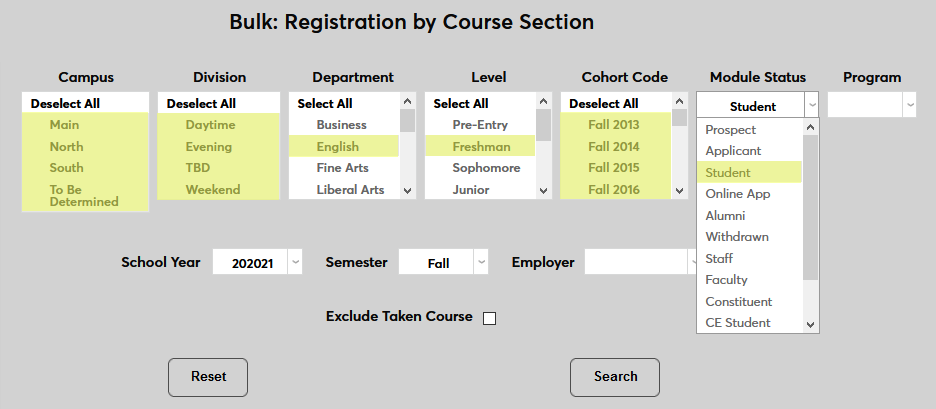
Next, select a Program or leave the selection blank to include all programs.
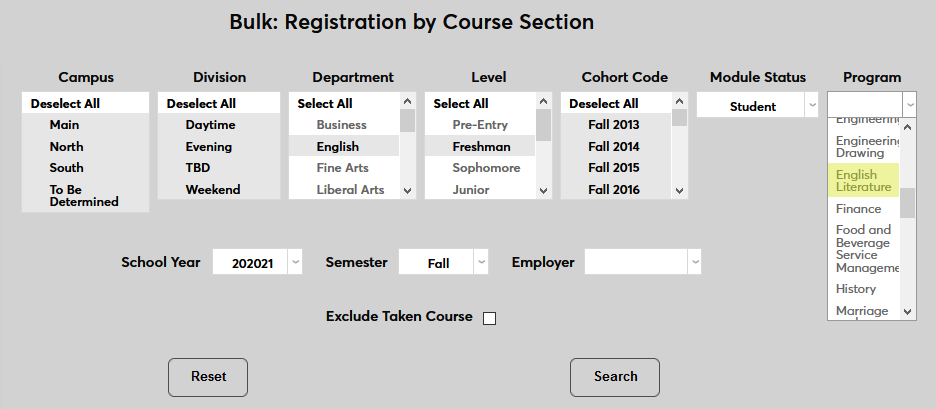
Select a School Year and a Semester for the course section.
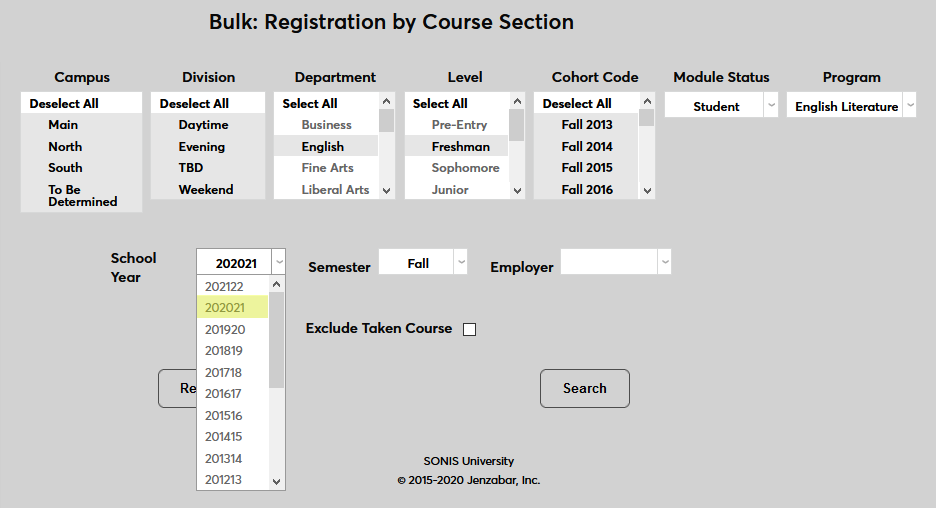
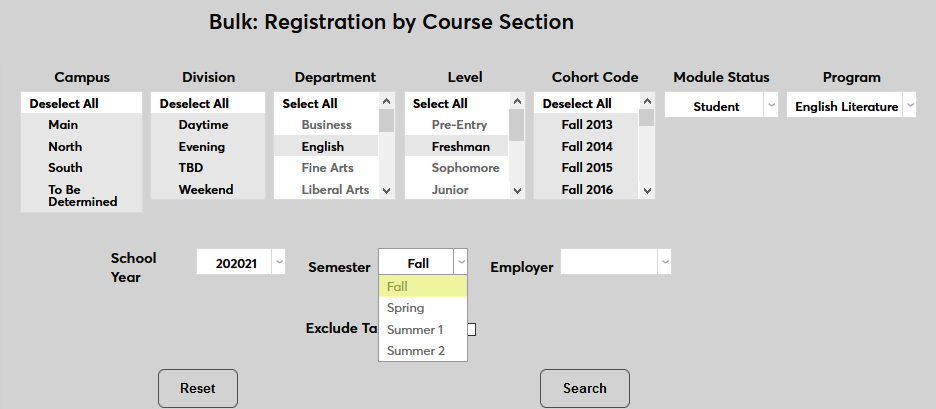
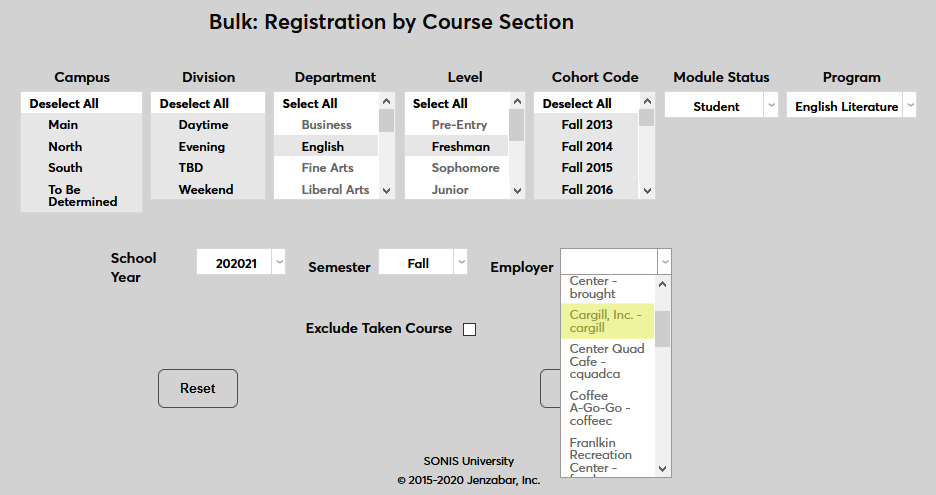
Select an Employer to only include users who work for the employer or leave it blank to include all users.
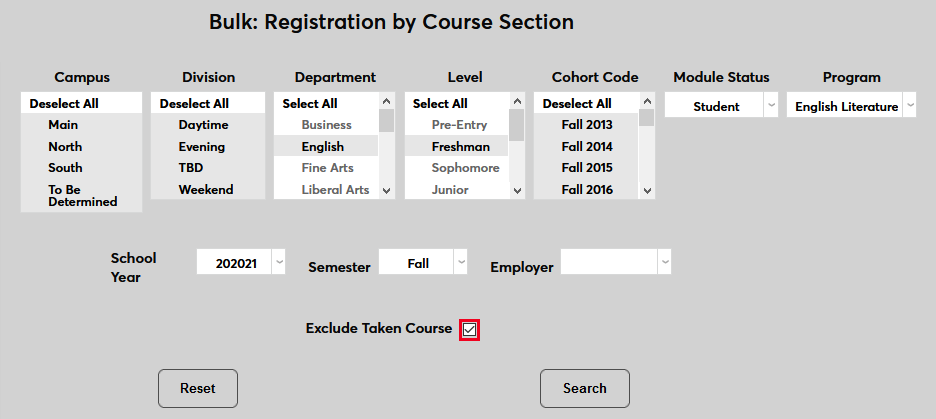
Check the Exclude Taken Course box to exclude users who have taken the selected course in the past or leave it unchecked to allow students who've already taken and passed the course to be registered again.
Click the Search button to continue.
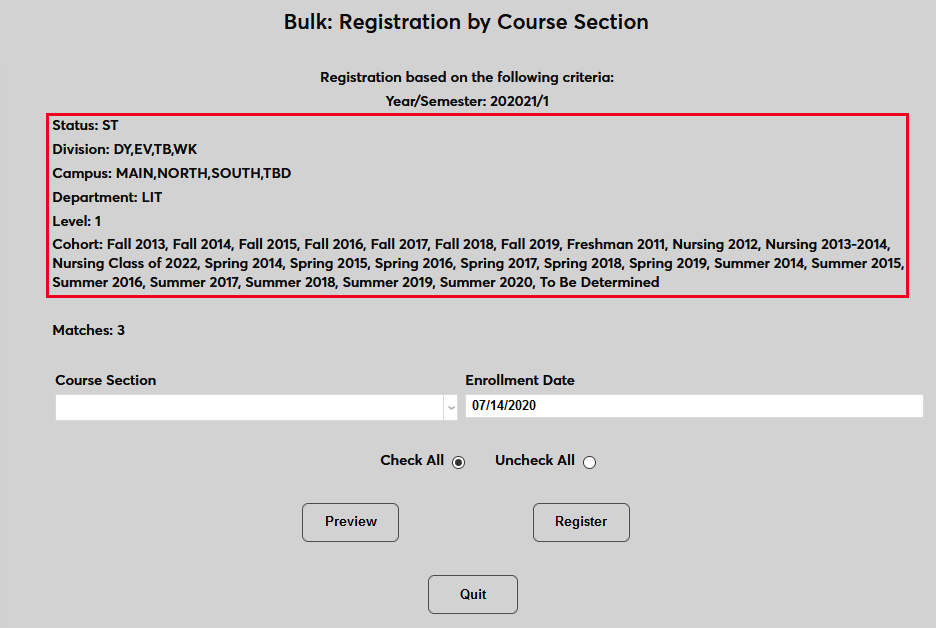
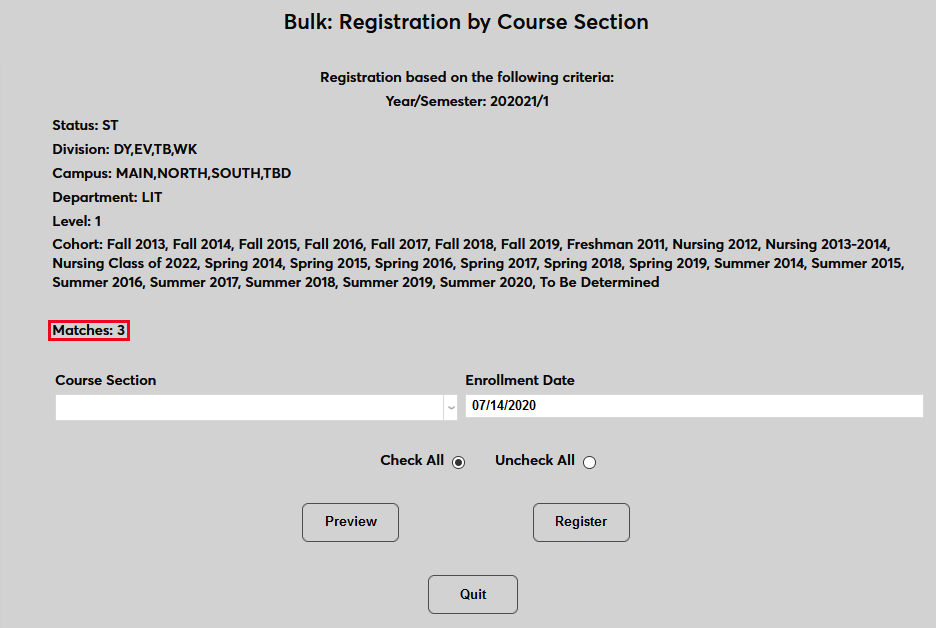
The following page lists both the demographics including in the search and the number of results based on those filters.
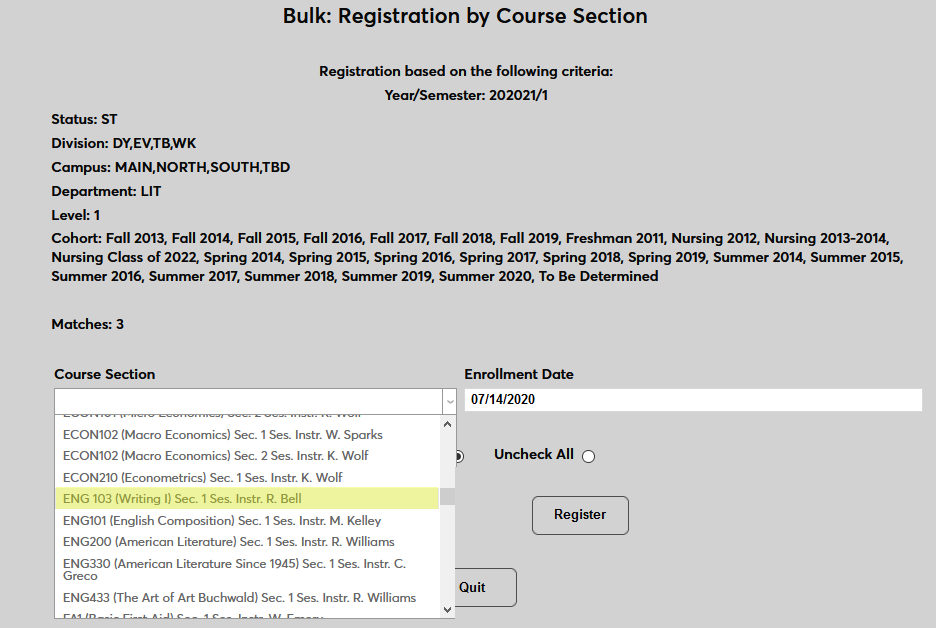
Select a Course Section to register the users for from the dropdown menu. Only course sections offered in the selected school year and semester are included.
Set an Enrollment Date for the course.
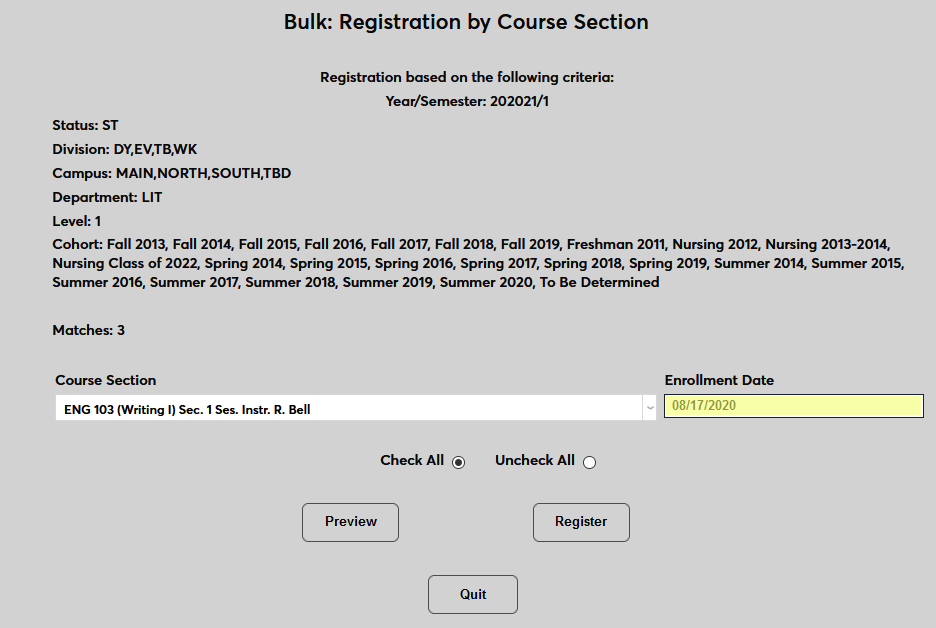
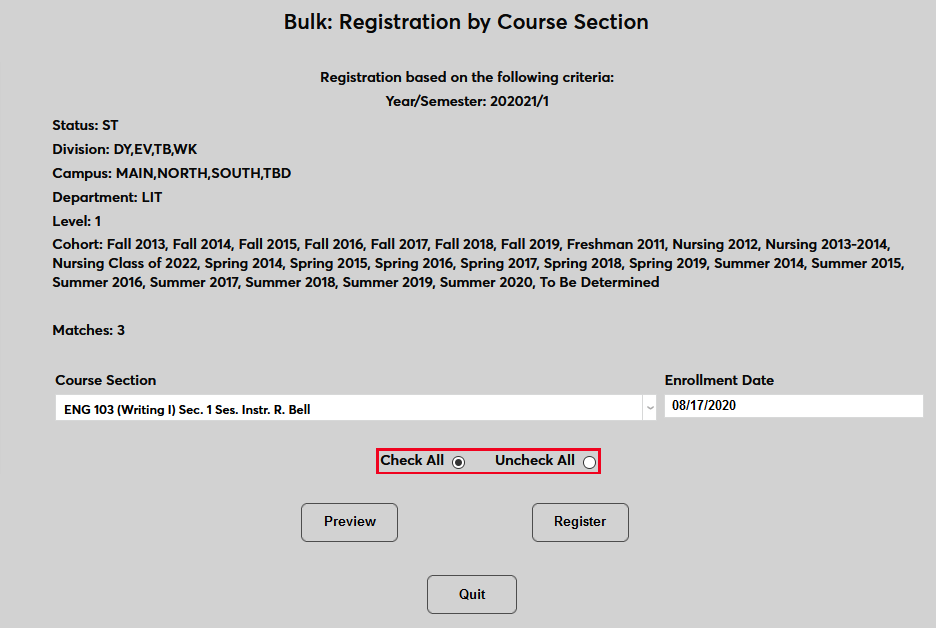
When using the Preview option, leave the Check All button selected if the majority of the users in the search will be registered for the course or click the Uncheck All button to save time if more users will not be registered.
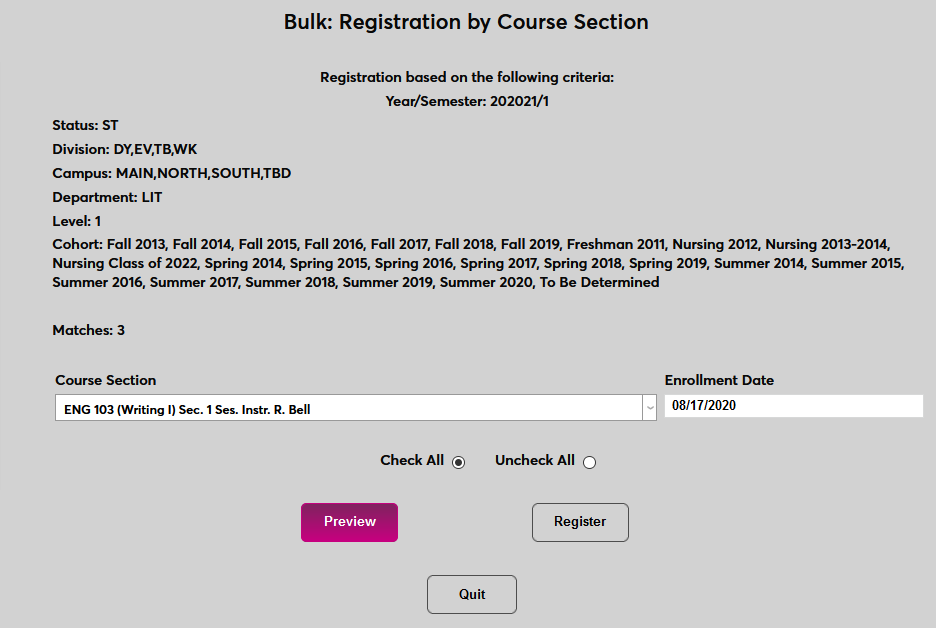
Click Preview to continue.
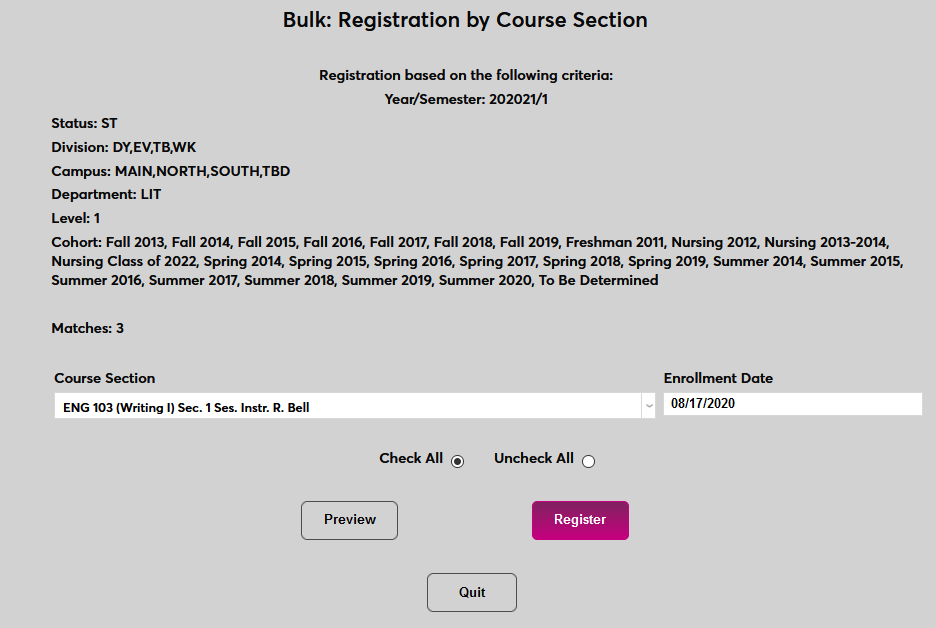
Alternately, click Register to register the users immediately without previewing.
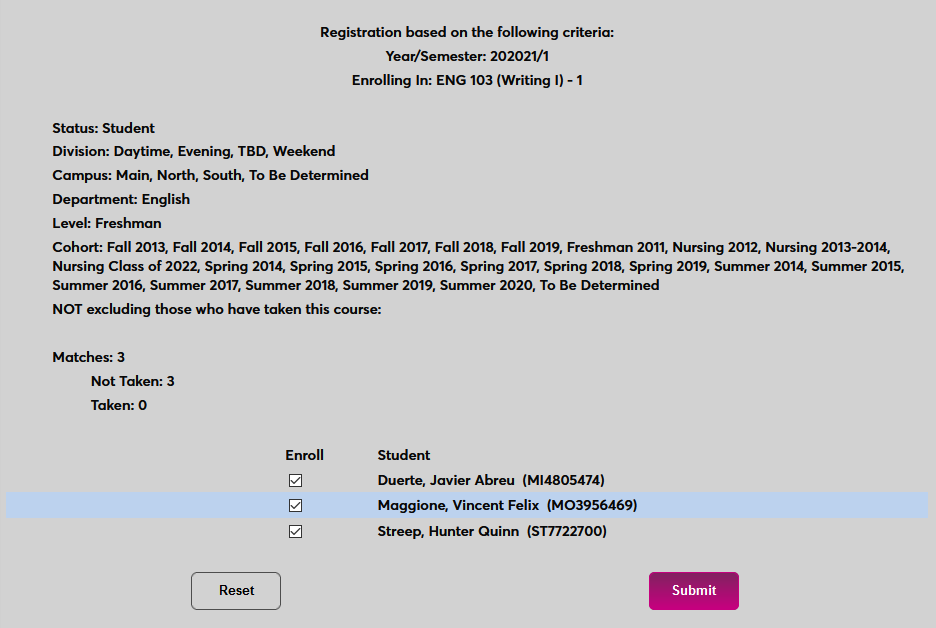
If the Preview option is chosen, the following page will display the eligible students. Check and uncheck the boxes in the Enroll column to add or remove students from the update.
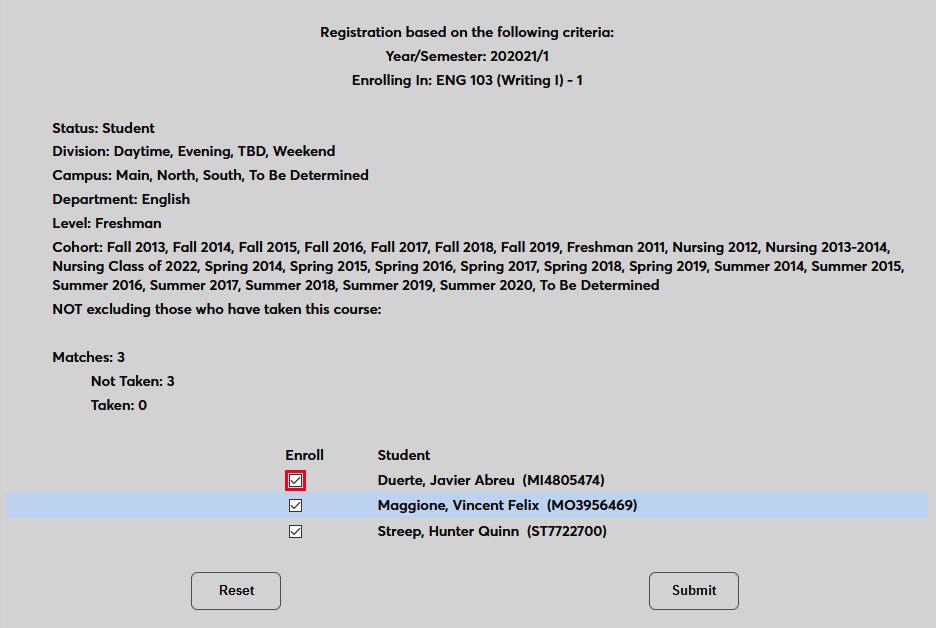
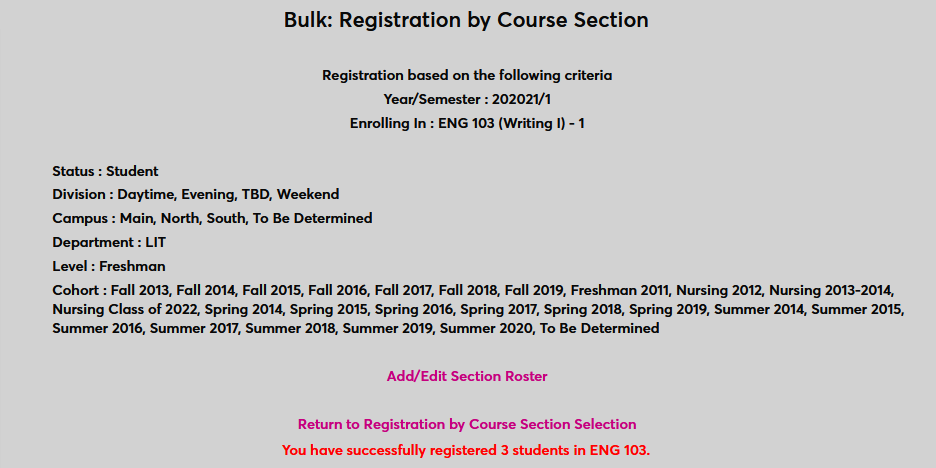
Click Submit to complete the process.