Batch Folder File Retrieval
Overview
Batch Folder File Retrieval is a SONIS utility that allows users to email or download batch files created by other Jenzabar SONIS functions. Files can also be archived or deleted to make the list of files more manageable. The utility is located in the Systems hub.
Setup
For self-hosted clients, the location of the batch folder is set in Web Options in the Systems hub. Enter the location where the batch folder is located in the Batch File Destination Directory field.

For increased security, batch files can be zipped with a password and SHA-256 encryption. Before this option is available, the system administrator must create a Batch File Download Password in Web Options. This password will be needed to open the encrypted zip file. The names of the zip files will be the names of the selected files with a .ZIP extension added.

Note
In addition to the above setup, before files can be emailed to a Jenzabar SONIS administrator, that person's email address must be added to the Batch Folder Valid Emails.
Batch Folder Valid Emails
Before any administrative user can archive, delete, or email files using the Batch Folder File Retrieval utility, they must first be granted access through the Batch Folder Valid Emails utility in the Systems hub.
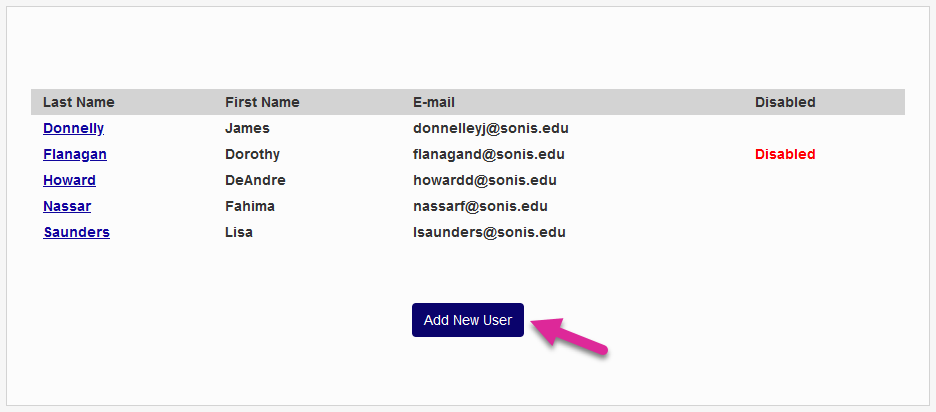
To give a user access, click Add New User.
On the following page, enter the user's SONIS ID Number and their Email address. The email must be listed in the user's primary Address record.
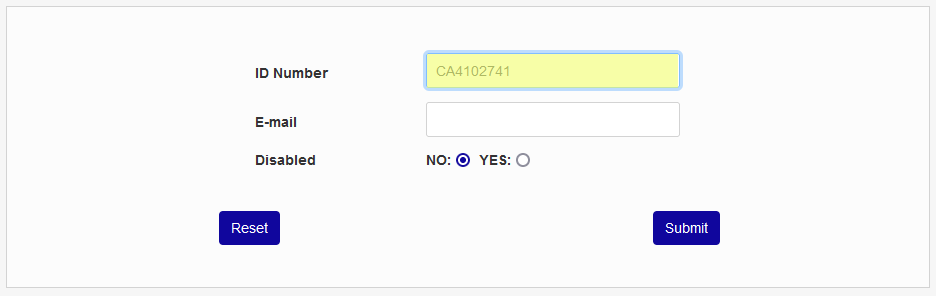
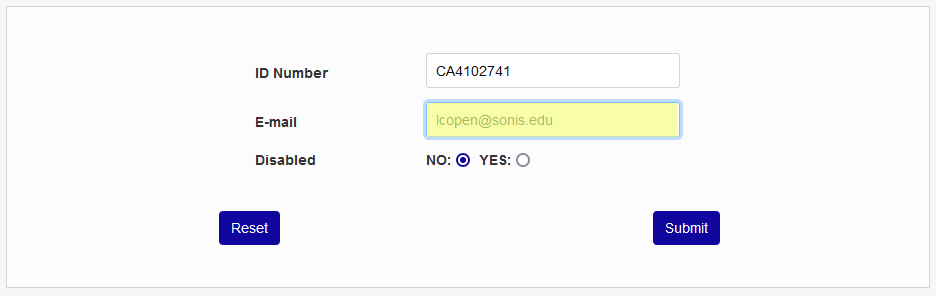
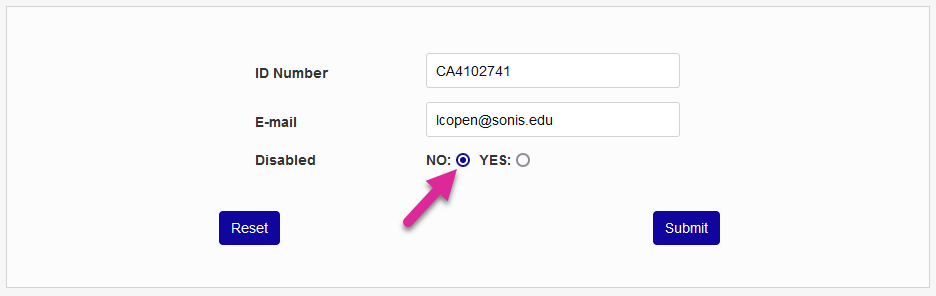
Ensure the No radio button is selected so the account access will not be Disabled. You can disable access later if a user will no longer be using the Batch Folder File Retrieval utility. Click Submit to complete the process.
Managing Files
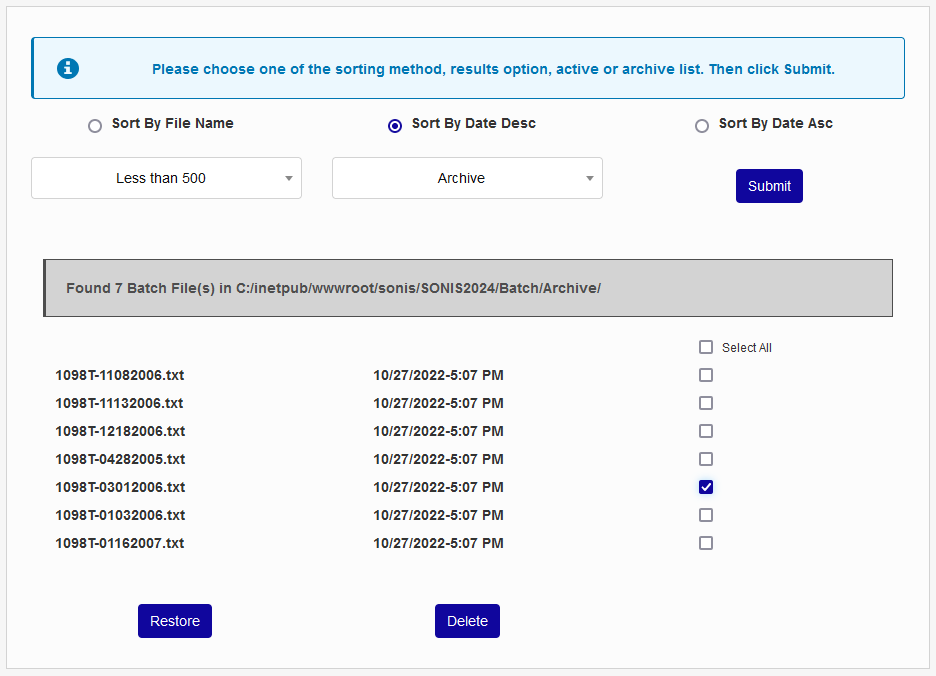
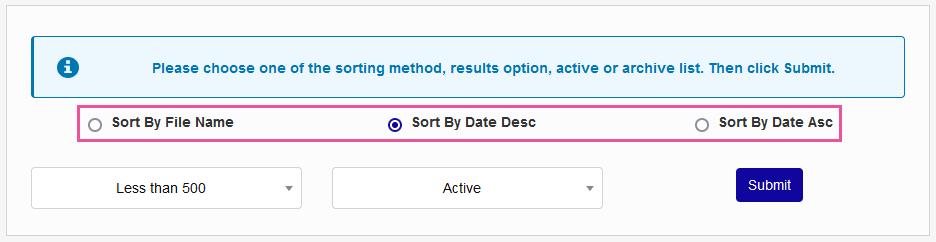
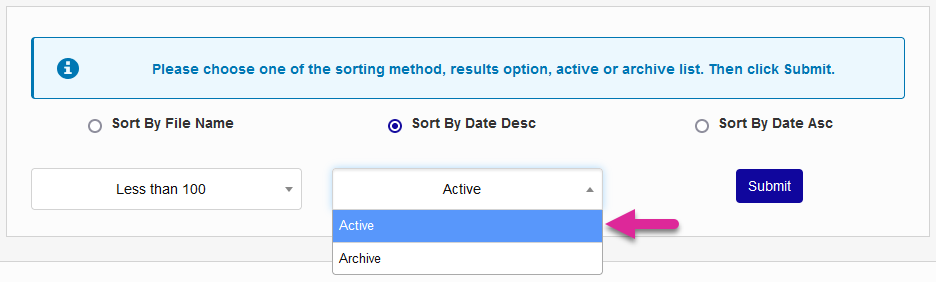
When you arrive on the Batch Folder File Retrieval page, you'll see three viewing options. You can choose to view the list of files sorted by File Name, by Date Descending (the most recent date at the top), or by Date Ascending (the most recent date at the bottom).
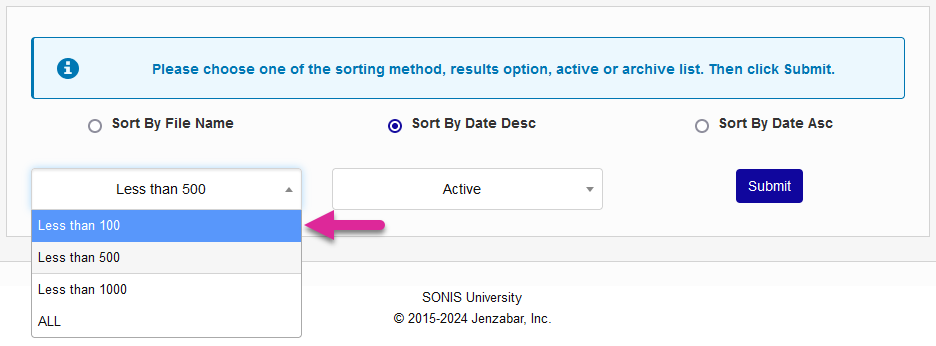
Choose how many files you want to view. You can cap the list at 100, 500, or 1,000 or view All files. Viewing a larger list of files will often require a larger load time and can tax the system if the list is particularly large.
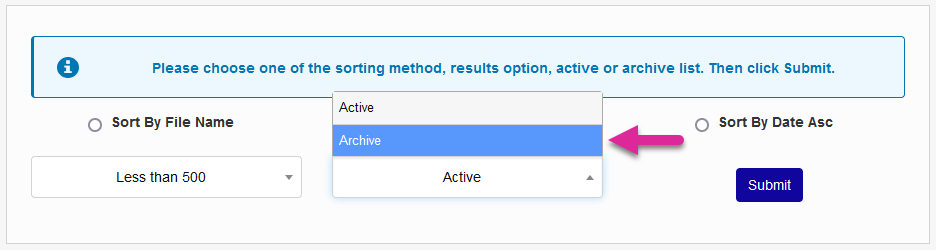
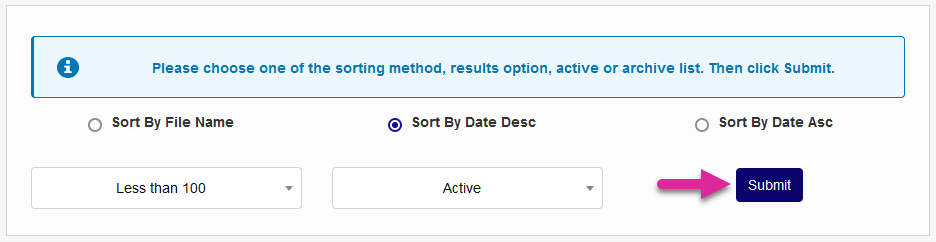
Finally, choose whether you want to view Active files or files that you've added to your Archive. Click Submit to load the files.
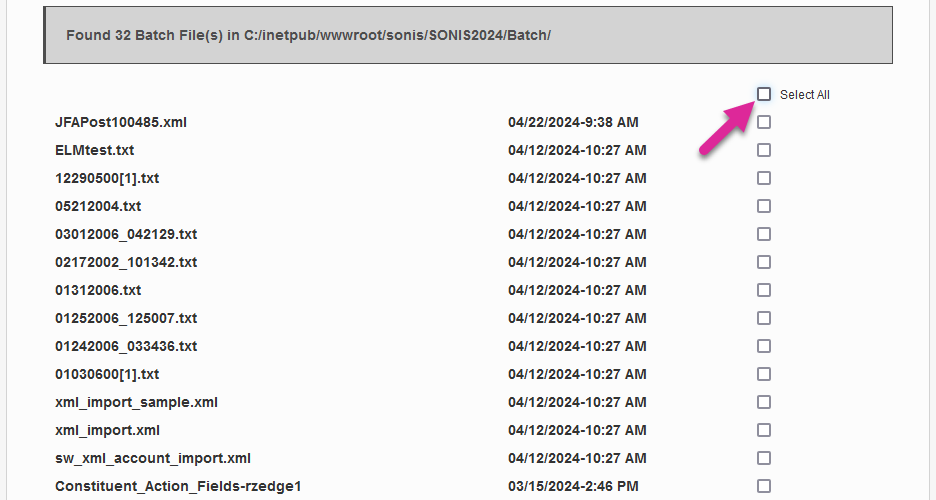
Once the files have appeared, you can select them individually or click the Select All checkbox to select every file listed.
Click Send to email the selected files to yourself.
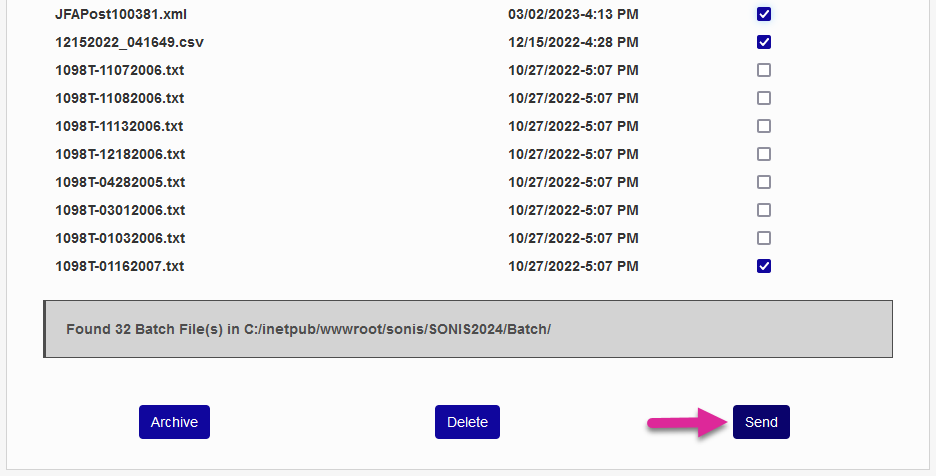
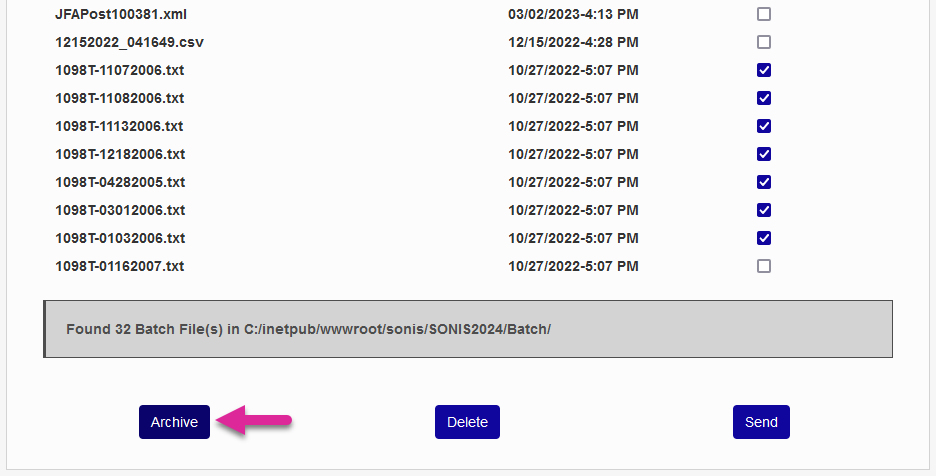
Files that have already been downloaded or otherwise accessed can also be archived using the Archive button, removing them from the Active list and adding them to the Archive list. These files are also moved to a different folder in the Jenzabar SONIS file structure.
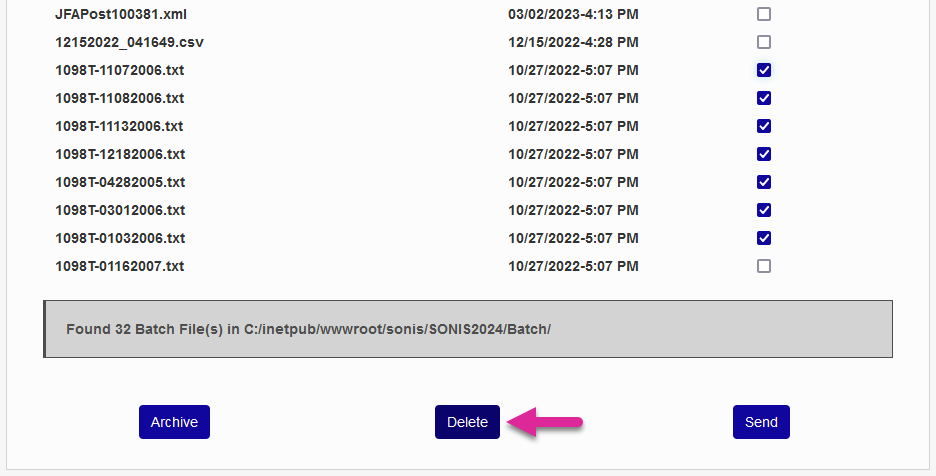
If files were made in error, or are very old and will not need to be retrieved again, they can also be deleted from the system completely using the Delete button.
Note
Deleted files are still retained in a Deleted folder. Contact Jenzabar SONIS Support if a file is deleted in error and needs to be moved to the Archived or Active folder.
To move a file that has been archived back to the Active list, simply select the file and click Restore.