Institution Add/Edit
Overview
The Institution Add/Edit utility is used to edit the Jenzabar SONIS Institution table where clients can store identifying information for high schools, secondary schools, sponsors, and other organizations. The table is used for honoring transfer and equivalency courses and integrating sponsors among other functions. As the page name suggests, the utility allows administrators to create new institution records and to edit existing institution records.
Institution Type
Before creating any institutions, institution types must be created using the Institution Type table in Table Maintenance. Institution types may included High School, College, Community College, Clinical Site, Third Party Sponsor, etc.
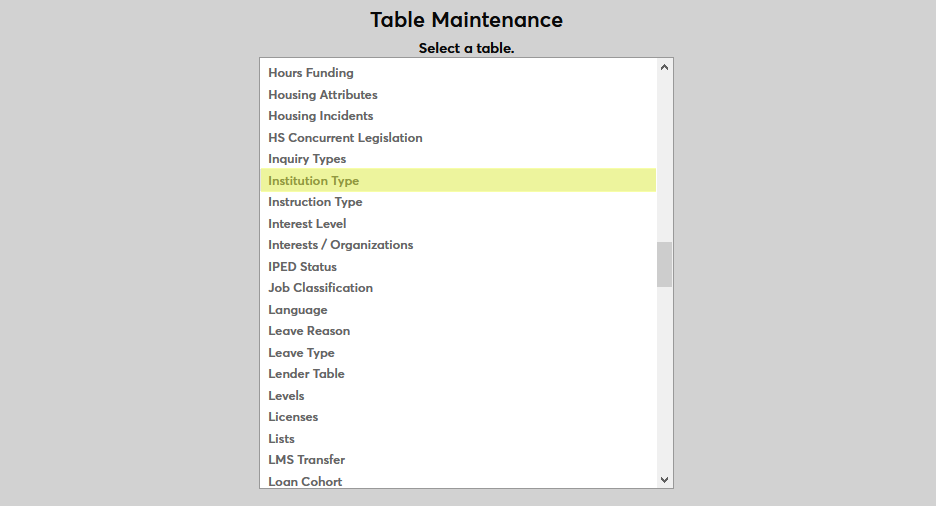
On the following page, click Add New Record to create a new institution type.
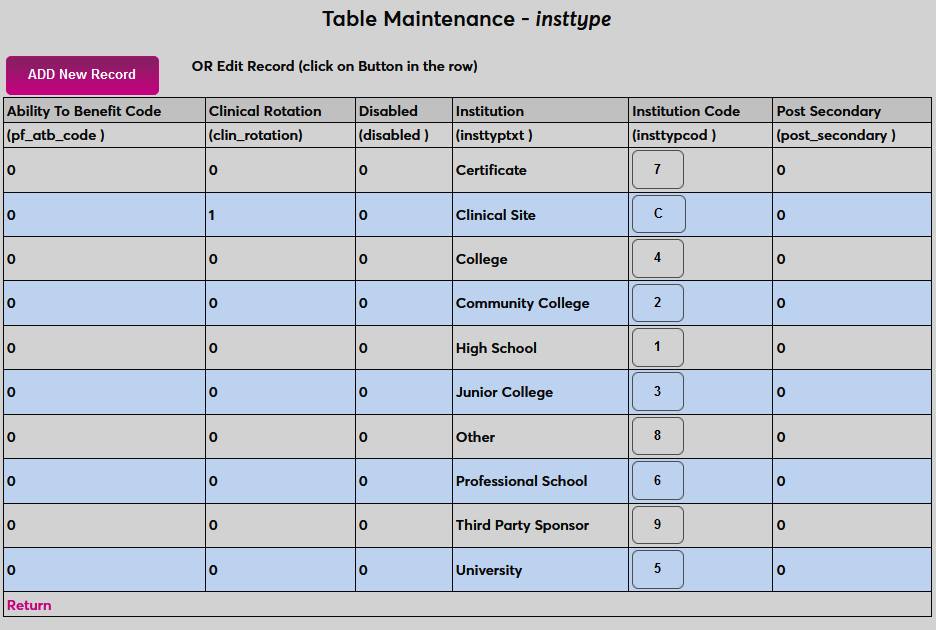
Begin by naming the institution type in the Institution field.
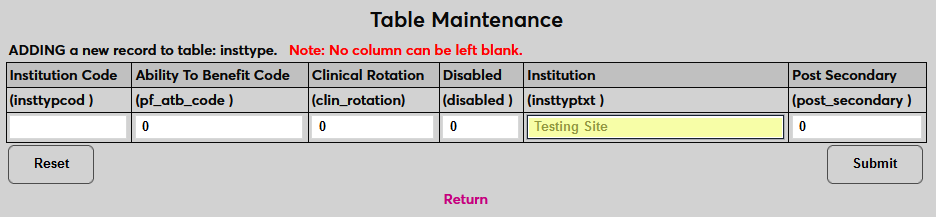
Next, create an Institution Code for the type. This field has a one-character limit.
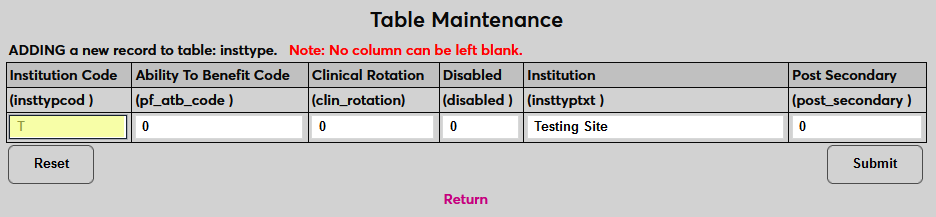
Ability to Benefit institutions are those that provide education to students who do not have a high school diploma or equivalent. If institutions of this type are Ability to Benefit institutions, place a 1 in the Ability to Benefit Code field. Otherwise, leave a zero. This field is primarily used to designate high schools and should not apply to most secondary and post-secondary schools.
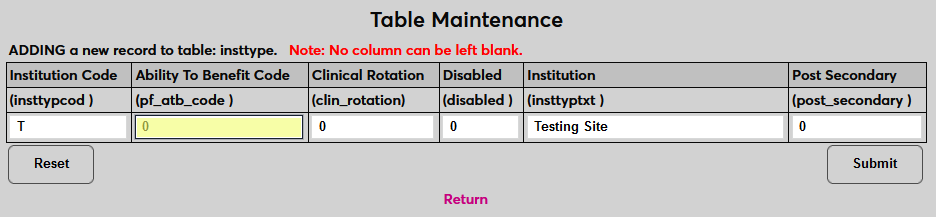
Place a 1 in the Clinical Rotation field if the type designates sites that will be used for clinical rotations. Otherwise, leave a zero.
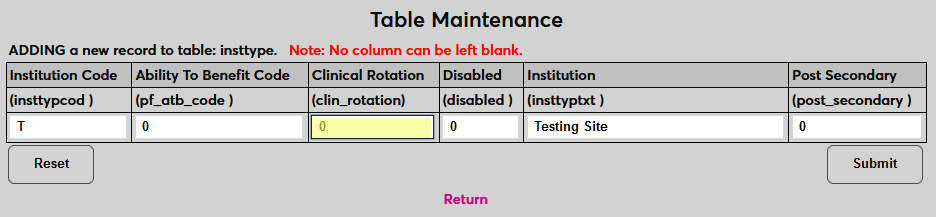
Place a 1 in the Disabled field to disable the type and prevent it from being used. Otherwise, leave a zero.
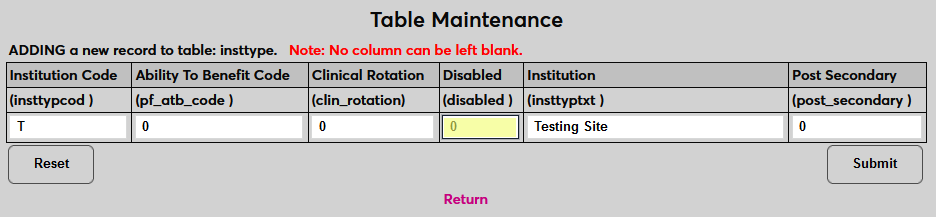
Place a 1 in the Post Secondary field if the type designates post-secondary schools. Otherwise, leave a zero.
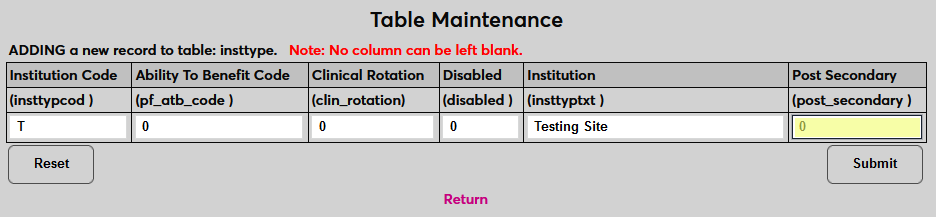
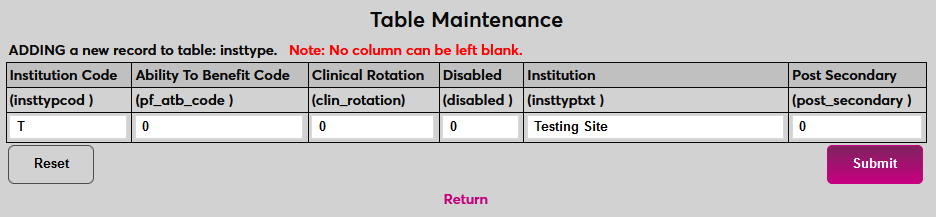
Click Submit to save the changes and add the institution type. Repeat the process until all necessary institution types have been created.
Add
To add a new institution record, navigate to the Institution Add/Edit utility in the Systems hub and click Add to begin.
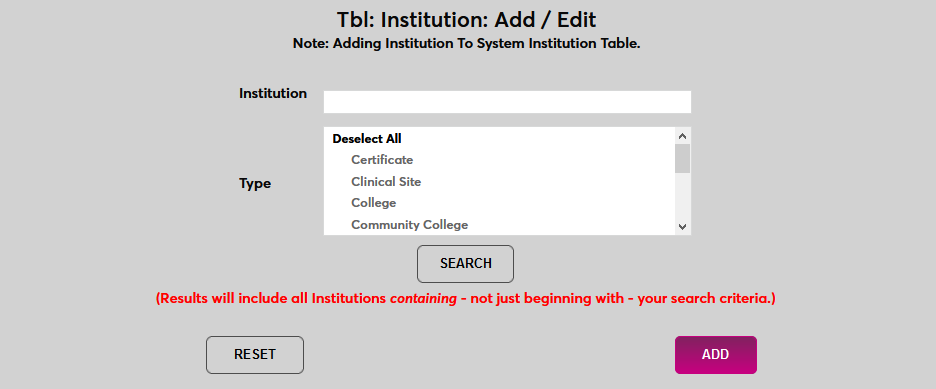
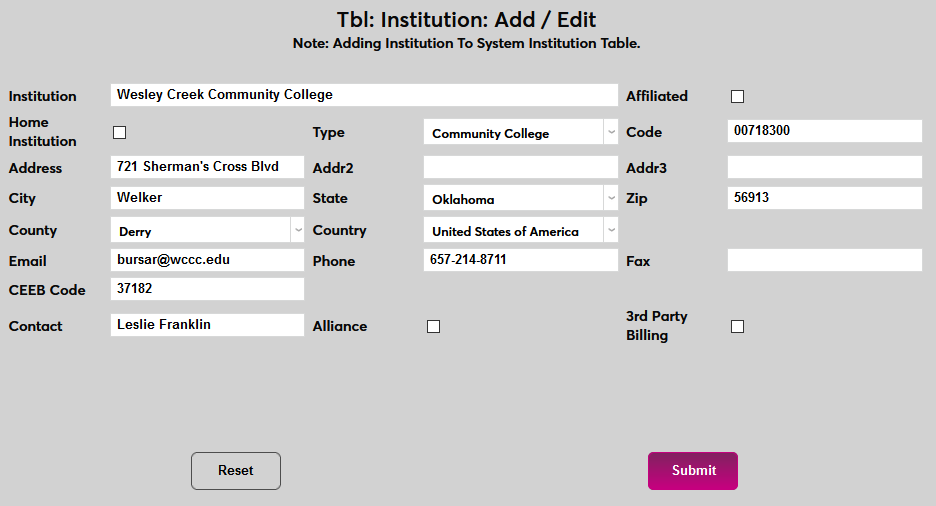
On the following page, begin by naming the institution in the Institution field.
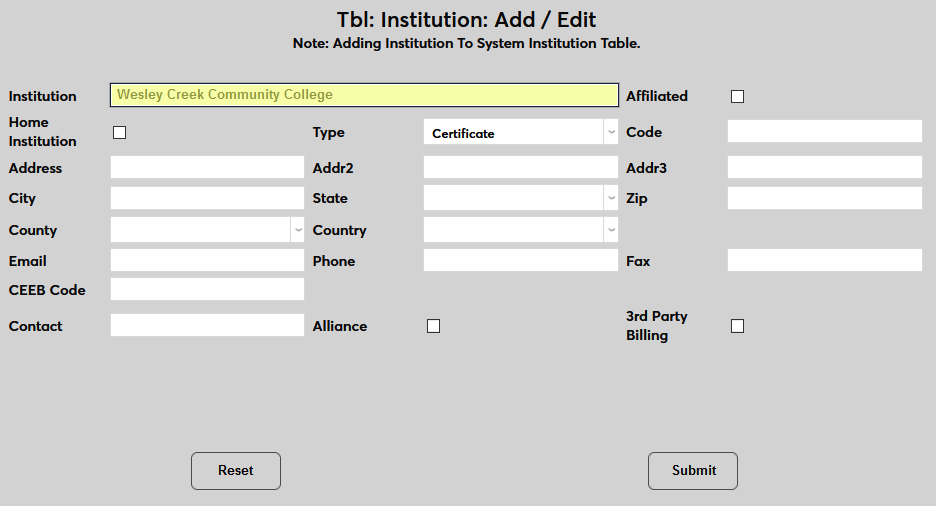
Check the Affiliate box to designate the institution as an affiliated school. Affiliated institutions are those where courses are shared. For example, a nursing school or other specialized STEM school may use local community colleges for English and other liberal arts courses required for an associate or bachelor's degree.
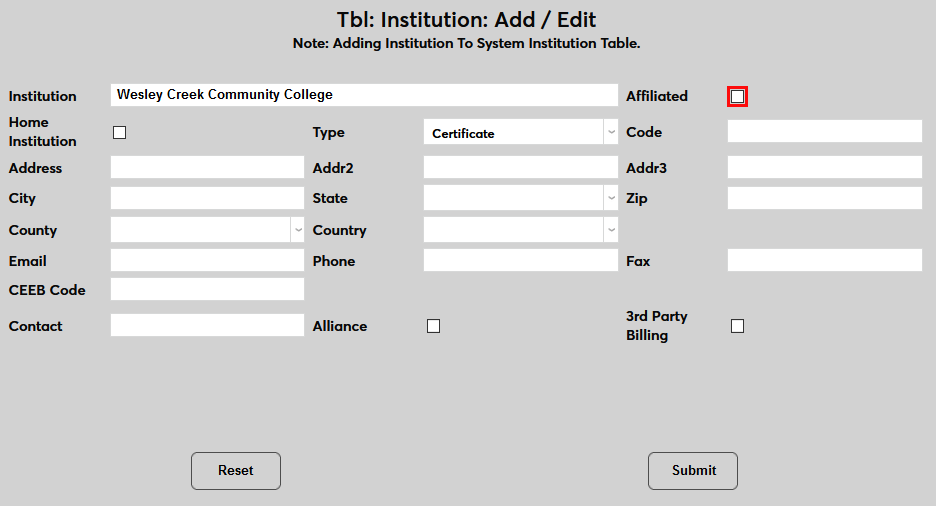
Note
Once an institution has been designated as an affiliate, you can create affiliated courses through the Create New Course wizard by selecting the institution from the Institution Code menu.
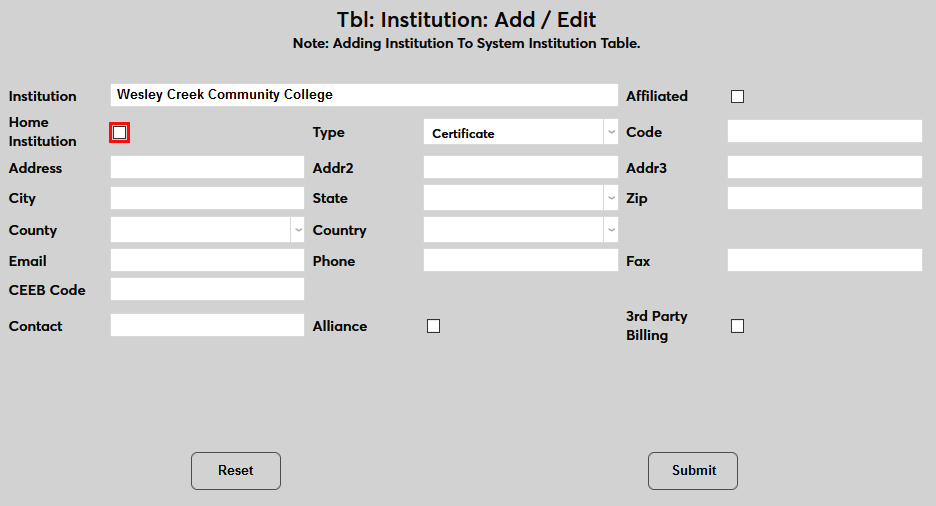
The Home Institution box is used to designate the SONIS client institution and should only be used once.
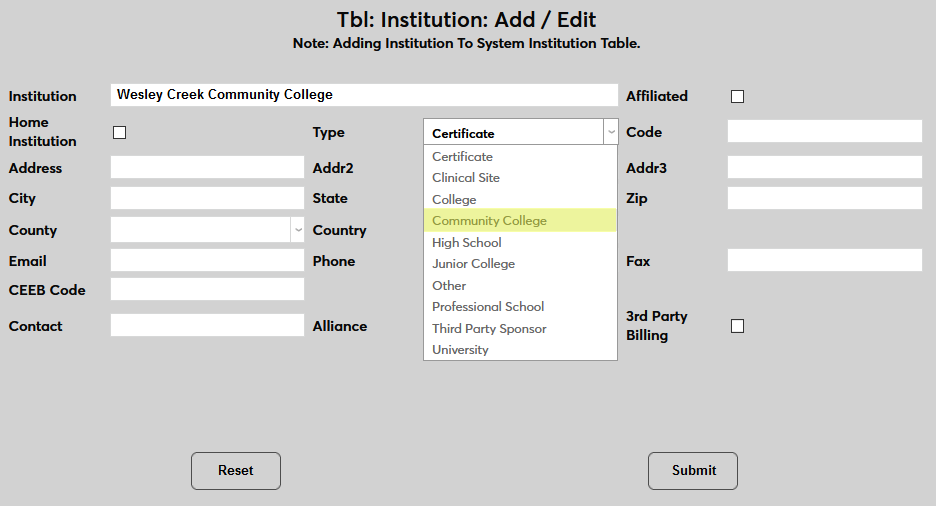
Select an institution type from the Type field. This list is populated based on the table in Table Maintenance as detailed above.
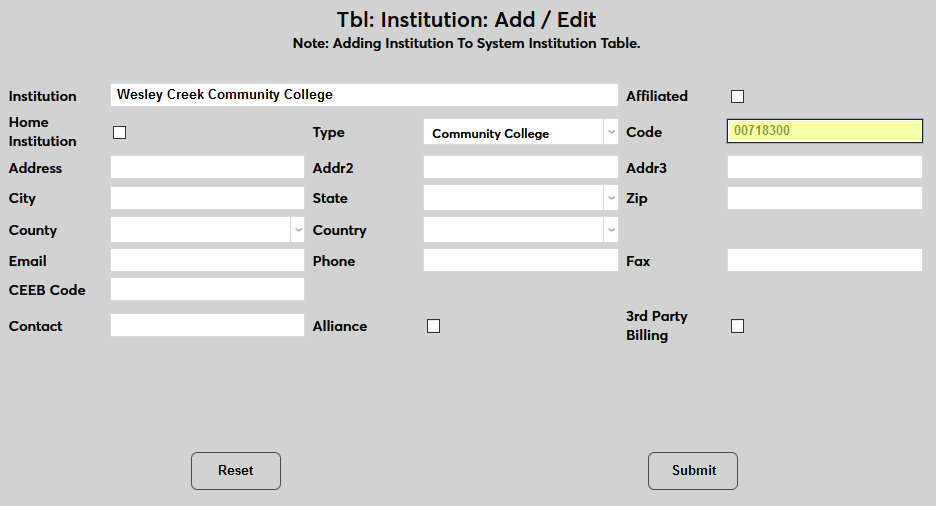
The Code field is used to store the institution's OPEID, an identification number used by the U.S. Department of Education's Office of Postsecondary Education to designate schools with students that are eligible to participate in Federal Student Financial Assistance programs under Title IV regulations. This is a 6-digit number followed by a 2-digit suffix used to identify branches, additional locations, and other entities that are part of the eligible institution.
Enter the institution's street address in the Address field. Two additional address fields are available for addresses that are too long for a single field.
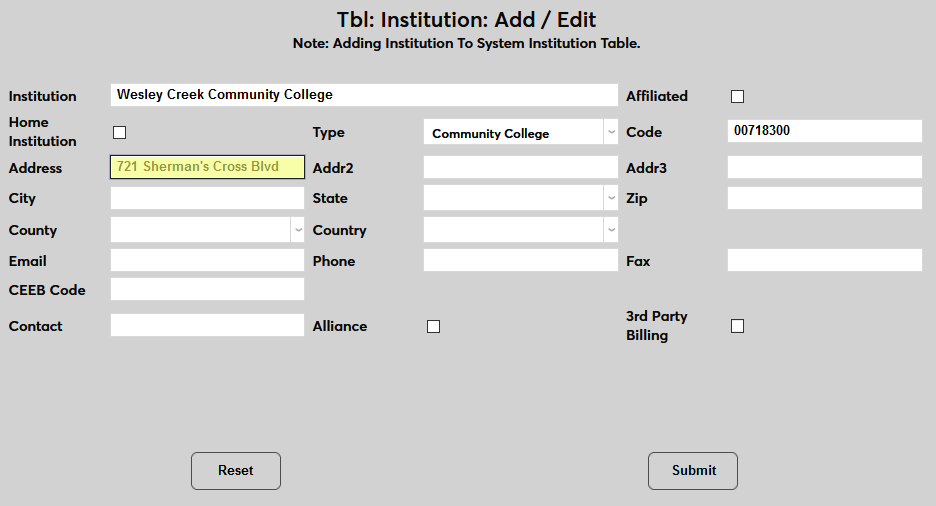
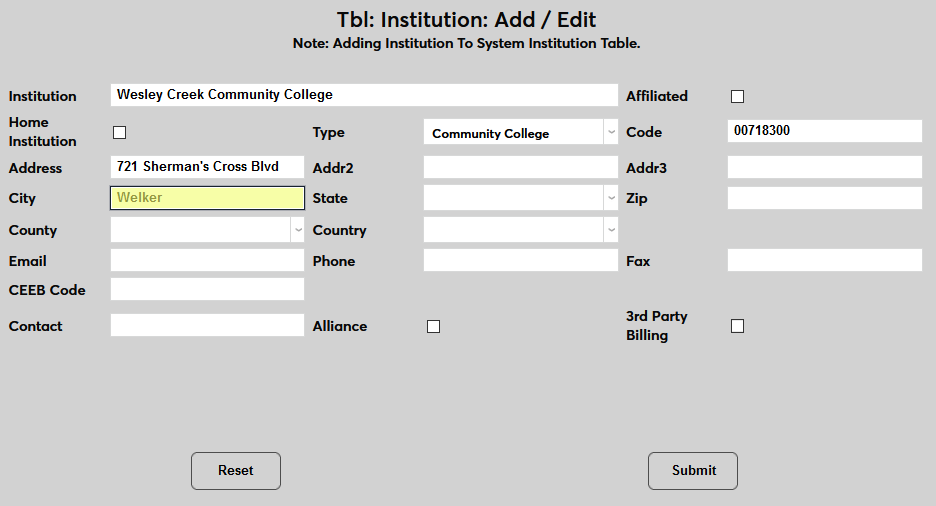
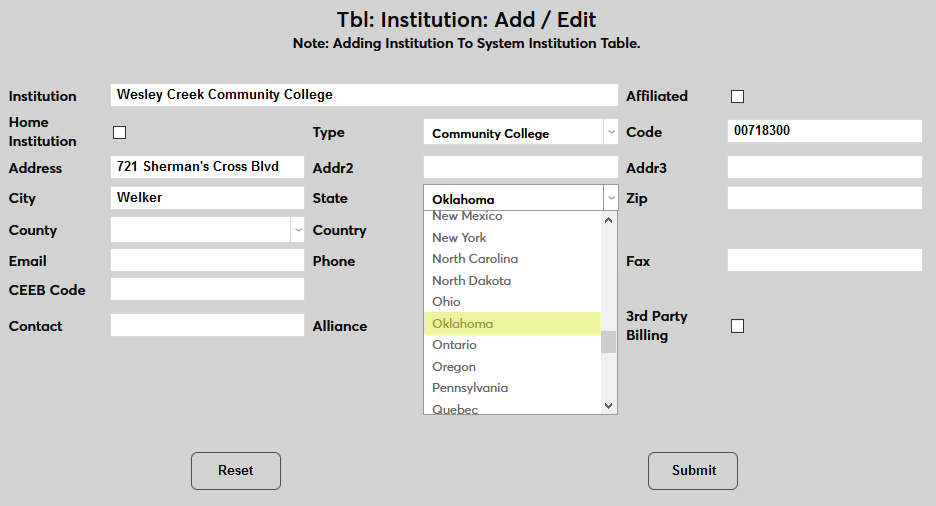
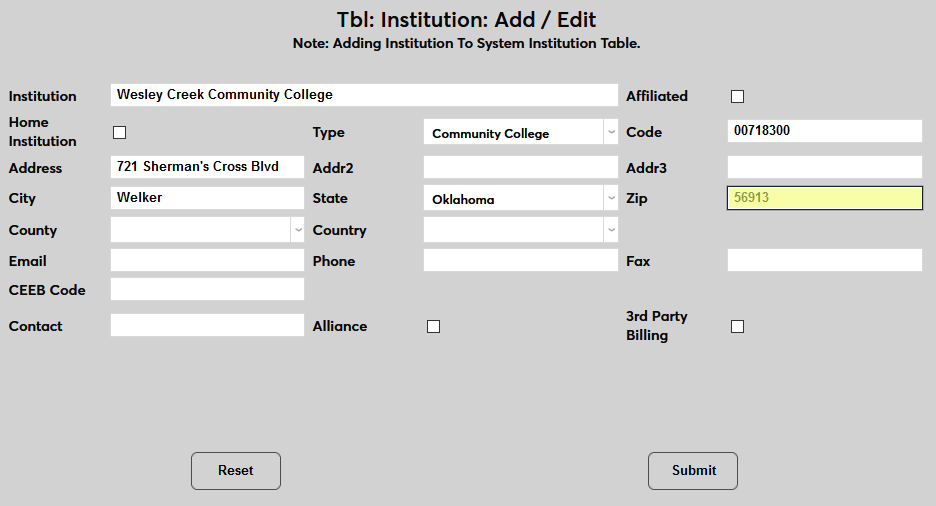
Fill in the City, State, and Zip Code fields to complete the street address.
Select the County where the school is located. Counties are created in the County table via Table Maintenance.
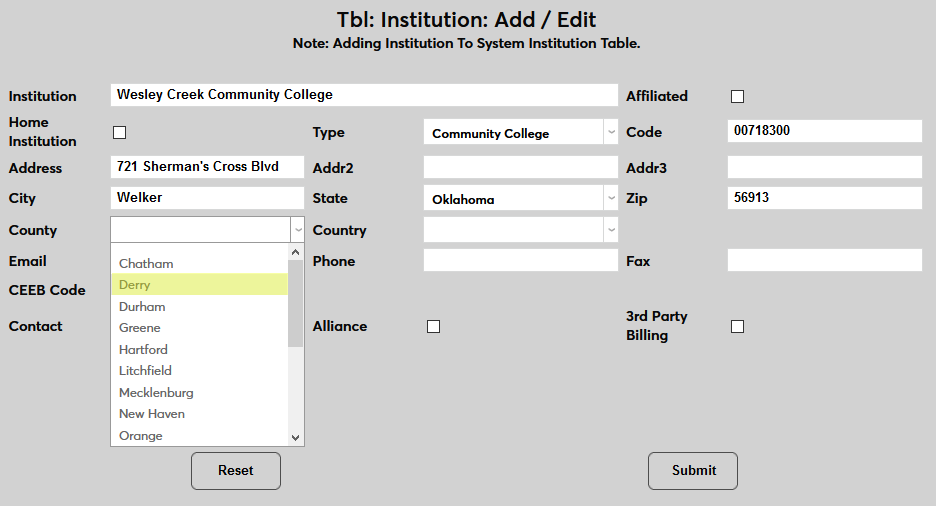
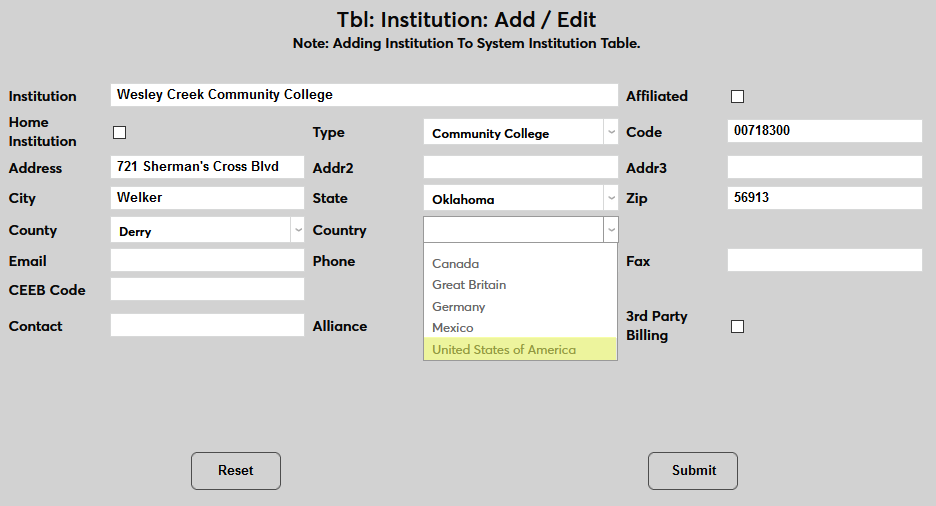
Select the Country where the school is located. Countries are created in the Country table via Table Maintenance.
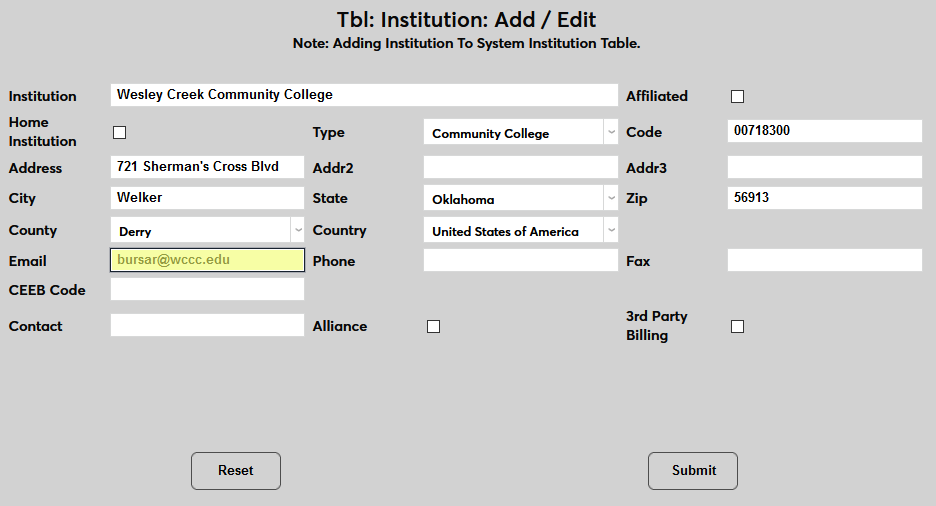
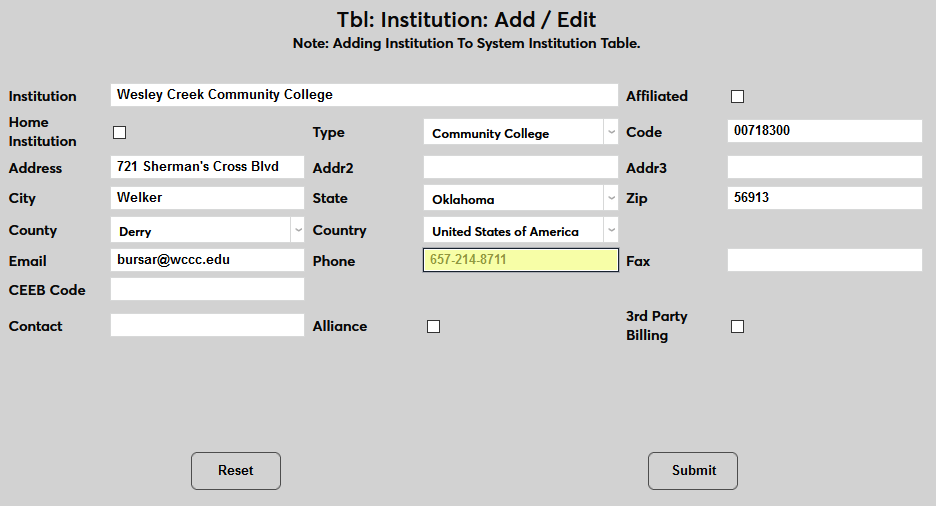
Enter a contact Email address and Phone number along with a Fax number if appropriate.
Enter the institution's CEEB code in the CEEB field. The College Entrance Examination Board code is a standardized ID number that is assigned to a high school, college, or university by the Educational Testing Service.
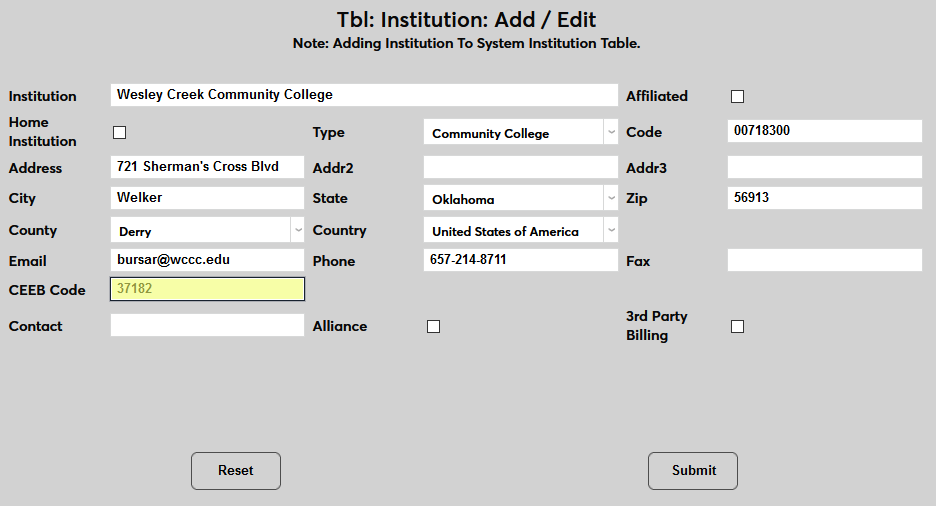
Enter the name of the person who should be the point of contact in the Contact field.
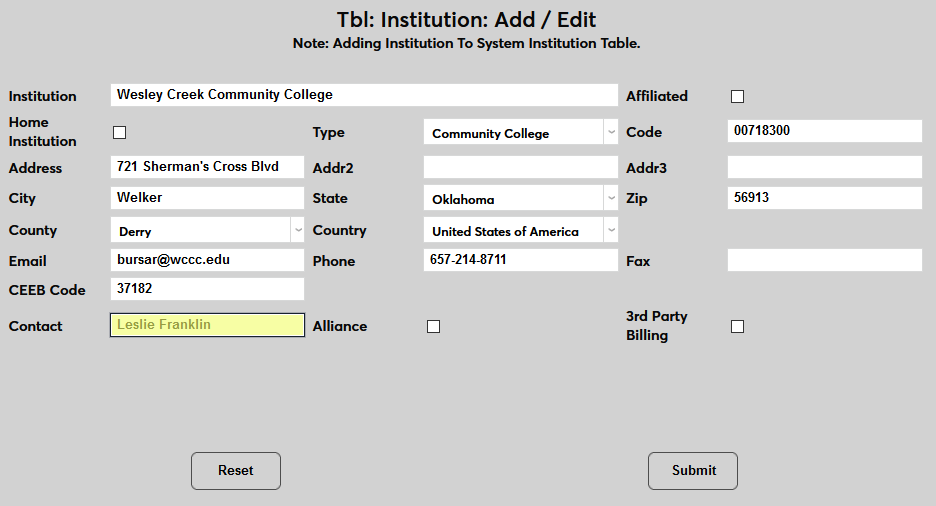
Check the Alliance box if the institution is an alliance institution. Alliance institutions are used primarily by Oklahoma Tech centers to designate partner institutions for Career Major Course purposes.
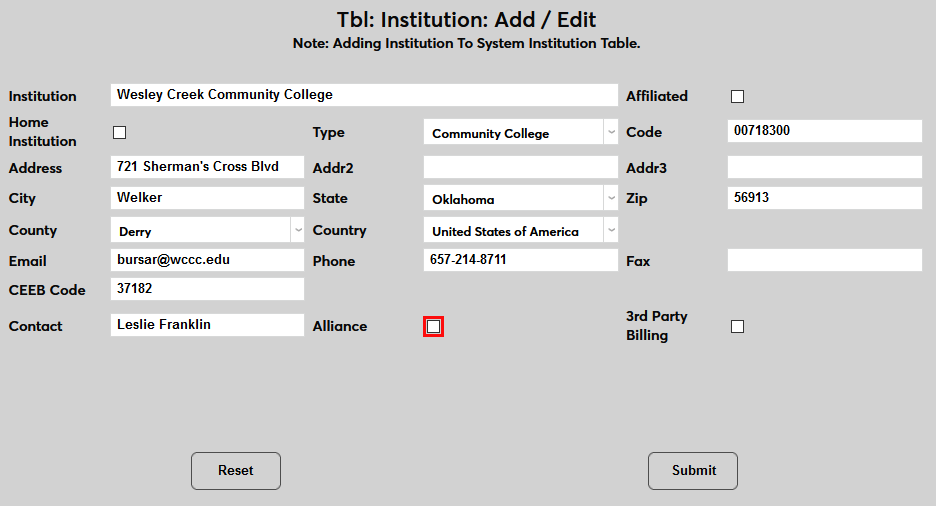
Check the 3rd Party Billing box to designate the institution as one that can be billed on behalf of students.
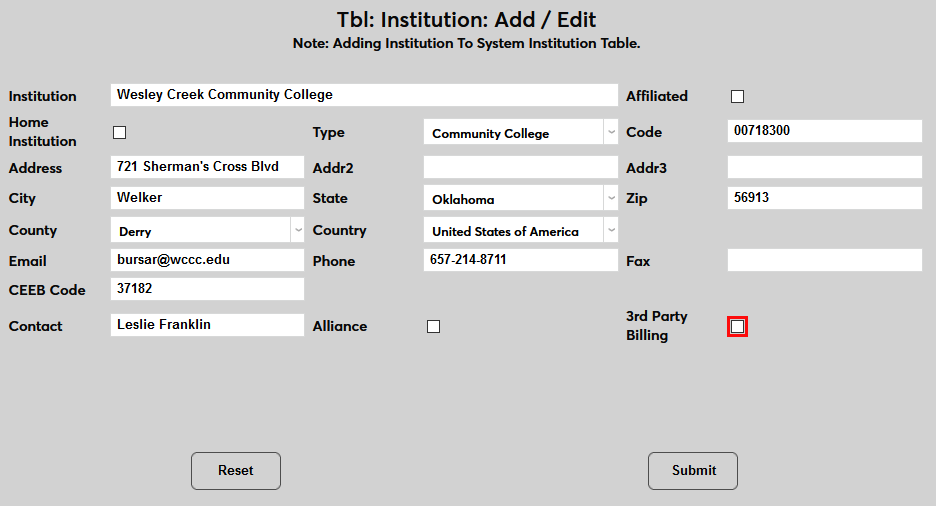
Click Add to create the institution.
Edit
To edit existing institution records, begin by searching for the institution. To search by the name of the institution, type all or part of it in the Institution field.
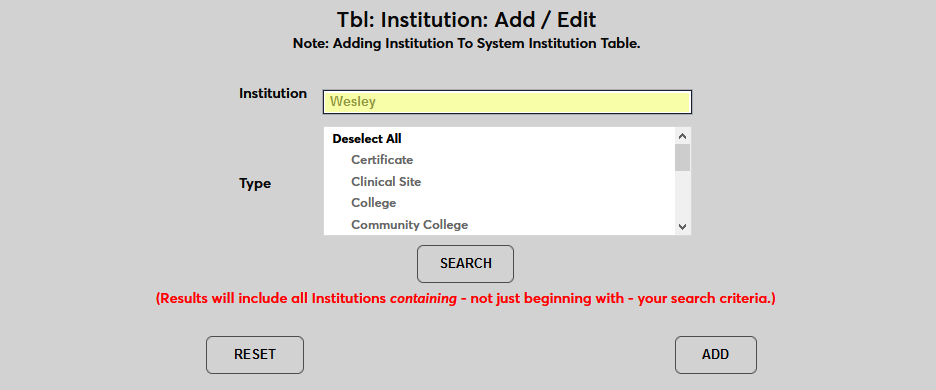
The page also offers the option to search by the institution type. Select one or more from the Type menu instead of or in addition to including text in the Institution field. If the field is blank, the search will find all institutions matching the selected type(s). If the field has text in it, the field will find all institutions matching the selected type(s) that contain any part of the search text in the Institution name field. Additional fields such as the address field are not searched.
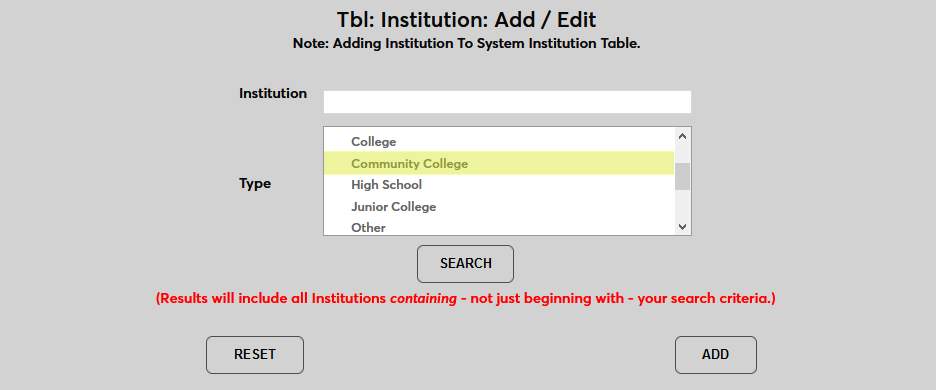
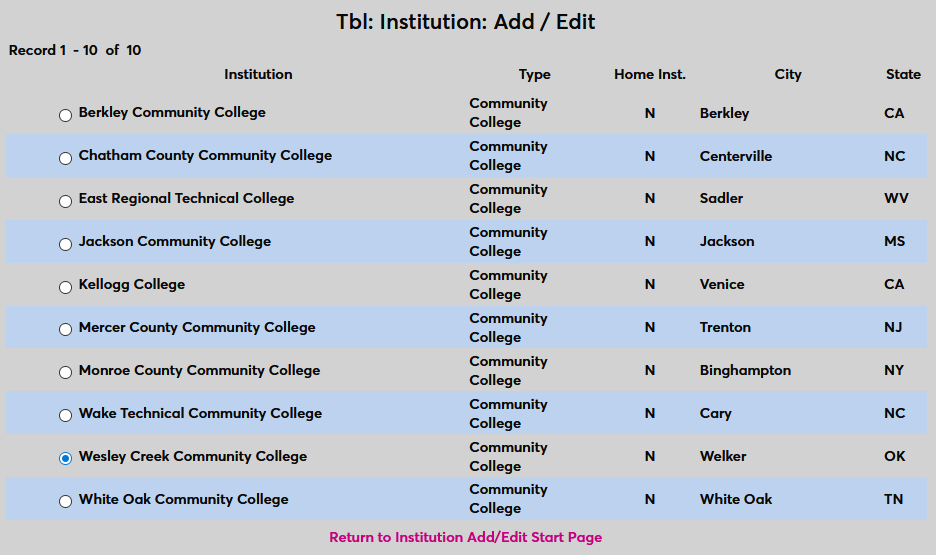
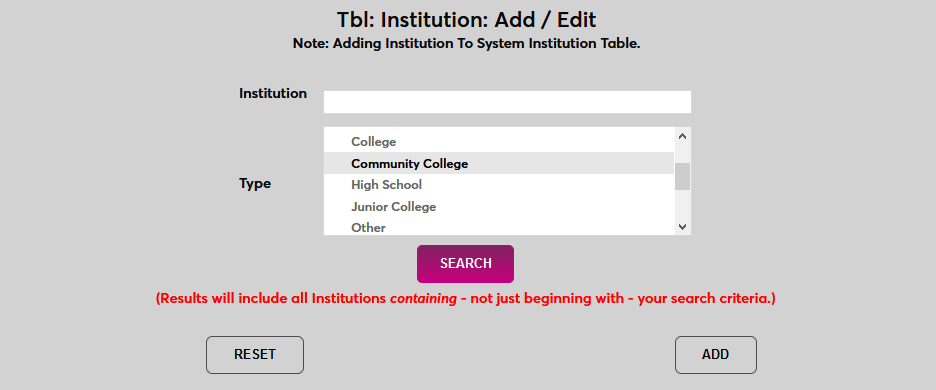
Click the Search button to perform the search. The results will display on the following page.
The search results are displayed in a table. The search results are displayed in a table. You can sort each column in ascending or descending order using the up and down arrows in the header row. There's a Search box you can use to locate a specific instititution that narrows down the list as you type.
Use the Show menu to control how many rows display per page and the Previous, Next, and number links to navigate between pages.
Click the radio button to the left of one of the institutions to select and edit that institution.