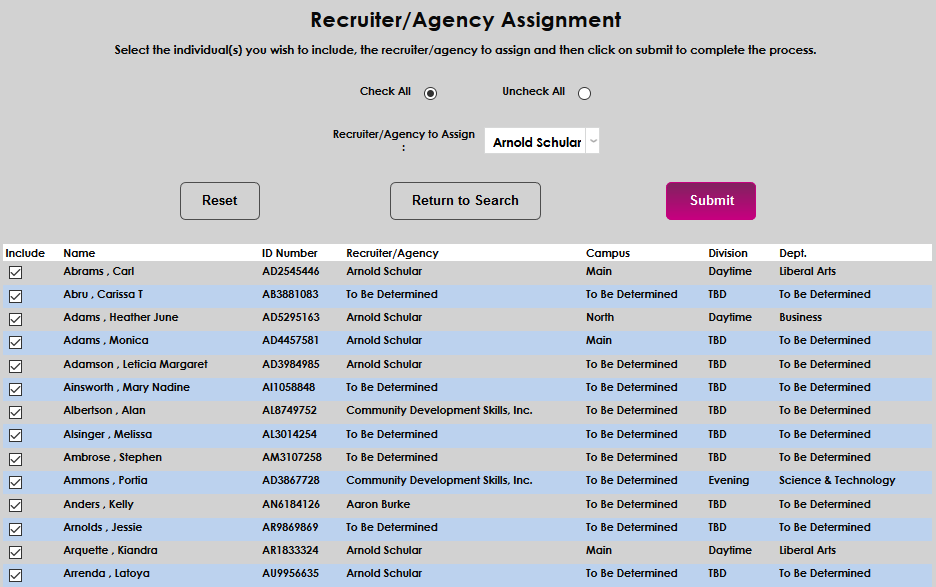
Recruiter/Agency Assignment
Overview
Many schools use recruiters, generally either individuals working for the school or outside recruiting agencies, to obtain prospective students and get them interested in attending the school. SONIS can track the recruiter or agency who first contacted the prospect and/or will be following up with the prospect in the future. The Recruiter/Agency Assignment utility allows SONIS administrators to assign recruiters and/or recruiting agencies to students in bulk. The list of students can be filtered using module status or program.
See Recruiting Plans for more information on how recruiters can be used.
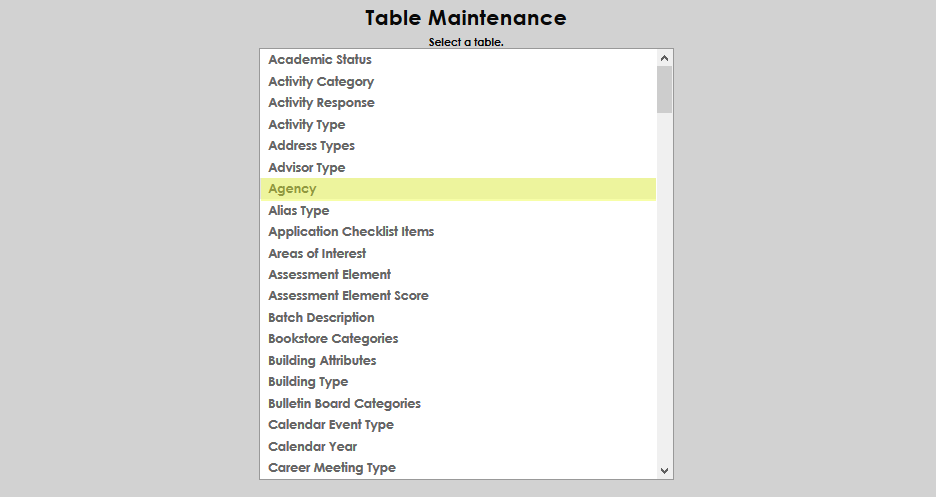
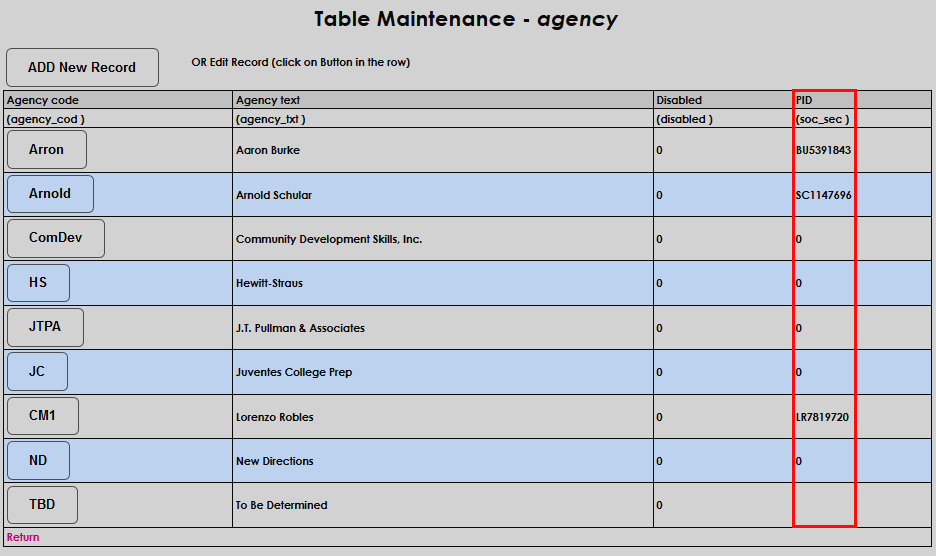
Recruiters and agencies are created using the Agency table under Table Maintenance. To designate an agency as a recruiter, link it with the SONIS ID of a user. Recruiters can be given access to the Recruiter Search and other SONIS functions.
Prospect Inquiry
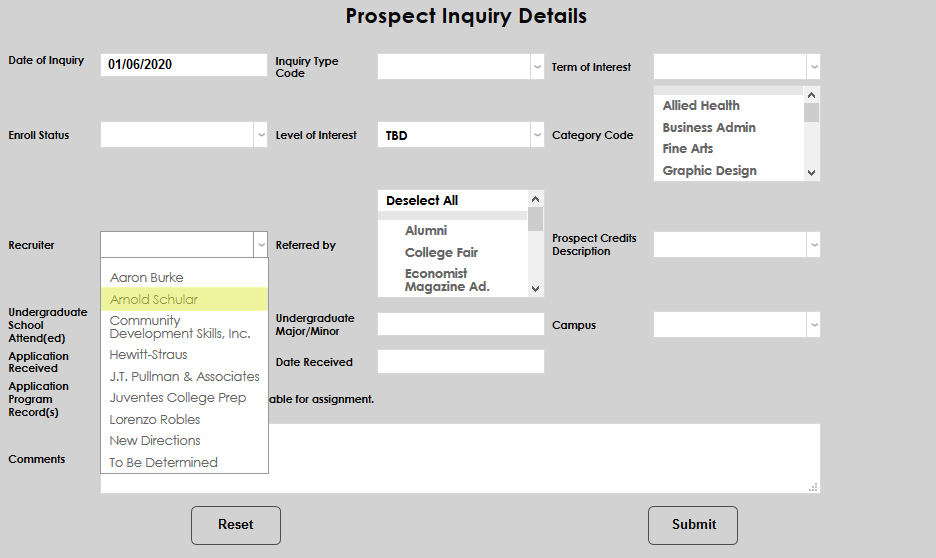
Only students with a Prospect Inquiry record can be assigned a recruiter. To add this record to students already in the system who did not fill out a prospect inquiry card before enrolling, navigate to Prospect Inquiry Details under the Records menu and click Add.

Bulk Recruiters & Agencies
To assign recruiters and agencies in bulk, navigate to the Recruiter/Agency Assignment utility under the systems menu. Begin by narrowing down the list of students to be displayed using the Campus, Division, Department, Level, and Program menus.
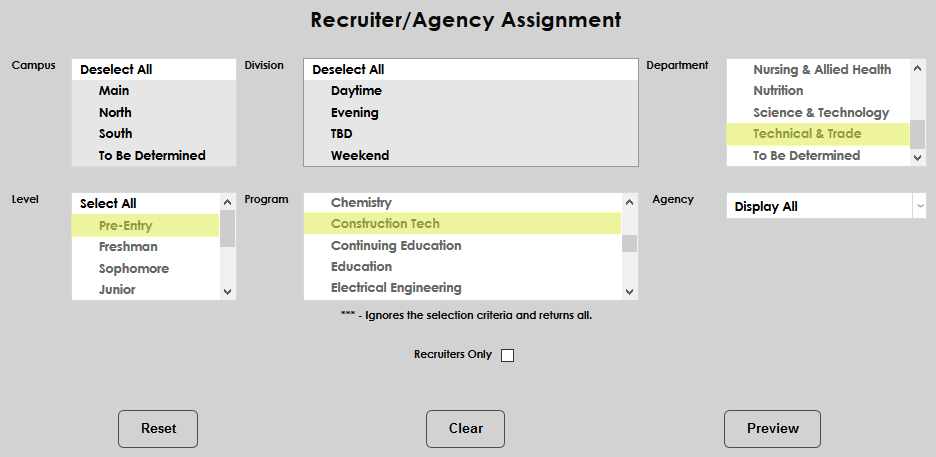
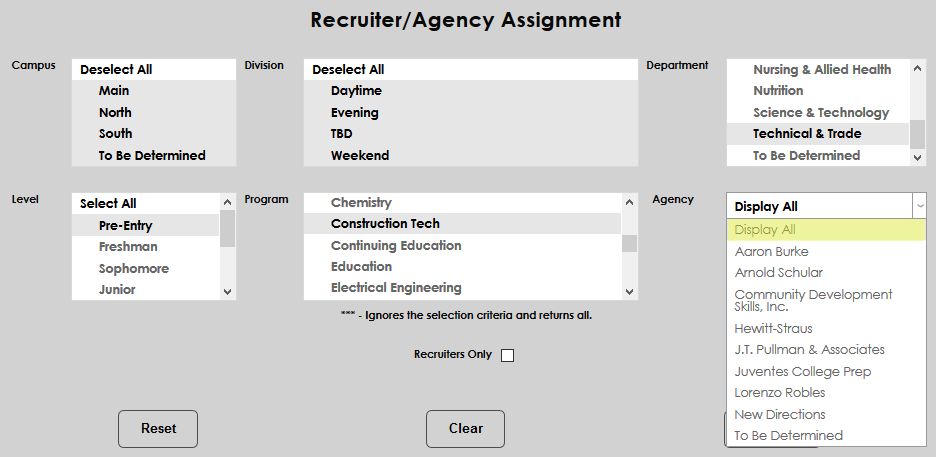
Next, select a value in the Agency dropdown menu. Leave Display All selected to show all users that fit the selected demographics regardless of assignment. Select To Be Determined to display only users who do not have an agency assignment.
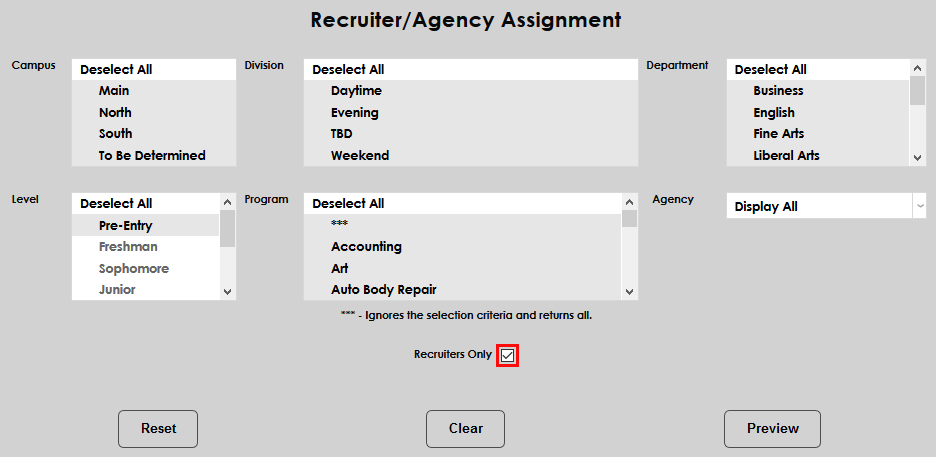
Check the Recruiters Only box to include only recruiters and not agencies in the search results.
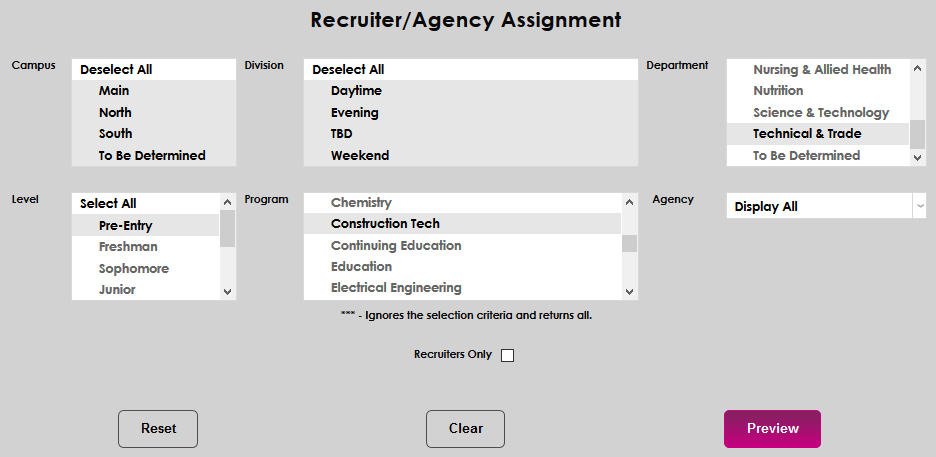
Click Preview to create the report.
The Recruiter/Agency column lists the user's current assignment.
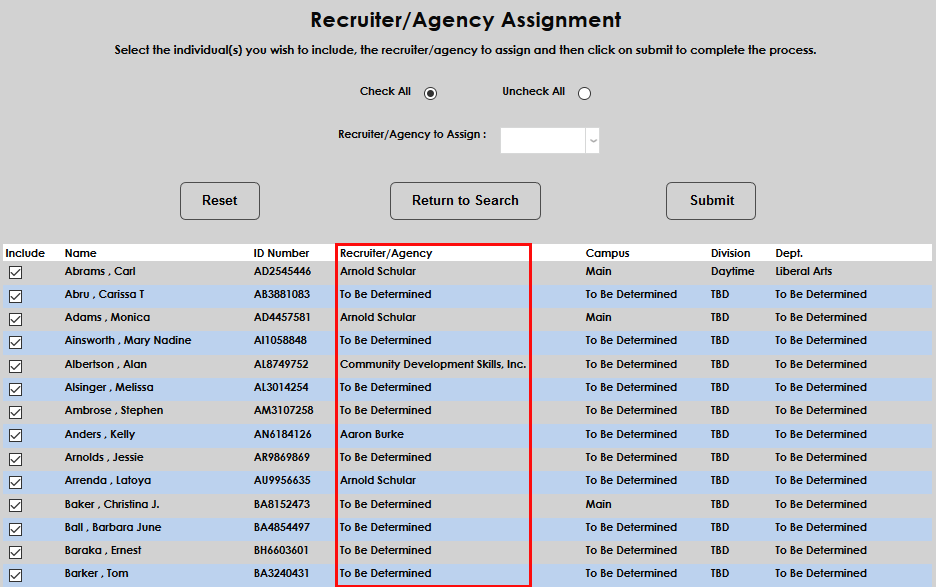
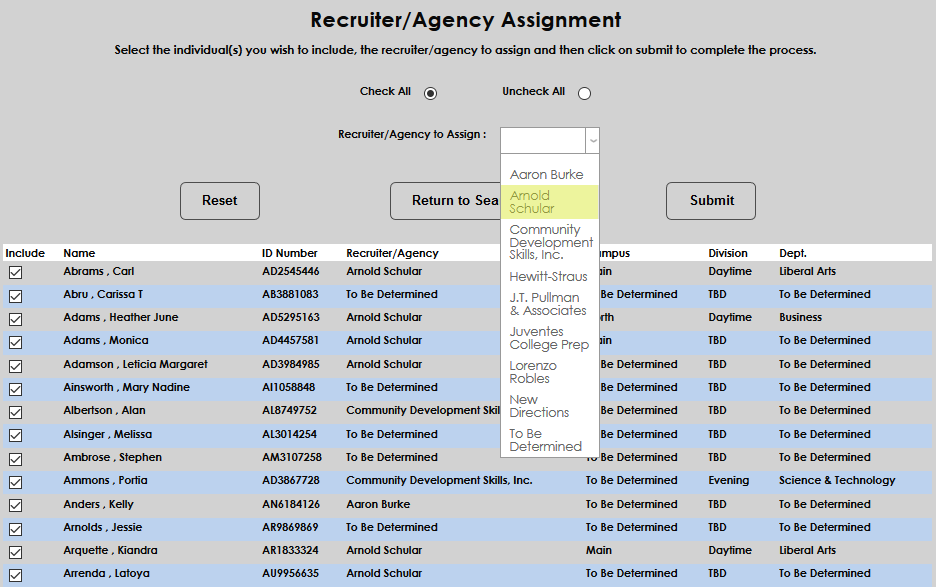
At the top of the page, select a Recruiter/Agency to Assign.
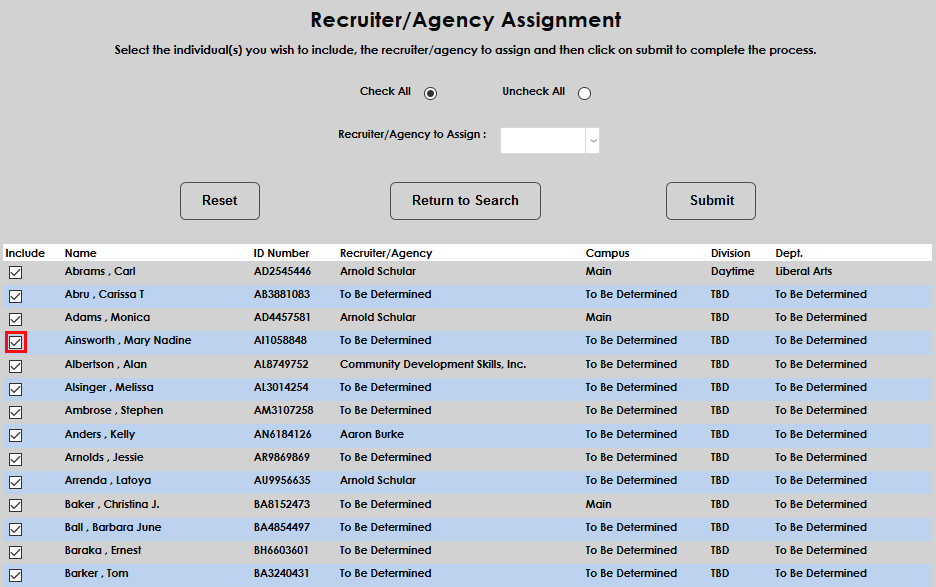
Check and uncheck the boxes in the Include column to include or exclude individual students. Check All and Uncheck All boxes are available to make changes to the list faster.
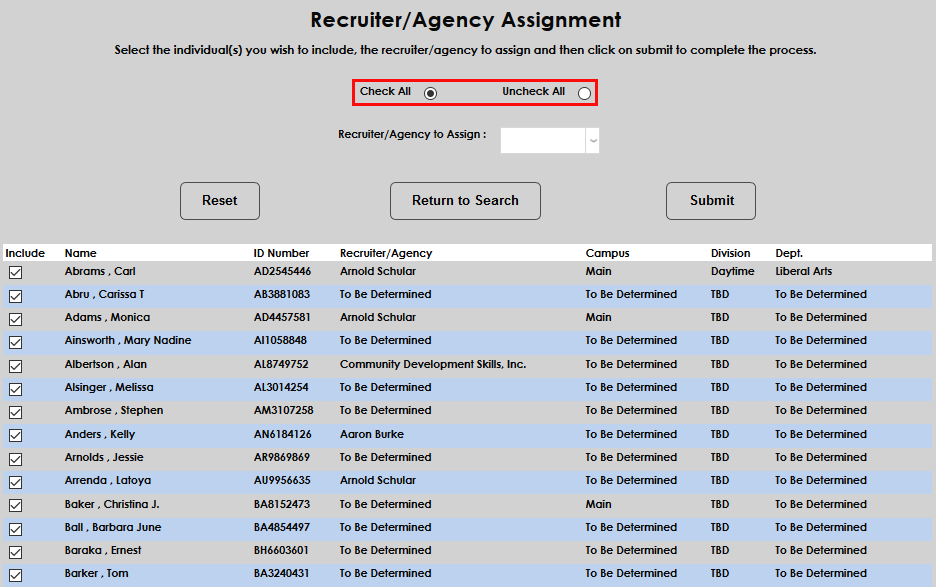
Once the correct users and agency/recruiter have been selected, click Submit to make the change.