Reminders
Overview
Jenzabar SONIS provides a robust group of communication functions whereby administrators and users can send, receive, and respond to messages, create and manage activities for themselves and others, and associate reminders and notifications with tasks, activities, and messages. Lists and groups can be used to ensure members receive these reminders and notifications in batches.
When enabled in the Portal Menu Utility, a Reminders tab will display in the Alumni portal. See: Activities and Reminders for more info.
Adding Reminders
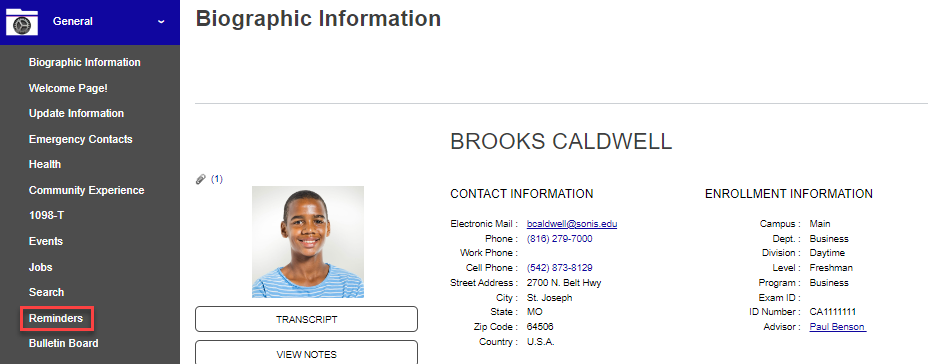
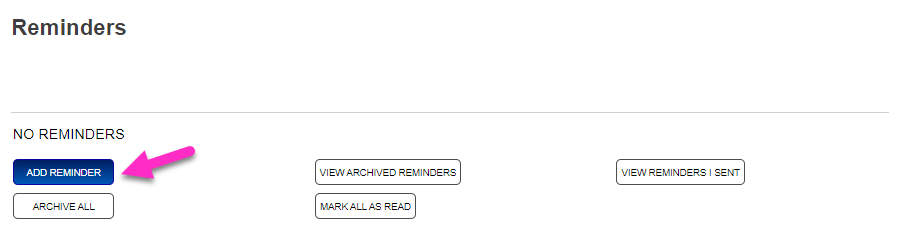
Click the Reminders option within the General menu to open the Reminders page. The first time the page is entered, and/or if no reminders have been sent to the user, a No Reminders message displays above the navigation option buttons.
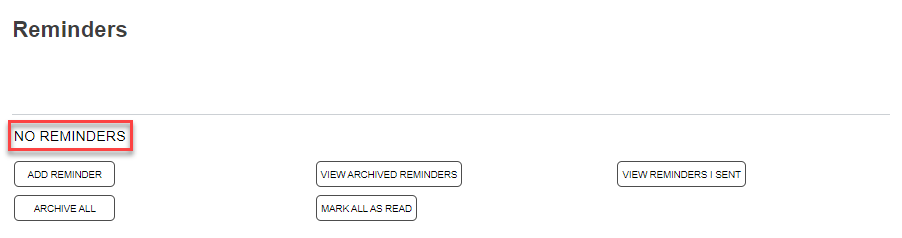
Click Add Reminder to begin adding a reminder. Select the name of person or group the reminder will be sent to by clicking on it. A user may select themselves. Selected users and/or groups will be highlighted to indicate the selection(s). To remove a selection, click on it once more.
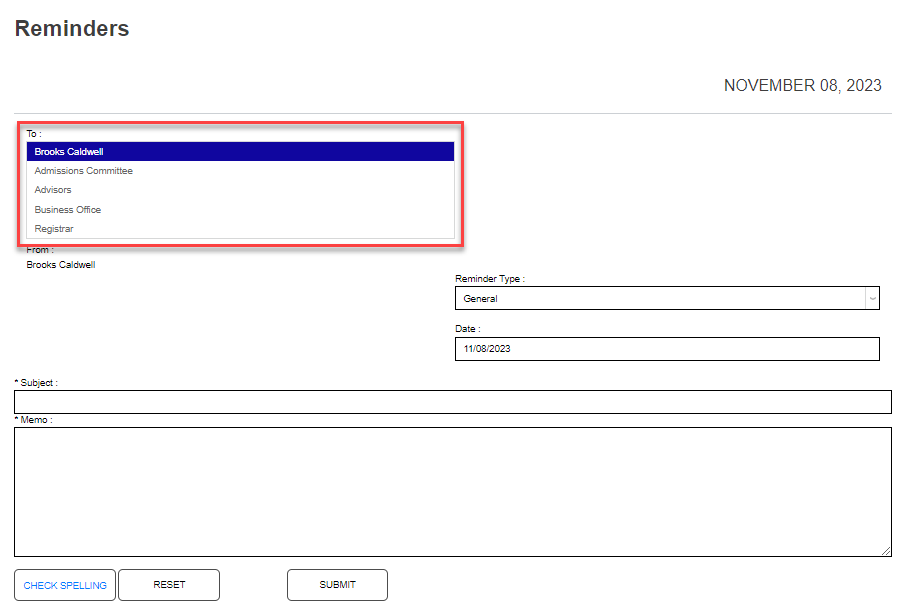
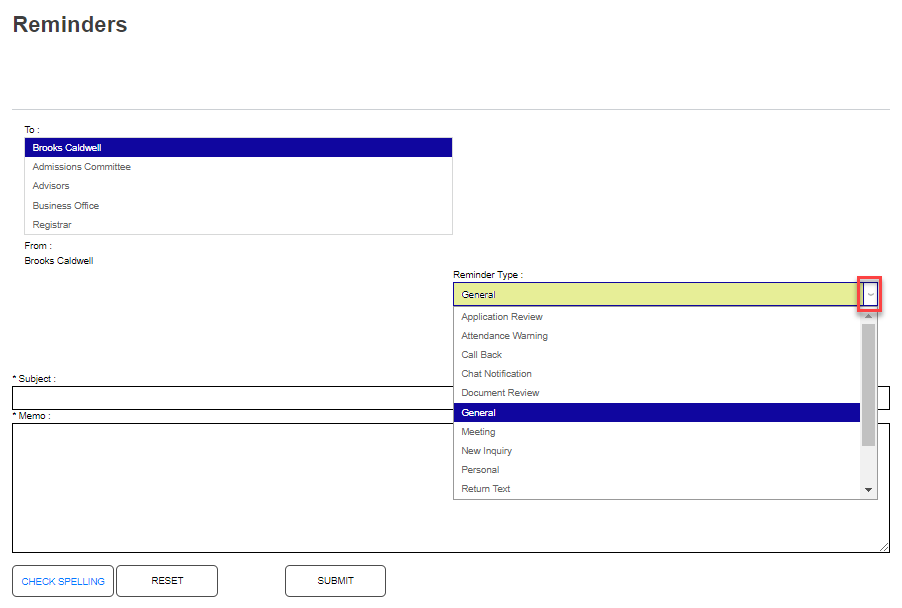
Select the Reminder Type by clicking the drop down arrow to open the menu and clicking the name of the desired menu. The Date auto-fills with the current date and can be changed simply by clicking within the field and entering the desired date. This is useful for setting up future-date reminders.
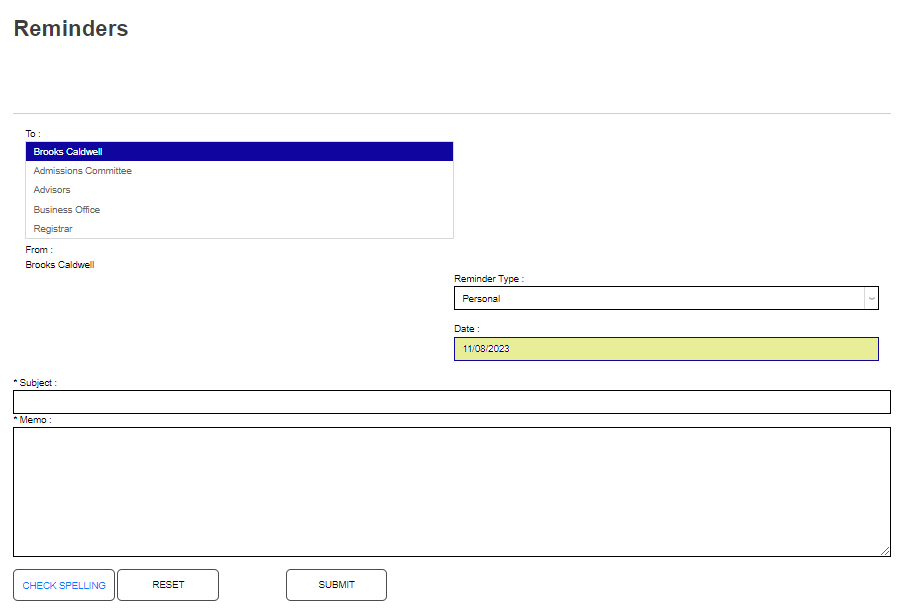
Enter the subject of the reminder in the Subject field. This field accepts up to 100 alphanumeric characters and symbols. The Memo field has no character limit, is not required, and can be used to provide additional information about the reminder subject.
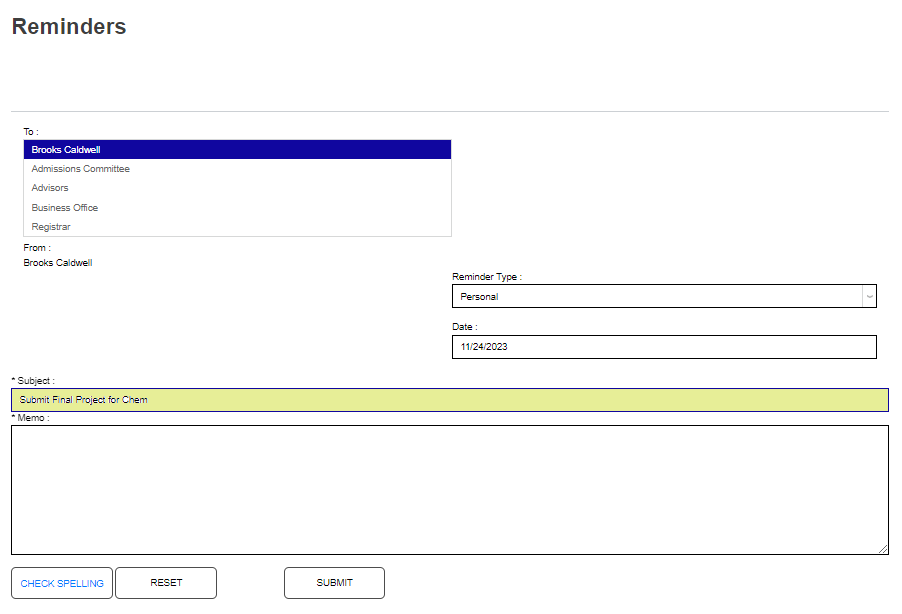
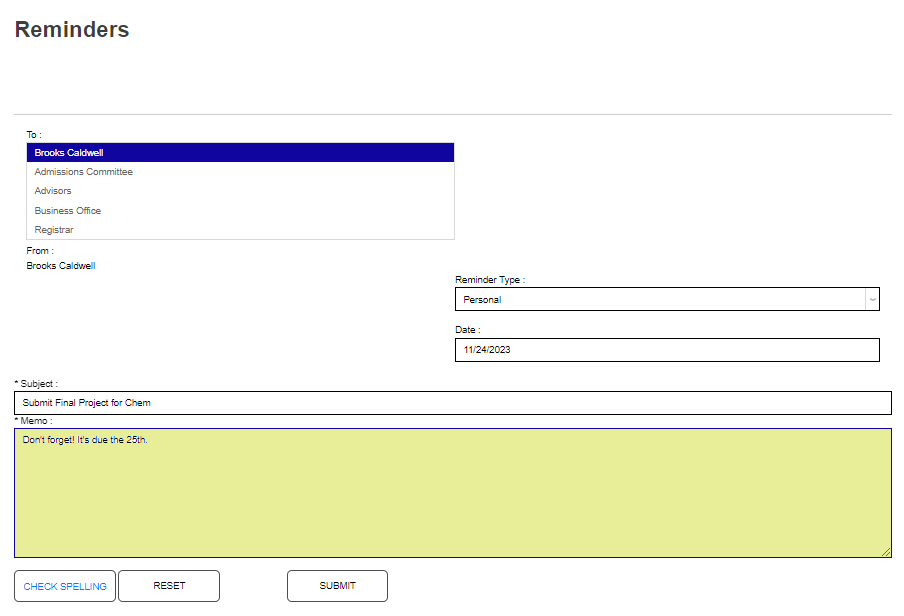
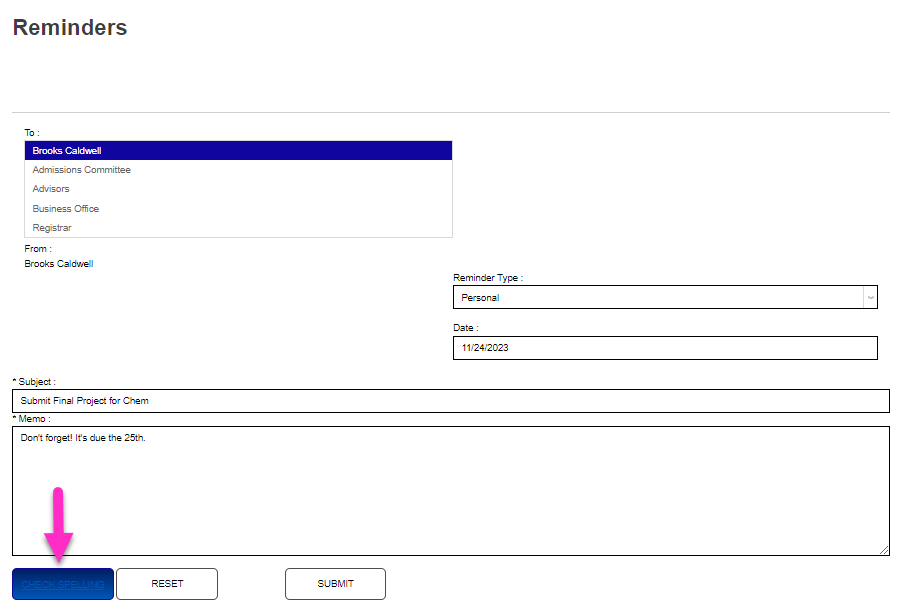
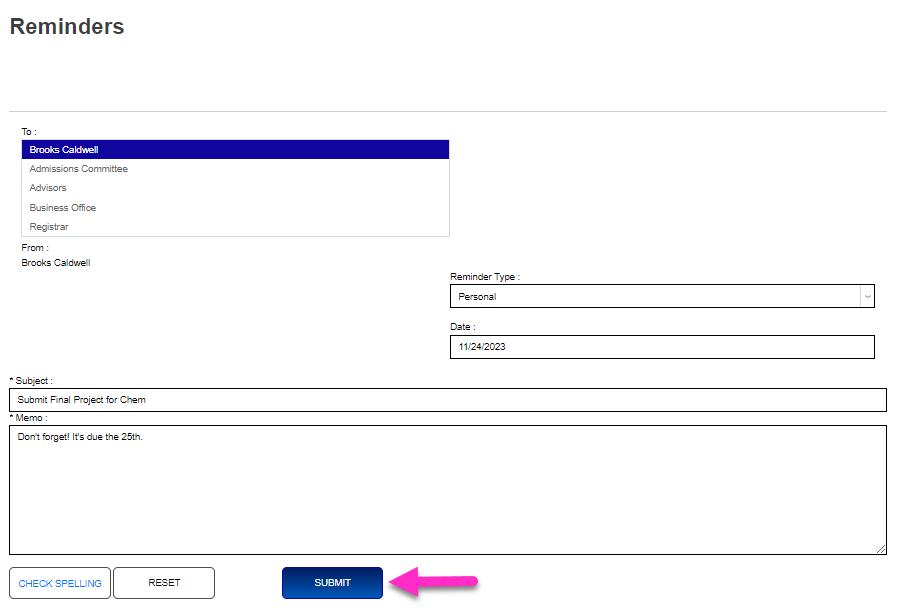
If desired, click the Check Spelling button to perform a spelling check of the memo contents. Click Submit to save the reminder and send it to the selected recipients.
Viewing and Managing Reminders
When a reminder is created, the recipient will see a numeric indicator within the portal menu until the reminder is marked as read or responded to. Click the reminder subject to view the full details of the reminder, or Respond to view the details as well as have the ability to respond.
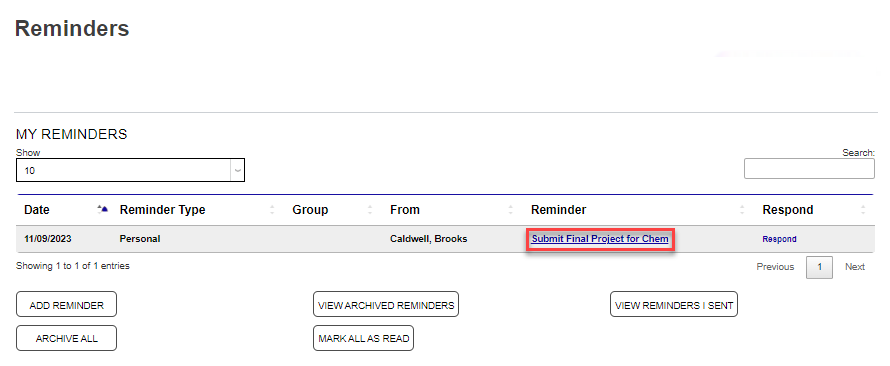
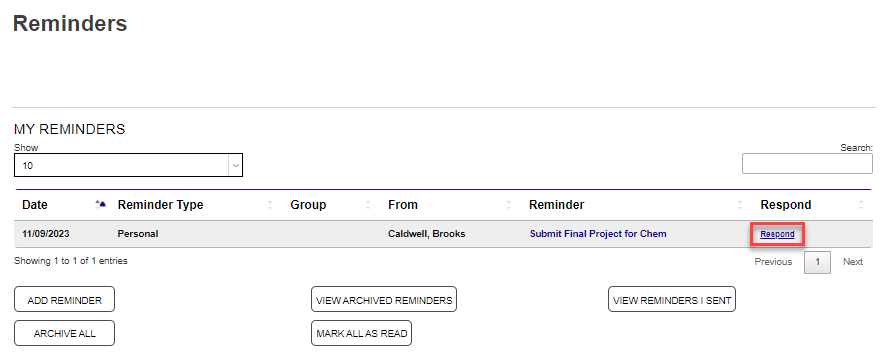
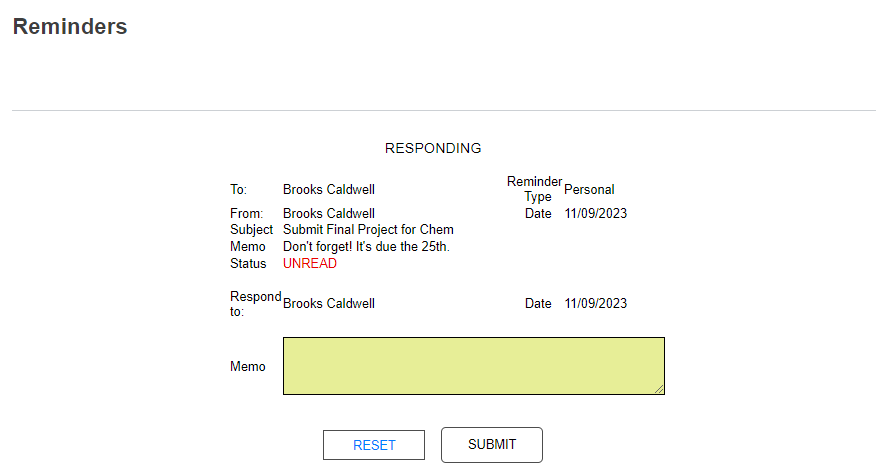
Clicking the Respond link within the reminder opens the response functions and the reminder details.
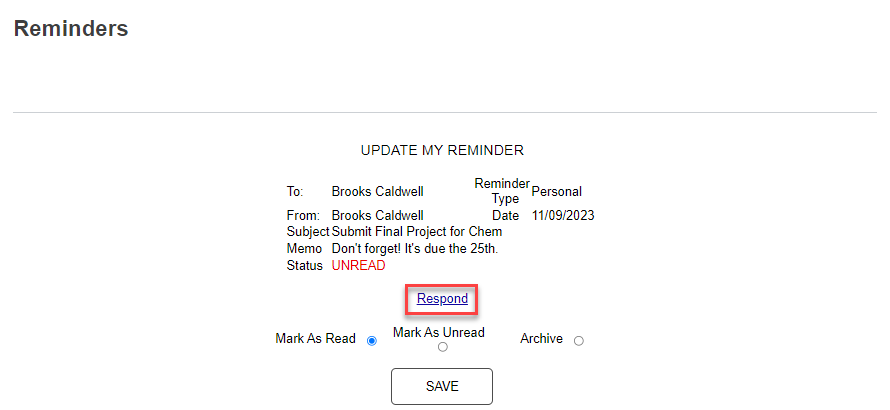
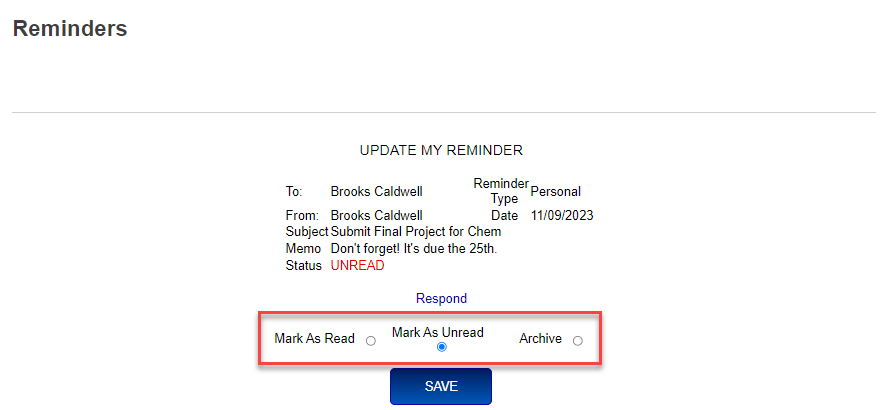
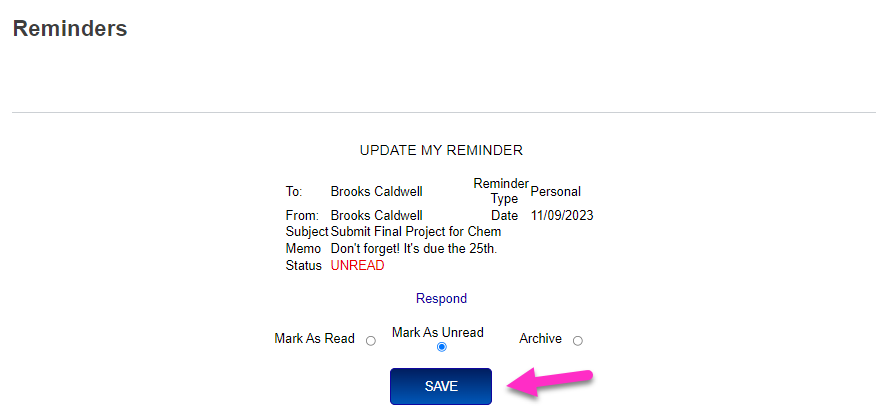
Other options on the reminder details page are provided to Mark As Read. Mark as Unread, and Archive the reminder. Select the desired option and click Save.