Payments
Overview
The Payments page of the Users hub allows users to enter pledge payments or one-time payments made by constituents. As pledge payments are entered, they can be associated with events like a spring phonathon. One-time payments can be associated with an event, an item, and a fund, such as a raffle ticket for a spring fundraising event that benefits the medical scholarship fund. To record a pledge so that a payment can be applied to it, visit the Pledge page.
A list of development pages is available here.
Recording Pledge Payments
First, determine if the payment is recurring or one-time. If it is recurring, or periodic, it will be entered as a Pledge Payment. To enter the pledge payment, the corresponding event must be available in the Event listing at the top of the Payments screen. If it is not, record the pledge on the Pledge page and return to the Payments page to enter the pledge payment. When the event displays with the constituent's total pledged amount, select the button in the Apply To column that corresponds with the appropriate event.
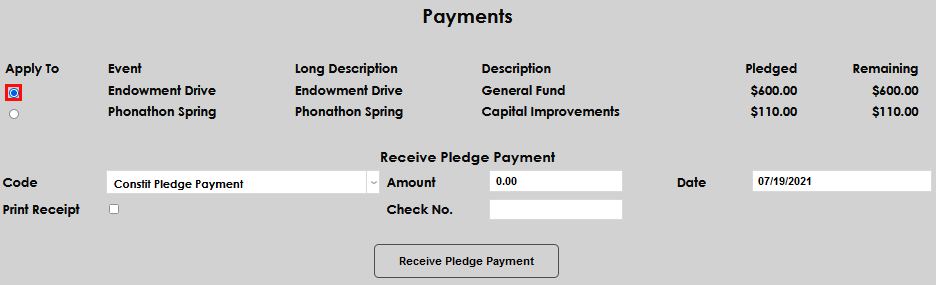
Enter the Code used for the pledge payment.
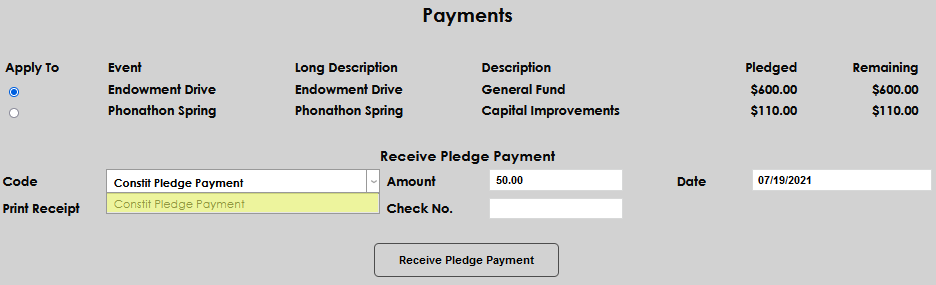
Enter the Amount paid and the Date the payment was received.
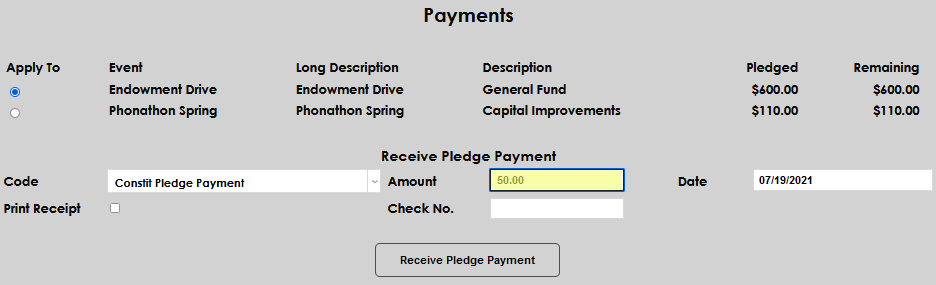
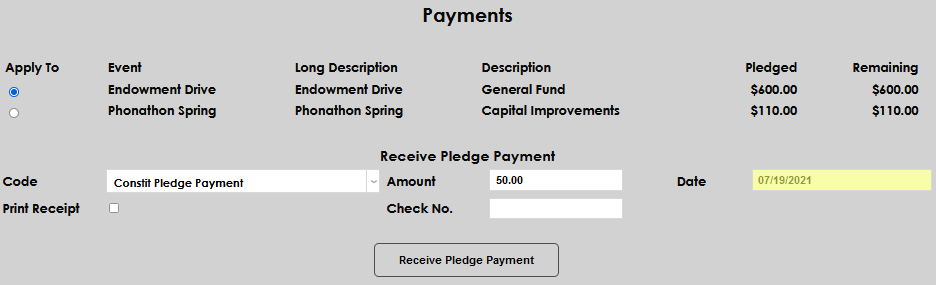
If desired, a Check No. can be entered.
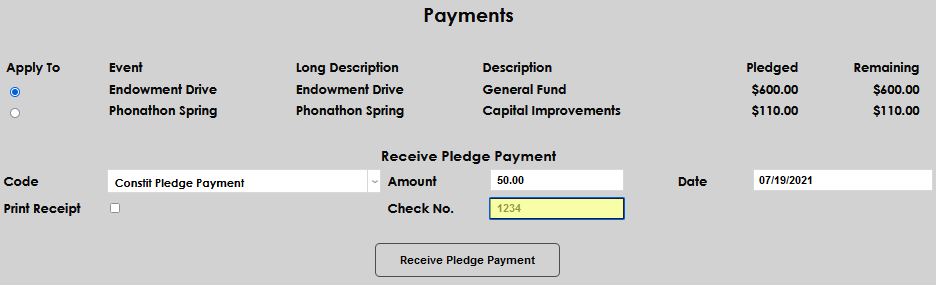
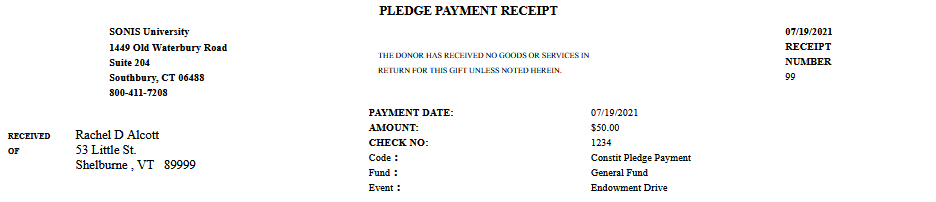
If a printed receipt is needed check Print Receipt. The receipt will include the Code, Fund, Event, Payment Date, and Receipt Date.
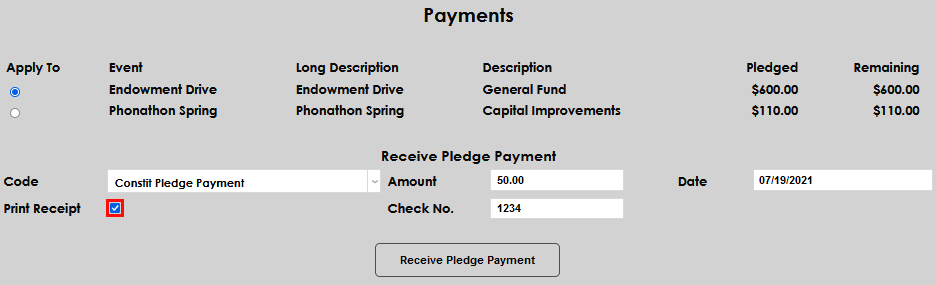
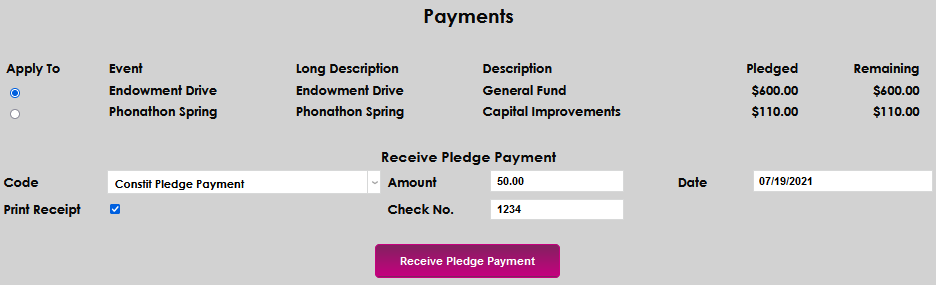
Click Receive Pledge Payment to save the payment. On the confirmation page, select Click Here to preview receipt.

The receipt will open and display in a new browser window. If it does not display, ensure pop-ups are not being blocked by the browser settings. After printing, close the browser window and click Mark as Completed to finalize the pledge entry.

The Balances page will display showing the total pledge amount, minus the entered payment(s), and the Remainder due against the initial pledge.

Recording One-Time Payments
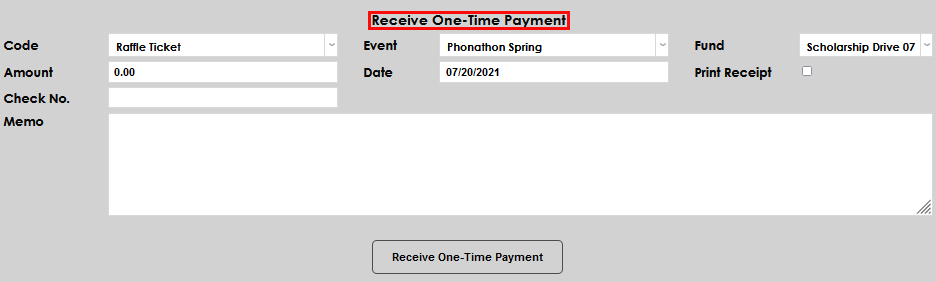
If the payment is not associated with a pledged amount it is recorded as a one-time payment.
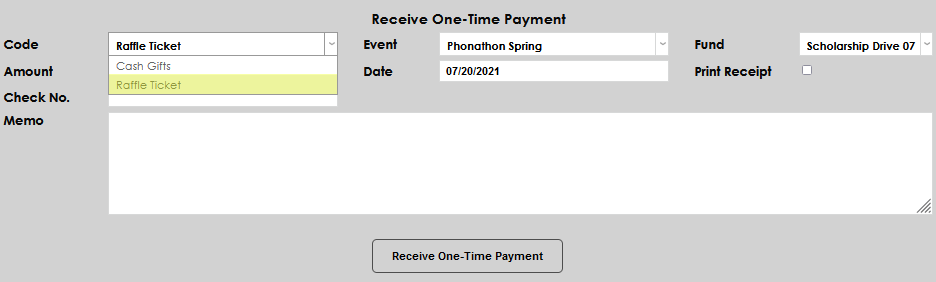
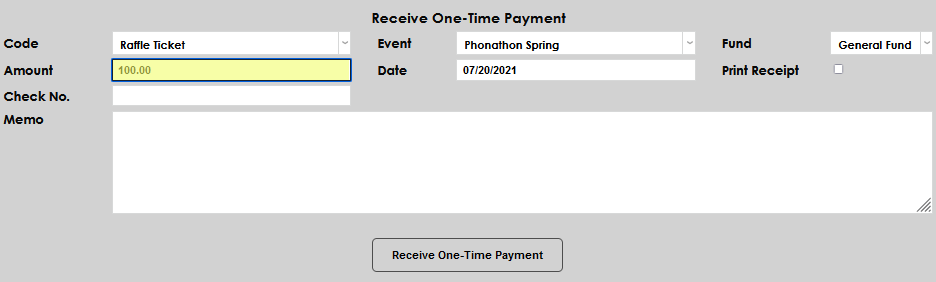
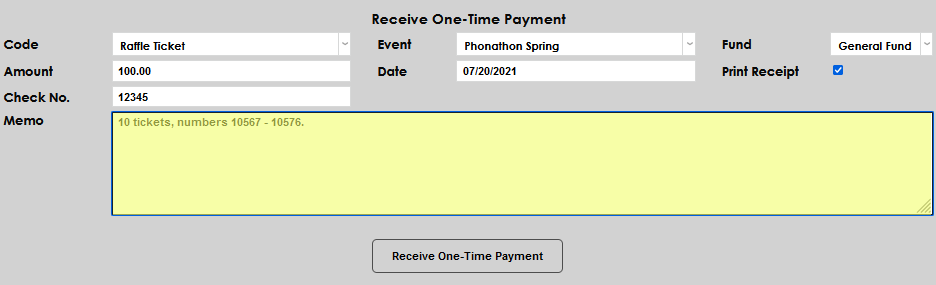
Select the Code associated with the payment. Unlike pledges, this menu will only display fundraising types that are coded as debits on the Fund Raiser Type table (set up and editing details are included further down in this article).
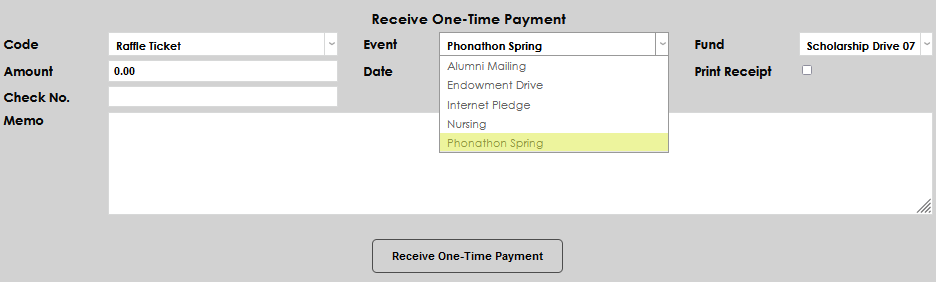
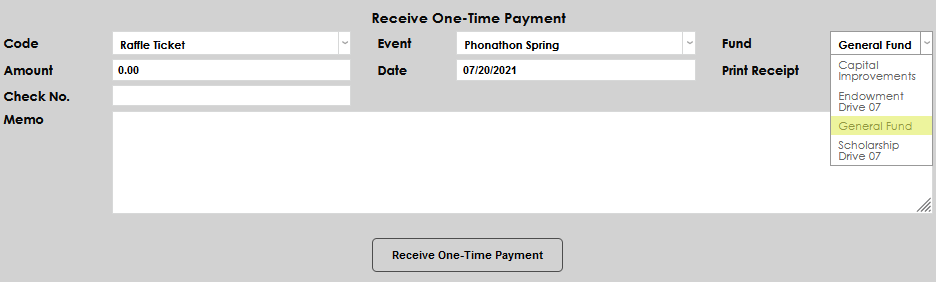
Select the corresponding Event and Fund the payment should be applied to. The Event menu is populated by the entries on the Events table. The Fund menu is populated by the DE Funds page. Set up and maintenance of both are covered later in this article.
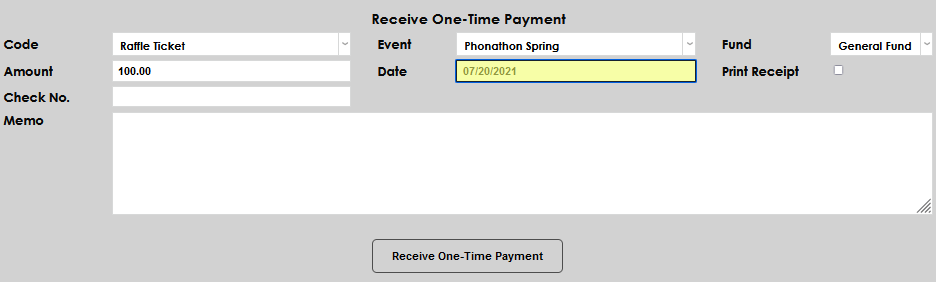
Next, enter the Amount of the payment and the Date it was received.
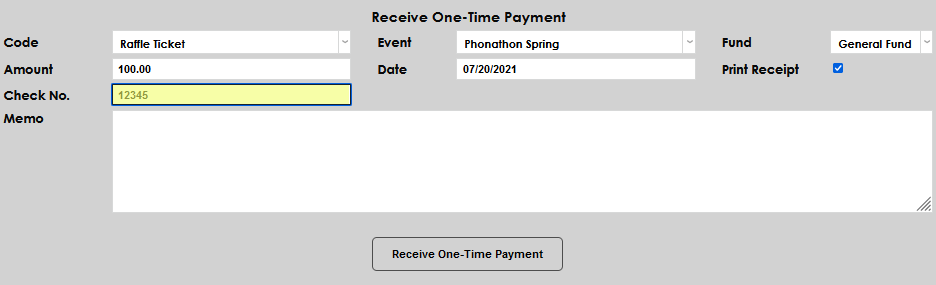
If desired, a Check No. can be entered.
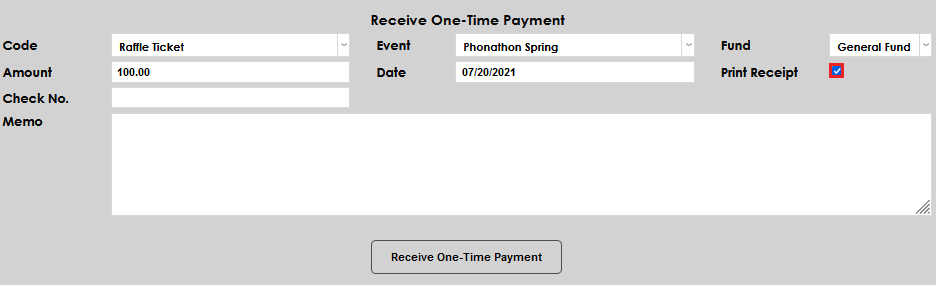
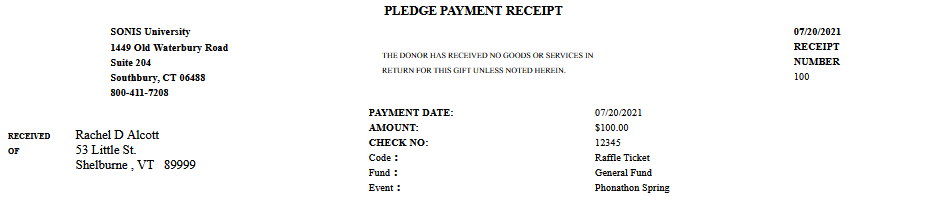
If a receipt is needed, check the Print Receipt box. The receipt will include the Code , Fund , Event , Payment Date , and Receipt Date . Enter any associated information in the Memo field.
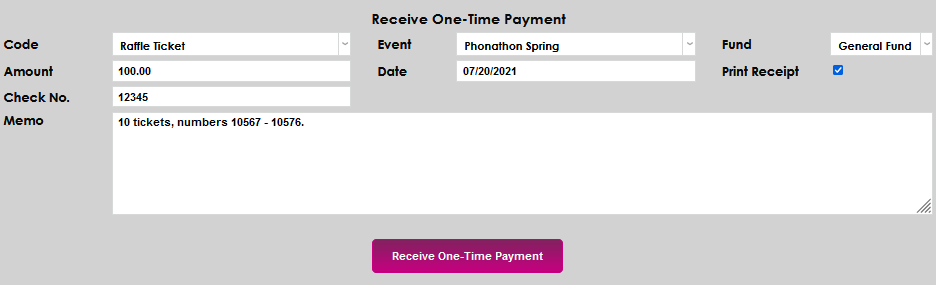
Click Receive One-Time Payment to save the entered information.
To view and print the receipt, ensure pop-up blockers are not enabled in the browser, and select Click Here to preview receipt . The receipt will open in a new browser window for printing. After printing the receipt, click Mark as Completed to finalize the payment entry.
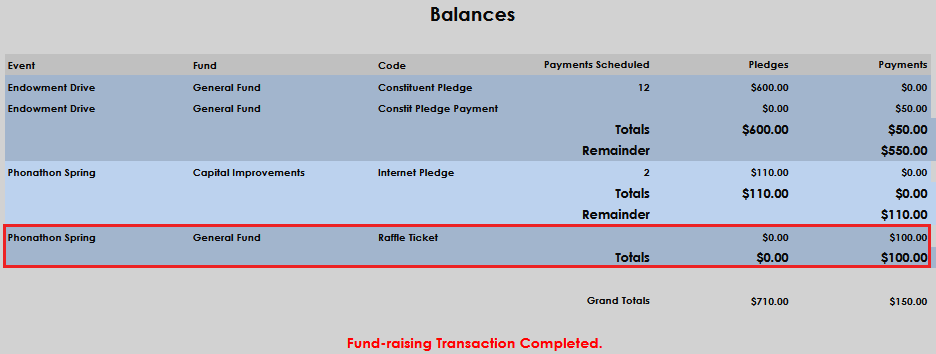
The entered payment details will display on the Balances page as a part of all payments that have been recorded for this constituent.


Setting Up Fundraising Codes
If the desired Code isn't available, it will need to be setup in the Fund Raiser Codes table on the Systems hub Table Maintenance page.
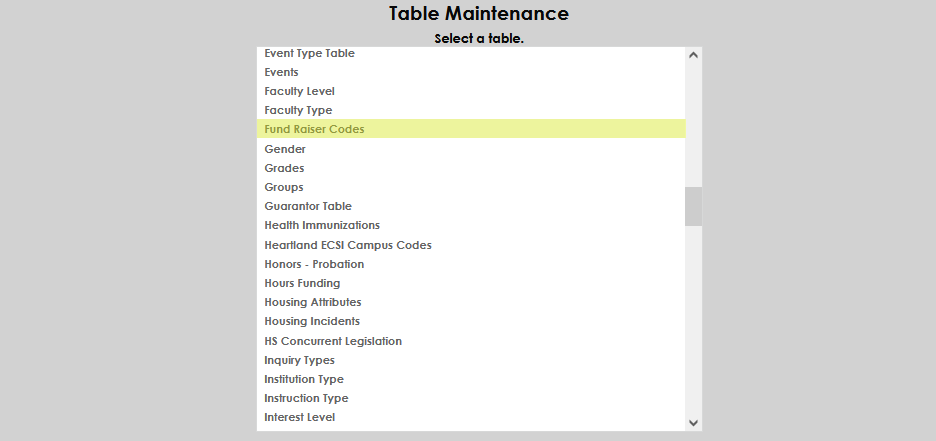
Select Add a New Record.
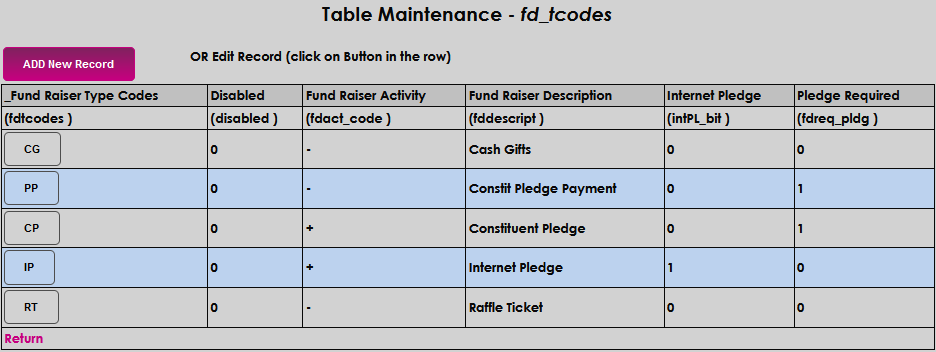
Create and enter a two-character alphanumeric code for the type of fundraiser in the Fund Raiser Type Codes field.

In the Fund Raiser Activity field, enter a + if this activity should act as a credit or a - if this activity should act as a debit when applied.

Enter the name that should display in selection menus in the Fund Raiser Description field. The field accepts up to 22 alphanumeric characters.

If an donor can make a pledge to this fundraiser on the internet, enter a 1 in the Internet Pledge field.

The Pledge Required field controls what kind of payments can be accepted toward this fundraiser. With a 1, a pledge must be selected when entering the payment. A 0 allows this code to be used for one-time payments.

Click Submit to save the entered information.

Editing Existing Fundraising Codes
To edit an existing fundraising code, simply click on the Fund Raiser Type Code.
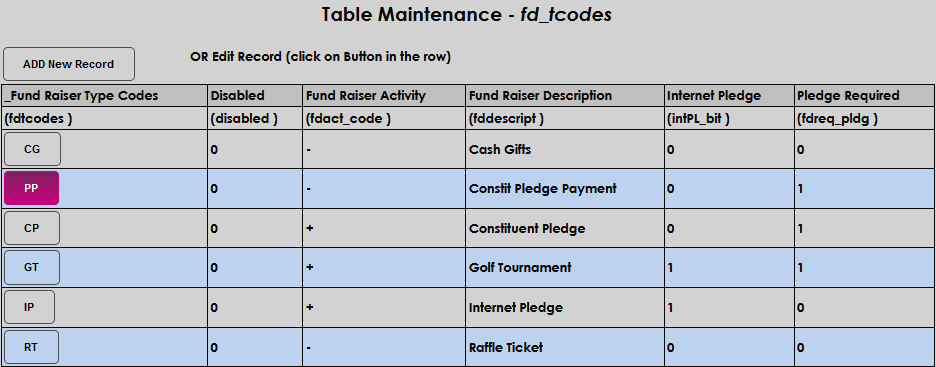
Make the desired information changes and select Submit to save the change(s).


Setting Up Funds
To add development funds, navigate to DE Funds in the Systems hub. A list of current funds will display. Select Add to begin creating a new fund.
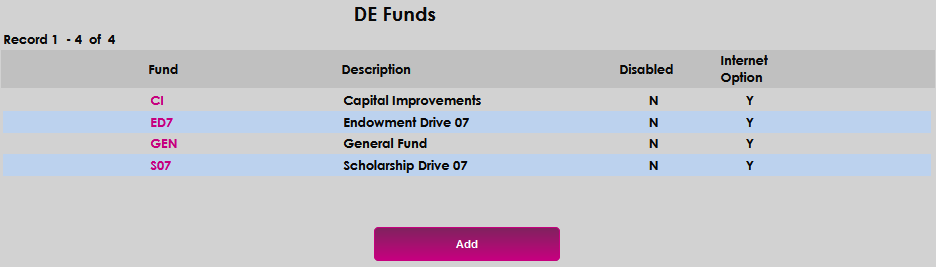
Enter a three-character code that will be used for the fund in the Fund field. This field accepts up to 3 characters of alphanumeric values.

Enter a descriptive name for the fund in the Description field. This field accepts up to 20 characters, including symbols. This name will display in fund menus.

If the fund should be available for internet pledges or payments, check the Internet Option box.

Select Submit to save the entries.

Editing Existing DE Funds
To modify an existing DE Fund, click on the Fund name.
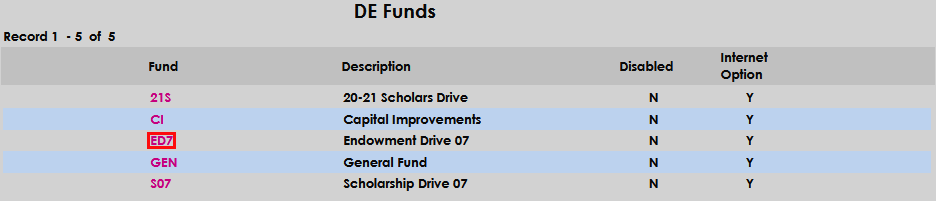
Make the desired updates. In this example, the fund is no longer in use, so it is being disabled or turned off.

Click Submit to save the change(s).

Setting Up Events
From the Systems hub, select Table Maintenance, and Events.
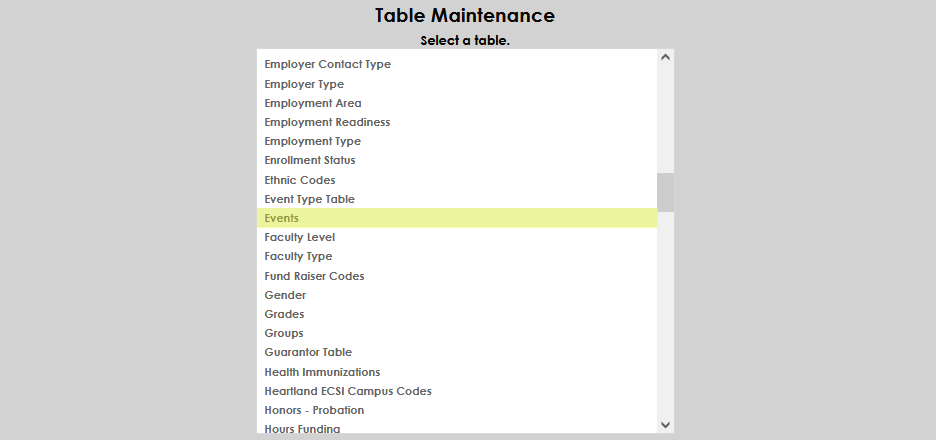
Select Add a New Record.
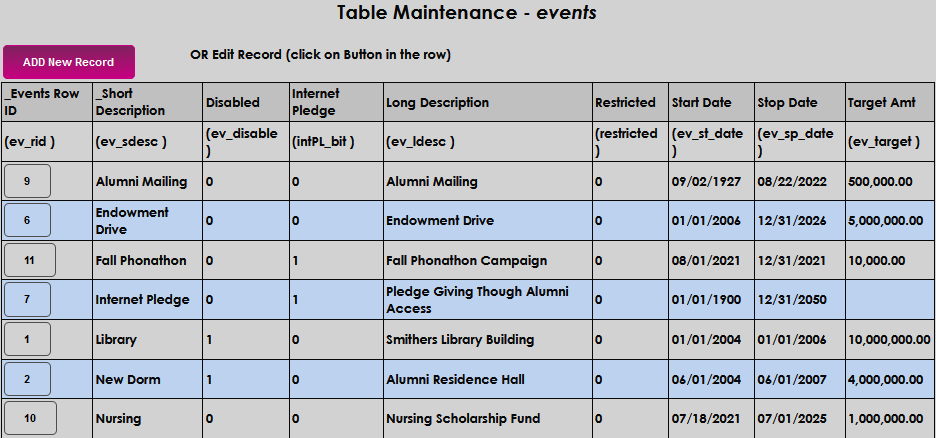
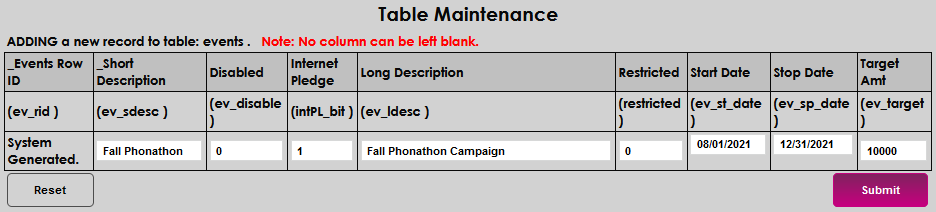
In the Short Description field, enter a description of the event. This field accepts up to 30 characters.

If a pledge can be made for this event on the internet, enter a 1 in the Internet Pledge field.

In the Long Description field, enter the description of the event that should display in selection dropdowns. This field accepts up to 50 characters.

If this event will not allow pledges and will only accept one-time payments, enter a 1 in the Restricted field. If both pledges and one-time payments are allowed, leave the 0.

Enter the date the Event begins. This is also the date that pledges and/or payments will may begin to be accepted toward it.

Enter the date that the Event ends. This is also the date that pledges and/or payments will no longer be accepted toward it.

Enter the goal fundraising amount in the Target Amount field.

Click Submit to save the entered information.
Editing Existing Events
To edit an existing event, click on the Events Row ID.
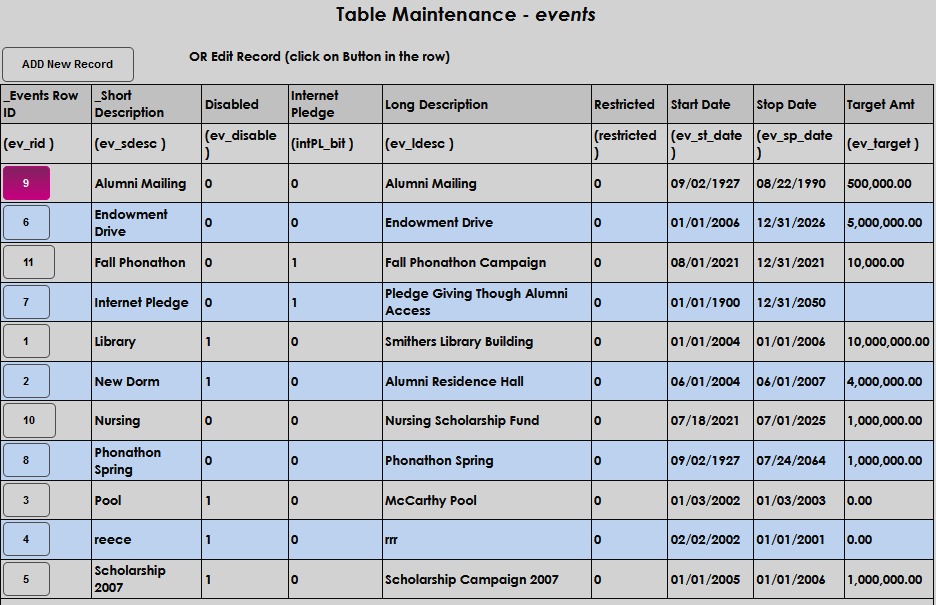
Edit the desired content. In this example, the Alumni Mailing is being reactivated by updating the Stop Date to a date in the future.

Select Submit to save the updates.
