Transaction Codes
Overview
Transaction codes, also called T-codes, are the method that the Jenzabar SONIS system uses to identify and group various types of transactions. T-codes can be used to denote whether a transaction is a charge or a credit/payment, how the transaction will be included or withheld from the student's tax records, and many other characteristics. Transaction codes are created and edited using the Transaction Codes utility located in the Systems hub. T-codes can be associated with fields in a school's general ledger software using the Transaction Code Mappings utility.
Transaction Code Setup
Fields & Boxes
The following is a guide to the fields and checkboxes available when setting up t-codes, along with an explanation of what each option does. The Awards code is used as an example here as it's a standard code used in every institution's system.
Warning
The pre-installed, delivered, t-codes of AW (Awards) and TR (Transfers) should not be altered for any reason.
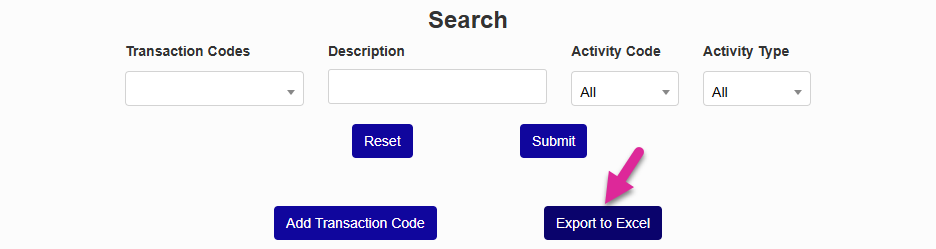
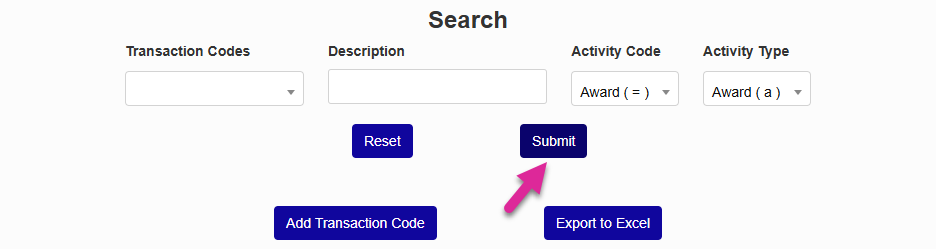
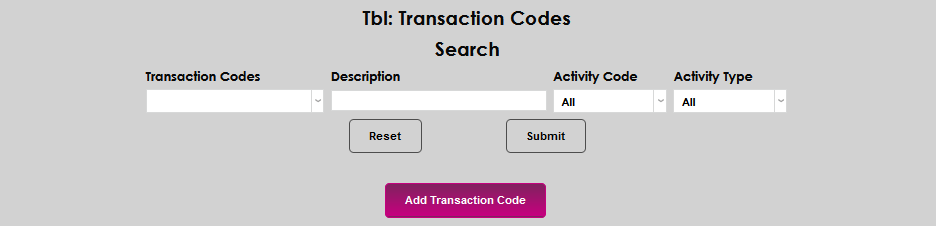
When first entering the page, a Search is displayed. To work with an existing transaction code, select the code from the Transaction Codes drop-down menu. Or you can search for the code you want to edit using any combination of the Description, Activity Code, and Activity Type menus.
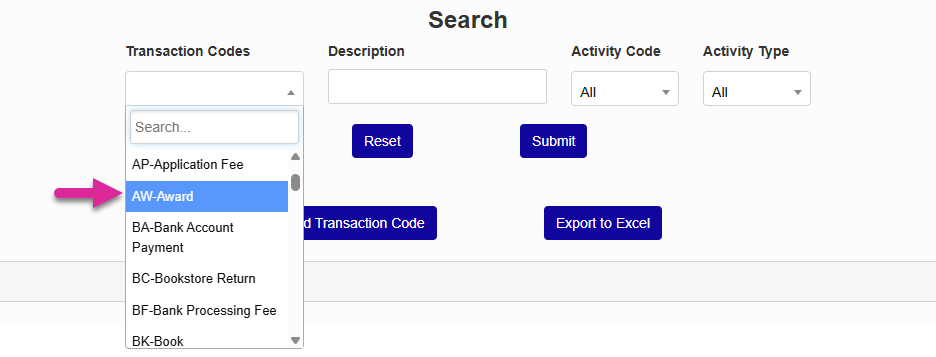
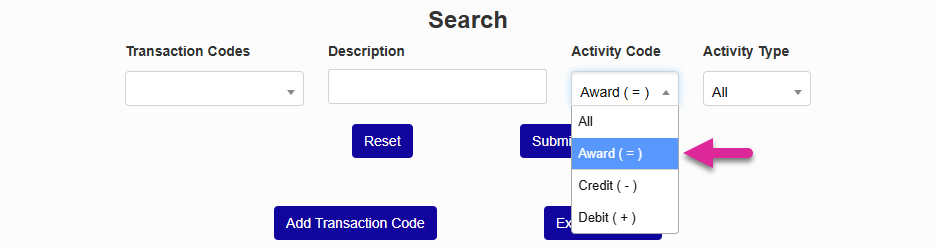
Click Submit to perform a search based on your selection(s).
The search results are displayed in a table. You can sort each column in ascending or descending order using the up and down arrows in the header row. There's a Search box you can use to locate a specific T-code. The search narrows down the list as you type.
Use the Show menu to control how many rows display per page and the Previous, Next, and number links to navigate between pages.
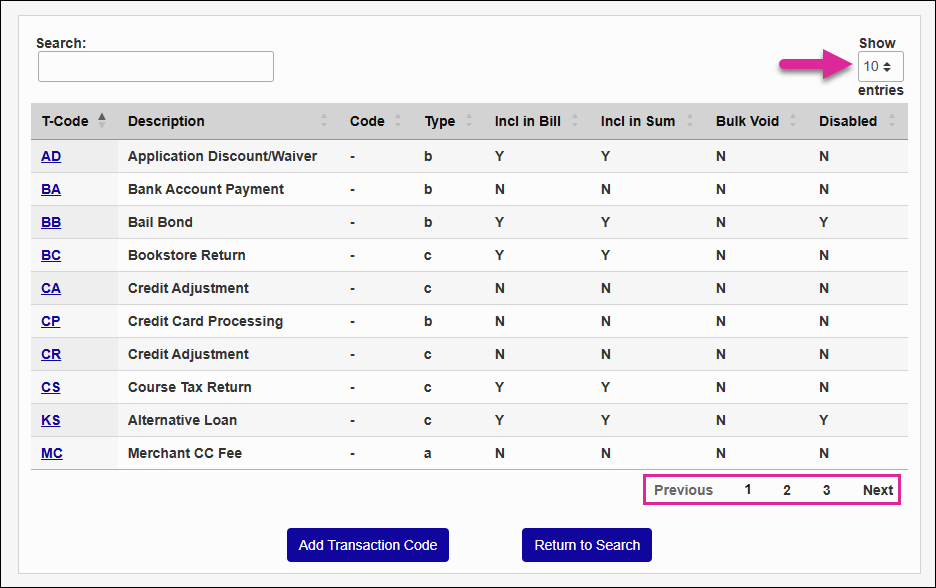
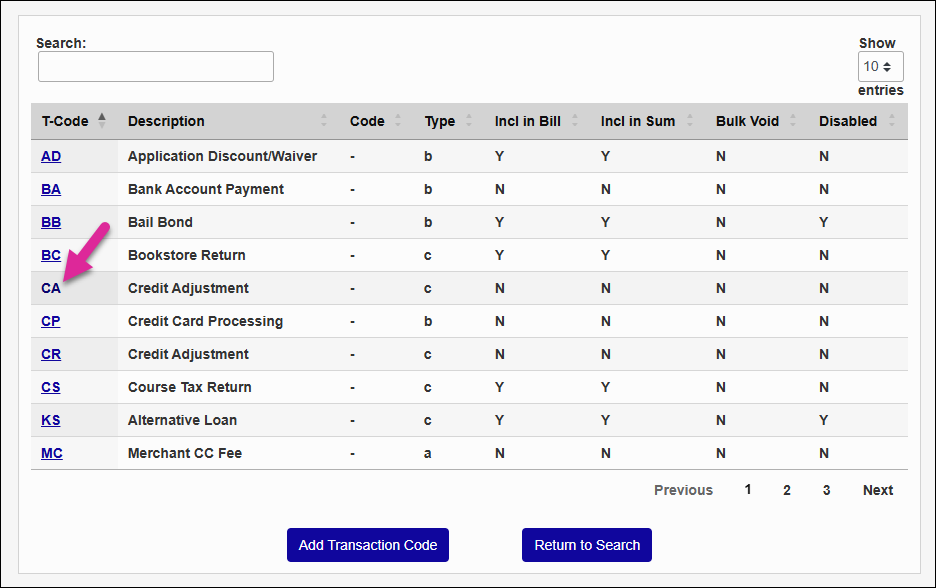
Click a two-character T-Code to proceed.
The two-character name of the t-code as it is used in the database displays at the top of the page with the description and in the upper-left corner. The long-form Description of what the code is used for can be up to 50 characters, though most descriptions will likely be far shorter than that.
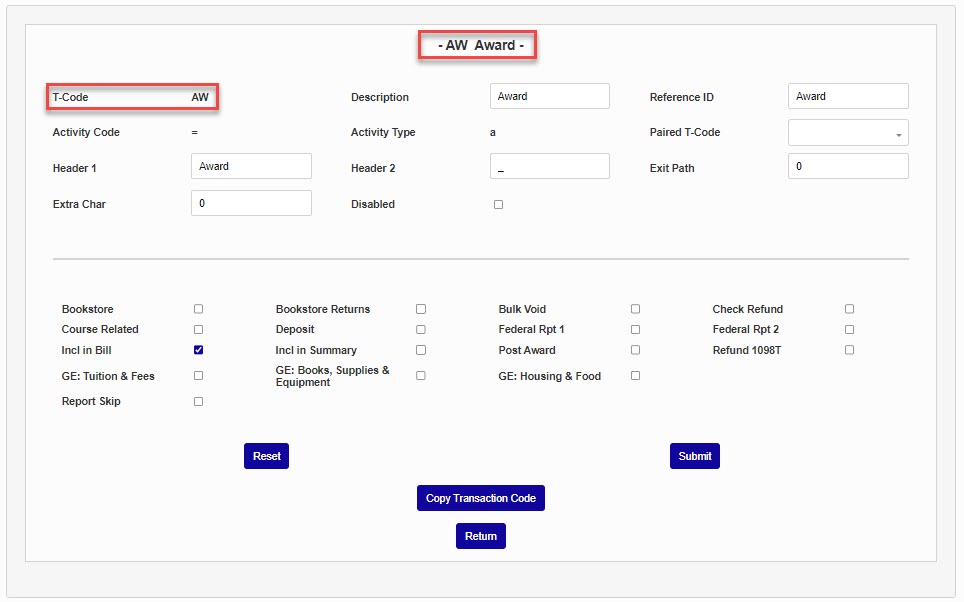
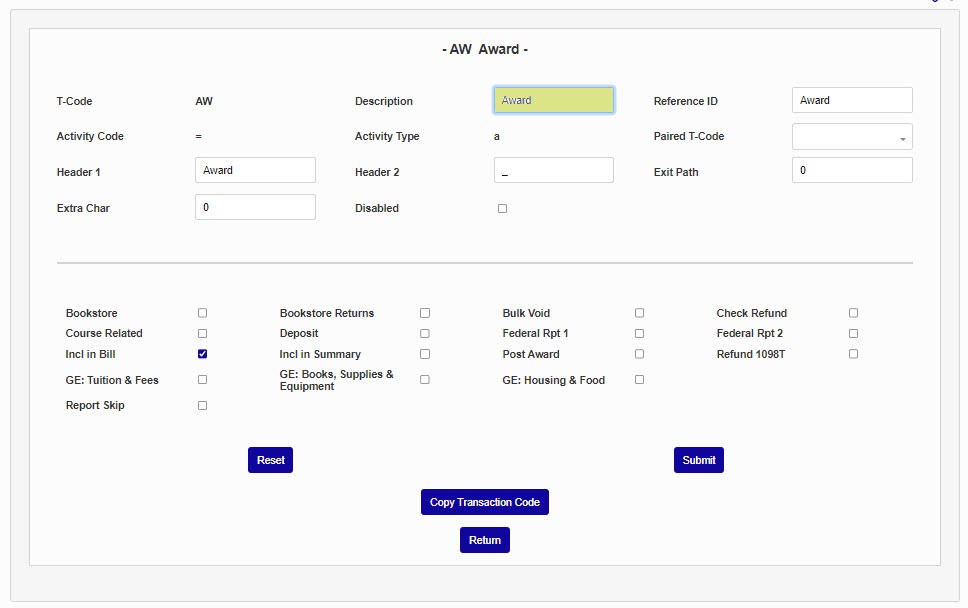
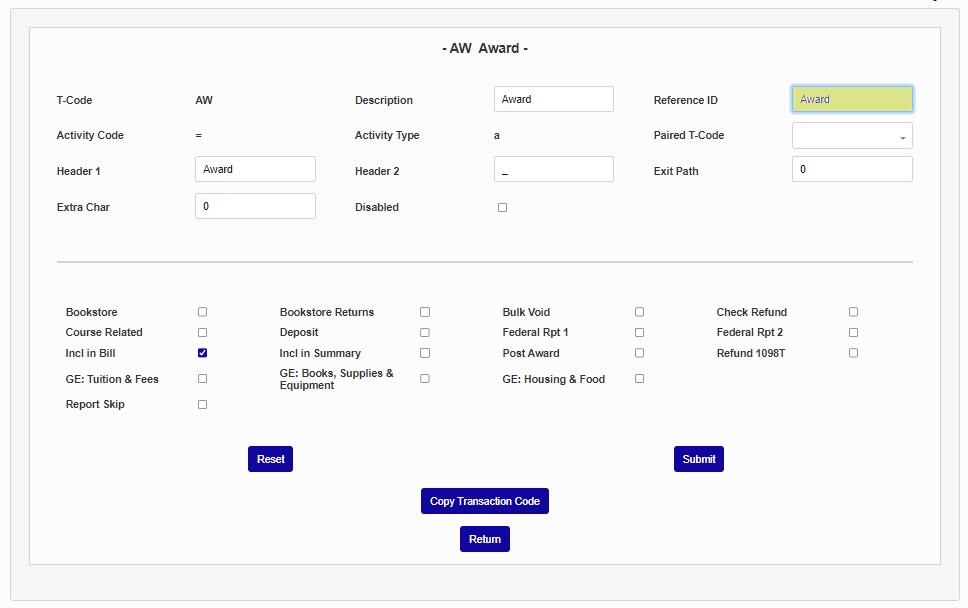
The Reference ID is another way to describe the code. In most cases, the reference ID will be the same as the Description, but it does not have to be. Some pages in SONIS will display the Description field while others display the Reference ID. The Reference ID field has a 35 character limit.
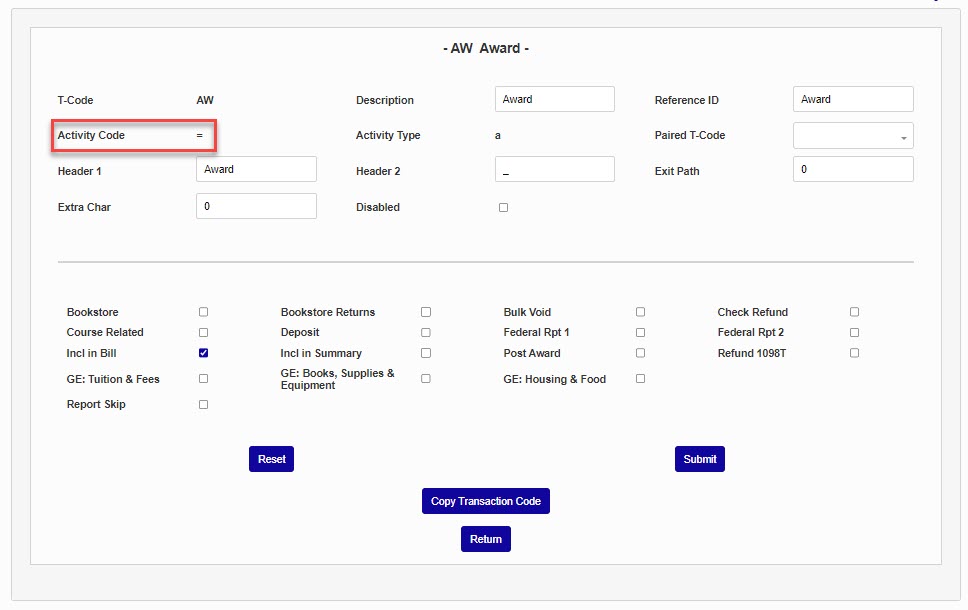
The activity code essentially describes what will happen to the user's account when the t-code is used on it. Once a transaction code has been used, the activity code cannot be changed. This prevents historical transaction data from being altered. There are three activity codes:
+ , which denotes a charge and means that a user's account balance is increasing,
– , which denotes a payment and means that a user's account balance is decreasing, and
= , which denotes a projected transaction and is used for awards that are anticipated/have not yet been disbursed.
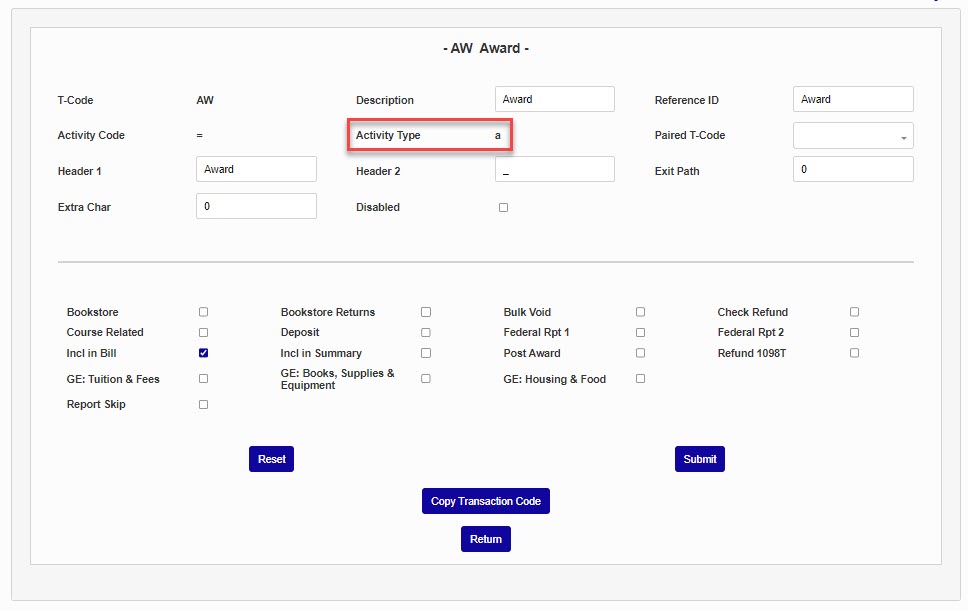
The Activity Type is another way to identify the type of transaction being performed. It can either be a, b, c, or h. Once a transaction code has been used, the activity type cannot be changed. This prevents historical transaction data from being altered
The a code is used for AW/Award codes.
The b code is used for debits and charges.
The c code is used for credits and payments.
The h code is used for housing-related transactions and can be either credits or debits.
Note
The Activity Type field should not to be confused with the activity type label used as part of the Jenzabar SONIS Activities function for tracking student communications.
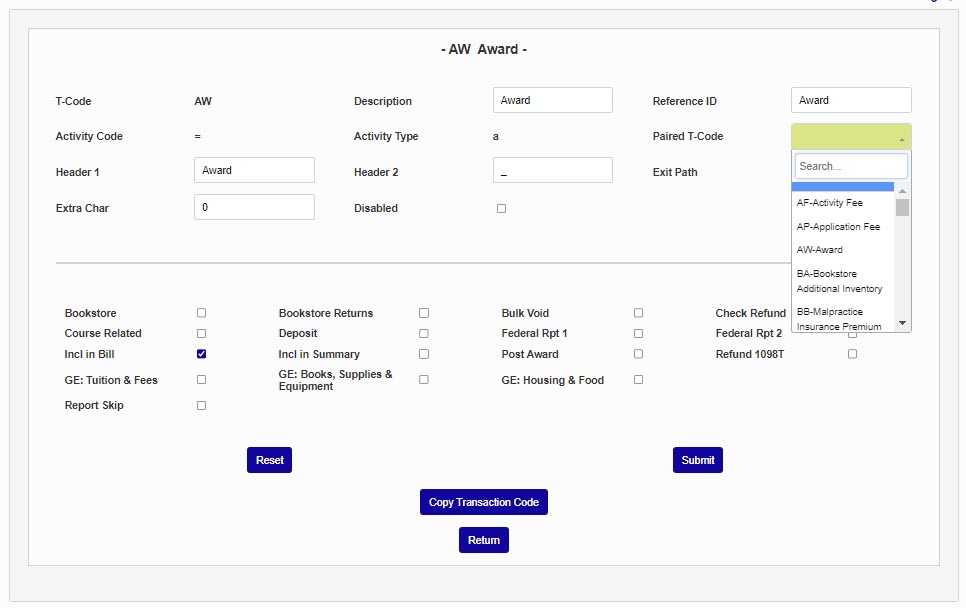
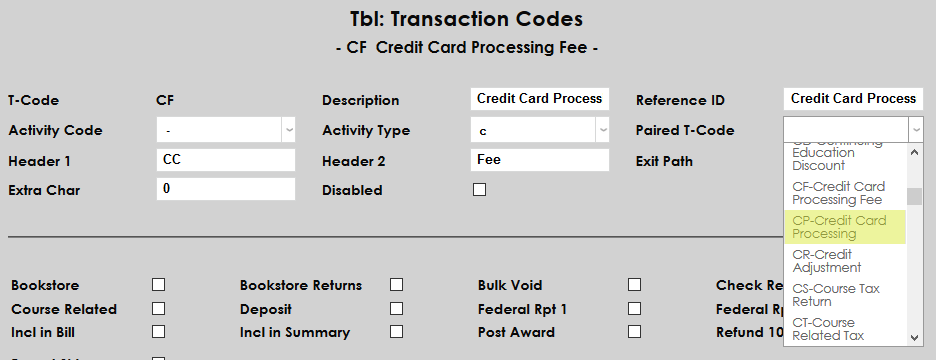
The Paired T-code field is used to link two different t-codes. Whenever a transaction with the linked code is added, an equal transaction of the opposite code will be added as well for the purpose of offsetting the transaction. This process is explained in more detail below. All t-codes are listed in the dropdown as an option to be paired. Generally speaking, t-codes are not paired. One example for pairing is an online application payment, which would be paired with an application fee in an identical amount – thus offsetting the payment and not crediting the account.
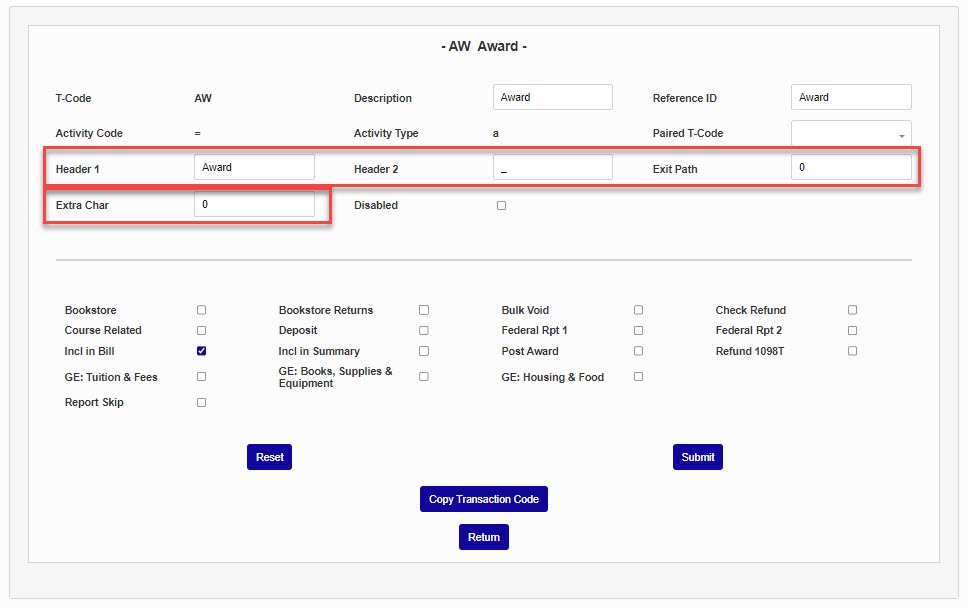
The Header 1, Header 2, Exit Path, and Extra Char fields are not currently used by the SONIS system, though some of them may be used in the future. Explanatory content may be added in these boxes, if desired.
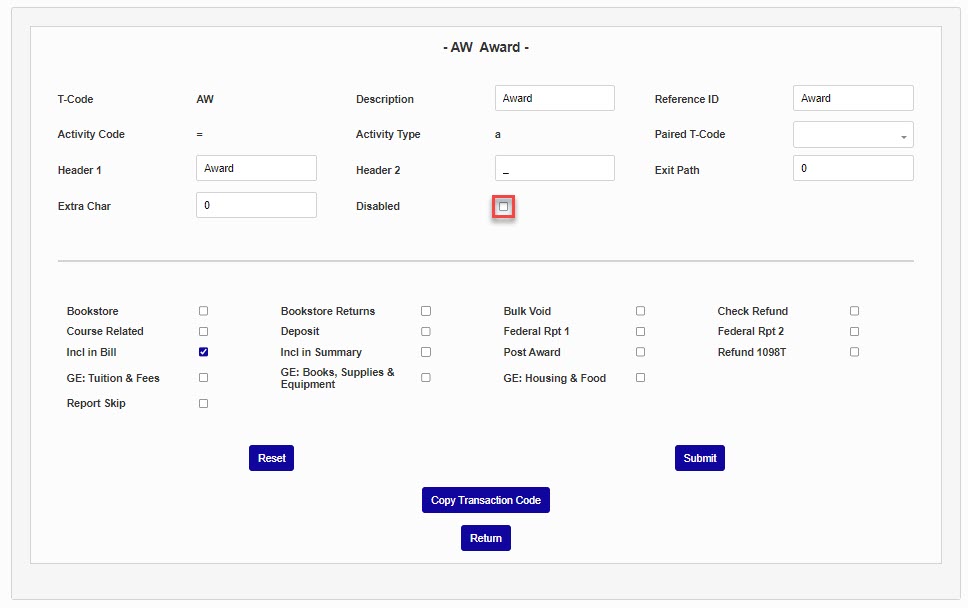
Checking the Disabled box disables the t-code, preventing it from appearing as an option in menus.
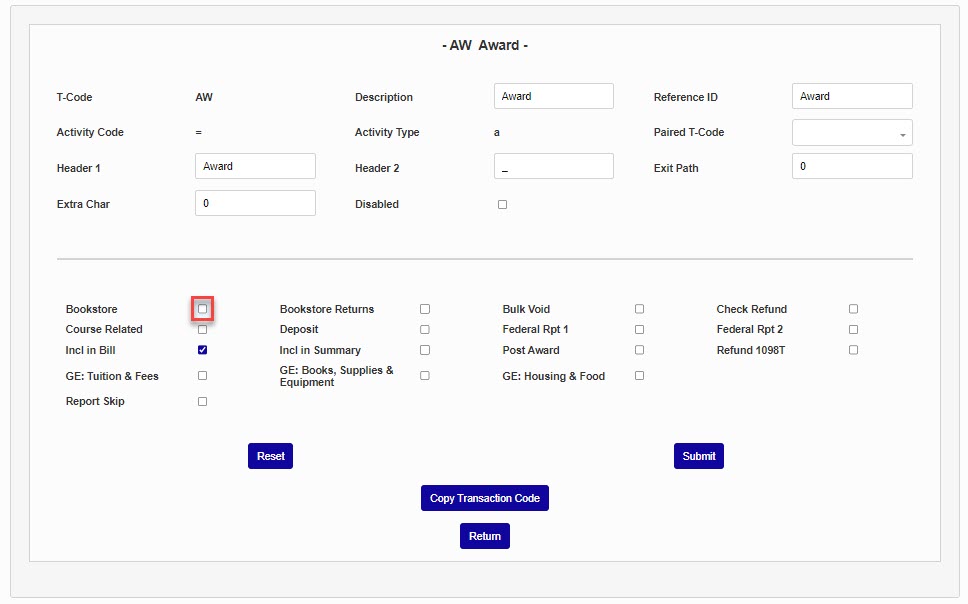
Checking the Bookstore box allows the t-code to be used for purchases in the optional bookstore functions in SONIS. Selecting the Bookstore Returns box enables the t-code for returns in the optional Bookstore functions in SONIS.
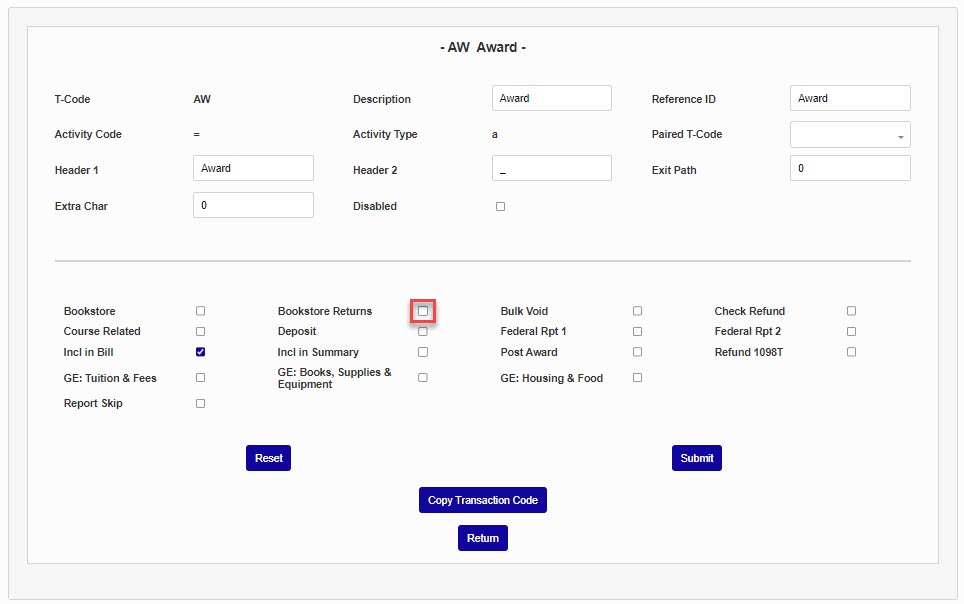
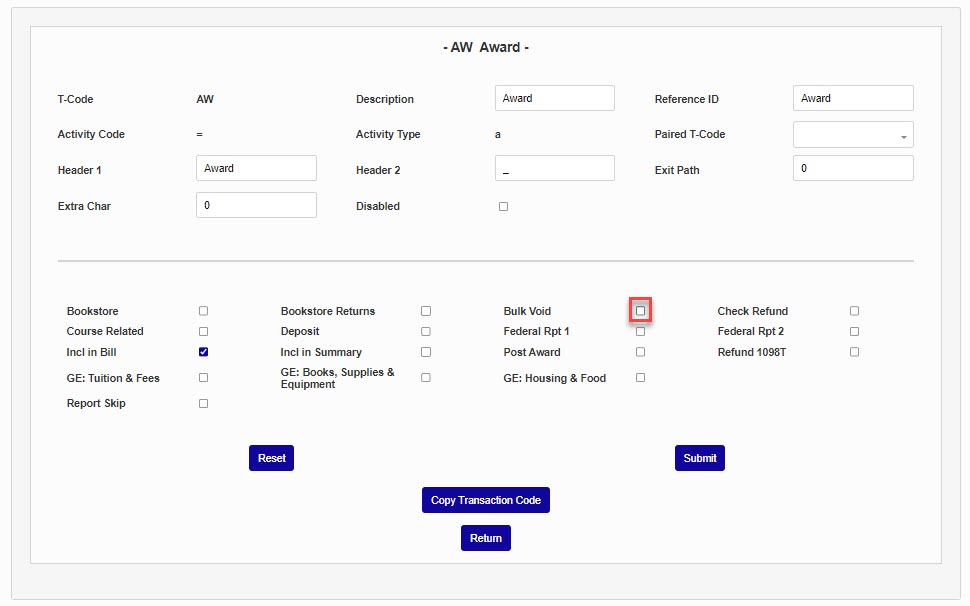
Checking the Bulk Void box to include the t-code in the Bulk Void function.
Note
SONIS Services recommends that administrators leave the box unchecked by default and only check it when the need arises to prevent unintentional bulk voids.
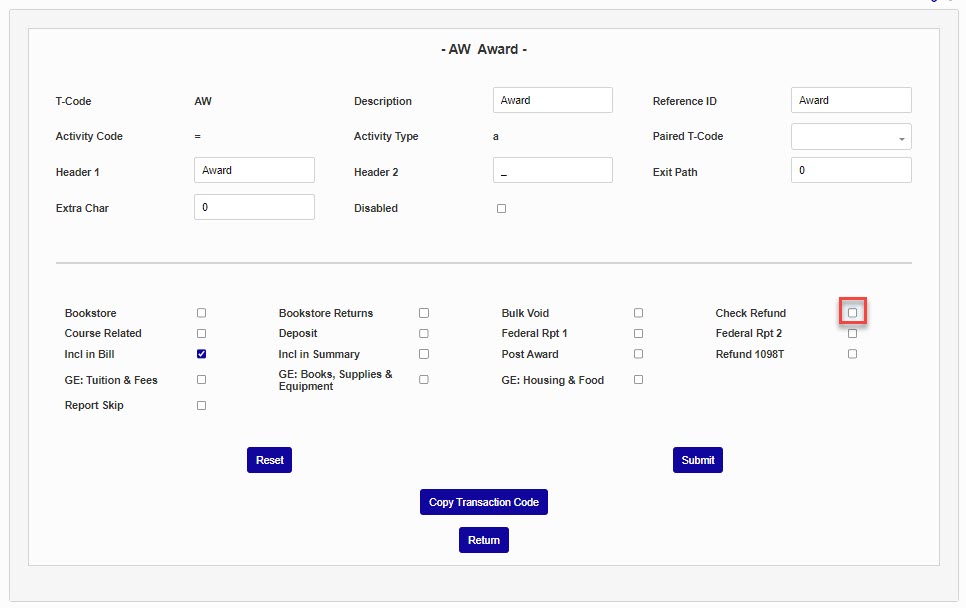
Checking the Check Refund box will label transactions made under the t-code as refund check transactions on the student account.
Note
SONIS does not generate refund checks.
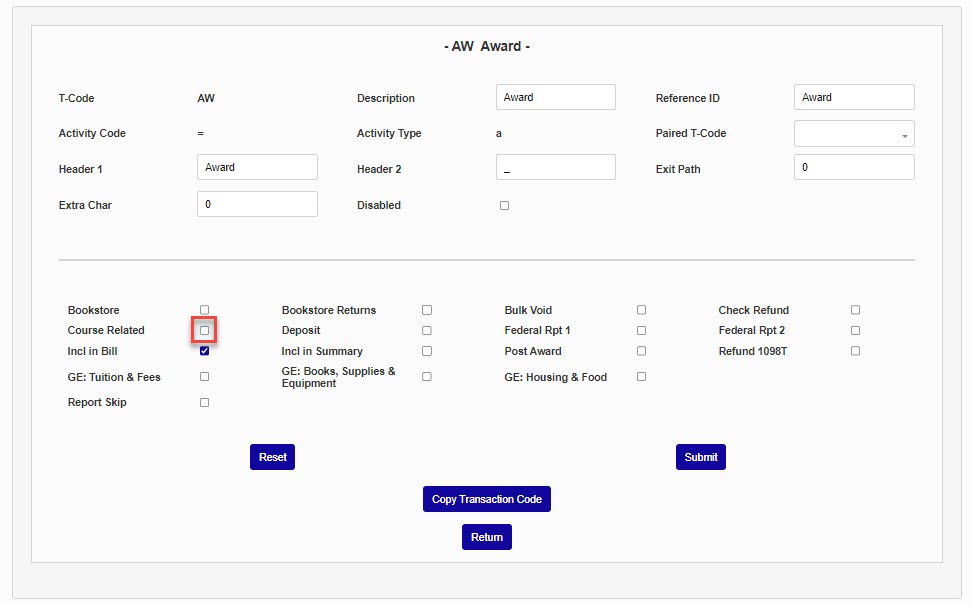
Checking the Course Related box identifies transactions made under the t-code as course-related transactions. For example: lab fees, studio fees, and special program fees.
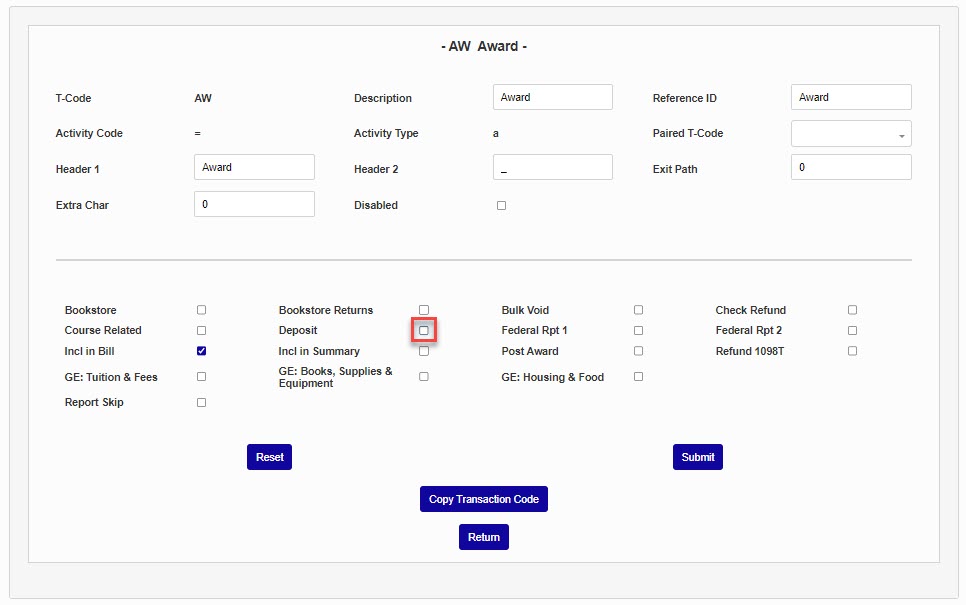
Checking the Deposit box identifies transactions made under the t-code as enrollment deposits. The checkbox is also used in some Oklahoma tech center-specific functions.
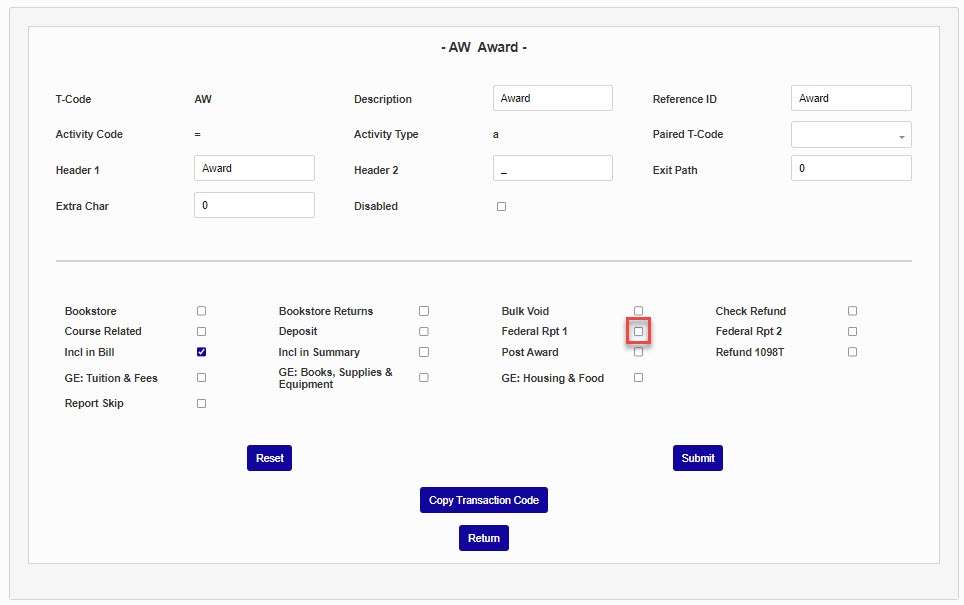
The Federal Report 1 box identifies transactions made under the t-code as 1098-T eligible charges and payments. For more about 1098-T setup, see the following section, as well as the IRS 1098-T article.
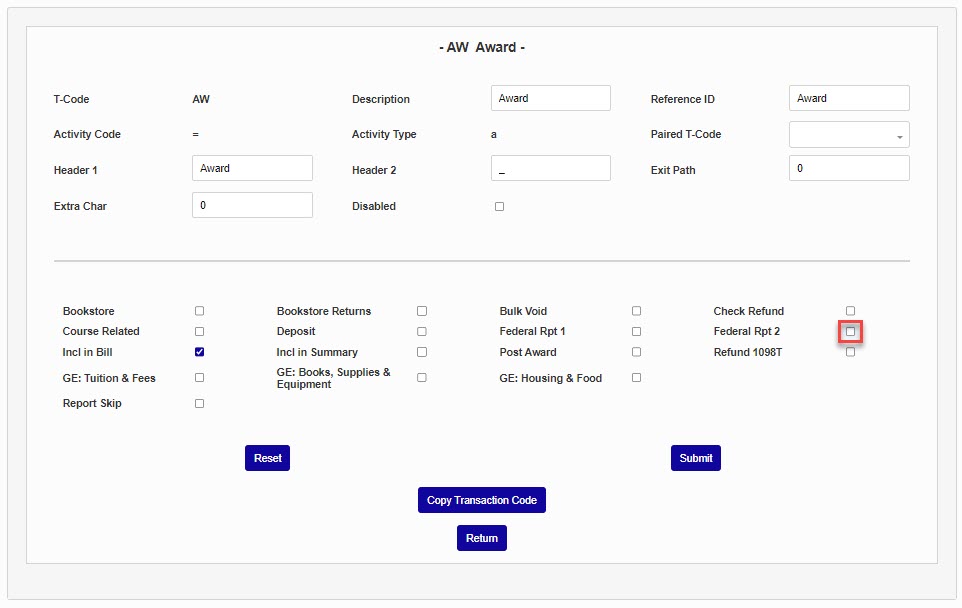
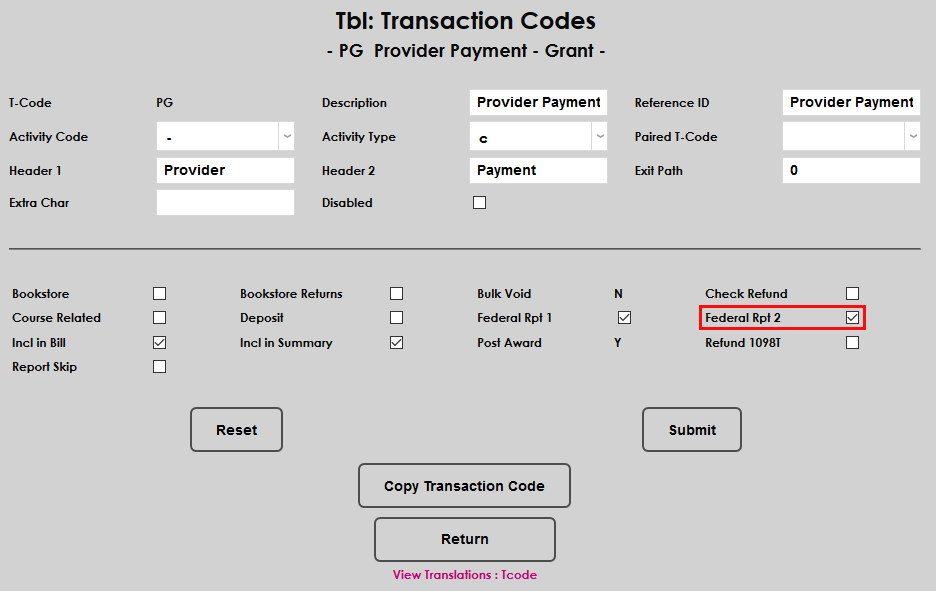
The Federal Report 2 box identifies transactions made under the t-code as 1098-T eligible scholarship and grant payments. For more about 1098-T setup, see the following section, as well as the IRS 1098-T article.
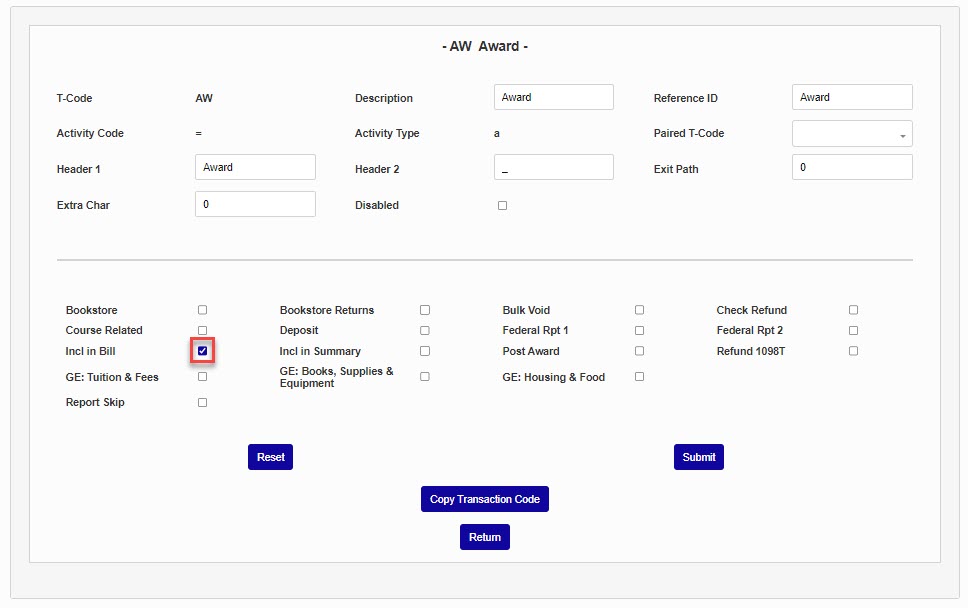
Checking the Include in Bill box ensures that charges made under the selected t-code will be included on student billing and report pages.
Checking the Include in Summary box ensures that charges made under the selected t-code will be included in certain financial reports.
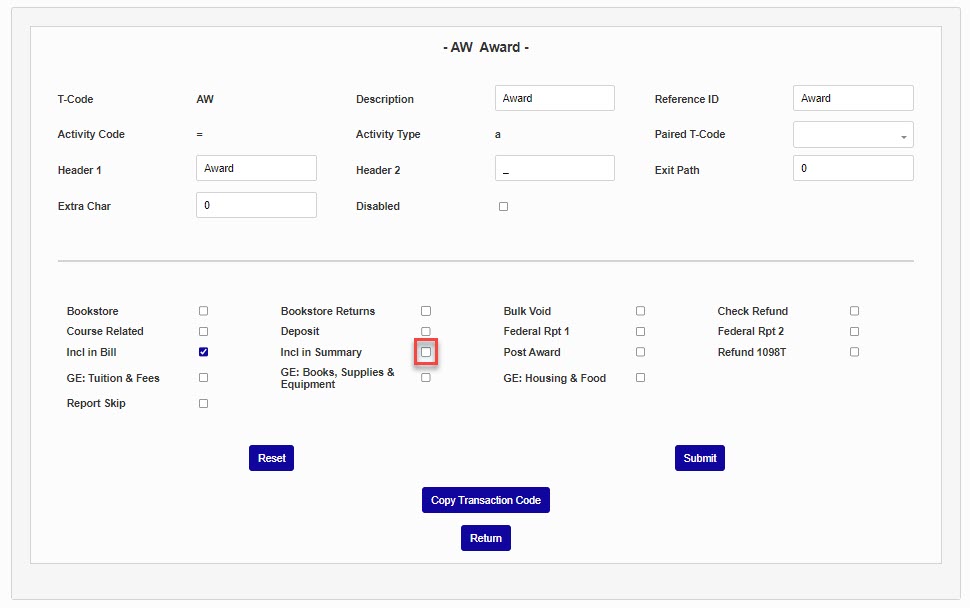
Checking the Post Award box identifies transactions made under the t-code as payments or disbursements of a financial aid award.
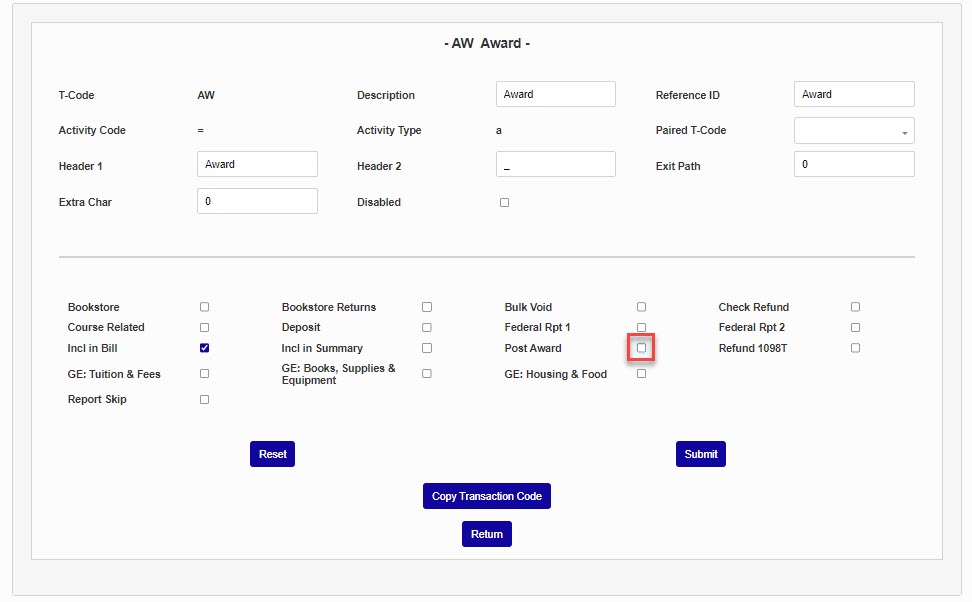
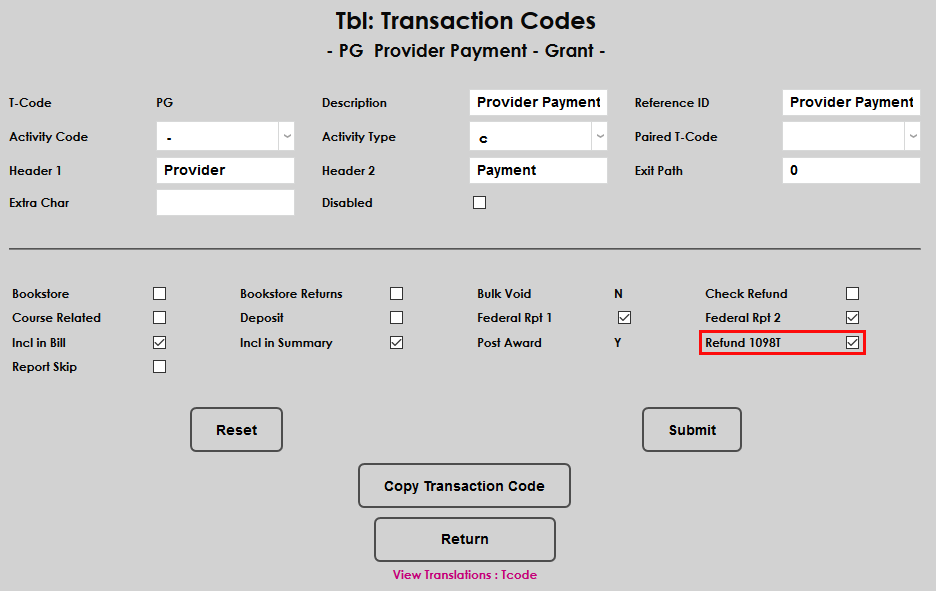
Checking the Refund 1098-T box identifies 1098-T Current Year and Prior Year Adjustments. At least one t-code should be created specifically for this purpose, to keep such transactions separate from other 1098-T eligible transactions. For more about 1098-T setup, see the following section, as well as the IRS 1098-T article.
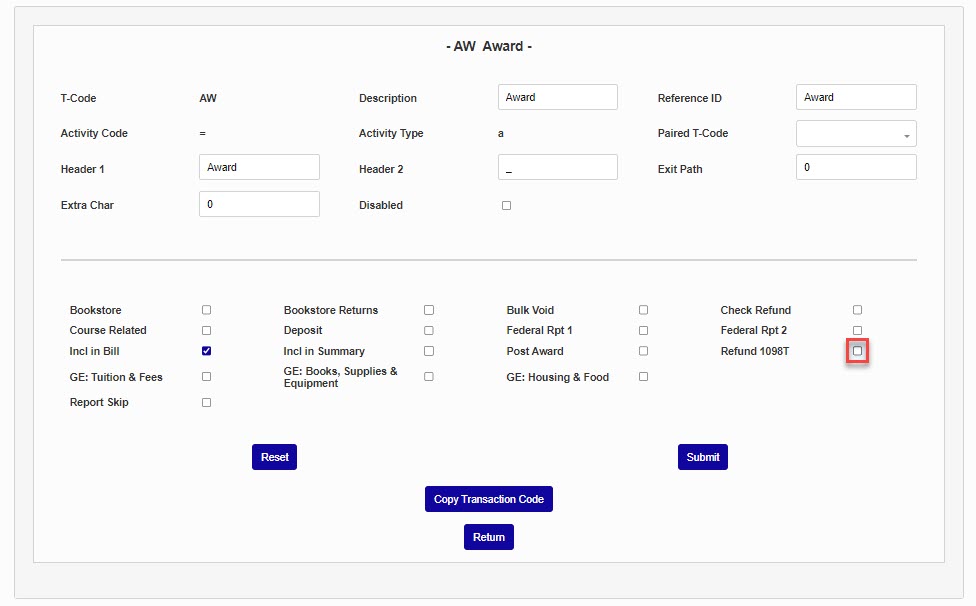
Checking the Report Skip box excludes transactions made with this t-code code from all reports.
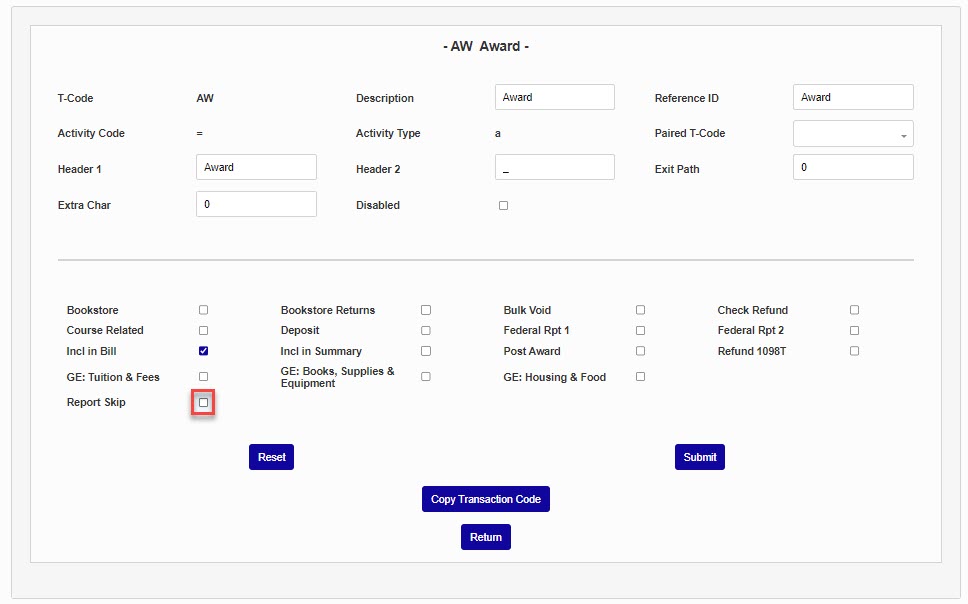
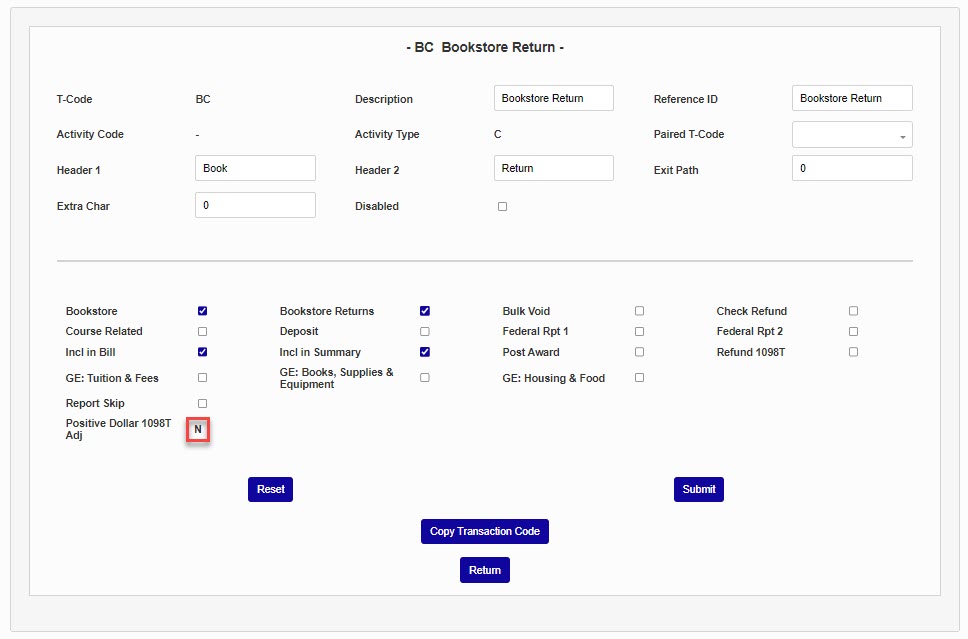
The Positive Dollar 1098T Adj box does not display or populate on the page until after a t-code with an activity code of - and an activity type of c with the Federal Rpt 1 box checked has been created. For more information on its use, see the section, below, on Positive Dollar Adjustments.
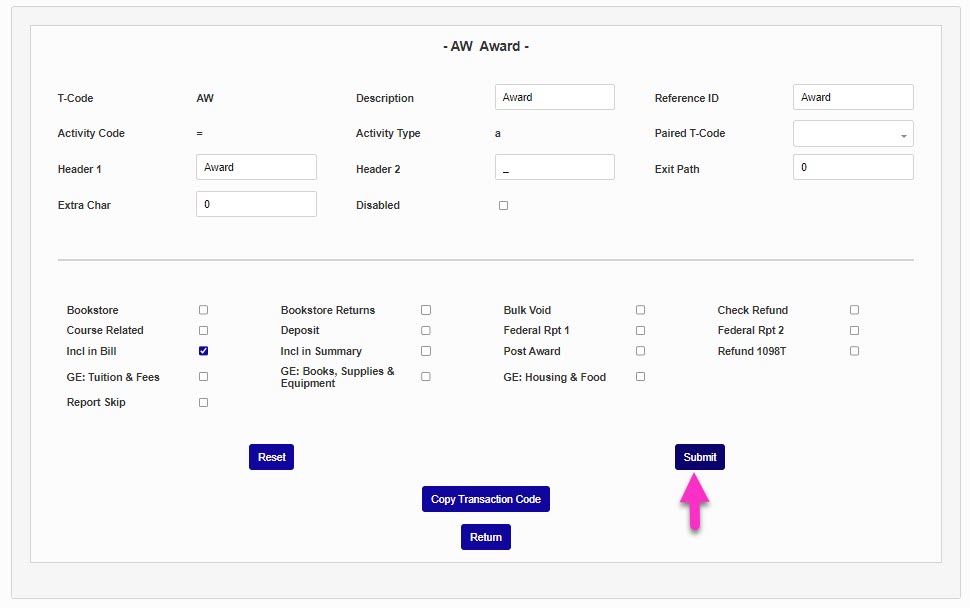
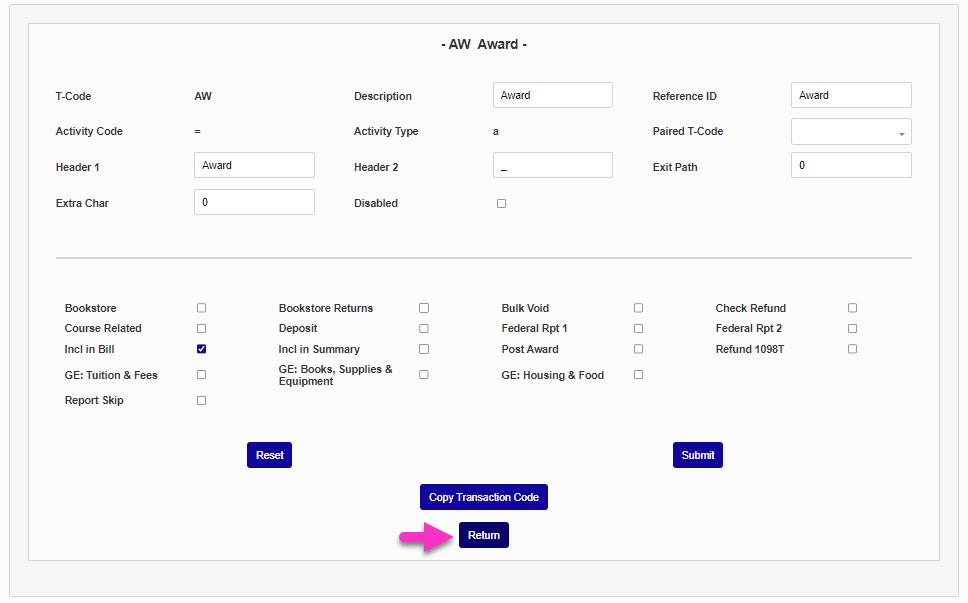
After confirming that the t-code is set up as desired, click Submit to save any updates, or Return to leave without making any changes.
Gainful Employment Specific Settings
When a t-code will be included in Gainful Employment reporting student cost calculations, it must be set up appropriately. T-codes can be set up individually through the Transaction Codes page, or in groups on the Bulk: Transaction Codes page. To indicate that a t-code should be included in calculations determining the amount of tuition and fees paid by a student, check the GE: Tuition & Fees box.
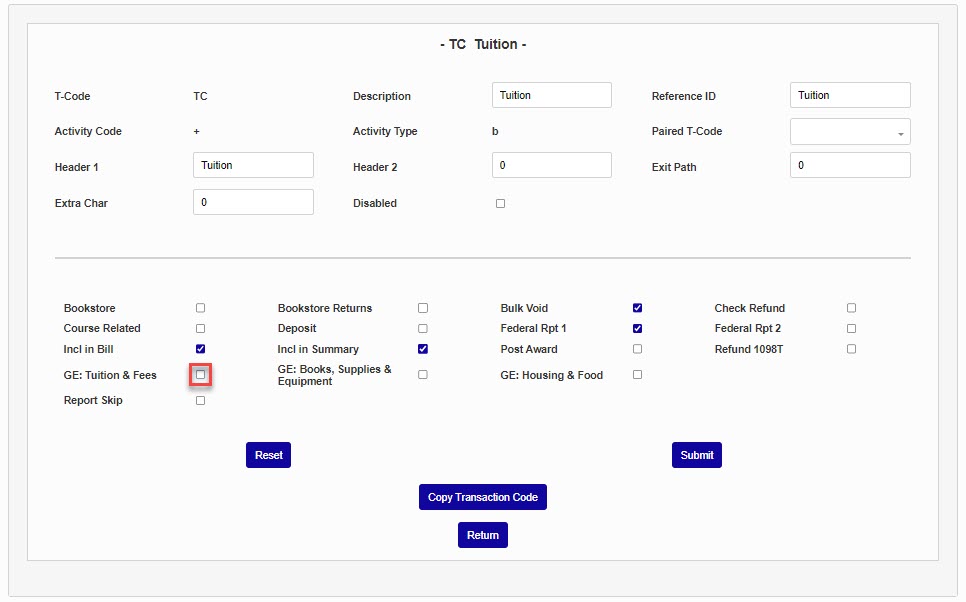
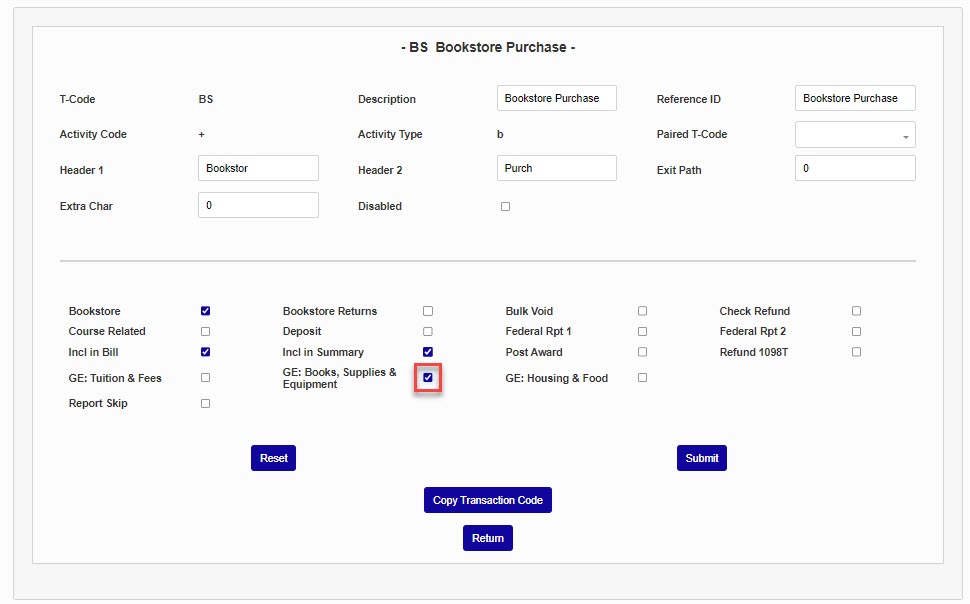
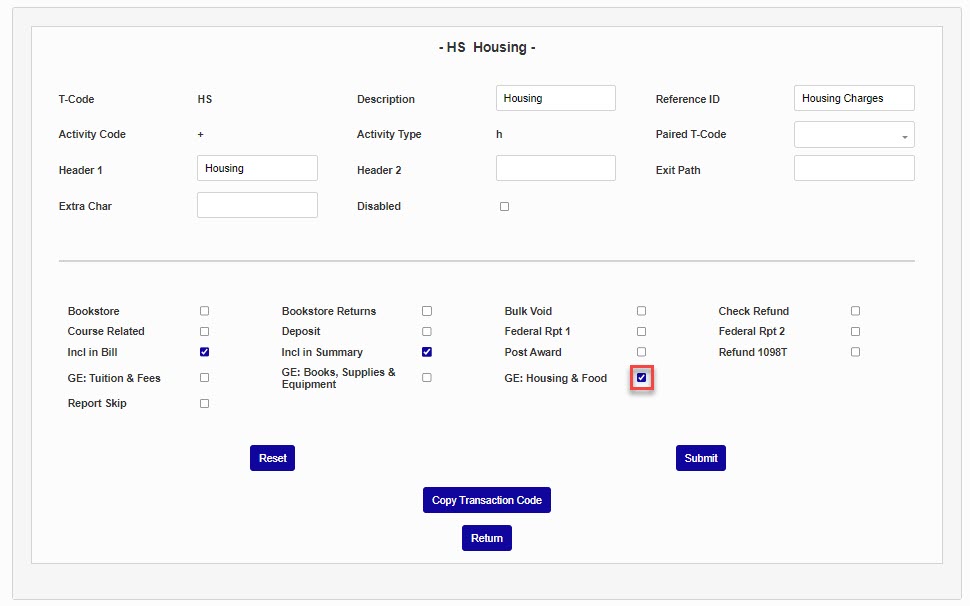
If transactions associated with a t-code should be considered in calculations determining the amount a student paid for books, supplies, and equipment, click the GE: Books, Supplies & Equipment box. If a t-code is associated with housing and/or food and should be included in the calculations of how much a student paid the institution for housing and/or food, click the GE: Housing & Food box. Click Submit to save any updated values.
Taxable Charges & Credits
Charges and credits that will appear on a student's 1098-T form must be set up in a specific way or the SONIS system will not calculate the student's taxes correctly. What follow is the process to set up each type of transaction. For more on the 1098-T process, visit the IRS 1098-T article.
QTRE Charges
According to the IRS, “Qualified tuition and related expenses (QTRE) are tuition, fees, and course materials required for a student to be enrolled at or attend an eligible educational institution.” The only payments that are eligible to be included are payments made for QTRE. Under IRS rules, schools may assume that all payments received go first toward QTRE and then to nonqualified expenses such as room and board. The one exception is any financial aid that specifies that it cannot be used to pay QTRE. For example, a scholarship for room and board only.
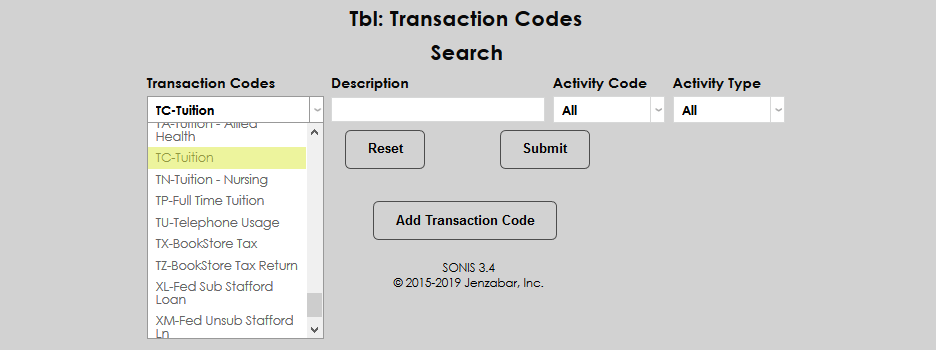
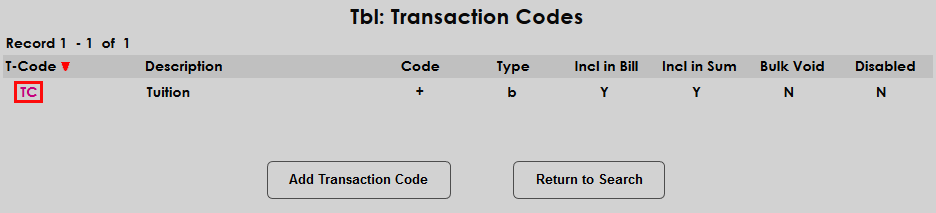
To create and edit QTRE t-codes in SONIS, navigate to the Transaction Codes table in the Systems hub. Click Add Transaction Code to create a new t-code or select a preexisting code from the Transaction Codes dropdown menu and click Submit to edit that code. Users can also enter a search term in the Description field and click Submit to narrow down the list.
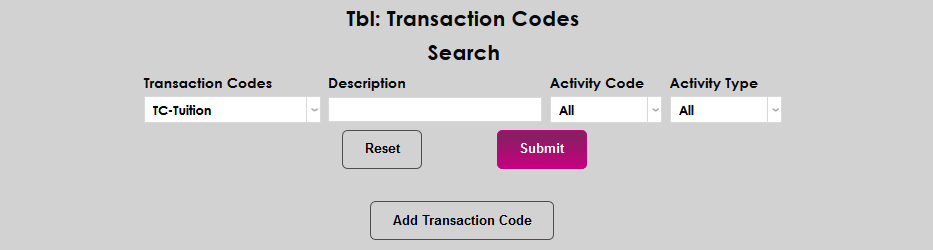
To edit an existing code, click on the t-code's abbreviation in the T-Code column.
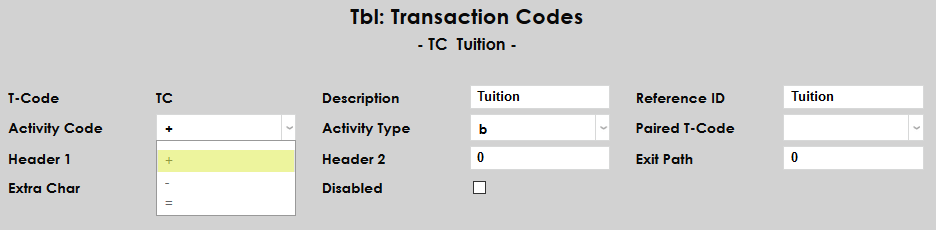
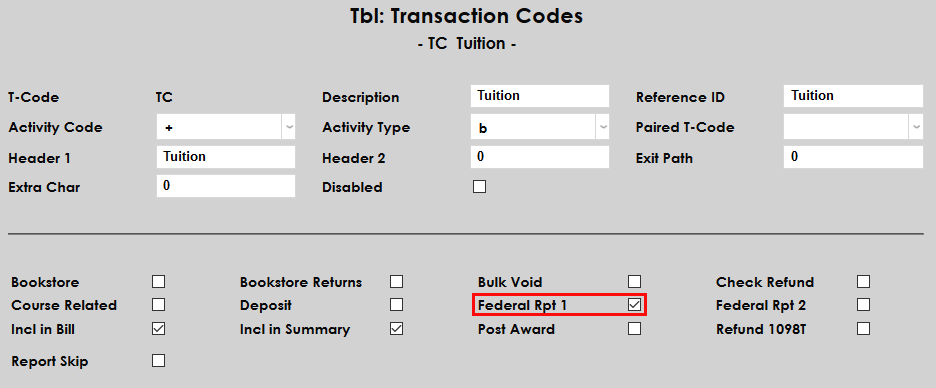
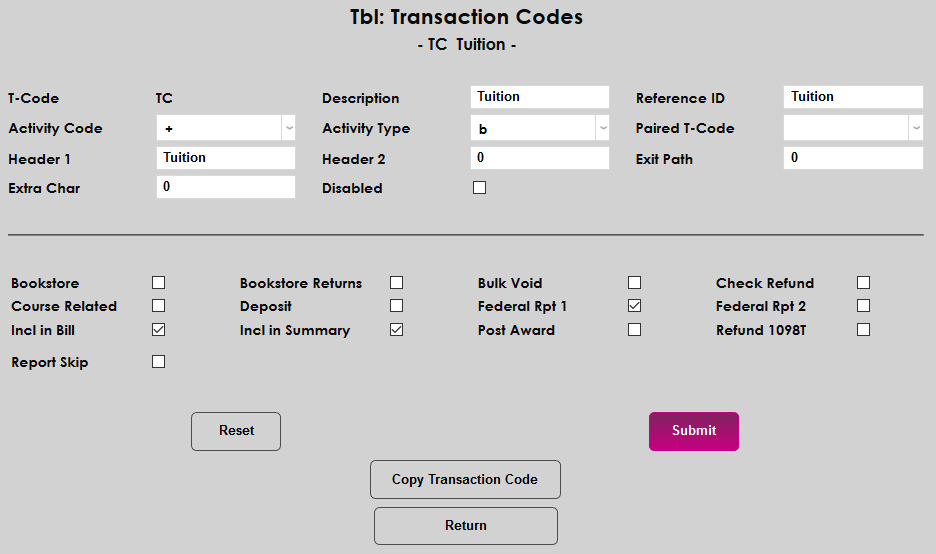
For all QTRE charges, the Activity Code of the associated t-code must be + and the Federal Report 1 box must be checked.
Click Submit to save the changes and update or create the t-code.
Student Payments
As with charges, only QTRE payments will be included in the 1098-T. To create and edit student payment transaction codes, visit the Transaction Codes table under the Systems menu. Click Add Transaction Code to create a new t-code or select a preexisting code from the Transaction Codes dropdown menu and click Submit to edit that code. Users can also enter a search term and click Submit to narrow down the list.
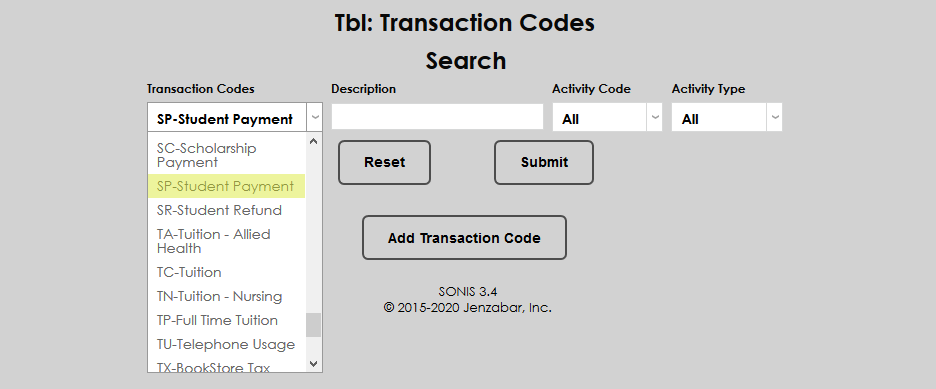
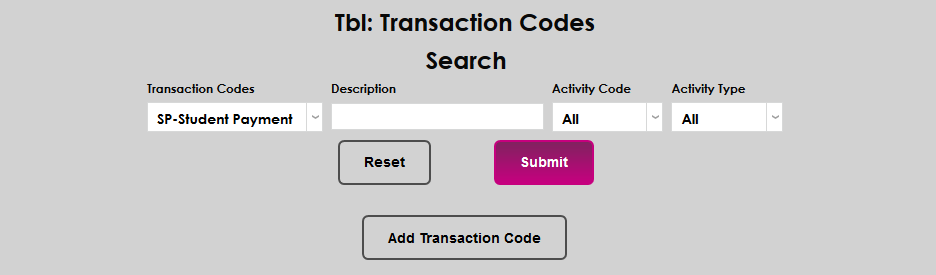
On the following page, click the abbreviation of the code under the T-Code column.
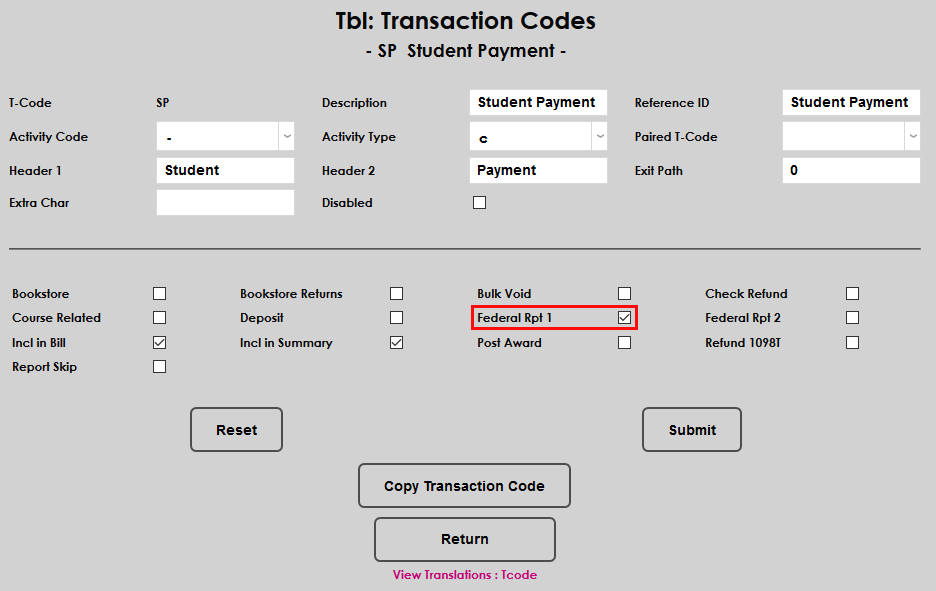
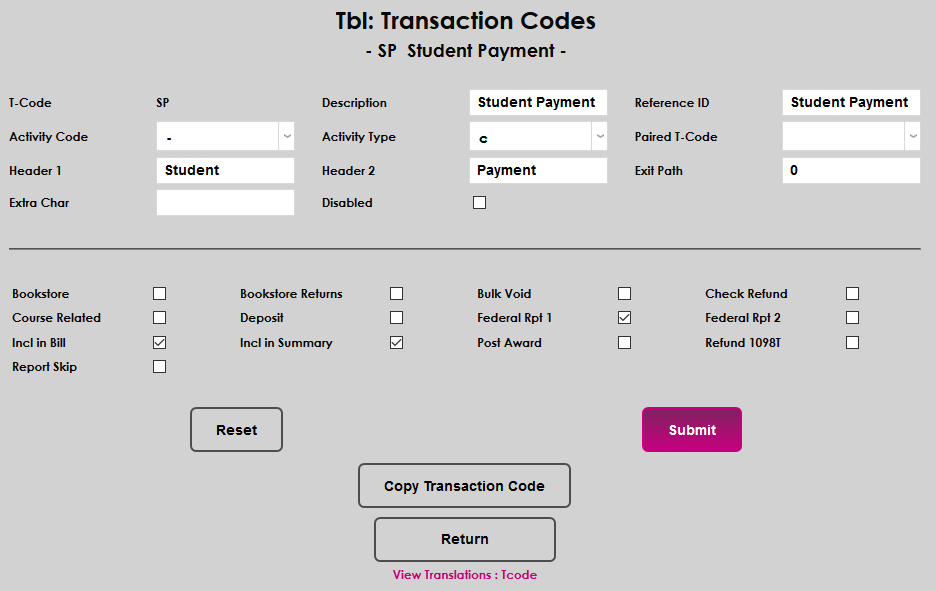
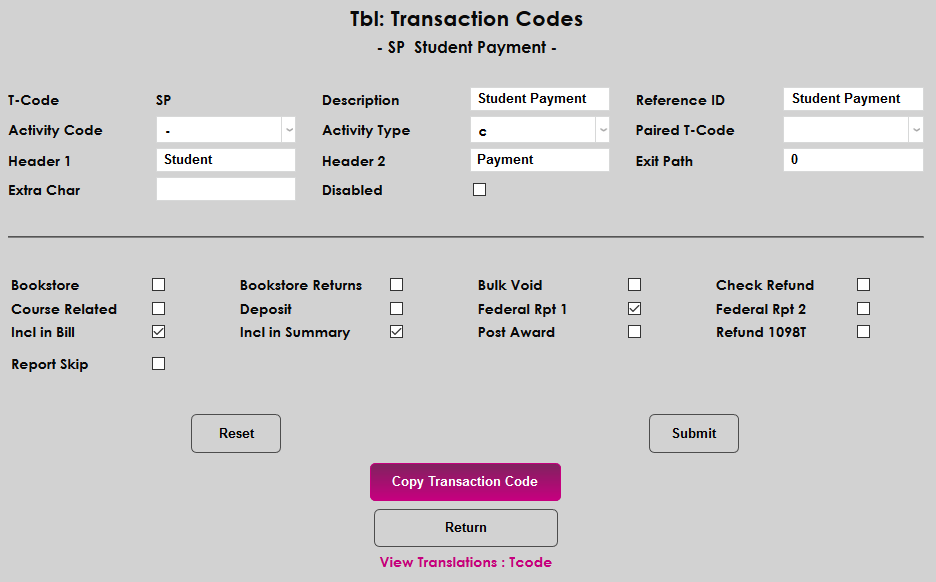
Most schools use a Student Payment (SP) t-code to document the majority of student payments. Those who wish to provide more differentiation between types of payments can set up additional codes. Regardless, payment codes to be documented by the IRS utility must be set up as in the following example with the Federal Report 1 box checked. In addition, all payment t-codes must have an Activity Code of - and an Activity Type of c . Once the code is set up properly, click Submit to save the changes.
Provider Payments
Transaction codes for Provider Payments must also be set up properly in order for those payments to be included in student 1098-T forms. To create and edit transaction codes, visit the Transaction Codes table under the Systems menu. Click Add Transaction Code to create a new t-code or select a preexisting code from the Transaction Codes dropdown menu and click Submit to edit that code. Users can also enter a search term and click submit to narrow down the list.
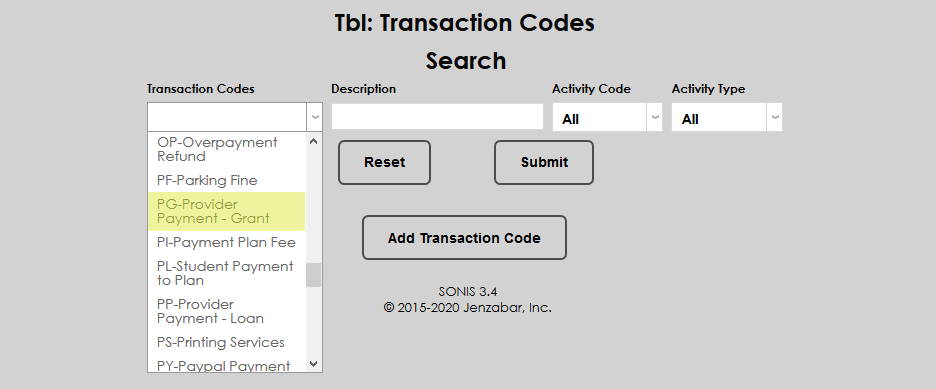
On the following page, click the abbreviation of the code under the T-code column.
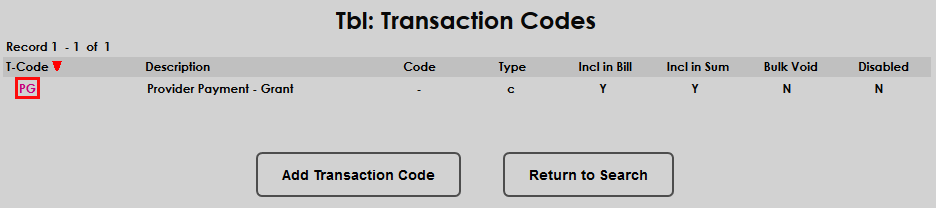
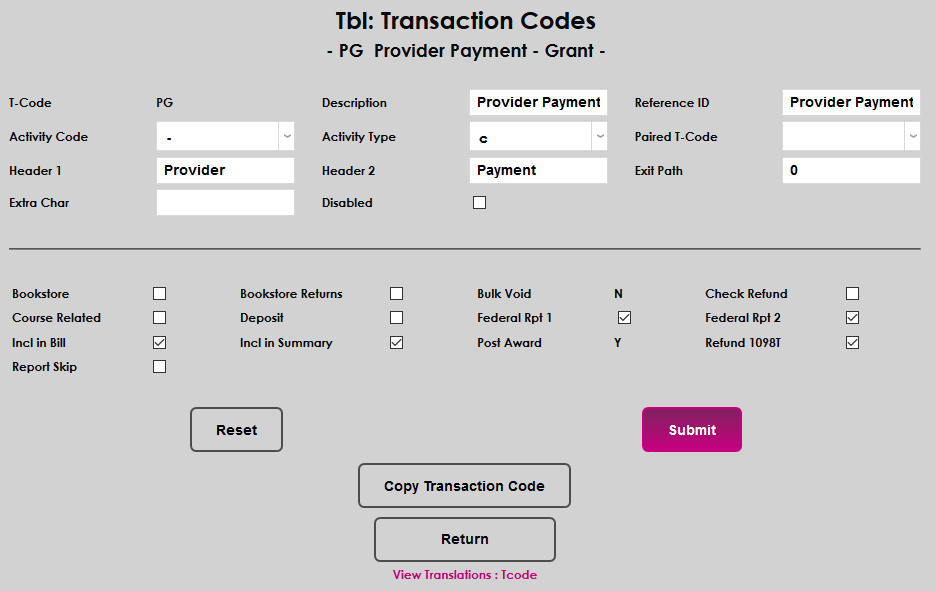
Most schools use Provider Payment t-codes to document loan and grant/scholarship payments to students. All payment t-codes must have an Activity Code of - and an Activity Type of c . Codes set up to handle loan payments should have the Federal Report 1 box checked. Codes set up to handle scholarships and grants should have the Federal Report 2 box checked. Checking Federal Report 2 box tells SONIS to include these transactions in Box 5 on the 1098-T form.
Note that opinions vary on whether scholarship and grant payments should be included in Box 1 on the 1098-T or not. To include these payments, check the Federal Rpt 1 box. To exclude them, ensure that it is not checked. Please consult a licensed accountant for additional questions on this matter.
To reduce the amount of scholarships or grants that were reported in a prior year, schools must post a transaction with a t-code that has been configured with the Refund 1098T box checked. Once the code is set up properly, click Submit to save the changes.
Positive Dollar Adjustments
There are two ways to make adjustments to student balances: by entering a negative dollar amount with a positive transaction code or by entering a positive dollar amount with a negative transaction code. While most SONIS member institutions perform adjustments using the former method, both are valid. However, the second method will not be reflected correctly in the student's 1098-T without an additional step being taken. When a school uses a credit-defined t-code ( -/ c) with a positive dollar amount to effect an adjustment, the checkbox labeled Positive Dollar 1098T Adj must be checked.
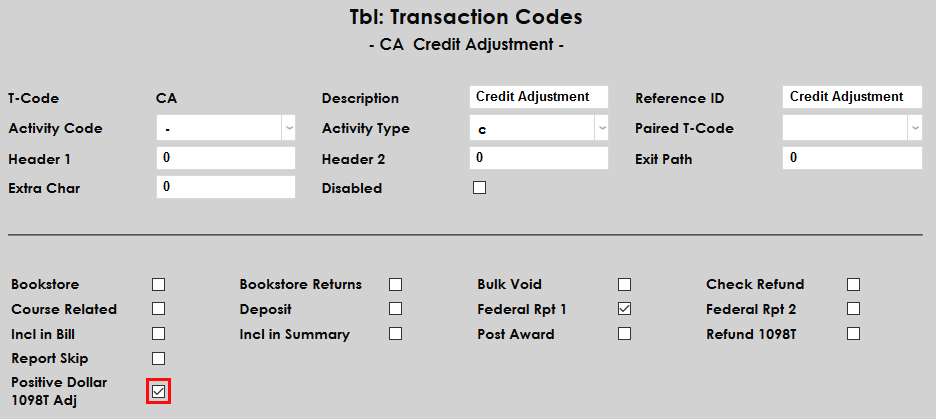
The box does not appear as editable until after a t-code with an activity code of - and an activity type of c with the Federal Report 1 box checked has been created.
T-Code Pairing
T-code pairing is a function that creates automatic matching transactions. This is done to provide an offset for payments that do not have an antecedent, preventing users from having a positive balance. For example, institutions pair their – application fee transaction code with an offsetting + charge that appears automatically when a student pays an application fee. Without doing so, each student who paid an application fee would have a positive balance of the amount they paid until the application fee charge was added manually. T-code pairing automates this process, saving time and effort.
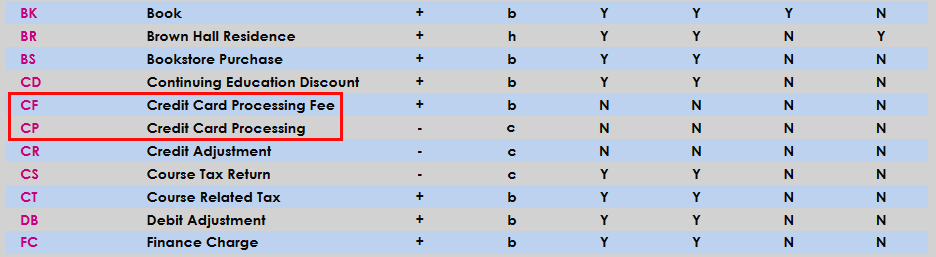
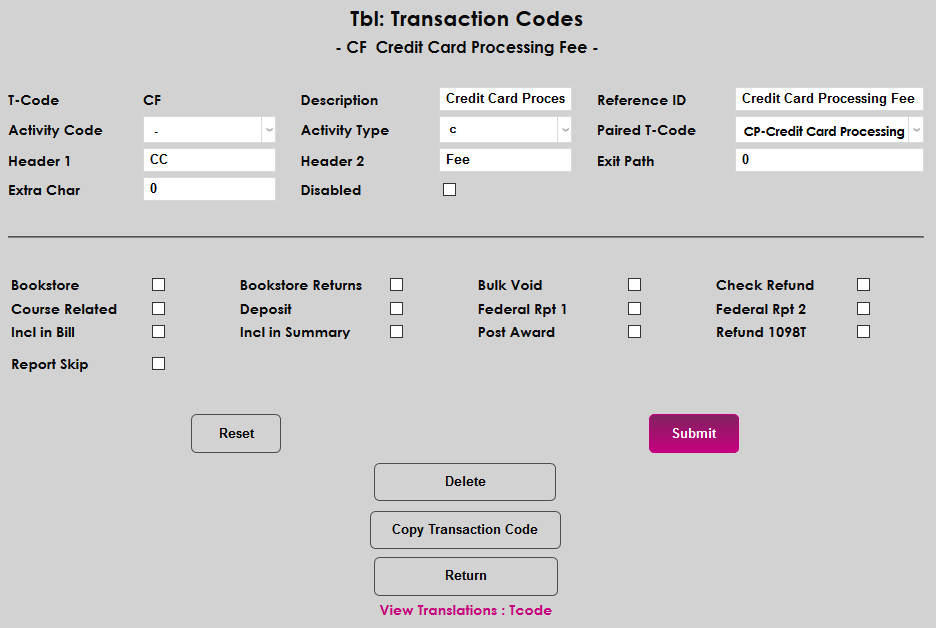
In the below example, a credit card processing fee has been paired with the credit card processing transaction code to provide an offset.
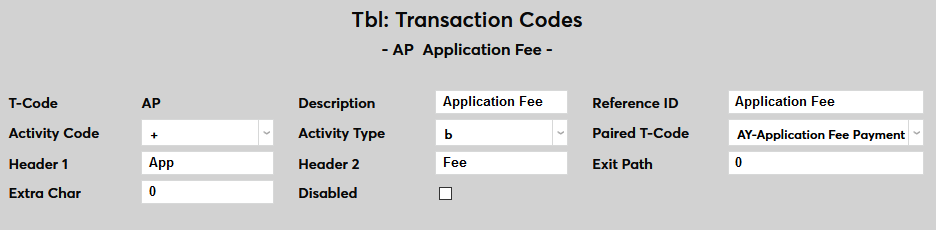
Application Fee T-Code Pairing
Beginning with SONIS version 3.7, users can pair an application fee charge T-code with a corresponding payment T-code. Clients who use this option should not use the Application Fees utility. Pairing application fee T-codes and also creating an Application Fee through the utility will result in double charges.
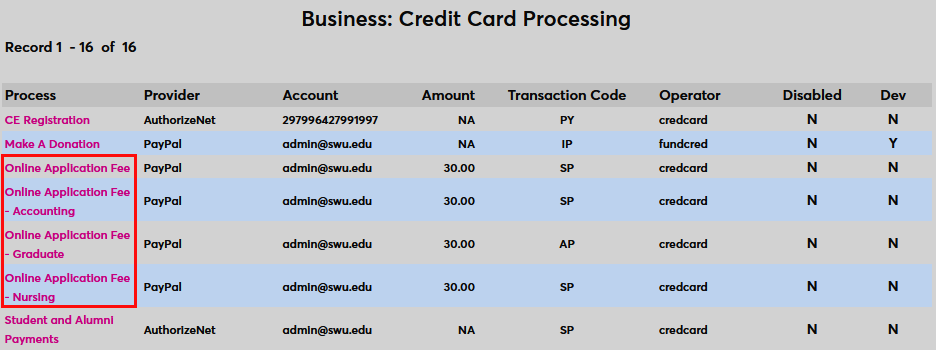
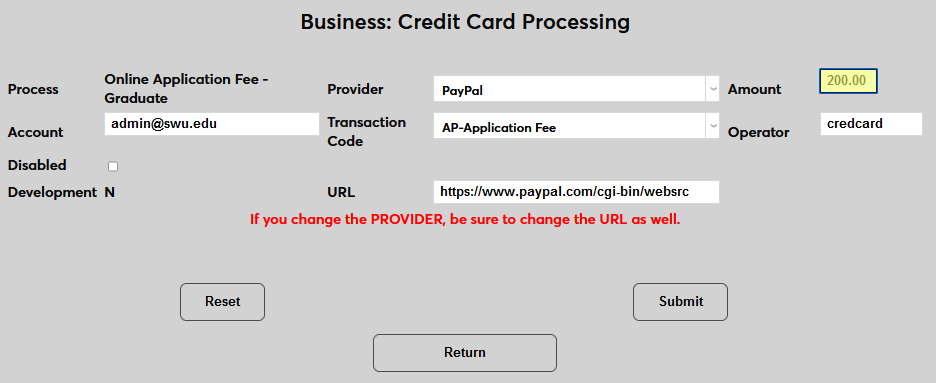
The fee that's charged is set in Credit Card Processing . If the school is using multiple Online Applications , each individual application is listed separately and can have a different fee. Click on an application and set the Amount .
Create Transaction Code
The Add Transaction Code function allows administrators to create a new transaction code. Prior to creating a new t-code, be sure to ensure it doesn't already exist by using the Search function. Some thought should be given before creating codes. Many institutions strive to create codes that keep similar items together in a drop-down such as fees vs. payments, etc. Most SONIS t-code drop-downs are ordered by t-code. These cannot be changed once the t-code has been created.
Click Add Transaction Code to begin creating a new code.
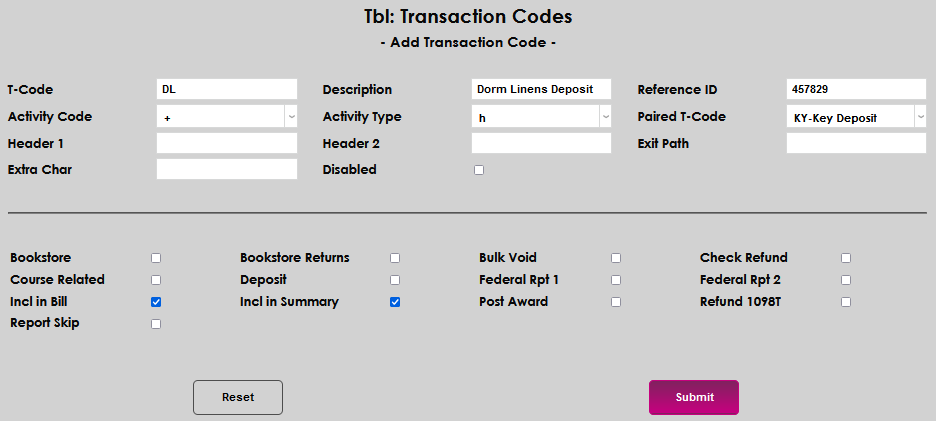
Following the Fields & Boxes explanations, enter the information that is appropriate to the new transaction code. In this example, a dorm linens deposit is being created and associated with the existing key deposit. Click Submit to save and create the t-code.
Copy Transaction Code
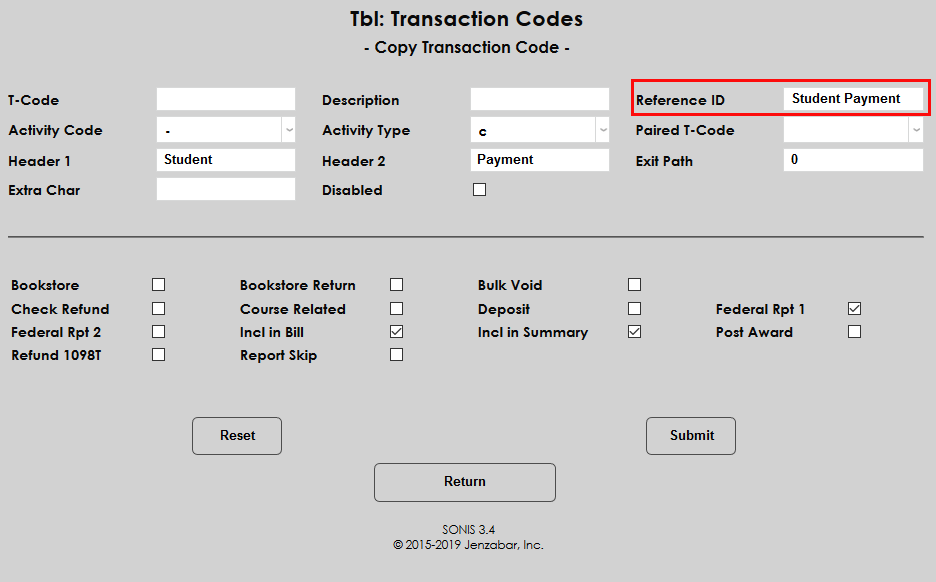
The Copy Transaction Code feature allows SONIS users to copy the information from an existing t-code to create a new one. Click Copy Transaction Code to copy an existing code. A new code is created with the same fields filled and boxes checked. The Reference ID field lists the code that was used to create it.
Export Transaction Codes
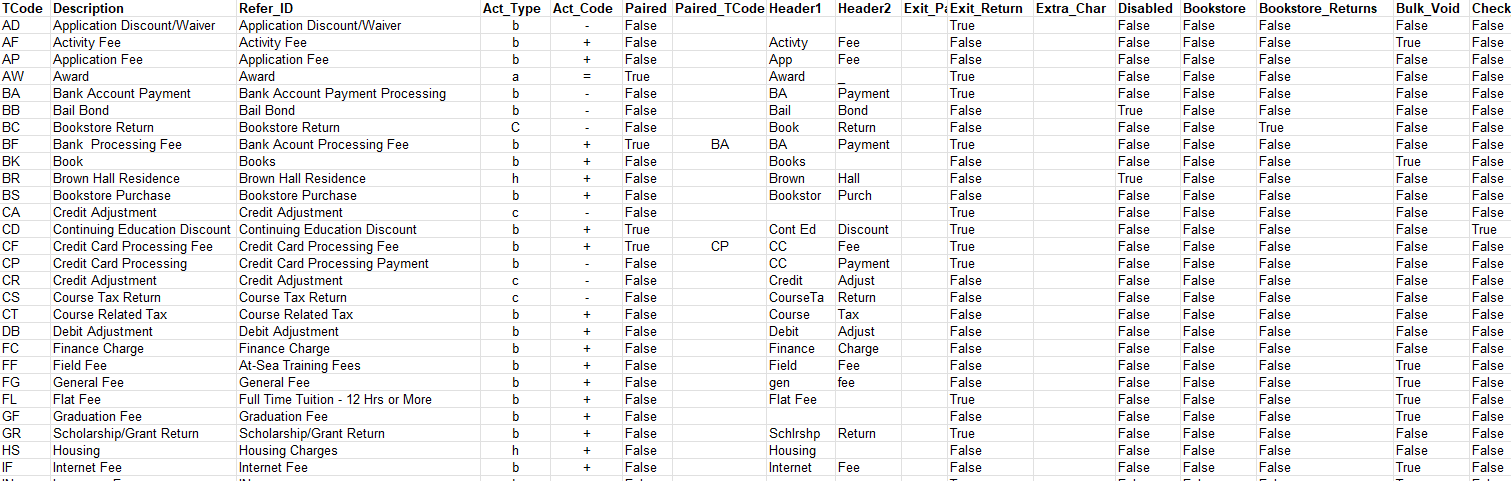
You can export your full list of transaction codes to an Excel spreadsheet for review. From the Transaction Codes launch page, click Export to Excel. The file will automatically download to your computer. Every field in the Transaction Codes table is included.