Breadcrumbs
Overview
Breadcrumbs is a Jenzabar SONIS feature that allows users with an administration account to track the pages they've been to during their current session and navigate back to them quickly if the Links function is enabled.
In addition, once breadcrumbs have been activated, the User Breadcrumbs Report allows top-level administrators to track other administrators usage of the SONIS system for accountability, troubleshooting, or research purposes. This data can and should be cleaned out periodically using the NMTRACK Delete Task.
Enabling Breadcrumbs
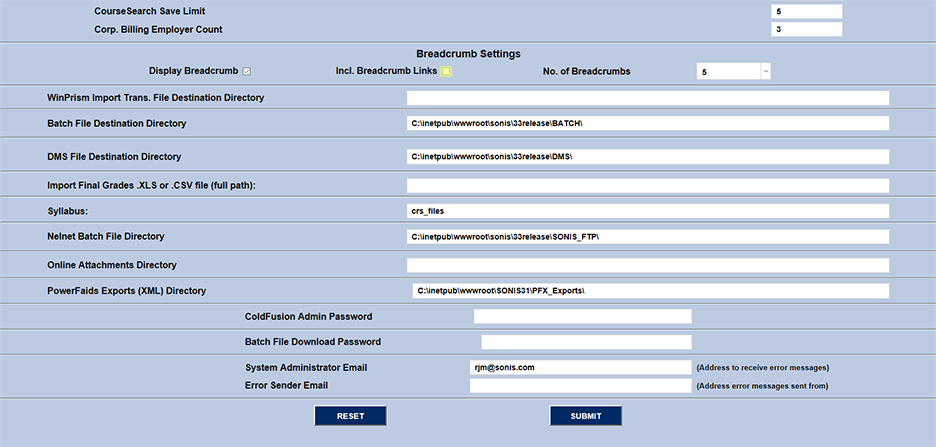
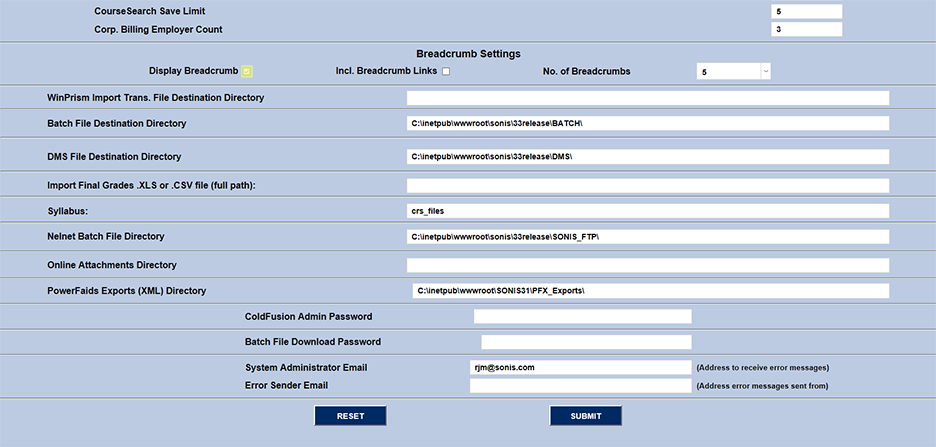
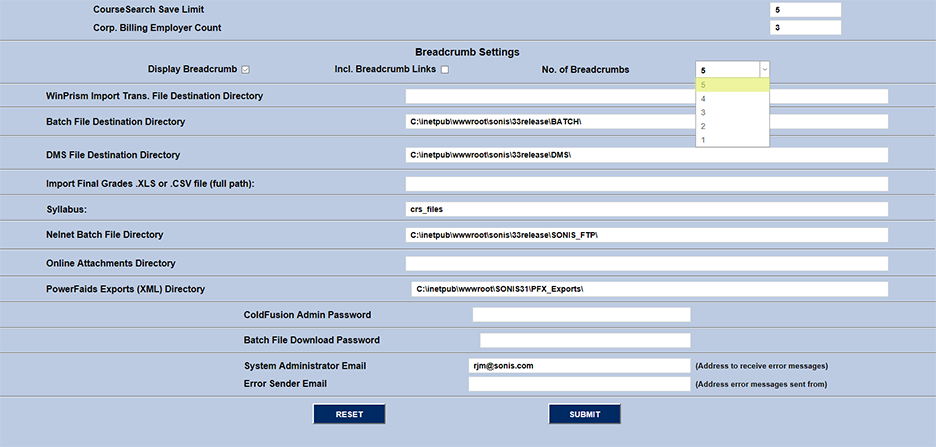
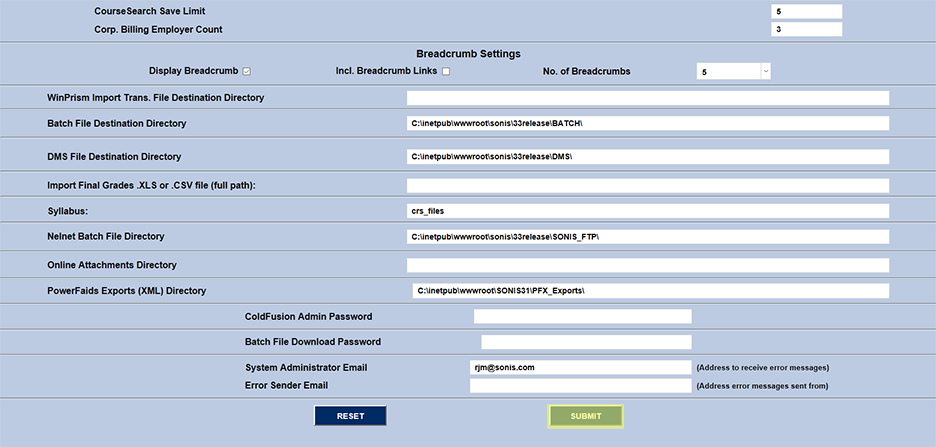
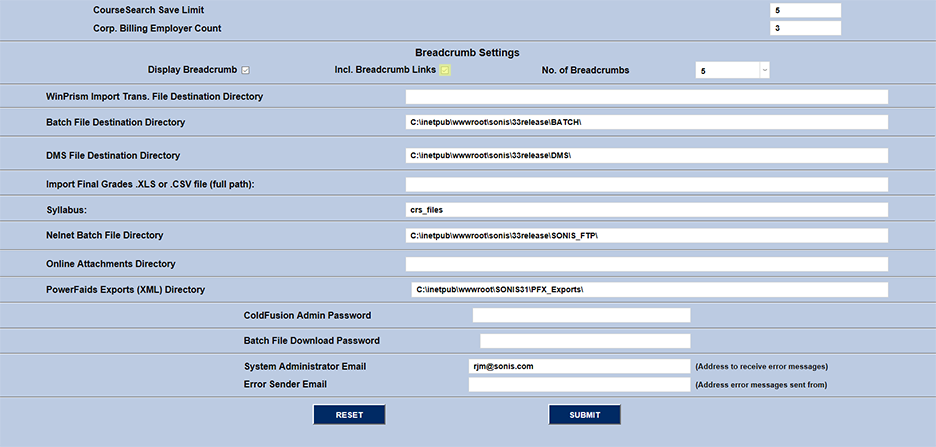
To enable breadcrumbs, visit the Web Options page in the Systems hub. The Breadcrumb Settings section is near the bottom of the page. Click the checkbox next to Display Breadcrumb to activate them. The page also provides the option to make each breadcrumb a link and to choose how many breadcrumbs will display. The administrator can choose to display between one and five breadcrumbs using the dropdown menu. As with other Web Options changes, enabling breadcrumbs will turn them on for all users. A Records Updated message will appear in red at the bottom of the page to confirm that the update was successful.
Using Breadcrumbs With Links
Once breadcrumbs have been enabled, they will display at the top left of every page the user visits, providing a record of the last one to five pages visited. If the Incl. Breadcrumb Links option has been checked, each breadcrumb will be a link to the previous page visited.
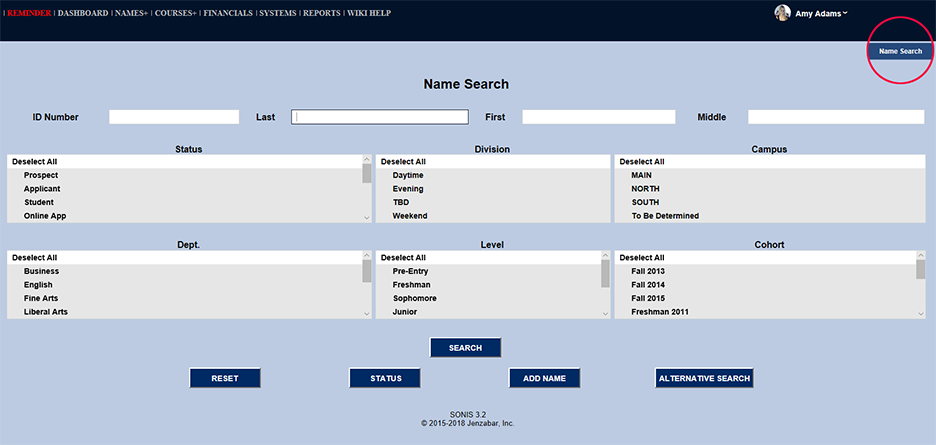
Note that these links will return the user to the active state they were in when they visited that page. For example, if a user searches for a name and brings up that account, make some changes in that account, and then searches for and accesses another account, clicking the earliest breadcrumb will return to the first account selected rather than the most recent one. In the example below, the user has only visited one page, so only the Name Search page is listed.
As the user visits additional pages, more bread crumbs are added, each linking to these pages. In this example, the user visited the Name Search page followed by the Biographic page of a particular user followed by the Education page of that user followed by the Biographic page of another user. Clicking on any of the breadcrumbs will return the user to that page and state. Hovering the mouse over the earlier Education breadcrumb in this example shows that it belongs to Caitlin Carey rather than the current faculty member being viewed. Clicking on the breadcrumb returns the user to Caitlin Carey's Education page and navigates away from the current John Hannigan Biographic page.
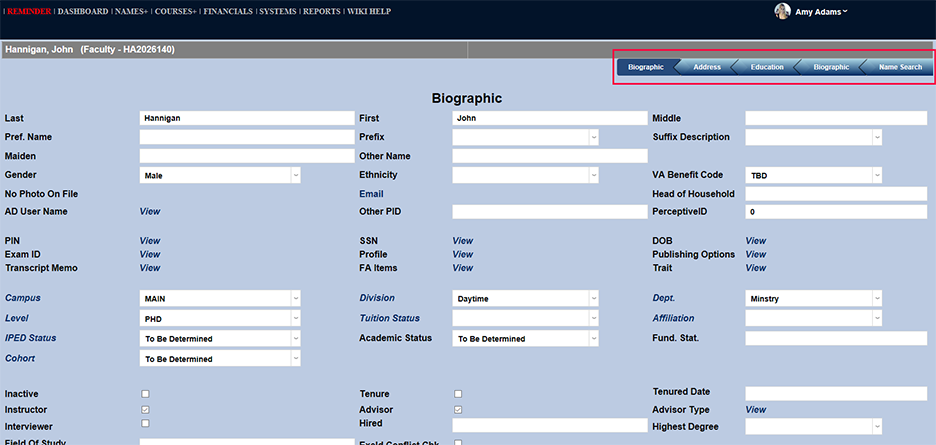
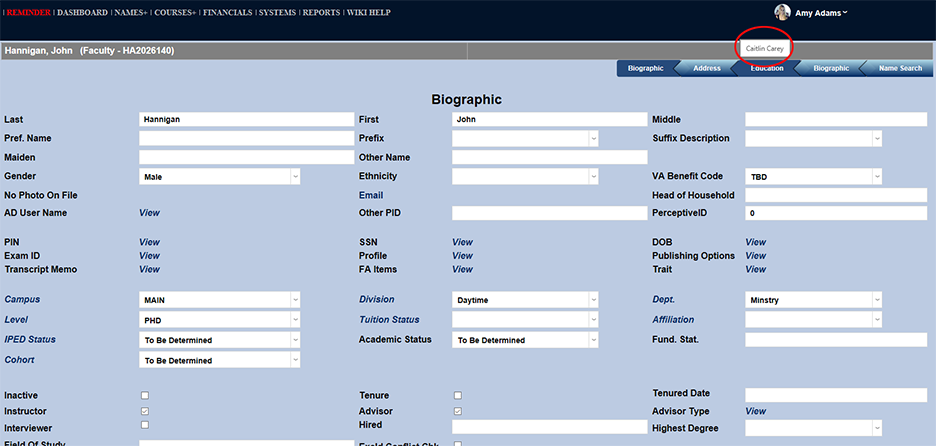
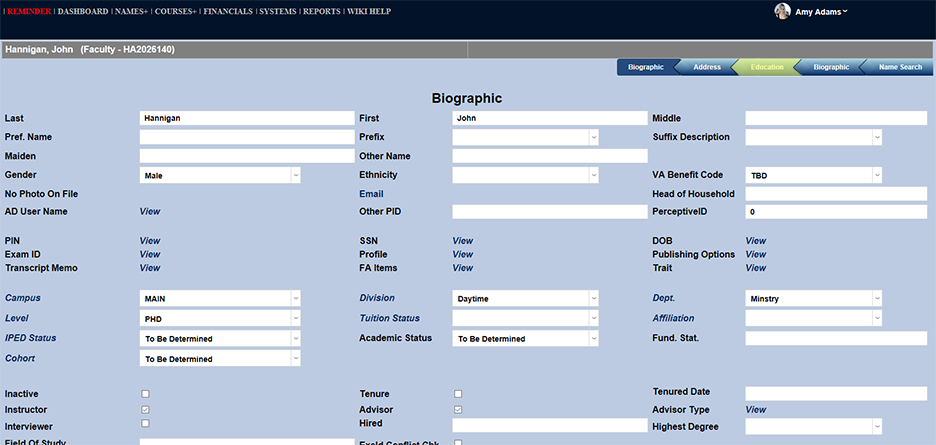
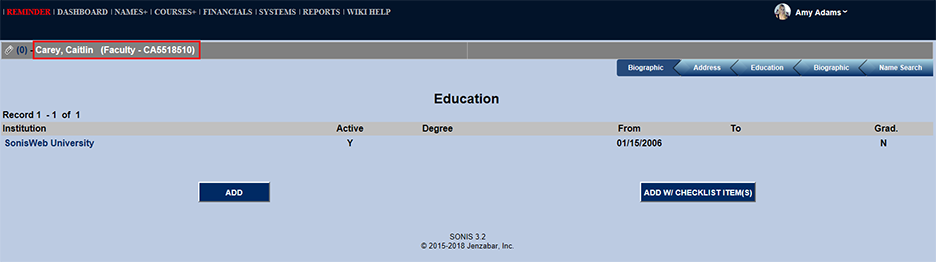
To return to the John Hannigan Biographic page, the user would click on the latest Biographic breadcrumb.
Using Breadcrumbs Without Links
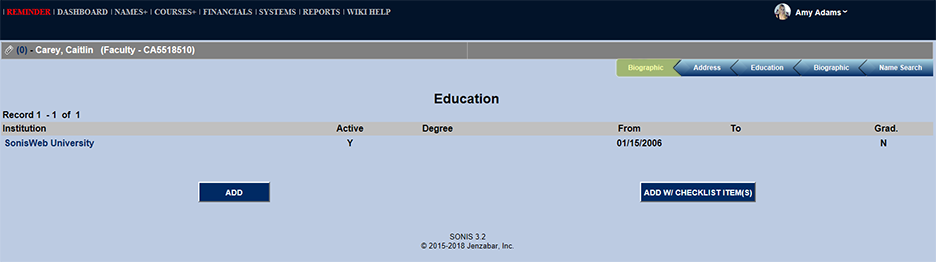
Using Breadcrumbs without the Links functionality works the same way as using it with links. Breadcrumbs will appear in the upper right-hand corner showing the user where they've been. Moving the mouse cursor over each breadcrumb will highlight it, but nothing will change and the user will remain on their current page.
Limiting the Breadcrumbs functionality in this manner is a failsafe for schools whose users have trouble navigating the state changes in the Breadcrumb system with Links. Deactivating Breadcrumb Links is accomplished in the same manner as activating them. Simply navigate to the Web Options page, uncheck the Incl. Breadcrumb Links box and click Submit.