Notes
Overview
The Jenzabar SONIS Notes function in the Users hub is used to send freeform messages about students to administrators, faculty, and/or the students themselves. The utility can be used as another form of communication, as a place to store additional information about a student that's not housed anywhere else in the SONIS system, or for both. Notes can also be used as an At-Risk Alert indicator.
Note Type
Every note that's created must have a type that controls who has access to the note. To create note types, navigate to the Note Types table in the Systems hub. Click the Add button to create a new note type.

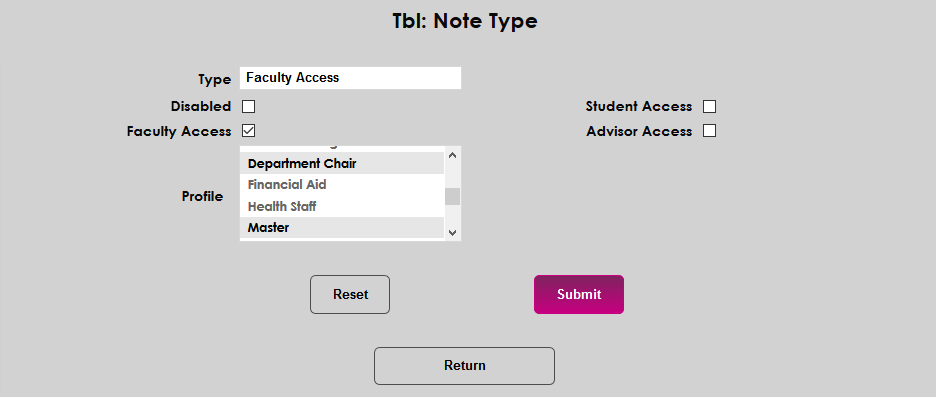
On the next page, provide a name for the type in the Type field. This can be a description of the purpose for the note type or who will have access to these notes.
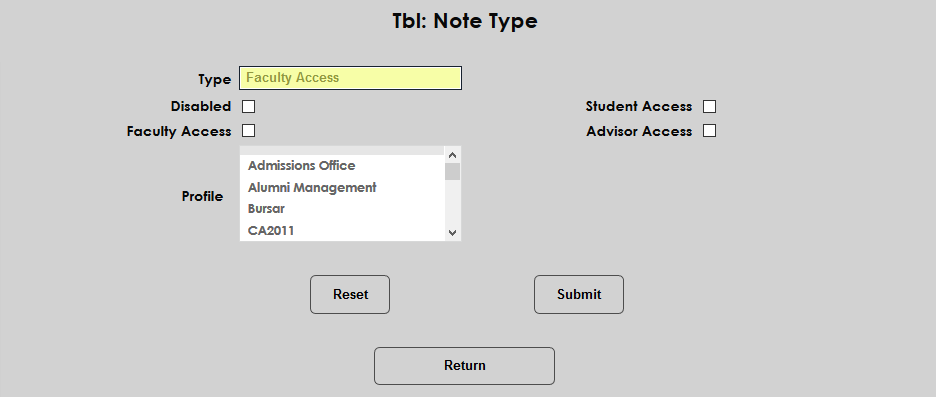
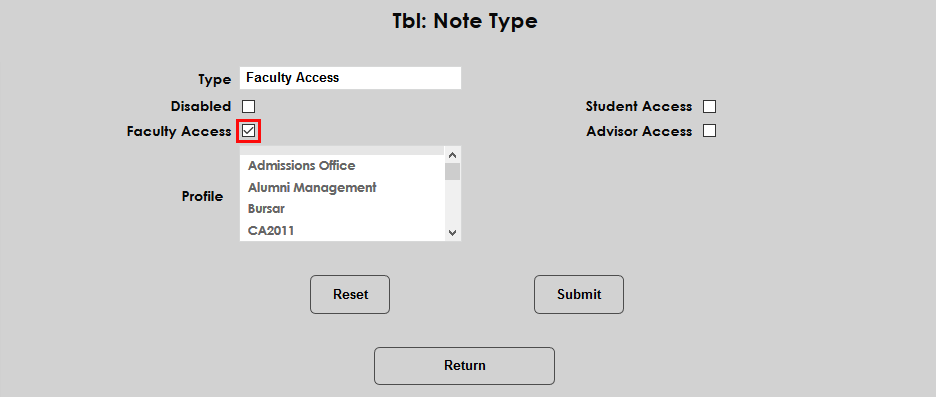
Next, choose the groups that can access notes of this type. The Student Access box allows students to access notes about themselves. The Faculty Access box allows faculty to access notes about students in their courses. The Advisor Access box allows faculty advisors and sponsors to access notes about students under their care. Note that the advisor functionality in the faculty portal allows faculty advisors to search for students that are not assigned to them and view these notes as well.
Check the appropriate checkboxes to provide access to non-administrators or leave them unchecked to allow only administrators to view the notes.
The Profile menu allows more specificity in terms of which administrators can access the notes. If left with no profiles selected, any administrator account with access to the Notes page in student records can view notes of this type. Once a profile is selected, only users with that profile can view notes of this type. In most cases, it's a good idea to allow any master or system admins profiles that may exist to have access to each note type for oversight.
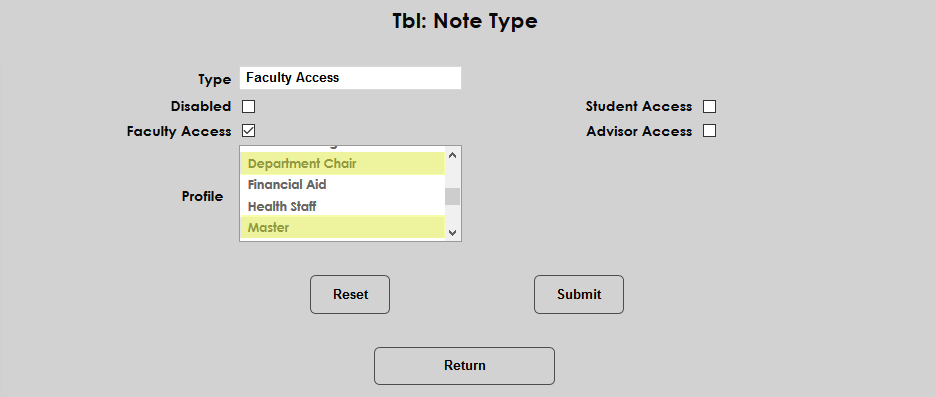
Once the proper users have been selected, click Submit to create the note type.
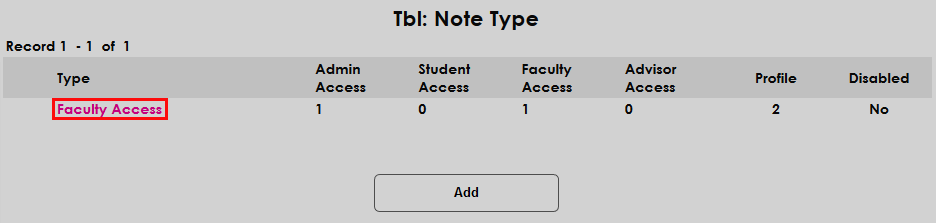
Once a note type has been added, the summary page lists the statuses that are included along with the name of the profile. Click on the name in the Type column to edit the type.
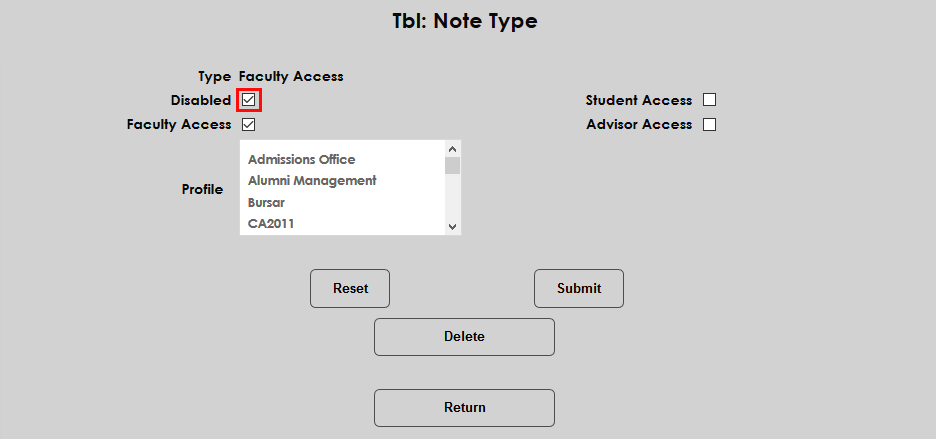
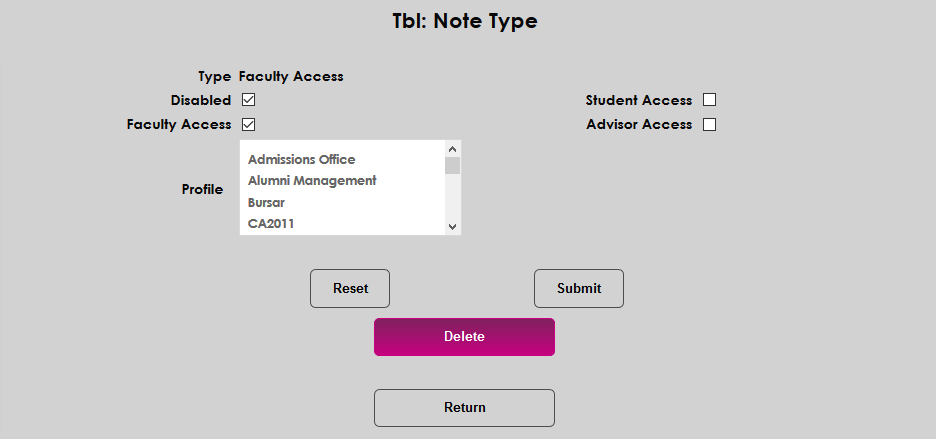
Check the Disabled box to prevent the type from being used or the Delete button to remove it altogether. Note types can not be deleted if a note of that type exists in the SONIS system.
Administration
Notes can be created in either the administrator portal or the faculty portal. While students can view notes with permission, they can not create notes.
Creating Notes
To add a note to a student's records as an administrator, select the student and navigate to the Notes page in the student's Users hub. Click Add to create a new note.

On the add page, the Author of the note is filled in based on the administrator account being used.
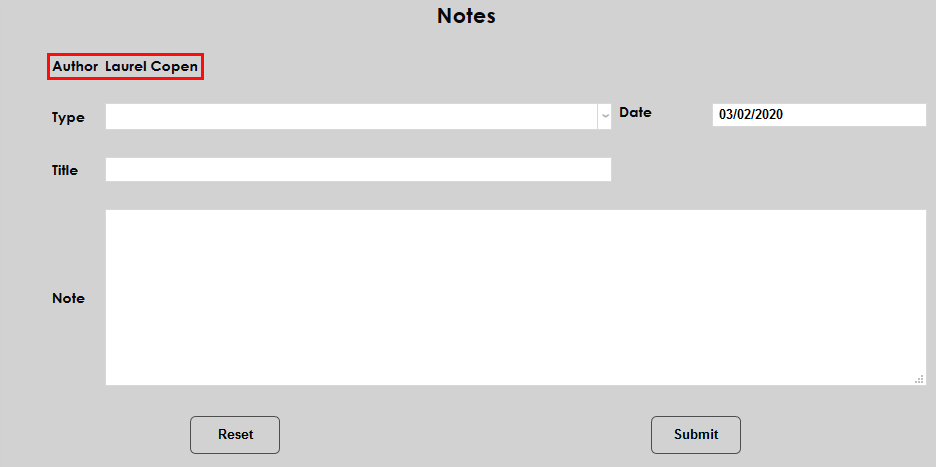
Select a Type for the note. As previously discussed, the type controls which accounts have access to the note.
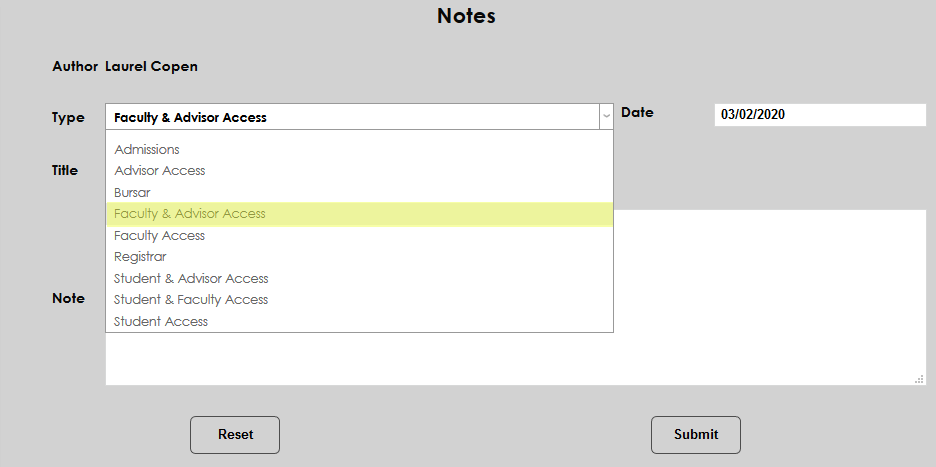
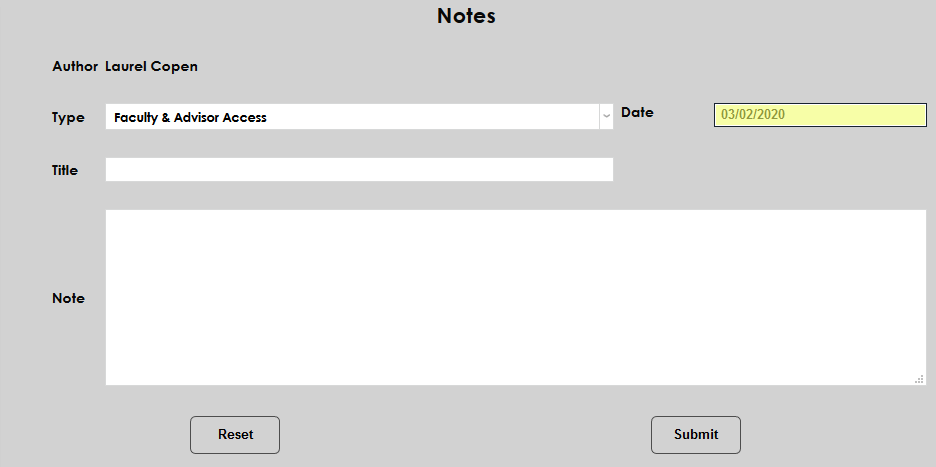
Provide a date for the note. The current date is filled in automatically, but the note can be backdated or forward-dated if necessary.
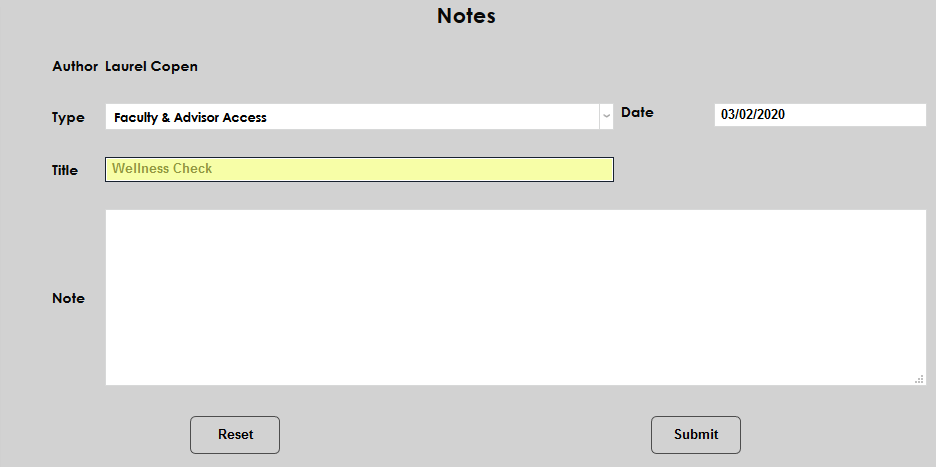
Give the note a Title that describes what it's about to users who may view it. The field has a 60 character limit.
Fill in the Note itself.
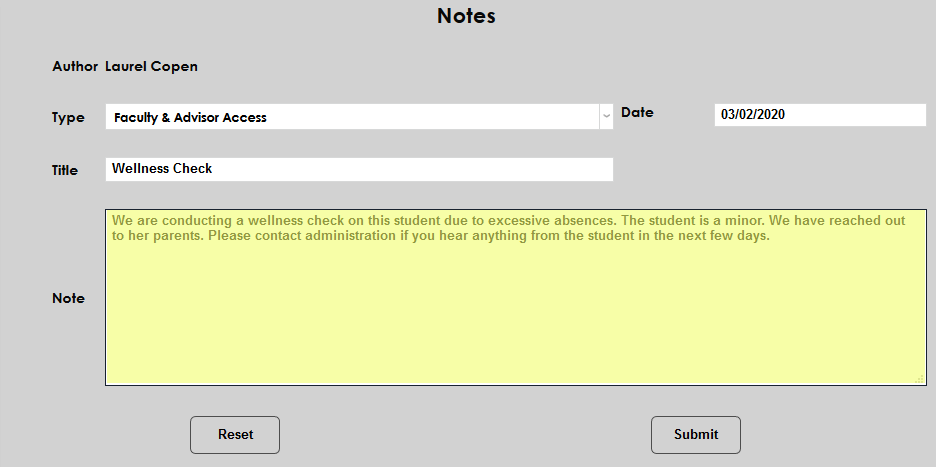
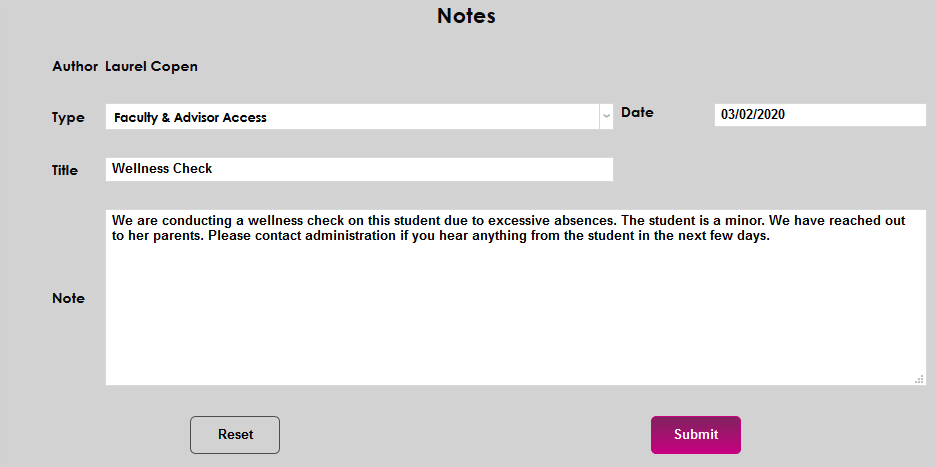
Click Submit to save the note.
Viewing/Editing Notes
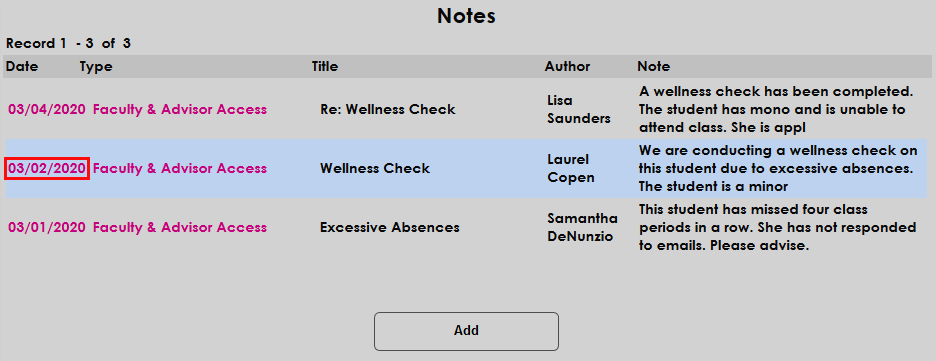
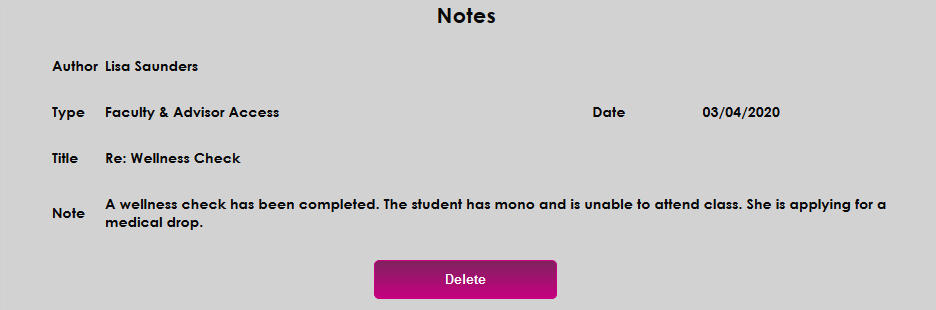
To view or edit student notes, navigate to the Notes page under the student's Records. Click on a Date to view and/or edit a note.
The advisor who created the initial note can edit their note at any time, changing the type, title, date, or the note itself. The note can also be deleted.
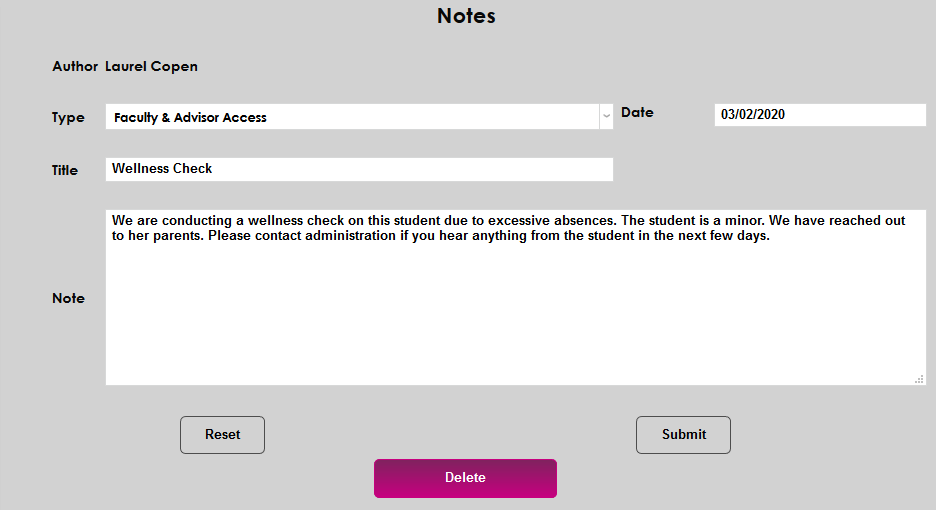
Administrators can view notes created by faculty members and other administrators and delete these notes, but these notes can not be edited.
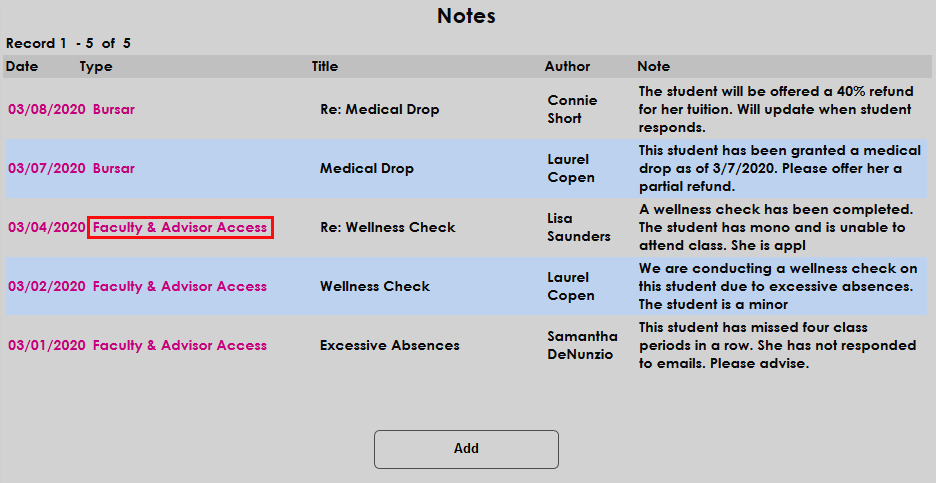
Notes can be sorted by type. Click on a note Type to view only notes of that type.
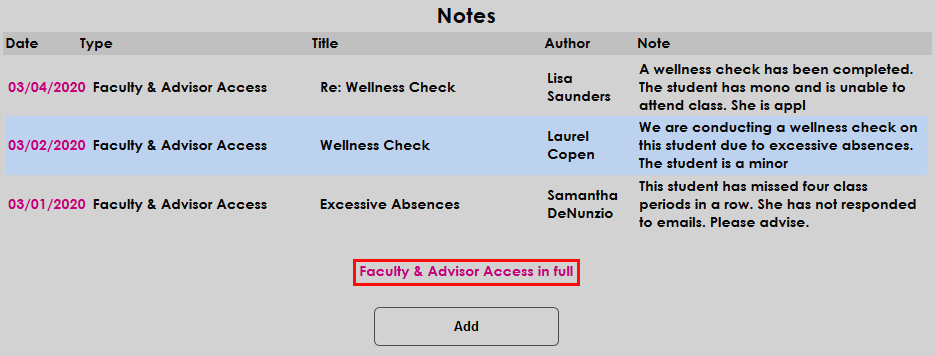
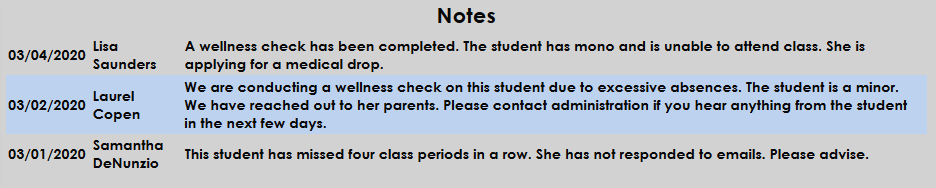
The following page displays all notes of that type. Click [Type] In Full to see every note of that type in full and on one page.
Faculty
Biographic Notes
Each faculty member can write notes about themselves that are viewable by administration. To view and add personal notes, navigate to the Biographic page in the faculty portal and click View Notes.
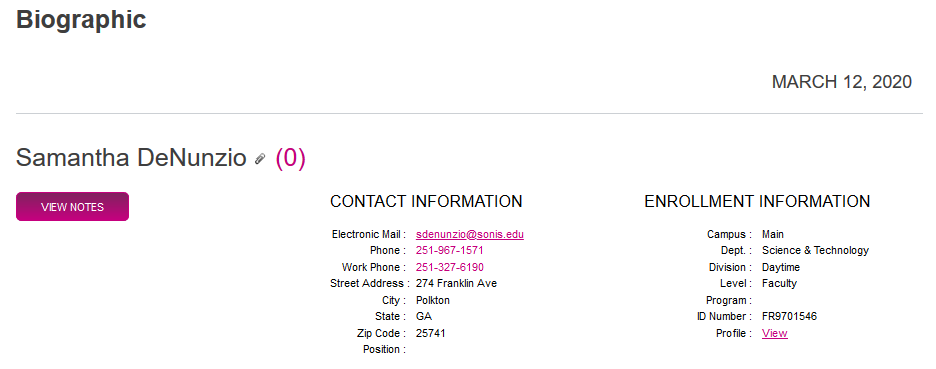
A new window will pop up displaying any current notes and allowing new notes to be added.
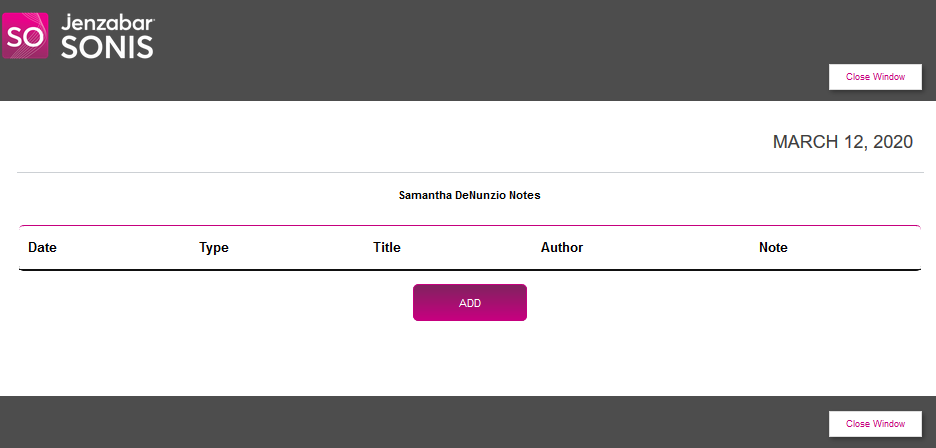
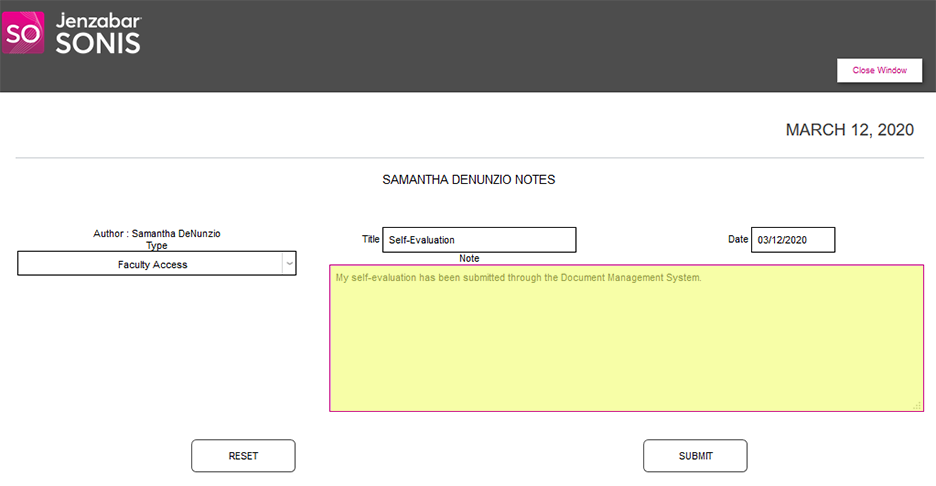
On the following page, select a Type. The available types will be limited by to those that allow faculty access.
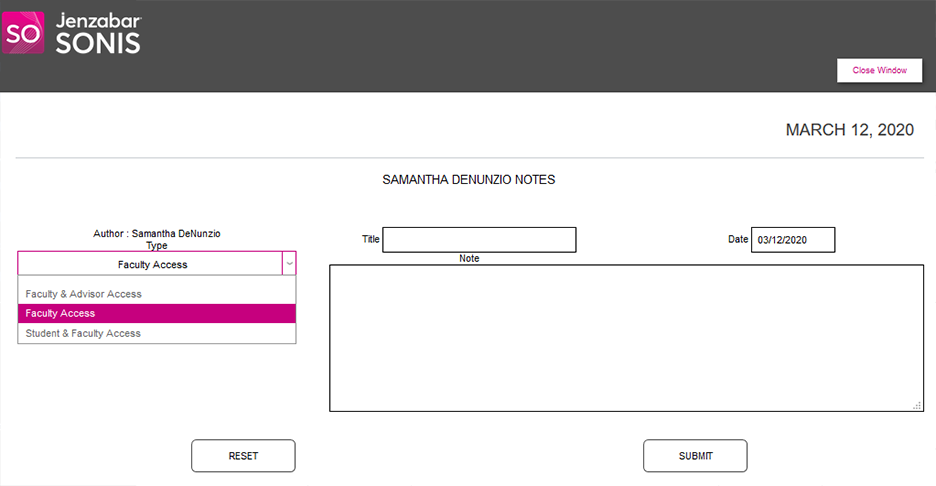
Create a Title for the note and edit the Date if necessary.
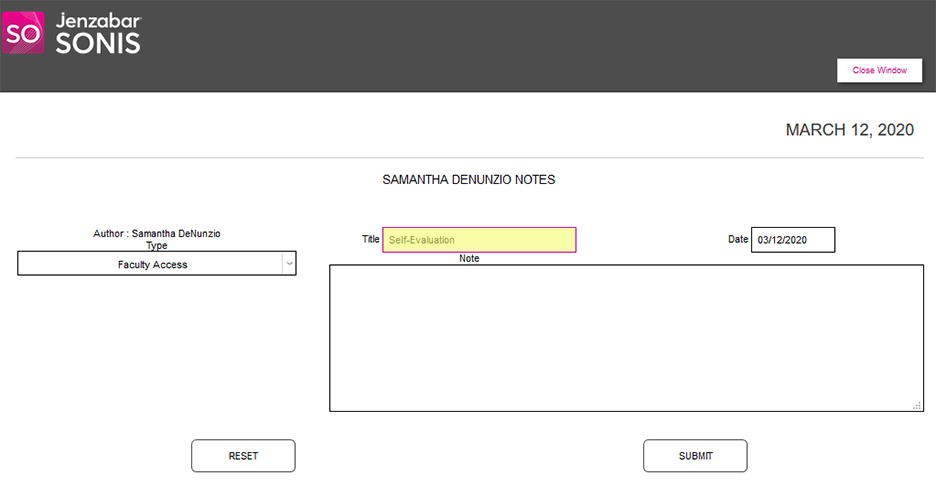
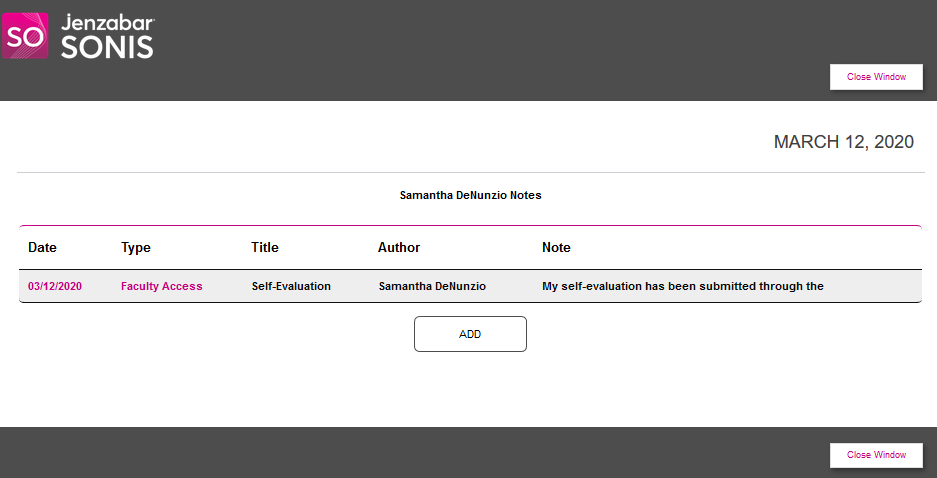
Create a message in the Note field and click Submit.
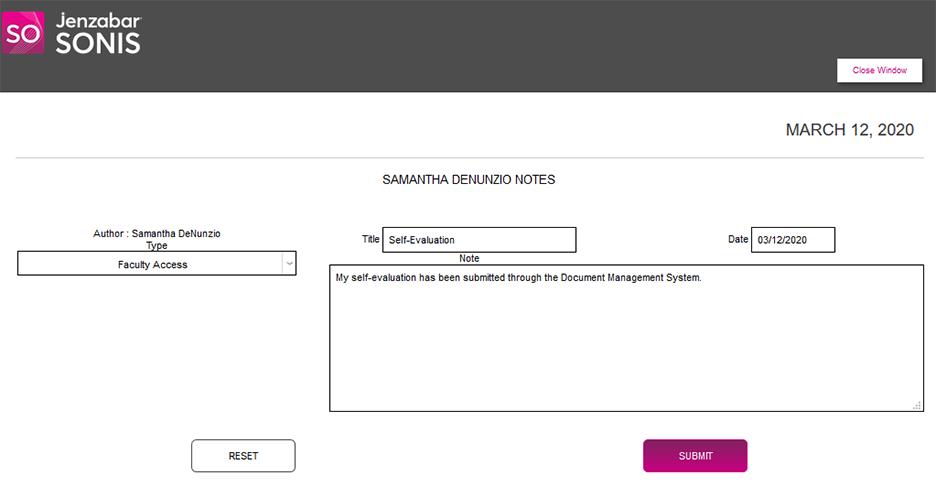
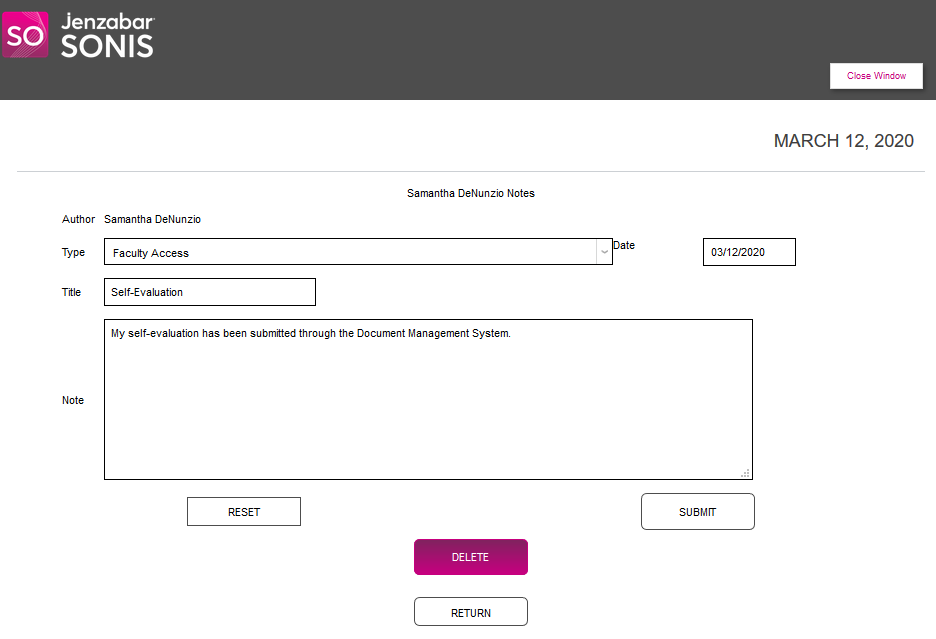
To view or edit an existing note, click the Date.
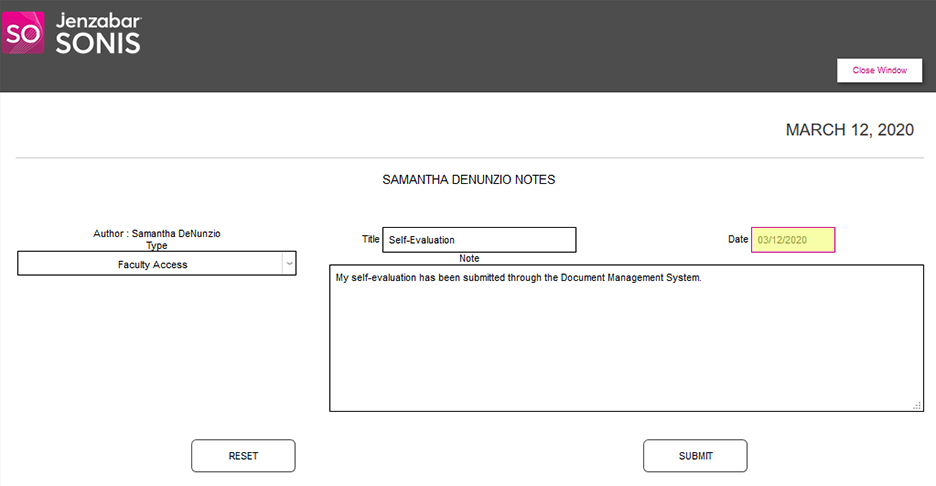
Faculty members can edit each field of their own note or Delete it altogether. Notes created by other users can not be edited or deleted.
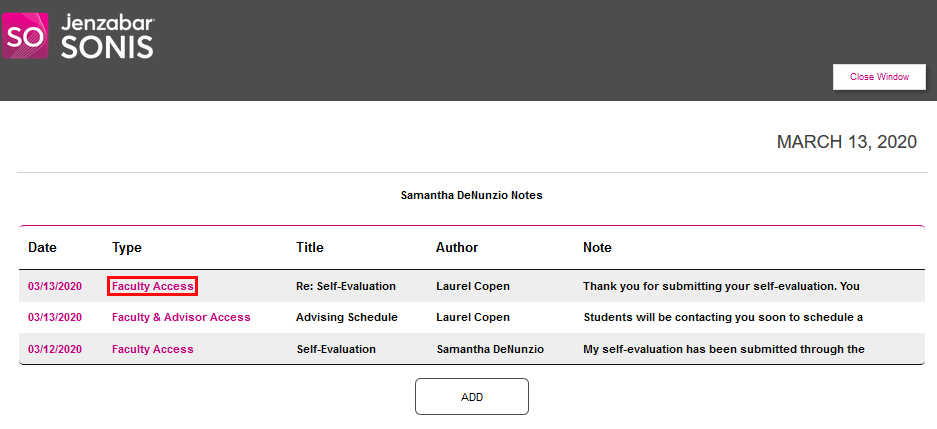
Click on a Type to view only notes of that type.
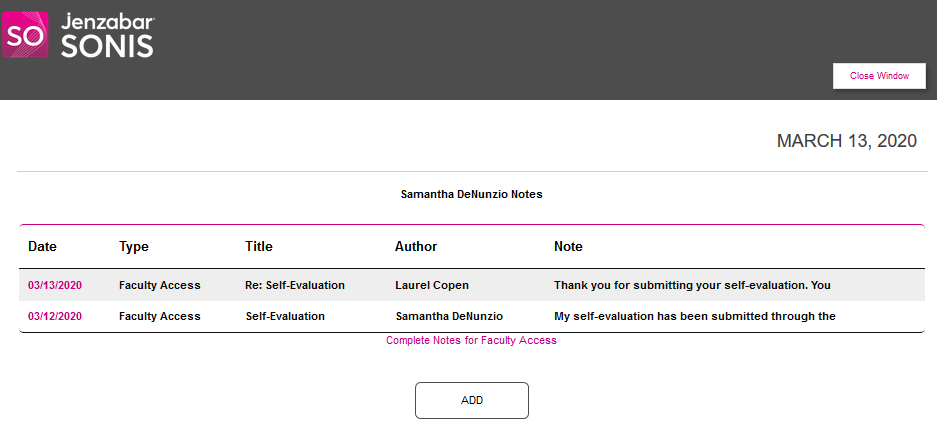
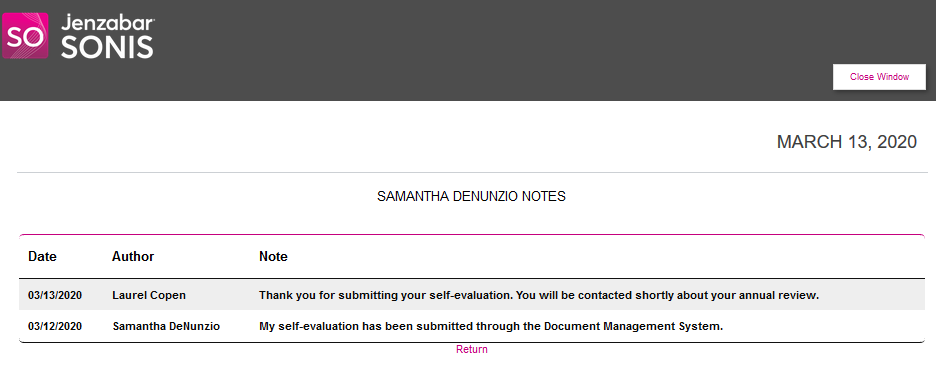
Click Complete Notes for [Type] to view all notes of this type on a single page with each note open.
Admin Access to Faculty Biographic Notes
By default, the Faculty Notes page in Administration is not part of the system. However, institutions that wish to send notes from their faculty members and access biographic notes that faculty members have created can create a Faculty Notes page using the SONIS Page Add/Edit function.
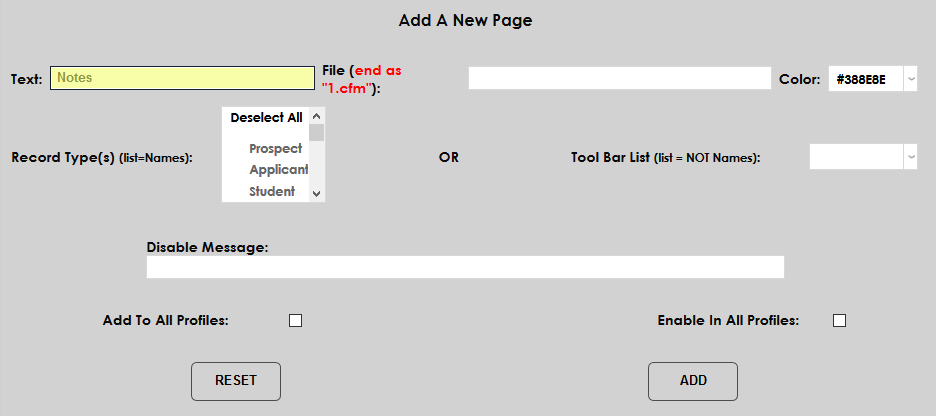
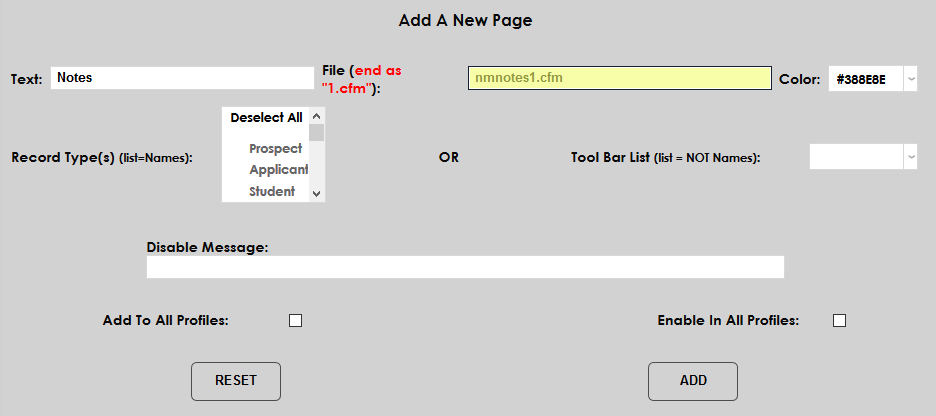
To turn this page on for admin access, navigate to Page: Add/Edit in the Systems hub. Name the page in the Text box and tell the system where to point by entering the File. The file for this page is nmnotes1.cfm.
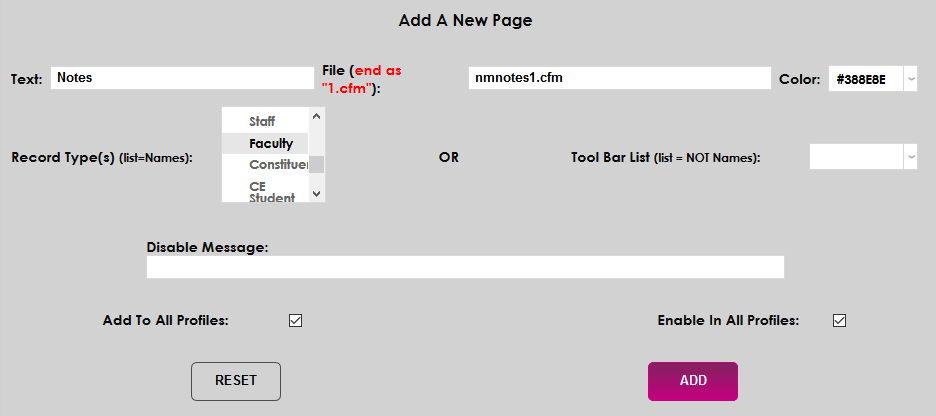
Check the Add To All Profiles and or the Enable In All Profiles boxes to add and/or activate this page for all administrative users. Leave these boxes unchecked to add the page to specific profiles using the Master Profile utility.
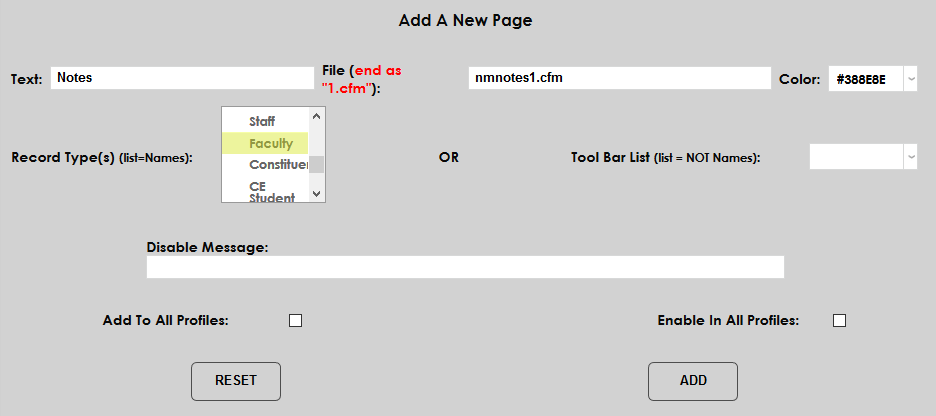
Click Add to add the page and allow administrative access to faulty biographic notes.
Student Notes
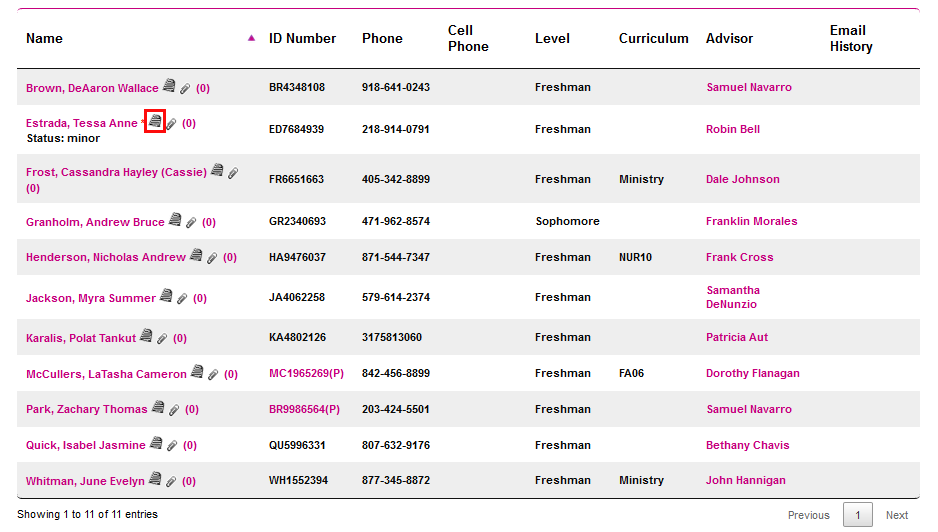
Faculty members who are teaching courses have access to create a view notes about students in their courses. Though, again, this is dependent on Note Type settings. When a student is on a faculty roster or list of advisees, the student's name has a notes icon next to it. Click on the icon to view and create notes.
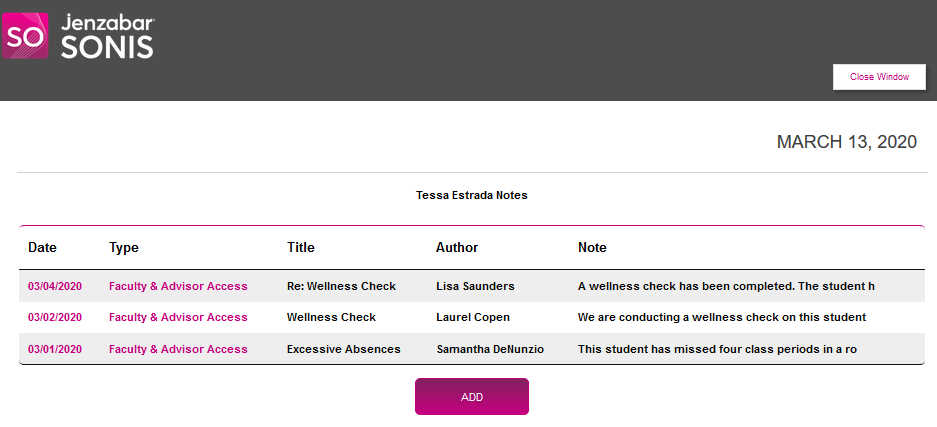
The student's notes open in a new window. Click Add to add a new note.
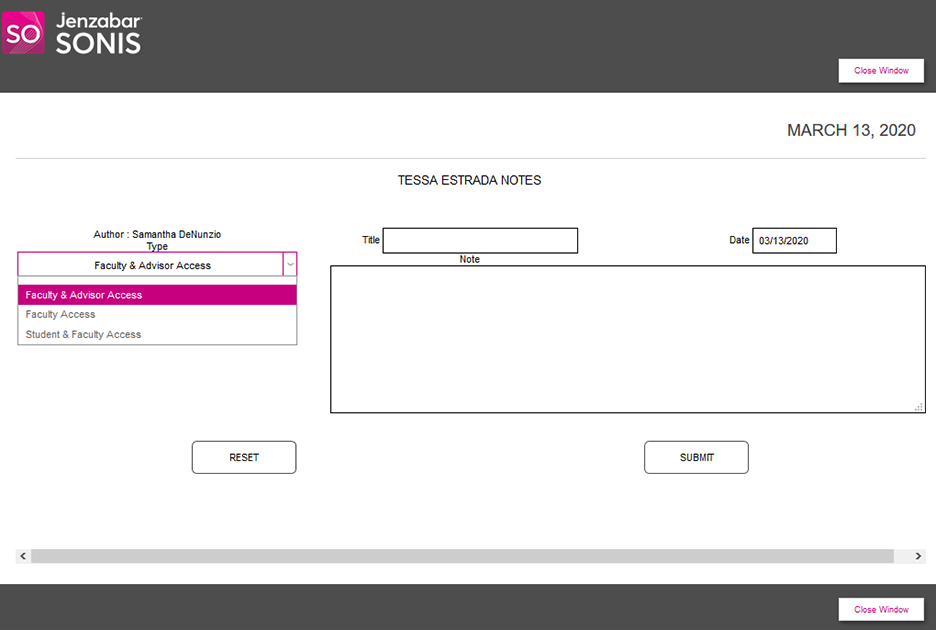
On the following page, select a Type. The available types will be limited by to those that allow faculty access.
Create a Title for the note and edit the Date if necessary.
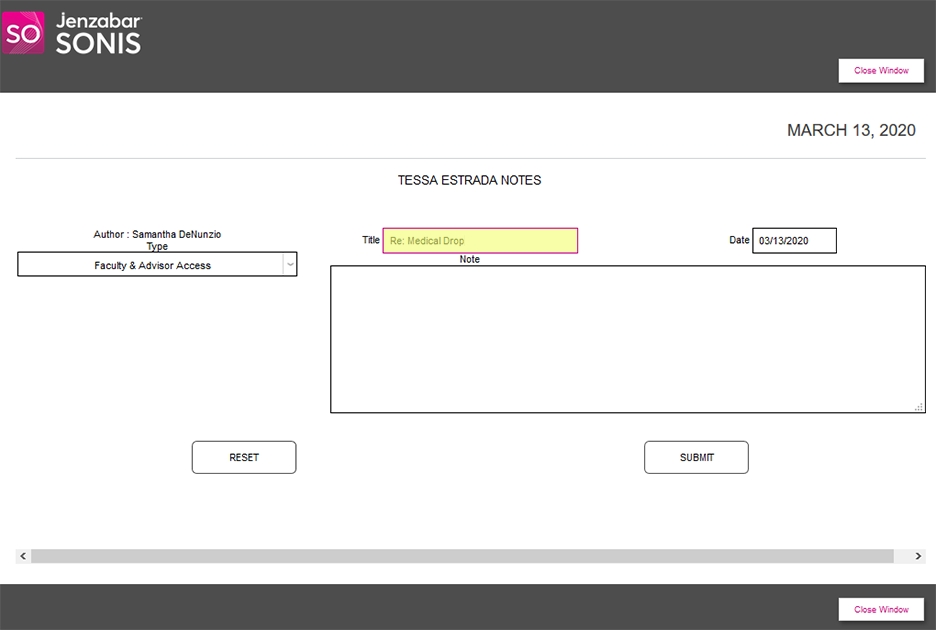
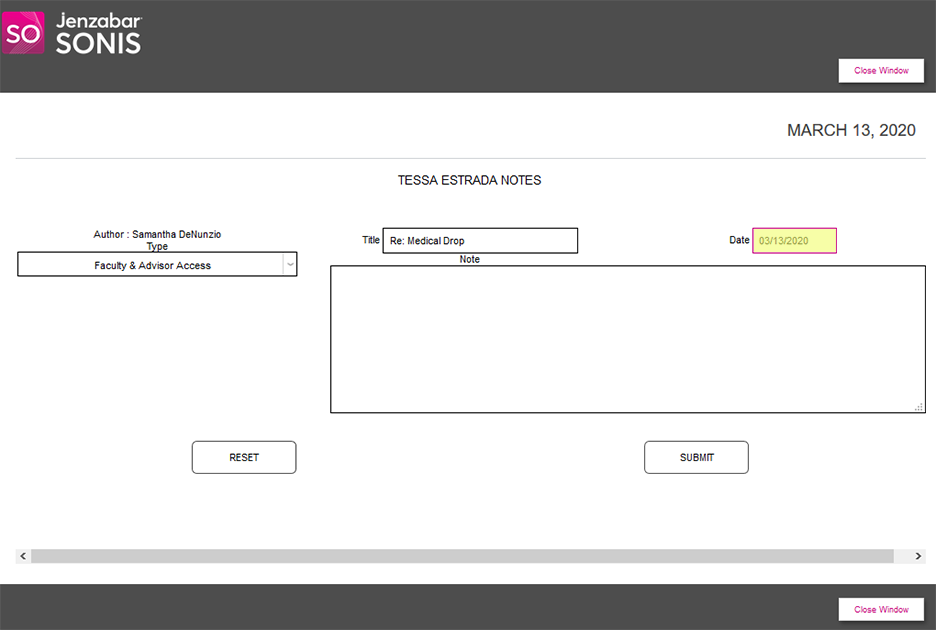
Create a message in the Note field and click Submit.
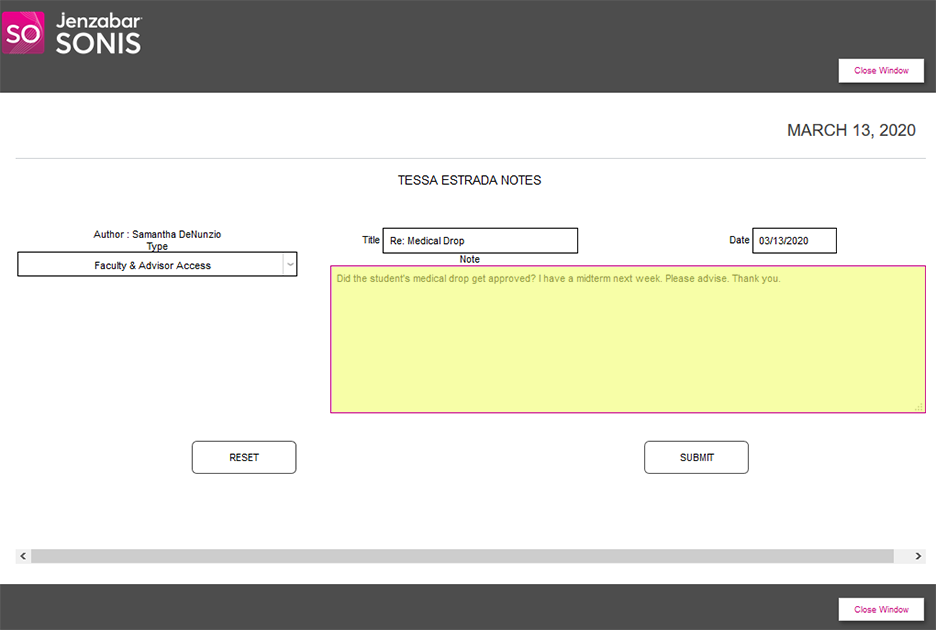
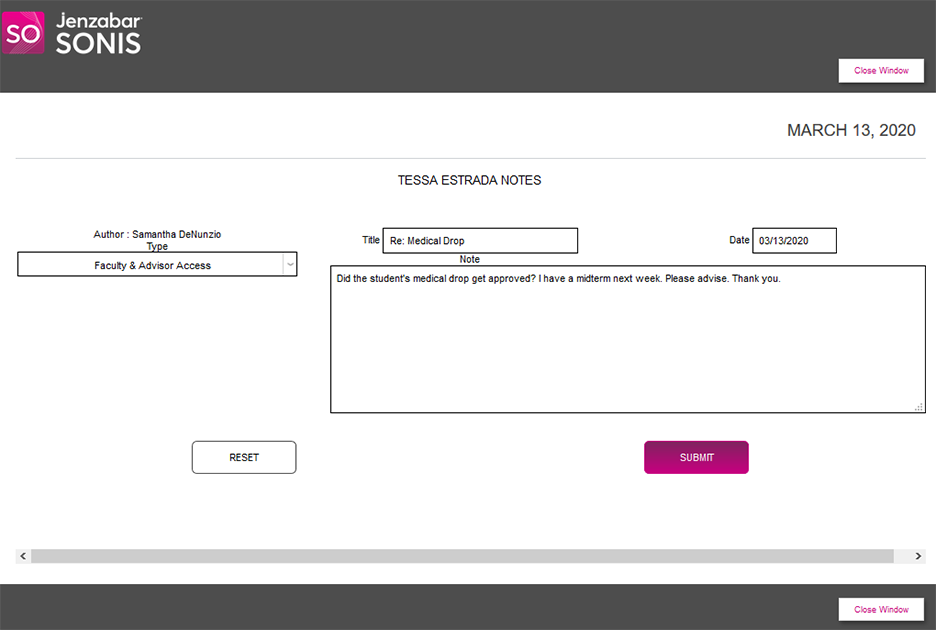
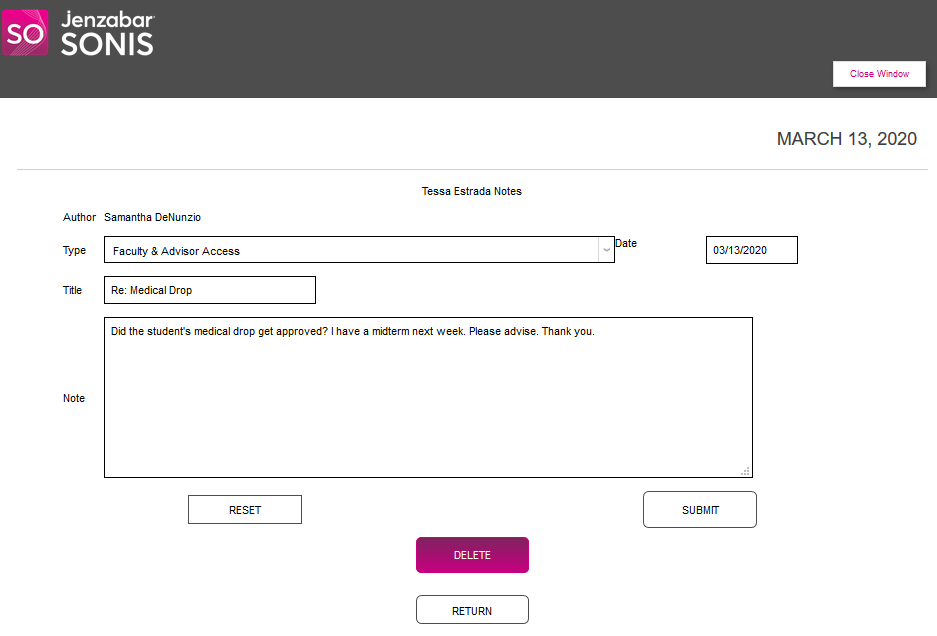
To view or edit an existing note, click the Date.
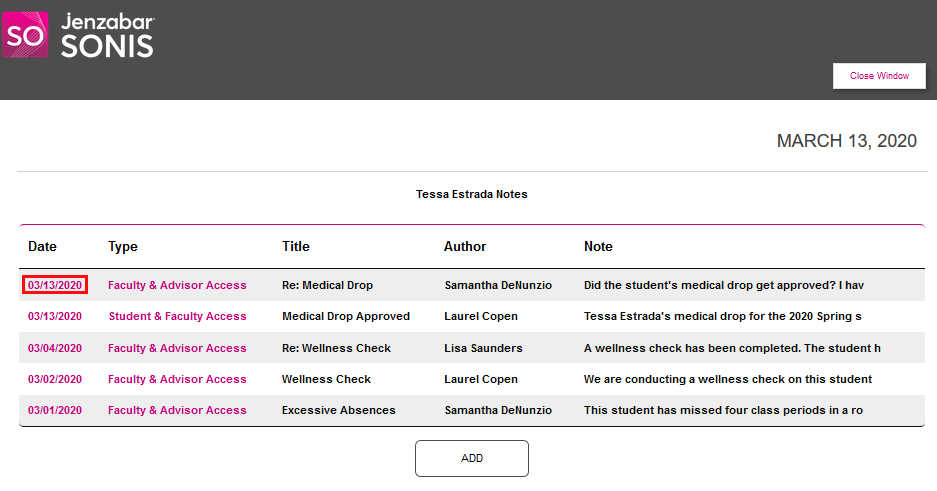
Faculty members can edit each field of their own note or Delete it altogether. Notes created by other users can not be edited or deleted.
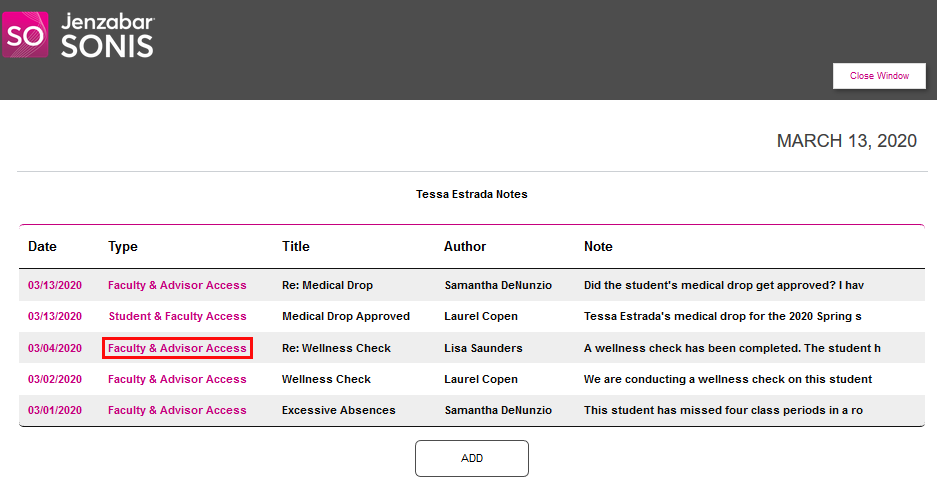
Click on a Type to view only notes of that type.
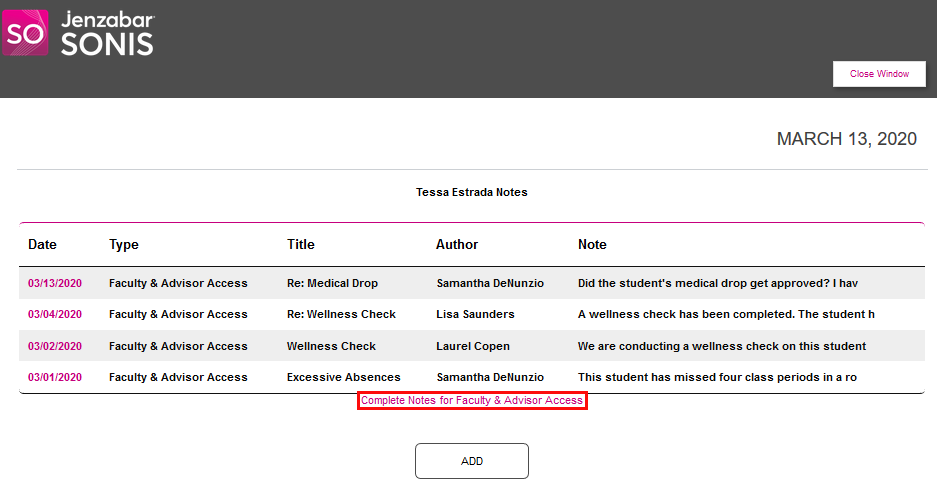
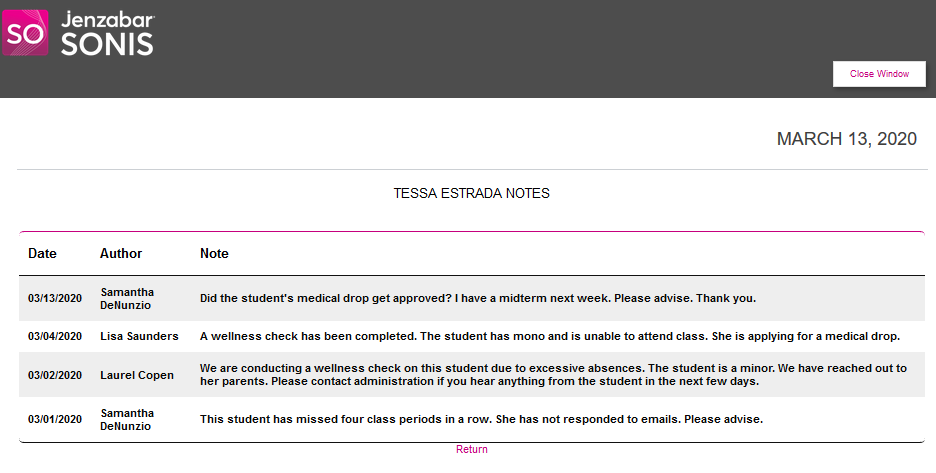
Click Complete Notes for [Type] to view all notes of this type on a single page with each note open.
Student Access
Students can access their own notes if the note types are set up to allow it. From the student Bio page, click View Notes.
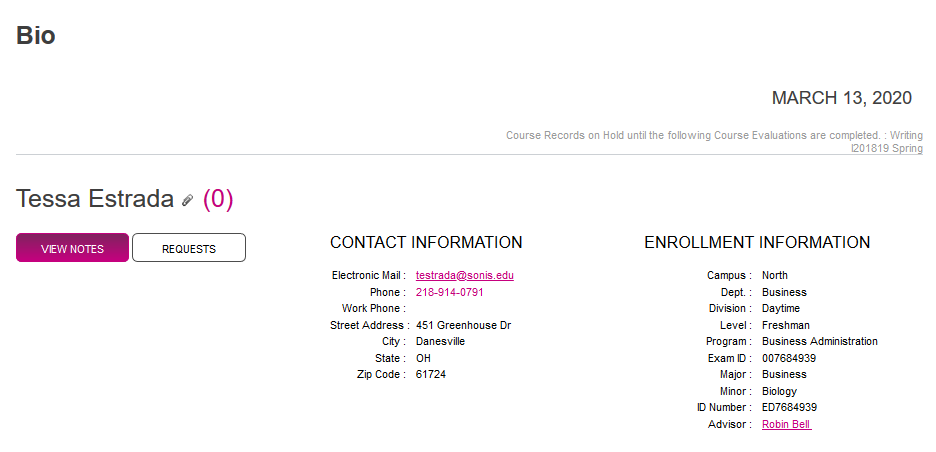
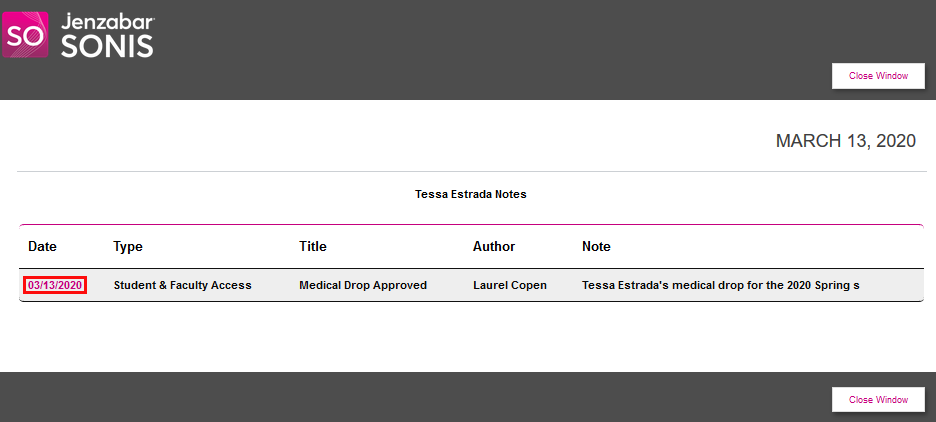
Existing notes open in a new window. Students cannot add notes. Click on the Date to view a note.