AmeriaBank Integration
Overview
AmeriaBank is an online payment gateway for clients who wish to accept credit card payments through a URL given to payees, or who wish users to make credit card payments on behalf of payees via a direct link within Jenzabar SONIS.
AmeriaBank
Like other online payment providers, AmeriaBank requires that its clients submit specific information for use in online payment processing. Before beginning setup, the SONIS member institution must get the client code, account, and password as assigned to the institution by AmeriaBank. This information is generally provided by the AmeriaBank representative assigned to the institution.
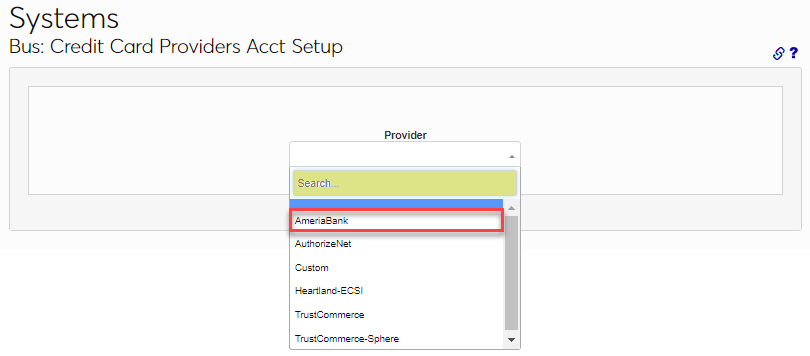
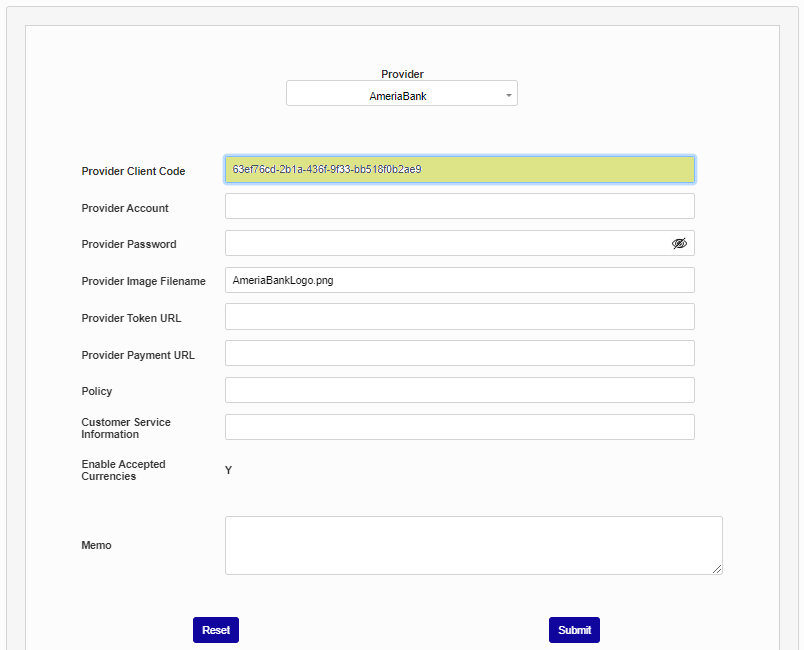
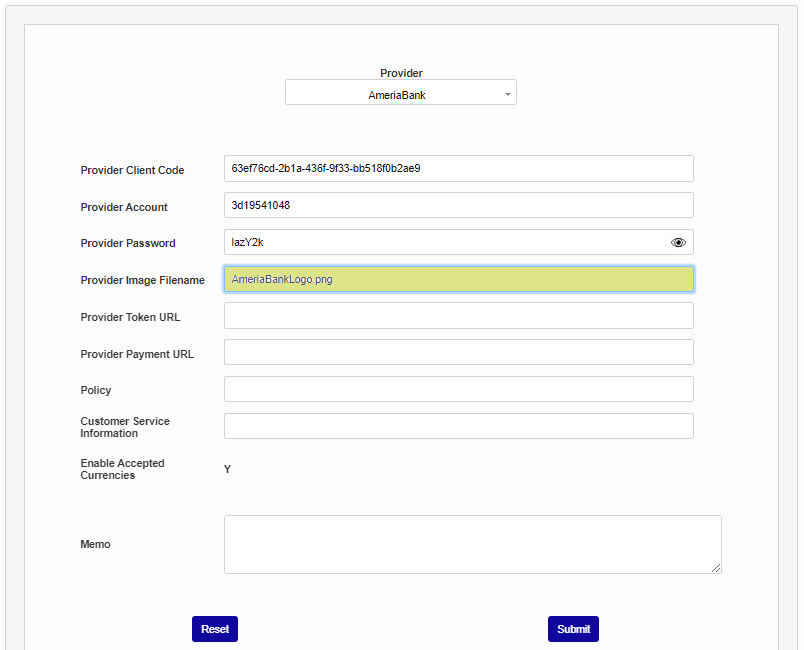
After enabling AmeriaBank payments, the currency type that will be used must be set up on the Locale table. To begin setting up the payment gateway, enter Providers Account Setup in the Systems hub. Select AmeriaBank from the Provider menu. Enter the Client Code as provided by AmeriaBank.
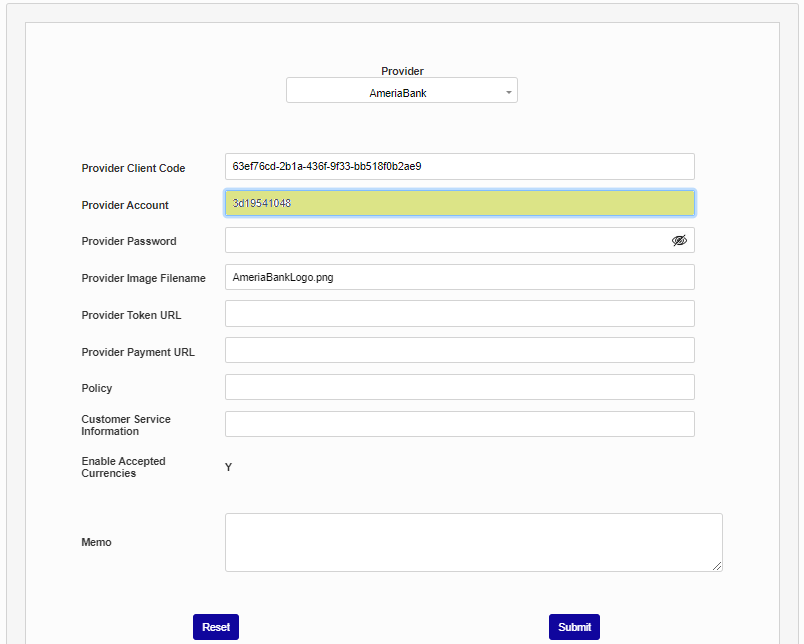
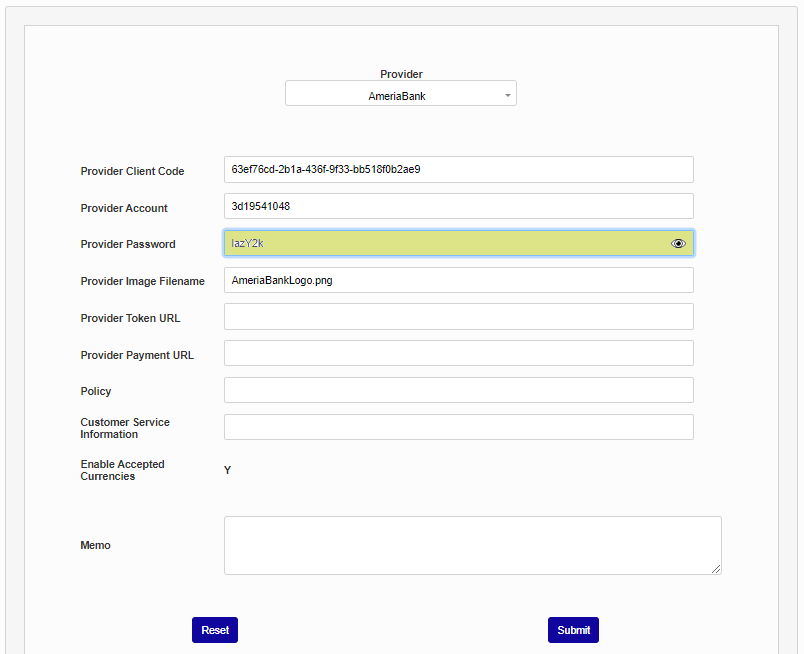
Enter the Provider Account number and Provider Password as provided by AmeriaBank.
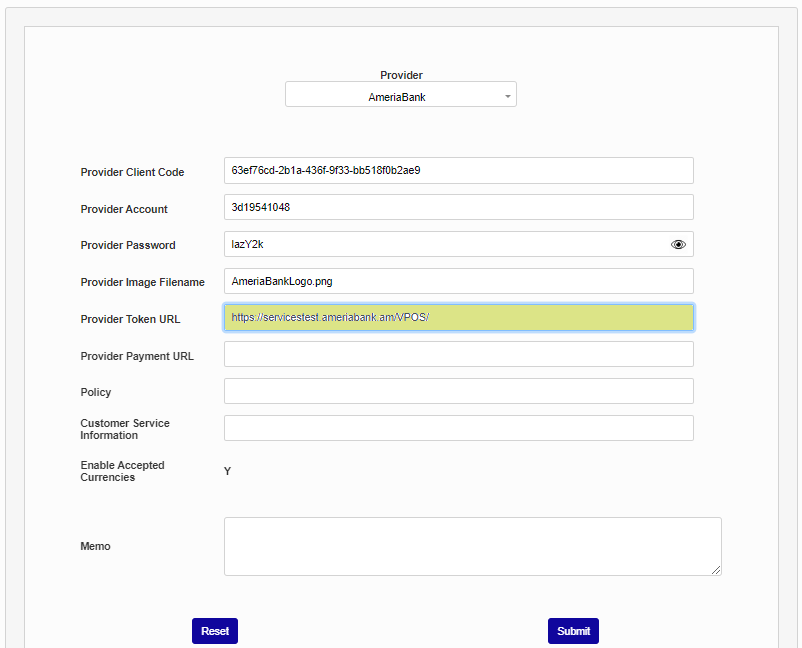
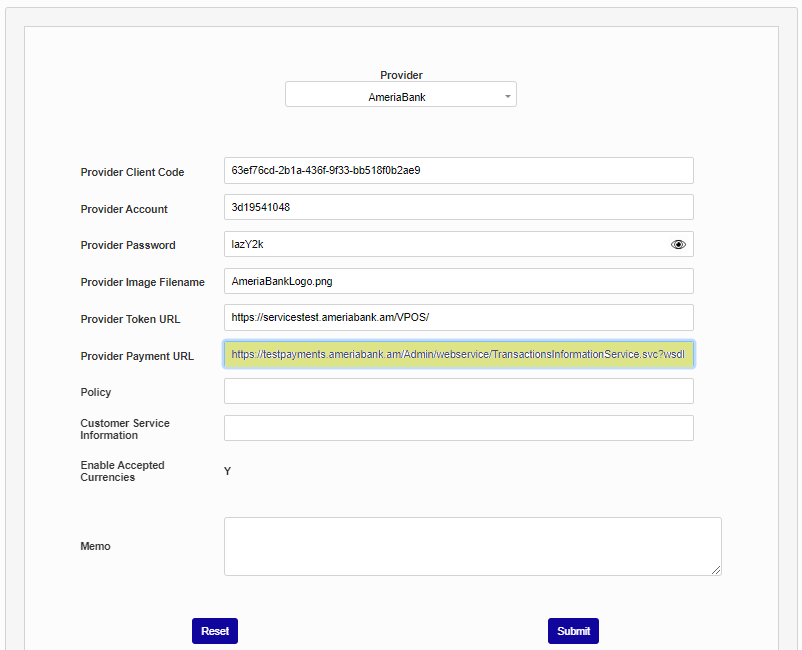
Enter the Provider Image Filename, Provider Token URL and Provider Payment URL as provided by AmeriaBank.
The Policy field is provided to display instructions to those who are making a payment. This field accepts up to 165 alphanumeric characters. Enter a policy statement and then enter a Customer Service Information statement directing users how to proceed if assistance is needed. This field accepts up to 165 alphanumeric characters and symbols.
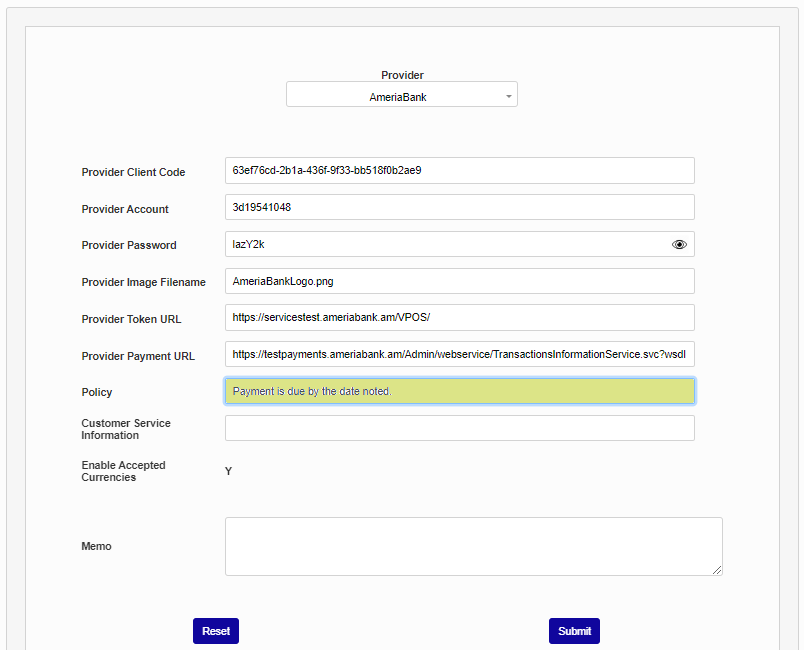
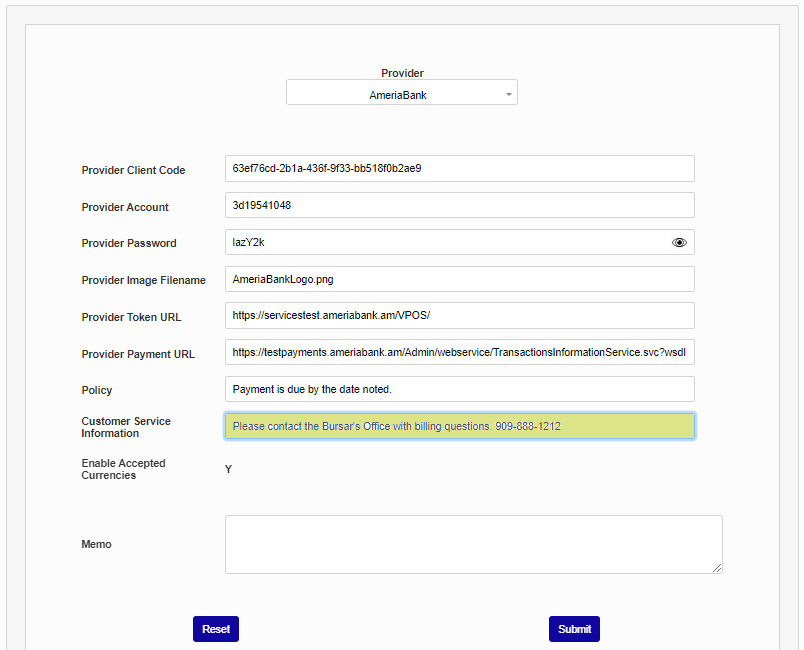
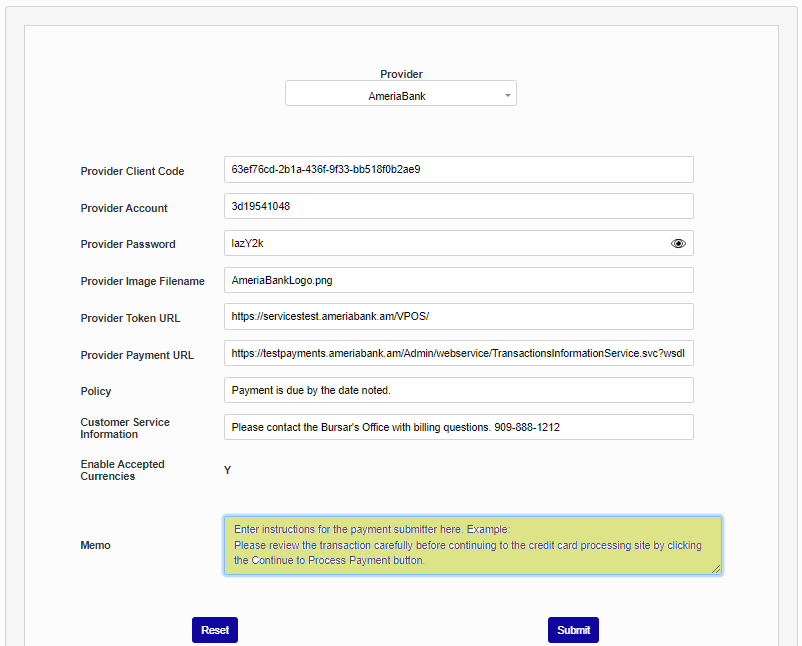
Enter any other details desired in the Memo field. This field is for instructions and will be displayed to users. Click Submit to save the entered information.
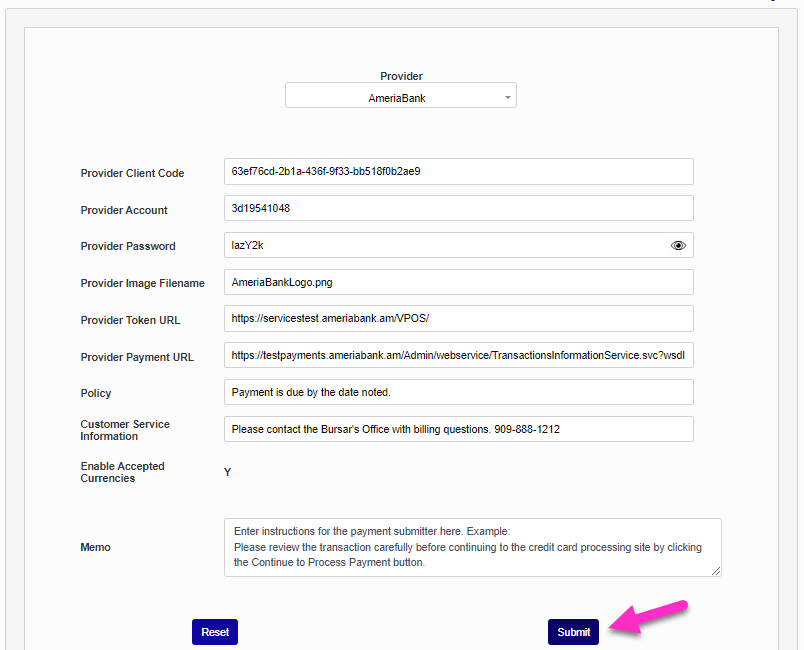
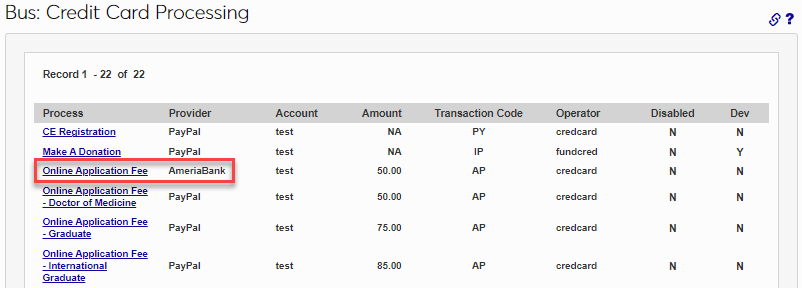
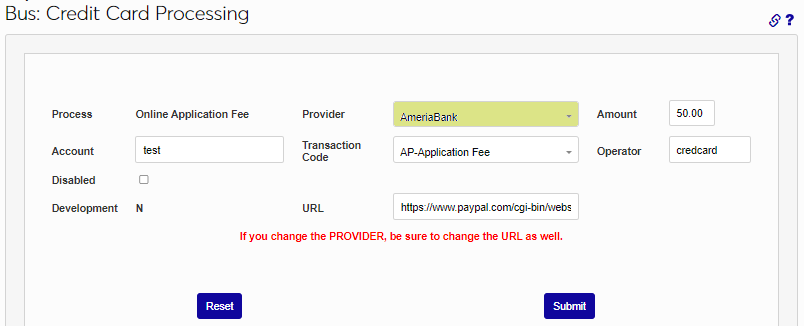
Next, got to the Locale table to add any appropriate currency types. Then, visit Business: Credit Card Processing in the Systems hub and ensure all payment process types that will be accepted through AmeriaBank have been set up appropriately. As an example, the Online Application Fee has been configured to allow AmeriaBank payments via the Provider Payment URL as provided by AmeriaBank and entered in Business: Provider Accounts Setup.
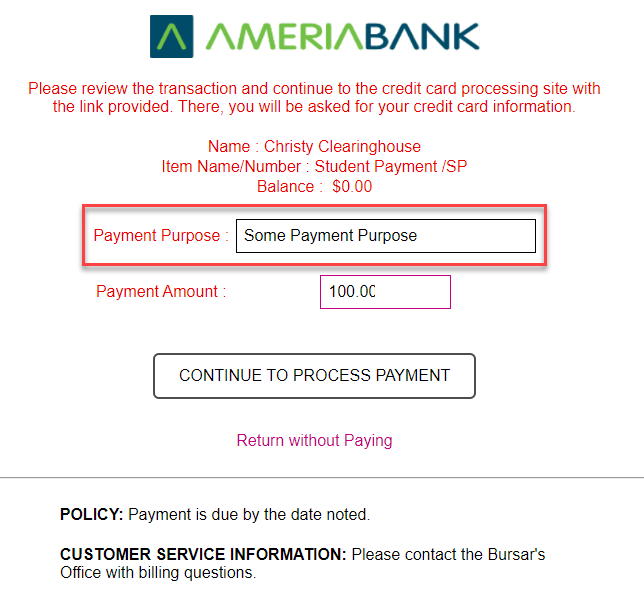
When a user follows the URL to make a payment, via the payment link within SONIS on a student's Billing History or via a link provided through the portal or an email, a confirmation page will display, showing the AmeriaBank connection is loading. Then, an AmeriaBank payment screen will display, with details about the student and the account balance. A Payment Purpose and Payment Amount must be entered; then the user will click Continue to Process Payment.
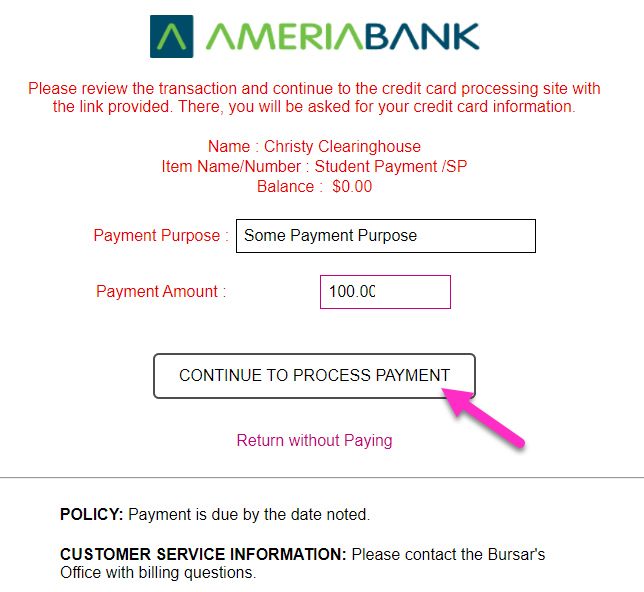
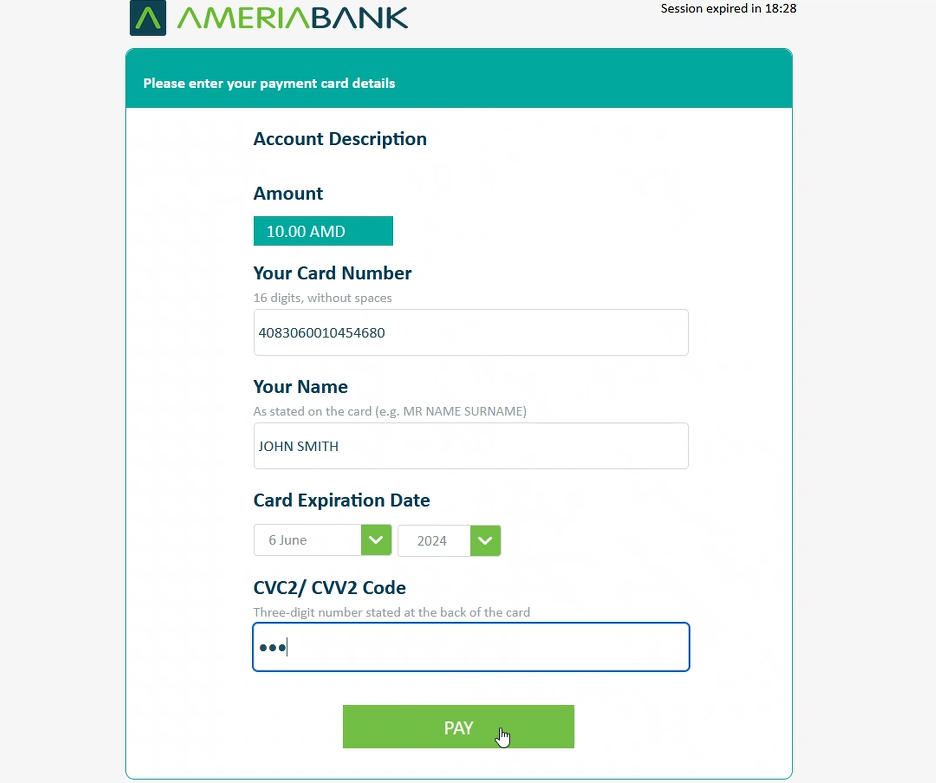
After continuing, the payment screen displays the amount being paid and automatically populates any credit card number and name previously used by the payee.
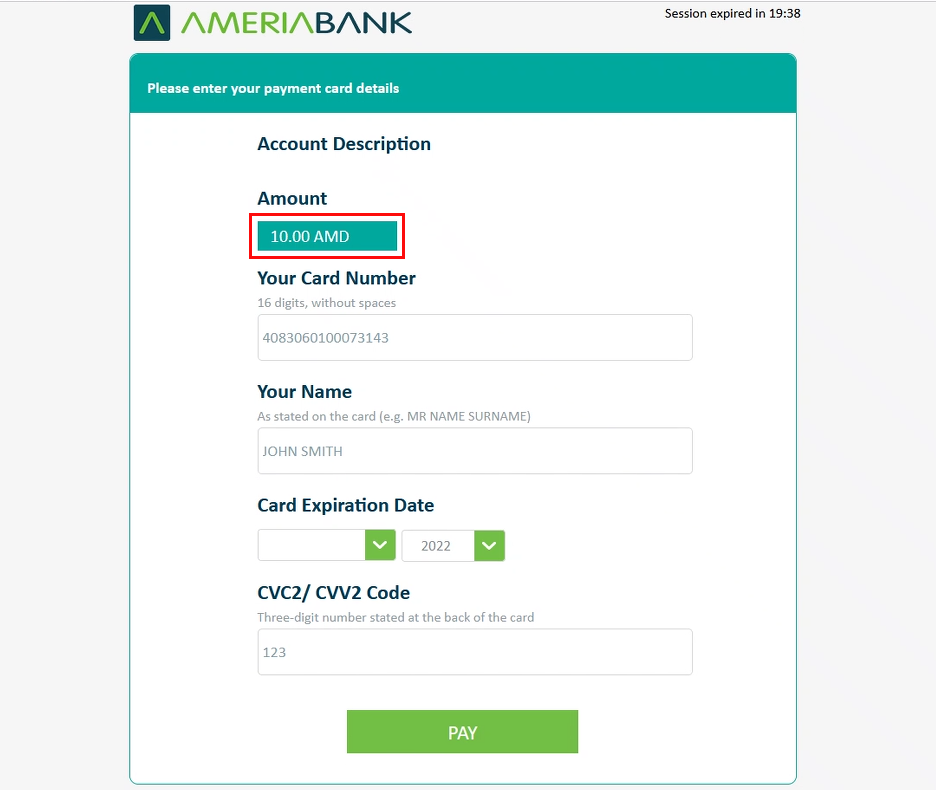
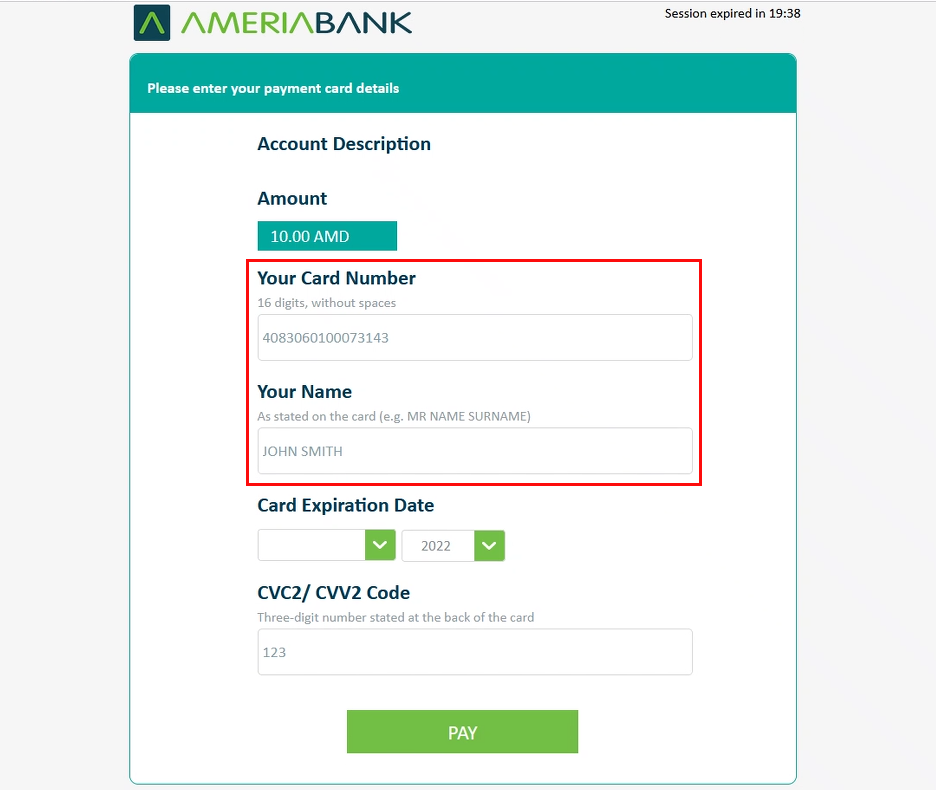
The credit card expiration date and CVV2 code must be entered, then click pay. After clicking pay, a confirmation screen is displayed with a transaction ID confirmation number.
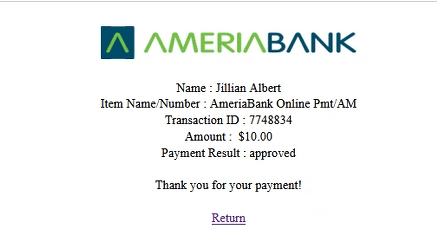
After making a payment, the Billing History page will display the amount paid, source, and date. The payment authorization code will be received from AmeriaBank and saved in a separate field and will display on the Transaction Register Report.