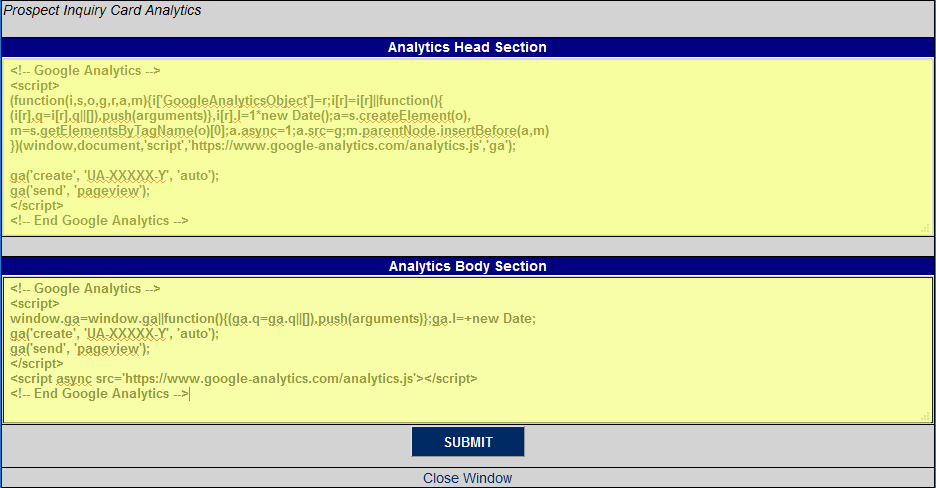
Analytics in Online Application & Prospect Web Inquiry Card
Overview
Many Jenzabar SONIS member institutions use analytics tracking on their websites to track page views and collect data like the referral page. These same analytics tools can be used to acquire data from the SONIS Online Application and Prospect Web Inquiry Card. Customers wishing to use these tools should first create an account with Google, Facebook, or another analytics provider. This third party company will provide the analytics code needed for data collection.
Note
If two single quotes (apostrophes for non-programmers) appear side-by-side in the analytics code, the code must be edited to function properly. For example, if the following exists: ’’ (two single quotes), then only one single quote will appear: ’. In order for two single quotes to appear side-by-side, the number of single quotes must be doubled. For example, in order for ’’ to appear in the code, the administrator must enter ’’’’.
The same does not hold true for words surrounded by single quotes. For example, if the code says: ‘datalayer’, the text ‘datalayer’ will appear without changes
Setup
Once the analytics code has been acquired, an administrator must enter that code into SONIS so it can be added to the appropriate page. Some analytics trackers require code in the page header online while other trackers such as Google require code in both the header and the body of the page.
Online Application Start Page
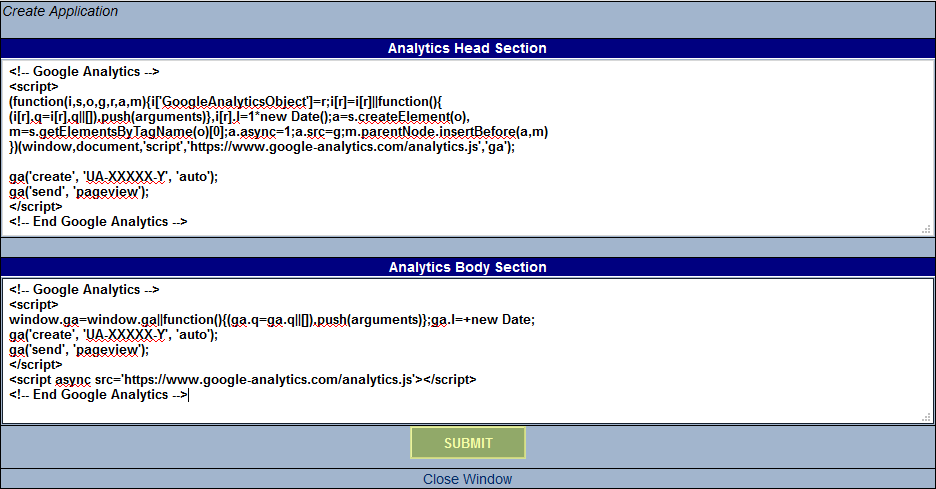
To add analytics to the Create Application page, navigate to the Online Application Setup utility in the Systems hub and click the Analytics Section link.

A new window will pop up. Enter the analytics tracking code into the Head Section and/or Body Section and click Submit to save the page.
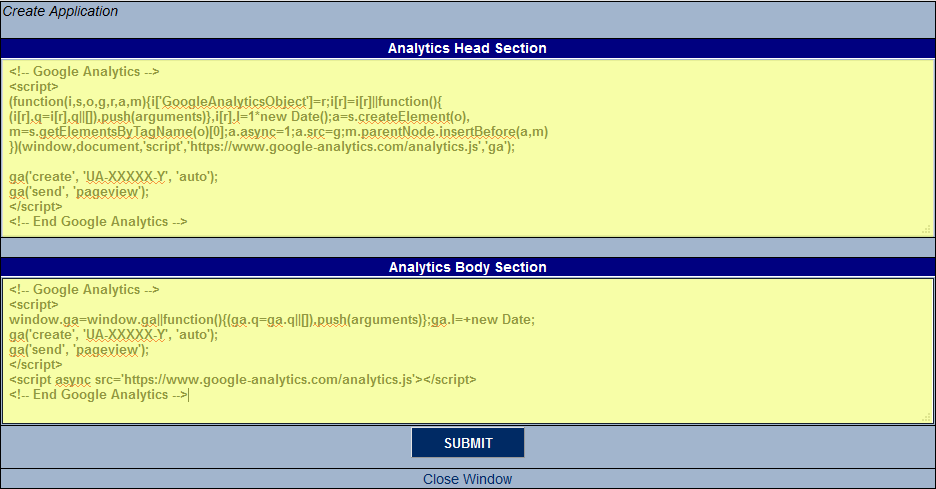
See Online Application Setup for more details.
OA Page List
In addition to the start page of the Online Application, analytics tracking code can be added to individual pages of the application. This can be useful to see how far applicants are getting when they start an application. To add the tracking code to an individual page or pages, navigate to the Online Application Setup utility and select the OA Page List. Click on the Analytics Section link for each page that should have the tracking code.
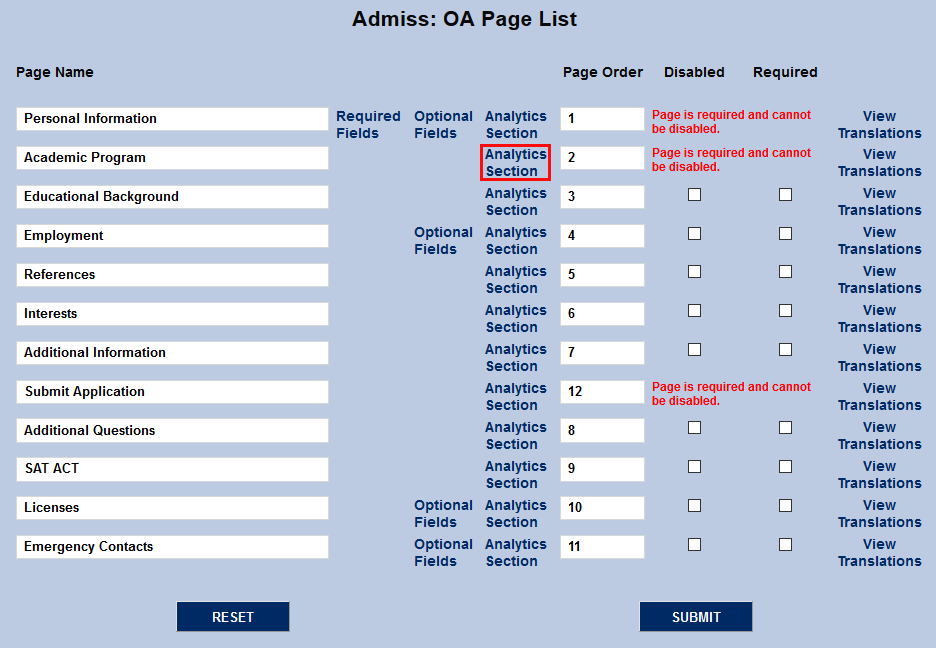
A new window will pop up. Enter the analytics tracking code into the Head Section and/or Body Section and click Submit to save the page.
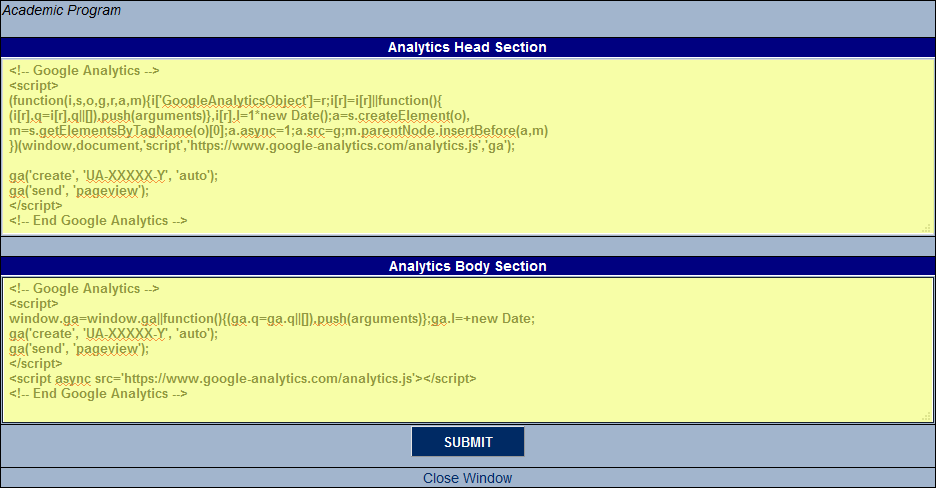
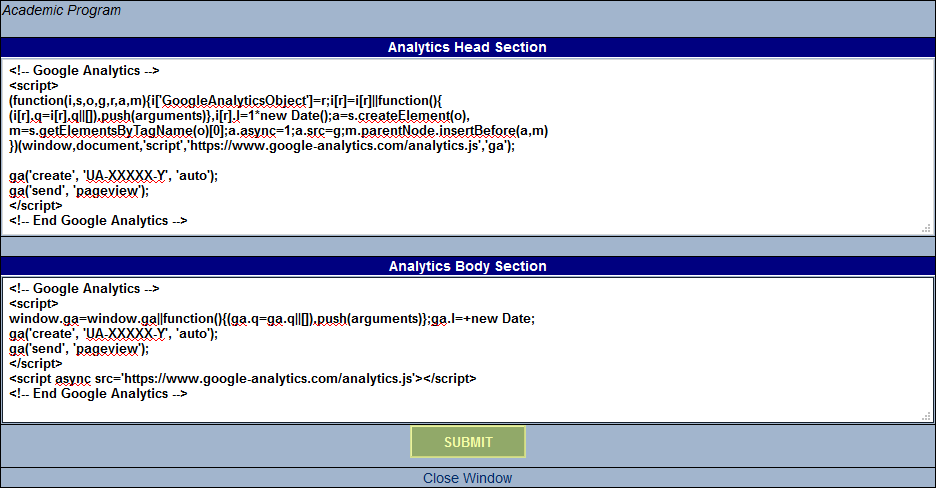
The process can be repeated for every page of the application or schools can choose to only track certain pages. See Online Application Setup for more details.
Prospect Inquiry Card
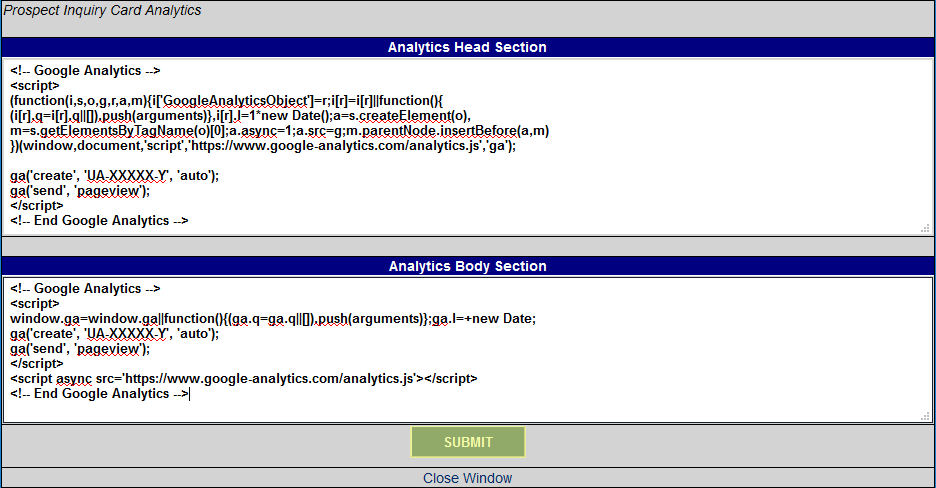
Analytics tracking code can also be added to the Prospect Web Inquiry card for additional analytics data. To add code to this page, navigate to the Prospect Web Inquiry Utility in the Systems hub. Scroll to the bottom of the page and click the Analytics Section link.
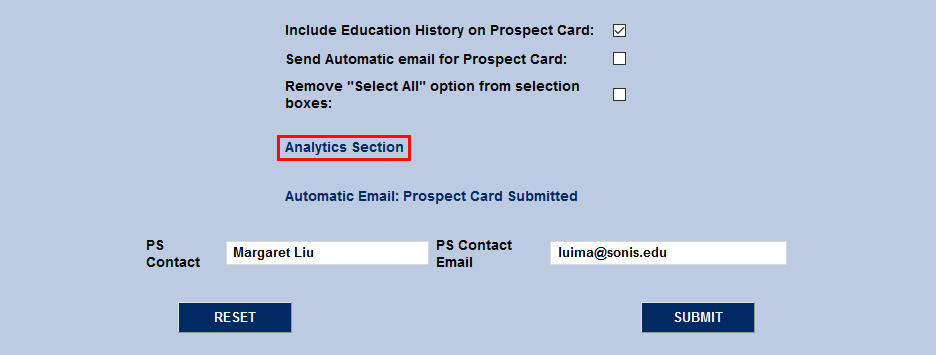
A new window will pop up. Enter analytics tracking code in the Head Section and/or Body Section and click Submit to save the changes and update the inquiry card.