Programs
Overview
The Programs table is used to add programs of study to the Jenzabar SONIS system. Once programs are added, they appear all over the SONIS system in various menus, including but not limited to the Education and Programs pages and the Online Application. In addition to the name of the program, the table holds the Program Hours, the Program Type, the PowerFAIDS Program Code for institutions who utilize PowerFAIDS or PowerFAIDS Cloud, and the CIP Code for National Student Clearinghouse reporting. Many other fields exist within this table as well, some of which are important to third party integrations.
Creating a New Program
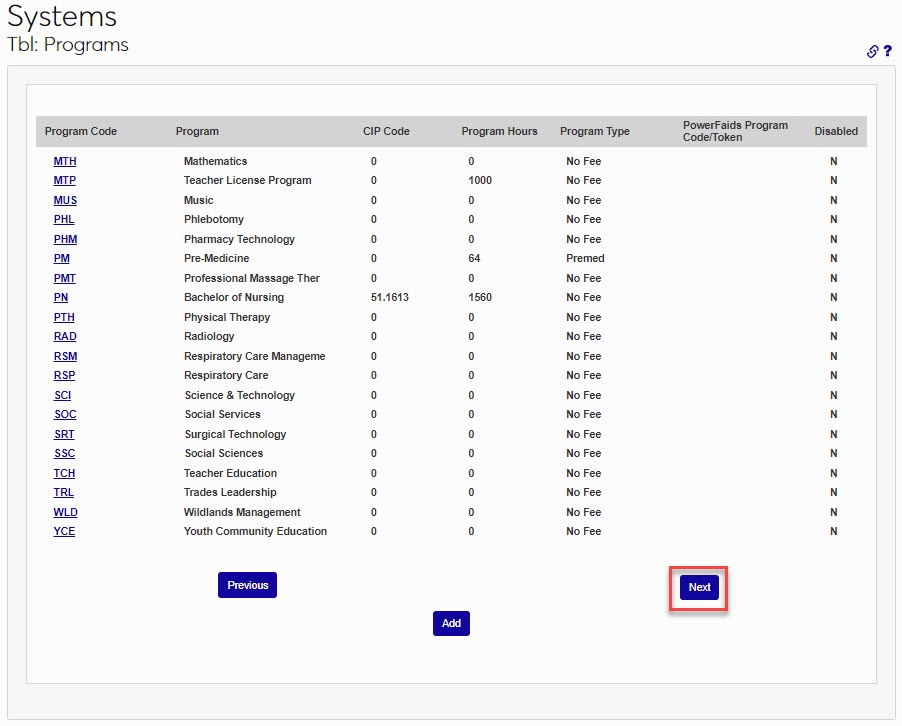
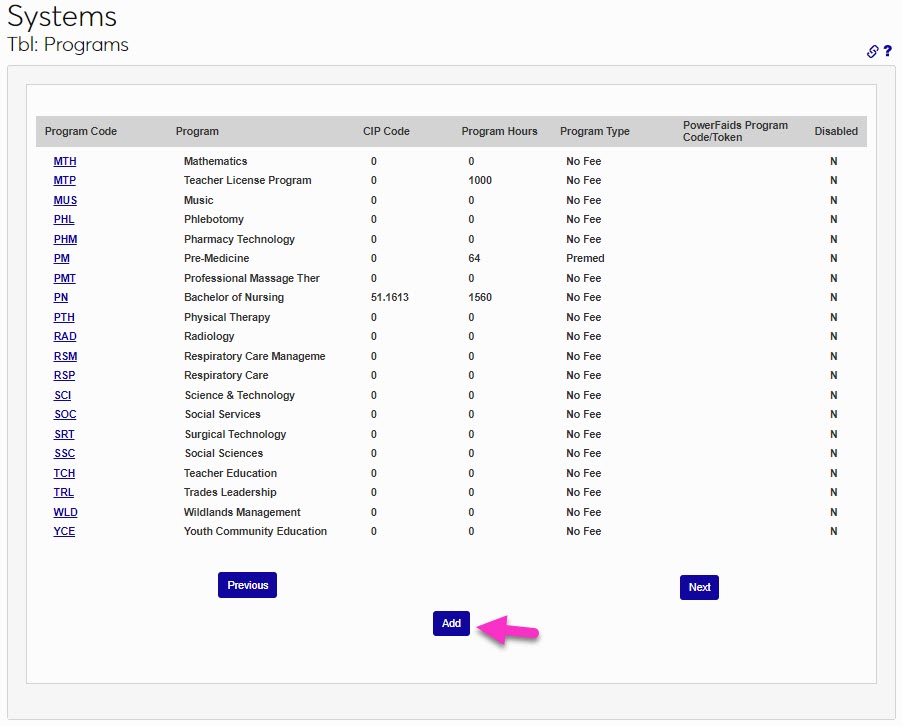
To create a new program, enter the Tbl: Programs page from the Systems hub, and confirm that the program and/or the desired program code is not in use. If a Next button displays, click it to view more programs. Scroll to the bottom of the page, and click Add to begin adding a program.
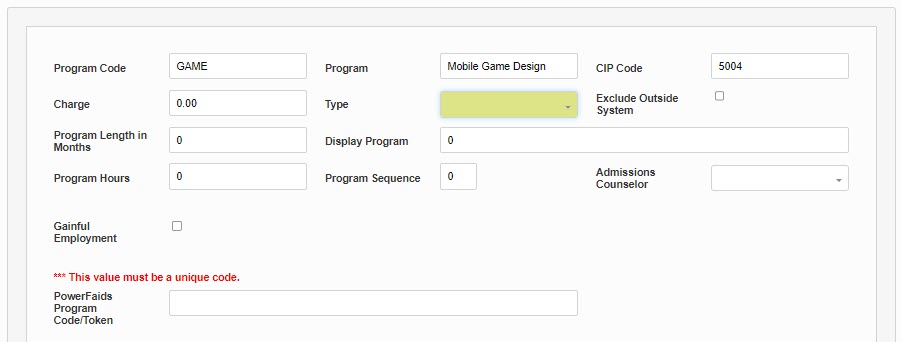
Enter a code for the program in the Program Code field. This field accepts up to 10 alphanumeric characters. Use care when choosing the code as it cannot be edited once it has been saved. Enter the program name in the Program field. This field accepts up to 40 alphanumeric characters.
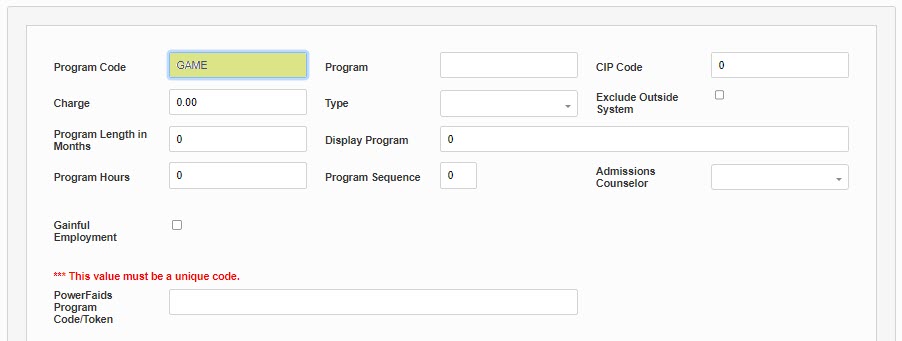
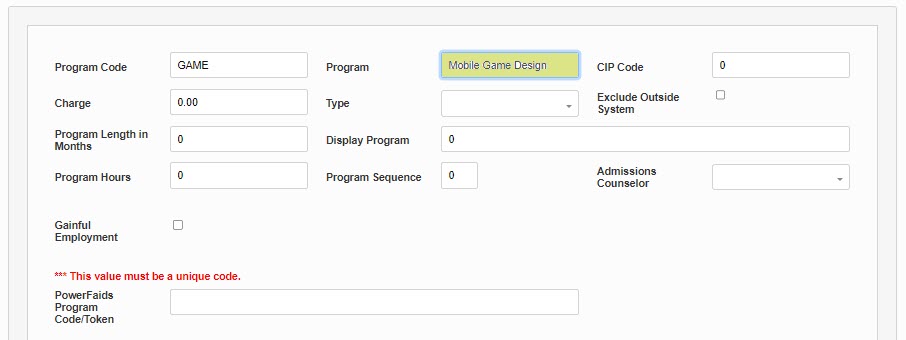
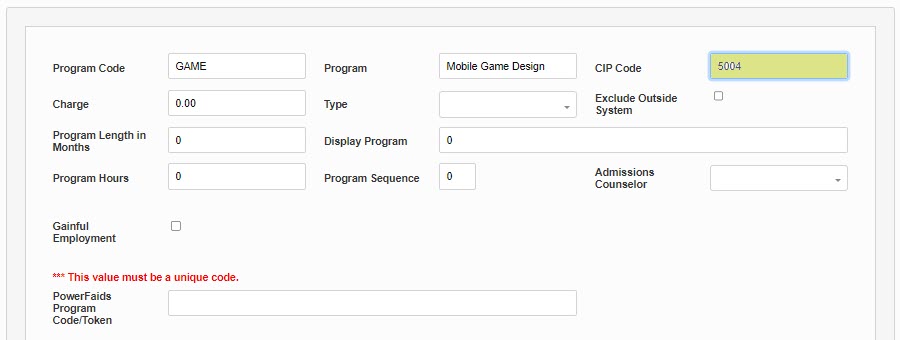
Enter the CIP Code for the program. Do not include the decimal point. Appropriately entering the CIP Code is critical for accurate Clearinghouse and Federal Student Aid reporting. If the program has a charge associated that is unique to it, enter the amount in the Charge field. If it does not, leave this field blank.
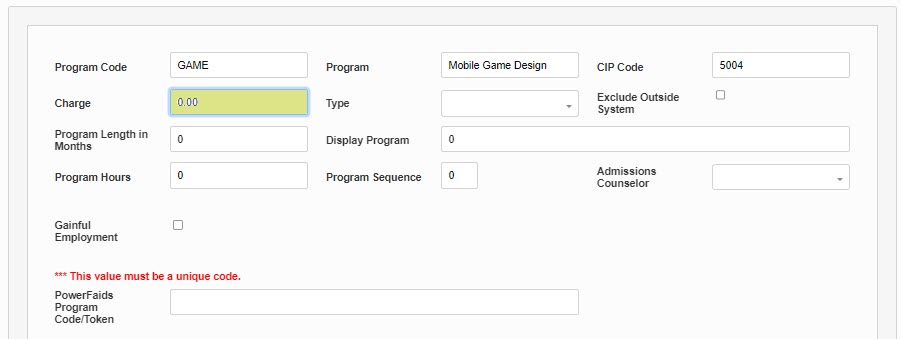
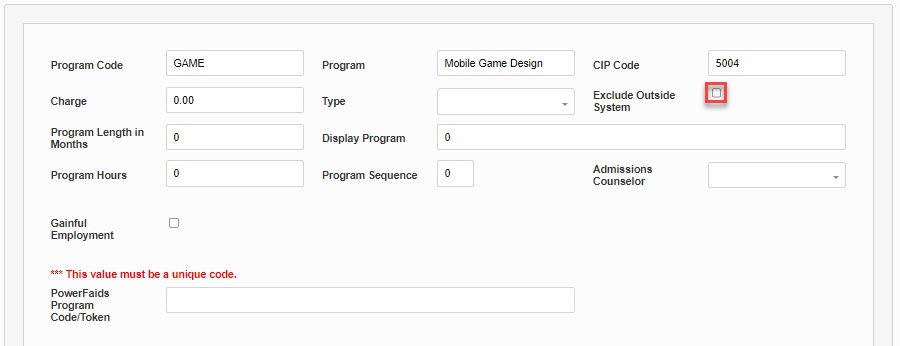
If a Program Type fee will be assessed, select the appropriate fee from the Type dropdown menu. If the program should not be viewed in the Online Application or Prospect Inquiry, click Exclude Outside System.
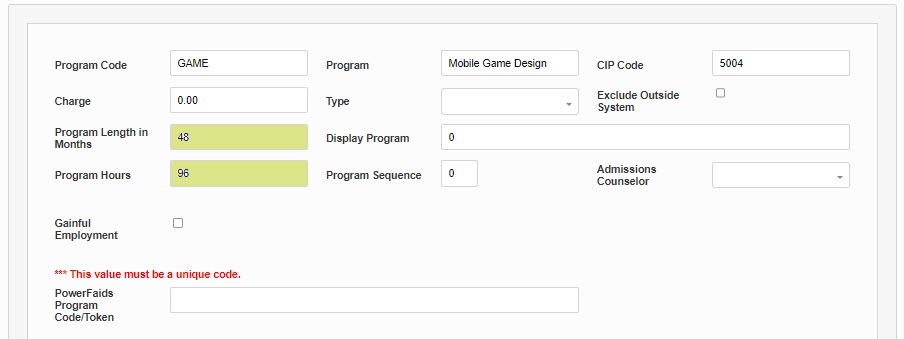
Enter the Program Length in Months and Program Hours.
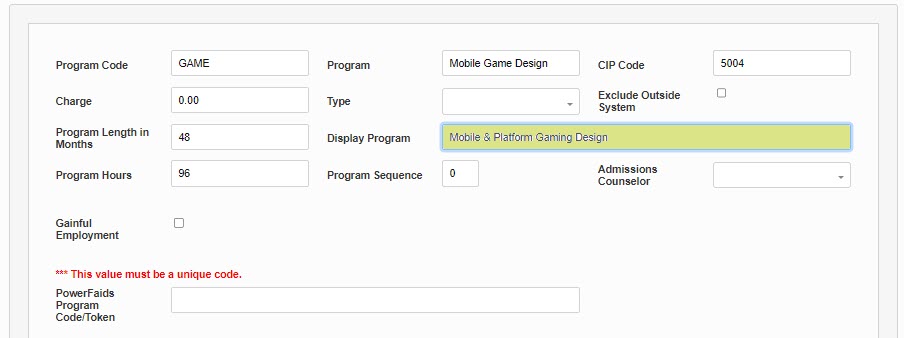
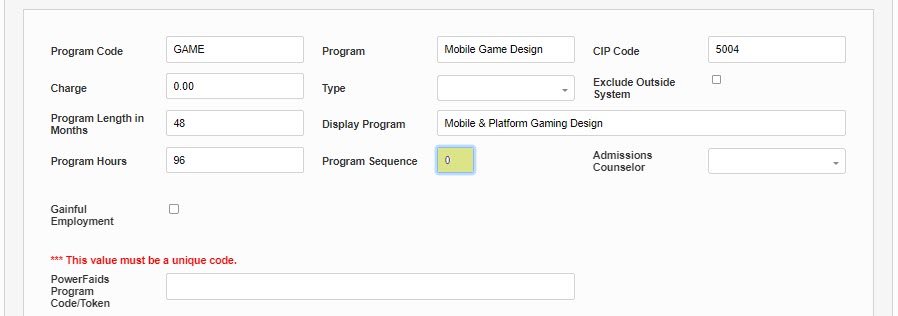
An alternate name can be entered in the Display Program field. If a name is entered here, this name is what will be displayed in the Online Application on the Academic Program page and custom transcripts. If the multi-language functionality is enabled at the institution, the alternate name will not display. If this program must be taken in sequence with another, enter the sequence number in the Program Sequence field. Leave a zero if no sequence is applicable; this field cannot be left blank.
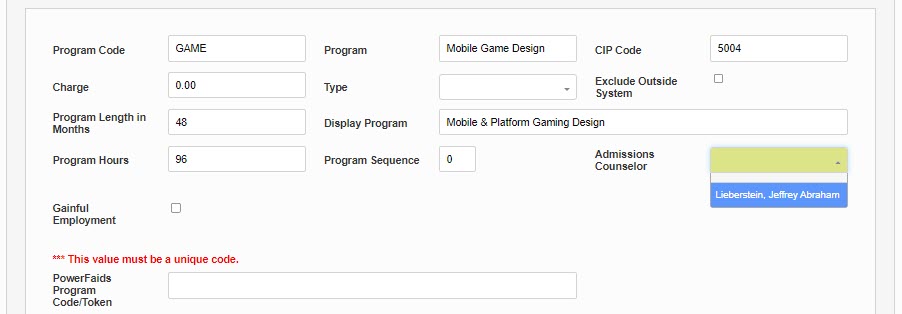
If an Admissions Counselor will be assigned to the program, select the name from the drop down.
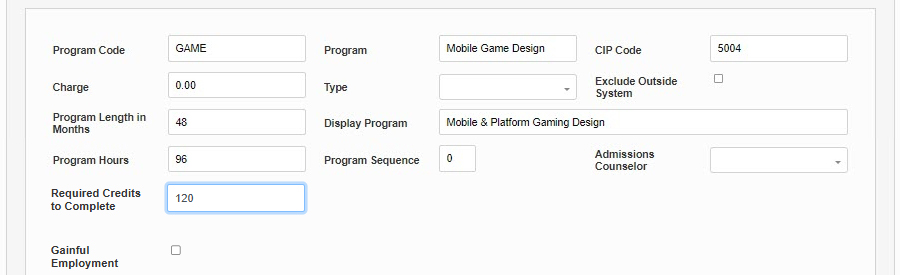
The optional Required Credits to Complete field is used to create the Anticipated Graduates Credits Comparison Report. This number should be the total number of hours required to graduate with a degree in this program.
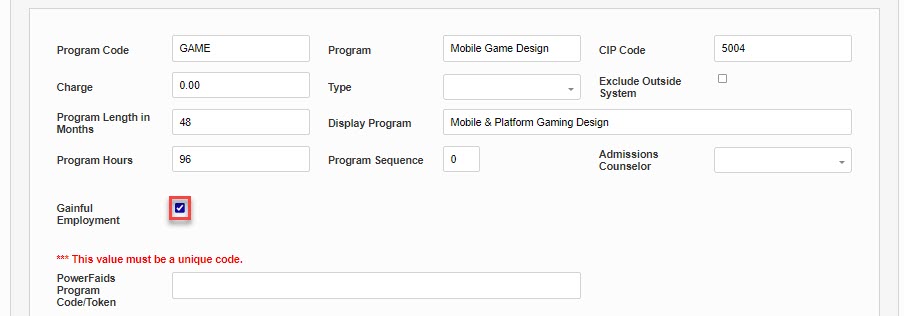
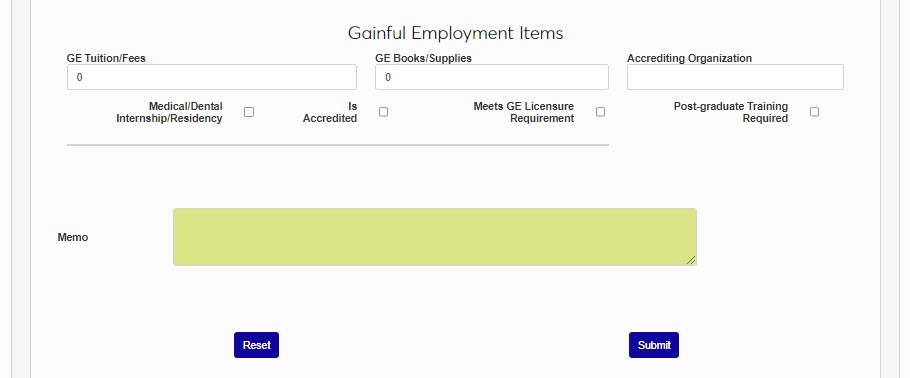
If the program will be included in Gainful Employment reporting, check this box. See the section below for more information on Gainful Employment reporting.
Enter the PowerFAIDS Program Code. This is called the Program Token in PowerFAIDS. The code should be entered for every financial aid eligible program. To enter the token, click in the field and type or paste it in.
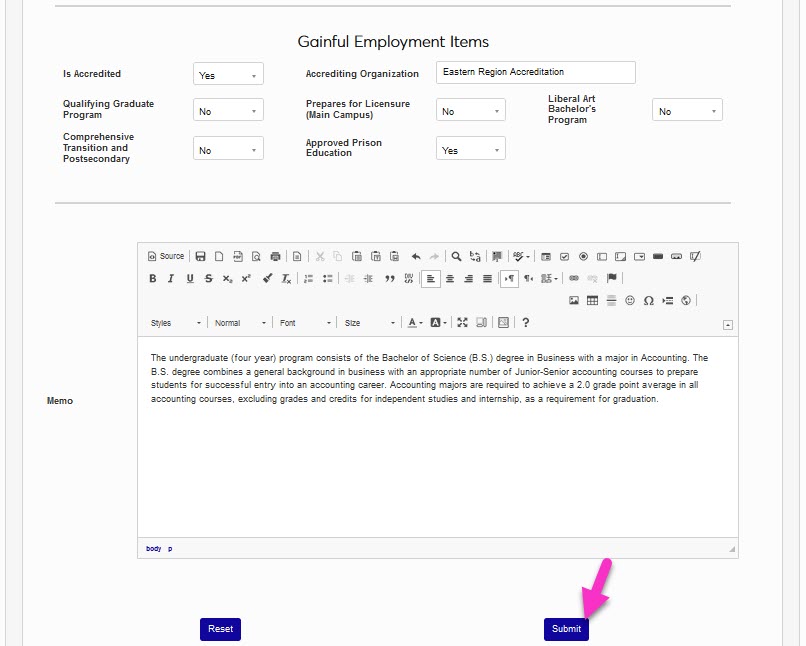
Enter a Memo, if desired. The memo field is for internal record-keeping and will not display to users outside of this page. Click Submit to save the entered information.
Clearinghouse Items
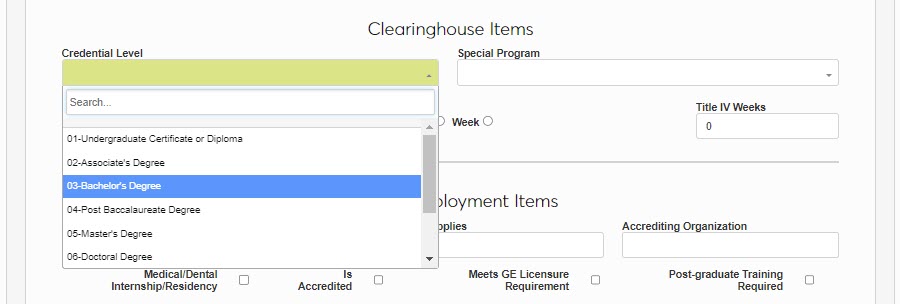
The settings in this area are used in Clearinghouse reporting. Select the Credential Level from the dropdown menu. If the program is considered a special program, select the applicable type from the Special Program dropdown.
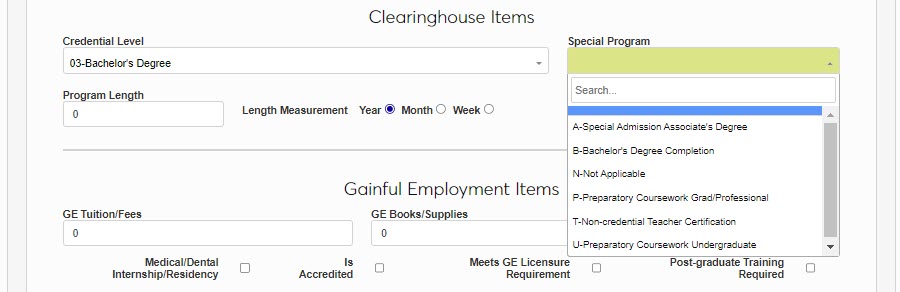
Enter the Program Length that will be reported to the Clearinghouse and select the appropriate radio button for the Length Measurement of the program.


Enter the number of Title IV Weeks that will be reported for the program.

Gainful Employment Items
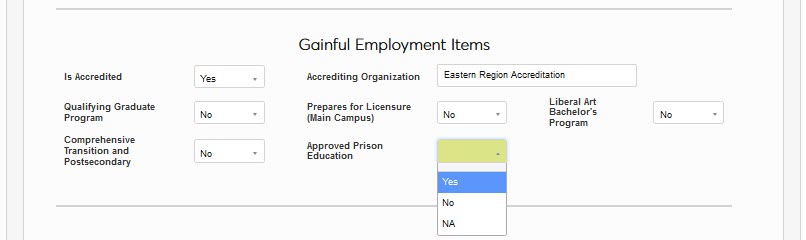
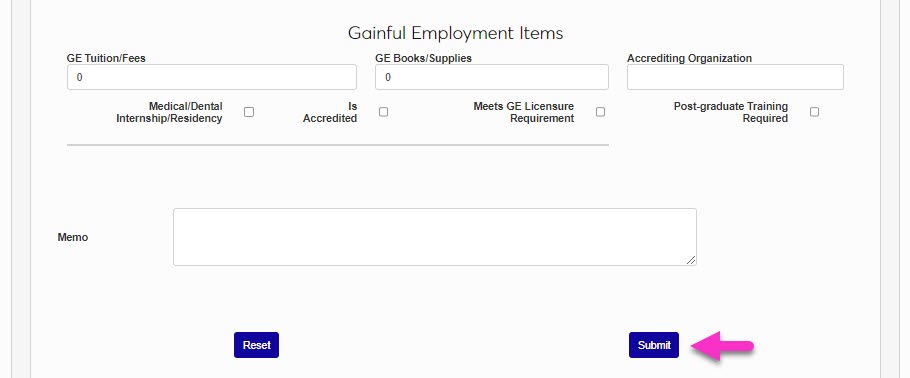
If the Gainful Employment box is checked, the Gainful Employment Items section must be completed and configured correctly for a program to be correctly calculated and reported on in Gainful Employment Imports and Gainful Employment Exports.
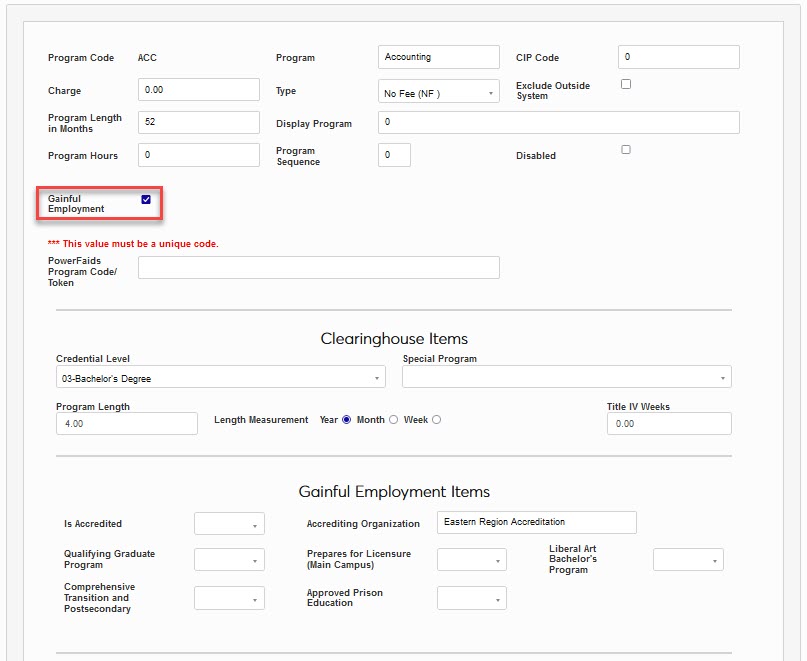
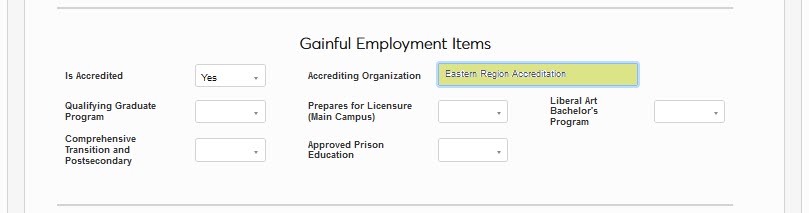
If the program being defined Is Accredited separately from the institution, select Yes and enter the name of the organization that accredits this program in the Accrediting Organization field.
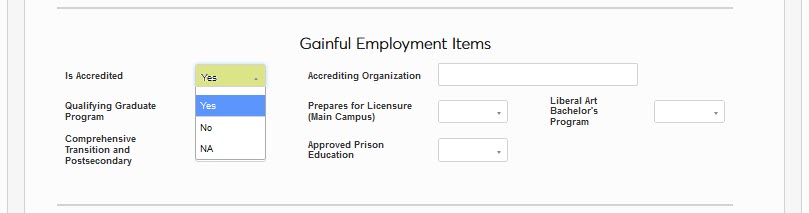
A Qualifying Graduate Program is a program offered by your institution where the program’s students:
must complete the required postgraduation training programs, and
must obtain licensure in one of the following fields: medicine, osteopathy, dentistry, clinical psychology, marriage and family counseling, clinical social work, and clinical counseling, and
if licensure is necessary, that the program is accredited by an accrediting agency that meets state requirements, and
At least half (50%) of the program’s graduates obtain licensure in a state where the postgraduation training requirements apply.
If the program meets the criteria above, select Yes from the Qualifying Graduate Program menu. If the program Prepares for Licensure, select Yes from the dropdown.
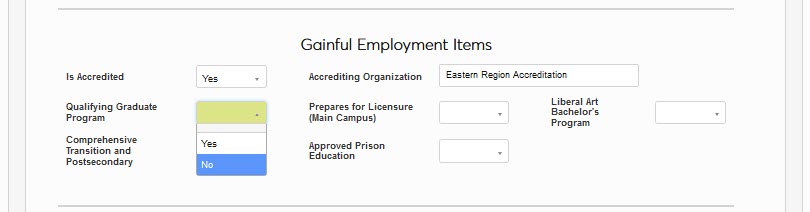
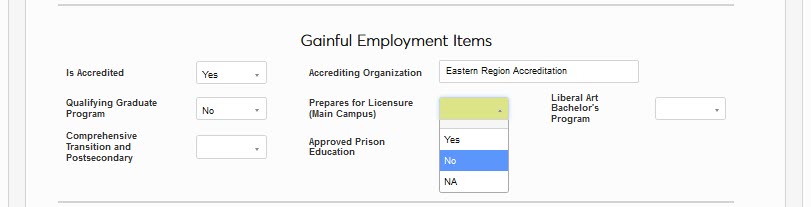
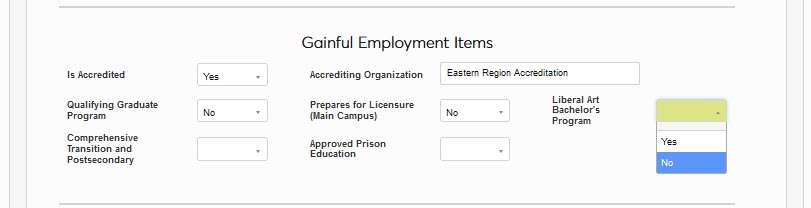
If the program is a Liberal Arts Bachelor's Program, select Yes. If this is classified as a Comprehensive Transition & Postsecondary (CTP) program, select Yes.
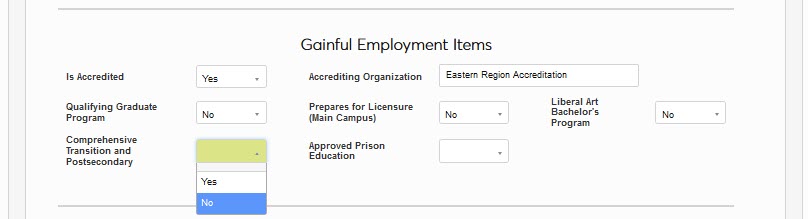
If the program is an Approved Prison Education program, select Yes. After making all necessary updates, click Submit.